


Apple’s Shortcuts app is getting a change that lowers the barrier to building automations. Instead of stacking actions by hand, you can write what you want in plain English and let Apple Intelligence assemble the shortcut for you. The capability is part of the upcoming iOS 27 release.
Quick answer: In iOS 27, open Shortcuts, type a description of the automation you want, and Apple Intelligence builds the workflow in the background, ready to run.
What natural language Shortcuts creation does
Building a shortcut has traditionally meant constructing a workflow one action at a time. You search for each action, drop it into the right order, and wire variables between steps. That process kept the feature mostly in the hands of technically minded users who had the patience to learn it.
The new approach removes that manual assembly. You describe the result you want in everyday language, and Apple Intelligence handles the construction. The shortcut is created for you rather than pieced together by you.
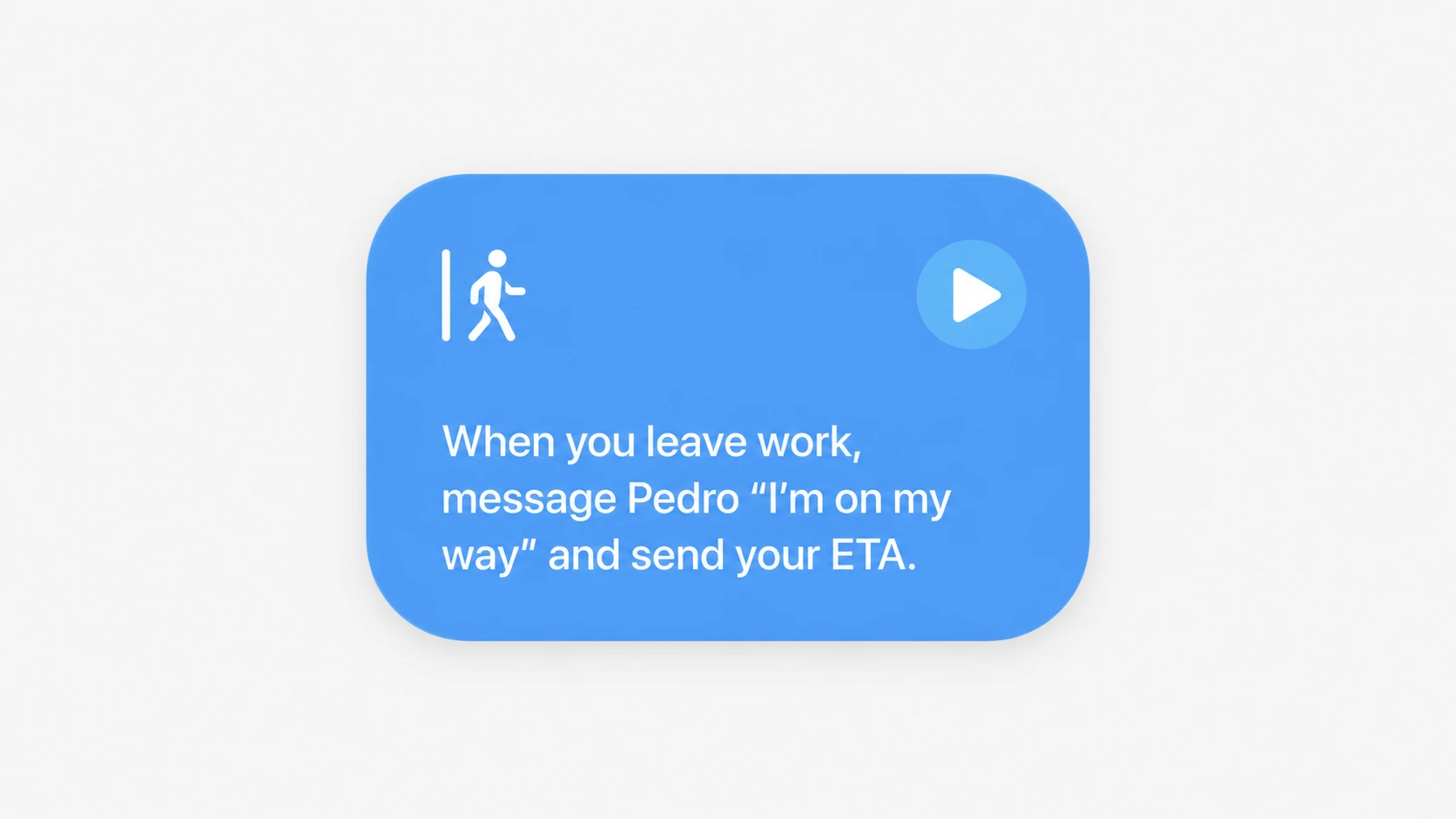
Example: an automatic ETA shortcut
Apple showed the feature with a practical case. A user asks Shortcuts to send their estimated time of arrival to a chosen recipient whenever they leave home. Apple Intelligence calculates the ETA from the user’s location and sends the correct time, without any manual setup of the underlying actions.
The point of the example is that a single plain-English request produces a working automation that combines location, timing, and messaging. You do not configure each part yourself.
Availability and what to expect
The natural language creation feature is tied to iOS 27 and relies on Apple Intelligence. Apple Intelligence is not available on every iPhone model or in every language and region, so access depends on having a supported device with the feature turned on.
Note: Generative output can vary, so it is worth reviewing a generated shortcut before relying on it for important tasks.
Using Apple Intelligence in Shortcuts today
Even before the fully automatic builder arrives, Shortcuts already includes Apple Intelligence actions you can drop into a workflow. The Use Model action lets a shortcut summarize text, create images, or send a prompt to a model and feed the response into later steps. You can find ready-made examples in the Apple Intelligence category of the Shortcuts Gallery, and Apple documents the workflow in its support guide for using Apple Intelligence in Shortcuts.
The Use Model action offers three model choices, which sets the foundation for what the natural language builder automates on your behalf.
| Model | How it handles requests |
|---|---|
| On-Device | Processes simple requests locally, without a network connection. |
| Private Cloud Compute | Handles complex requests on Apple’s servers while protecting privacy. |
| Extension Model | Uses ChatGPT to handle the request. |
You can also set how the model’s response is passed along. Tap the Output menu on the Use Model action to control how the result feeds the next step, and turn on Follow Up if you want to review and refine the response before the shortcut continues.
Taken together, the new natural language builder turns Shortcuts from a tool you configure into one you can simply describe. For anyone who found the manual workflow editor too fiddly, writing a sentence and getting a finished automation is a meaningful shift in how the app works.