When a Steam game starts crashing, freezing, or refusing to launch, one of the most effective low-effort fixes is Steam’s built‑in file check: “Verify integrity of game files.” It compares your local install to the current version on Steam’s servers and repairs anything that doesn’t match.
What “Verify integrity of game files” actually does
Steam maintains a record of every file it installs for a game. The verify action goes through those files on your drive and compares them to Steam’s reference copies. For each file Steam installed, it checks whether:
- The file exists
- The file size and contents match what Steam expects
If a file is missing or different, Steam deletes the broken copy and re-downloads a clean version. Files that were never installed by Steam in the first place (for example, many mod files) are ignored.
| File type | How Steam treats it during verify |
|---|---|
| Original game files downloaded by Steam | Checked; mismatches are replaced with fresh copies |
| Files the developer marked as user‑modifiable | Typically skipped or left alone |
| Extra files added by mods or tools | Ignored; Steam does not remove them |
This makes verify useful for undoing mods that overwrite official files, repairing incomplete patches, and fixing corrupted installs without reinstalling the entire game.
How to verify game files for a single game on Steam
The option is buried in each game’s properties menu. The current desktop Steam client uses an “Installed Files” or “Local Files” section depending on UI wording.
| Step | Action in Steam client |
|---|---|
| 1 | Open the Steam desktop app and go to your Library. |
| 2 | Find the game in the left list, then right‑click its name. |
| 3 | Select Properties… from the context menu. |
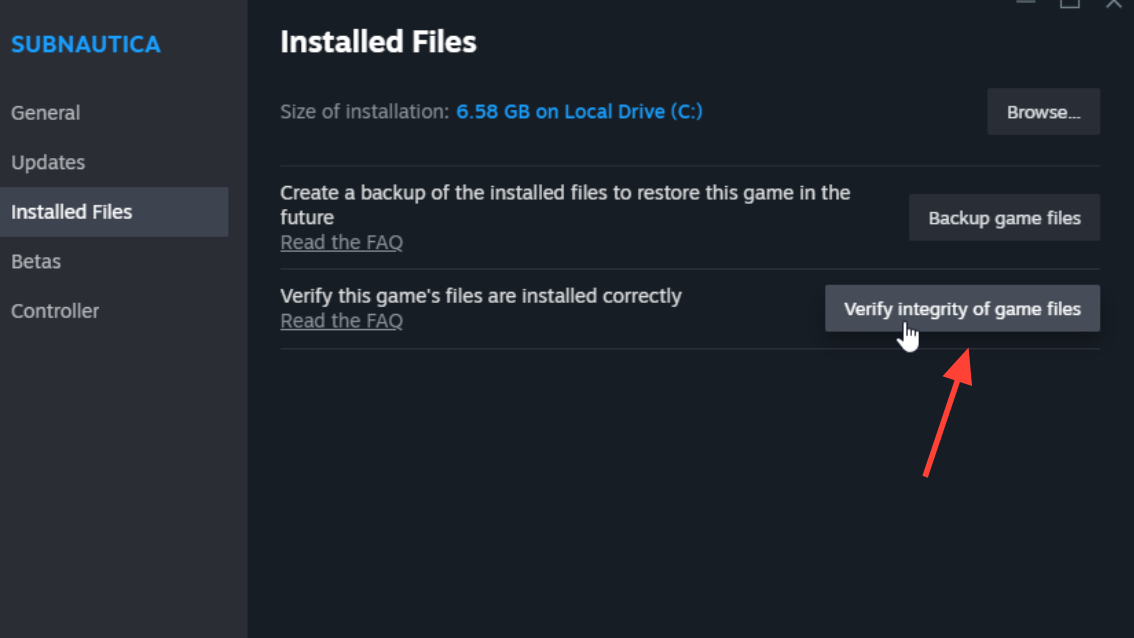
| 4 | In the sidebar of the Properties window, click Installed Files or Local Files. |
| 5 | Click Verify integrity of game files. |
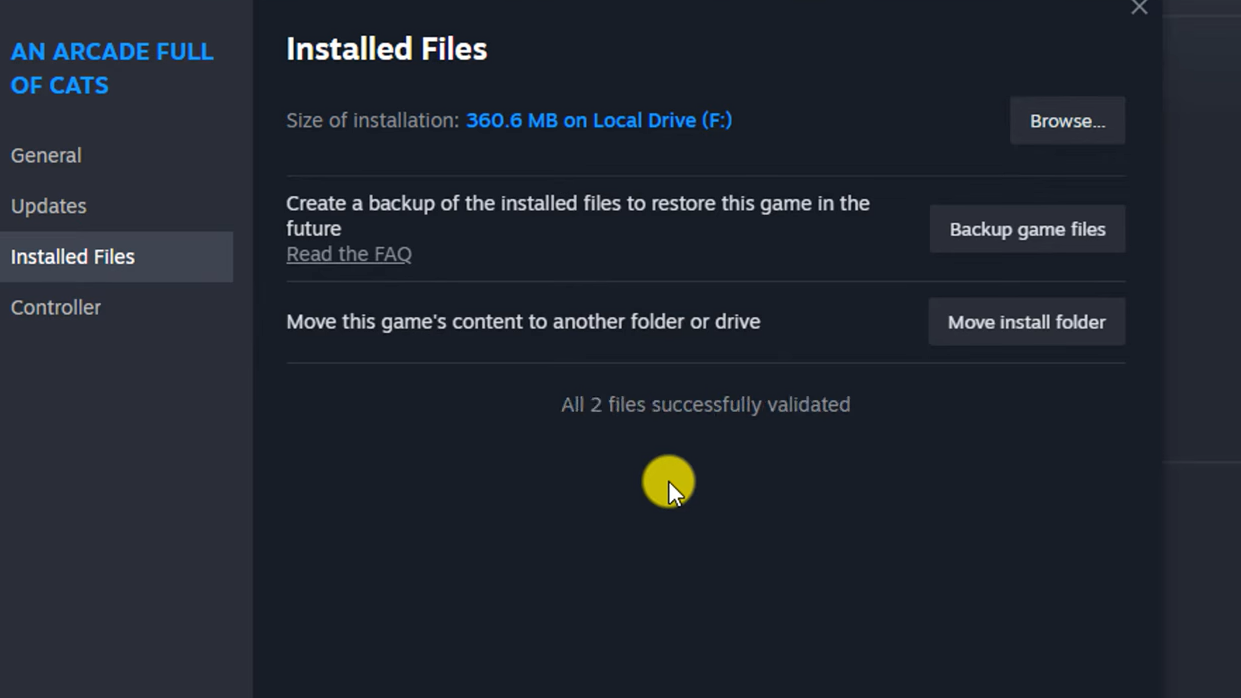
Steam then starts scanning. A progress bar appears, and at the end, you’ll see a summary such as “X files successfully validated.” If damaged or missing files are found, Steam automatically re-downloads them.
Verification time depends on the game’s size and your drive speed. Small indie titles can finish in under a minute; large open‑world games can take several minutes.
When to run a Steam file verification
Verification is most useful when the game:
- Crashes frequently or freezes during loading
- Stutters badly after a patch or hotfix
- Shows missing textures, models, or audio
- Stops launching entirely without a clear error
It is also worth running after:
- A failed or interrupted game update
- Manually copying game folders between drives
- Installing or removing mods that overwrite base game files
File verification is not a cure‑all. If it finds and fixes a few files but crashes continue, the underlying problem can be elsewhere: drivers, overclocking, background software, game bugs, or a corrupted configuration in your user folder.
How Steam verification interacts with mods
Whether verification affects mods depends on how the mods are installed:
| Mod type | Impact of “Verify integrity of game files” |
|---|---|
| Mods that overwrite core game files (e.g., replacing .exe or data files) | Replaced with clean official versions; the mod’s changes are removed from those files. |
| Mods that add new files in separate folders | Typically untouched, because Steam only checks its own installed files. |
| Workshop mods managed by Steam | Managed separately through Workshop; verify targets base install, not necessarily each workshop file. |
| Save files using modded content | Not changed by verify; saves can remain tied to mods and may break if required mods are gone. |
For games heavily integrated with mods, verification can restore the “vanilla” install but still leave extra mod folders in place. If you want a completely clean install, uninstall the game from Steam, delete its leftover install folder under steamapps\common, then reinstall.
Why some support teams recommend disabling antivirus first
Some support teams advise temporarily disabling third‑party antivirus while verifying or installing on Steam. The goal is to prevent antivirus software from falsely flagging legitimate game files, which can cause install errors or repeated corruption during repair.
Valve maintains a support article on working around antivirus interference at the main Steam Help site. If you follow that advice, make sure to:
- Disconnect from sensitive accounts or websites while protection is reduced
- Re‑enable your antivirus as soon as Steam finishes verifying and downloading files
Can you verify every Steam game at once?
Steam’s desktop client only exposes verification on a per‑game basis. There is no official button to validate your entire library in one click. For most people, that limitation is acceptable; you run verification only when a specific game misbehaves.
Advanced users sometimes automate bulk checks using SteamCMD and scripts, but that requires manual scripting, handling app IDs, and careful control over install paths. For typical troubleshooting, it’s simpler and safer to:
- Run verification on the one game that is broken
- Reinstall that game if verification keeps finding new issues
What to expect after verifying game files
Once verification completes, one of three things usually happens:
- No issues found: Steam reports that all files are valid and downloads nothing. Your problem likely lies elsewhere.
- Some files fixed, game now stable: Crashes or glitches disappear. This outcome is common after patch problems or interrupted downloads.
- Some files fixed, problems persist: Verification repaired the install, but other factors are at play. In that case, next steps often include updating GPU drivers, reinstalling the game entirely, or resetting configuration files in your user folders.
For games that store extra settings under %appdata% or similar paths, deleting or renaming those config files can sometimes help after a verify, forcing the game to regenerate clean settings on next launch. That is game‑specific and should be done carefully, since it can reset controls and graphics options.
Used appropriately, “Verify integrity of game files” is a quick, low‑risk check that often saves you from a full reinstall and helps narrow down whether a problem sits in your local files or somewhere else in the stack.