

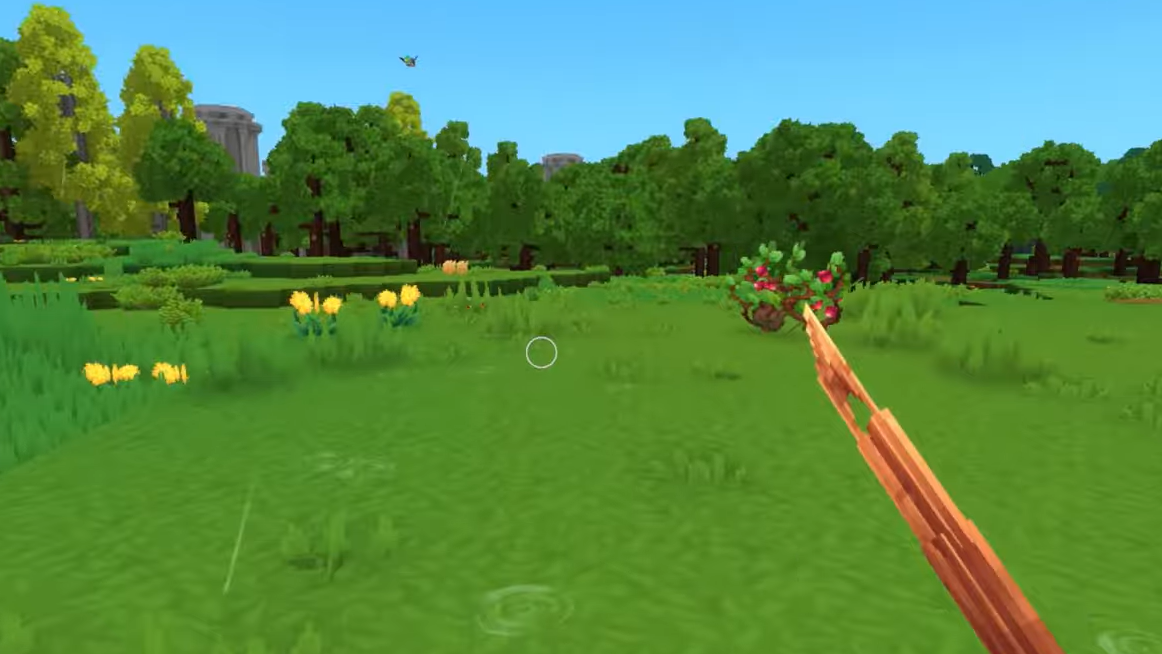
Hytale lets you move freely between first and third person, so you can pick the perspective that fits what you are doing at any moment. The game also exposes a few camera options that matter a lot if you are prone to motion sickness or want better spatial awareness.
How to toggle between first and third person in Hytale
Step 1: While you are in a world, press the V key once to switch your current view. If you were in first person, this moves the camera out to third person behind your character.
Step 2: Press V again whenever you want to go back. The same key cycles you between first and third person at any time during gameplay.
V is awkward on your keyboard layout, you can remap it in the keybinds section of the settings menu.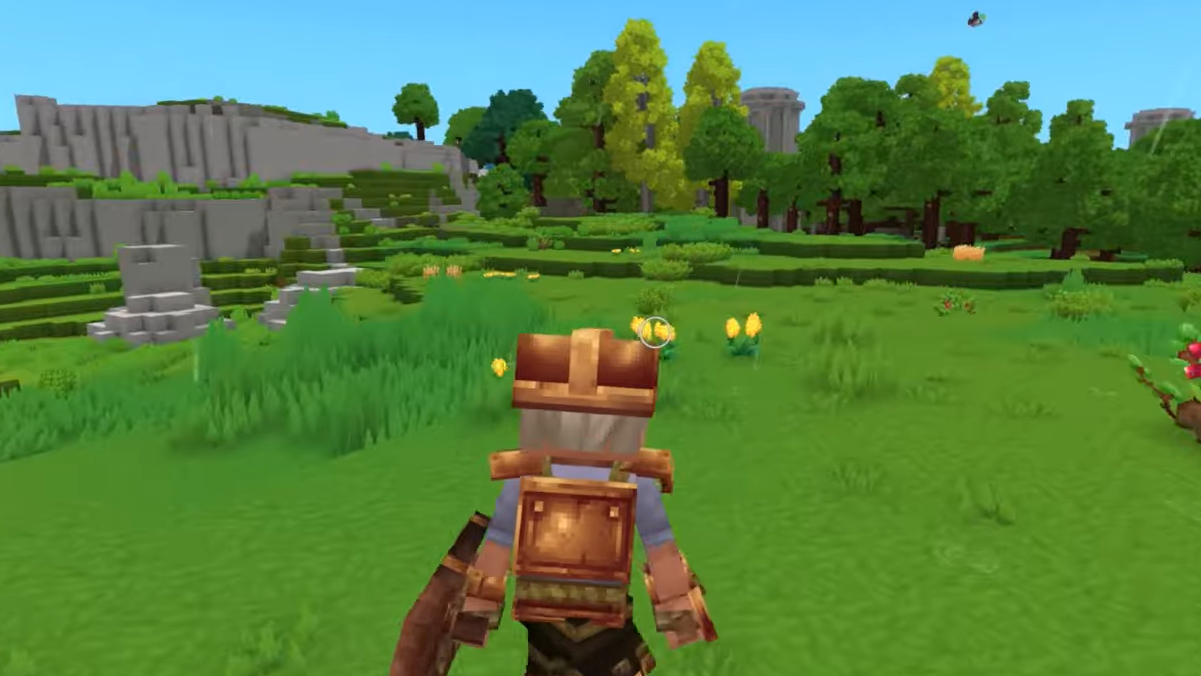
v key to switch between first-person and third-person camera views | Image credit: Hypixel Studios (via YouTube/@Quick Tips)How to spawn directly in third person
If you prefer to live in third person and only drop into first person when needed, set third person as your default camera on spawn. This prevents you from spawning in first person every time and having to tap V manually.
Step 1: Load into any world or server, press Esc, and open the settings menu.
Step 2: Go to the Gameplay section, then scroll to the Camera subsection.
Step 3: Find the option named Camera Preference (On Spawn) and select it. Pick Third Person from the three choices (First Person, Third Person, Remember Last Used), then confirm or save your changes.
Third person camera options in Hytale settings
Once you are using third person, two settings have a noticeable impact on comfort and how the game feels to control.
Change which shoulder the camera sits over
Step 1: Open the settings menu and move to the General section.
Step 2: Scroll to the Camera subsection and look for Camera Shoulder.
Step 3: Switch between right and left shoulder. By default, the game places the camera over the right shoulder; choosing the left shoulder mirrors the offset to the other side of your character.
This offset matters when aiming around corners, lining up melee swings, or simply matching what feels natural for you visually.
Adjust third person camera shake intensity
Camera shake adds impact to movement and combat, but it can also trigger motion sickness or eye strain if it is too strong.
Step 1: In the settings menu, open the Gameplay section and navigate to the Camera subsection.
Step 2: Locate Third Person Camera Shake Intensity.
Step 3: Lower the value if sudden movements or hits feel uncomfortable, or leave it at the default value of 1 if you are fine with the current amount of shake.
Reducing this setting smooths out the camera’s reaction to attacks and movement without changing your controls, which is useful if you are trying third person specifically to reduce motion sickness.
When third person or first person works better
Both perspectives are fully playable in Hytale, but each suits different situations.
| Situation | Recommended camera | Reason |
|---|---|---|
| Exploring large areas, searching for loot | Third person | Wider field of view makes it easier to spot chests, enemies, and paths around you. |
| Building and positioning your character for screenshots | Third person | Seeing your avatar and surroundings together helps with composition and camera framing. |
| Tight spaces, underground areas, complex interiors | First person | Removes the character model from the view so walls and ceilings are easier to read and navigate. |
| Direct combat and precise aiming | First person | Centers your view on the crosshair, which can make timing and aim feel more exact. |
| Fighting multiple enemies in open ground | Mix of both | Third person improves awareness of flanks; swapping to first person can help with critical hits or skill shots. |
V toggle is instant, you do not need to commit to a single perspective for an entire session.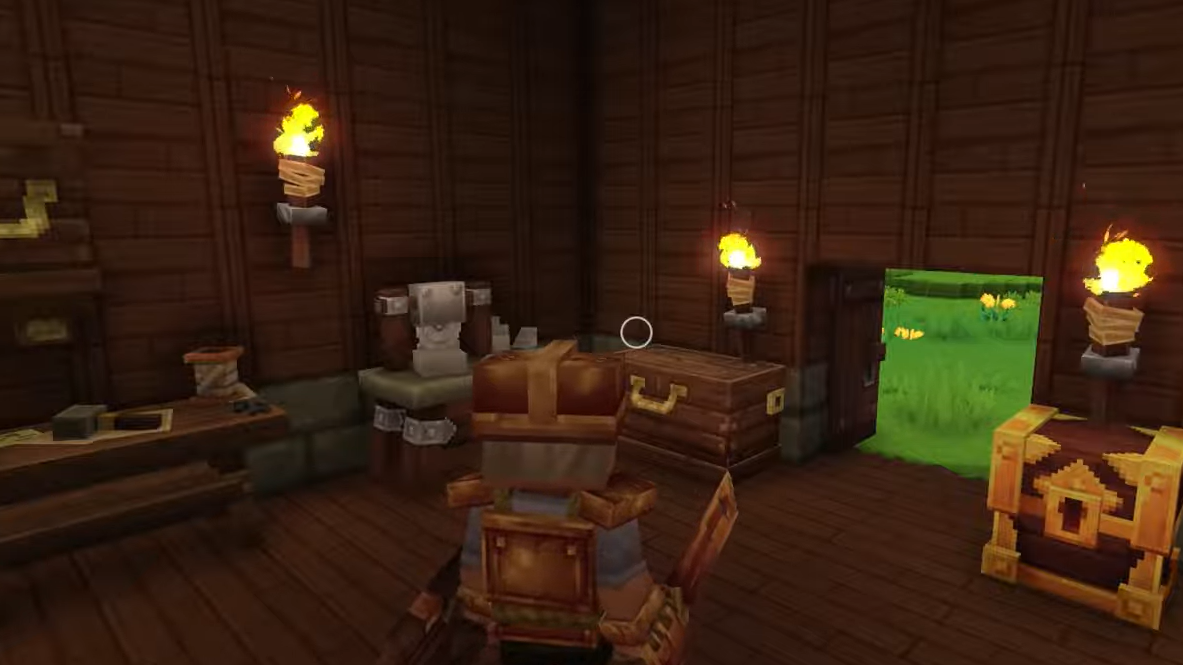
With a single keybind and a handful of camera options, Hytale makes it easy to build, explore, and fight from the angle that feels best. Once you have set your spawn preference, picked a shoulder, and dialed in camera shake, swapping between first and third person becomes second nature and lets you focus on the world rather than the settings menu.