
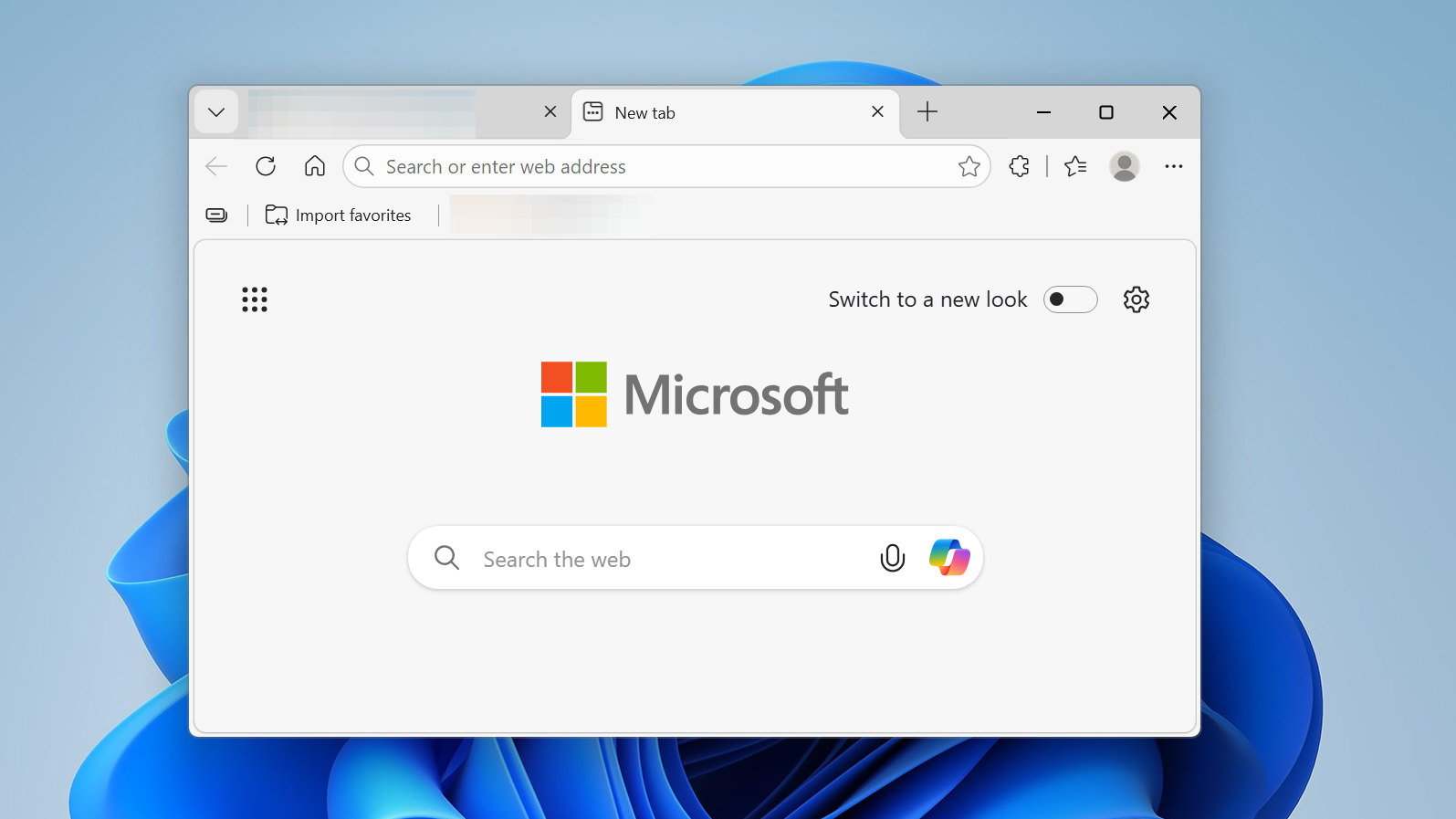
After installing the April Patch Tuesday update for Windows 11, some PCs boot back up straight into Microsoft Edge, with a full-page screen announcing that the update is complete and nudging you through a tour of supposedly new features. The page opens in Edge regardless of which browser you’ve set as your default, and there is no obvious close button on the welcome screen.
What actually happens after the restart
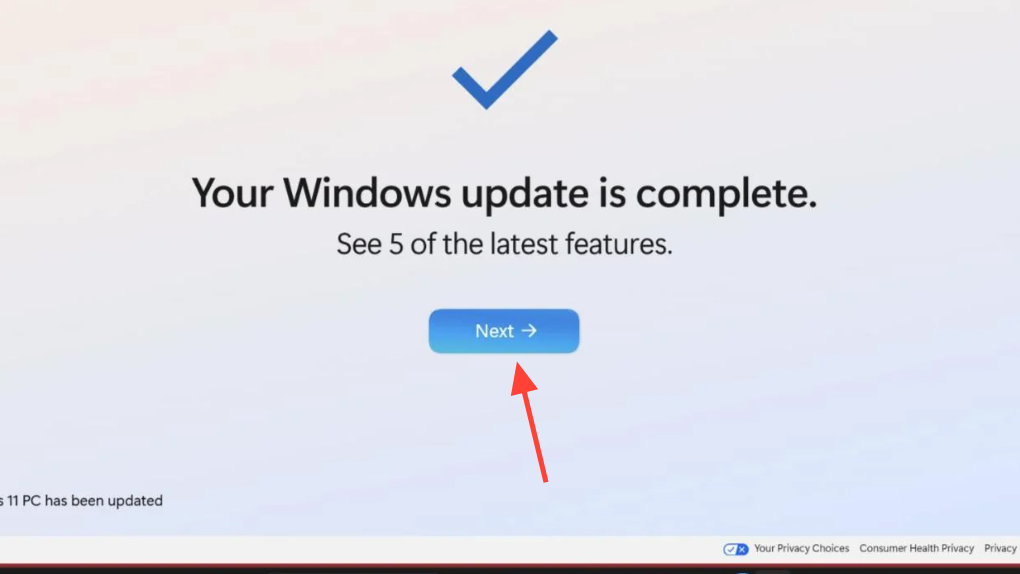
Once the April cumulative update installs and your PC reboots, Windows launches Edge and loads a Microsoft-hosted welcome page. The page shows a large blue checkmark with the headline “Your Windows update is complete,” a smaller line inviting you to look at five of the latest features, and a blue Next button underneath.
The behavior is hardcoded to open in Edge specifically. Windows routes its own microsoft-edge: and Microsoft-owned URLs through Edge, even when Chrome, Firefox, or another browser is set as default, so the post-update page bypasses your preference.
The five “new” features it shows
Clicking Next (or anywhere on the page) walks through six screens before reaching a final Start browsing button that opens a new Edge tab. Most of the features highlighted have been available in Windows 11 for some time.
| Screen | Feature shown | Status |
|---|---|---|
| 1 | Seconds on the taskbar clock | Previously available; not new to April |
| 2 | Pinning emojis to the taskbar | New |
| 3 | Copilot document summarization | Long-available |
| 4 | Snipping Tool Quick markup | Recent addition |
| 5 | AI Actions in File Explorer right-click menu | Recent addition |
The final screen contains basic tips on using Windows and a Start browsing button that drops you into Edge. Thumbs-up and thumbs-down feedback buttons sit in the corner, but clicking either only displays a “Thanks for your feedback” banner without closing the page.
How to dismiss it
There is no dedicated close button inside the welcome page itself, but the Edge window can be closed normally.
Alt + F4 while the window is focused. The page closes like any other browser tab.Ignore the Next button and the large blue checkmark unless you want to see the feature tour. Clicking anywhere on the body of the page advances to the next slide, so it’s easy to trigger accidentally.
Why Edge opens even if it isn’t your default
Windows treats the post-update welcome URL as a first-party Microsoft destination and hands it to Edge directly, which is the same pattern used for Widgets, search results from the Start menu, and certain help links. The default browser setting in Settings > Apps > Default apps controls standard web link handling but does not override these system-level handoffs.
This isn’t a new mechanism for major Windows updates. Feature updates have historically opened a welcome page in Edge after installation. What’s drawing attention this time is the framing: the page reads as a product tour for Edge and Windows features rather than a simple “update complete” confirmation, and the features highlighted aren’t genuinely tied to the April release.
Preventing Edge from launching on startup more broadly
Separately from the post-update screen, Microsoft has been testing a setting in the Edge Beta channel that launches the browser automatically when you sign into Windows. A banner at the top of Edge reads that the app “now launches when you sign into Windows, so it’s ready when you want to browse. Change this anytime in Settings.” The behavior is opt-out: unless you click No thanks, Edge will appear at every login.
If the experiment reaches your machine and you want to disable it:
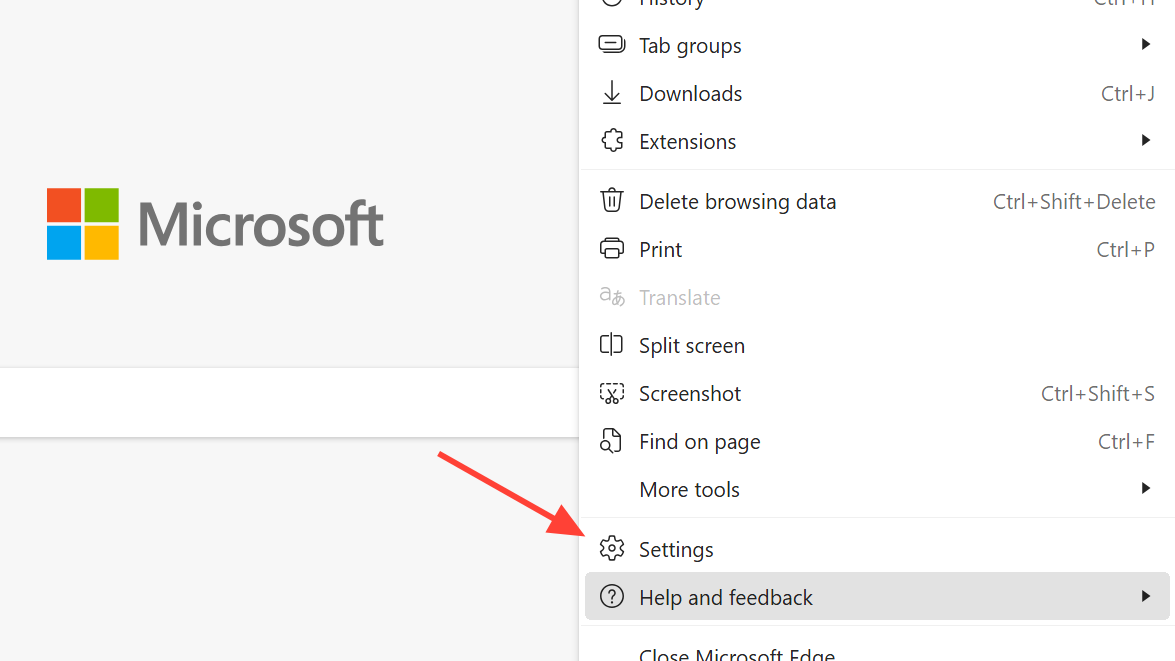
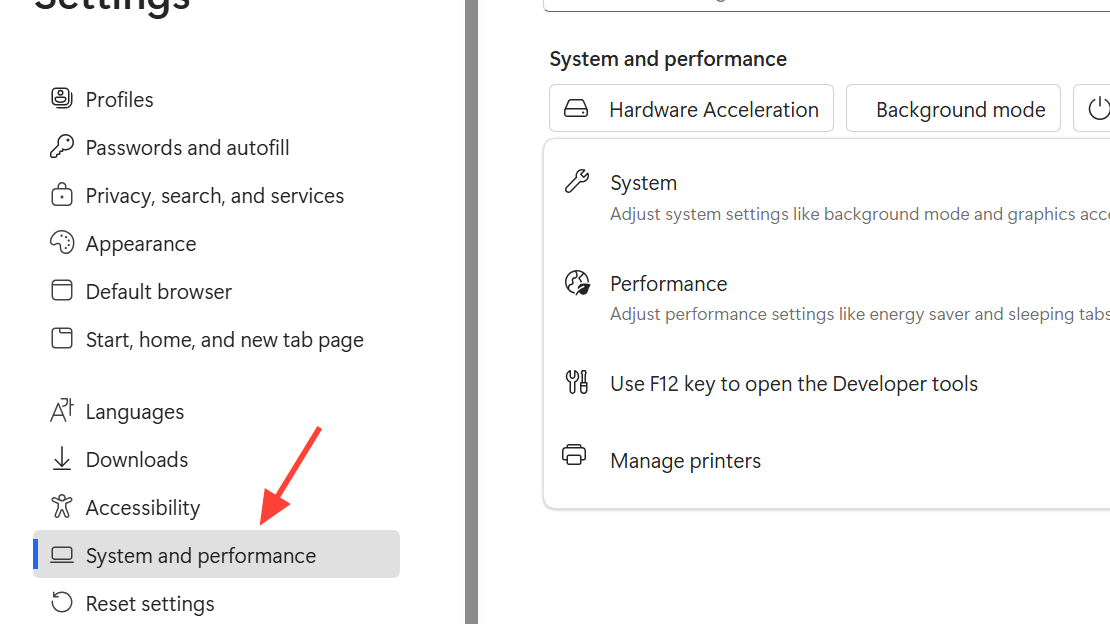
Microsoft has described the Edge-at-startup behavior as a limited experiment for Beta users and says the opt-out will remain available. The setting reportedly stays in place even if Chrome or another browser is set as the system default.
Is there any risk to closing the page?
No. The welcome page is a static web page served from microsoft.com. It has no connection to the update’s installation or verification. By the time the page appears, the cumulative update has already been applied, and your PC is running the new build. You can verify this by opening Settings > Windows Update and checking Update history for the April cumulative update entry marked as successfully installed.
The post-update Edge launch is purely promotional. Closing it, ignoring it, or clicking through it all produce the same end state for your system.



