

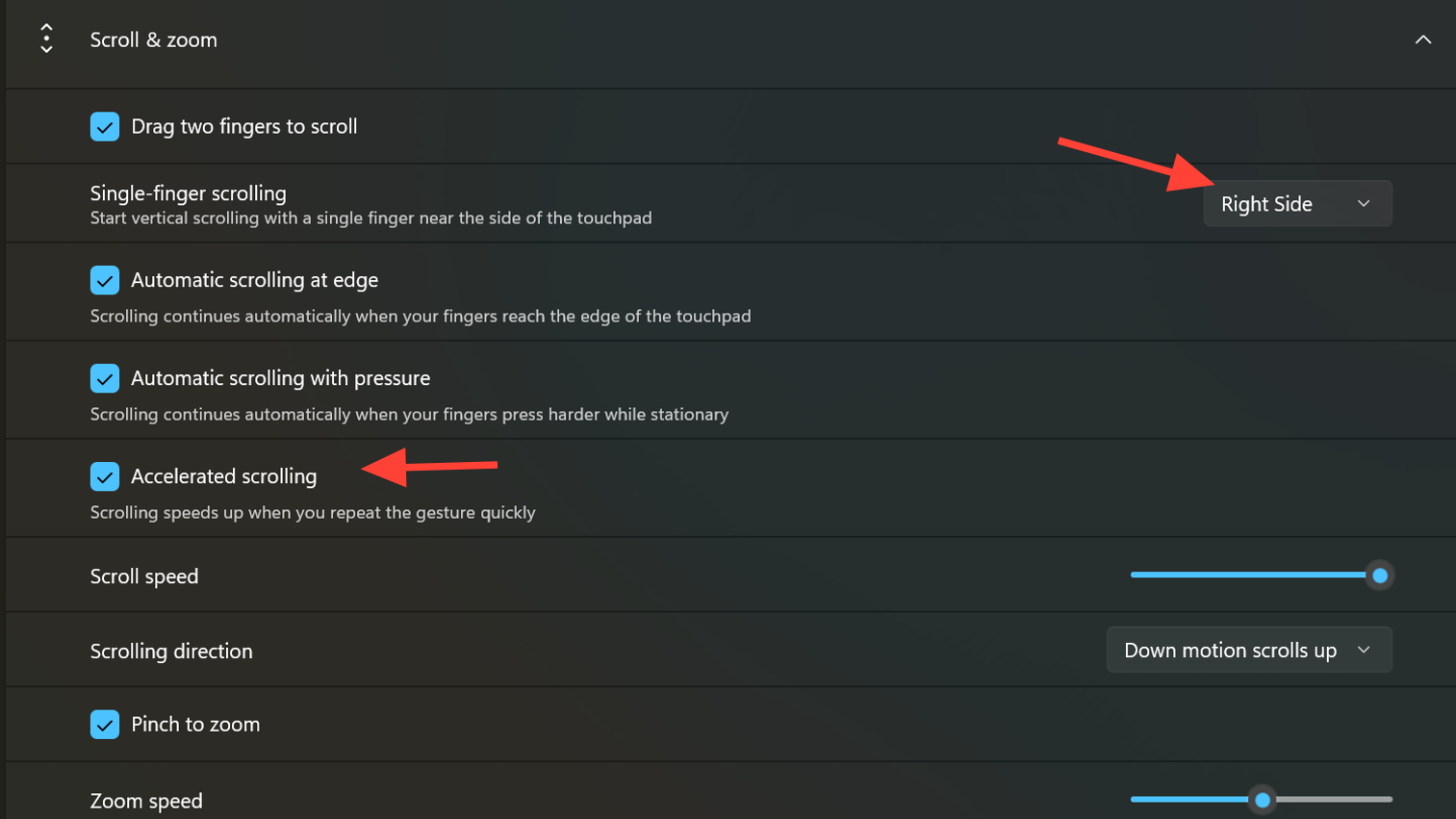
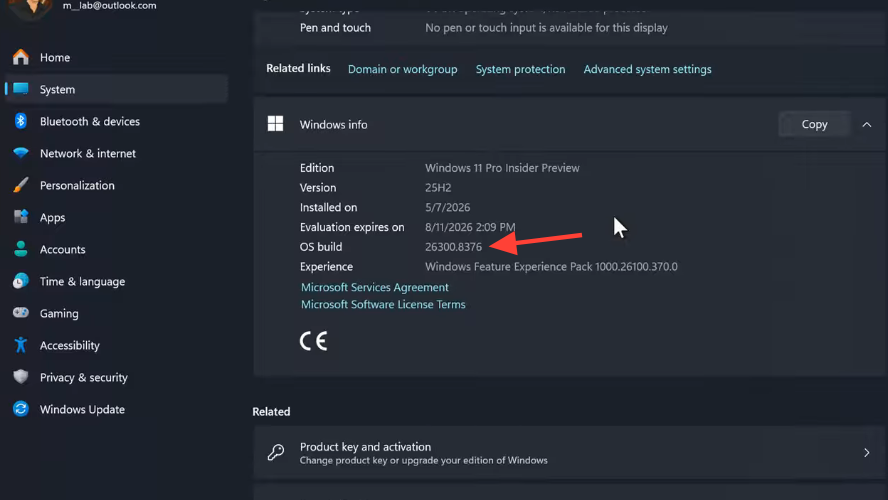
Windows 11 is gaining four new precision touchpad gesture options that move scroll and zoom controls deeper into the operating system. The changes arrive in Experimental Insider Preview Build 26300.8376, released on May 8, 2026, and live under Settings > Bluetooth & devices > Touchpad in the Scroll & zoom menu. The new options cover baseline scroll and zoom speed, automatic scrolling, accelerated scrolling, and single-finger vertical scrolling from the touchpad’s edge.
Quick answer: Install Build 26300.8376 on the Experimental channel, open Settings > Bluetooth & devices > Touchpad > Scroll & zoom, and toggle the new gesture options. Pressure-based automatic scrolling requires touchpad hardware that reports force.
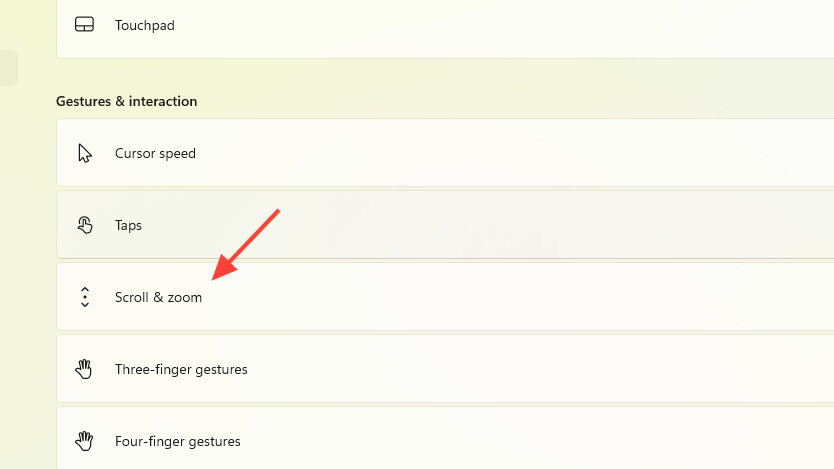
What the new gesturing functionality includes
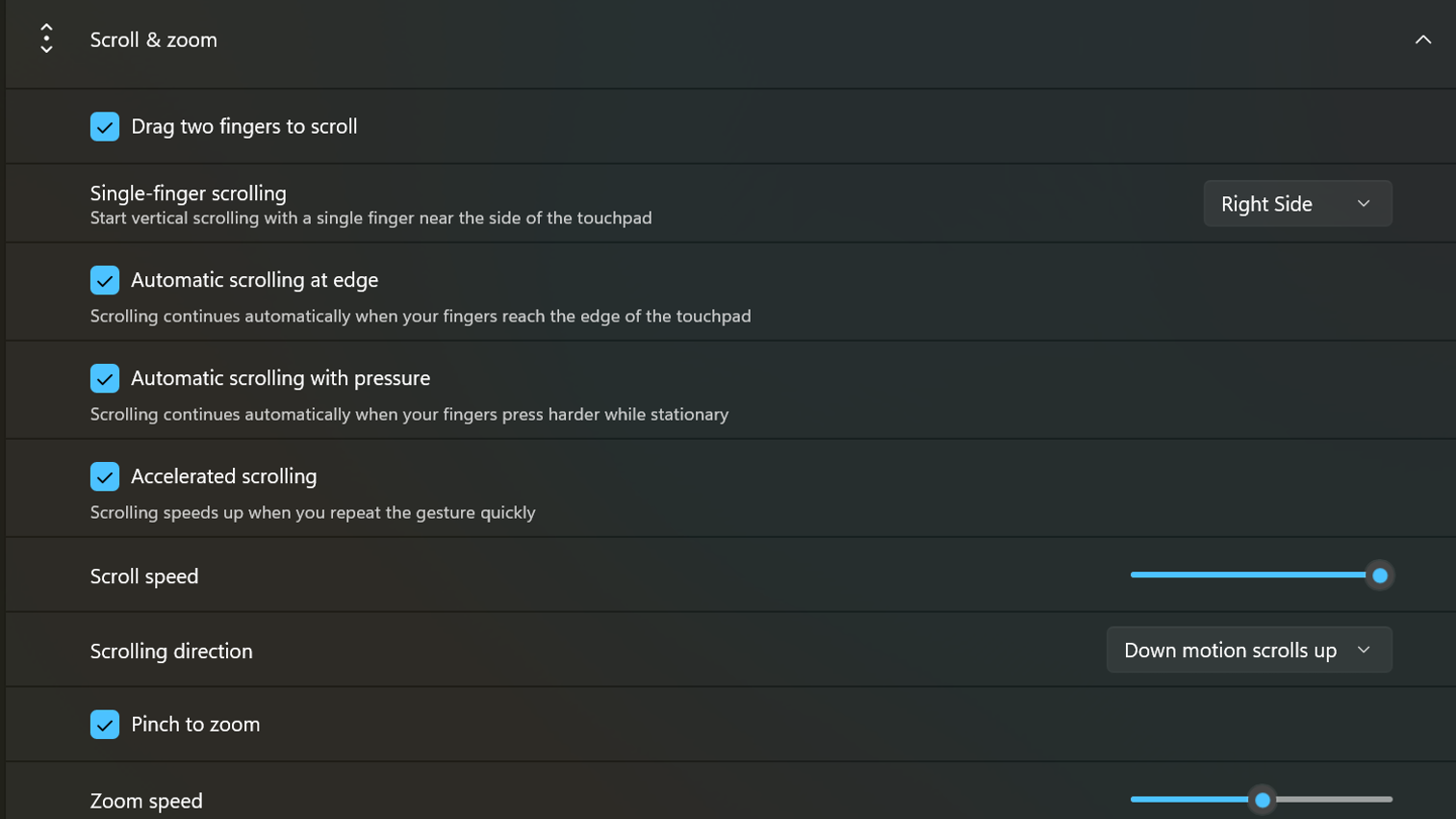
The Scroll & zoom section is reorganized with sliders and checkboxes that previously did not exist in Windows 11. The four additions sit alongside the existing pinch-to-zoom and two-finger scroll toggles.
| Gesture option | Behavior | Hardware requirement |
|---|---|---|
| Scroll / zoom speed | Sliders that set the baseline speed for scroll and zoom gestures | Any precision touchpad |
| Automatic scrolling at edge | Scrolling continues without lifting fingers when fingers reach the touchpad boundary | Any precision touchpad |
| Automatic scrolling with pressure | Scrolling continues when fingers stay still and press harder | Pressure-capable touchpad |
| Accelerated scrolling | Speed increases when the scroll gesture is repeated quickly | Any precision touchpad |
| Single-finger scrolling | Vertical scroll using one finger starting from the left or right edge of the touchpad | Any precision touchpad |
Requirements to enable the new gestures
The features ship only in the Windows Insider Program Experimental channel at this stage. A precision touchpad is required, since the controls live inside the precision touchpad pipeline rather than legacy OEM driver utilities. The pressure-based variant of automatic scrolling depends on a touchpad that can distinguish a firm press from a resting finger, so it will not appear or function on hardware that does not report force.
Microsoft notes that the gestures should work broadly across applications. The exception is WinUI 3 based interfaces, which need Windows App SDK 1.8 and 2.0 updates for complete behavior. That work is in progress, so a few Windows-built apps may not respond fully until the SDK update lands.
How to turn on the new touchpad gestures
Bluetooth & devices > Touchpad and expand the Scroll & zoom section.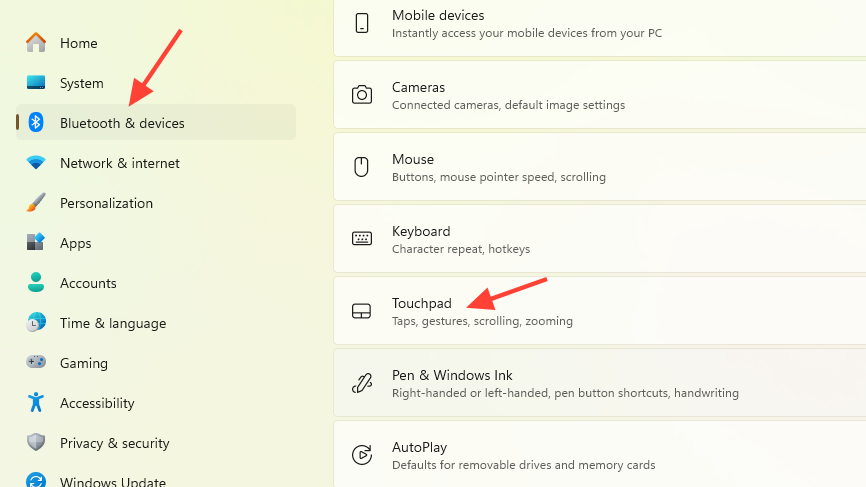
How to verify the gestures are working
Open a long web page in a browser and perform a two-finger scroll to the bottom edge of the touchpad without lifting. With Automatic scrolling at edge enabled, the page should keep moving on its own until you lift your fingers or scroll back. With pressure mode, hold two fingers stationary on the touchpad and press harder, and the page should continue scrolling without finger movement.
For accelerated scrolling, swipe down repeatedly in quick succession. Each repeated swipe should travel further than the last. To verify single-finger scrolling, drag one finger straight down the configured edge of the touchpad and confirm the page scrolls vertically without any second finger.
Common reasons the gestures do not trigger
- The device is not on Build 26300.8376 in the Experimental channel.
- The laptop uses a non-precision touchpad, which routes input through OEM drivers instead of the Windows precision pipeline.
- Pressure-based automatic scrolling is enabled on hardware that does not report force.
- The active application is built on WinUI 3 and has not been updated to Windows App SDK 1.8 or 2.0.
- The application uses custom scroll handling that bypasses standard mouse-wheel events.
Notes on stability and rollout
These touchpad changes are in the Experimental channel, which is the renamed successor to the Dev Channel under the restructured Windows Insider Program. Features in this lane can change, roll out gradually, or be pulled before they reach the stable Windows 11 release. Behavior may also vary across laptop models because touchpad size, firmware, sensor resolution, and palm rejection all affect how the new gestures feel in practice.
The Insider Program sign-up and channel selection are handled inside Windows itself through Settings > Windows Update > Windows Insider Program. Once enrolled in the Experimental channel, the build will appear through the standard Windows Update flow. Treat any machine running this build as a test device, since Experimental releases are not intended for production laptops.



