Scheduling meetings directly from Google Chat streamlines collaboration and keeps everyone informed without the need to switch between applications. This method is efficient and ensures that all participants have the necessary details promptly.
Scheduling a Google Calendar Meeting from Google Chat on Desktop
Navigate to chat.google.com in your web browser and sign in with your Google account.
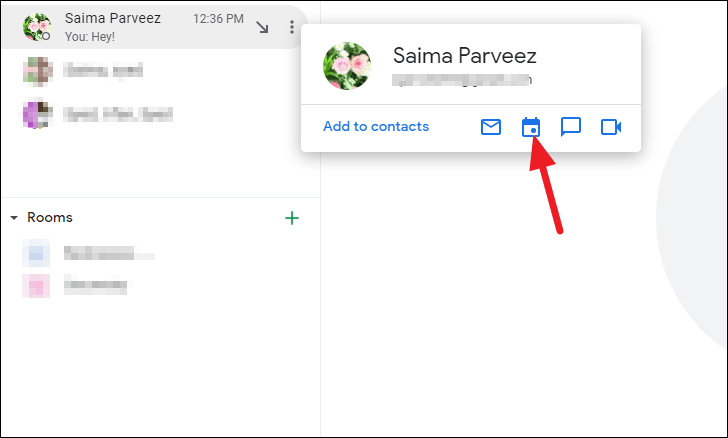
Locate the person or group chat with whom you want to schedule a meeting in the left sidebar. Hover your cursor over their name to reveal additional options. Click on the ‘Calendar’ icon that appears to initiate the scheduling process.
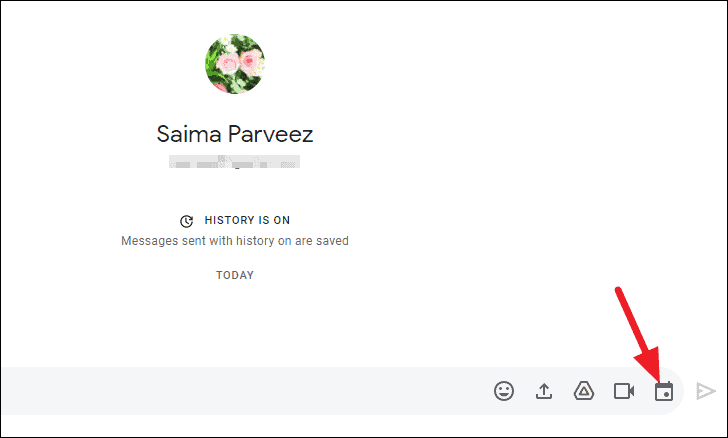
Alternatively, if you have the chat open, you can click on the ‘Calendar’ icon located on the right side of the message input field to start creating an event.
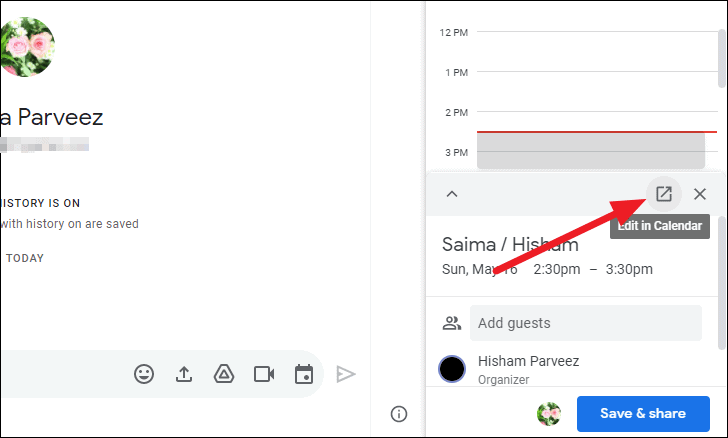
A Calendar panel will open on the right side of your screen displaying a preview of the event. To modify the event details, click on the ‘Edit in Calendar’ option at the bottom-right corner of the panel.
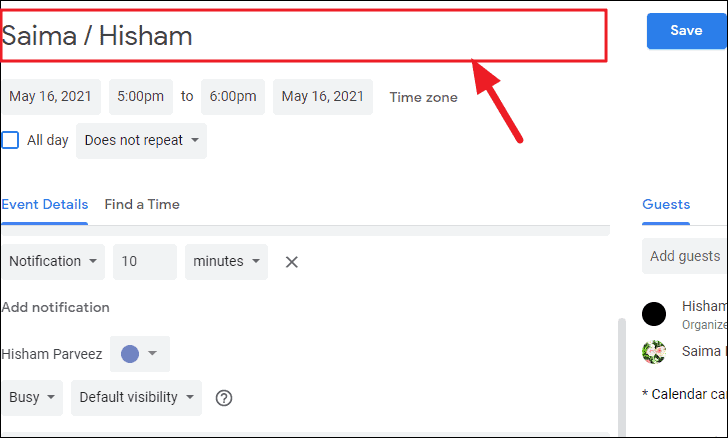
In the Google Calendar event page that opens, enter a suitable title for your meeting at the top of the screen to reflect its purpose.
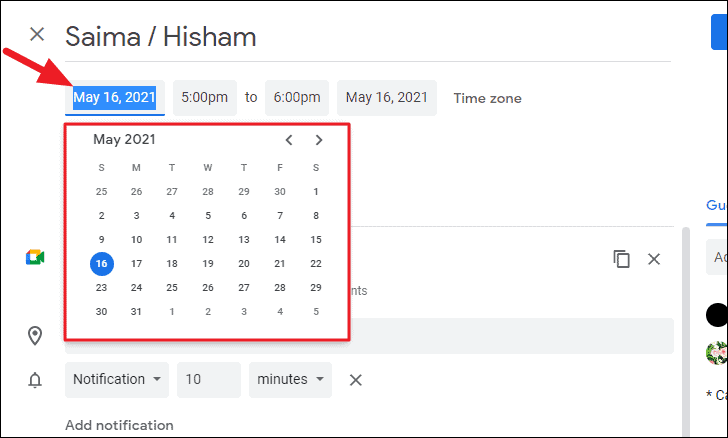
Set the date of your meeting by clicking on the date field and selecting the appropriate date from the calendar that appears or by typing it manually.
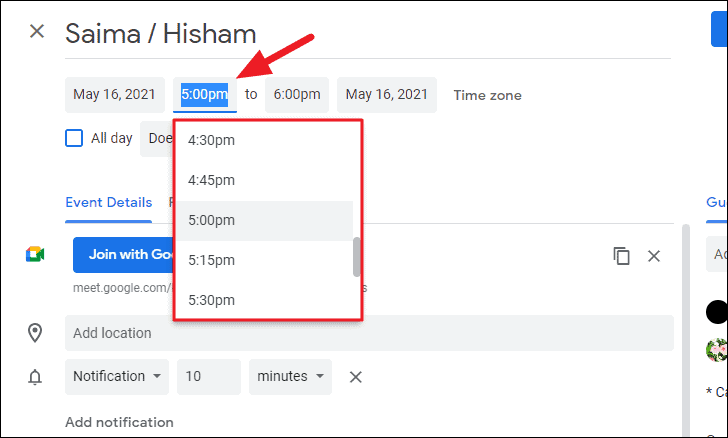
Specify the start and end times for your meeting. You can either select the times from the dropdown options or enter them manually to suit your schedule.
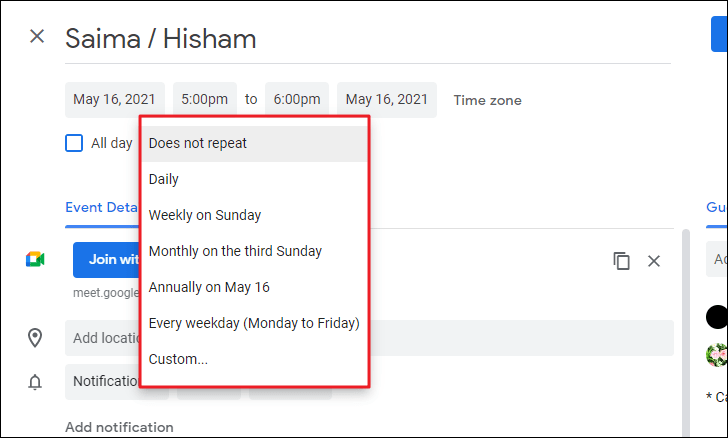
If the meeting is recurring, click on the ‘Does not repeat’ dropdown menu to choose how often the event should repeat, such as daily, weekly, or monthly.
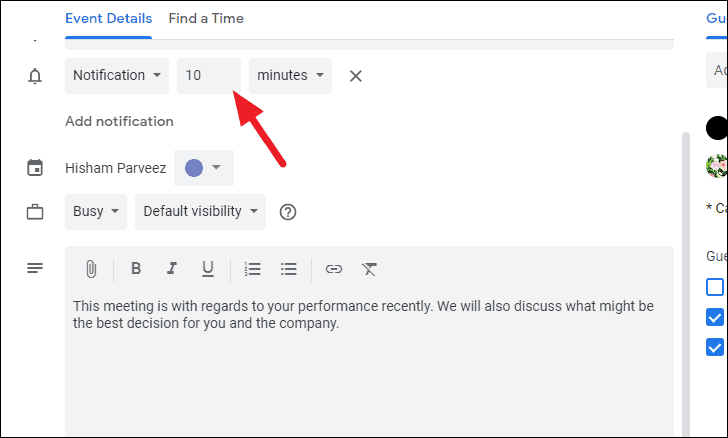
Under ‘Event Details’, set a notification reminder to alert you before the meeting starts. Selecting a time close to the meeting, like 5 or 10 minutes prior, can be helpful.
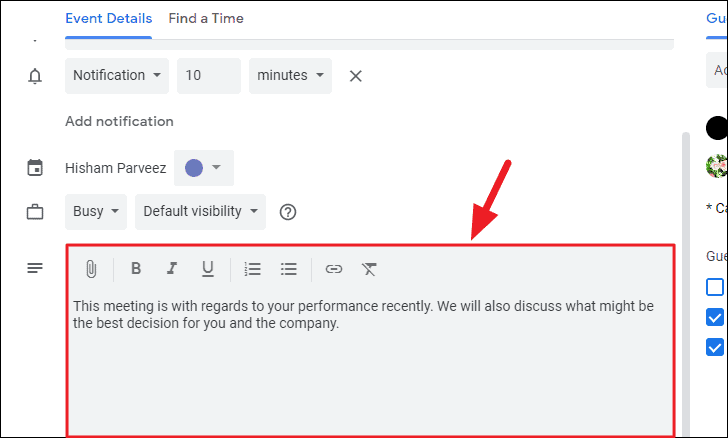
In the ‘Description’ box, provide any relevant information or agenda items for the meeting. This helps participants prepare in advance and understand the meeting’s objectives.
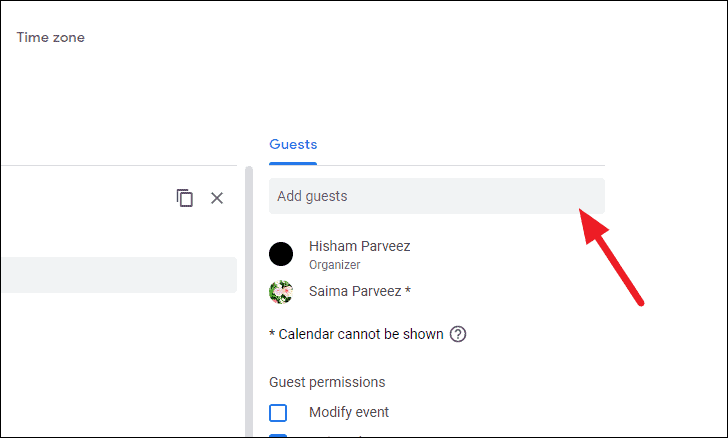
On the right side under ‘Guests’, you can add additional attendees by entering their email addresses. This will send them an invitation to the meeting.
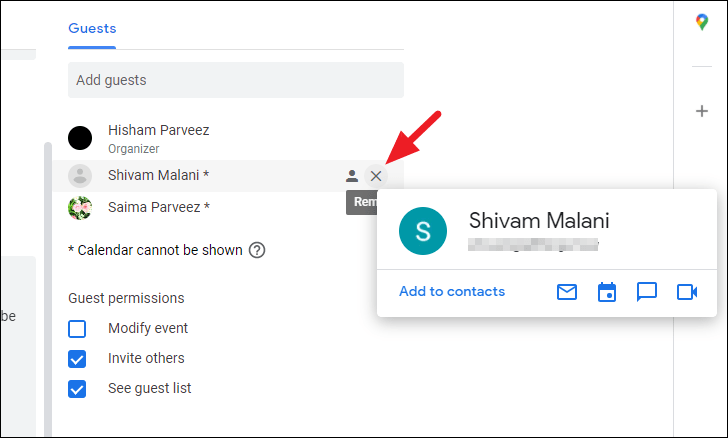
If you need to remove a guest, click on the ‘X’ icon next to their name to delete them from the attendee list.
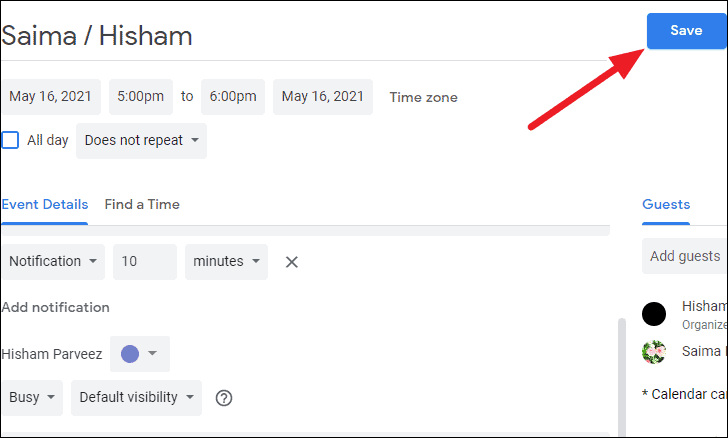
Once all the details are set, click on the ‘Save’ button at the top of the screen to finalize the event.
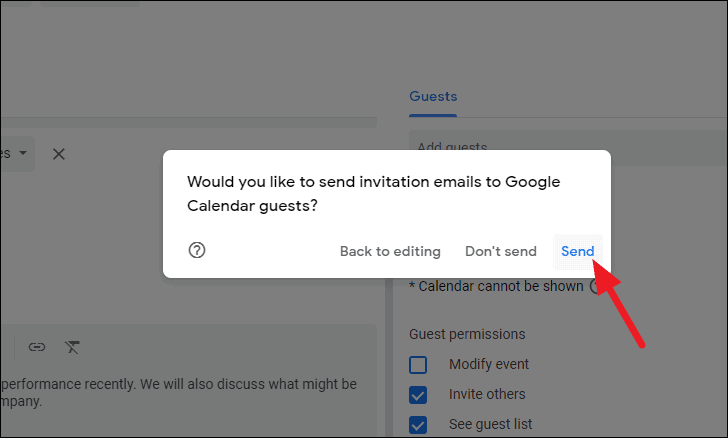
A prompt will appear asking if you want to send invitation emails to the guests. Click on ‘Send’ to notify the attendees about the meeting.
Your meeting is now scheduled. You can view it in your Google Calendar.
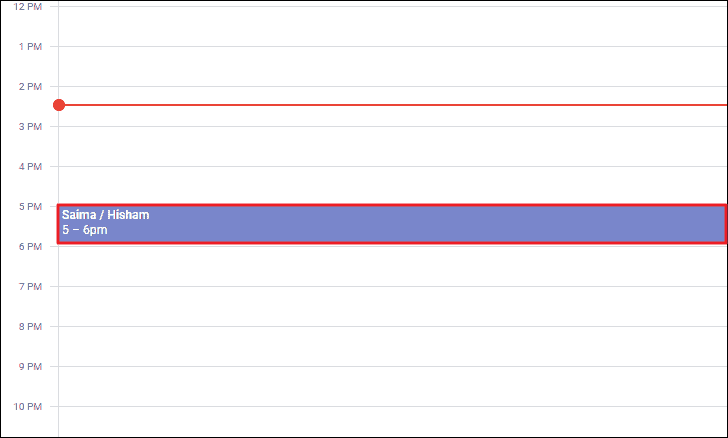
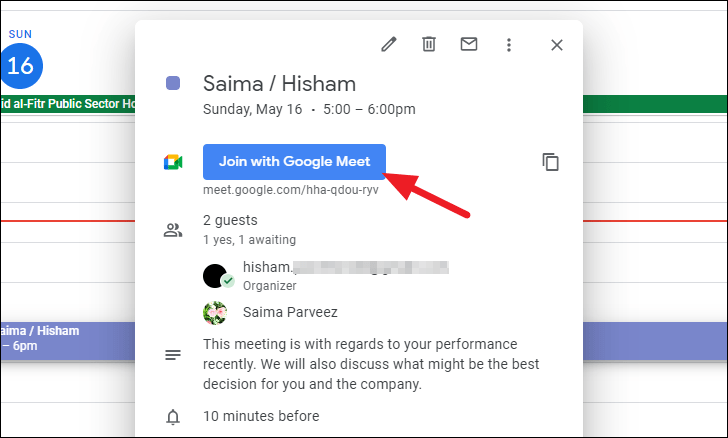
Clicking on the event in Google Calendar will provide you with more options, including joining the meeting directly when it’s time.
Scheduling a Meeting on Google Calendar from Google Chat App on Mobile
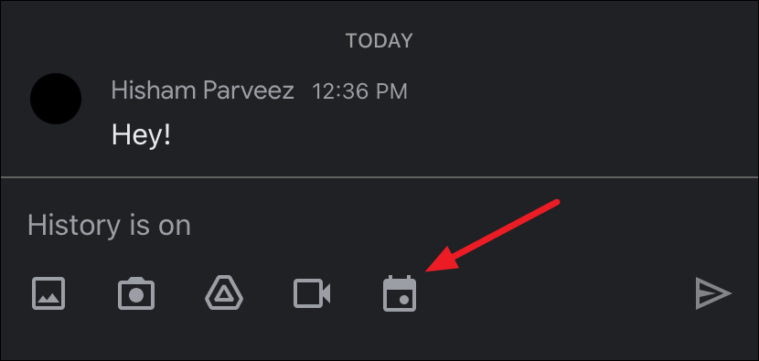
The Google Calendar app will open with a panel at the bottom displaying basic event details. Swipe up on this panel to expand it and access more options.
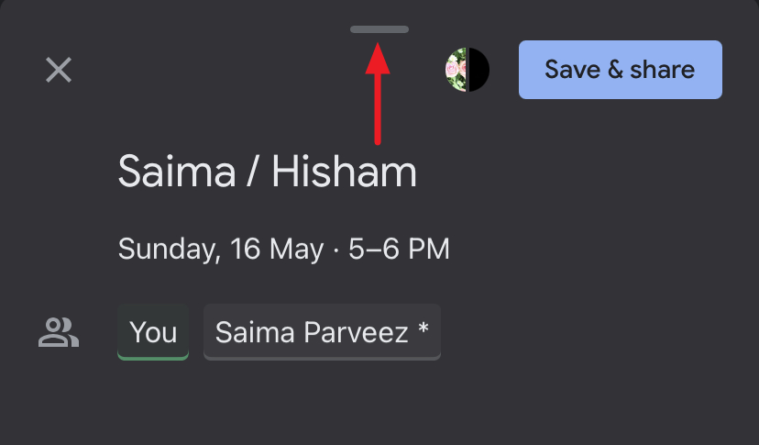
Set the event’s date and time by tapping on the respective fields and selecting the desired options.
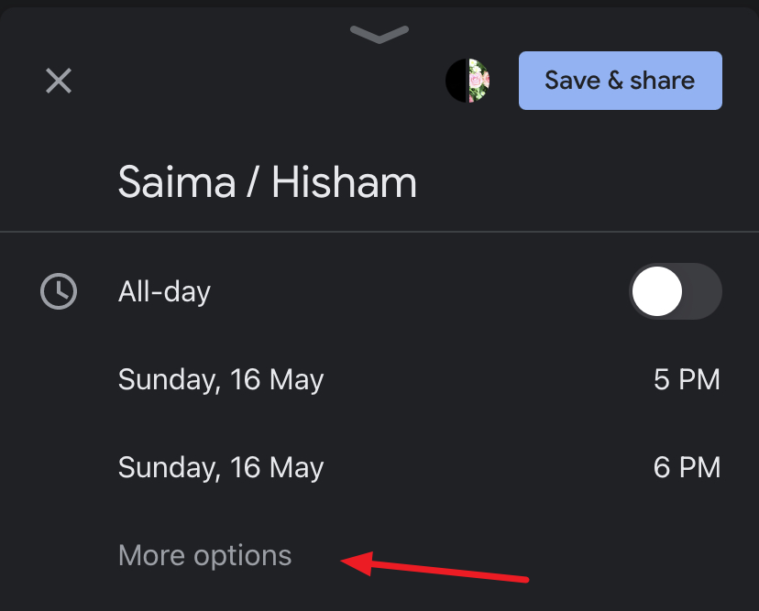
To adjust the meeting’s frequency, tap on ‘More options’ and select ‘Does not repeat’ if it’s a one-time event, or choose the appropriate recurring option.
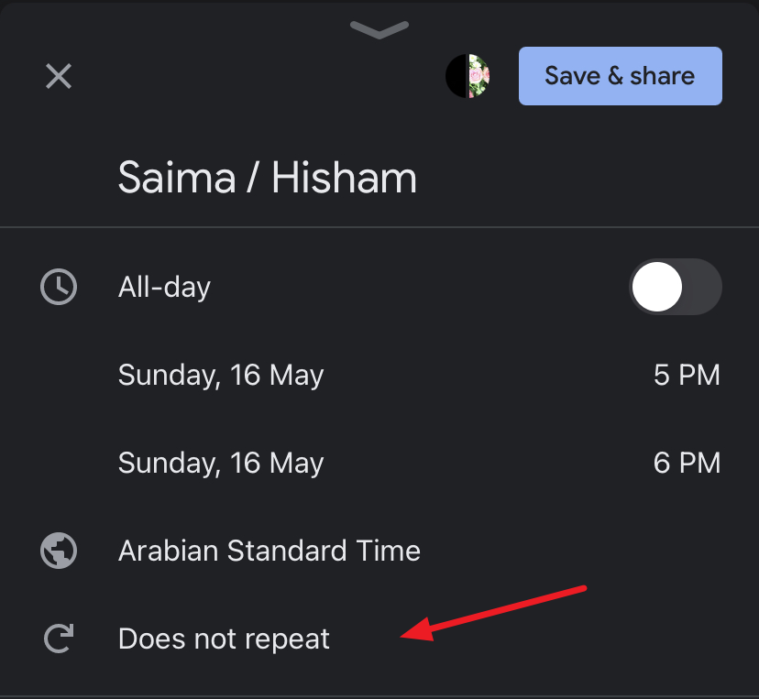
Scroll down to the ‘Notifications’ section and tap on the default time to change when you will receive a reminder about the meeting.
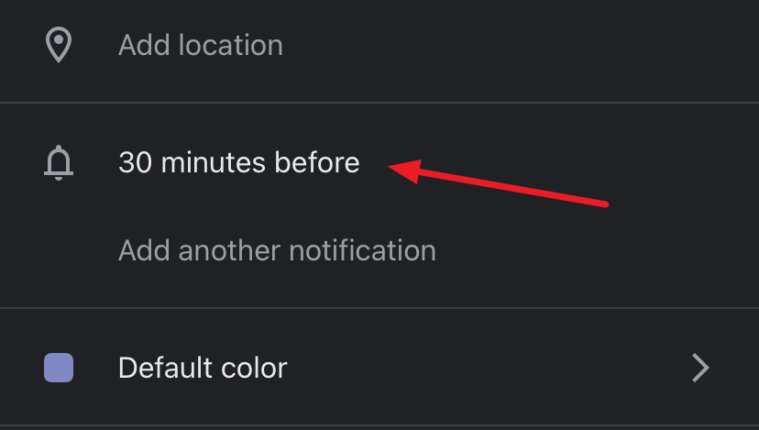
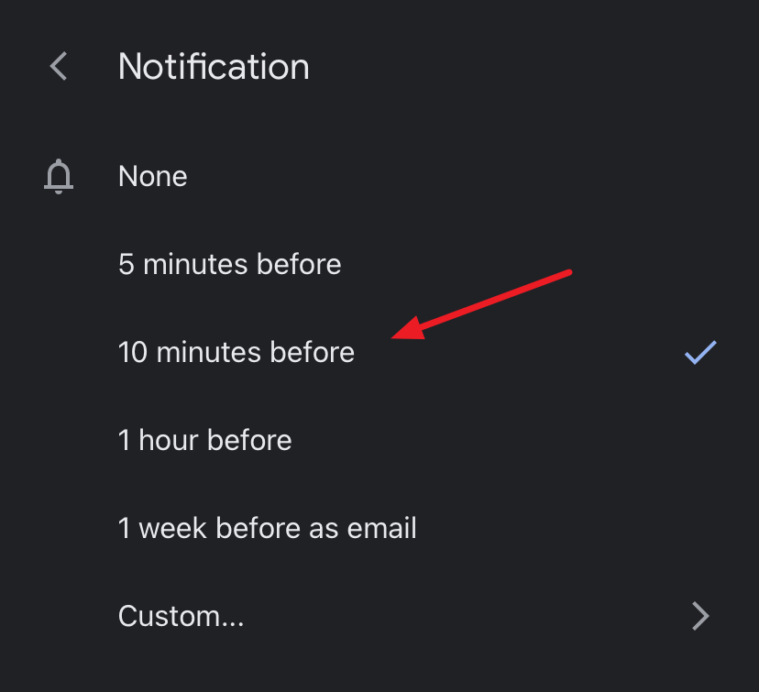
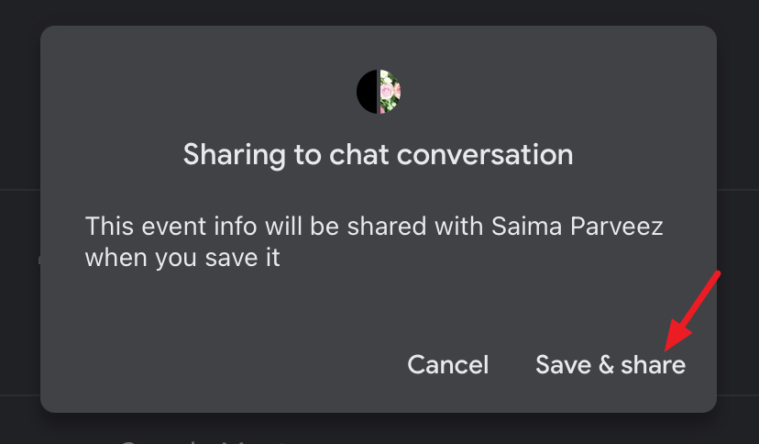
After configuring all the details, tap on ‘Save & share’ to finalize the event and share it with the participants.
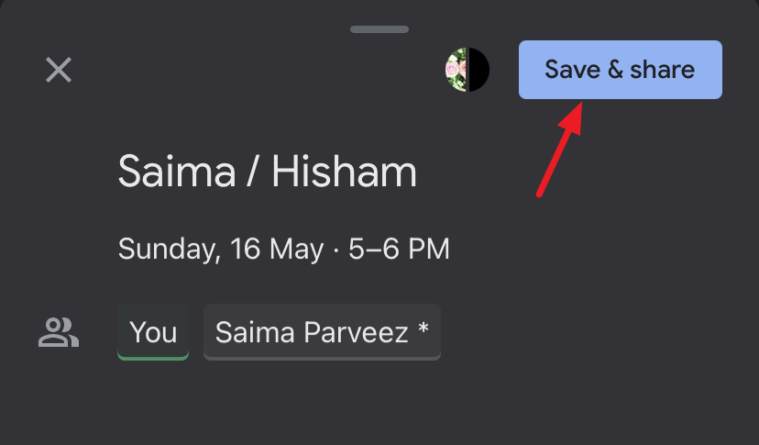
A prompt will appear asking if you want to send email notifications to the guests. Tap on ‘Save & share’ to confirm and notify the attendees.
The scheduled meetings will appear in your Google Calendar and participants can join the meeting via Google Meet at the designated time.