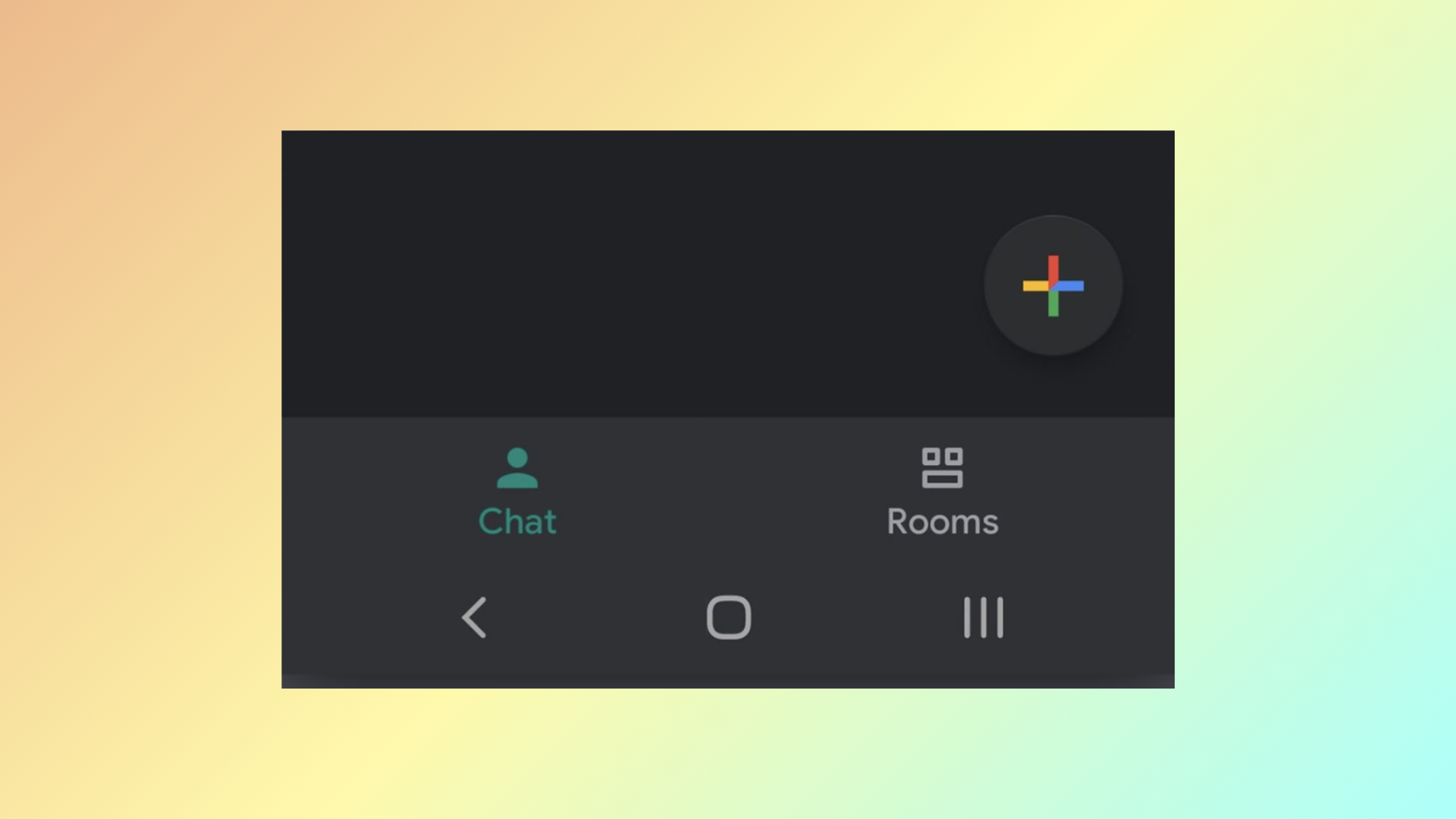
Google has integrated Google Chat into Gmail, allowing users to access both email and chat functionalities within a single app. While this integration offers convenience for some, others may find it cluttered or unnecessary. Whether you want to enable Google Chat for easy access or disable it to simplify your interface, here’s how you can do it on your mobile device and desktop.
Enable or Disable Google Chat in Gmail on Mobile
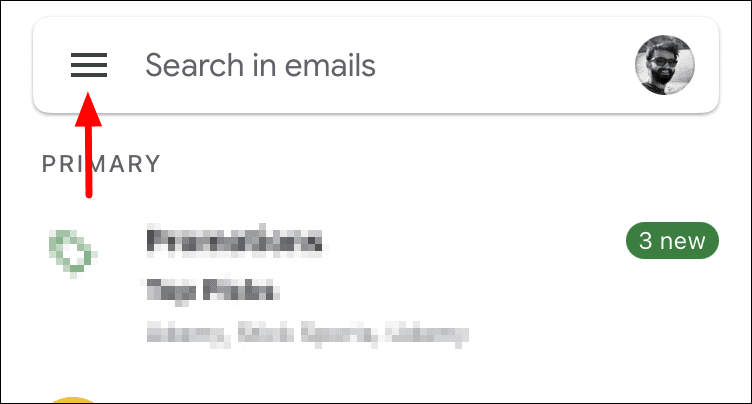
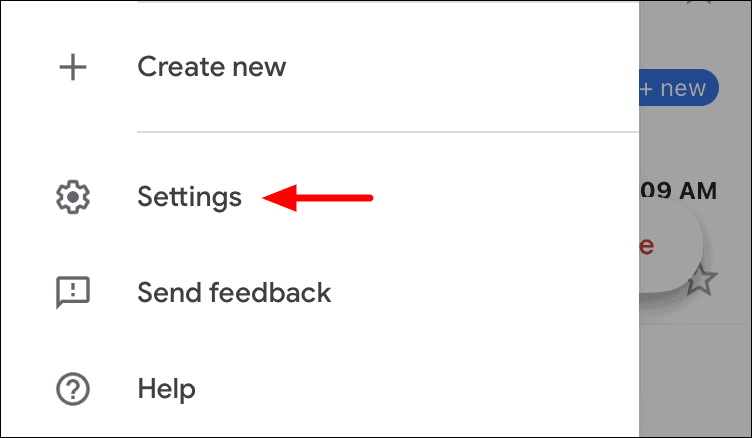
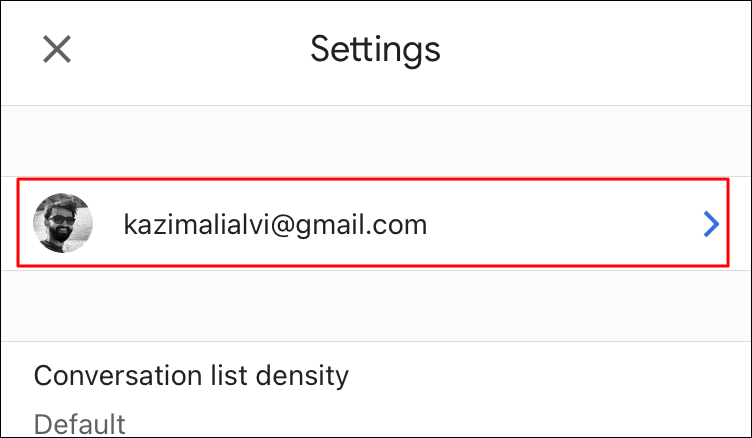
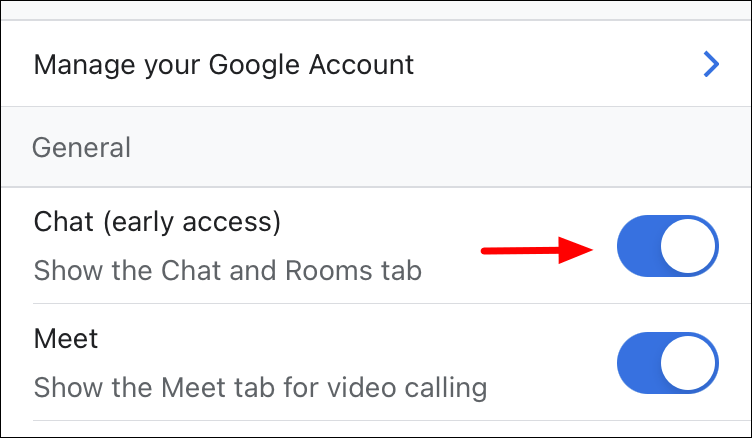
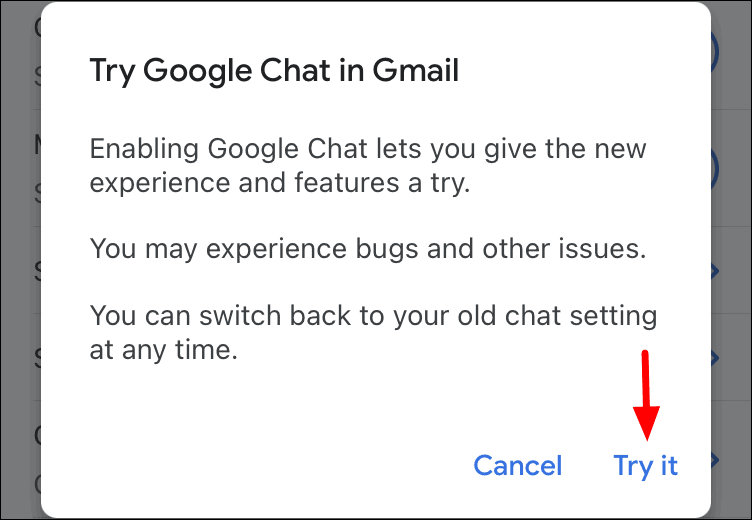
When enabling Google Chat: A prompt will appear asking if you’d like to try the new feature. Tap on Try it to confirm.
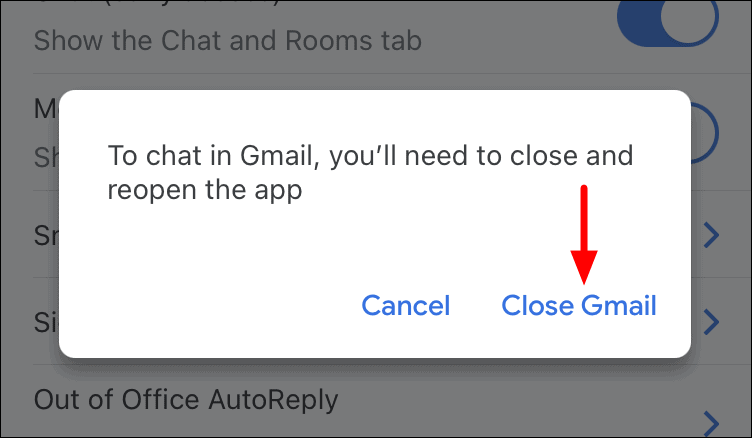
You’ll then be asked to restart the Gmail app for the changes to take effect. Tap Close Gmail, and then reopen the app.
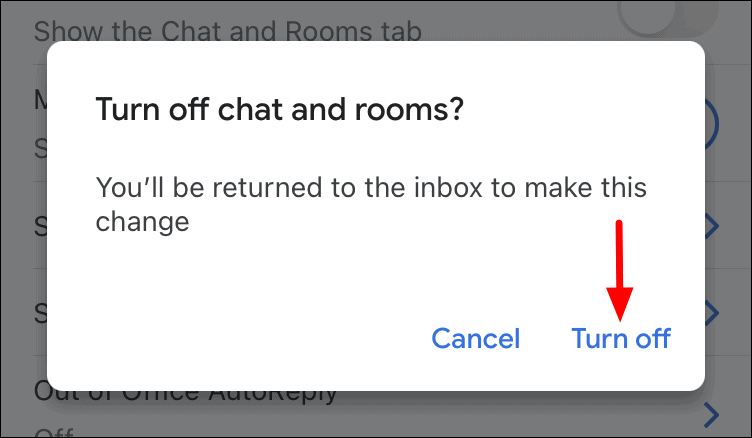
When disabling Google Chat: A confirmation dialog will appear. Tap on Turn off to disable the feature. You’ll be returned to your inbox afterward.
Enable or Disable Google Chat in Gmail on Desktop
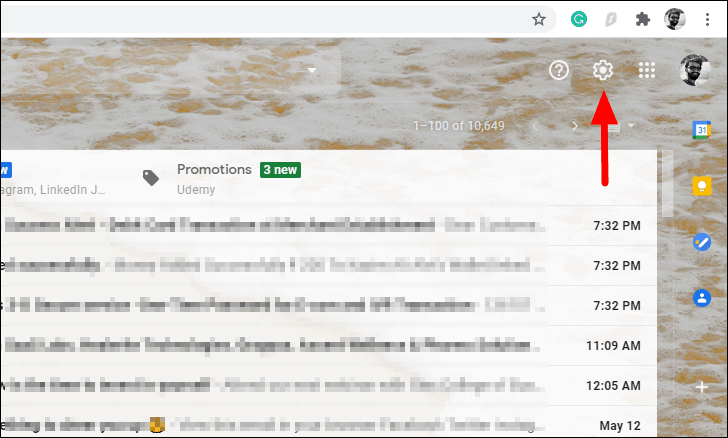
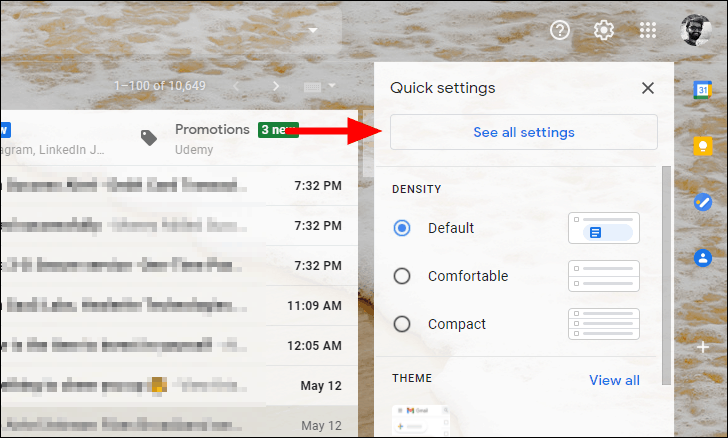
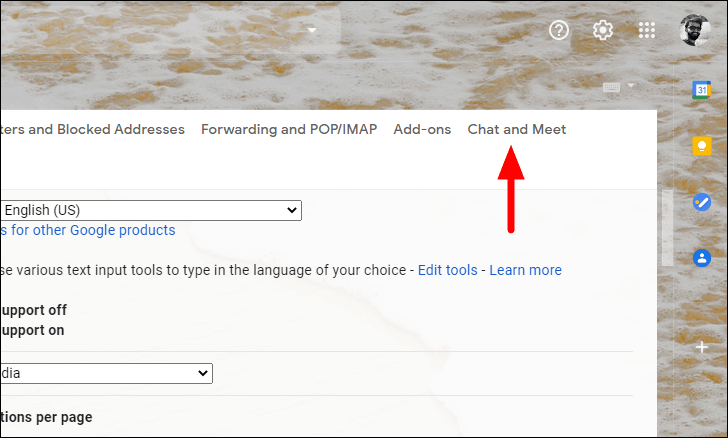
To disable Google Chat: Click the checkbox next to Off, then scroll down and click on Save Changes.
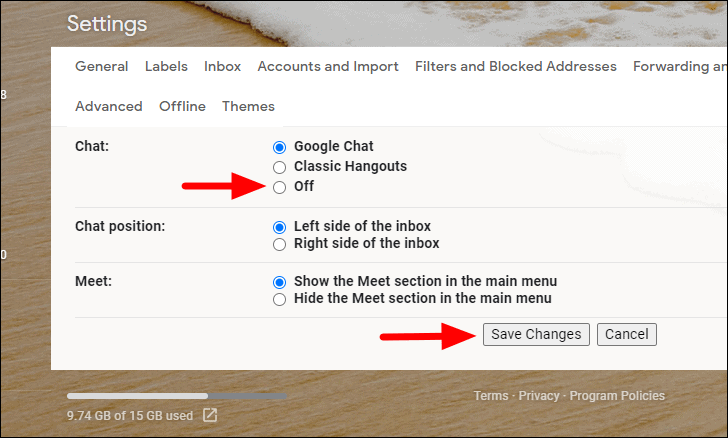
To enable Google Chat: Select the checkbox next to Google Chat, then scroll down and click on Save Changes.
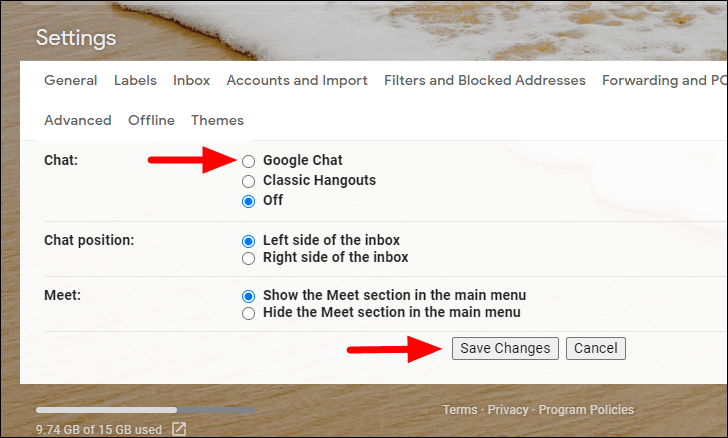
After saving changes, Gmail will reload and return you to your inbox with the updated settings.
By following these steps, you can easily control the integration of Google Chat in your Gmail account, tailoring your workspace to your preferences.