This tutorial demonstrates how to search for specific words and phrases across all sheets in Google Sheets using Find and Replace tool.
This tutorial demonstrates how to search for specific words and phrases across all sheets in Google Sheets using Find and Replace tool.
by Raj Kumar
Searching for specific data across multiple sheets in a Google Sheets workbook can be challenging, especially when dealing with extensive datasets. Thankfully, Google Sheets offers powerful tools to help you locate the information you need efficiently.
Using the find and replace tool to search across all sheets
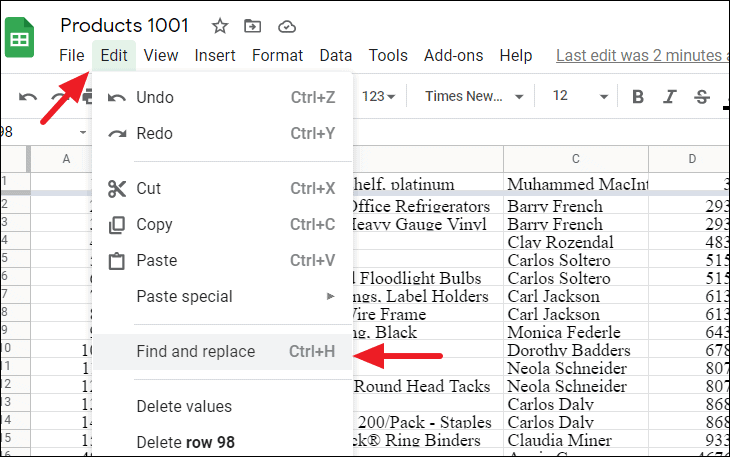
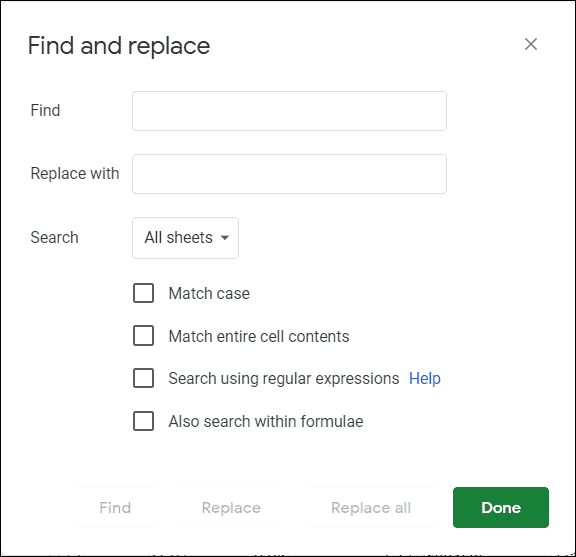
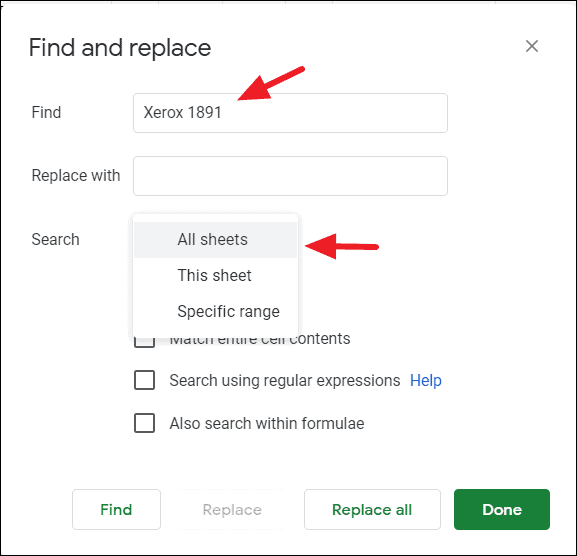
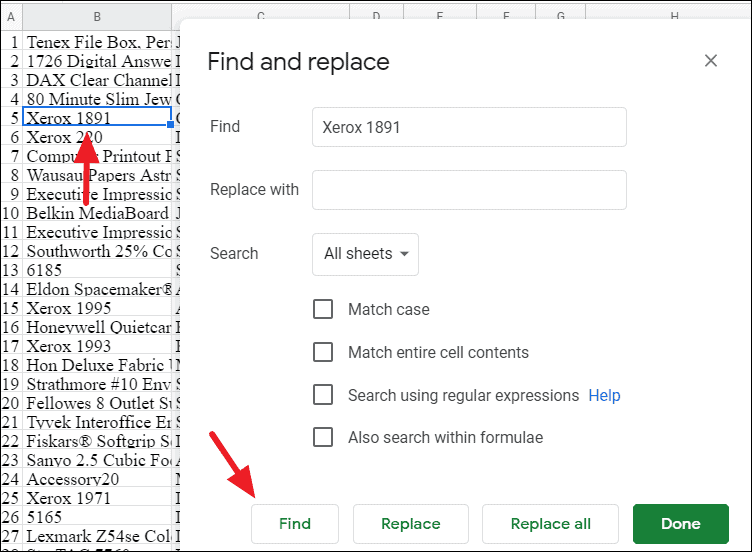
The ‘Find and replace’ feature allows you to search for words or phrases throughout your entire workbook, providing options to refine and customize your search.
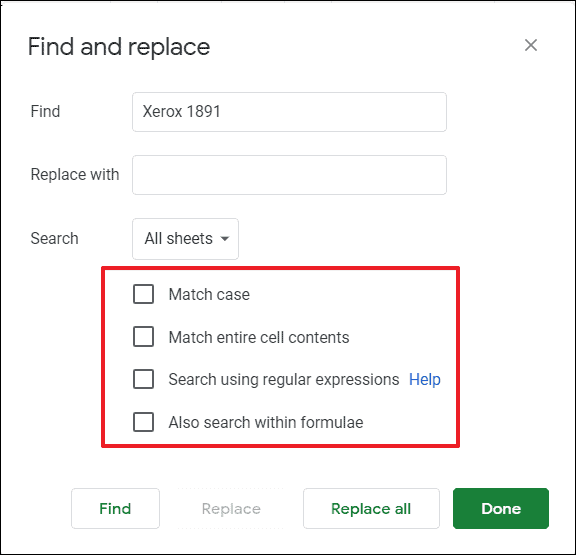
You can refine your search using the options below the Search field:
– Match case: Makes the search case-sensitive, finding only instances that match the exact letter casing of your query. – Match entire cell contents: Finds cells that exactly match the search term without any extra characters. – Search using regular expressions: Allows the use of regular expressions for advanced search patterns. – Also search within formulas: Includes cell formulas in the search.
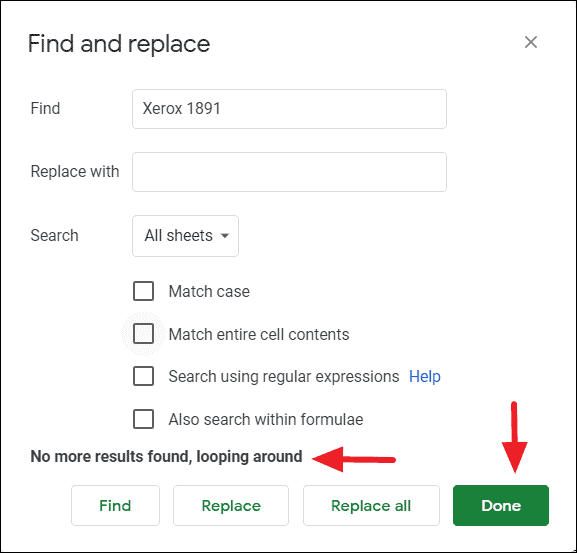
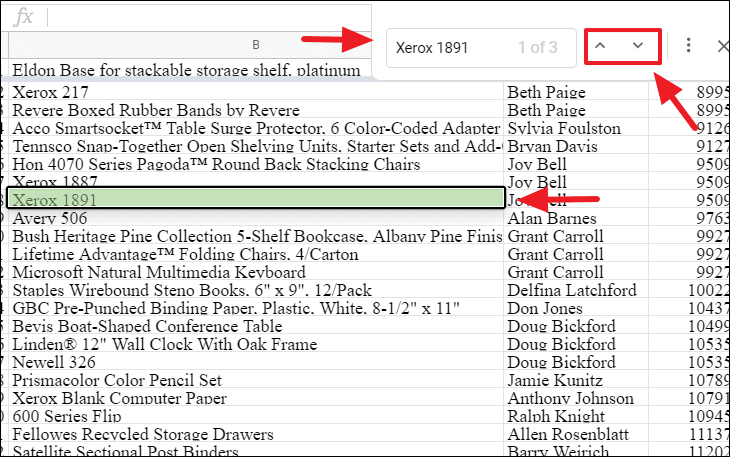
Click Find again to navigate to the next occurrence. Repeat this until you’ve reviewed all instances. When there are no more matches, a message saying “No more results found, looping around” will appear.
If you wish to replace the found text with new content, enter the replacement text in the Replace with field. Click Replace to substitute one occurrence at a time, or Replace all to update every instance in one go.
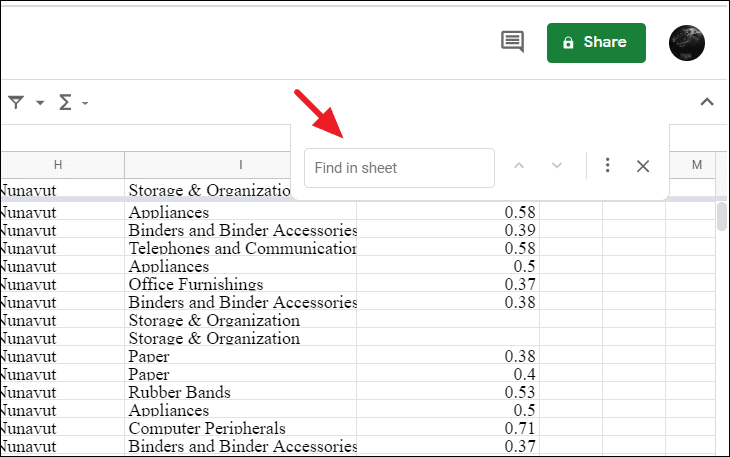
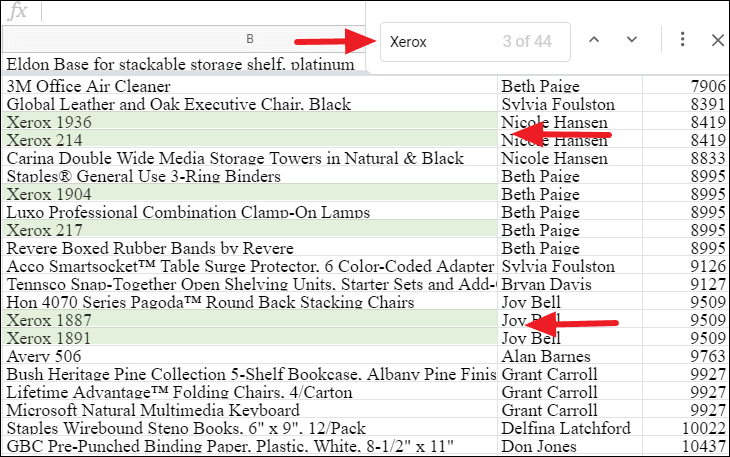
As you type, matching text strings will be highlighted within the sheet. Partial matches are shaded in light green, while exact matches are outlined with a black border.
To search in other sheets, simply switch to the desired sheet. The ‘Find’ feature will continue to highlight matches in the active sheet.
By utilizing these built-in search functionalities, you can efficiently navigate through large Google Sheets workbooks and quickly locate the data you need.