


Error 657rx shows up as a plain “Something went wrong” message when you try to sign in to Outlook, Teams, Word, Excel, or reach Microsoft 365 resources like SharePoint. It usually comes with the note “The credential is invalid. Unexpected sub status (6008)” and error code 2148073494. The cause is almost always stale or corrupted sign-in tokens that Windows has cached for your work or school account, which stops the apps from authenticating even though your password is correct.
Quick answer: Sign out of all Office apps, delete everything inside %localappdata%\Packages\Microsoft.AAD.BrokerPlugin_cw5n1h2txyewy, then reconnect your work or school account under Settings and sign in again. This clears the broken broker tokens behind most 657rx failures.
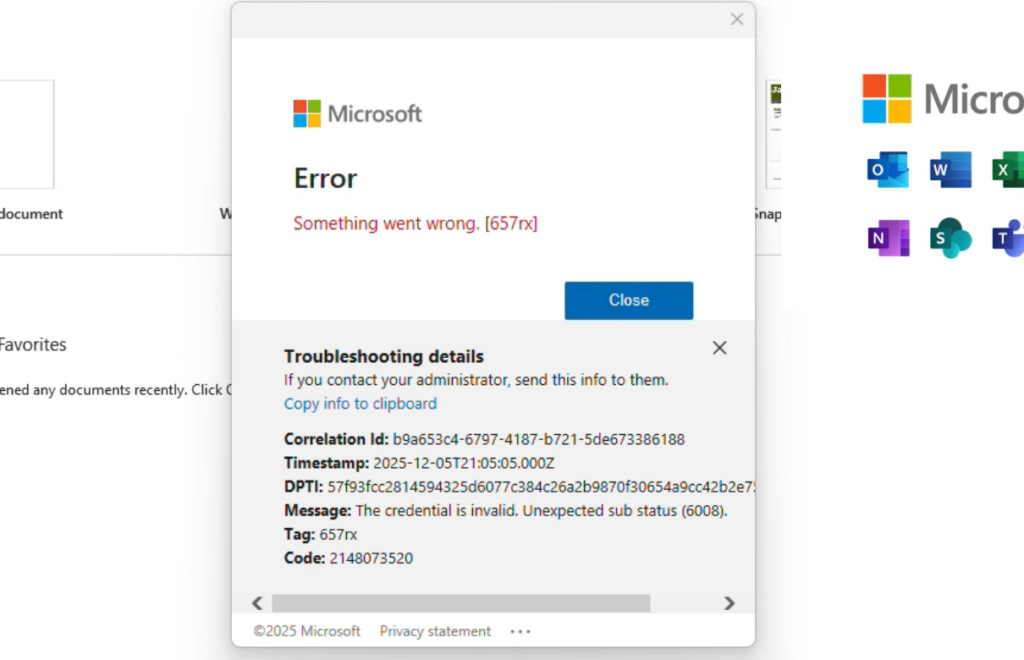
Clear the account broker cache (most common fix)
The single most reliable fix removes the cached tokens used by the Windows account broker. Many users report the error clears right after emptying this one folder.
%localappdata%\Packages\Microsoft.AAD.BrokerPlugin_cw5n1h2txyewy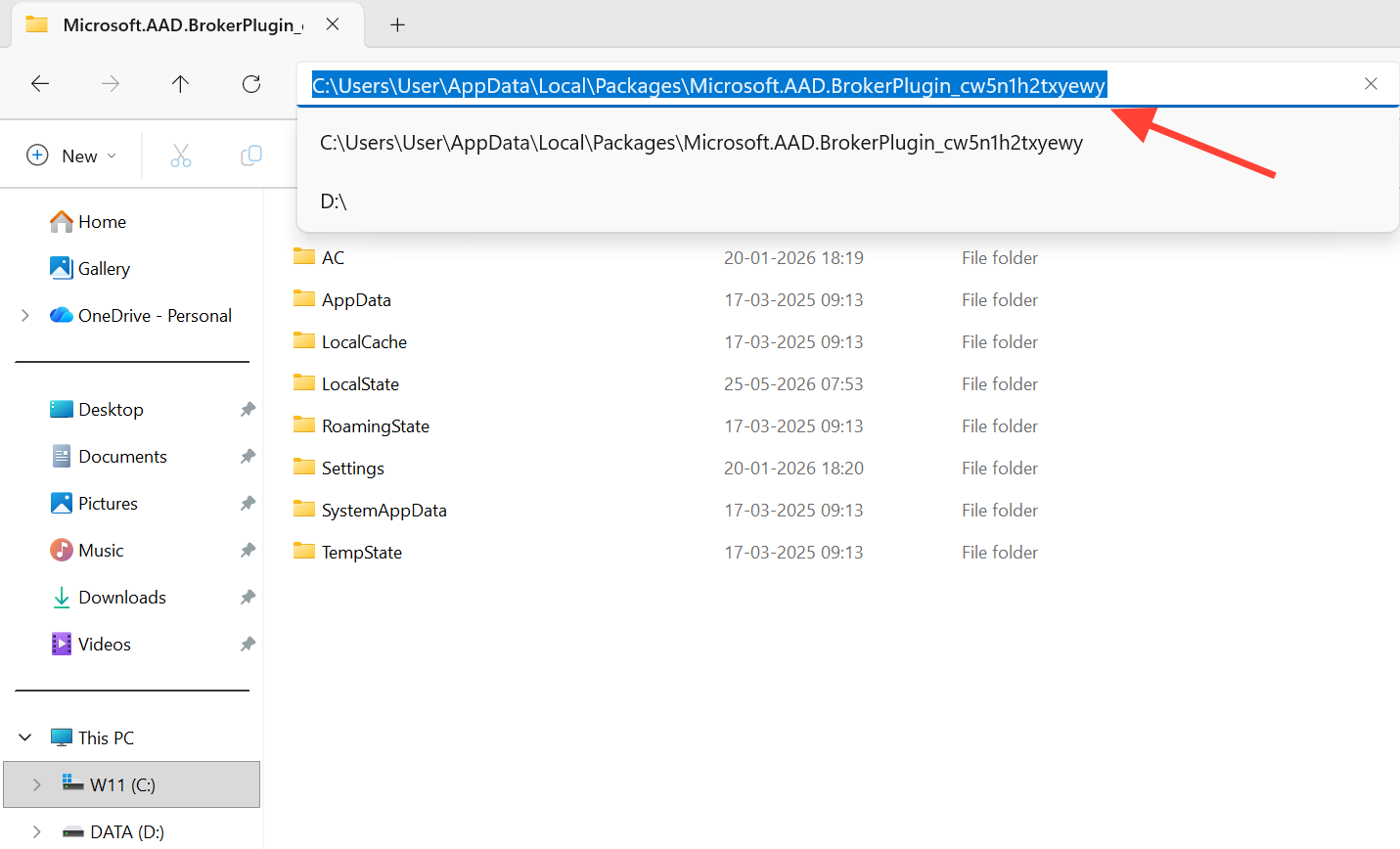
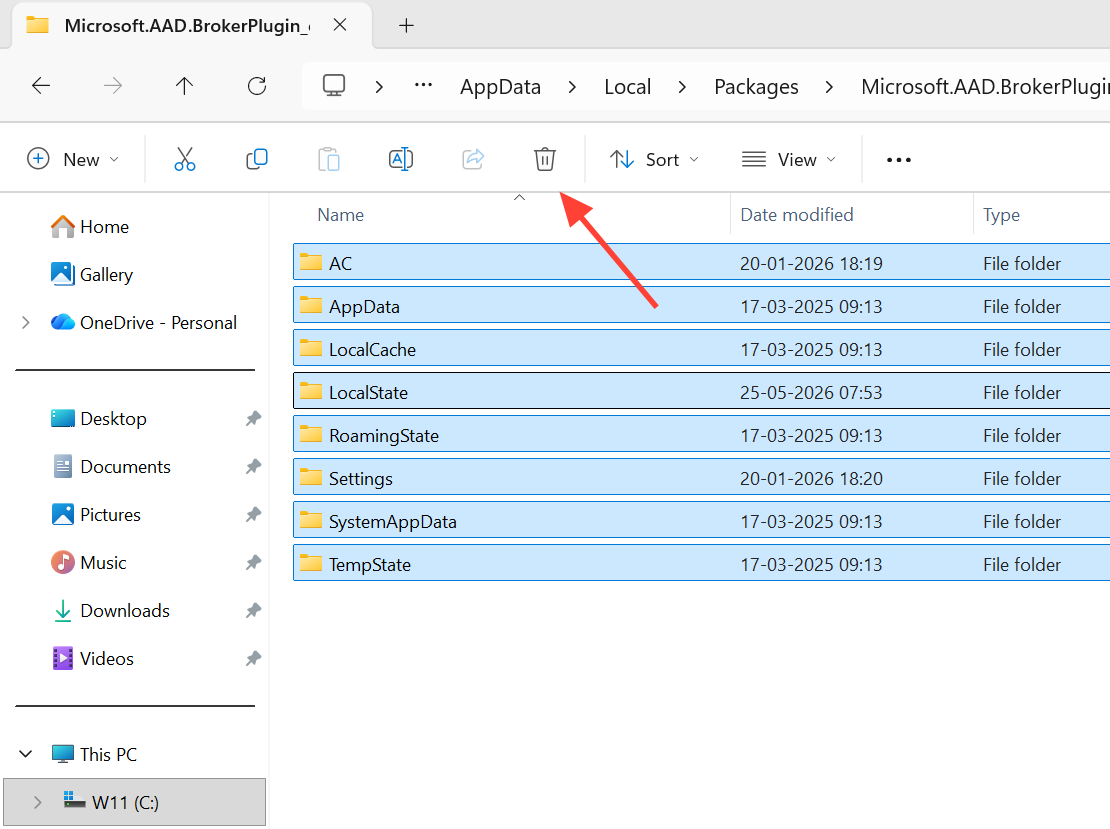
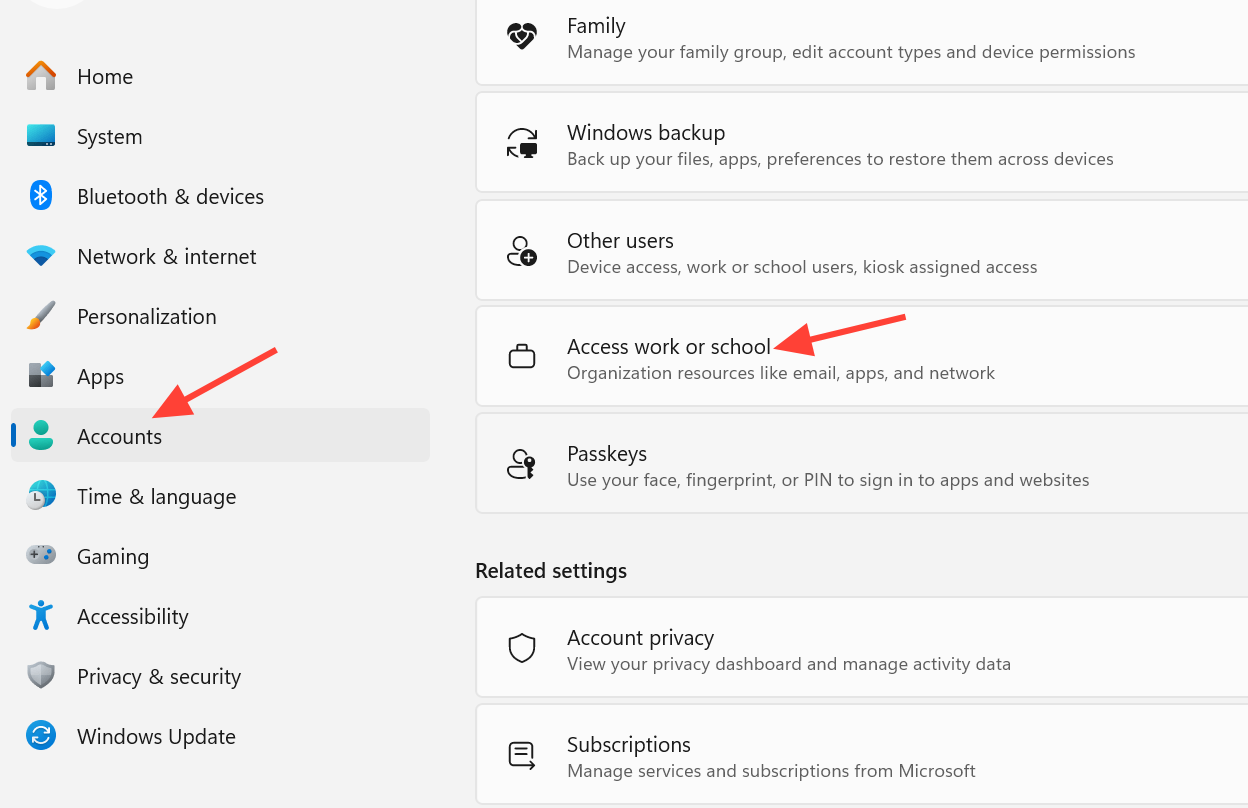
If 657rx returns after a few weeks, emptying this same folder again is a known way to clear it until the tokens go stale once more.
Disconnect and reconnect your work or school account
Reconnecting the account forces Windows to register the device fresh and issue new tokens. This is the go-to fix when the broker cache alone does not do it.
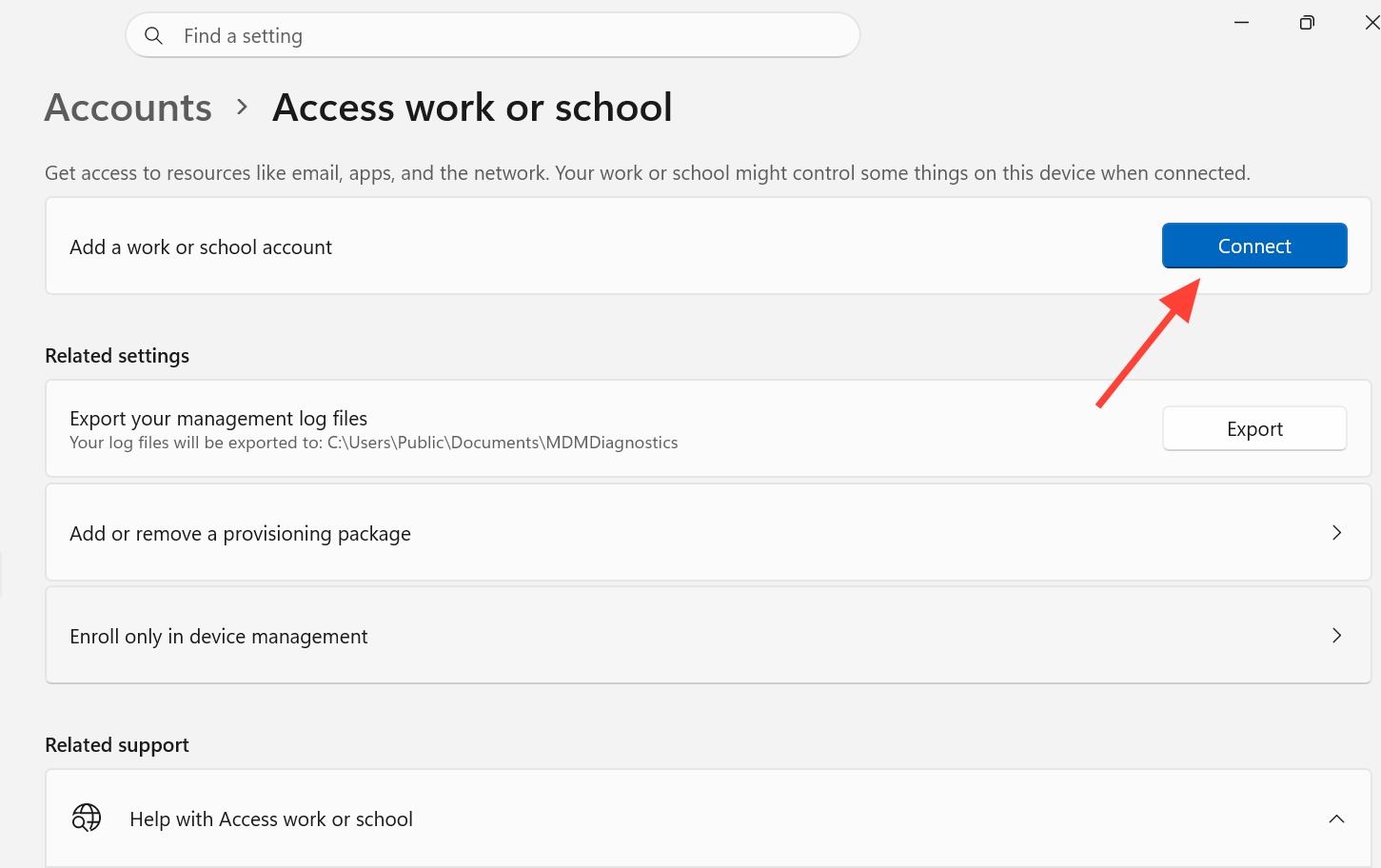
If your organization has blocked the Disconnect button through policy, you will not be able to remove the account yourself. In that case, ask your IT administrator, or try creating a new local administrator account on the PC and signing into Microsoft 365 from that profile, which sidesteps the corrupted profile data.
Remove saved credentials in Credential Manager
Old stored logins can keep feeding the apps invalid tokens. Clearing them is especially useful when 657rx appears in a browser while reaching SharePoint or other online resources.
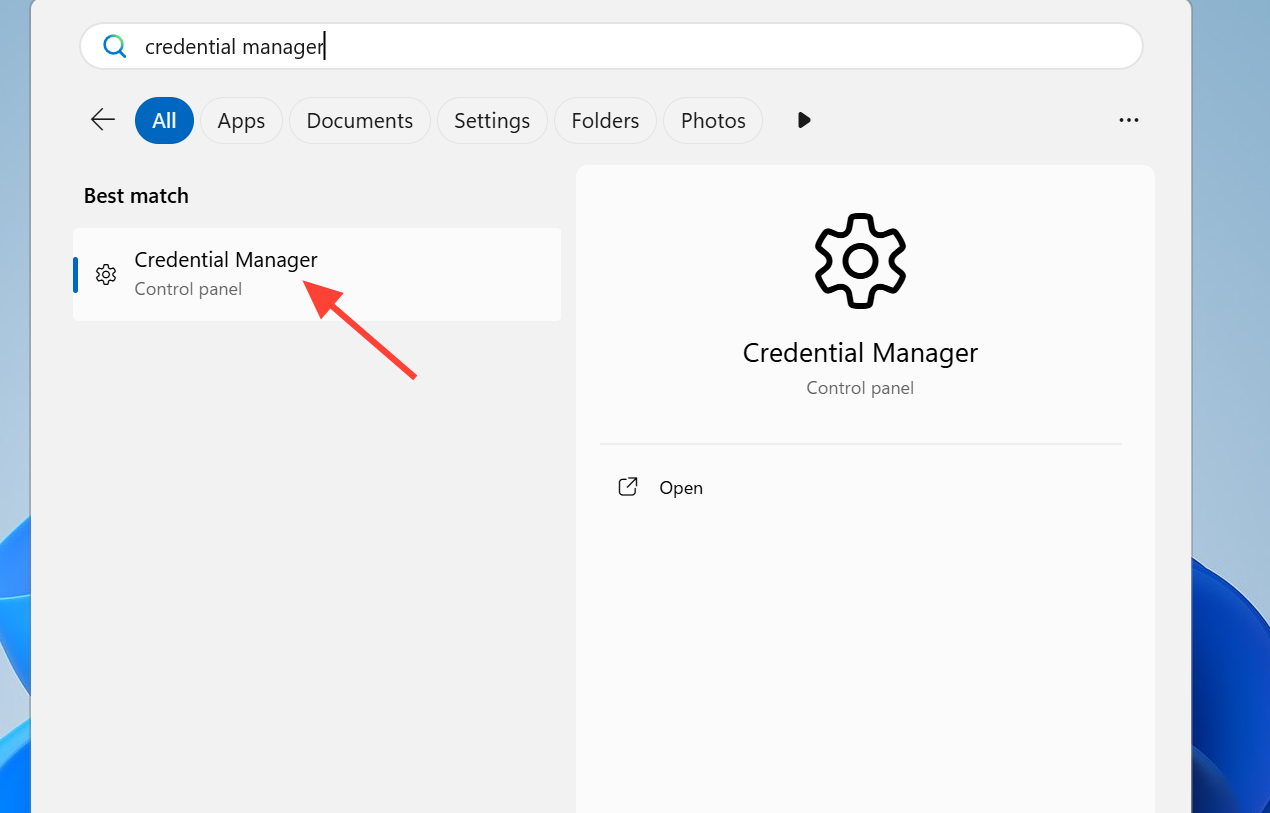
MicrosoftOffice16_Data:OATH, MicrosoftOffice16_Data:orgid, and any entry containing your email address or a domain name followed by _Data.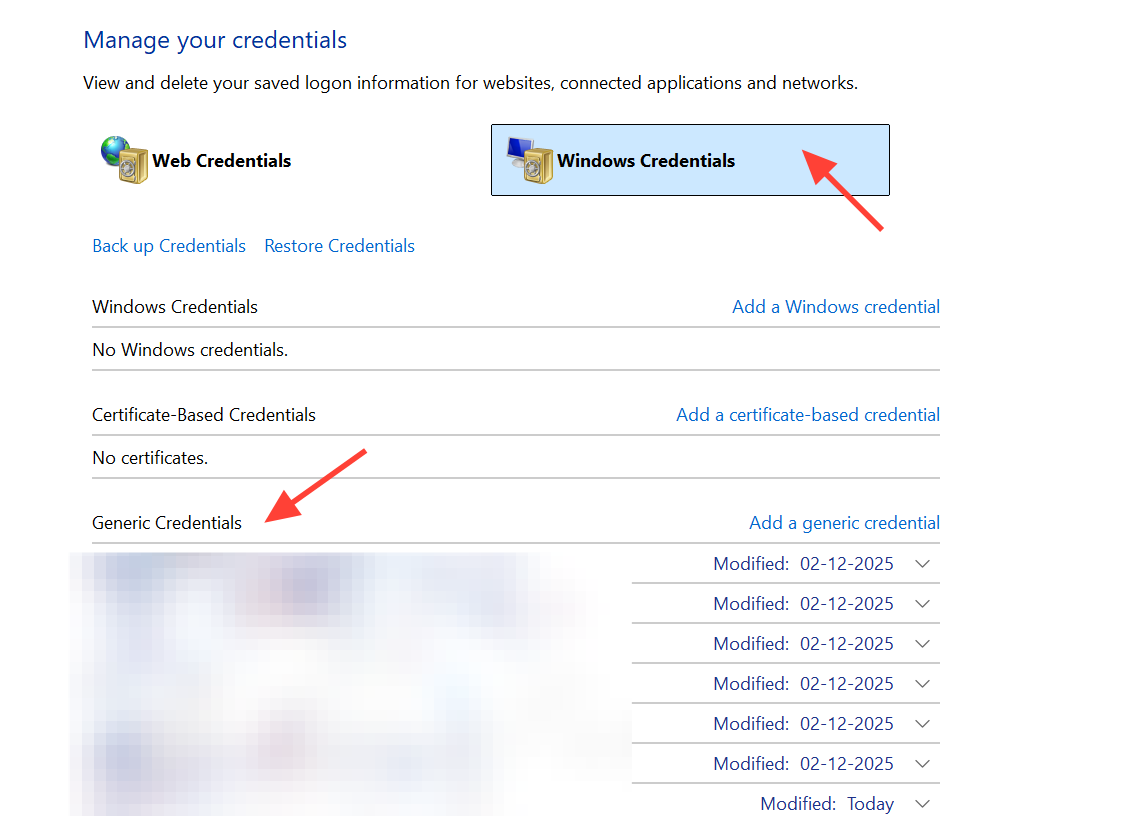
You can also empty two related cache folders in File Explorer for a deeper clean. Delete the contents of each, one after the other.
%localappdata%\Microsoft\OneAuth
%localappdata%\Microsoft\IdentityCache
Clear the Outlook cache for Outlook-only errors
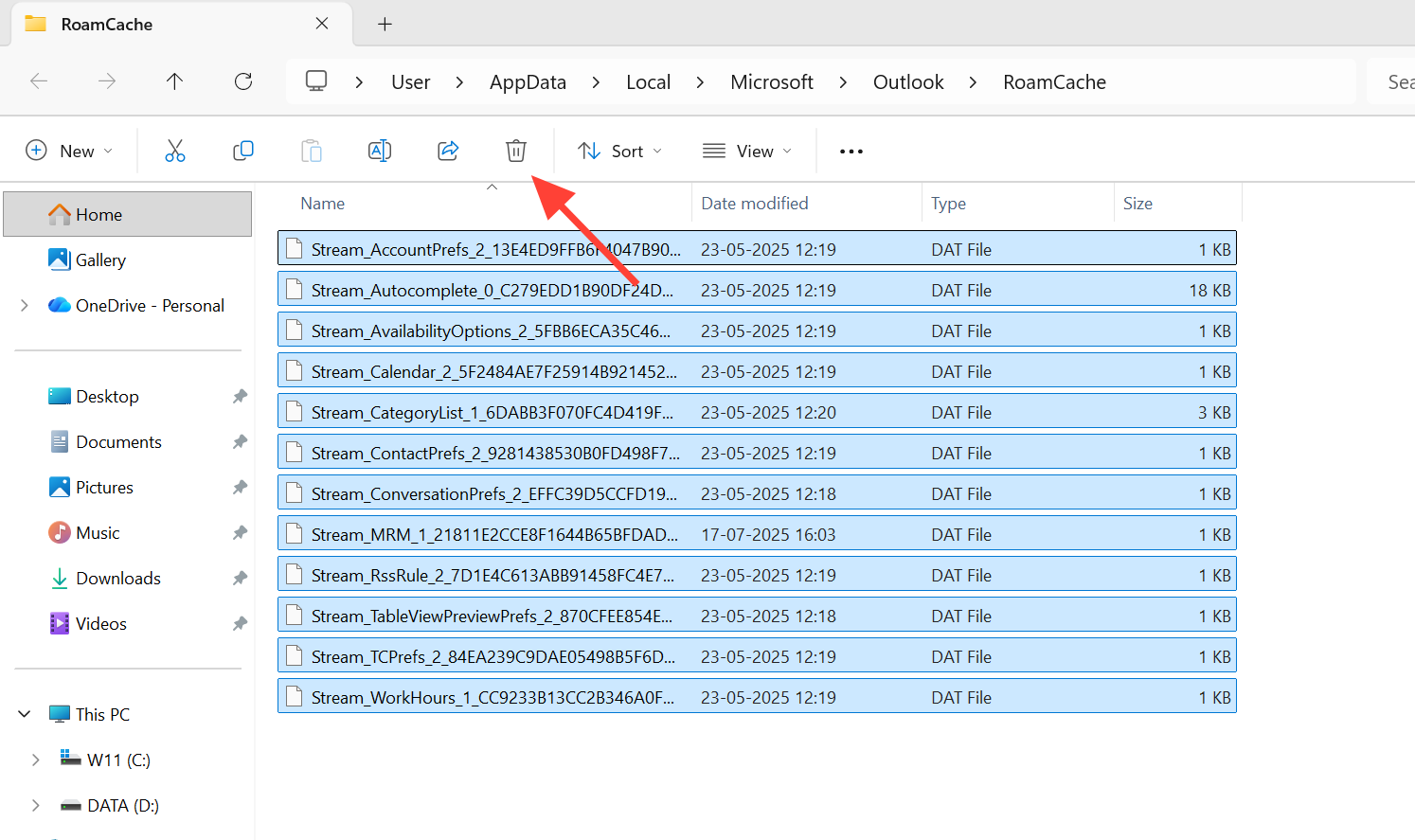
When 657rx only affects classic Outlook, corrupted cache files are often to blame. Clearing them forces Outlook to rebuild fresh copies.
%localappdata%\Microsoft\Outlook\RoamCache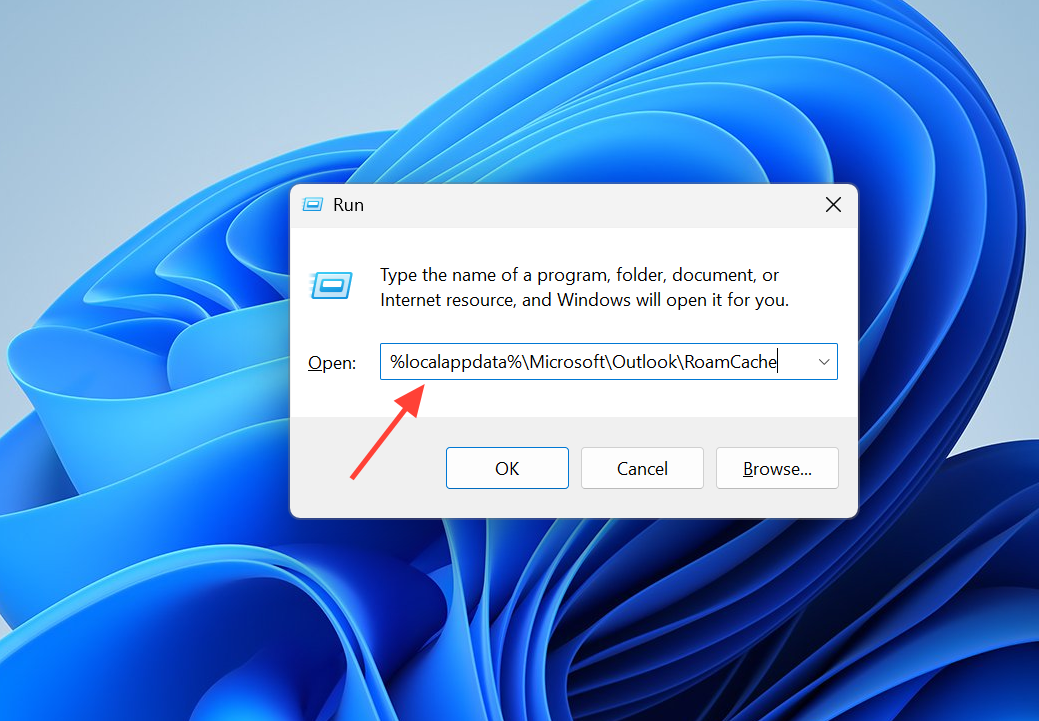
Fix 657rx after a motherboard, TPM, or BitLocker change
Hardware changes can break the device trust relationship with your Microsoft account. Error code 2148073494 often maps to key or certificate problems tied to the TPM, and a stale Primary Refresh Token (PRT) leads directly to these sign-in failures. Check and repair the device registration before doing anything drastic.
AzureAdJoined, WorkplaceJoined, and AzureAdPrt.dsregcmd /status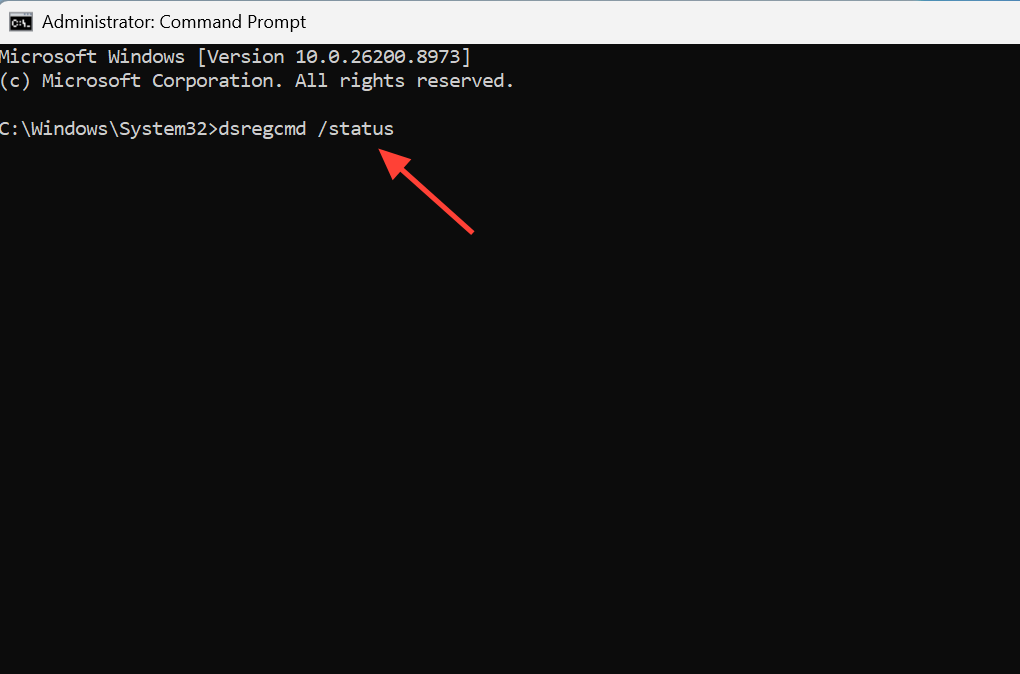
AzureAdPrt shows NO, refresh the token from a normal user Command Prompt (no admin needed), wait about a minute, then run the status check again to confirm the update time changed.dsregcmd /refreshprt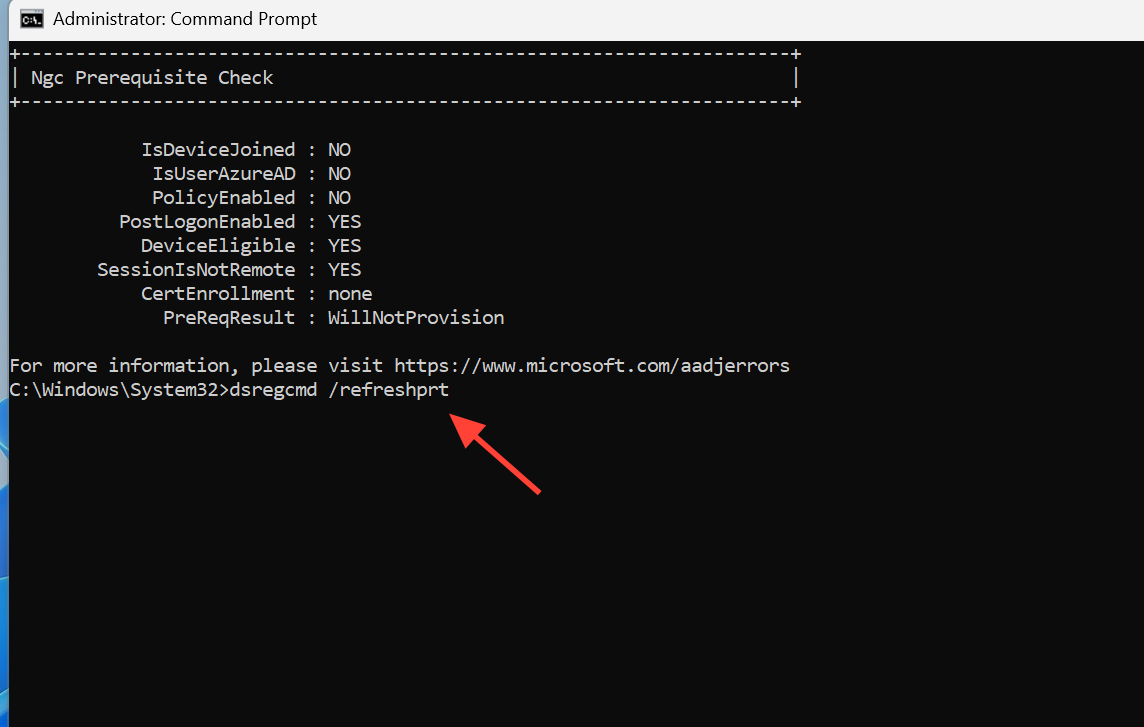
dsregcmd /forcerecovery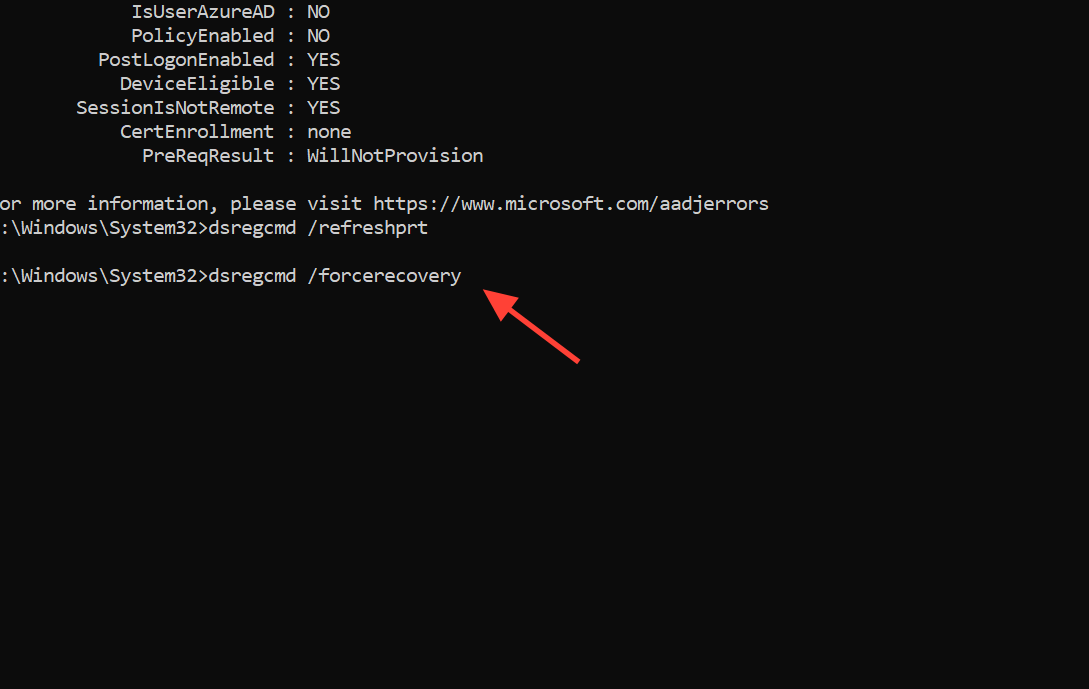
Clearing the TPM is a valid last-resort fix for security-processor issues, but it invalidates the keys used for sign-in. Only do it after confirming your BitLocker recovery keys are backed up in your account or tenant, and only after the lighter fixes above have failed.
Reset Office activation with the Support and Recovery Assistant
If sign-in keeps looping, resetting the activation state cleans out license tokens and cached identities in a supported way. The Microsoft Support and Recovery Assistant automates the whole process.
Cache paths for a manual cleanup
If you prefer to clear things by hand, these are the locations that hold the tokens and cache tied to 657rx. Empty the contents of each with all apps closed, then sign in again.
| What it holds | Path |
|---|---|
| Account broker tokens | %localappdata%\Packages\Microsoft.AAD.BrokerPlugin_cw5n1h2txyewy |
| Token broker cache | %LOCALAPPDATA%\Microsoft\TokenBroker\Cache |
| Sign-in identity cache | %localappdata%\Microsoft\IdentityCache |
| OneAuth tokens | %localappdata%\Microsoft\OneAuth |
| Outlook roaming cache | %localappdata%\Microsoft\Outlook\RoamCache |
| New Teams cache | %userprofile%\AppData\Local\Packages\MSTeams_8wekyb3d8bbwe\LocalCache\Microsoft\MSTeams |
Editing the registry for leftover accounts
If old accounts keep resurfacing, the Office registry keys may still hold corrupted identity data. Back up the registry before you touch anything here.
HKEY_CURRENT_USER\Software\Microsoft\Office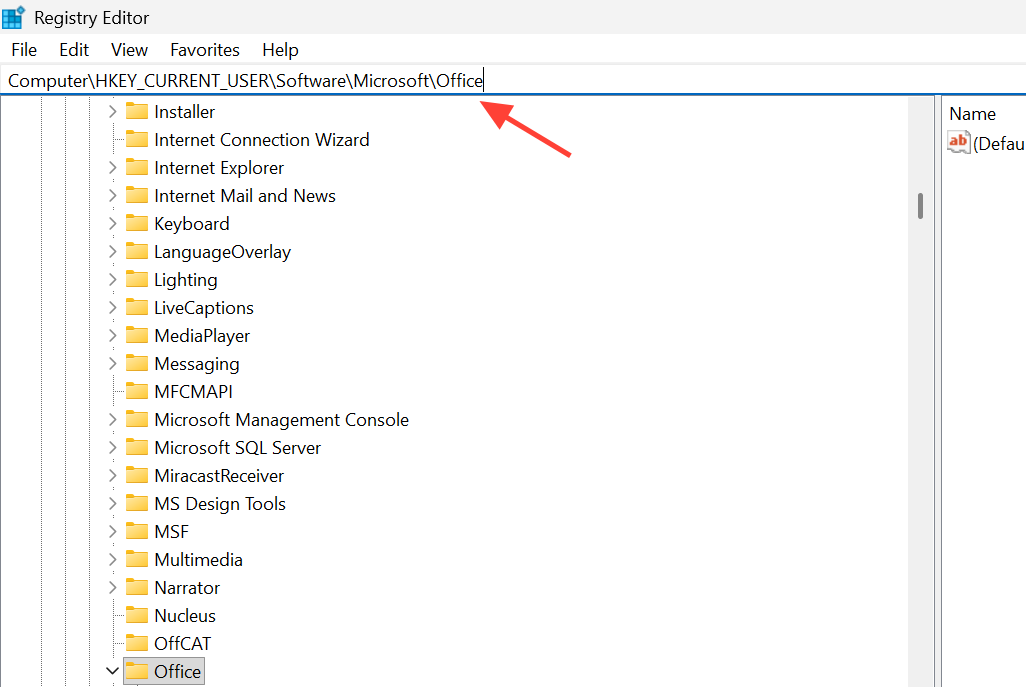
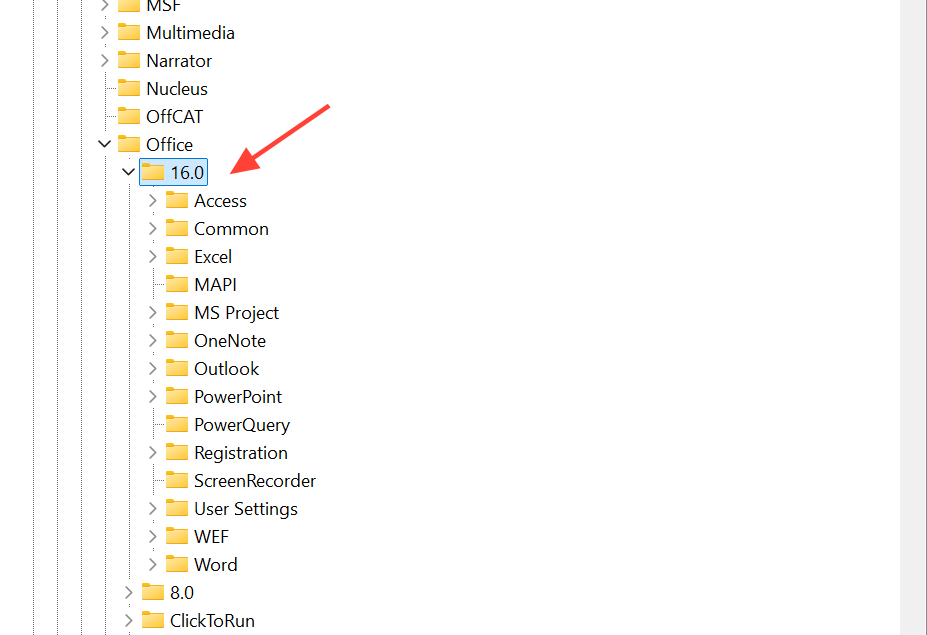
Fixing 657rx in the browser
When the error only appears while signing in through a web browser, it is usually cached cookies rather than Windows tokens. Press Ctrl + Shift + Delete, clear the cached images, cookies, and site data, then restart the browser and sign in again. If it persists, try a different browser to confirm the account itself works. Edge tends to give the most reliable sign-in for Microsoft 365.
How to know it worked
You have fixed 657rx when the app signs in without the “Something went wrong” prompt and your account name appears normally under File, then Account in any Office app. Outlook syncs mail, Teams loads your chats and channels, and the activation status reads as active. If the error still blocks you after every step, and other people in your organization sign in fine, the cause is likely on the account or tenant side. Ask your IT administrator to check conditional access policies and device registration, since those are enforced server-side and cannot be cleared from your PC.