
Suddenly seeing numbers instead of contact names in iMessage can be confusing and inconvenient. This issue often arises due to synchronization problems with contacts or settings that need a quick adjustment. Here are several methods to resolve this problem.
Ensure iCloud contacts are syncing
If your contacts are not properly synced with iCloud, your iPhone may display numbers instead of names in messages. Verifying and resetting the iCloud contacts synchronization can often fix the issue.
Settings app on your iPhone and tap on your name at the top to access your Apple ID settings.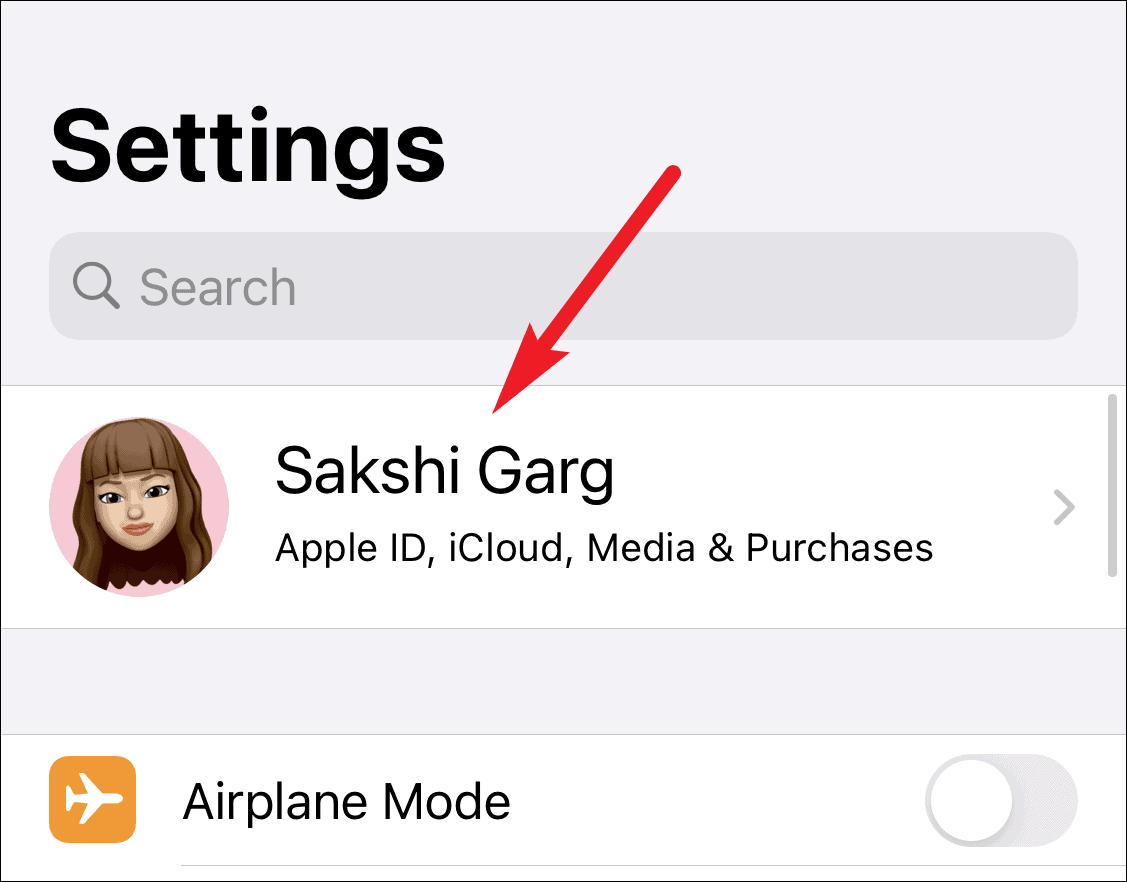
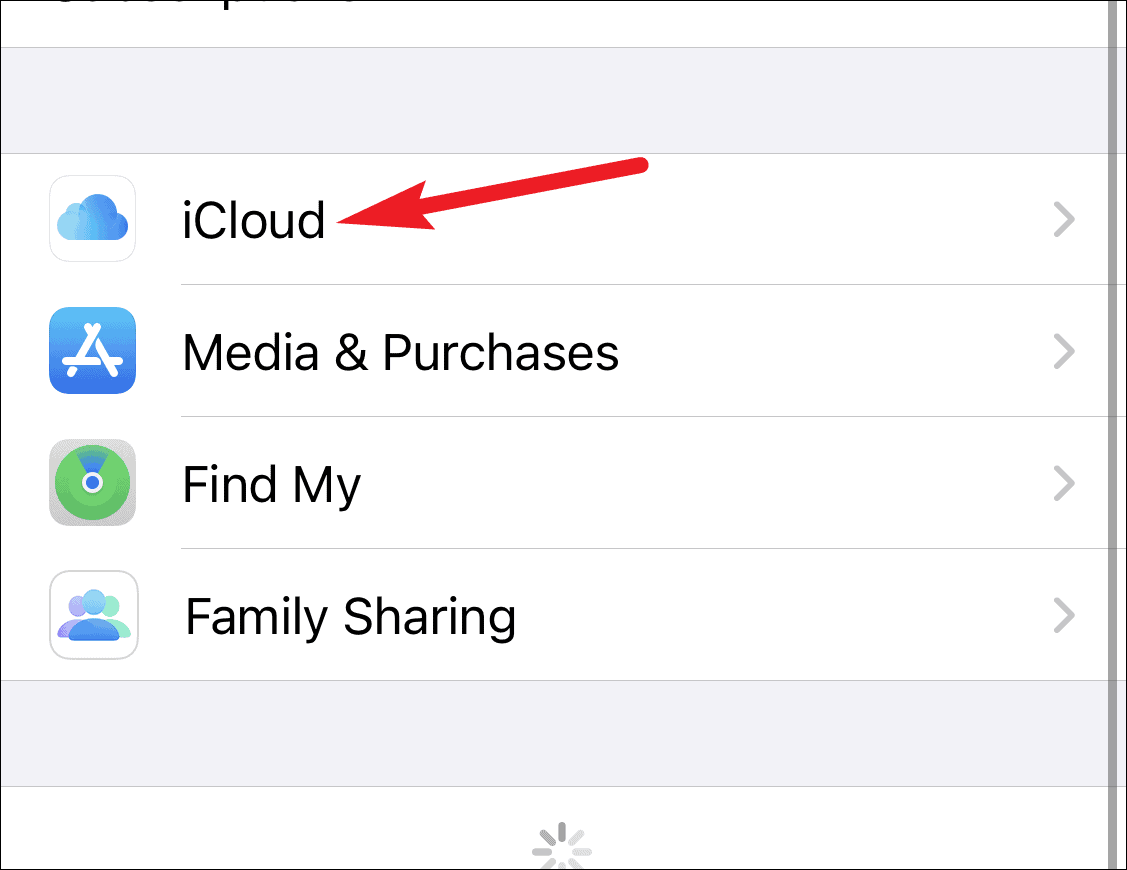
Contacts is turned on. If it’s already on, toggle it off and then back on again. When prompted, select Merge to combine your contacts with iCloud.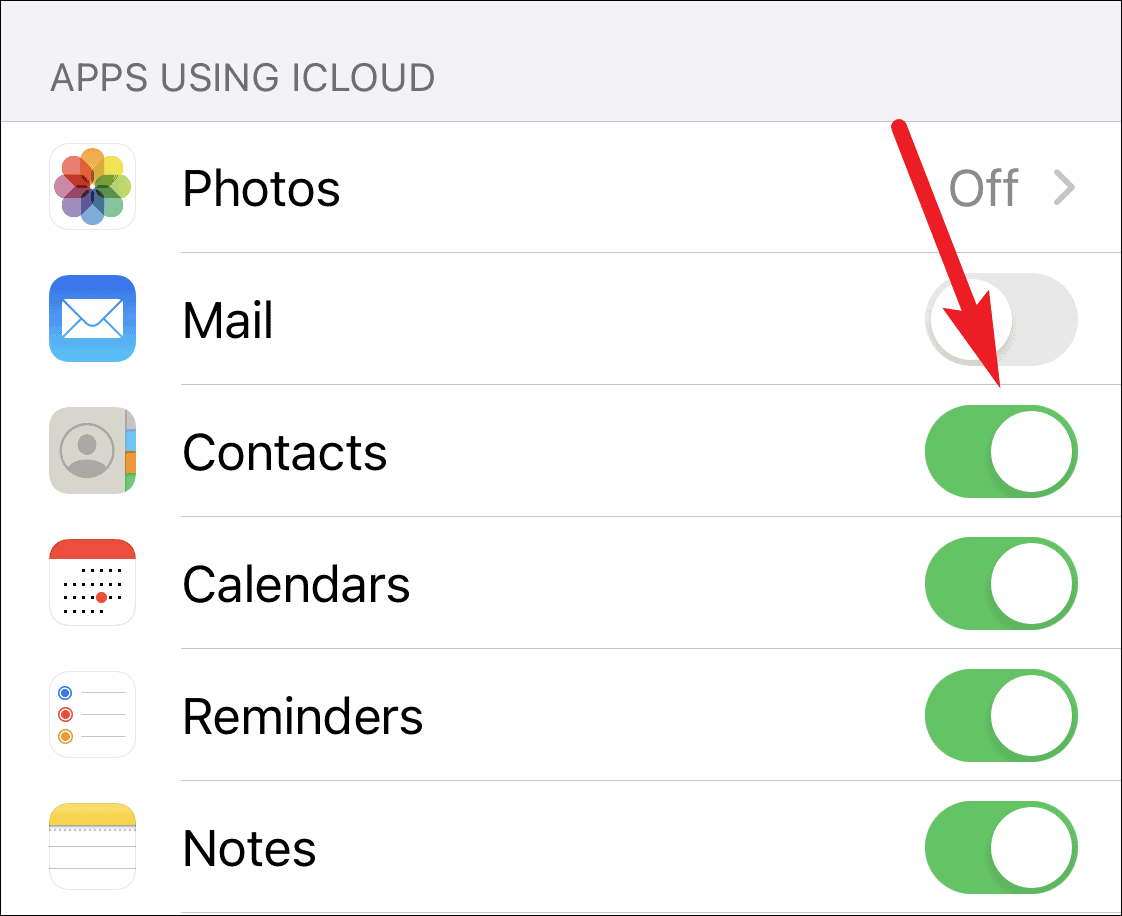
Toggle short name setting
Adjusting the Short Name settings can help refresh how contact names are displayed in Messages.
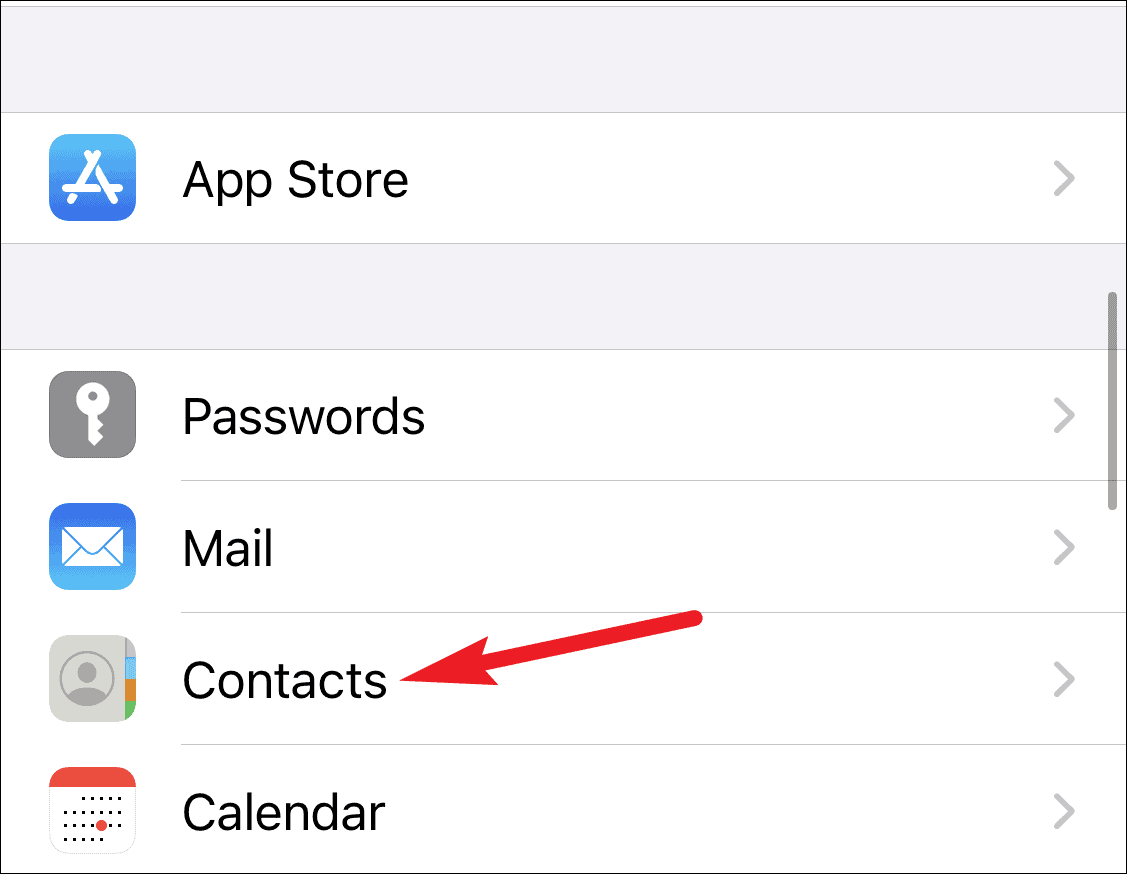
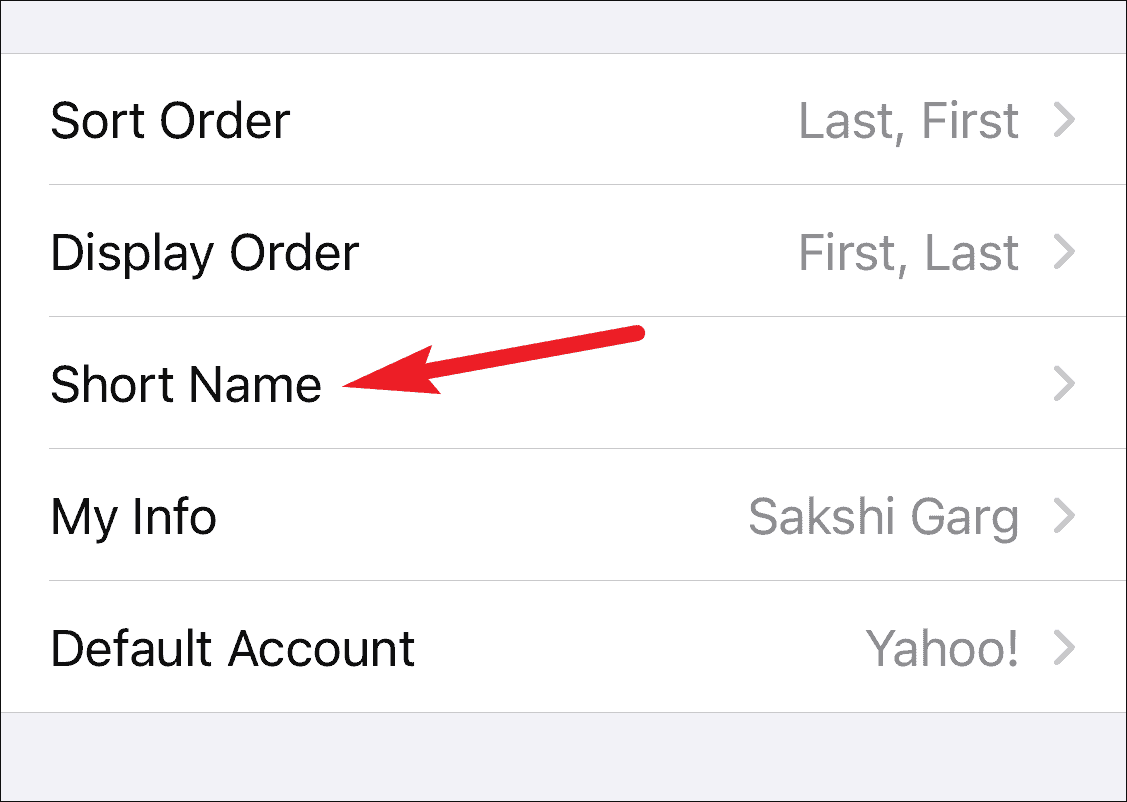
Short Name and Prefer Nicknames. Then, check if the names appear in Messages. You can toggle them back on afterward.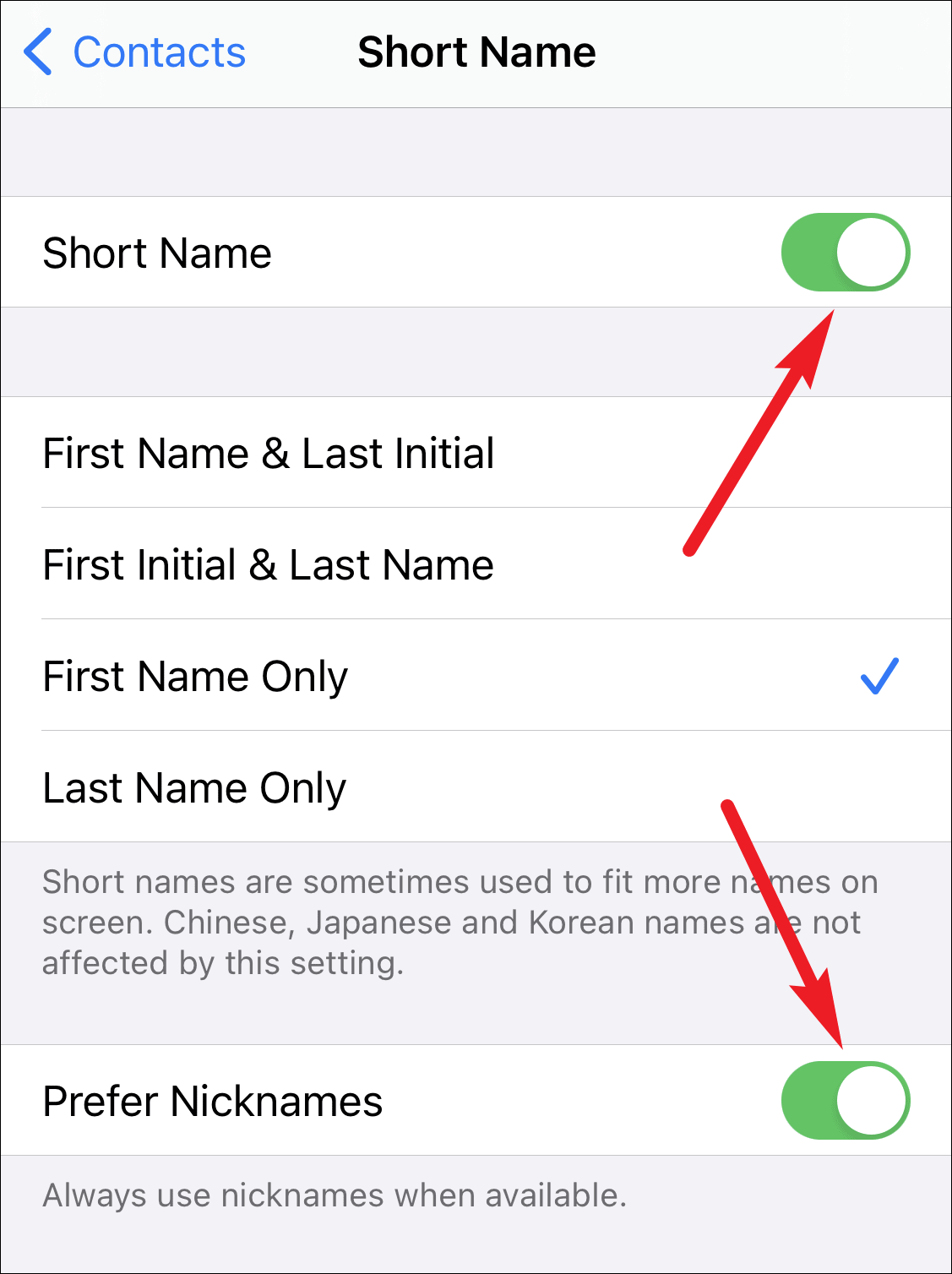
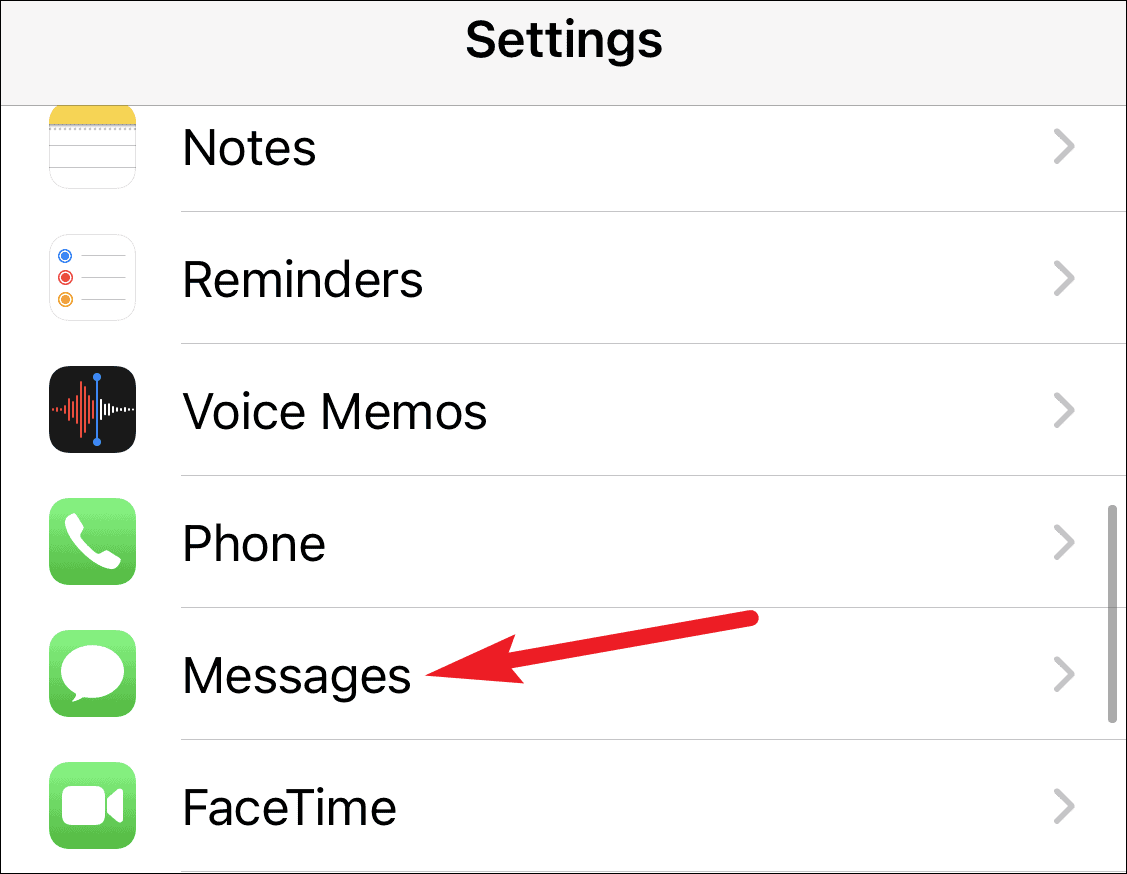
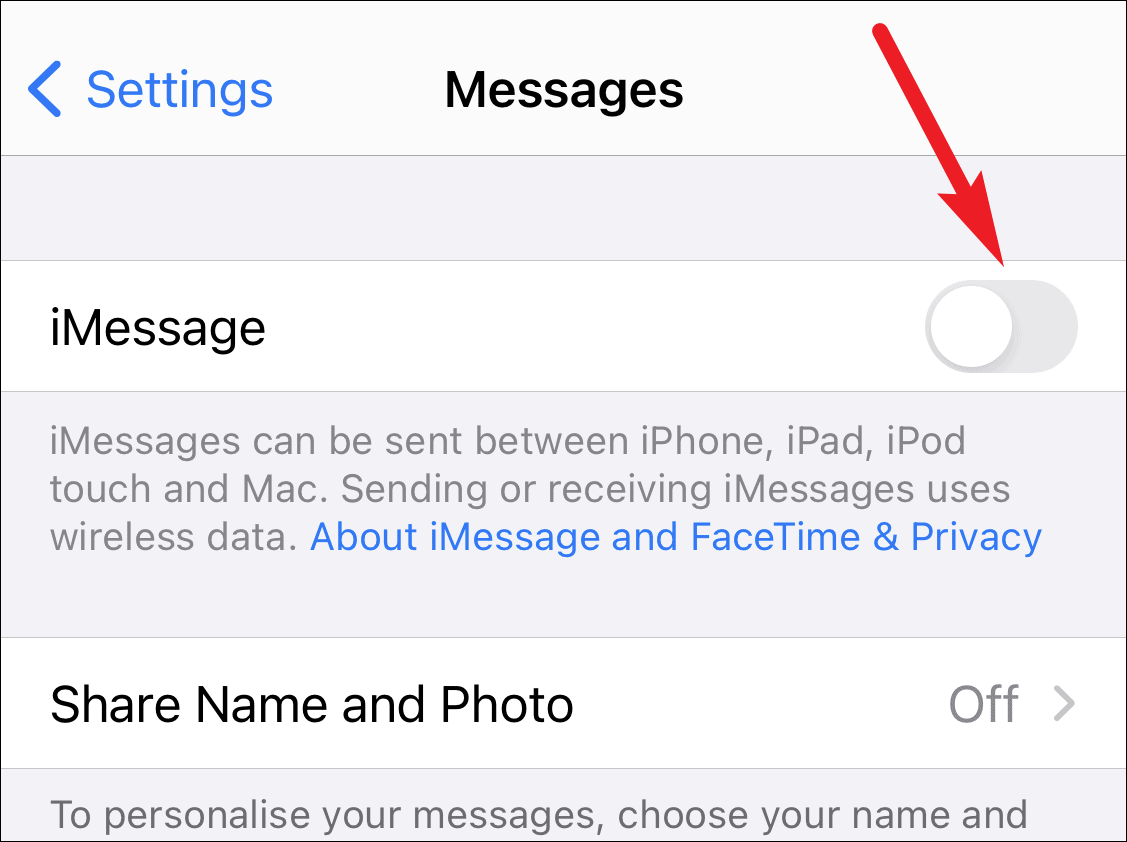
Restart iMessage
Restarting iMessage can reset its connection and fix display issues.
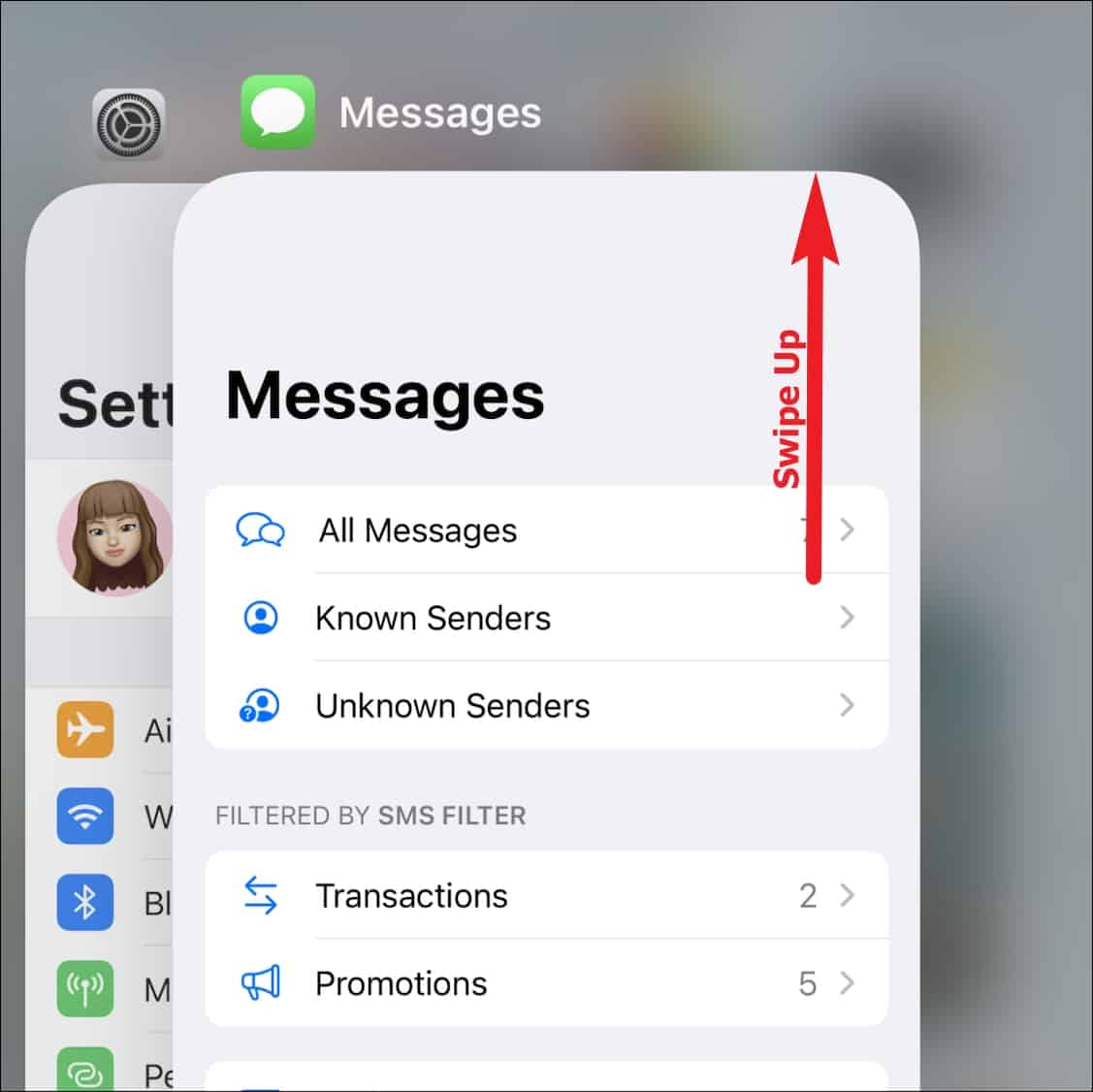
Restart your iPhone
Sometimes, a simple restart can resolve temporary glitches causing contact names not to appear.
Verify country codes in contacts
If international contacts are not displaying correctly, ensure their phone numbers include the correct country codes.
Edit contact names
Making a minor change to a contact’s name can refresh the contact list and resolve display issues.
Ensure other contacts are syncing
If you use third-party accounts for contacts, verify that they are syncing properly.
Contacts is enabled. If it’s on, toggle it off and back on.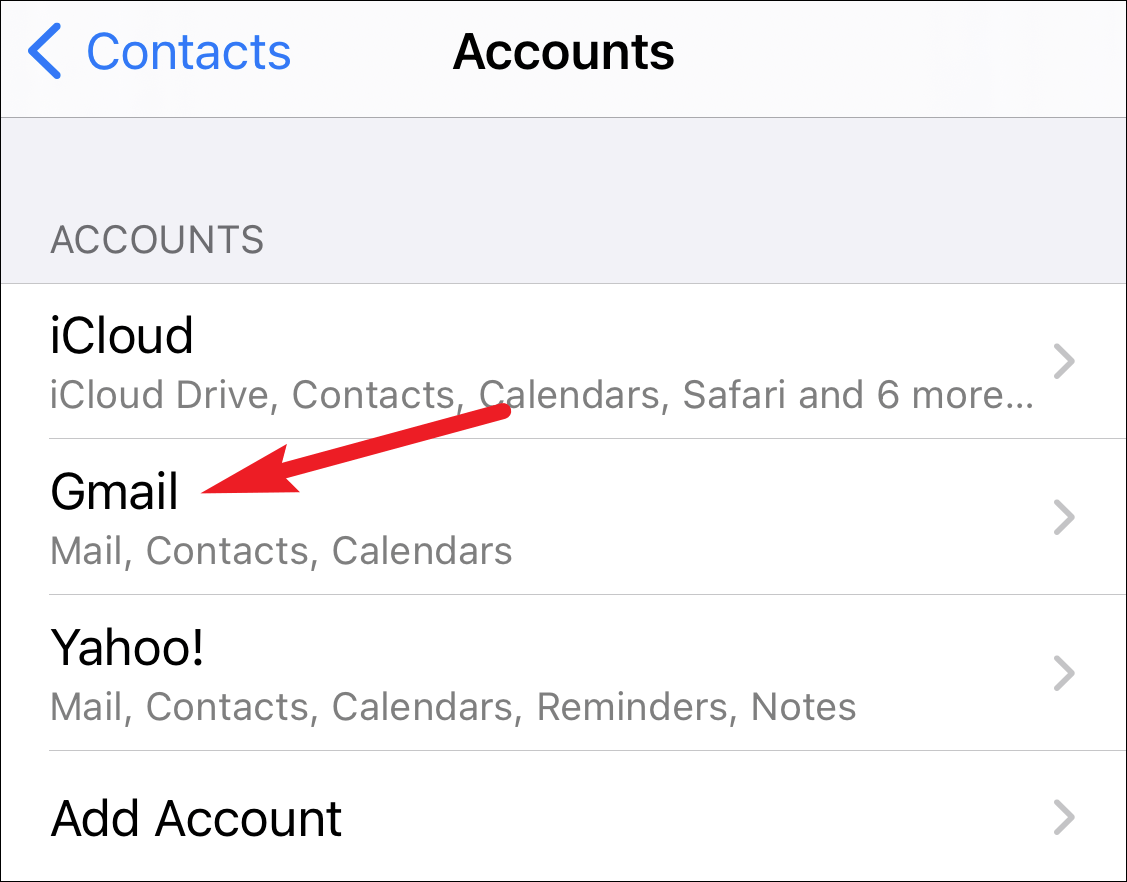
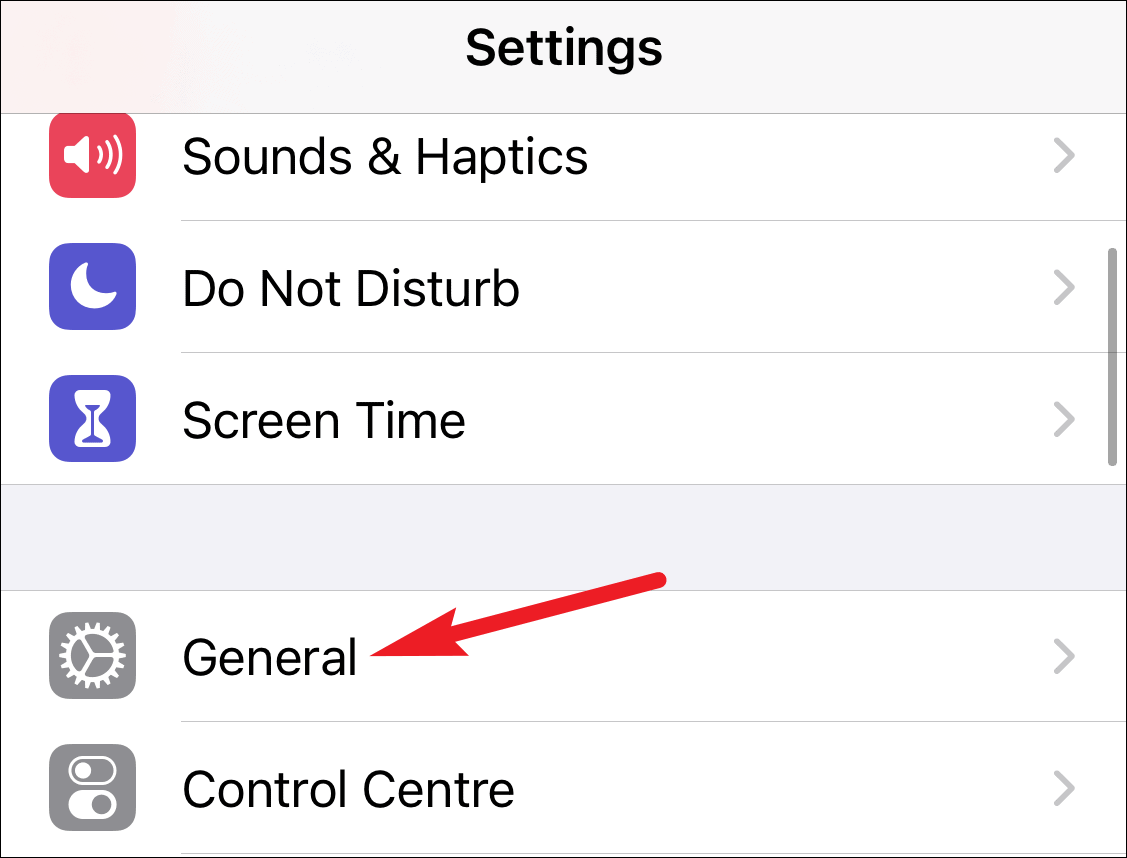
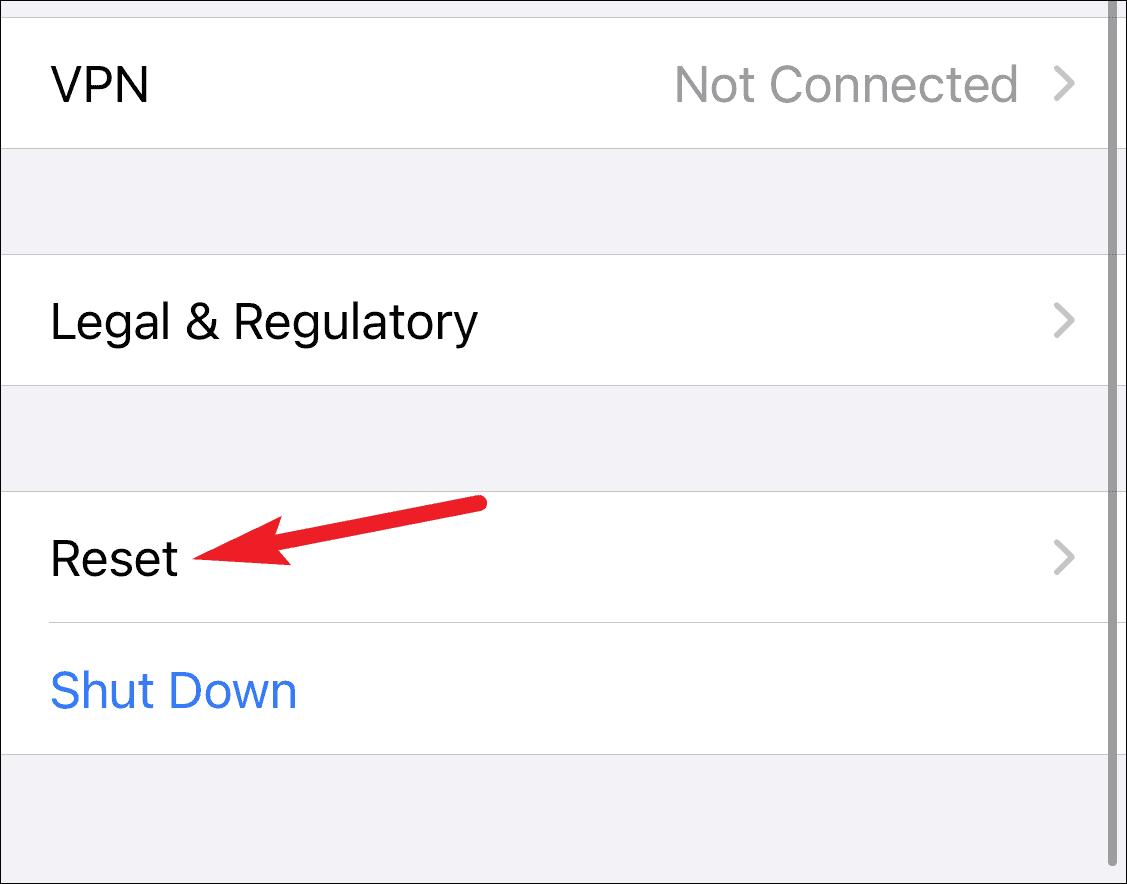
Reset network settings
Resetting network settings can fix underlying issues but will erase saved Wi-Fi passwords.
If none of these methods resolve the issue, consider reaching out to Apple Support for further assistance.





