Learn how to buy, install, and use Xbox Play Anywhere games across Xbox consoles, Windows PCs, and supported handhelds.
Learn how to buy, install, and use Xbox Play Anywhere games across Xbox consoles, Windows PCs, and supported handhelds.
by Pallav Pathak
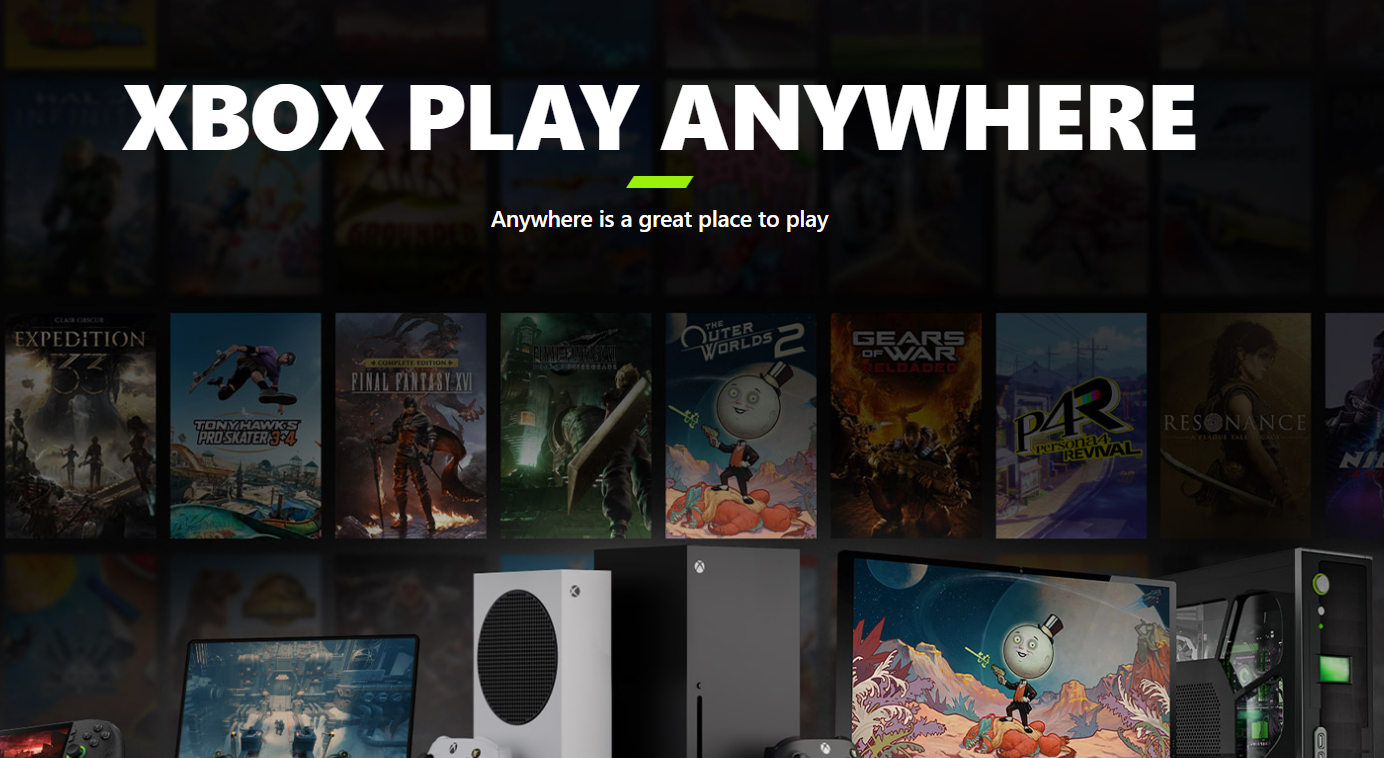
Xbox Play Anywhere lets you buy a supported digital game once and play it on Xbox console, Windows PC, and compatible handheld devices without paying again. Your saves, achievements, and add-ons travel with you, so you can move between devices and continue the same playthrough.
Xbox Play Anywhere basics
Xbox Play Anywhere applies only to supported digital games. When you purchase one of these games from the Xbox Store or Microsoft Store using your Xbox account, you automatically gain the right to install and play it on:
Device
Where games appear
Minimum requirements
Xbox Series X|S / Xbox One.
My games & apps > Ready to install.
Latest system update installed.
Windows 10/11 PC.
My Library in the Xbox PC app or Microsoft Store.
Windows 10/11 with Anniversary Update or later.
Supported Windows 11 handhelds.
Xbox app library on the handheld.
Windows 11 handheld certified for Xbox games.
Only one device can actively run that game under your account at any given time. You can sign in on multiple devices, but you cannot play the same game simultaneously on more than one.
All progress for Xbox Play Anywhere titles is stored with Xbox cloud saves. That means your save files, add-ons, and achievement progress carry over when you swap devices.
Check if a game supports Xbox Play Anywhere
Not every game supports Xbox Play Anywhere. Supported titles are clearly marked across Xbox storefronts.
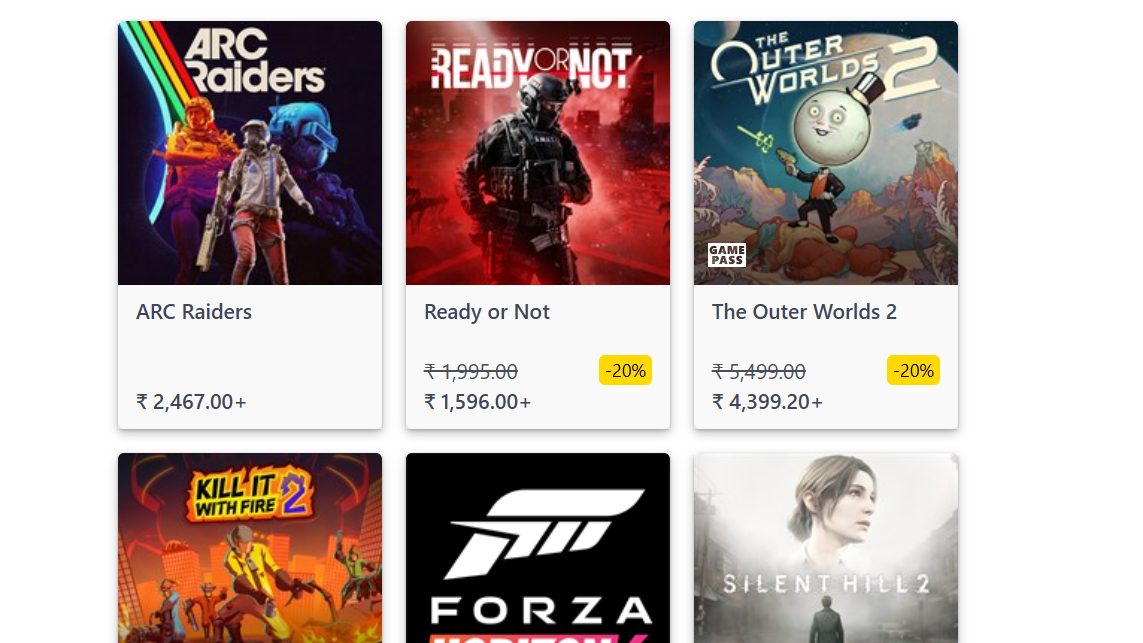
Open the product page for the game on an official Xbox storefront. You can do this on an Xbox console, in the Xbox PC app, or on the web at xbox.com/games/xbox-play-anywhere for the full catalogue.
Look for the Xbox Play Anywhere badge on the game page. This badge confirms that a single digital purchase grants access on Xbox consoles, Windows PCs, and supported handheld devices.
Verify that you are viewing a digital edition. Xbox Play Anywhere only applies to digital purchases and digital codes, not disc versions.
Buy an Xbox Play Anywhere game once
All Play Anywhere benefits are tied to your Xbox account (Microsoft account). As long as you use the same account, there is no extra fee to install on another supported device.
Sign in to your Xbox account on either your Xbox console, your Windows 10/11 PC, or the web. Make sure this is the account you plan to use on all devices.
Purchase a supported Xbox Play Anywhere title digitally from either the Xbox Store on your console or the Microsoft Store on PC/web. The purchase attaches to your account, not to a single device.
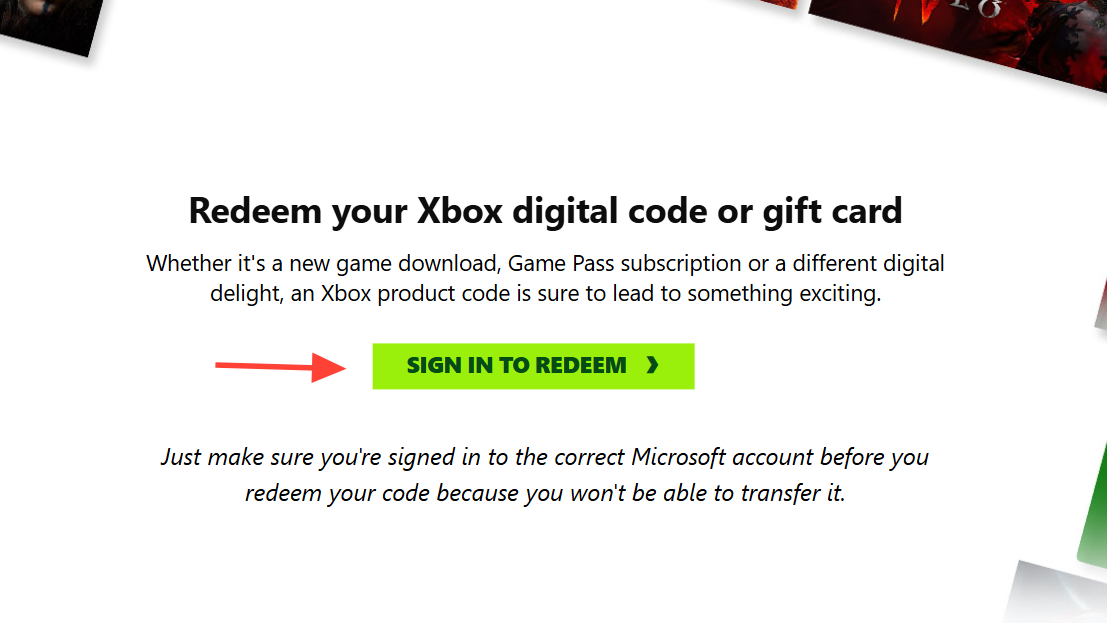
If you have a digital code from a retailer, redeem it at xbox.com/redeem or through the store on your console or PC. Once redeemed, the game behaves like any other digital Play Anywhere purchase.
There is no separate “PC version” or “console version” purchase for Xbox Play Anywhere games. A single entitlement covers all supported device types.
Use Xbox Play Anywhere on Xbox console
After you have bought or redeemed a Play Anywhere title, installing it on Xbox Series X|S or Xbox One is straightforward.
Highlight the game you want, then start the installation. The console downloads and installs the console build while keeping your purchase linked to your account.
Once installed, launch the game as normal. Any progress you make will sync to Xbox cloud saves for use on PC and supported handhelds.
Use Xbox Play Anywhere on Windows 10/11 PC
Running Play Anywhere titles natively on a PC requires up-to-date Windows and signing in with the correct Xbox account.
On your Windows 10/11 PC, check that you have the Xbox PC app installed. Many Windows 11 PCs include it by default; if needed, download it from aka.ms/xboxinstaller.
Open the Xbox app and sign in with the same Xbox account that owns the Play Anywhere games. Using a different account will make the store show purchase prices instead of install options.
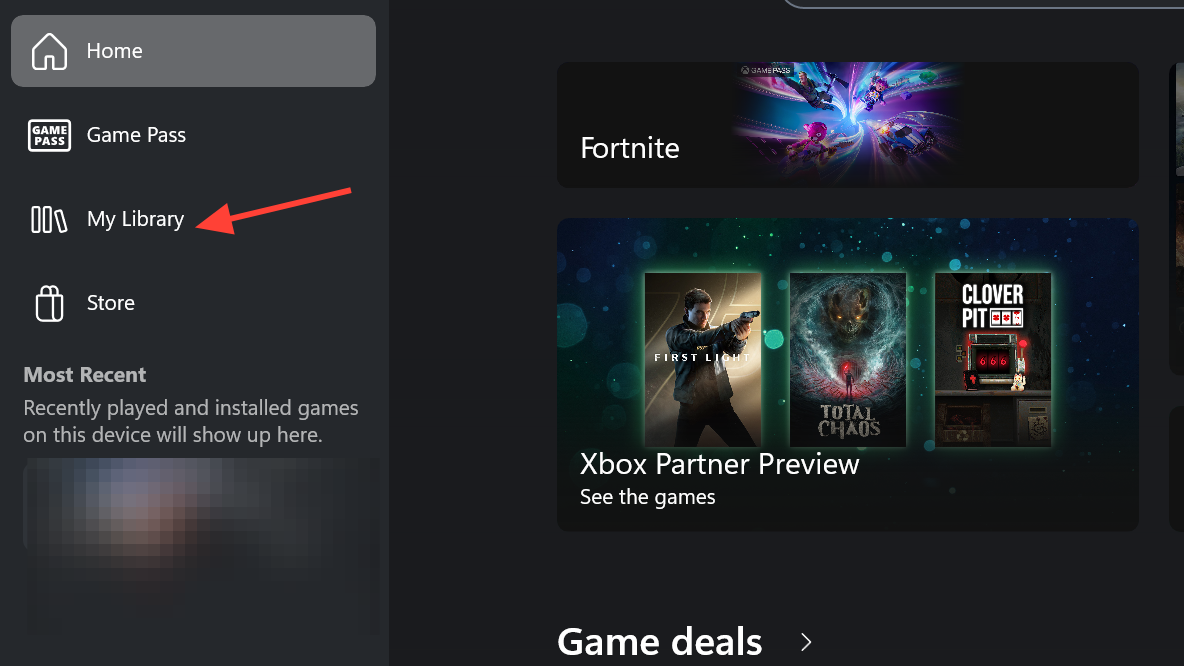
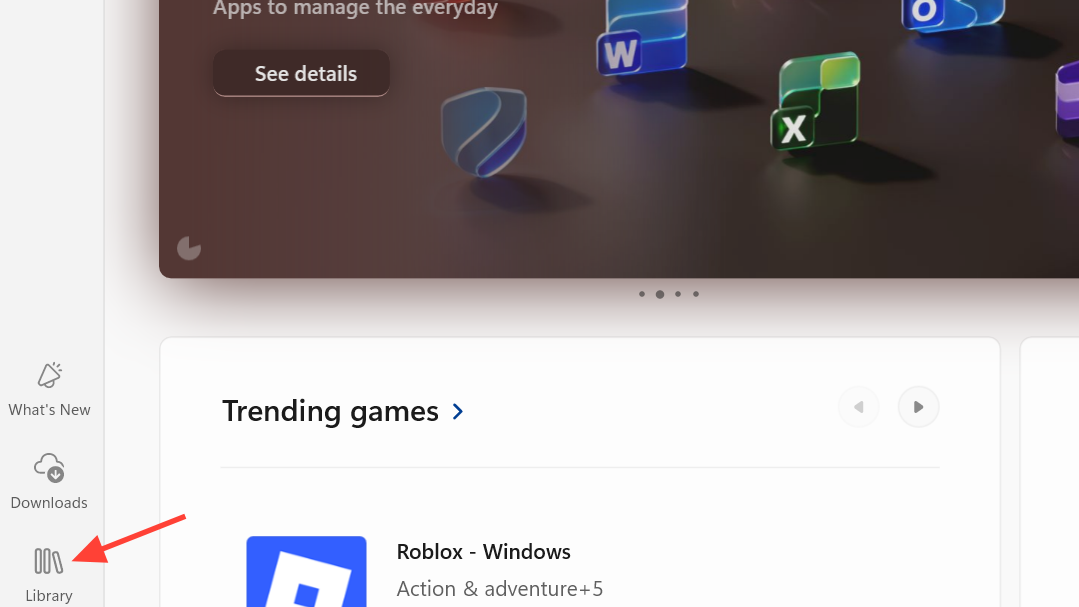
Go to My Library inside the Xbox app. This list contains all supported PC games linked to your account, including Play Anywhere titles you originally bought on console.
Open the Microsoft Store app on your Windows 10/11 PC and sign in with your Xbox account. Confirm that the account email matches what you use on your console.
Scroll or search for the Play Anywhere game. It should appear with an install button instead of a purchase price, because your digital license already exists.
Click install to download the PC version. Once finished, you can launch from the Start menu, from within the Microsoft Store, or from the Xbox app.
Move your progress between Xbox, PC, and handhelds
Cross-progression is at the core of Xbox Play Anywhere. The system uses a single TitleID and your Xbox user ID to keep saves and unlocks consistent across devices.
When you finish playing on one device, exit back to the game’s main menu and then close the game. This gives the game time to upload your latest save to the cloud.
On another device, start the same Play Anywhere game while signed in to the same account. The game downloads your latest cloud save automatically so that you continue from the correct point.
Only one set of gamerscore and achievements exists for each Play Anywhere title. Earning an achievement on console marks it as earned on PC as well, rather than duplicating it.
Use add-ons and DLC across devices
Content you buy for a Play Anywhere game—such as DLC packs, season passes, consumables, or in-game unlocks—also carries across your supported devices.
Open the same game on a different supported device with the same account. The entitlement for the add-on is recognized, and the content becomes available there too.
If DLC content does not appear, visit the game’s “Manage game and add-ons” section on console or the game’s product page in the Xbox app/Microsoft Store on PC. Confirm that the add-on shows as owned and install any missing components.
There is no need to rebuy compatible DLC on each platform when the base game supports Xbox Play Anywhere.
Play Xbox Play Anywhere games on Windows 11 handhelds
Xbox Play Anywhere extends to certain Windows 11 gaming handhelds, so you can take your library on the go.
Download the titles you want and launch them from the Xbox app. Your saves and unlocks sync as long as the device connects to Xbox services periodically.
Troubleshooting common Xbox Play Anywhere issues
Game asks you to pay again on PC
Sometimes a Play Anywhere title that you bought on Xbox seems to require a second purchase on PC. This is usually an account or app issue rather than a billing problem.
Confirm you are signed in with the same Xbox account on both console and PC. On PC, check the signed-in account in both the Xbox app and the Microsoft Store.
In the Microsoft Store app on Windows, open your Library and look for the game. If it appears there with an install button, launch from there instead of the store product page.
If the game appears in the Xbox app’s My Library but still shows a price on the store page, start the install from the library entry. The library reflects ownership more reliably than the general store listing.
If it does not appear in any library, verify that the game is actually marked as Xbox Play Anywhere on its product page. Non-Play Anywhere titles bought on console do not automatically unlock a PC version.
Progress does not carry between devices
When a Play Anywhere game seems to start from scratch on another device, the underlying issue is almost always cloud save sync or account mismatch.
Make sure you are using the same Xbox account on both devices. If you accidentally created or signed in with a different account, the saves are separate.
Wait a short time with the console or PC online, then open the game on the second device. Look for any on-screen prompt about syncing or choosing a save; select the most recent cloud save if asked.
Check your network connection on both devices. Cloud saves require a stable internet connection during closing and opening of the game to stay up to date.
DLC or add-ons missing on PC or console
If downloadable content you own on one platform seems absent on another, the entitlement may not be fully installed or recognized.
On the device where the DLC works, open the game’s manage content screen. Note the list of installed add-ons so you can compare it later on the second device.
On the second device, go to the same manage content screen or the game’s page in the store. Confirm that the add-on shows as owned and not as a new purchase.
Install any missing DLC component on the second device. Some add-ons appear as separate downloads and need to be installed individually, even though they are owned.
Xbox Play Anywhere is flexible, but it does have some clear boundaries and rules.
Aspect
How it works
Number of active sessions.
You can run the game on only one device at a time per account.
Digital vs disc versions.
Play Anywhere applies only to digital purchases and digital codes, not physical discs.
List of supported games.
Only titles marked with the Xbox Play Anywhere badge support cross-entitlement.
Cloud saves.
Progress sync requires that devices periodically connect to Xbox services.
Achievements.
Only one shared gamerscore/achievement list exists across all devices.
Once your games and accounts are set up correctly, Xbox Play Anywhere turns your Xbox, PC, and handheld into one shared library, so you can focus on playing instead of managing different versions.