Quick Share on the Pixel 10 family can now talk directly to AirDrop on iPhone, iPad, and Mac, so you can move photos, videos, and documents between Android and Apple devices without cables, chats, or cloud links. Transfers are peer‑to‑peer, show familiar AirDrop prompts on Apple devices, and work in both directions once everything is set up correctly.
Quick Share and AirDrop basic requirements
Before changing settings, both devices need to meet some basic conditions so they can see each other and complete transfers.
| Item | Pixel 10 side | Apple side (iPhone / iPad / Mac) |
|---|---|---|
| Supported devices. | Pixel 10, Pixel 10 Pro, Pixel 10 Pro XL, Pixel 10 Pro Fold. | iPhone, iPad, and Mac models that support AirDrop. |
| Software / system. | Latest Android update, Google Play system update, and Quick Share Extension update. | Latest iOS, iPadOS, or macOS with AirDrop and the “Everyone for 10 Minutes” option. |
| Wireless radios. | Bluetooth and Wi‑Fi turned on. | Bluetooth and Wi‑Fi turned on. |
| Visibility / receive mode. | Quick Share receive mode on or visible to everyone for 10 minutes (when receiving). | AirDrop set to “Everyone for 10 Minutes”. “Contacts Only” does not work with Pixel devices. |
| Distance. | Devices close together (typically within the same room) so Bluetooth discovery and Wi‑Fi Direct can connect reliably. | |
Transfers use a direct, local connection between the devices rather than uploading files to a server, so both devices must be awake and near each other while the transfer happens.
Update your Pixel 10 so Quick Share works with AirDrop
The most common reason Pixel 10 owners cannot see Apple devices is that Quick Share or the Google Play system components are not updated yet. Updating these first removes a lot of setup and troubleshooting headaches.
Security or a similar entry) and check for updates there. Install any update offered, then restart your Pixel once it finishes.System services. This area contains background components such as the Quick Share Extension.Quick Share Extension and apply the available update. This extension is what allows Quick Share to speak the same discovery and transfer language that AirDrop expects.Prepare AirDrop on iPhone, iPad, or Mac
Quick Share can only connect when the Apple device’s AirDrop visibility is set to allow everyone for a short window. The default “Contacts Only” mode blocks Pixel devices.
Change AirDrop settings on iPhone or iPad
General.Everyone for 10 Minutes. This opens a temporary window where any nearby device, including a Pixel 10, can suggest a transfer.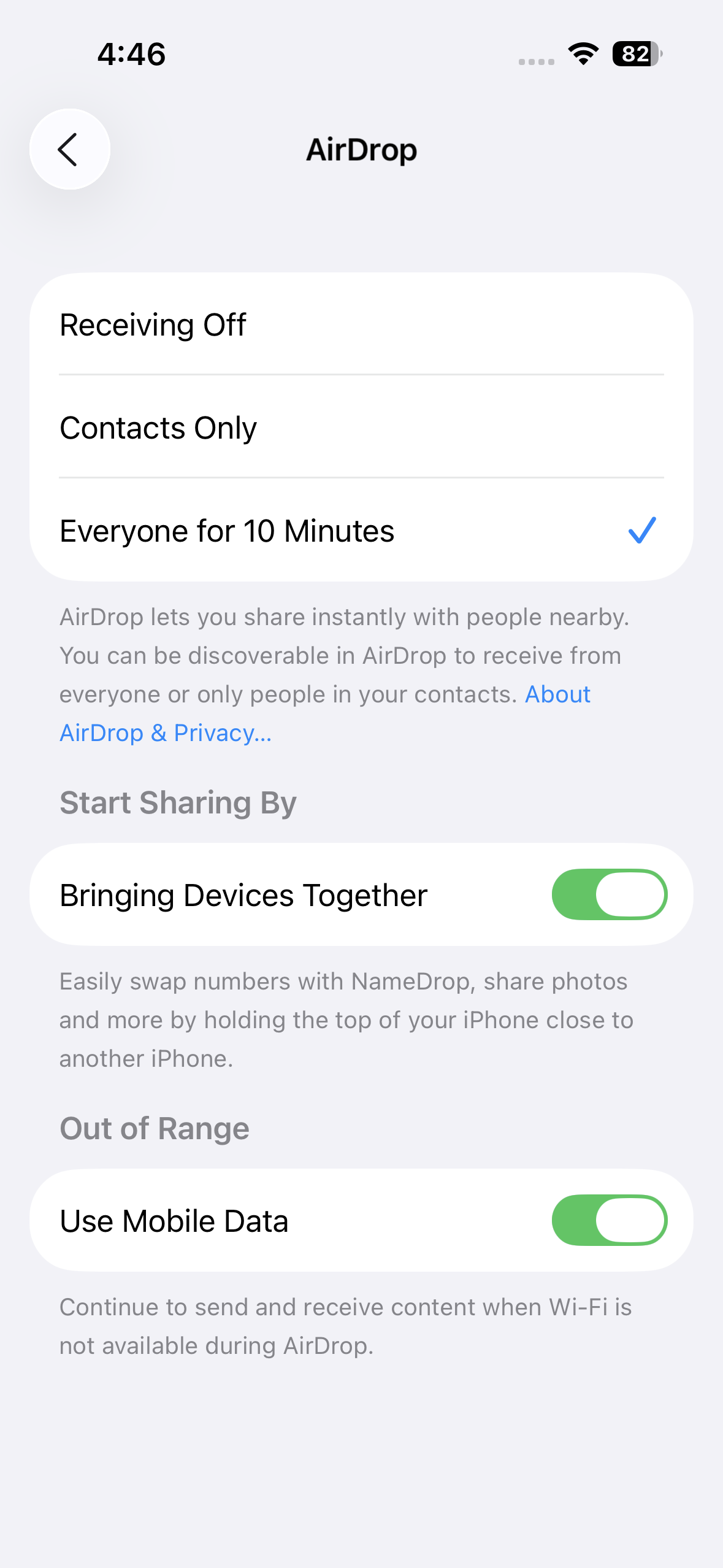
Change AirDrop settings on Mac
Everyone for 10 Minutes. Without this, the Pixel will not appear as a sender or receiver.AirDrop automatically returns to more private settings when the “Everyone for 10 Minutes” window expires, so you will need to repeat these steps again when you want to share with a Pixel later.
Send files from Pixel 10 to iPhone, iPad, or Mac
Once both sides are set up, sending from Pixel 10 feels almost identical to sending from one Android phone to another. The main differences are the AirDrop visibility requirement on the Apple side and the way the prompt appears.
Quick Share from the list of share options. The Pixel starts scanning nearby devices that can accept a direct transfer.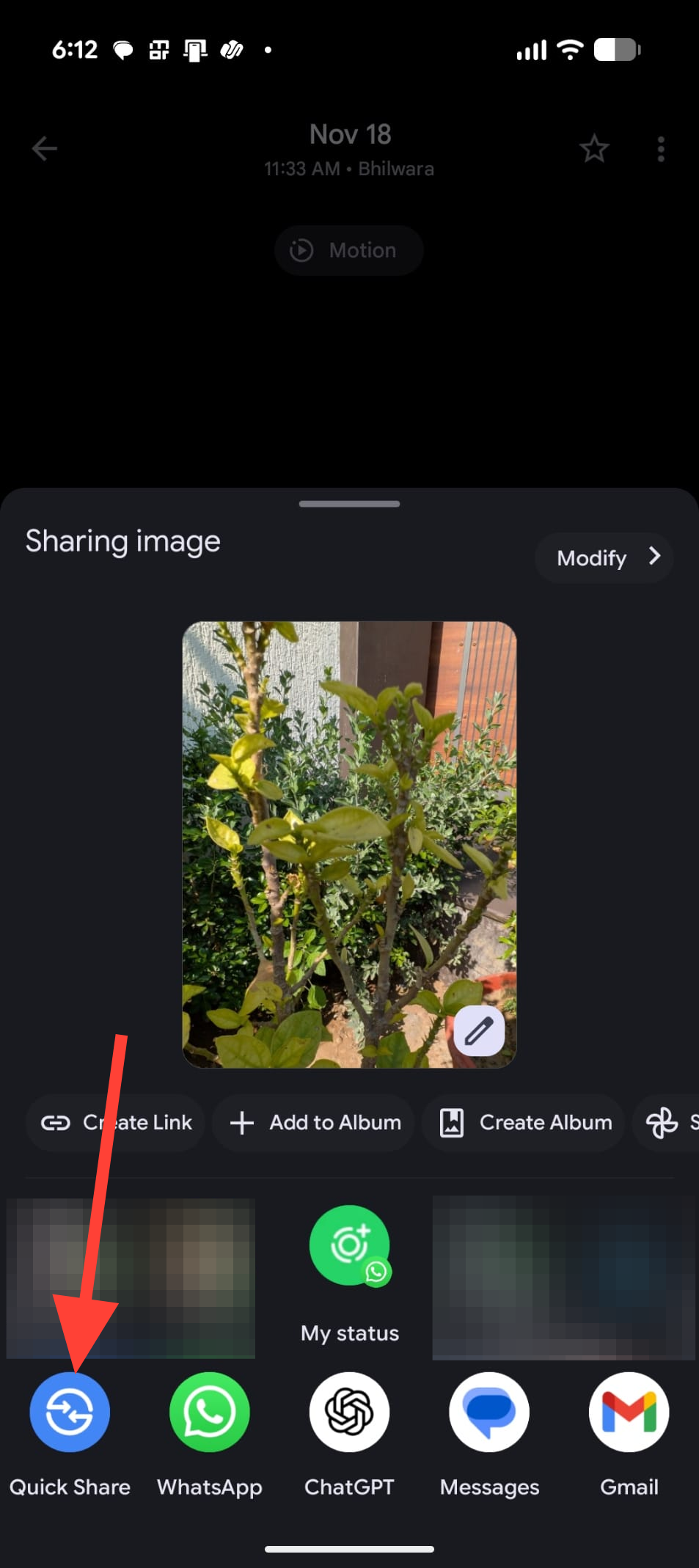
Everyone for 10 Minutes and is within range. Within a moment, the device name should appear in the Quick Share device list on your Pixel.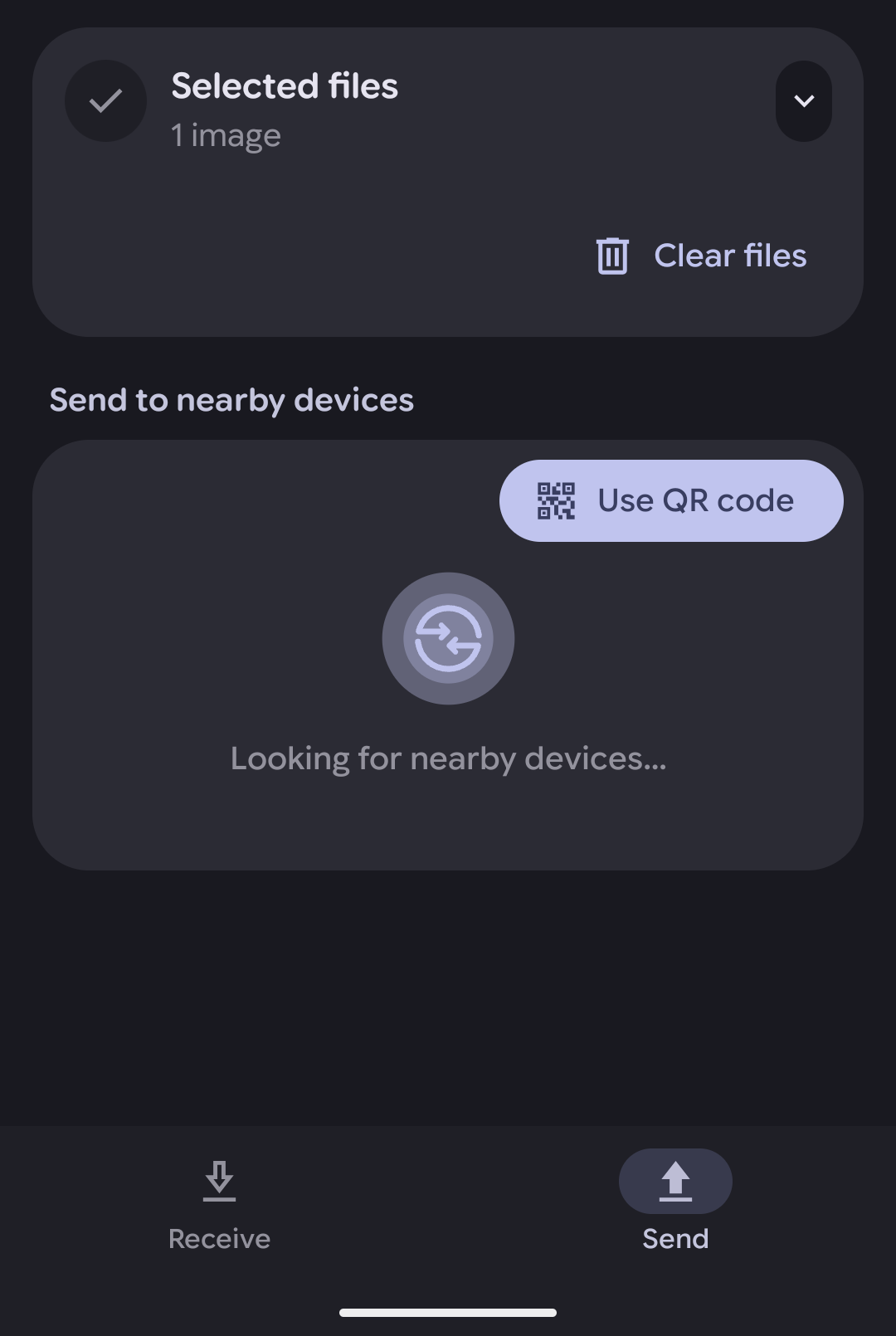
Small photos and documents typically arrive in a second or two; larger files like RAW photos or long videos can take several seconds but behave similarly to AirDrop transfers between Apple devices or Quick Share between two Android phones.
Send files from iPhone, iPad, or Mac to Pixel 10
Transfers work in both directions. When sending from an Apple device to a Pixel 10, the Pixel shows up as an AirDrop target once you prepare Quick Share to receive.
Prepare the Pixel 10 to receive
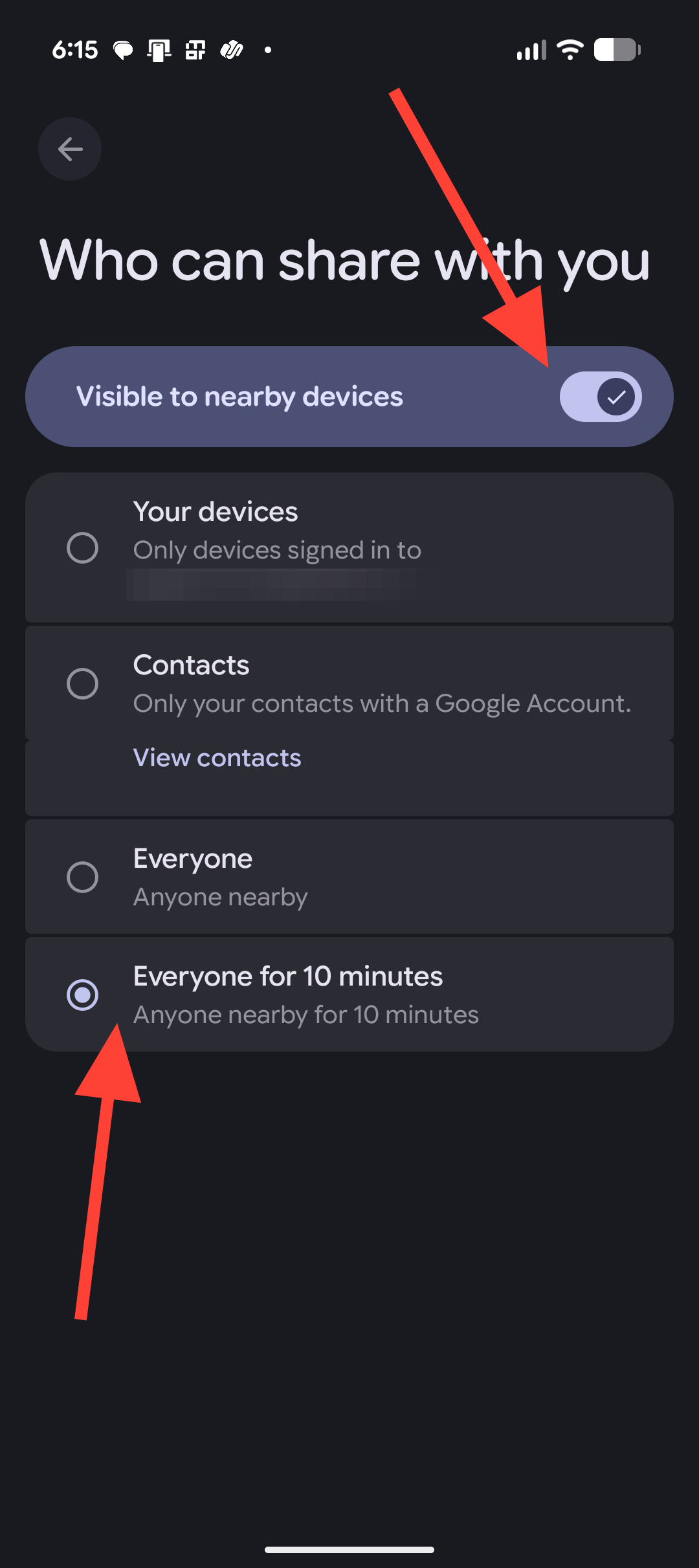
Send from an Apple device to Pixel 10
On a Mac, the process is similar: use AirDrop from Finder or the share button in apps, pick the Pixel 10 as the AirDrop target, then accept on the Pixel when prompted.
Where files are stored after transfer
Knowing where files land on each system makes it easier to find and use them immediately after the transfer.
| Sending side | Receiving side | Typical file location after transfer |
|---|---|---|
| Pixel 10 (Quick Share). | iPhone / iPad. | Photos and videos in the Photos app, other file types in the Files app or associated app. |
| Pixel 10 (Quick Share). | Mac. | Downloads folder or the default AirDrop destination set by macOS. |
| iPhone / iPad / Mac (AirDrop). | Pixel 10. | Files app on the Pixel or the relevant media app, such as Photos for images and videos. |
Both platforms display the device name during setup and transfer so you can confirm that files are going to the correct phone, tablet, or computer.
Security and privacy basics for Quick Share and AirDrop
The connection between a Pixel 10 and an Apple device is designed as a direct, local link with multiple protections in place, so files are not silently pushed between devices or routed through remote servers.
- Require consent for every transfer. Both Quick Share and AirDrop show a prompt before a file is delivered, and nothing is saved until you tap Accept on the receiving device.
- Use “Everyone for 10 Minutes” only when you are actively sharing. This wider visibility setting is required for Pixel‑to‑Apple transfers today, but letting it time out after use reduces exposure to random transfer attempts in crowded areas.
- Keep software up to date on both devices. Updates strengthen the protections around local file sharing and fix any discovered issues in the wireless stack or sharing components.
- Verify the device name shown in the prompt before accepting a file. If the sending device name does not match the person near you, decline the transfer.
These habits keep cross‑platform sharing convenient while still protecting your data from unwanted or unexpected transfers.
Fix Quick Share and AirDrop when devices cannot see each other
When the Pixel 10 and Apple device do not show up for each other, the cause is usually a missing setting or a pending update. Work through these checks in order for the quickest fix.
Method 1: Confirm AirDrop is set to Everyone for 10 Minutes
Contacts Only. Contacts‑only mode prevents the Pixel from appearing at all.Everyone for 10 Minutes and wait a moment. The Pixel should become visible shortly in Quick Share or the AirDrop panel.Method 2: Restart both devices and re‑enable wireless radios
Method 3: Check for Quick Share Extension and system updates again
System services area under your Google account in Settings and verify that the Quick Share Extension shows as up to date. If an update appears, install it and restart.Method 4: Move devices closer and avoid crowded wireless environments
Even with these checks, occasional timeouts can still occur, especially when sending to a Mac, similar to normal AirDrop behavior between two Apple devices. Retrying usually works on the second attempt.
Once everything is updated and configured, passing files between a Pixel 10 and your Apple devices starts to feel routine rather than special—which is exactly the point of good sharing tools.