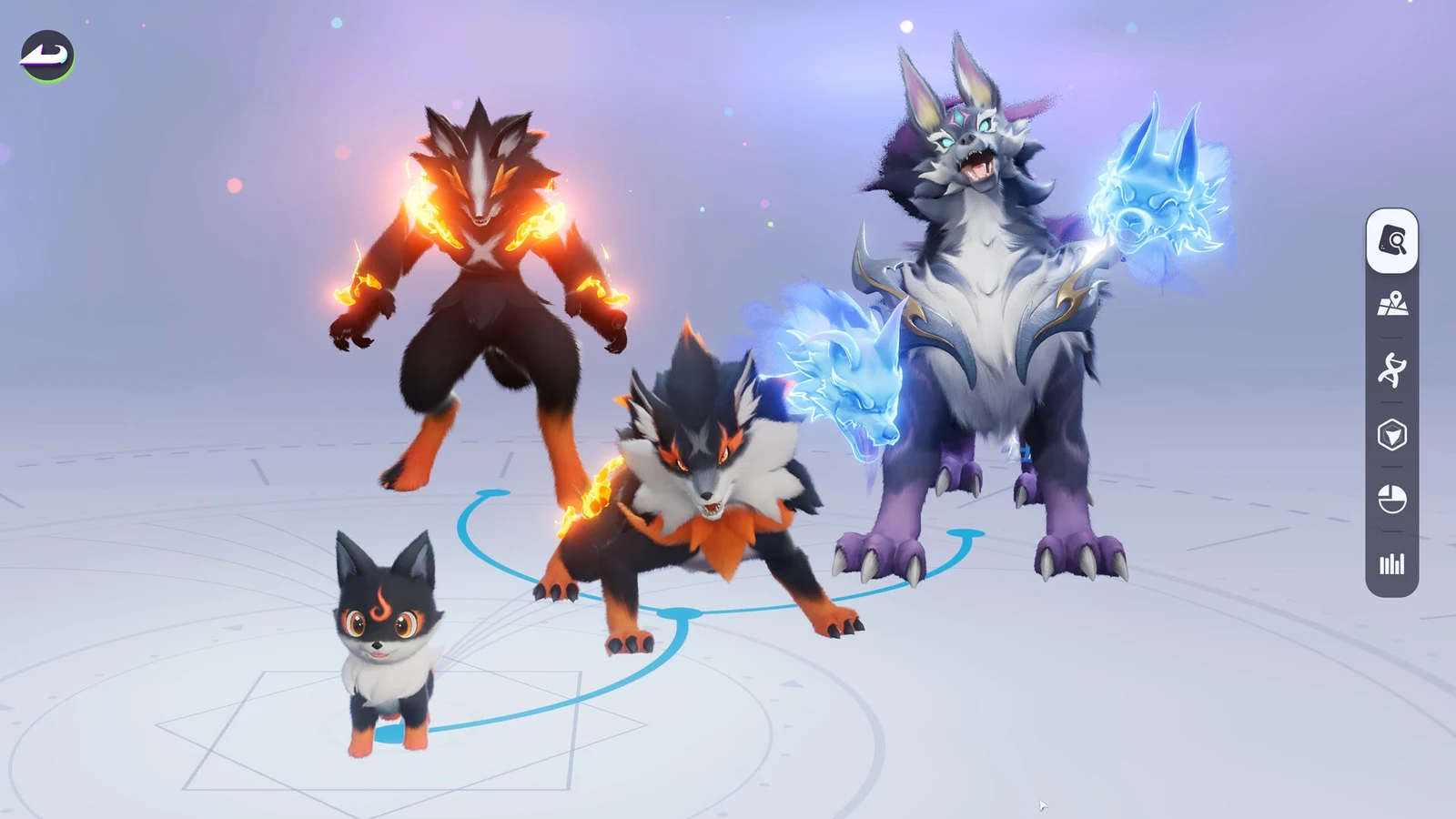
The September 17, 2026 update for Aniimo clears a batch of quest-blocking and graphics problems, tweaks several systems, and ships a separate Steam client patch aimed at black-screen and controller issues. The changes touch story quests, event interfaces, spawn rules, and a handful of item and reward mistakes.
Quick answer: The update fixes quest-blocking terrain, red-screen and red-eye graphics faults, and Stamp Shop and Monthly Pass text errors, then adjusts spawns, defaults, and evolution items. Steam players also receive version v1.0.3535596.0.
Bug fixes in the September 17, 2026 update
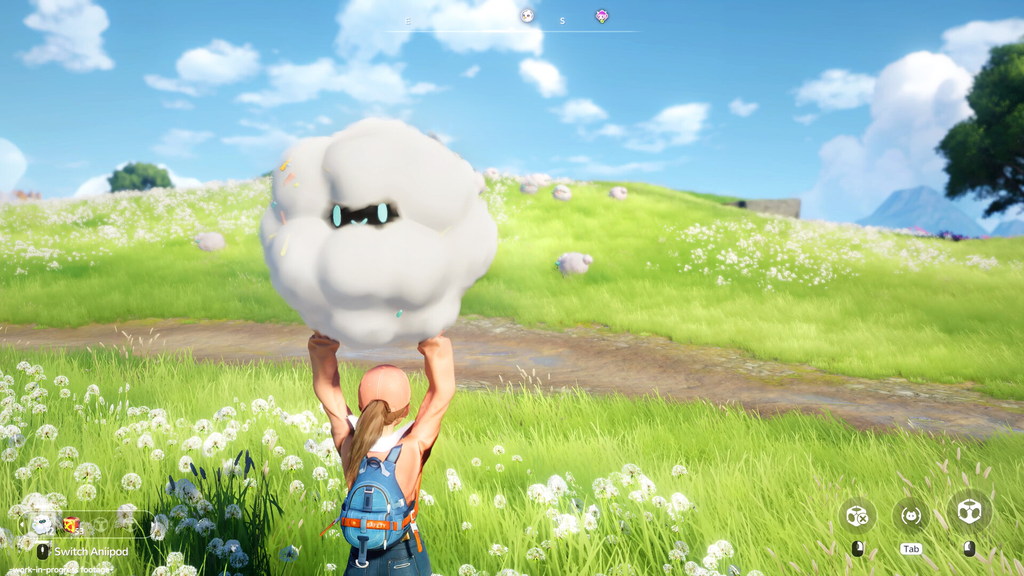
The largest group of changes resolves display faults and quest progression blockers. The following issues are now fixed:
- A red screen display fault that some Pathfinders saw in-game.
- Characters’ eyes appearing abnormally red on certain graphics cards.
- Quick Twine, along with several forms, was barred from joining the Susuta and Dr. Glass challenges.
- Incorrect item source text in the Stamp Shop.
- Some terrain could turn impassable during Butterfly Shadows collection in the Story quest The Land Where Dreams Come True, halting quest progress.
- The Star Pop-Up, Spud Squad Assemble event button showing abnormally on mouse hover.
- Abnormal text in some shared marks.
- Companion Handbook EXP not displaying correctly on the Monthly Pass make-up check-in reward screen.
- Incorrect values in some Home formulas.
- Crossover event decorations in Astra floating in midair.
- Chimney wind fields in Nimbus Fields displaying abnormally.
- Incorrect asset references in quest cutscenes.
- Overlapping interface text at one point during the Story quest Another Departure.
- An incorrect objective description during the Story quest Another Departure.
- The Pathfinder’s Aeroboard skill had an incorrect description.
- Players becoming stuck when using Unstuck while interacting with a two-player mechanism in a two-player Sanctum.
- The Mysterious Vendor’s dialogue contained punctuation errors.
The Aeroboard fix corrected wording only. The skill itself remains a Dash ability with a 20-second cooldown, no EP cost, and no direct power value.
Optimizations and adjustments
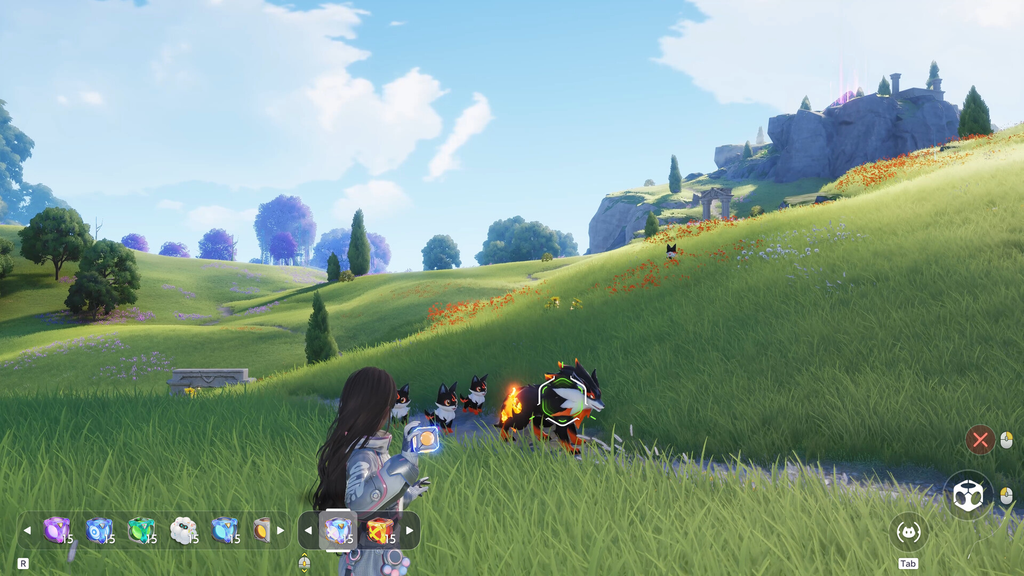
Alongside the fixes, several systems and defaults changed. A few of these affect how new and existing characters behave, so it is worth checking your own settings after updating.
- The chat interface’s bottom-left settings now leave Auto Voice disabled initially. Enable it again whenever needed.
- The spawn behavior for Prismana Aniimo was changed: once a Lucky Strike brings Prismatic Energy to its maximum, Prismana Aniimo in that area may respawn at once.
- Some chests that could not be claimed were moved.
- Settings now start with fewer marks shared by strangers. Existing characters may alter this value manually in Settings.
- The item used to evolve Squarrel was changed.
- The conditions for obtaining the Tilling Chest were adjusted.
- Error notification mail for common Aniipods was removed to cut down on notification spam. The items you receive are unaffected.
Steam client patch v1.0.3535596.0
The Steam version of Aniimo received its own patch, numbered v1.0.3535596.0, targeting specific startup and input problems. Two workarounds cover the most common reports.
Fix a black screen on launch
Fix a Steam controller that will not respond
How to confirm the update installed
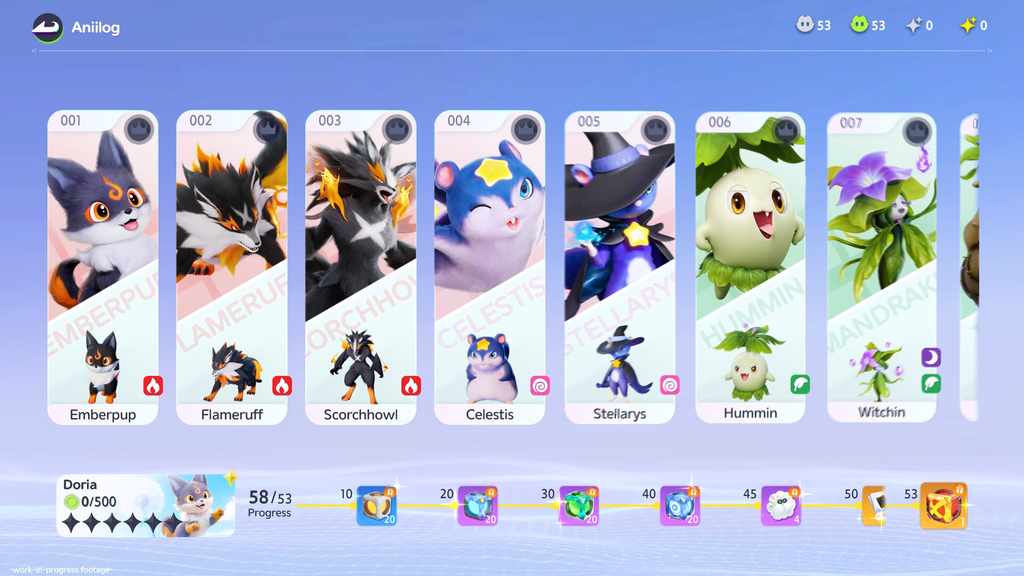
On Steam, the client applies the update automatically, and the installed build reports as v1.0.3535596.0. Once you are on that version, the quest blockers, red-screen and red-eye faults, and the text errors listed above no longer appear. If you still see the black screen after updating, run through the three launch steps before anything else, since driver and rendering settings are the usual cause on the Steam build.