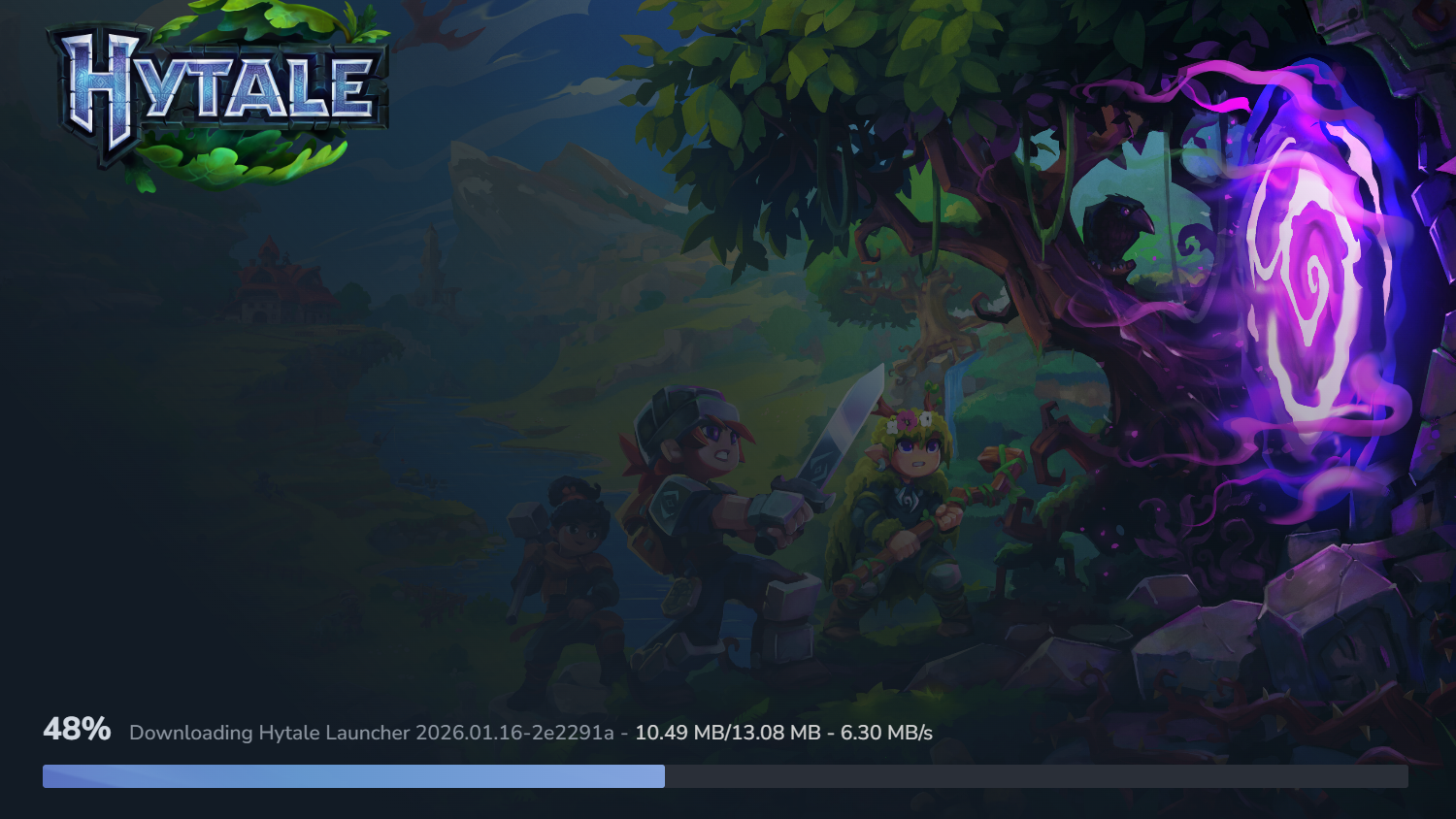
The Hytale launch window has brought a wave of identical complaints: the launcher throws an “error applying update to ‘game’” message, often with “error downloading patch 0” and sometimes a “file not found” note on a specific .pwr file. For many players, the game worked minutes earlier, and now refuses to finish downloading a patch.
Despite how dramatic the wording looks, this usually comes down to two broad issues: overloaded patch servers during a rush of installs, or small hiccups in how the launcher is handling files on your PC. The fixes are mostly simple, but a few are worth treating as last resorts.
What the Hytale launcher error message is telling you
The most common variant looks like:
error applying update to "game": error downloading patch 0: error downloading file from "https://game-patches.hytale.com/patches/windows/amd64/release/0/3.pwr": file not foundThis long line can be broken down into a few key ideas:
- “error applying update to ‘game’” means the launcher failed while trying to update the core game files, not a side component.
- “error downloading patch 0” points to a failure while downloading the very first patch in the chain, not something deep in a patch list.
- The URL with
patches/windows/amd64/release/0/3.pwris the exact file the launcher tried to grab. “file not found” here usually indicates a server-side issue or a temporarily bad reference, not that your PC deleted something.
Other players are also seeing variants that mention “stream error… INTERNAL_ERROR; received from peer” or generally slow, stalling patch downloads. Those point to the same underlying pattern: heavy server load and unstable connections during a surge of requests.
When Hytale patch errors are a server-side problem
During busy windows—such as early access launch and daily patch rollouts—Hytale’s patch servers take a large number of simultaneous connections. That load can cause:
- Patch files returning “file not found” intermittently, even though they exist.
- Downloads that crawl forward, stall, or reset with generic “error downloading patch” messages.
- Launcher logs or pop-ups mentioning “INTERNAL_ERROR” from the remote peer.
Players report that simply closing and reopening the launcher, or repeatedly pressing the built-in “Relaunch” option, eventually lets the patch complete. Others notice extremely slow but continuous progress once the servers calm down.
In these cases, nothing on your PC is fundamentally broken. The most practical approach is to retry with short pauses in between attempts and, if possible, shift to less busy times of day.
Fix Hytale patch errors by relaunching the launcher
For many players, the first fix that works is the simplest: making the launcher reconnect cleanly.
The Hytale launcher typically keeps partial progress on the current download. Relaunching does not always force a full restart of the patch; instead, it can clear a bad connection state and resume more cleanly.
Run the Hytale launcher as administrator on Windows
In some cases, the launcher error is caused or aggravated by permission problems on Windows when it tries to write or replace patch files.
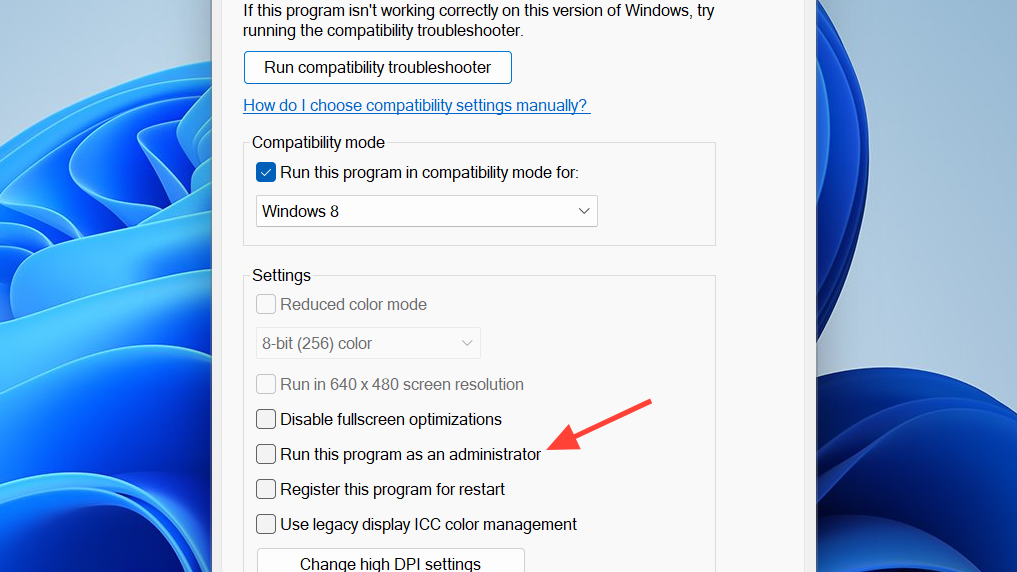
Running with elevated rights gives the launcher full access to update its own files and write patch data in the install directory. That can prevent permission-related failures masquerading as generic patch errors.
Clear Hytale patch files to remove corrupted downloads
Repeated download failures sometimes leave behind damaged or incomplete patch files. The launcher might then keep reusing these and failing before it even gets a fresh copy. Deleting the patch cache forces a clean redownload.
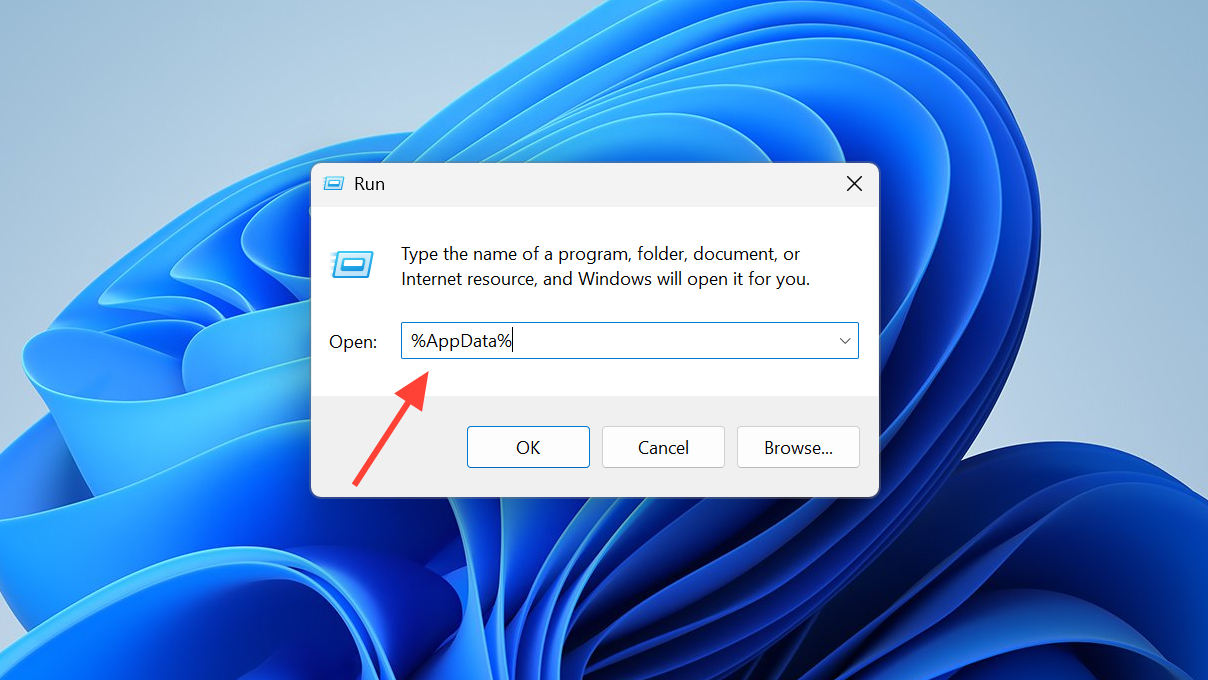
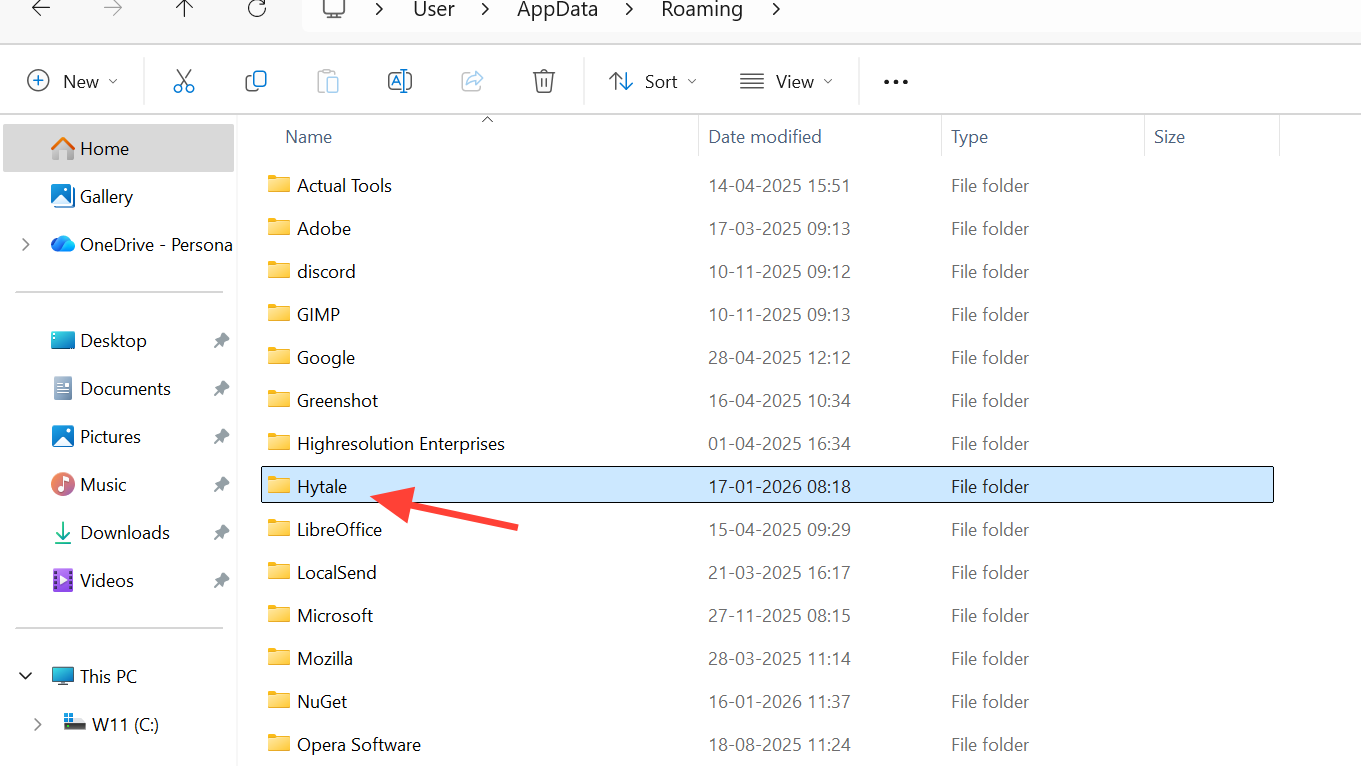
Removing these cached patch files targets only the update data, not your saves. It is intended to clean out corrupted downloads so the next attempt has a clean slate.
Avoid uninstalling Hytale unless you know where your worlds are stored
Uninstalling and reinstalling the launcher can clear deep configuration problems, but it comes with risk if you are not careful. Depending on how the uninstaller is configured and what options you choose, a full removal can delete both game data and user data, including worlds and progress.
If you decide to uninstall:
%AppData% or your custom install location before proceeding.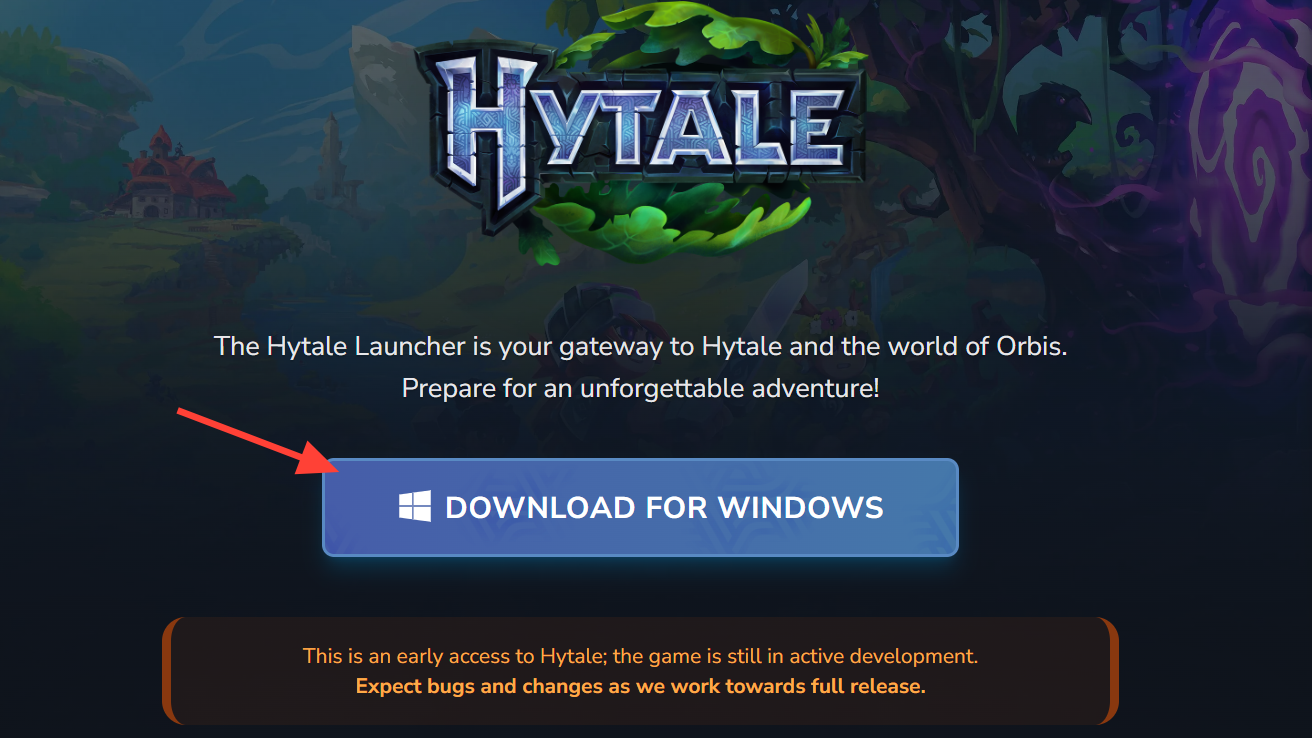
This route should be treated as a last resort after trying relaunching, running as administrator, and clearing patch files. Many players resolve the patch error without needing to remove the launcher at all.
Check disk space and basic network stability
Alongside the “file not found” and “error downloading patch 0” messages, other Hytale update errors reference a lack of storage space or generic network failures. Even when those keywords are not explicit, it is worth ruling out two common bottlenecks: free disk space and a flaky connection.
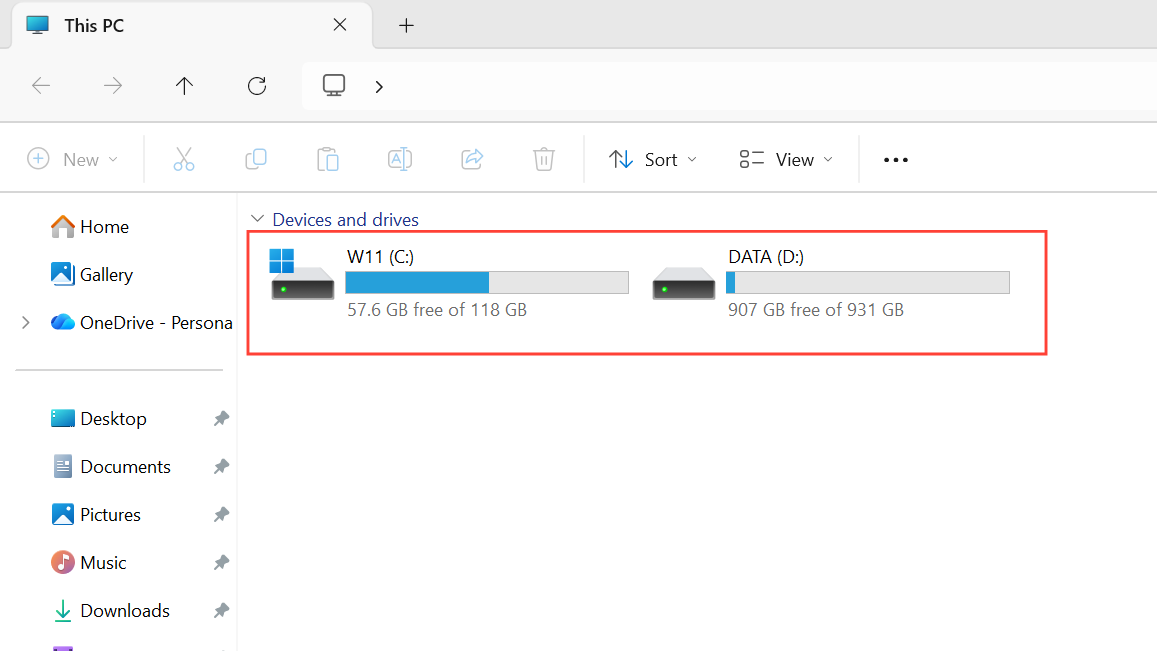
A solid network connection and enough disk space do not fix server overload, but they remove two local causes that can compound launcher errors.
When the fix is simply waiting for Hytale’s servers to calm down
If you have:
- Relaunched the installer or launcher several times.
- Run it as administrator.
- Deleted the Patch folder and restarted your PC.
- Confirmed respectable free disk space and a reasonably stable internet connection.
…and you still see intermittent “file not found” on a patch URL or generic internal stream errors, the remaining factor is usually server load.
In that situation, the practical playbook is:
Players report that these errors often disappear on their own as the initial rush eases, and that once the patch is in place, subsequent launches are far more reliable.
Hytale’s launch errors around “error applying update” and “error downloading patch 0” look intimidating, but they almost always trace back to a mix of overloaded servers, cached bad patch data, or simple permission and connectivity quirks on Windows. A few targeted actions—relaunching cleanly, running the launcher with the right rights, flushing the patch cache, and avoiding unnecessary reinstalls—are usually enough to get past the blocker and into the game.