Minecraft’s 26.2 “Chaos Cubed” update is being tested in public snapshots ahead of its full release, and you can try the new content right now without waiting for the finished game drop. Snapshots are unfinished, opt-in builds of Java Edition that you load through the official launcher, and the latest ones add sulfur caves, a built-in friends list, peer-to-peer multiplayer, and a fresh set of music tracks. The 26.2 game drop is set to launch on June 16, 2026.
Quick answer: Open the Minecraft Launcher, switch to the Minecraft: Java Edition tab, create a new installation that targets the latest 26.2 snapshot, back up any worlds you care about, then launch it. The version label in the bottom corner should read 26.2-snapshot-7 (or a higher number) once you are in.
What you can test in the Minecraft 26.2 snapshots
The 26.2 snapshots build up the Chaos Cubed feature set one release at a time. Snapshot 7, released on May 12, 2026, focuses on social features and audio, while earlier snapshots introduced the sulfur cave biome and its hazards. Here is what is currently playable.
| Feature | What it does |
|---|---|
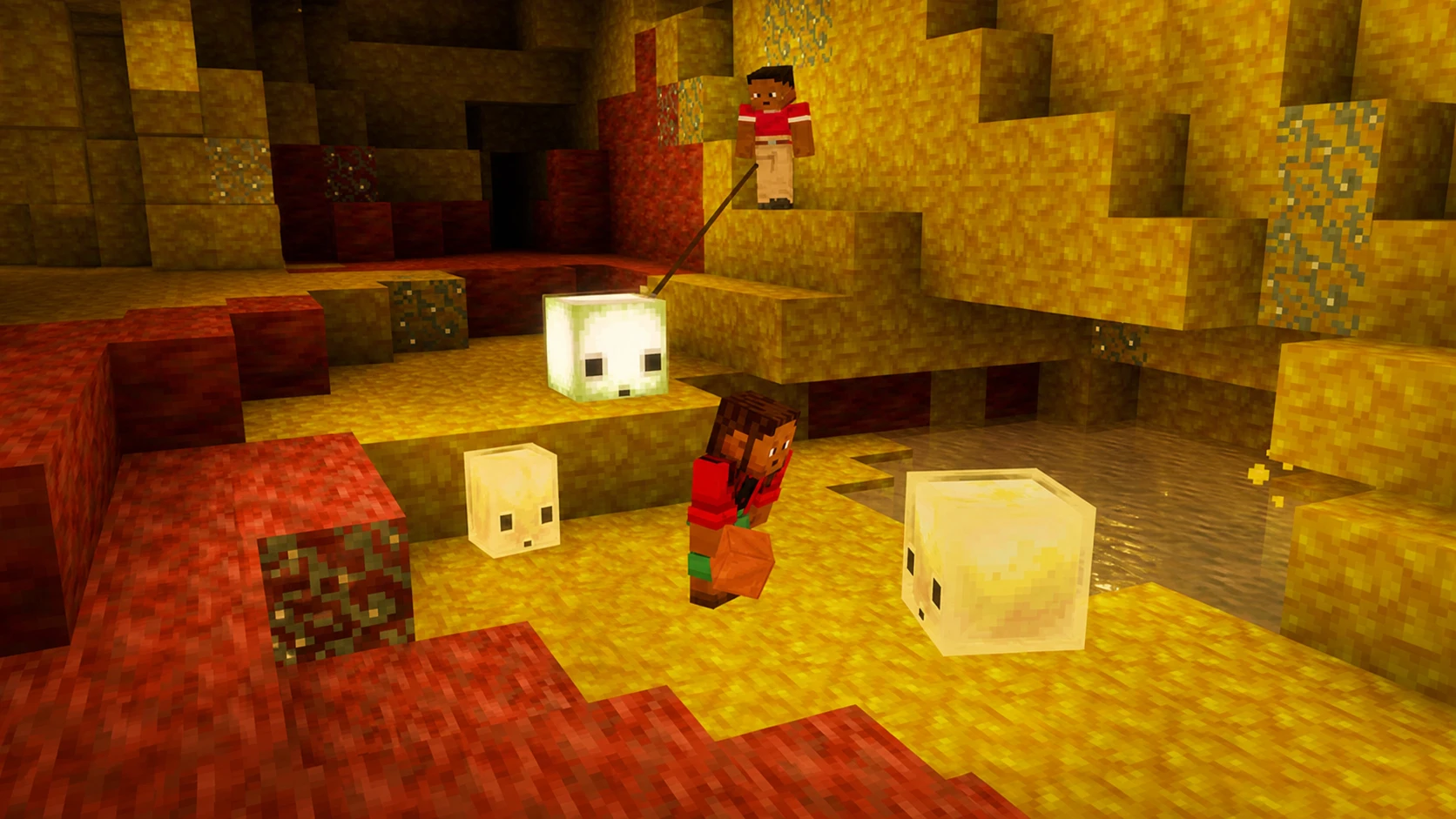
| Sulfur caves | A new underground biome with potent sulfur, less green grass, and its own background music track. |
| Potent sulfur geysers | Blocks that erupt on randomized timers and release noxious gas. Placing lava underneath causes continuous eruptions that can boost entities upward through non-solid blocks. |
| Sulfur cube | A bouncing mob found in the new caves. The slow bouncy variant no longer floats in water. |
| Friends list | Opened with the new Friends button or the O key, with tabs for current friends and incoming or outgoing requests, plus presence and toast notifications. |
| Peer-to-peer multiplayer | A Multiplayer Options screen that lets you open a singleplayer world to friends online, invite players, or accept requests to join. |
| “Bounce” music disc | A disc by fingerspit found in mineshaft chest minecarts inside sulfur cave biomes, with a comparator output of 8 when played. |
| New music tracks | Five new background tracks by fingerspit: “Memories”, “Ebb”, “Home”, “Shores”, and “Nightly”. |
| Signs and hanging signs | Now rendered with block models instead of entity models. |
The wider Chaos Cubed drop also brings cinnabar blocks and an experimental Vulkan renderer as it moves toward release.
How to install a Minecraft 26.2 snapshot in the launcher
Snapshots run on Java Edition and are managed entirely through the Minecraft Launcher. If you do not already have it, download the launcher from the official Minecraft download page and sign in with your account.
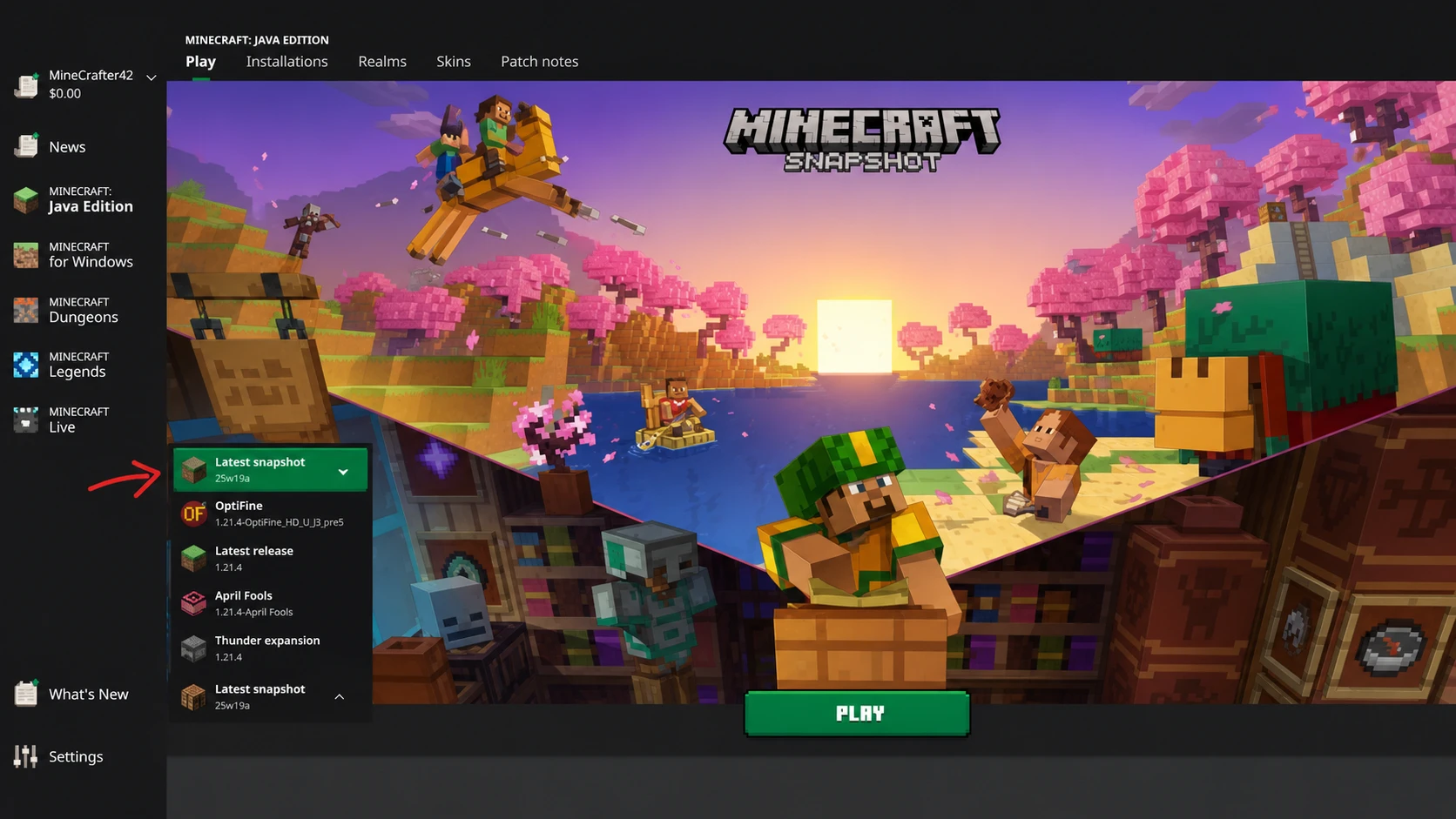
26.2-snapshot-7. Give the installation a clear name so it stays separate from your normal copy, and save it.Keeping the snapshot as its own installation means your stable game and its worlds are left untouched, and you can switch back at any time by choosing your regular release version.
Back up your worlds before loading a snapshot
Snapshots are test builds, so they can carry bugs that damage or corrupt save files. Once a world opens in a newer version, that change is one-way and cannot be reversed. The safe approach is to create a fresh world for testing, or to make a copy of any existing world before you open it in the snapshot.
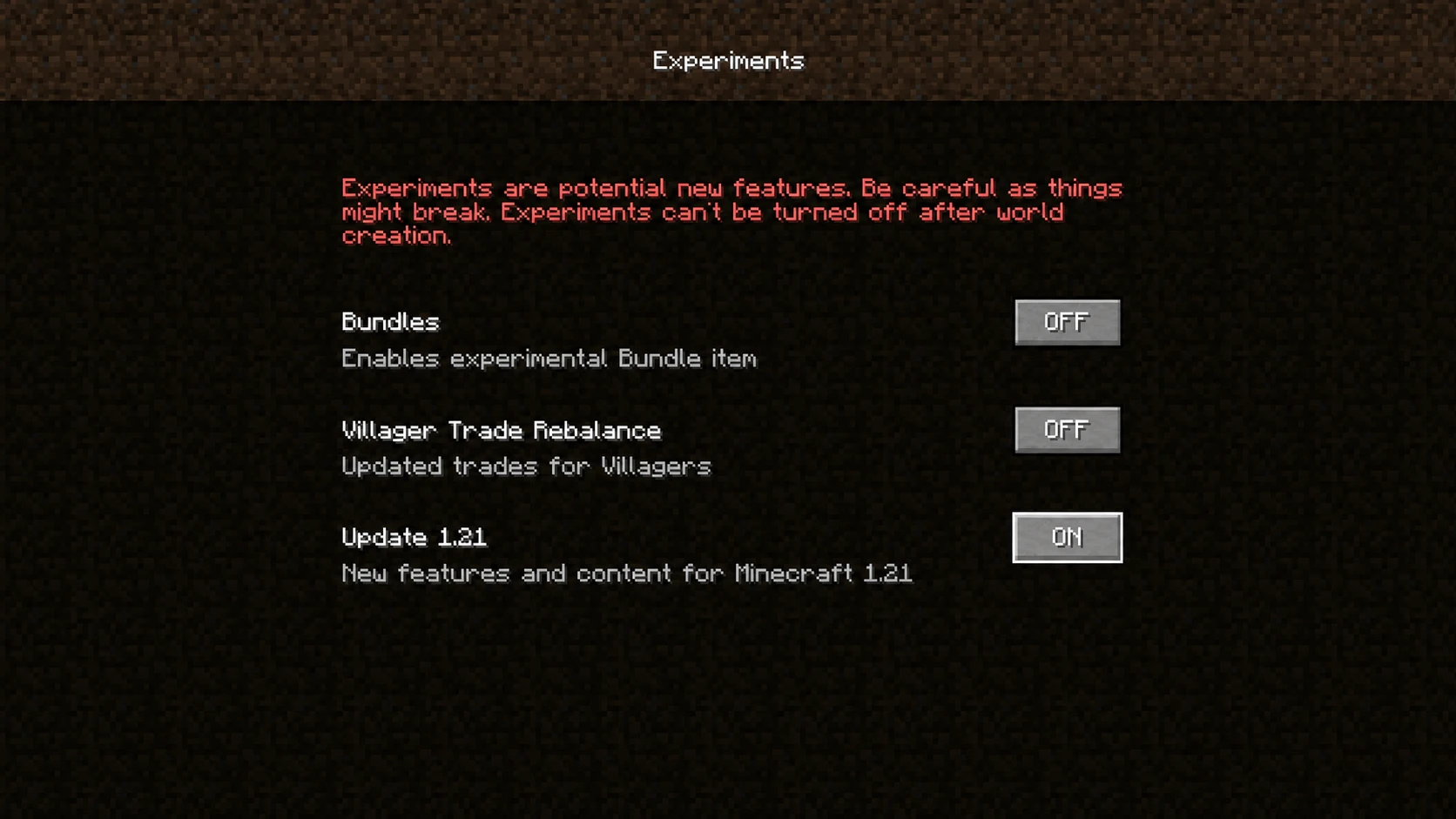
Some snapshot content sits behind experimental settings when you create a world. If a feature is gated this way, enable the experimental options on the world creation screen so the new blocks, mobs, and mechanics are active. To keep an original save safe, duplicate the world folder first and load only the copy in the snapshot.
Java version and the friends list opt-in
Snapshot 7 requires at least Java SE 25 to run. The launcher manages this for you by bundling a compatible Java runtime, so you normally do not need to install anything separately. If the game fails to start, confirm the installation is using the launcher’s supplied runtime rather than an older Java path.
The first time the Friends button appears on the title screen, a confirmation dialog asks you to opt in before the friends list becomes active. Friend list visibility, request permissions, presence sharing, and the link to Microsoft account safety settings are all controlled from the new Friends List section in Online Options.
How to confirm the snapshot loaded correctly
When the game launches, the version string in the bottom corner of the main menu should display the snapshot you selected, for example 26.2-snapshot-7. Inside a world, the Friends button on the pause menu and the updated Chaos Cubed panorama on the title screen are clear signs you are on the new build. If you instead see your normal release number, return to the Installations tab and make sure you launched the snapshot installation rather than your stable one.
Because snapshots change frequently, it is worth re-checking the launcher for newer 26.2 builds as testing continues. Each release adds or refines features on the way to the full Chaos Cubed update, and switching back to your stable installation is always one click away if a test build misbehaves.