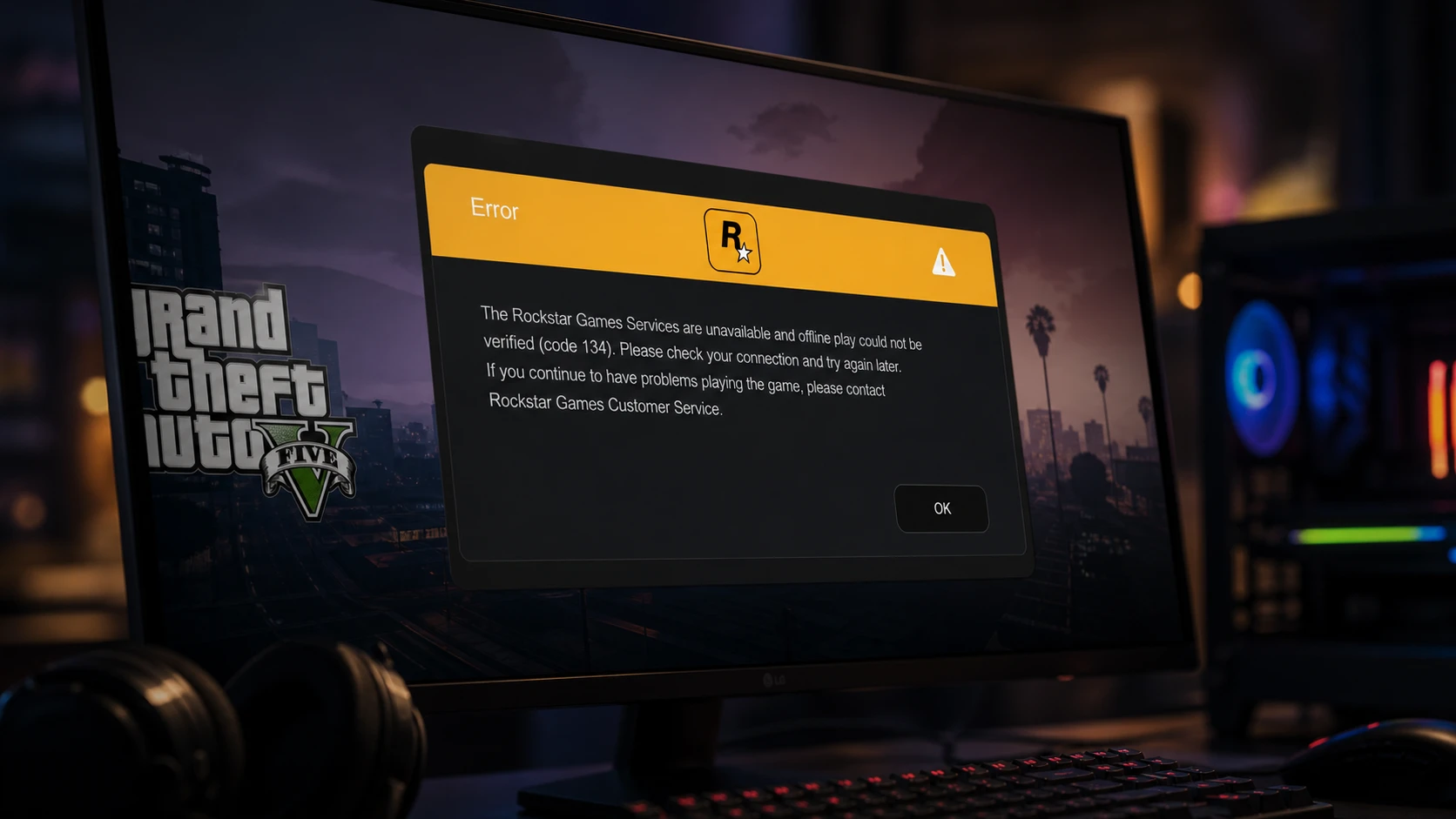
Error code 134 stops Grand Theft Auto V on Windows from confirming your connection to Rockstar Games Services. Instead of loading, the game shows a message that says the services are unavailable and that offline play could not be verified. The fault sits between the game, the Rockstar Games Launcher, and your network, so a few targeted checks usually clear it.
Quick answer: Confirm Rockstar Games Services are online, then restart your PC, verify the integrity of the GTA V game files, and update the Rockstar Games Launcher. The error is gone when GTA V loads past the launch screen without the code 134 message.
What error code 134 means in GTA V
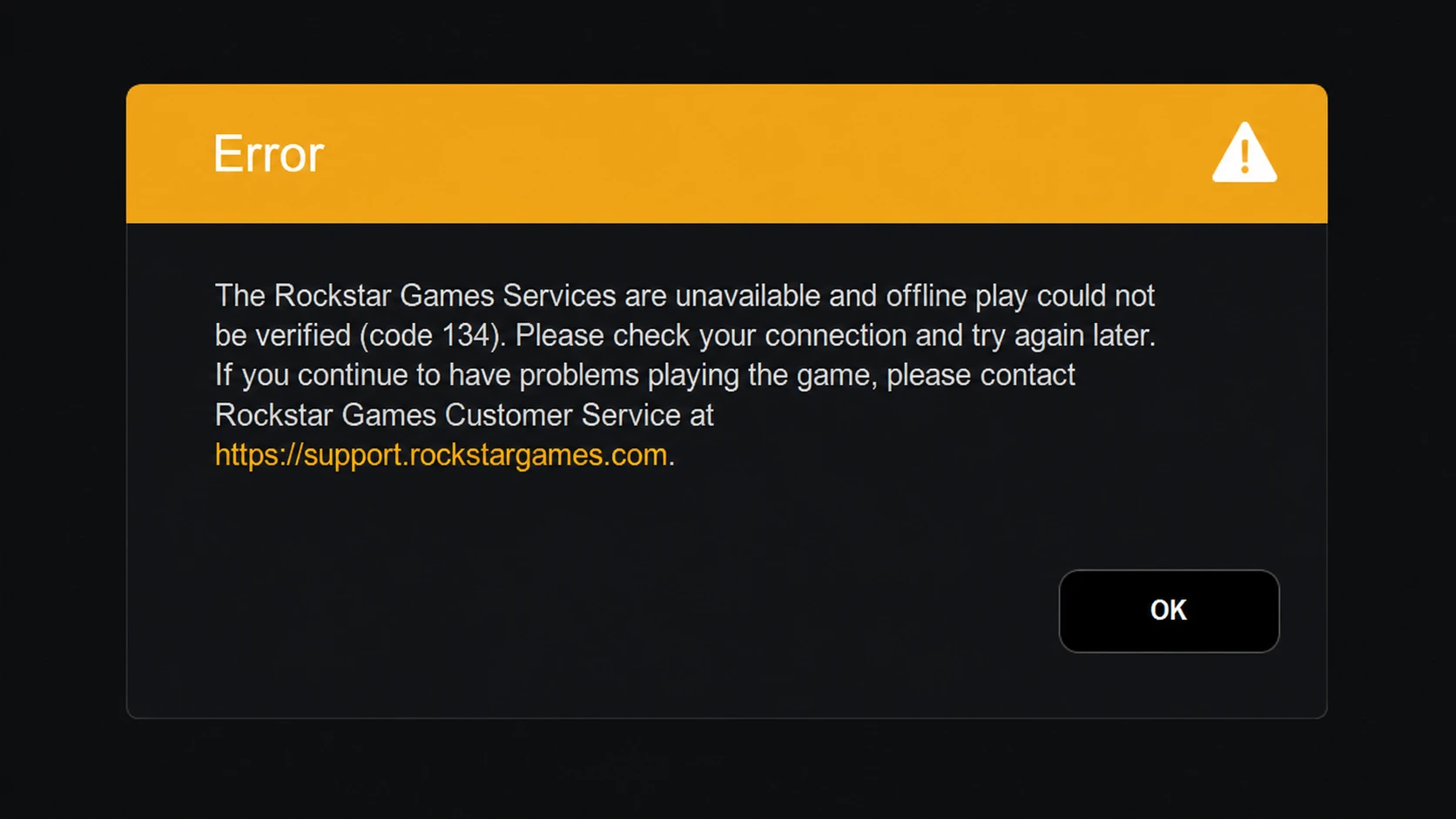
The code appears when the Rockstar Games Launcher cannot verify your session against Rockstar’s online services before starting GTA V. The on-screen text reads:
The Rockstar Games Services are unavailable and offline play could not be verified (code 134). Please check your connection and try again later. If you continue to have problems playing the game, please contact Rockstar Games Customer Service at support.rockstargames.com.
It is not tied to one storefront. Players on the Rockstar Games Launcher, Steam, and the Epic Games version all run into it. Common triggers are a server outage, an unstable connection, outdated drivers, corrupted game files, or an outdated launcher.
Check Rockstar Games Services before anything else
The message itself points at the services, so rule out a server problem first. If Rockstar’s online services are down or in maintenance, no local fix will help and you only need to wait. Check the official status on the Rockstar Games Service Status page, or watch Rockstar’s official social channels for outage notices. Once the services show as up, move on to the local checks below.
Fix order for GTA V error code 134
Work through these in order. Each one targets a specific cause, so test the game after every step and stop once GTA V loads normally.
| Fix | Why it helps |
|---|---|
| Reboot the PC | Clears a temporary glitch behind the launch failure |
| Confirm servers are online | Rules out a Rockstar outage you cannot fix locally |
| Check the internet connection | A weak or unstable link blocks online verification |
| Update graphics and network drivers | Outdated drivers cause launch and compatibility errors |
| Verify the integrity of game files | Replaces corrupted or missing GTA V files |
| Update the Rockstar Games Launcher | An old launcher can be incompatible with the game |
| Reinstall GTA V | Removes corrupted installation files as a last resort |
Restart the PC and steady your connection
A simple restart often clears the error when it comes from a passing glitch. Close GTA V and the launcher, reboot Windows, then start the game again before trying anything more involved.
If it returns, look at the network. A weak or dropping connection stops the online check from completing. Switch to a wired Ethernet link instead of Wi-Fi, disconnect other devices sharing the same network, and resolve any Wi-Fi problems before relaunching.
Some players on certain ISPs cleared the error by changing their DNS to 1.1.1.1 as the primary and 1.0.0.1 as the secondary address, set under the IPv4 properties of the active network adapter. Try this only if the connection itself looks fine but the update or verification keeps failing.
Update graphics and network drivers
GTA V is graphics-heavy, and outdated or faulty GPU or network drivers can throw error 134. Keeping both current removes that as a cause.
Win + I, go to Windows Update, and open Optional updates. Install any listed graphics or network driver updates.Win + X, open Device Manager, expand Display adapters, right-click your graphics card, choose Update driver, and finish the wizard. Restart the PC, then launch GTA V to test.Verify the integrity of GTA V game files
Corrupted, broken, or missing files commonly cause this error. Both the Rockstar Games Launcher and Steam can scan the installation and repair anything that fails the check.
On the Rockstar Games Launcher
On Steam
Update the Rockstar Games Launcher
An outdated launcher can fall out of step with the game and refuse to verify your session. Install the current version from the official Rockstar Games Launcher page, run the installer, restart your PC, and open GTA V again. If a separate, standalone launch helps, you can also open the game’s local files through your store client and run the executable directly with the store client closed.
Reinstall GTA V as a last resort
If nothing above works, the installation itself may be corrupted. Uninstall GTA V from your store client, restart the PC, then reinstall it from your online library. A fresh install clears damaged files that the verify step could not repair. Reinstalling the game on the same drive as the launcher has also helped players whose files were split across drives.
How to confirm the error is fixed
You know the problem is solved when GTA V loads past the launch and verification screen and reaches the menu without showing the code 134 message. If the error keeps returning after every step, it usually points to an ongoing Rockstar server issue or an unstable connection rather than your install, so wait for the services to recover or stabilize your network. When it still persists, reach out to Rockstar Games Customer Service for account-specific help.