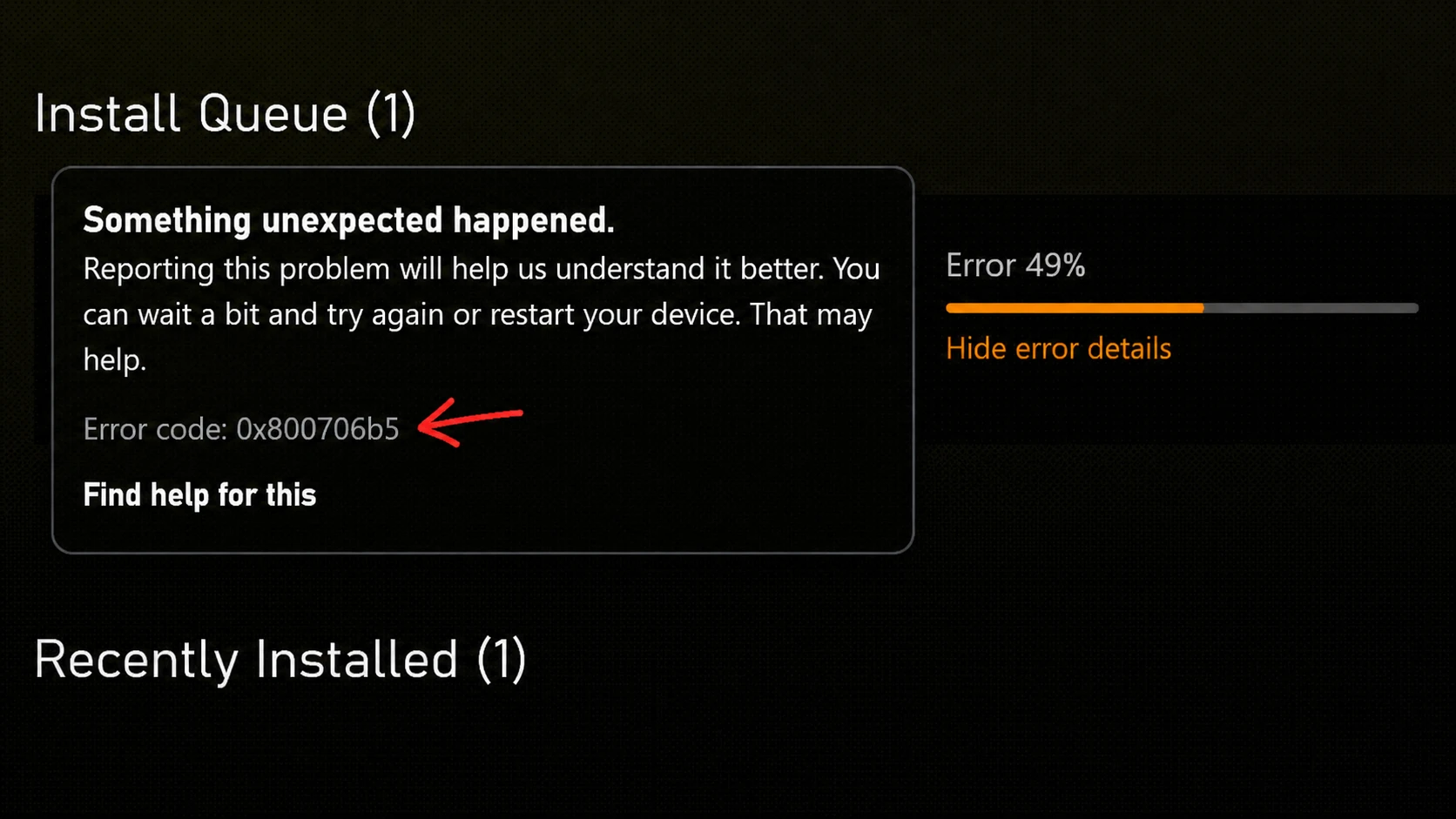
Error 0x800706b5 shows up when Xbox Game Pass tries to install a game, and the process fails partway through. The download usually finishes, then the install stops and throws the code. It affects both the Xbox app on Windows 11 and Windows 10 and Xbox consoles, and it can hit different titles on the same machine.
Quick answer: Restart the device first. If the error stays, power cycle the Xbox console (or reset the Xbox app on PC), then retry the install. You know it worked when the game installs fully and launches without the code returning.
Start with a restart
A simple restart clears the kind of temporary glitch that often triggers 0x800706b5. Reboot your PC or console, then open the Xbox app and try the install again. If the game installs cleanly, you are done and can skip the rest of the fixes below.
Power cycle the Xbox console
If the error appears on an Xbox console, a full power cycle clears the system state and usually fixes the install. This is different from a normal restart because it cuts power completely.
After the console boots, retry the install. The error should be gone.
Clear the Xbox console cache
A corrupted cache on a Series X or Series S can also block installs. Clearing it removes the stored temporary files that may be interfering with the download and install process, without touching your saved games or account.
Reset the Xbox app on Windows 11 and Windows 10
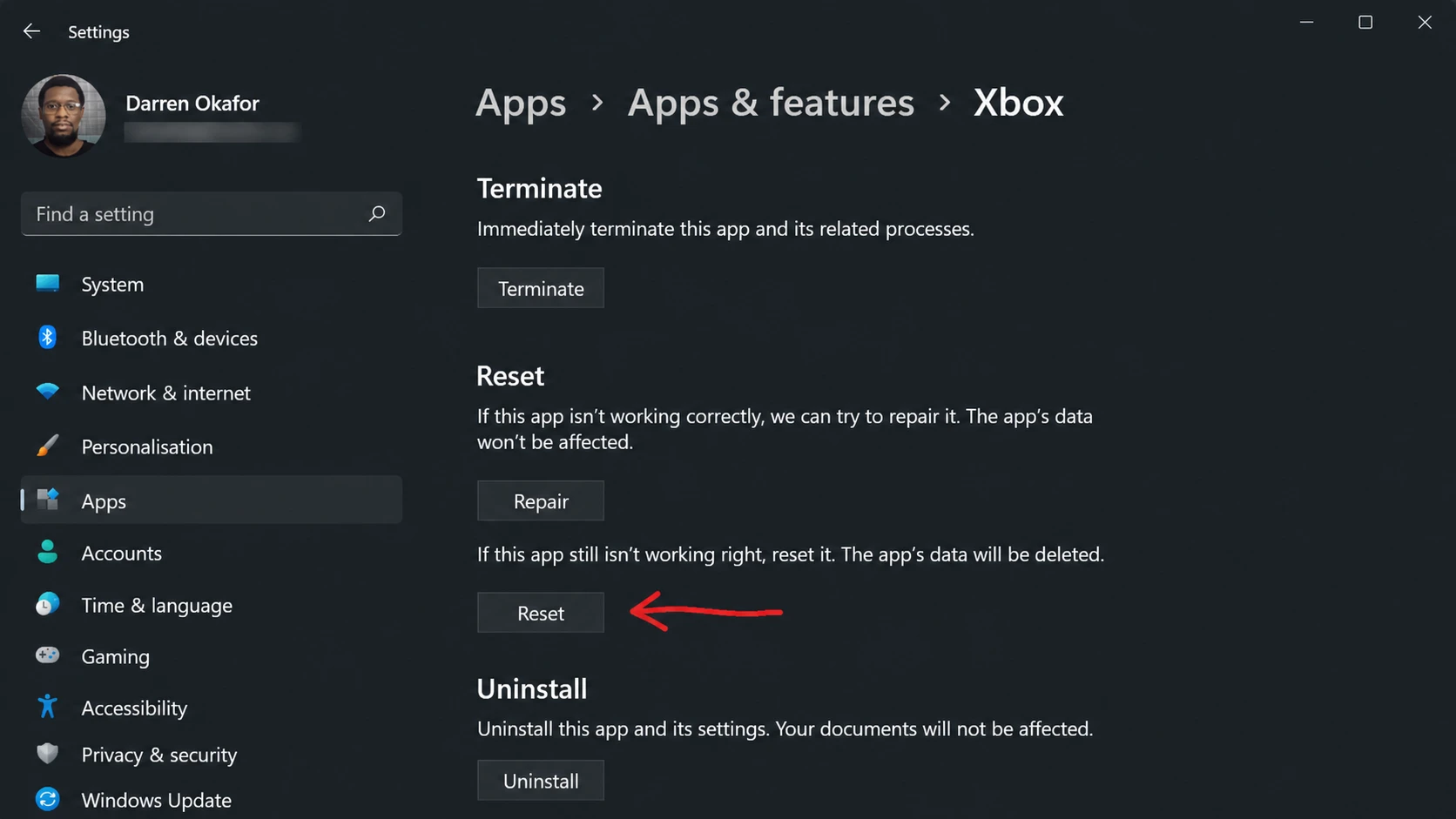
When the error happens inside the Xbox app on PC, resetting the app clears its data and often resolves the install failure. The reset deletes local game data, so sync your games to the cloud first to avoid losing progress.
Update the Xbox app from the Microsoft Store
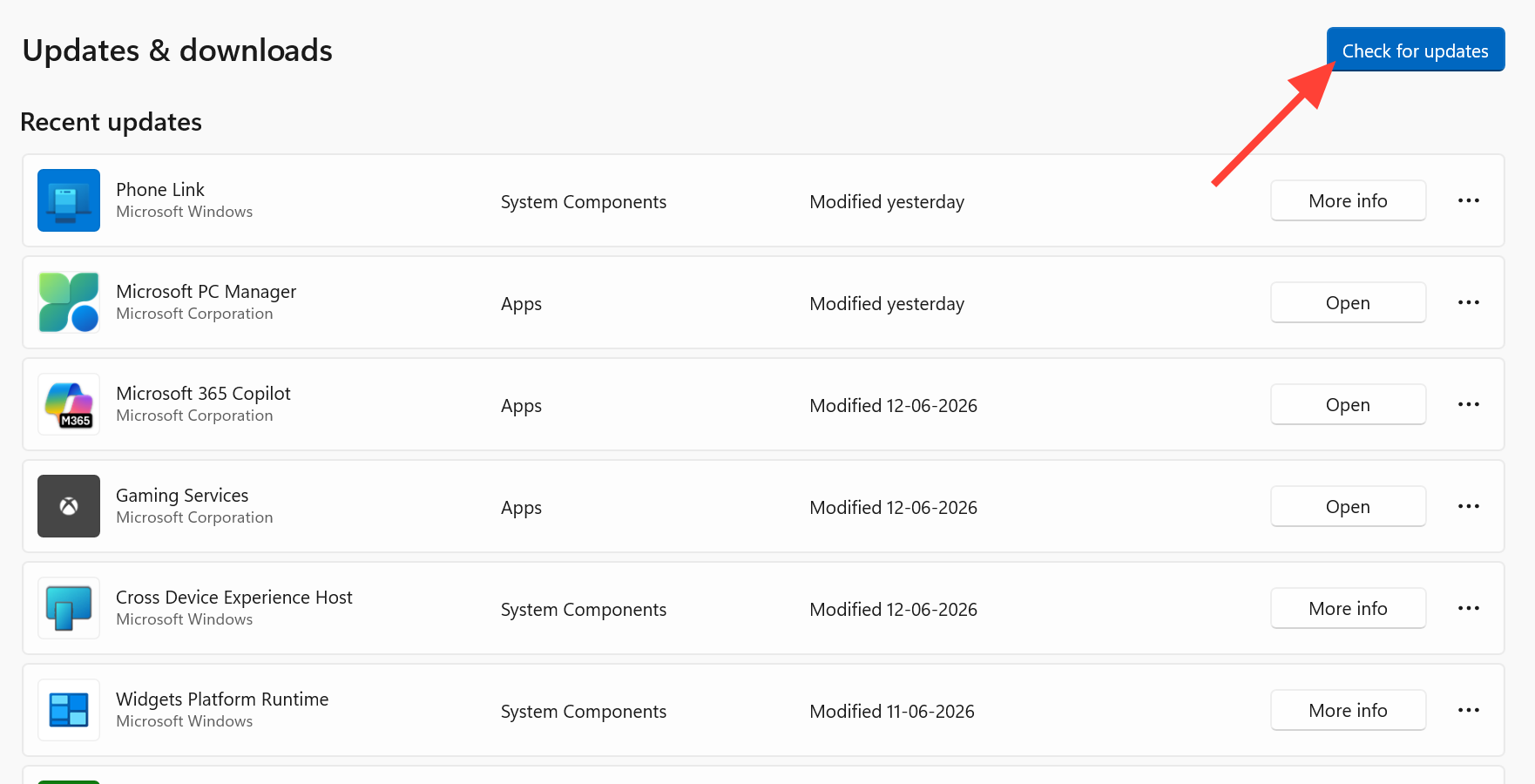
Running an outdated Xbox app can cause install problems. Keeping it current is a quick check before moving on to heavier fixes.
Reset your PC as a last resort
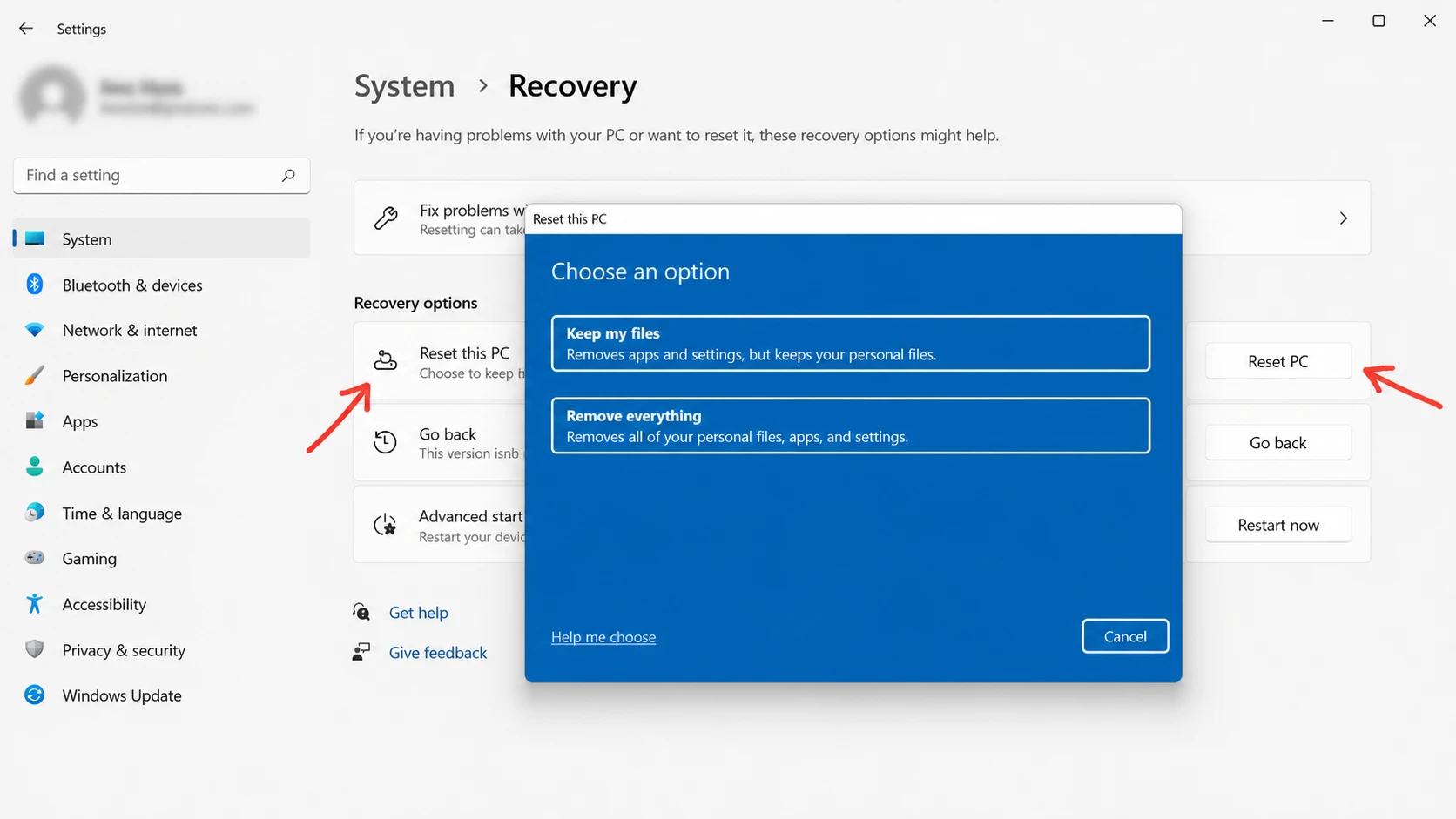
If nothing above works on a PC, resetting Windows has resolved the error for some users. Windows gives you two choices during the reset, and the difference matters for your files.
| Reset option | What it does |
|---|---|
| Keep my files | Reinstalls Windows but leaves your personal files in place. |
| Remove everything | Erases everything on the C drive, and optionally other drives when prompted. |
Even though “Keep my files” preserves your data, back up anything important to an external drive before you start. A reset is a big step, so use it only after the simpler fixes fail.
How to confirm the fix worked
You have resolved 0x800706b5 when the game finishes installing and opens without the code returning. If the install still fails on PC and the Xbox app continues to misbehave, re-registering the app is another step that can restore Game Pass functionality. Removing and re-adding your user profile on a console can also clear lingering issues.
The same 0x800706b5 code also appears in other parts of Windows, including printer and Windows Update errors, so do not assume a non-Game Pass instance of the code points to the same cause.