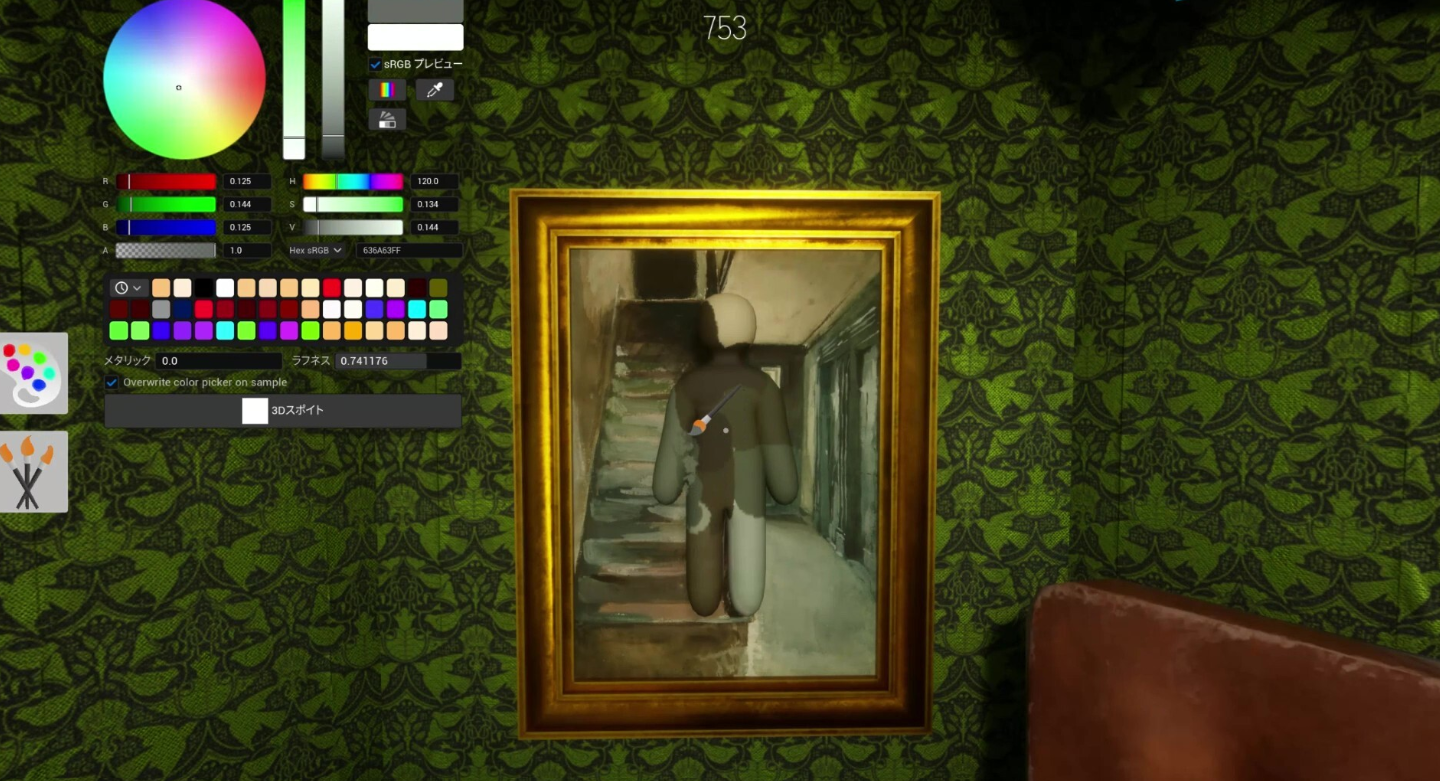
MECCHA CHAMELEON is a small multiplayer hide-and-seek game for Windows, so its footprint on disk is modest compared with most modern PC releases. The figure that matters is the live install size shown by Steam when you add the game, because that number reflects the current build after patches.
Quick answer: Open Steam on the account and region where you will install the game, start the install, and read the size in the install prompt before confirming. A commonly cited package size is about 3.79 GB, but treat that as approximate since updates change it.
Where to read the real MECCHA CHAMELEON install size
The Steam install prompt is the only number tied to the exact build you are about to download. Older screenshots, recorded videos, or copied figures can drift out of date after a patch, which is why a single fixed size is unreliable for a game that ships regular updates.
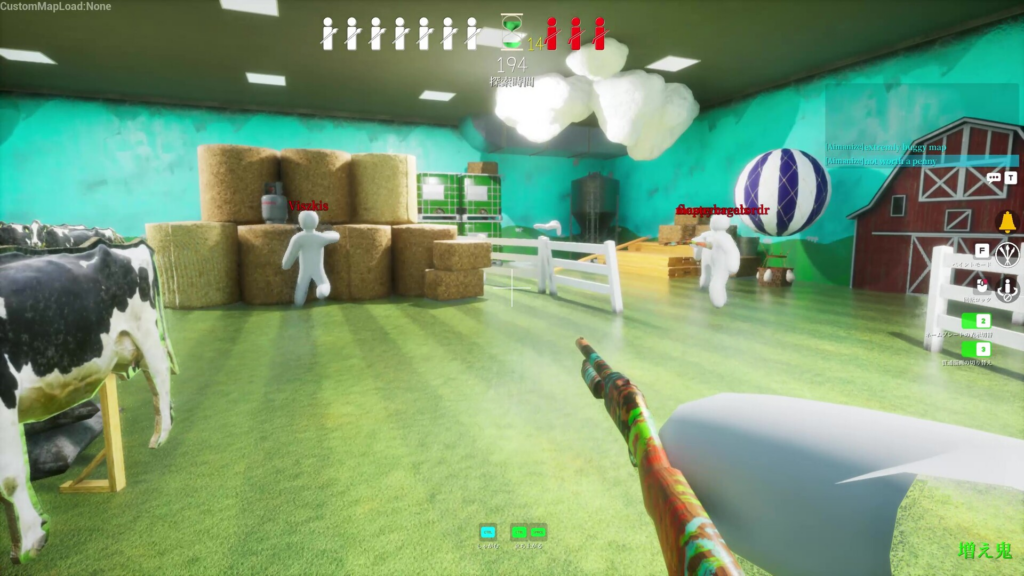
Download size vs installed size vs patch size
These three numbers are not the same, and mixing them up is the main reason players disagree about how much room the game needs.
| Term | What it means |
|---|---|
| Download size | The data Steam transfers for the current install or patch. Compression can make this smaller than the final installed size. |
| Installed size | The disk space the game occupies once installation finishes. |
| Patch size | The amount Steam downloads when it updates the game. Temporary patching files can briefly need more room than the update itself. |
| Free space to keep | The practical headroom you should leave for caches, screenshots, and repair files. |
Storage checklist before a multiplayer session
Because matches run in shared rooms with up to 10 players in the recommended range, one person stuck mid-update can hold up the whole group. Clearing storage problems before you host or join prevents issues that look like server trouble but are really a half-finished patch.
- Open Steam early and let the game update fully before friends are waiting.
- Check free disk space and keep more than the install prompt asks for.
- Delete old recordings or screenshots if Steam cannot patch cleanly.
- Restart Steam if the download or install state looks stuck or stale.
- Launch the game once to confirm it opens before sending invites.
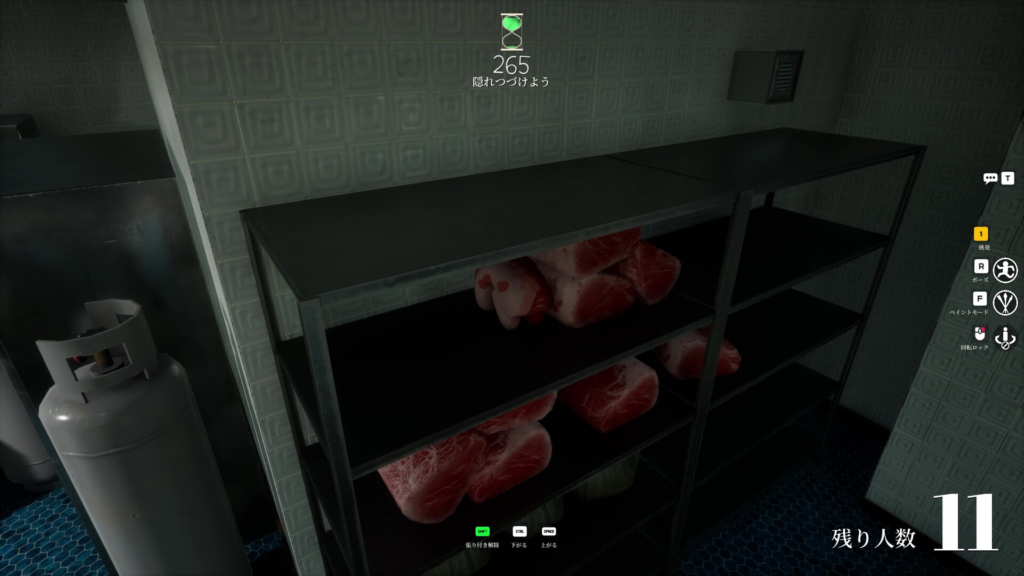
System requirements to run it
Storage is only part of the picture. The minimum hardware is light, which fits the game’s small size and casual design.
| Component | Minimum |
|---|---|
| OS | Windows 10 64-bit |
| Processor | Intel Core i5 |
| Graphics | DirectX 11 or 12 compatible graphics card |
How to confirm the install worked
The install is done when Steam marks the game as ready to play and the download bar is gone from your library. If it still shows a queued or paused update, the game may launch on an old build, which can block you from joining rooms running the latest version.
If an update appears stuck, restart Steam and confirm free disk space before assuming the multiplayer servers are at fault. A clean, fully applied update matters more than memorizing one exact size, since each patch can change files, maps, and matching behavior.
Recent updates have added content such as the Penguin Hotel expansion and the Sugarland map, so the installed size grows over time. Re-check the live Steam number after a major update rather than relying on a figure from launch day.