The “Signing In” hang in Meccha Chameleon leaves you spinning on the main menu and unable to join friends. It happens when the game cannot complete its authentication handshake with Epic Online Services, usually because of a network restriction, a stale proxy setting, or a system clock that drifts out of sync. The fixes below target that handshake directly.
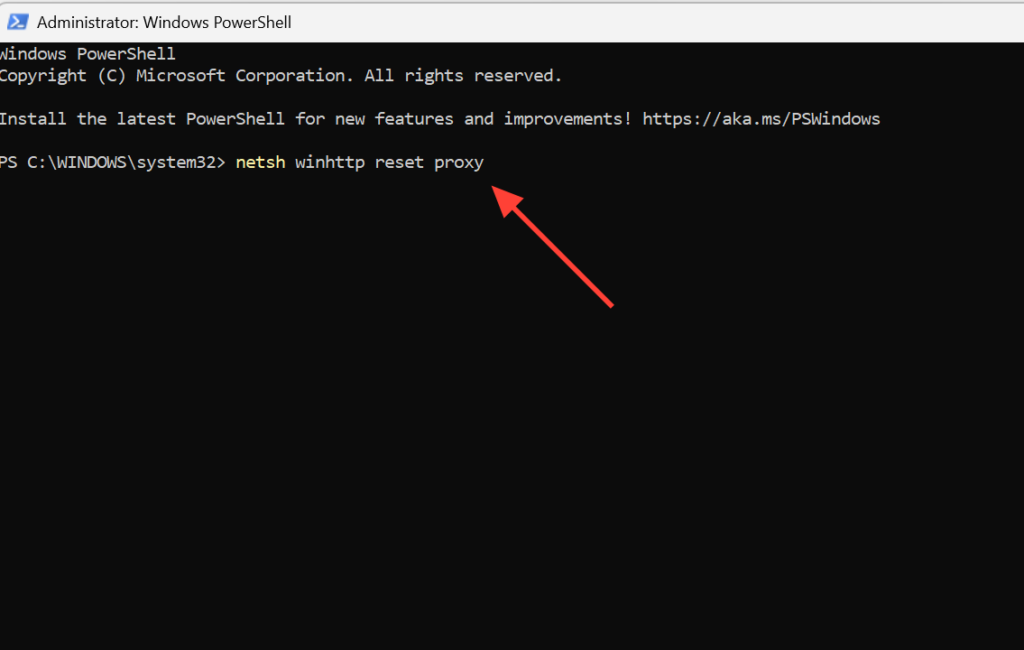
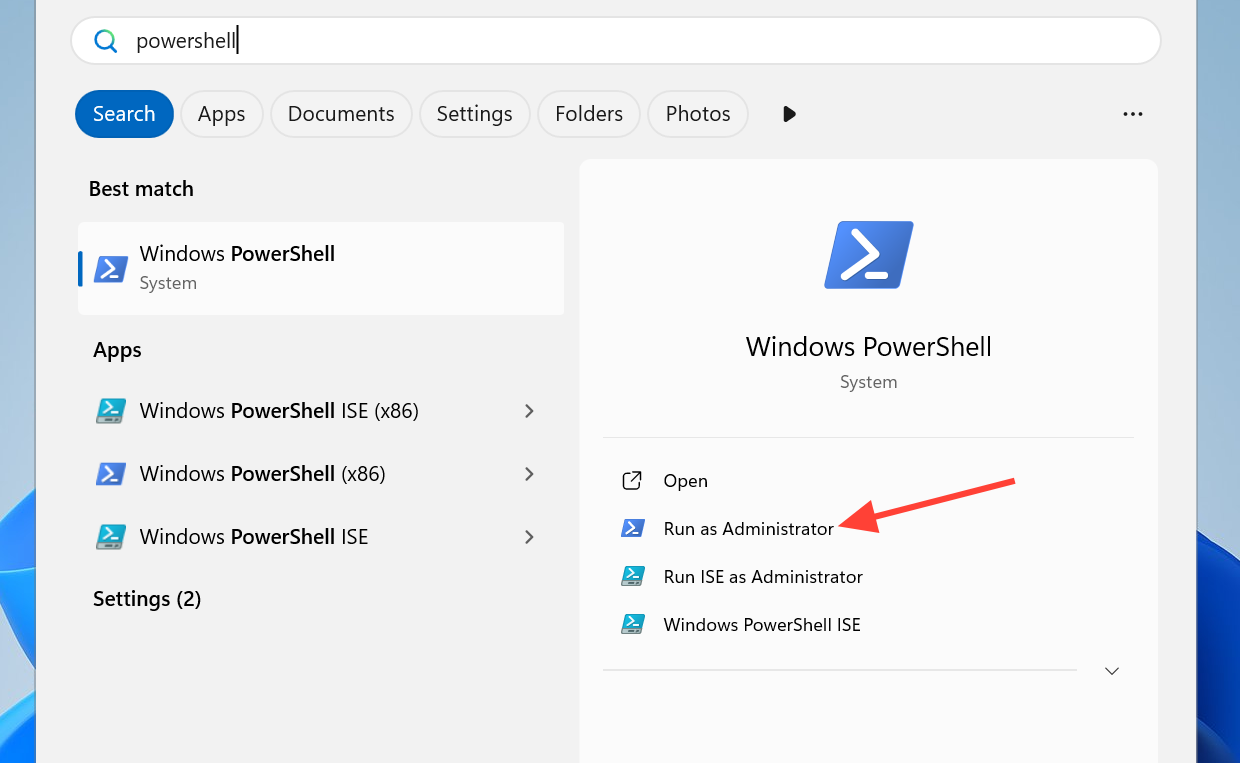
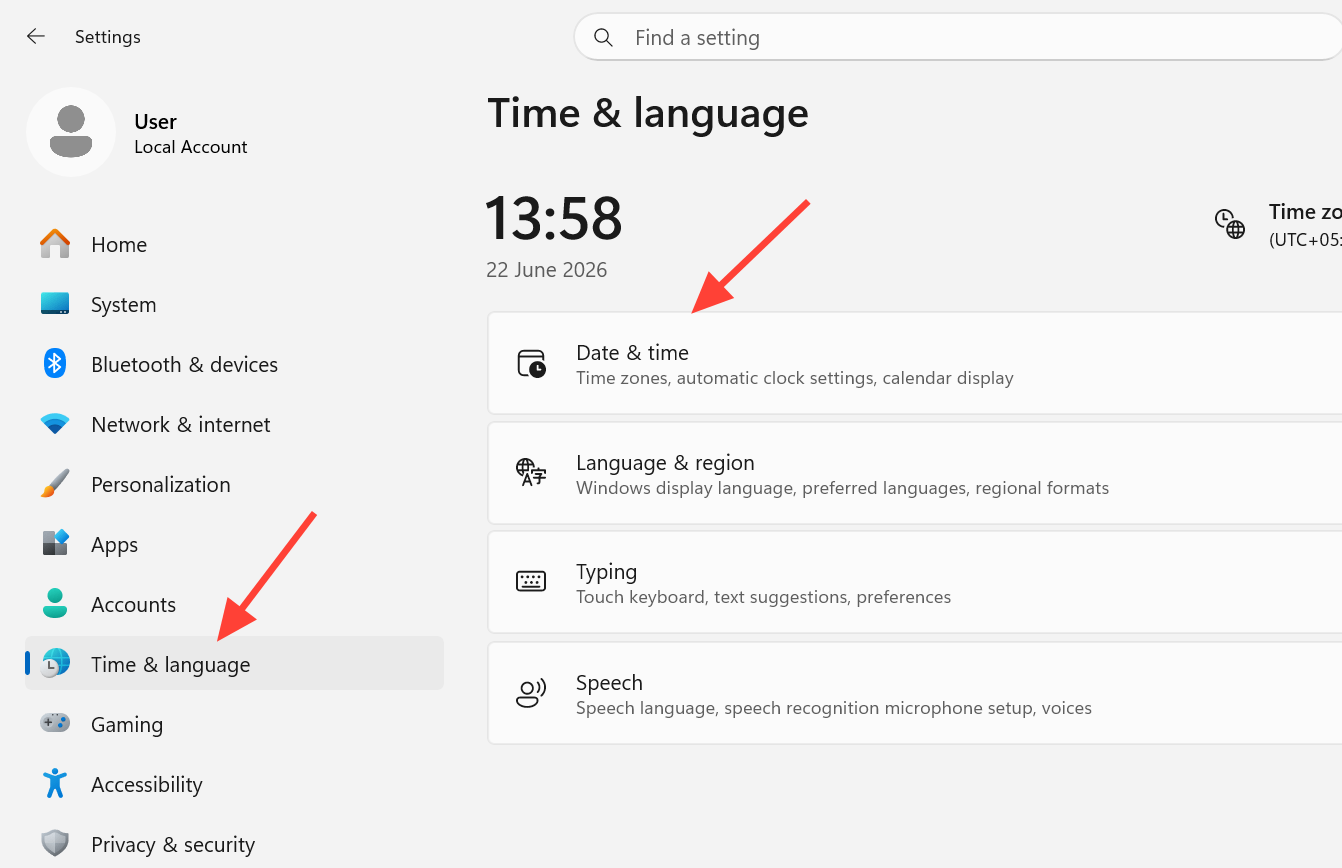
Quick answer: Open Windows PowerShell as administrator and run netsh winhttp reset proxy, set your system clock to update automatically, then restart the game. If it still hangs, flush DNS with ipconfig /flushdns, reset the network stack with netsh winsock reset, and verify the game files in Steam.
Why Meccha Chameleon gets stuck on Signing In
The login step depends on three things lining up at once. Your client must reach the authentication nodes, your account session must validate against Epic Online Services, and your local network settings must not block or misroute the request. When any one of these fails, the menu shows “Signing In” indefinitely and never advances to lobby selection.
| Cause | What you see |
|---|---|
| Stale proxy or network settings | Endless spinner, no error |
| Incorrect system clock | Connects but cannot join servers, or loops on cloud saves |
| Corrupted or incomplete game files | Hangs after pressing Play, fails to reach the lobby |
| Server congestion at peak demand | Connection requests dropped, infinite signing in |
| Outdated graphics drivers | Stalls during startup or main menu load |
Reset proxy settings with PowerShell
A leftover proxy configuration is one of the most common reasons the authentication request never lands. Resetting it returns your connection settings to default, which restores a clean path to the login servers.
netsh winhttp reset proxy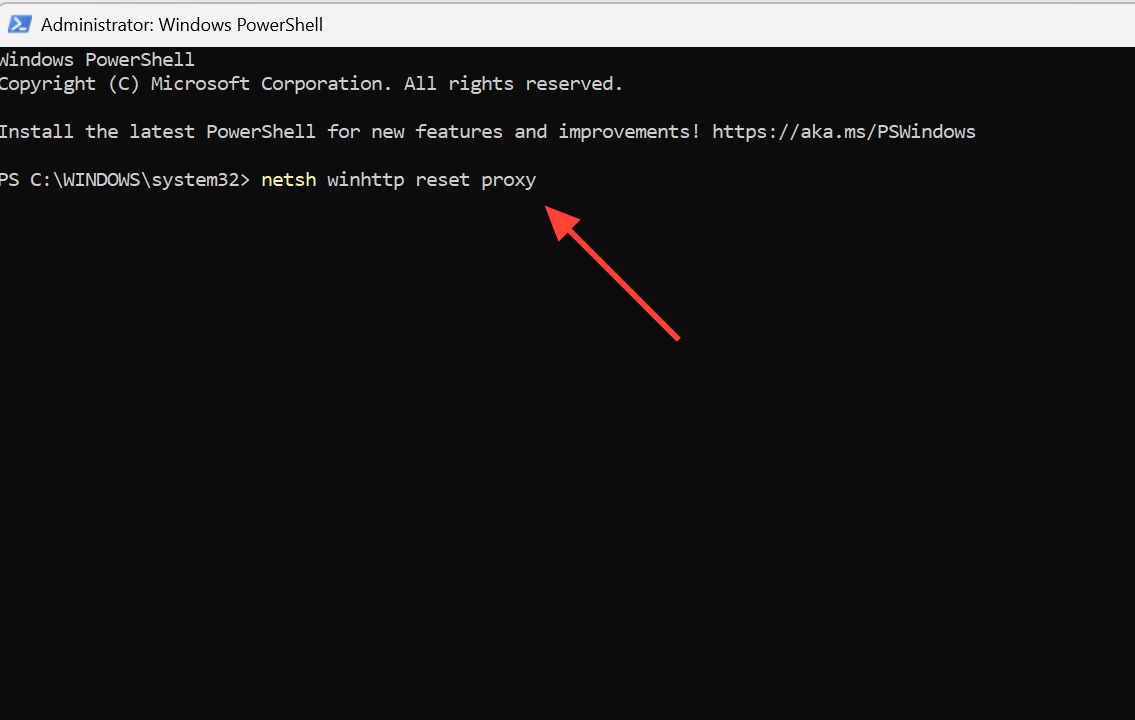
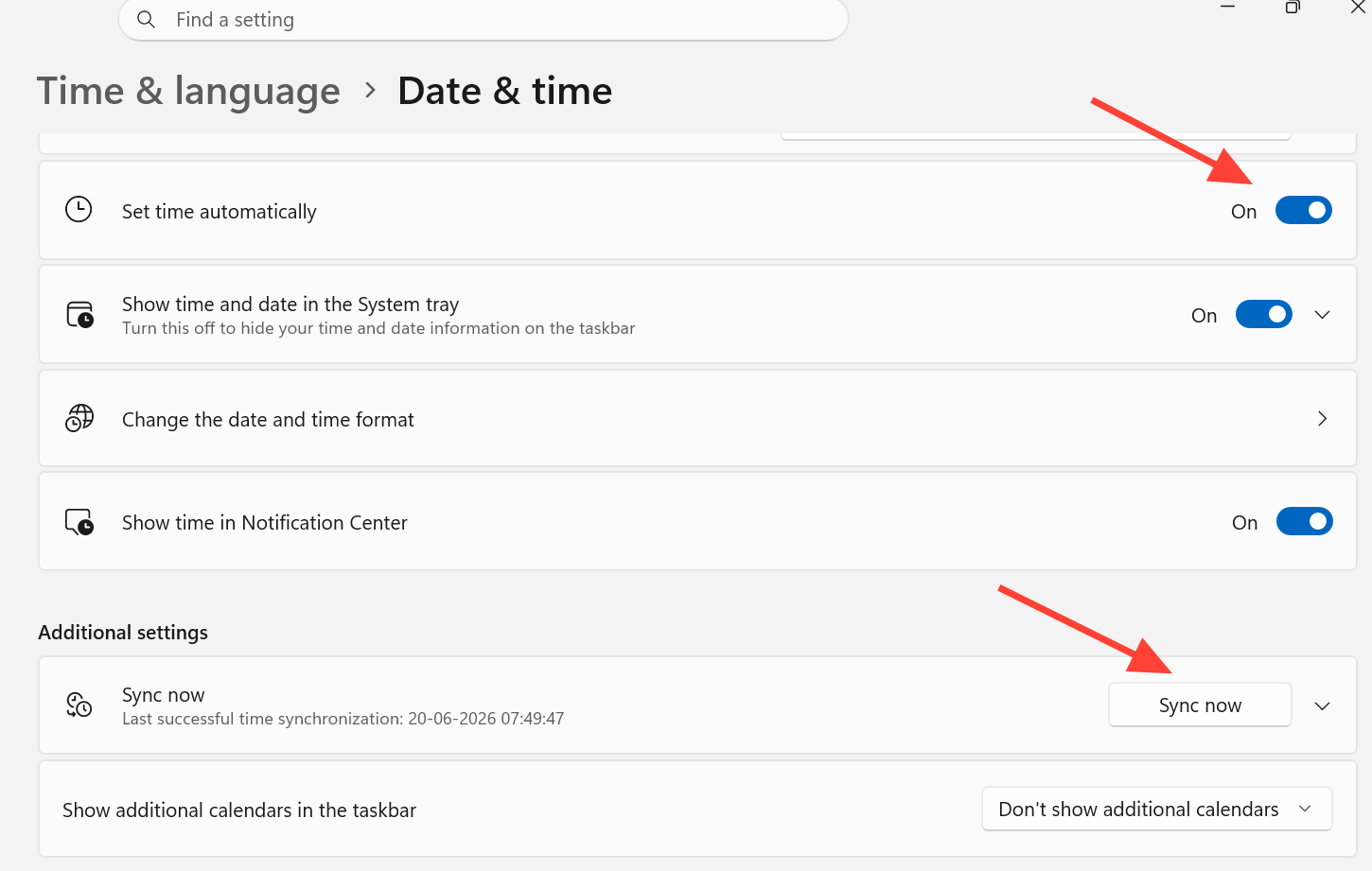
Set your system clock to update automatically
A clock that is even slightly off can break the secure handshake and stop you from joining servers, sometimes after the game appears to load cloud saves in a loop. Letting Windows correct the time automatically removes that mismatch.
Flush DNS and reset the network stack
Corrupted local network maps can send your client toward outdated server addresses, blocking account validation. Rebuilding the DNS cache and Winsock catalog clears those bad entries.
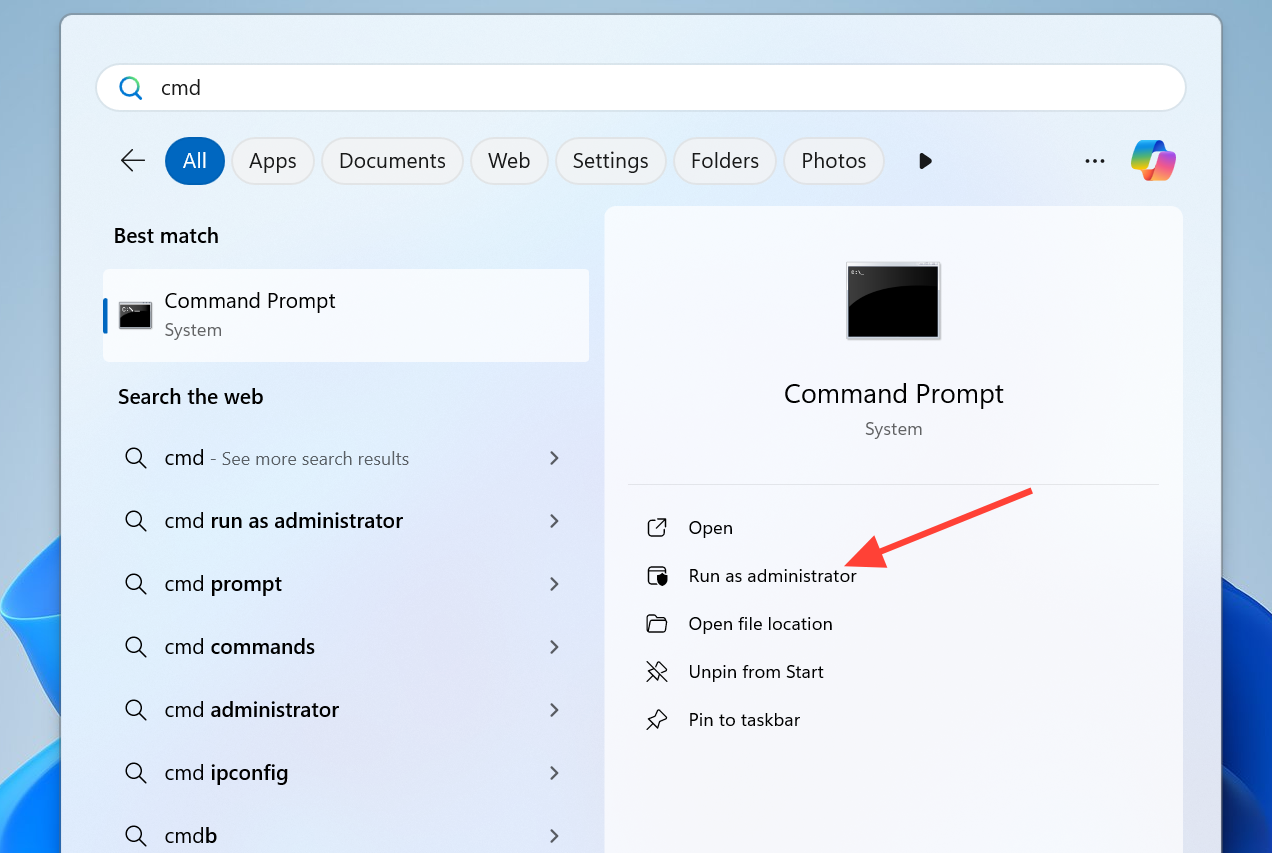
ipconfig /flushdns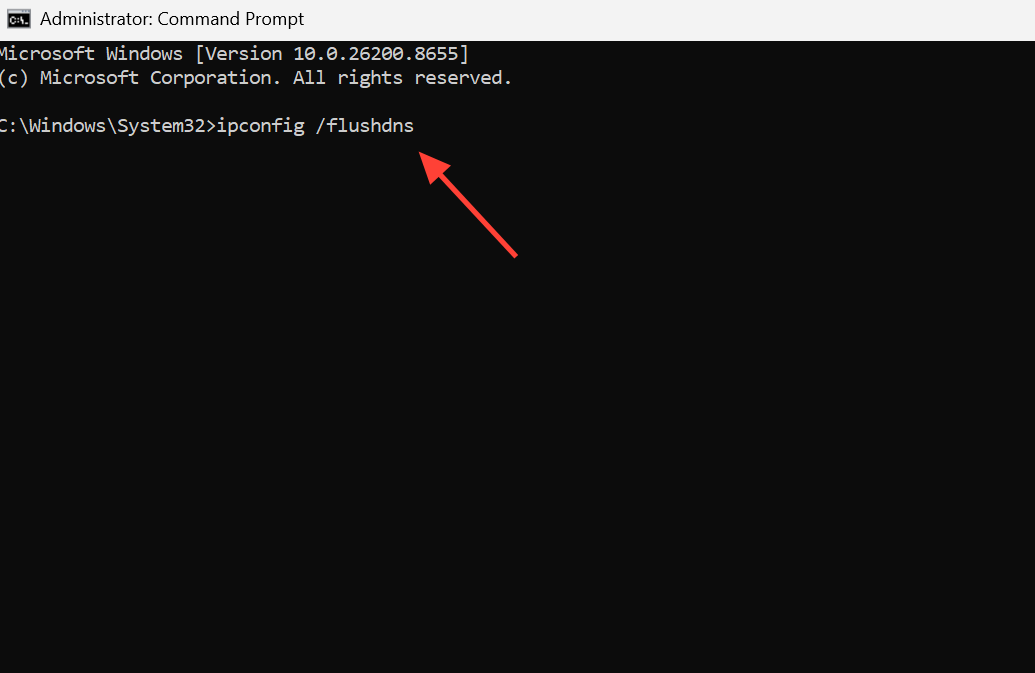
netsh winsock reset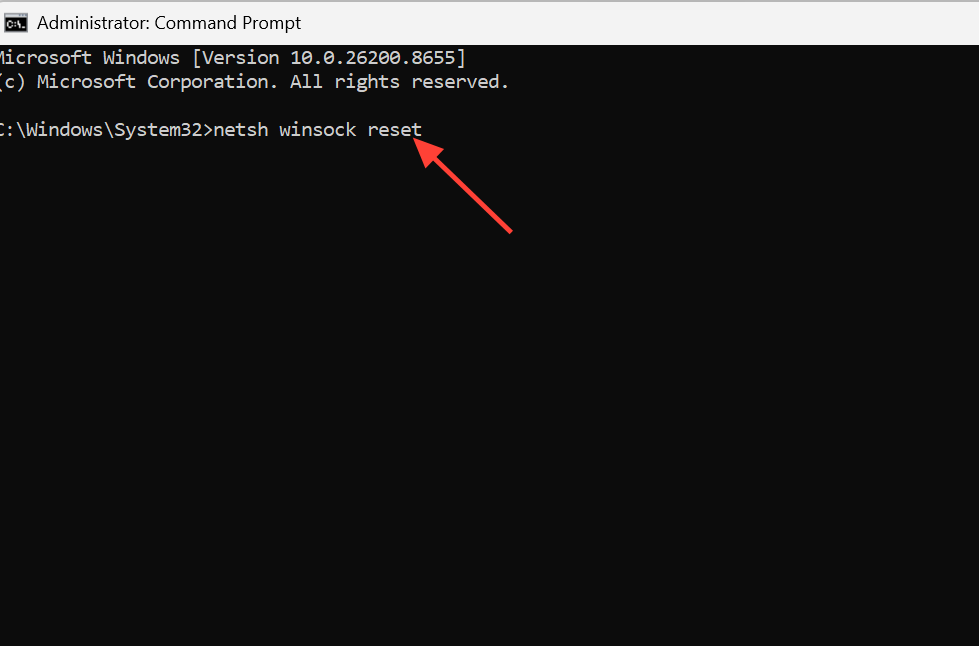
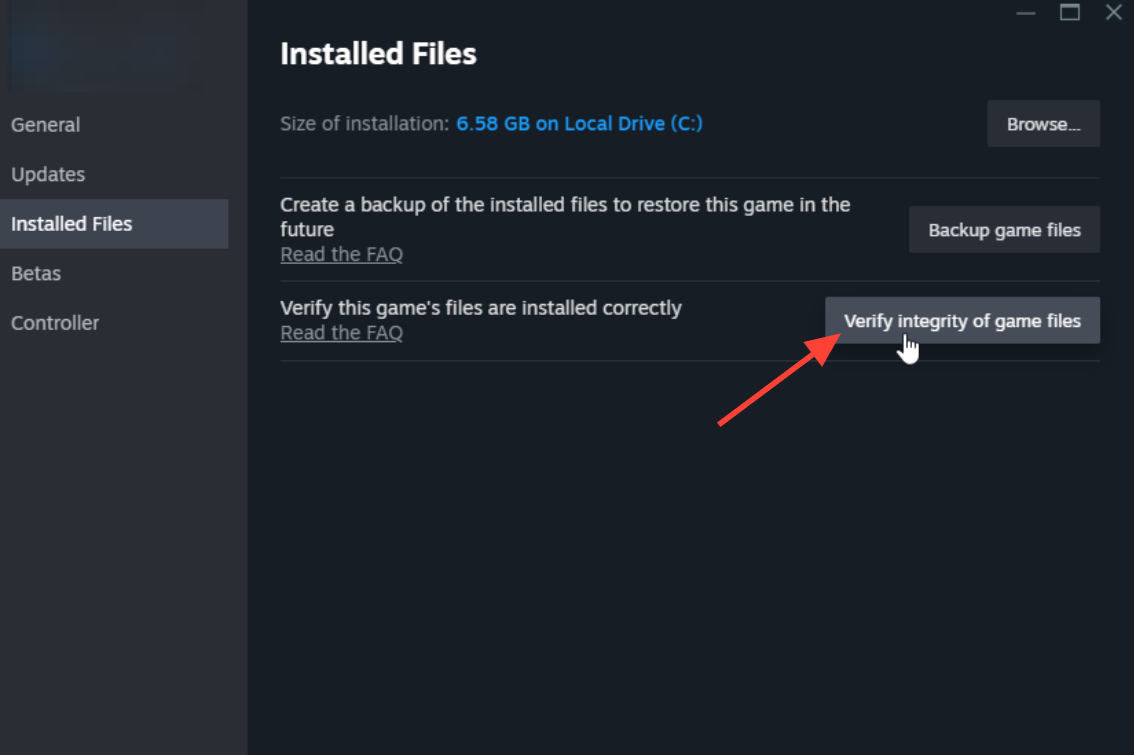
Verify game files in Steam
Damaged or missing files after an interrupted update can stall the login step before it completes. Verifying scans the install and re-downloads anything broken, often without a full reinstall. Note that this alone does not work for everyone, so pair it with the network fixes above.
Update graphics drivers and run Steam as administrator
An outdated GPU driver can stall the game during startup, which looks like a login hang. Installing the latest driver from NVIDIA, AMD, or Intel resolved the issue for some players. Choose a clean installation if your driver tool offers it, then restart your PC.
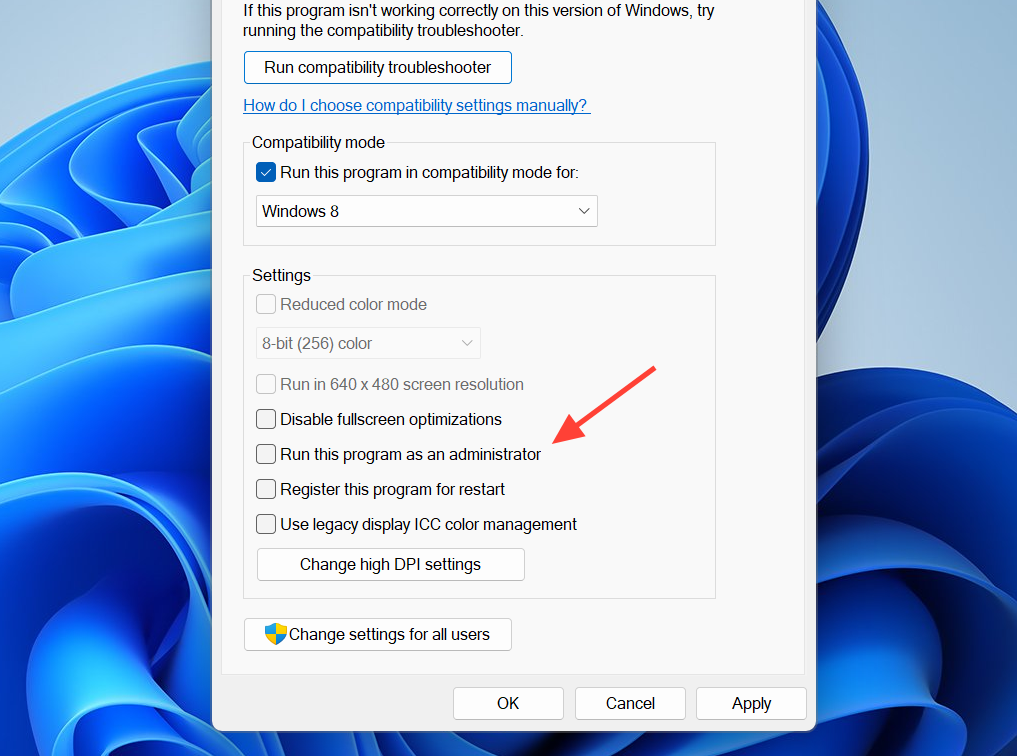
Permission conflicts between Steam and Windows can also interrupt the connection. Right-click the Steam shortcut, choose “Run as administrator,” then launch Meccha Chameleon so it can fully reach system network components.
Repair runtime components if the game stalls early
Missing Visual C++ or DirectX components can stop the game from initializing far enough to sign in. Install the current packages from Microsoft, then restart your PC before testing again.
Get the latest x64 and x86 builds from the Microsoft Visual C++ Redistributable page, and add the DirectX End-User Runtime Web Installer if your system is missing core runtimes.
How to confirm the fix worked
You know the problem is resolved when the menu advances past “Signing In” to lobby selection and you can join a friend’s game or a public match without being dropped. If you still see the spinner after the network resets and a clock sync, the cause is most often server congestion at peak hours, which clears on its own. Reinstalling is a last resort and only helps when corrupted install files survive a file verification.
Work through the fixes in order, starting with the proxy reset and clock sync, since those address the authentication handshake most directly. The network and file checks together resolve the large majority of Signing In hangs and get you back into matches.