A private server in Meccha Chameleon stays hidden when the host and the joining player are out of sync. Mismatched game versions, a stuck lobby, a wrong password, a disabled Steam Overlay, or blocked network traffic all stop a room from appearing in the server browser or from accepting a Steam invite. Fixing it is a matter of getting both sides on the same version, on a fresh lobby, and on a clear network path.
Quick answer: Close the game fully on both PCs, update Meccha Chameleon through Steam so everyone runs the same version, have the host recreate the room with a simple password, and send a fresh Steam invite with the Steam Overlay turned on. The room is fixed when the joining player sees it in the server browser or successfully connects through the new invite.
Why your Meccha Chameleon private server is hidden
Meccha Chameleon is a Steam-only hide-and-seek game where multiplayer runs on host-created rooms, public matches, and direct Steam invites. Because every session depends on the host, the other players, Steam, and the game client all matching, a single mismatch breaks server discovery. The table below maps each symptom to its usual cause so you can jump straight to the right fix.
| Symptom | Most common cause |
|---|---|
| Friend’s server does not appear | Different game versions or a server list that has not refreshed |
| Private room stays invisible | Steam status set to Invisible or a stuck lobby state |
| Only a few public rooms load | Outdated DNS cache or a network card filtering discovery queries |
| Steam invite does nothing when clicked | Steam Overlay disabled or corrupted invite integration files |
| Invites stop working mid-session | Expired invite link or a stuck lobby after settings changed |
| Wrong password rejected | Case mismatch, extra spaces, or similar-looking characters |
| Friend joins then disconnects | Unstable host network or firewall blocking traffic |
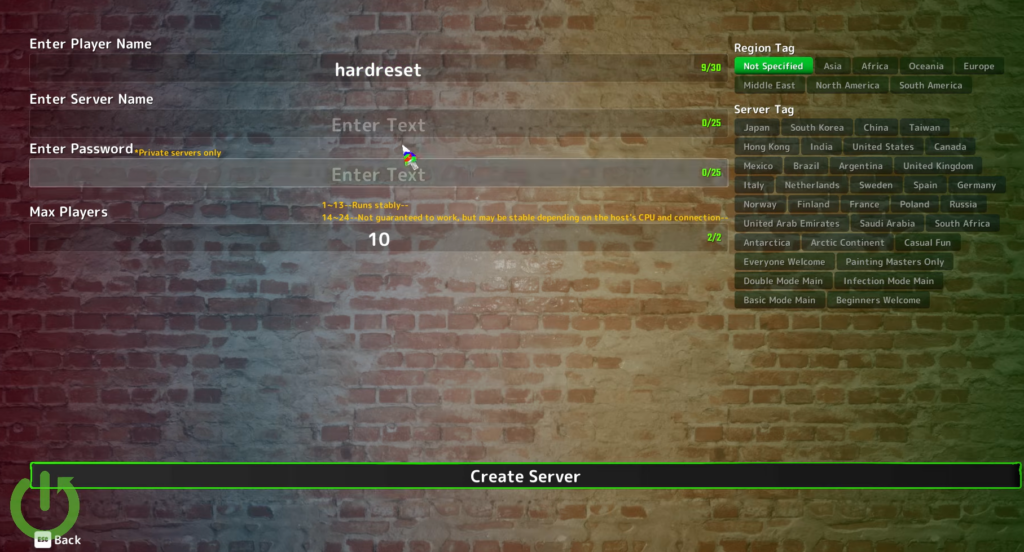
Match the game version on every PC
A version mismatch is the single most common reason a private server fails to show up. If the host has installed a recent patch but a friend has not, both players see different server lists and can never meet in the same room. Confirm everyone is on the latest build before anything else.
It worked when the host recreates the room and the friend now sees it in the server browser. If the server still does not appear after a clean update on both sides, move to the lobby and invite fixes below.
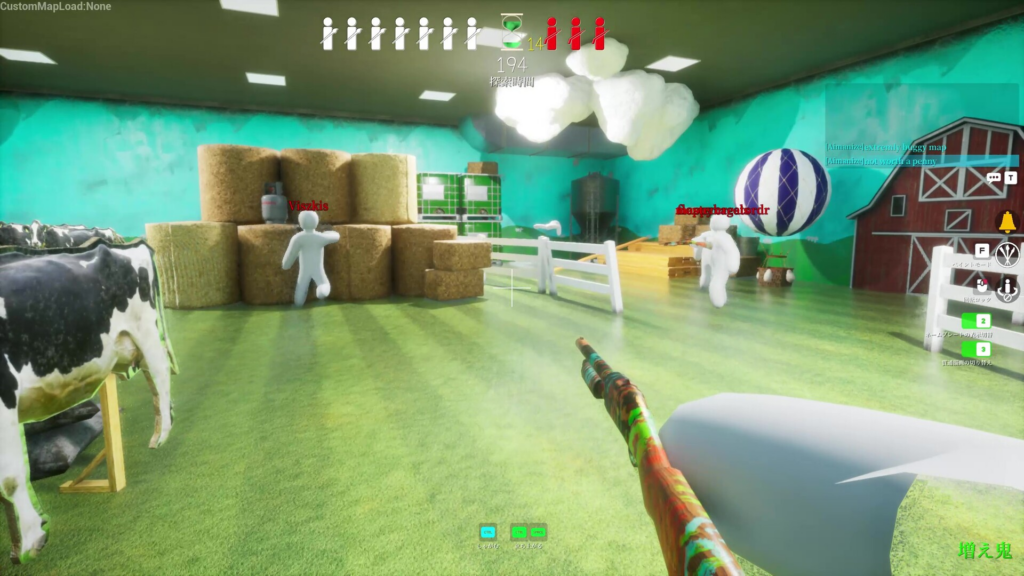
Rebuild the lobby and send a fresh invite
Old lobbies go stale after the host changes room settings, leaves, restarts the game, or reconnects to Steam. The invite link can still look valid yet no longer point to a live room. A clean rebuild clears this.
Note: Meccha Chameleon supports up to 24 players per server, but the developers recommend keeping rooms at 13 or fewer for the smoothest experience.
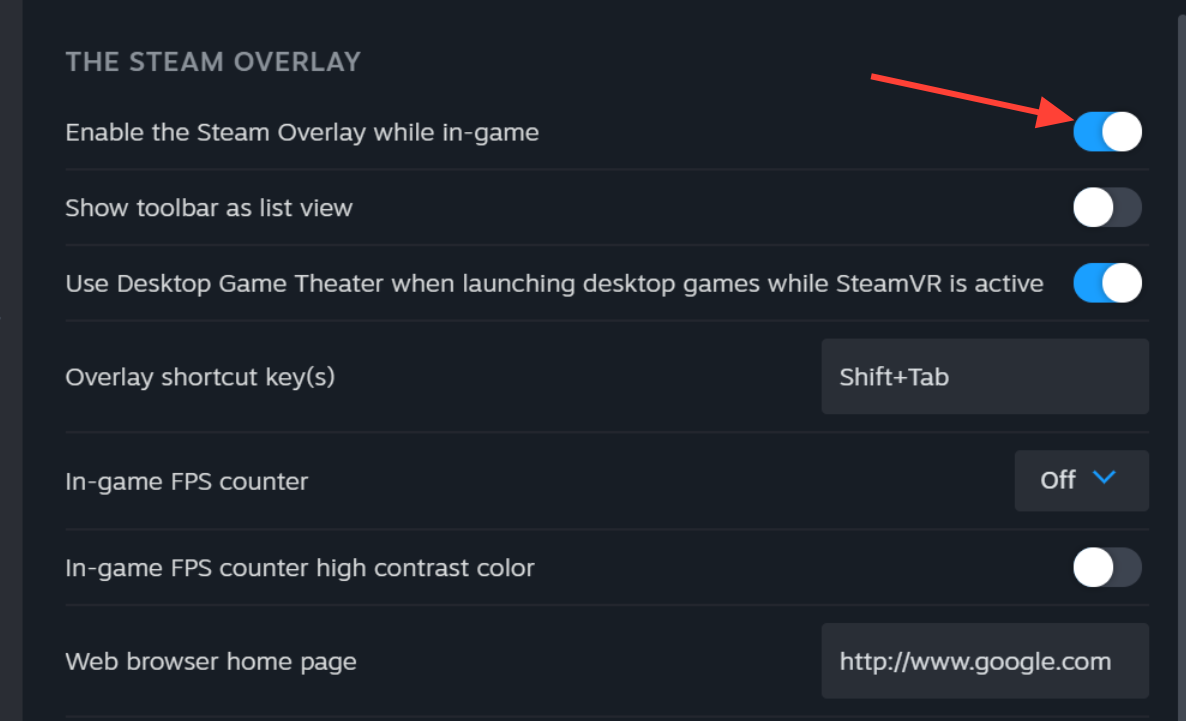
Fix Steam invites that do nothing when clicked
If clicking Join Game or accepting an invite fails to open the game, the Steam Overlay is usually disabled or the invite integration files are damaged. Two checks resolve almost every case.
Confirm the private server password
For a password-protected room, even a tiny typo blocks the join. Have the host share the exact password and test with a simple one first, avoiding spaces, special characters, and long strings while you troubleshoot.
- Match uppercase and lowercase letters exactly.
- Remove any extra space before or after the password.
- Watch for look-alike characters such as 0 and O, or 1 and l.
Restore a server browser showing only a few rooms
When the public browser shows only a handful of rooms, your system’s DNS cache is likely clogged with outdated routing addresses. Resetting the network stack restores the full list.
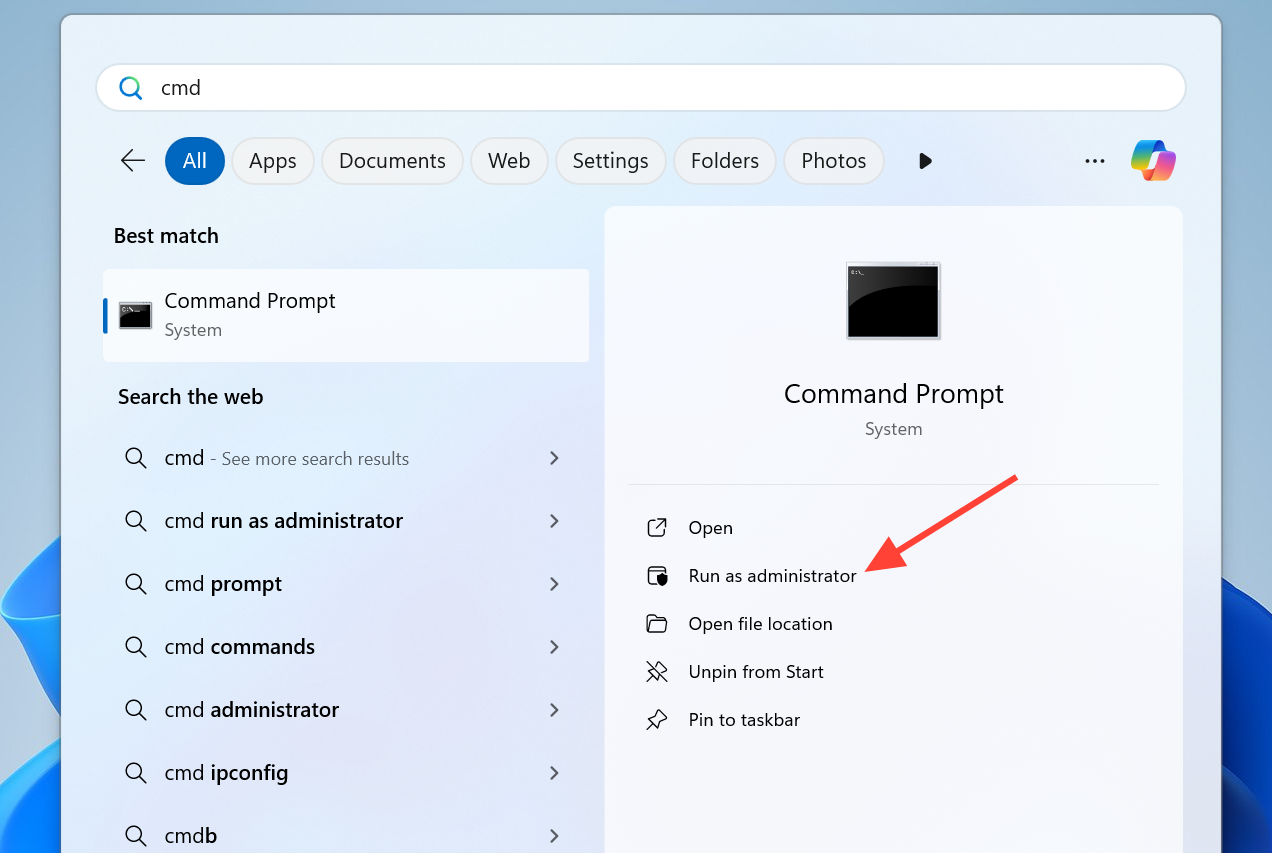
ipconfig /flushdns
netsh int ip reset
netsh winsock reset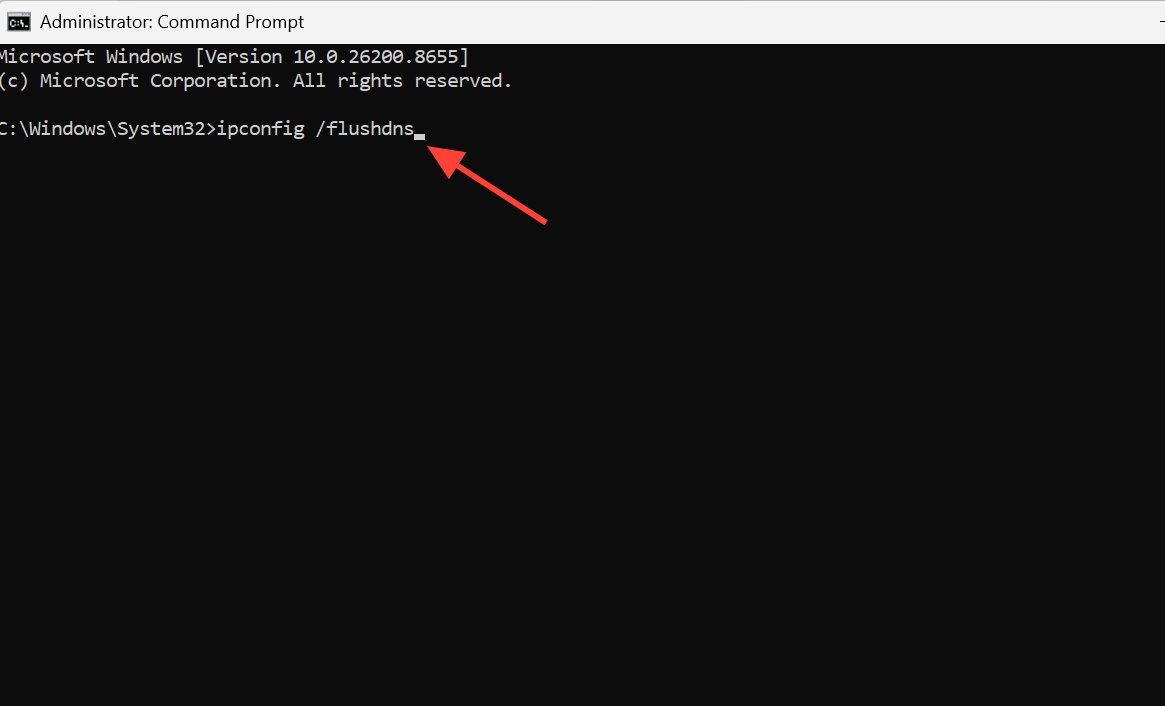
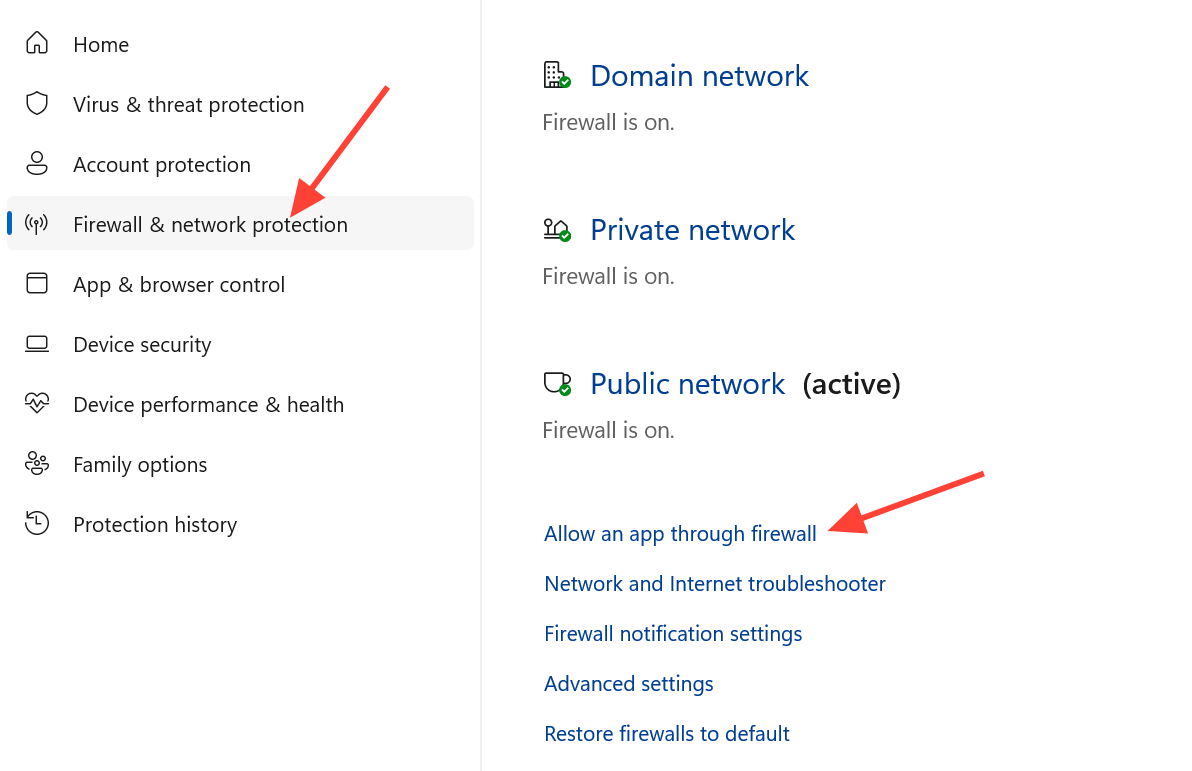
Clear firewall, host, and network blocks
If the server appears but the join times out or disconnects on the loading screen, the host’s connection or a firewall rule is dropping multiplayer traffic. Work through these in order.
Cross-platform and version notes worth checking
Meccha Chameleon is not cross-platform. It is available only on Steam for PC, with no console versions, so every player must own the Steam copy to join the same server. If a friend cannot connect at all, confirm they are on Steam and running the current build rather than waiting on console support that does not exist.
Run through the version match, lobby rebuild, and invite checks first since they resolve the large majority of hidden private servers. The password and network steps then cover the remaining cases where the room is visible but the connection itself fails.