

Post‑update drain and a warmer phone are common right after installing iOS 26 while the system finishes background setup. Start by enabling Adaptive Power and then refine a few high‑impact settings to stabilize battery use and get through the day more reliably.
Turn on Adaptive Power (iOS 26)
Adaptive Power is a system mode that predicts when you’ll need more battery and makes small, targeted adjustments to help a charge last longer that day. It can reduce screen brightness slightly, limit background activity, and automatically switch on Low Power Mode at 20%.
Supported models and defaults:
- On by default: iPhone 17, iPhone 17 Pro, iPhone 17 Pro Max, iPhone Air.
- Available but off by default: iPhone 16, 16 Plus, 16 Pro, 16 Pro Max, 16e, iPhone 15 Pro, 15 Pro Max.
What Adaptive Power can do:
- Make small performance adjustments when it predicts higher‑than‑usual usage.
- Lower display brightness by about 3% without changing your slider.
- Limit background activity to cut idle drain.
- Turn on Low Power Mode automatically at 20% battery.
Notes: It needs about seven days of usage to learn your routine before it begins engaging automatically. It won’t manage performance while you use features that demand peak speed, such as the camera or when Game Mode is on.
Settings > Battery > Power Mode. This is where you choose Adaptive Power or Low Power Mode.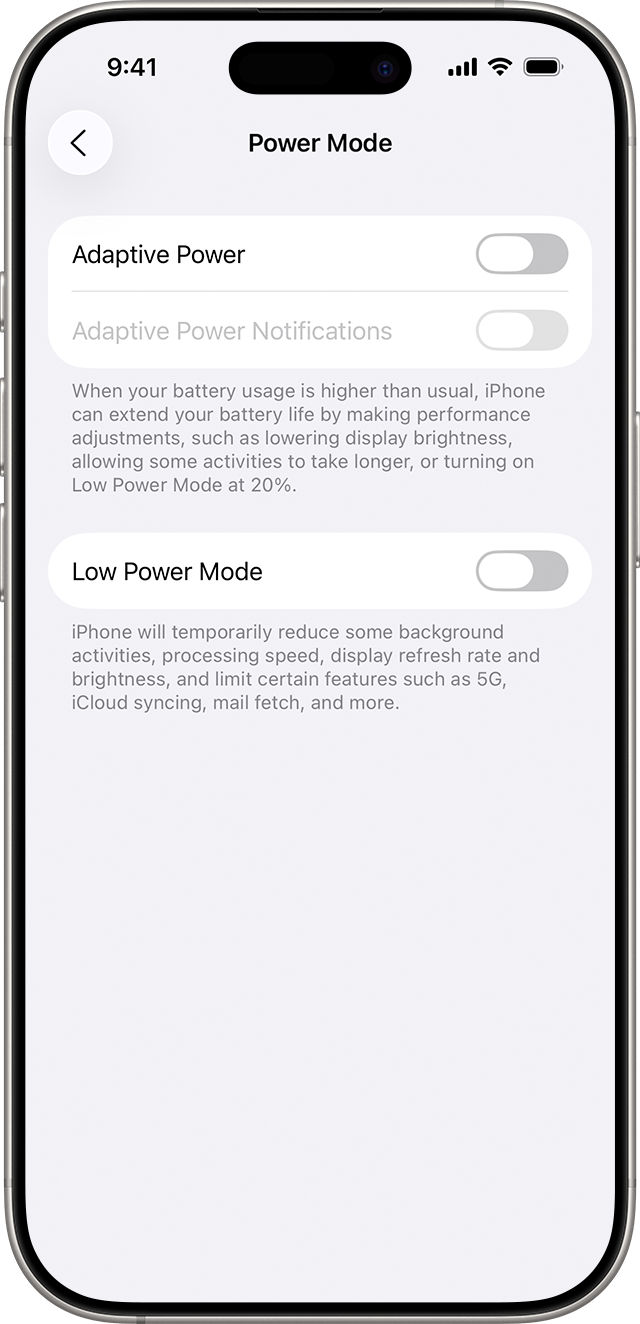
Adaptive Power on. If you’re on a supported device where it’s off by default, this adds automatic day‑of optimizations without you micro‑managing settings.Adaptive Power Notifications to get alerts when it kicks in during the day.Let iOS finish post‑update tasks
Right after a major update, iPhone recalculates and downloads a lot in the background (app updates, indexing, assets). Temporary battery impact and extra heat are expected during this period.
Settings > Battery and review the usage graph and app list to see when and where power was used, including today versus yesterday in iOS 26.Use Low Power Mode
Low Power Mode is a manual switch that cuts background activity, reduces visual effects, and slows some tasks to meaningfully reduce drain when needed.

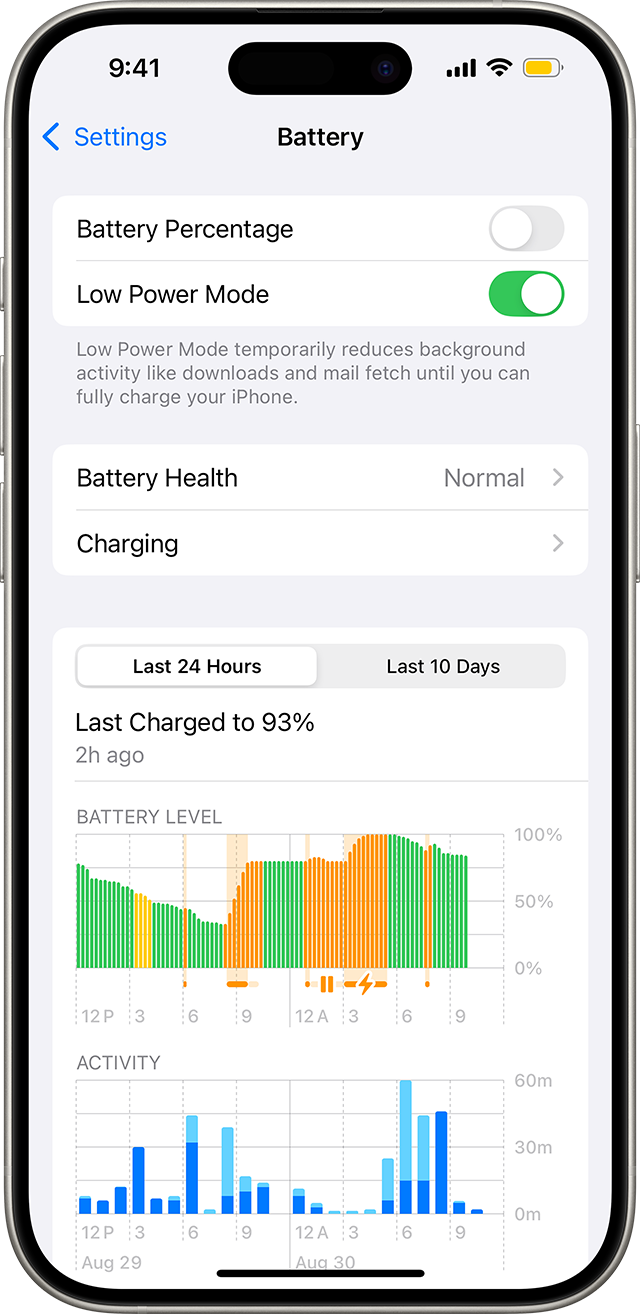
Settings > Control Center, then add the Battery control so you can toggle Low Power Mode from Control Center.Settings > Battery or Control Center before long meetings, flights, or commutes to stretch runtime.Reduce screen power draw
The display is a top power consumer. Small changes to brightness control can deliver immediate savings without sacrificing readability.
Settings > Accessibility > Display & Text Size and switch on Auto‑Brightness so iPhone adapts the screen to your ambient light automatically.Stop background activity you don’t need
Background tasks can keep radios active and wake the CPU. Tightening refresh and location access reduces idle drain between active sessions.
Settings > General > Background App Refresh and choose Wi‑Fi or Off. Then disable refresh per app for those that don’t need it.Settings > Mail > Accounts > Fetch New Data, switch non‑critical accounts to Fetch at longer intervals or Manual.Settings > Privacy & Security > Location Services, open each app you don’t need tracking in the background, and set access to While Using the App.Prefer Wi‑Fi and manage poor signal
Radio power rises in weak coverage and when cellular data is used for large transfers. Using Wi‑Fi where available lowers the energy cost of data.
Settings > Wi‑Fi, connect to trusted networks at home and work to shift data off cellular.Airplane Mode from Control Center to stop constant network searching. You won’t be able to place or receive calls while it’s on.Identify what’s actually draining your battery
iOS shows app‑by‑app usage so you can act on the biggest contributors first.
Settings > Battery and review the 24‑hour and 10‑day app list and charts to see percentage of use and background activity notes.Manage temperature and charging habits
Heat accelerates drain and ages batteries faster. Keeping the device within its comfort zone preserves both day‑to‑day runtime and long‑term health.
Settings > General > Software Update; updates often include optimizations that reduce unnecessary wakeups and improve efficiency.Enable Adaptive Power, give iOS a day to settle after updating, and then fine‑tune a few high‑leverage settings; together they typically cut noticeable drain and keep your phone cooler during daily use.





