

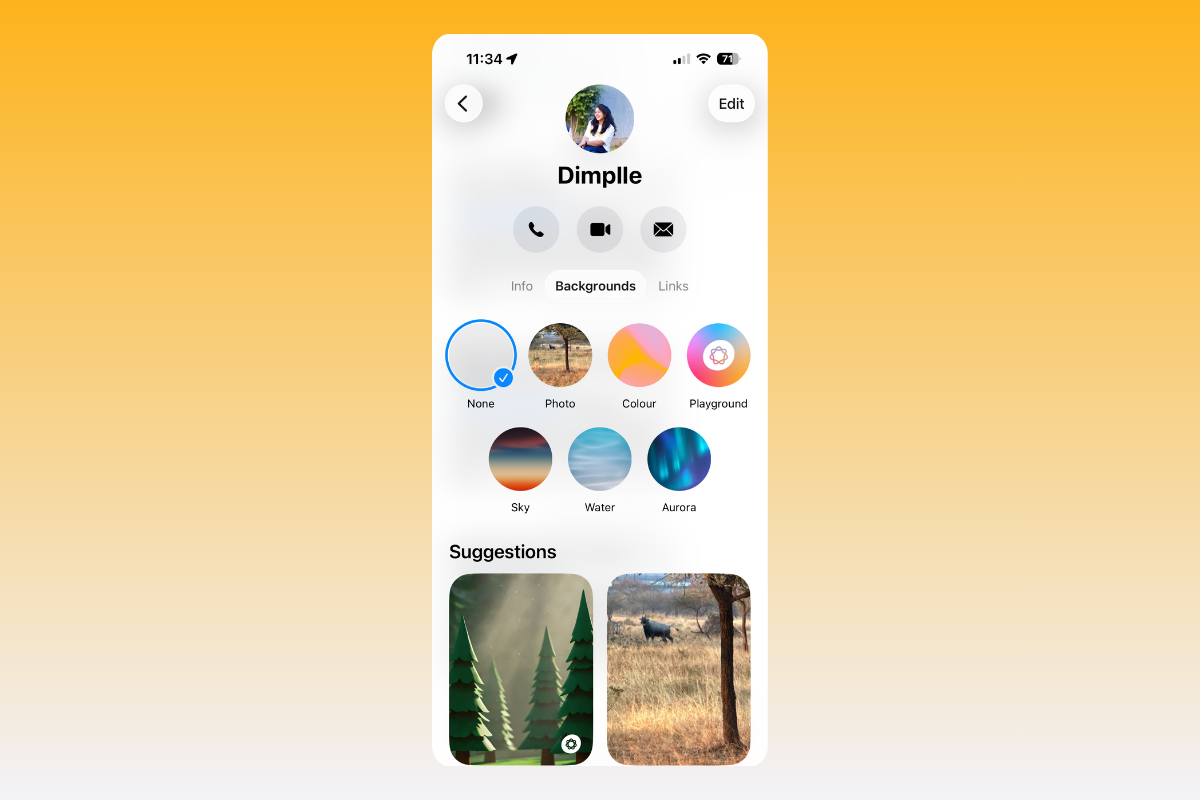
iOS 26 adds conversation backgrounds to Messages, so you can assign a distinct look to specific iMessage threads with a photo, solid color, or a generated image via Image Playground. When you set a background, it applies to everyone in that conversation, and it syncs to your other devices signed into the same Apple ID once they’re updated to iPadOS 26 or macOS Tahoe. Standard SMS/RCS threads keep the default layout.
Before you start
Review these requirements and behaviors so you know what to expect.
- Use an iPhone or iPad updated to iOS/iPadOS 26, or a Mac updated to macOS Tahoe.
- Backgrounds apply per conversation and are visible to all participants using compatible software.
- Changes sync across your devices on the same Apple ID (iOS/iPadOS 26 and macOS Tahoe).
- Works with iMessage conversations; SMS/RCS threads use the standard background.
- Messages automatically adjusts contrast for bubble/text legibility, but some combinations read better than others.
Change a conversation background on iPhone or iPad
Open
Messages and select the iMessage chat you want to customize. This ensures you edit only that specific conversation.Tap the contact or group name at the top of the thread. This opens conversation settings that include background controls.
Tap
Backgrounds. You’ll see options like Photo, Color, Playground, and themed choices such as Sky, Water, Aurora, plus Suggestions.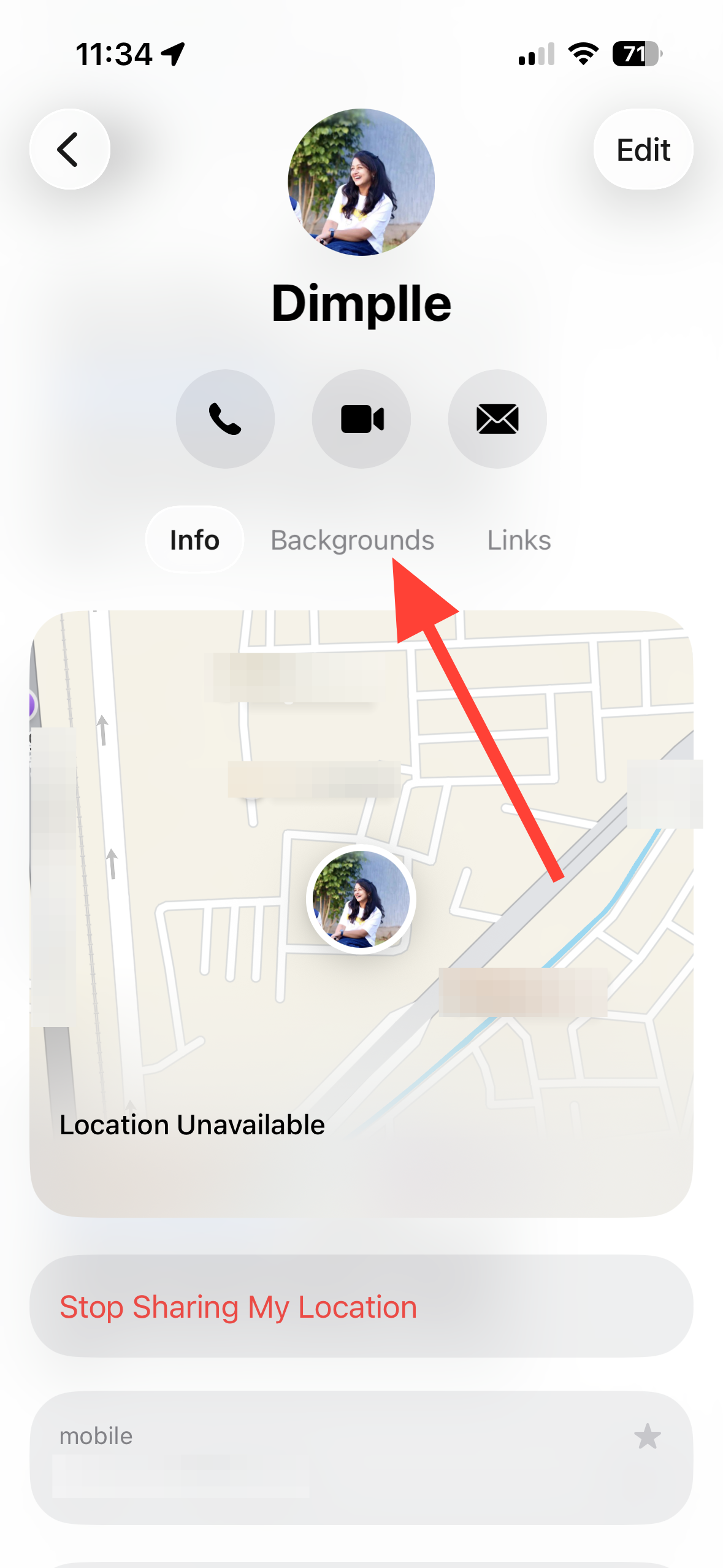
Pick a source. Select a photo from your library, choose a solid color, or describe an image for Image Playground to generate. Use this to match the chat’s purpose or provide a quick visual cue.
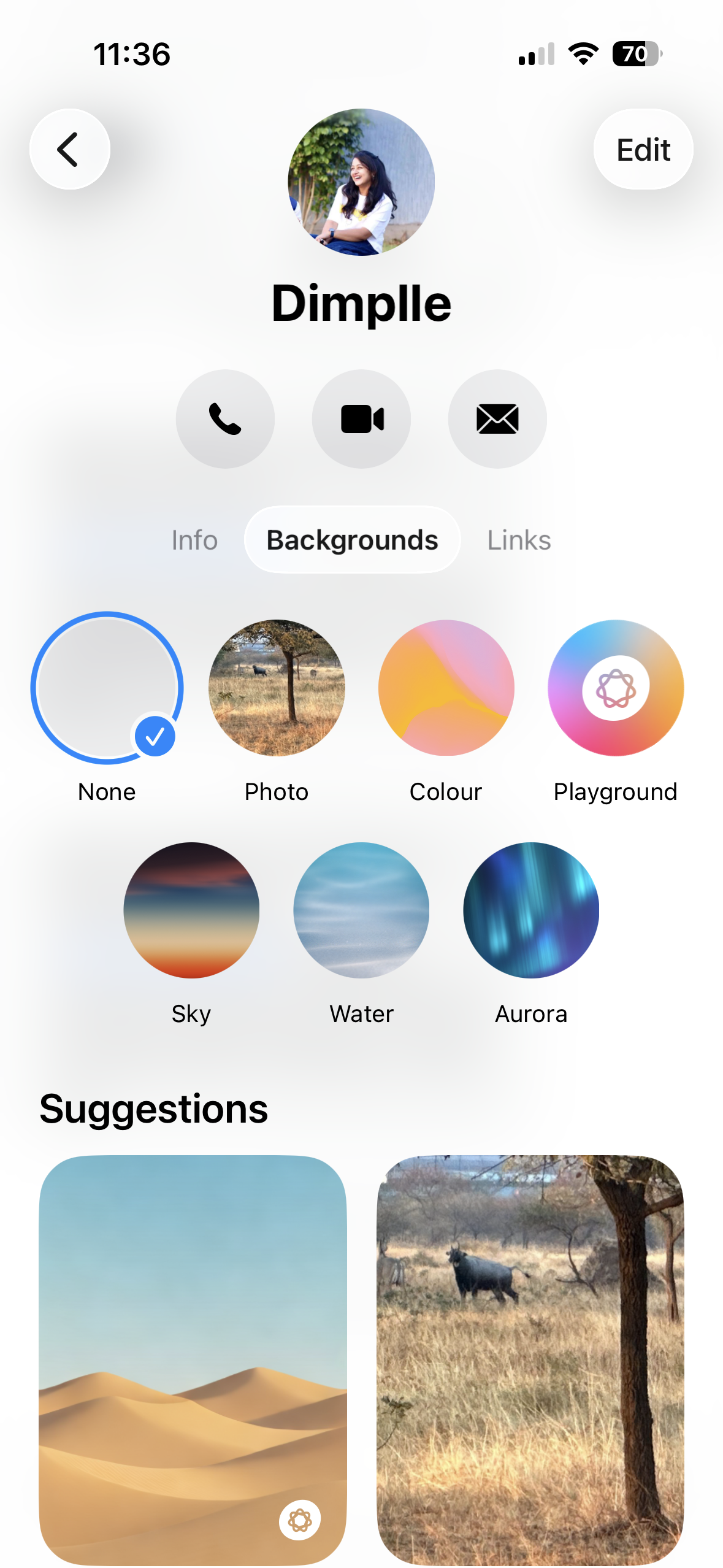
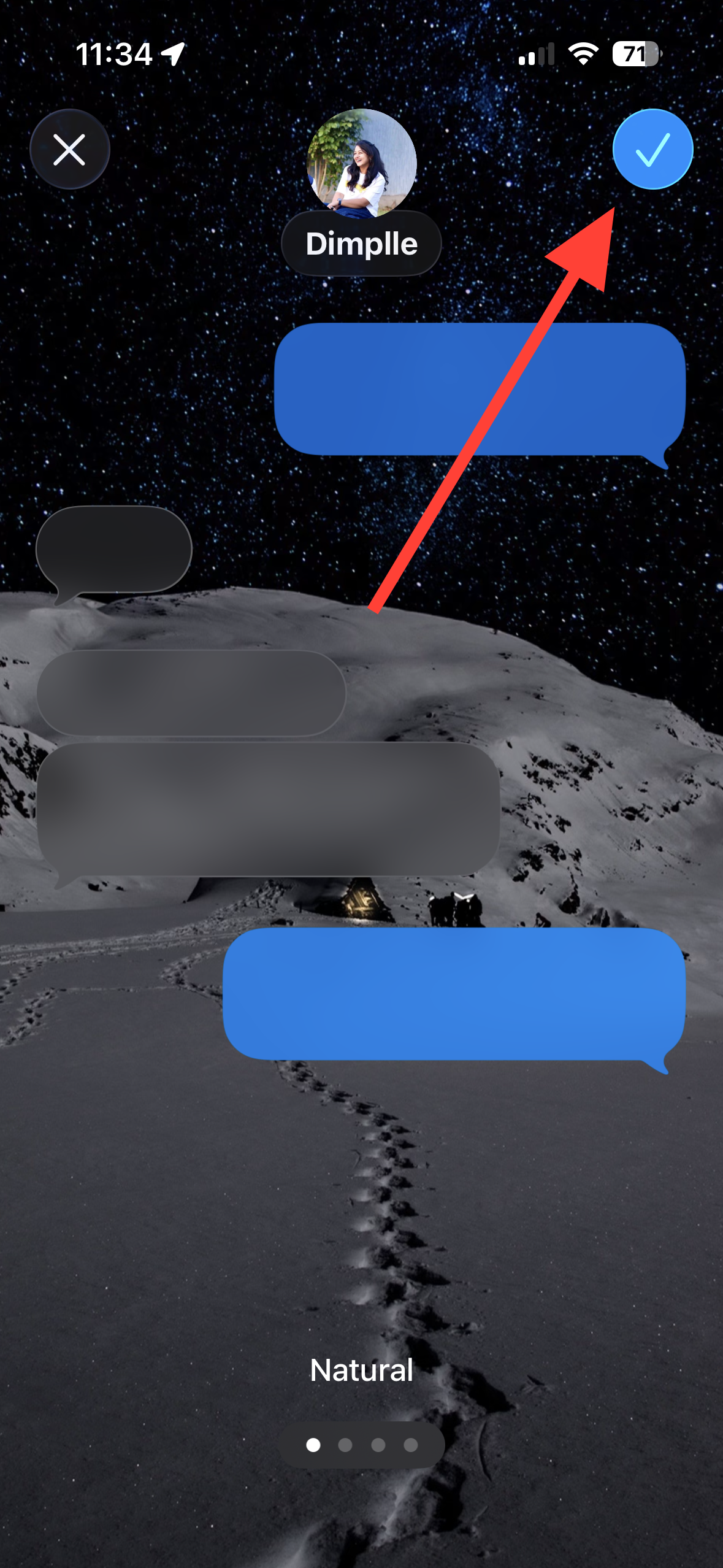
Swipe through available style variations to preview different treatments. This helps you quickly compare readability and overall look before applying.
Tap the checkmark in the top‑right to set the background. The change takes effect for everyone in the conversation on compatible devices.
Change a conversation background on Mac (macOS Tahoe)
Open
Messages and select the iMessage conversation you want to personalize. This targets only the chosen thread.Click the contact or group name at the top of the window. This reveals conversation controls for backgrounds.
Click
Backgrounds. You’ll get the same types of choices as on iPhone: Photo, Color, Playground, and preset themes.Reset a conversation to the default background
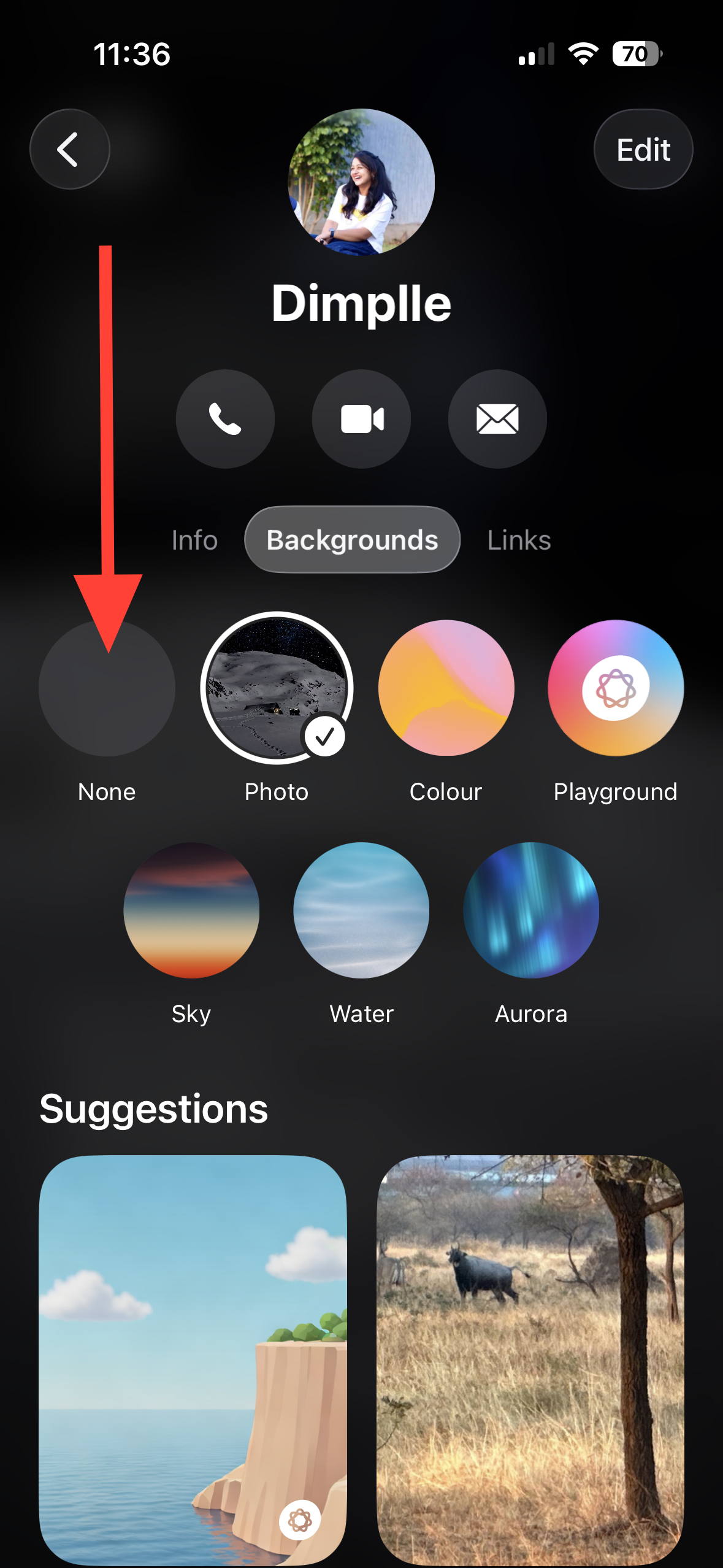
Confirm the change using the back arrow (iPhone/iPad) or
Set on Mac, depending on your device’s prompt.Turn conversation backgrounds off for yourself
Open
Settings on iPhone or iPad, search and Messages from the search results. This is where you control the app‑level background preference.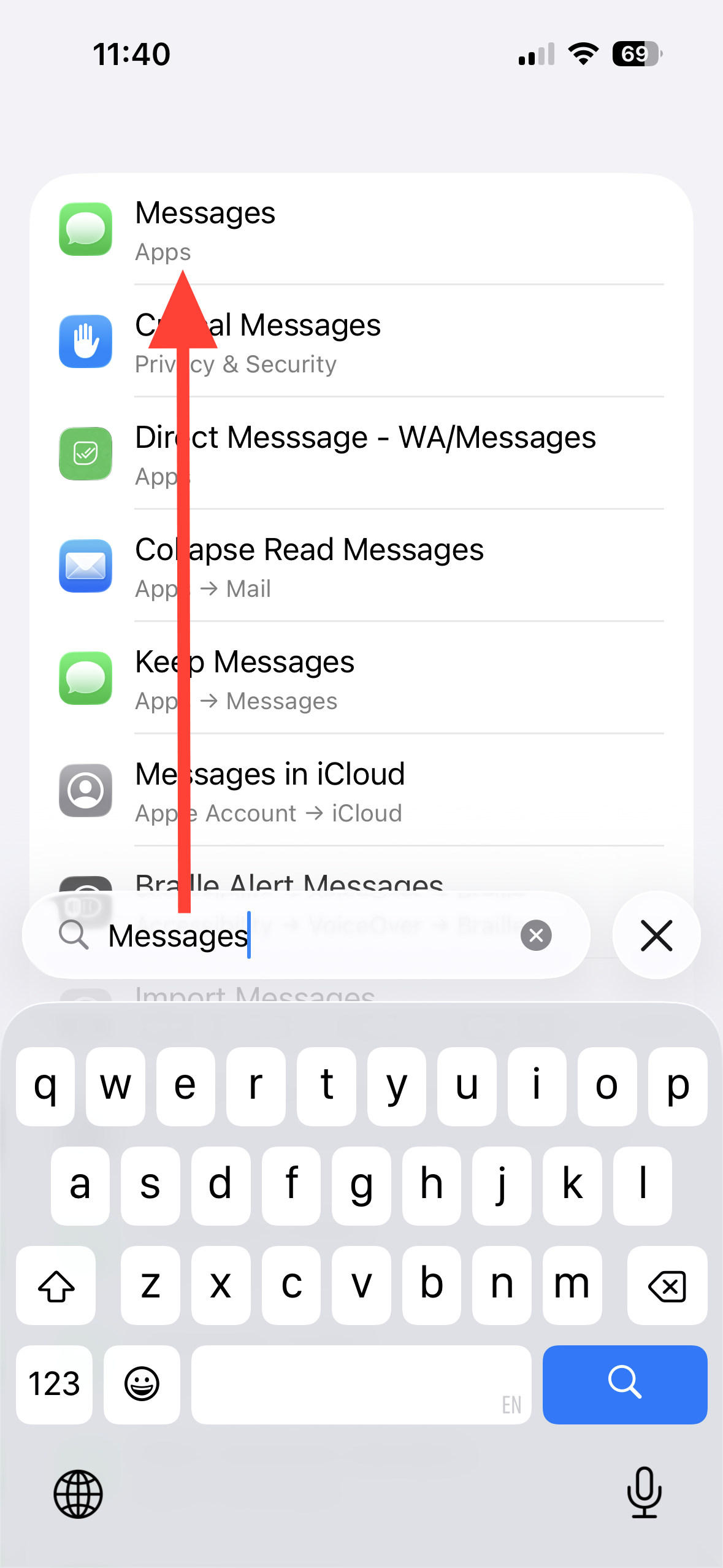
Turn off the
Conversation Backgrounds toggle. Backgrounds set by you or others will no longer display on your device.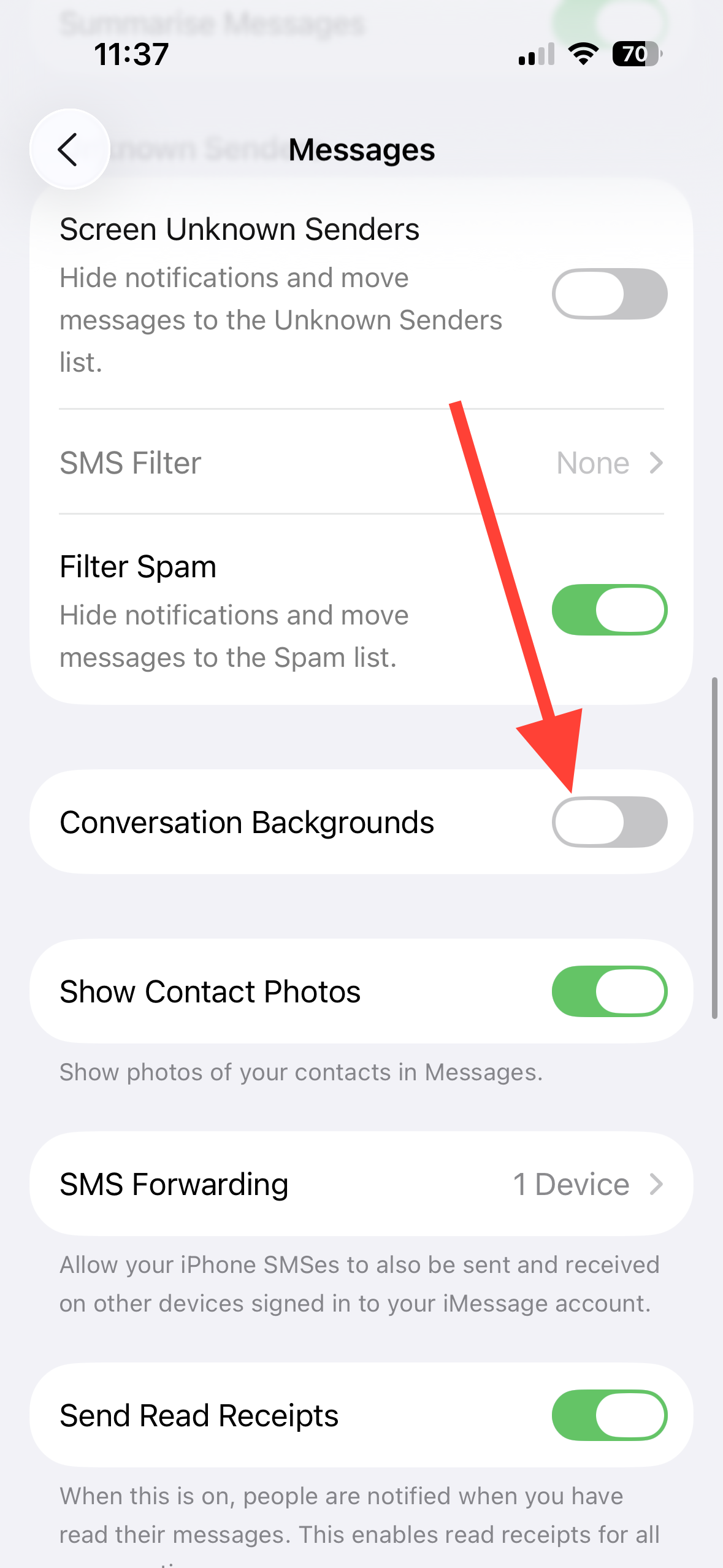
Tips for readable, low‑distraction backgrounds
- Favor darker photos or gradients when you prefer light text bubbles; choose lighter backgrounds if you use dark text.
- Avoid busy, high‑contrast images behind message bubbles; subtle textures or solid colors improve legibility.
- Use consistent color coding across work, family, and project chats to reduce mistakes and speed recognition.
Troubleshooting: Backgrounds option missing or changes not visible
Confirm software versions. Make sure your iPhone/iPad is on iOS/iPadOS 26 or your Mac is on macOS Tahoe. Participants must also update to see the background you set.
Verify the thread is iMessage. Blue bubbles indicate iMessage; green SMS/RCS conversations don’t support custom backgrounds.
Check your preference. On iPhone or iPad, go to
Settings > Messages and ensure Conversation Backgrounds is turned on.Force‑quit and relaunch Messages. This refresh can surface the Backgrounds control after an update or settings change.
Restart your device. A reboot clears transient state that can hide new UI elements after major updates.
Try another conversation. If one thread looks stuck, test background changes in a different iMessage chat to isolate whether it’s thread‑specific.
With iOS 26 and macOS Tahoe, you can quickly label important threads and improve at‑a‑glance recognition by assigning distinct, readable backgrounds per conversation. If a design doesn’t work, it only takes a moment to reset or disable.





