

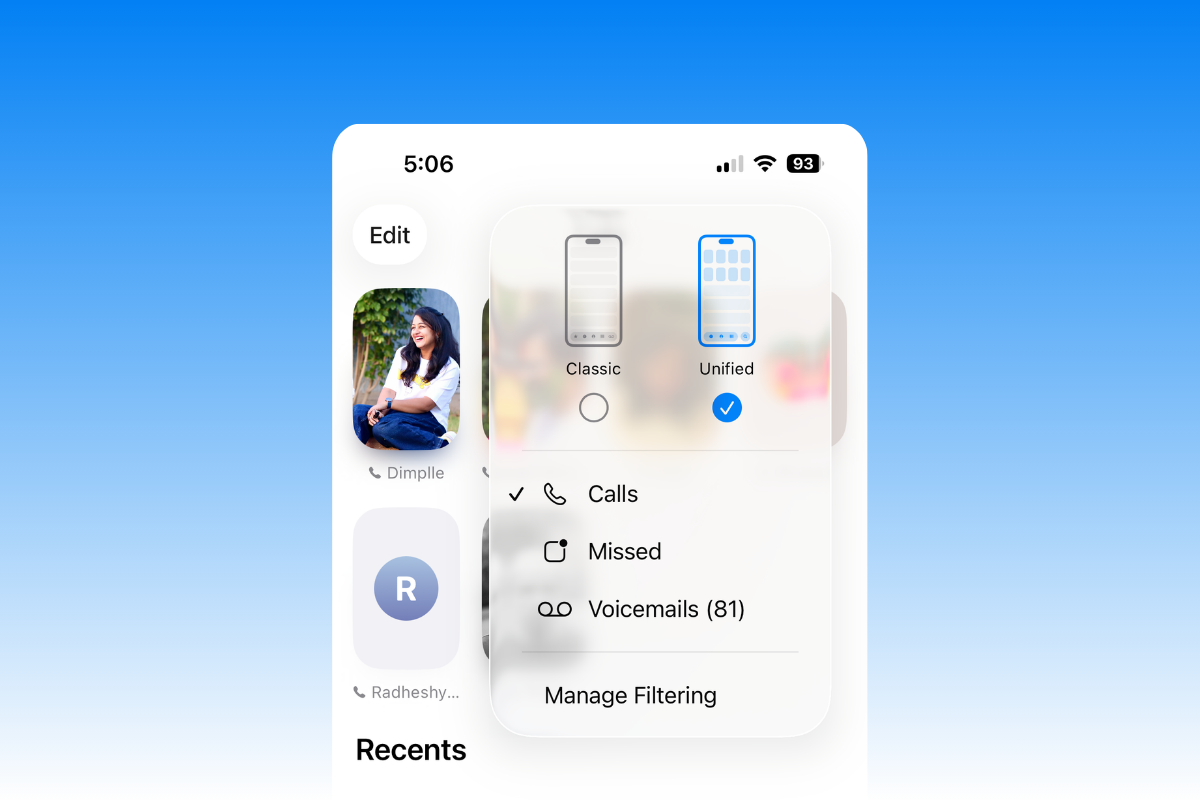
Switch the Phone app to its Classic layout to put the search field back at the top. iOS 26 moves search to the bottom in many places for easier reach, but you can change it in Phone and Safari. Below are the exact steps, plus realistic alternatives for apps that don’t offer a toggle.
What you can change (and what you can’t) in iOS 26
iOS 26 introduces bottom-positioned search controls across several Apple apps to keep them within thumb reach. Based on Apple’s documentation and current builds:
- Phone app You can switch layouts. Classic layout places the search field at the top again.
- Safari You can move the address/search bar to the top via a setting.
- Messages, Mail, Notes, Apple Music and more Search is designed to sit at the bottom. There’s no setting to move it to the top.
Important: Changing Safari’s tab/address layout does not affect search placement in other apps such as Notes or Messages.
Phone app: return search to the top with Classic layout
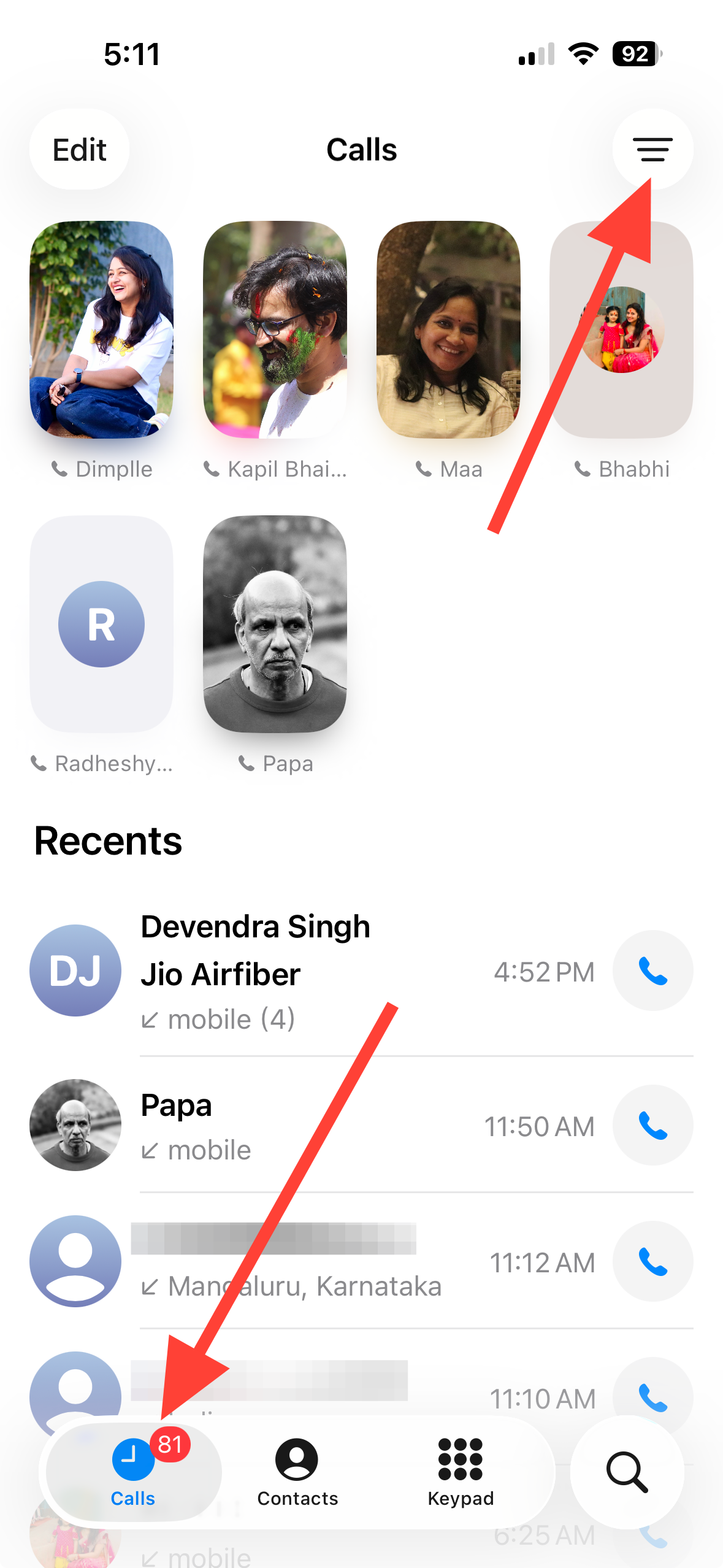
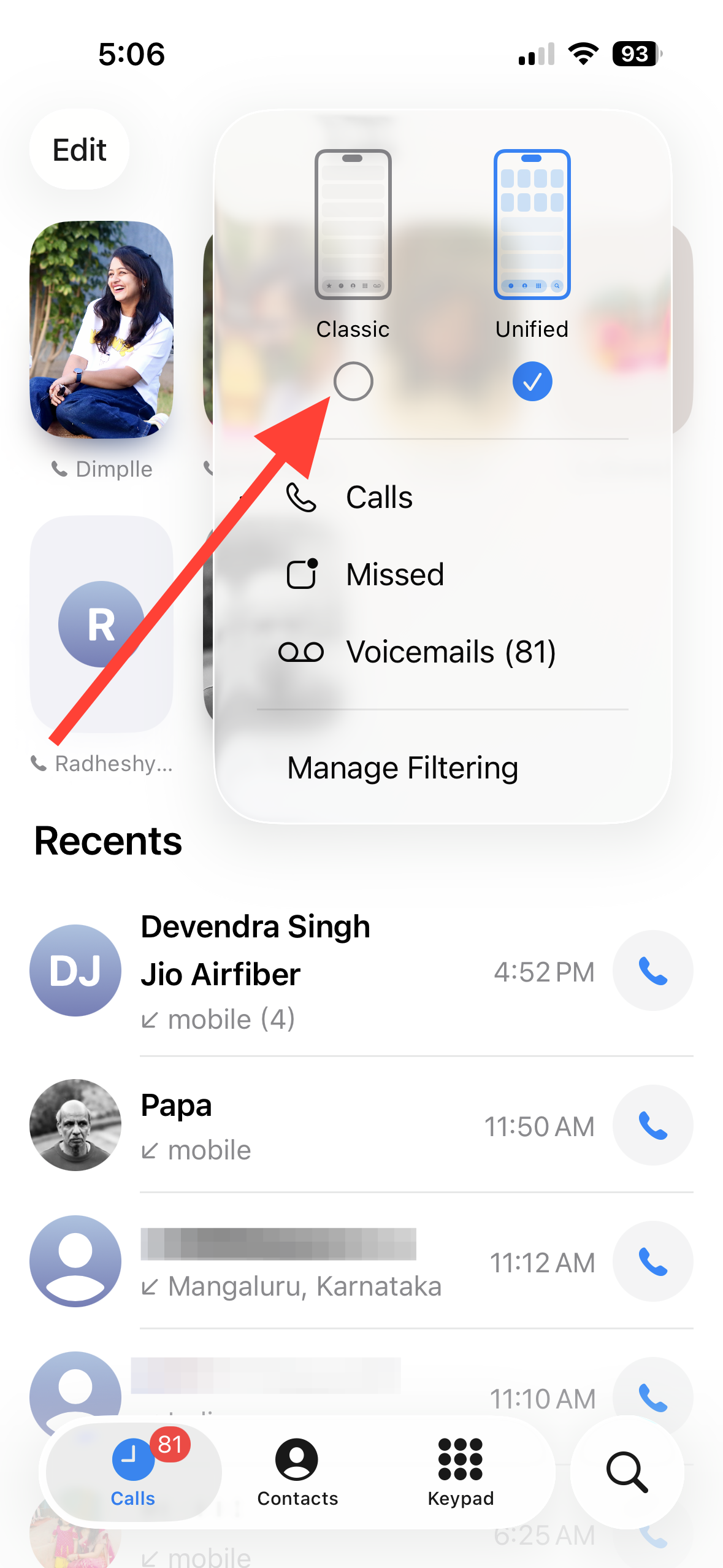
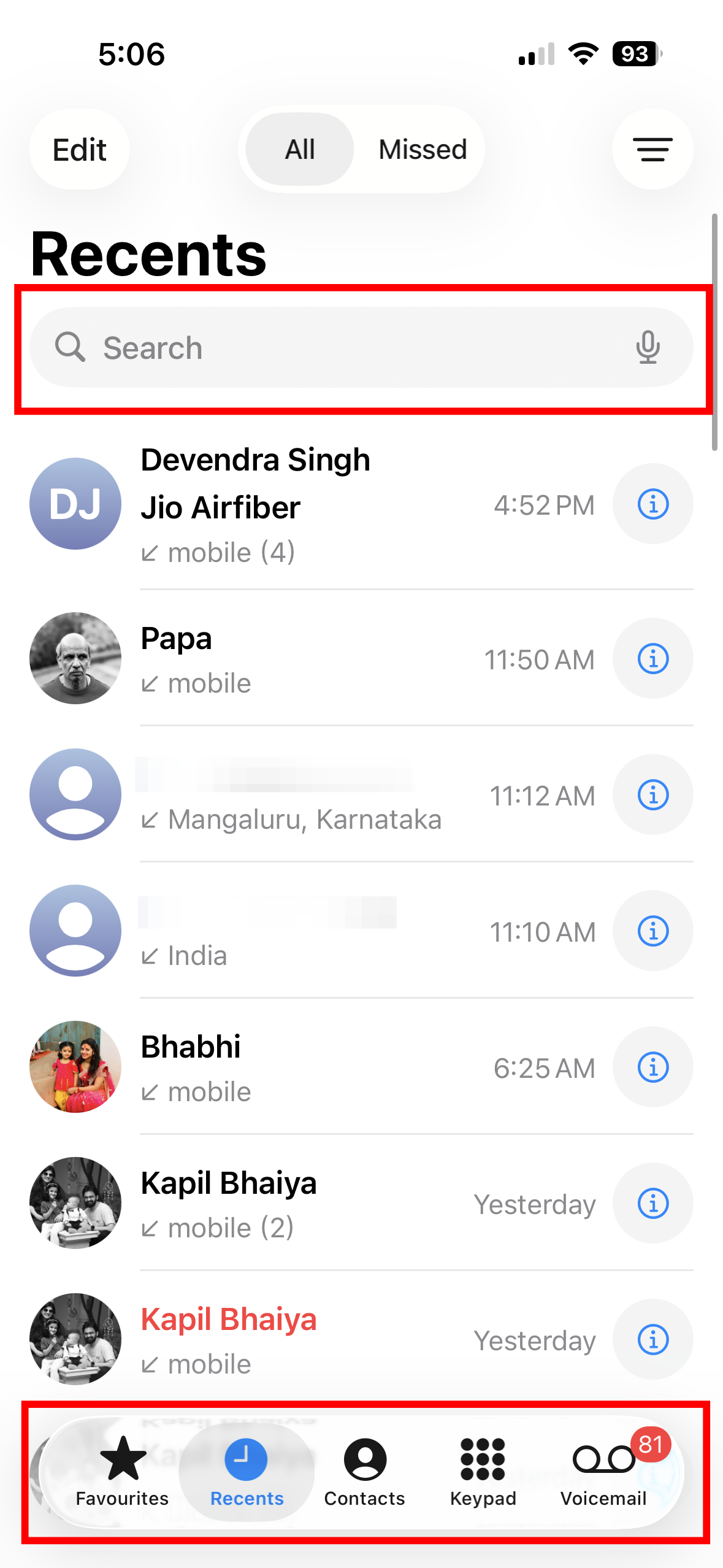
If you don’t see the layout switcher in the Calls view, check the Phone section in Settings for a layout option. Availability can vary by device and region.
Safari: move the address/search bar to the top
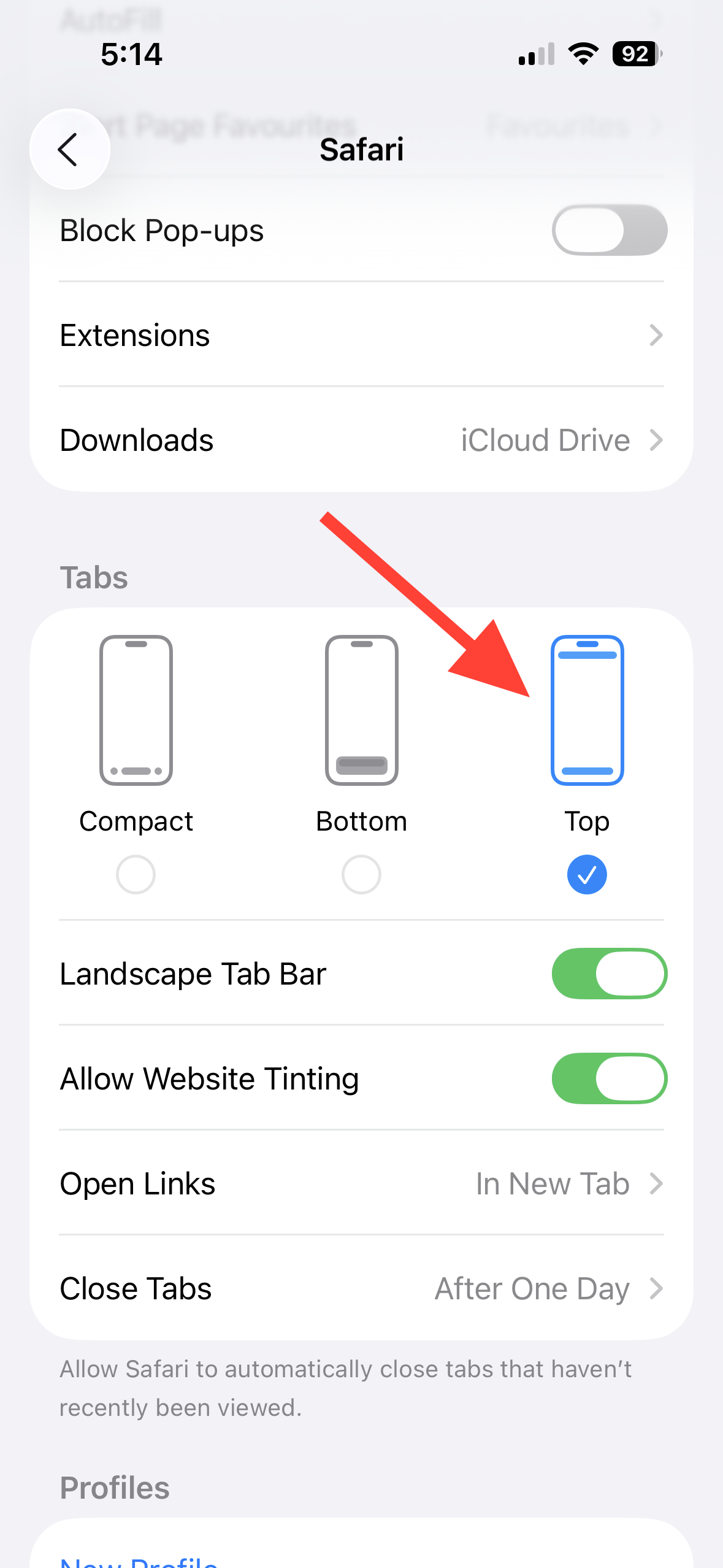
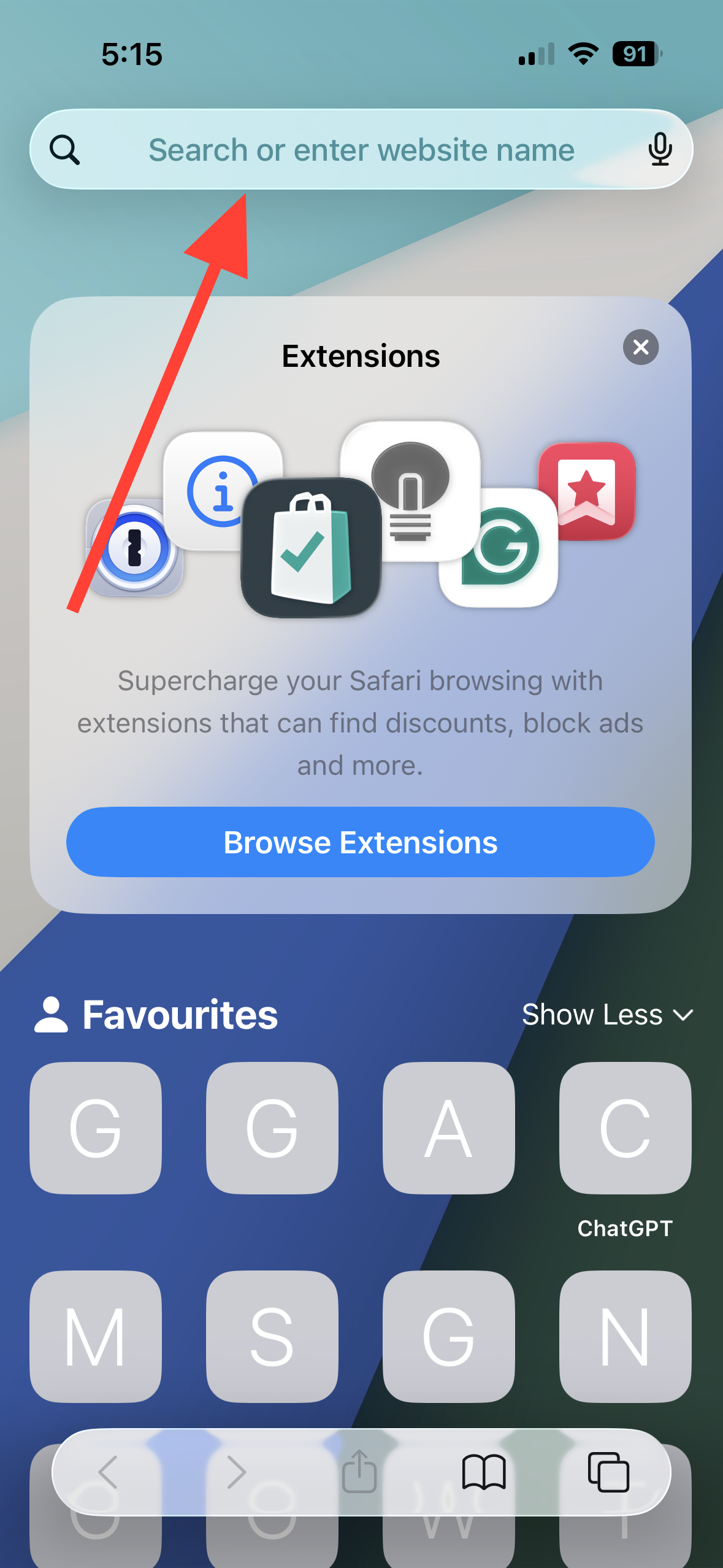
Note: Safari also offers “Compact” or “Bottom” layouts that keep controls low on the screen. Pick the one that matches your preference if you change your mind later.
Workarounds for other Apple apps
For Messages, Mail, Notes, Apple Music, and similar apps in iOS 26, search is intentionally placed at the bottom and there’s no option to return it to the top. These tips minimize extra taps:
- Use Spotlight for quick, global search. From the Home Screen, swipe down in the middle of the display and type your query (e.g., a note title, contact name, or email subject).
- Use the app’s bottom search field as designed. It’s positioned for one-handed reach, which reduces thumb travel on larger screens.
- Use Siri for hands-free queries (e.g., “Search Notes for tax receipt” or “Find emails from Taylor”).
Troubleshooting
Restoring top search is straightforward in the Phone app and Safari; elsewhere, iOS 26 keeps search within thumb reach at the bottom by design. If Apple adds more layout options in a future update, you’ll find them in each app’s settings.





