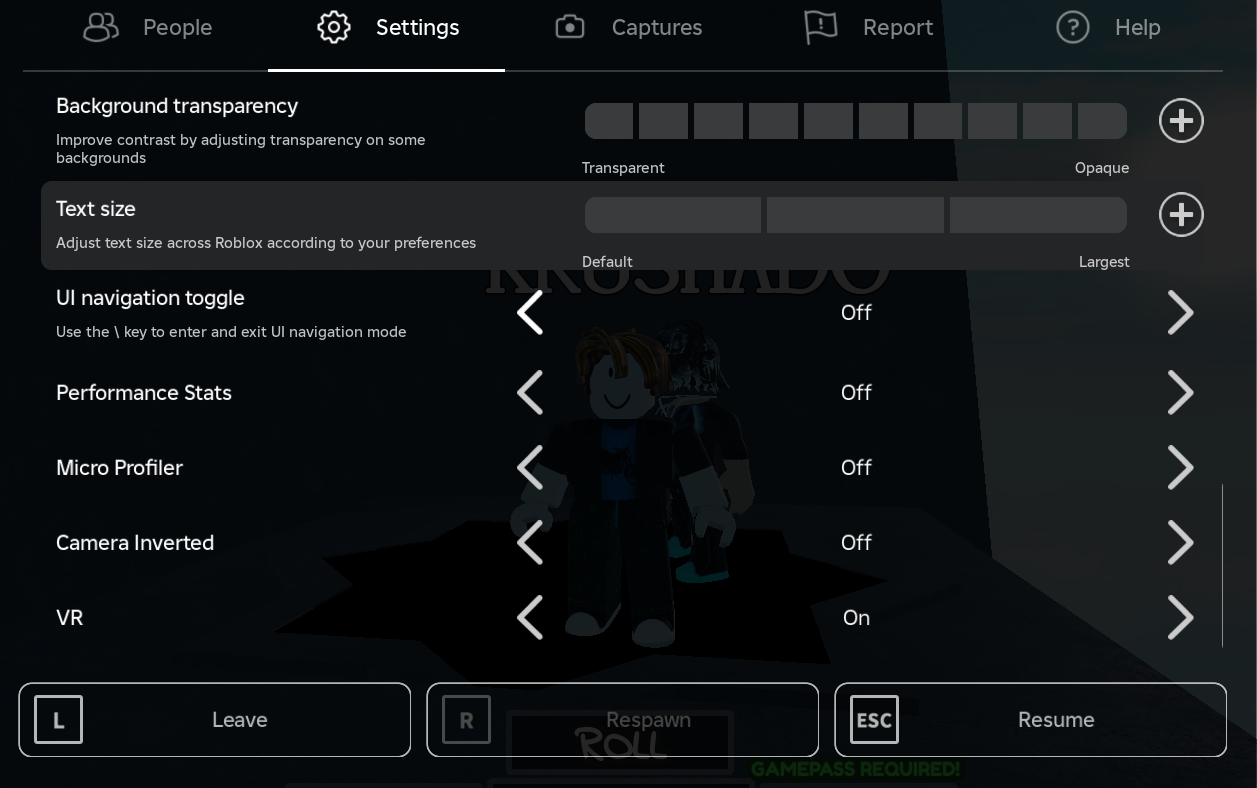
Press Esc, open Settings, and switch the UI Navigation Toggle to Off to prevent the keyboard shortcut from activating UI selection. This setting lives in the in-experience menu and controls whether the \ key can enter/exit UI navigation mode. See Roblox’s “In-experience Settings and Help” for where to find it: https://en.help.roblox.com/hc/en-us/articles/203314230-In-experience-Settings-and-Help.
Method 1 — Turn off the UI Navigation toggle (prevents recurrence)
UI Navigation is an accessibility feature that lets you move focus between on-screen UI with the keyboard. When it’s active, your character may stop responding to movement inputs until you exit that mode. Disabling the toggle stops the keyboard shortcut from switching you into UI navigation by accident.
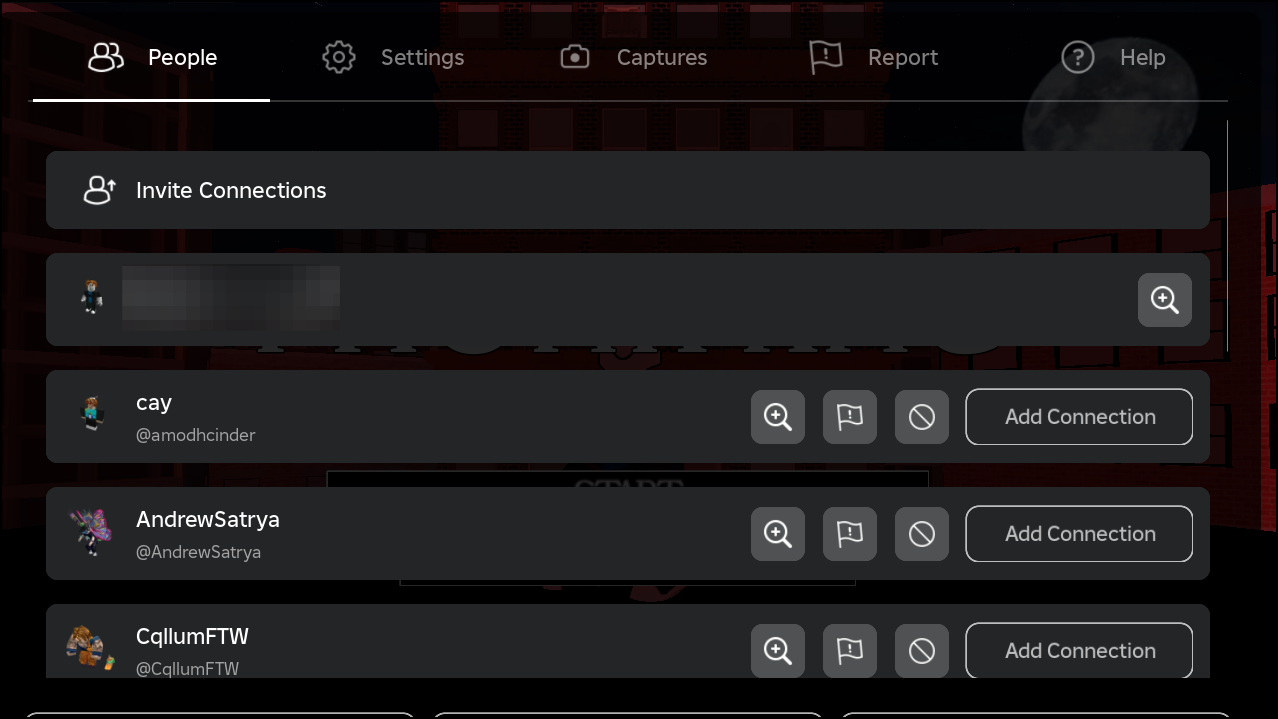
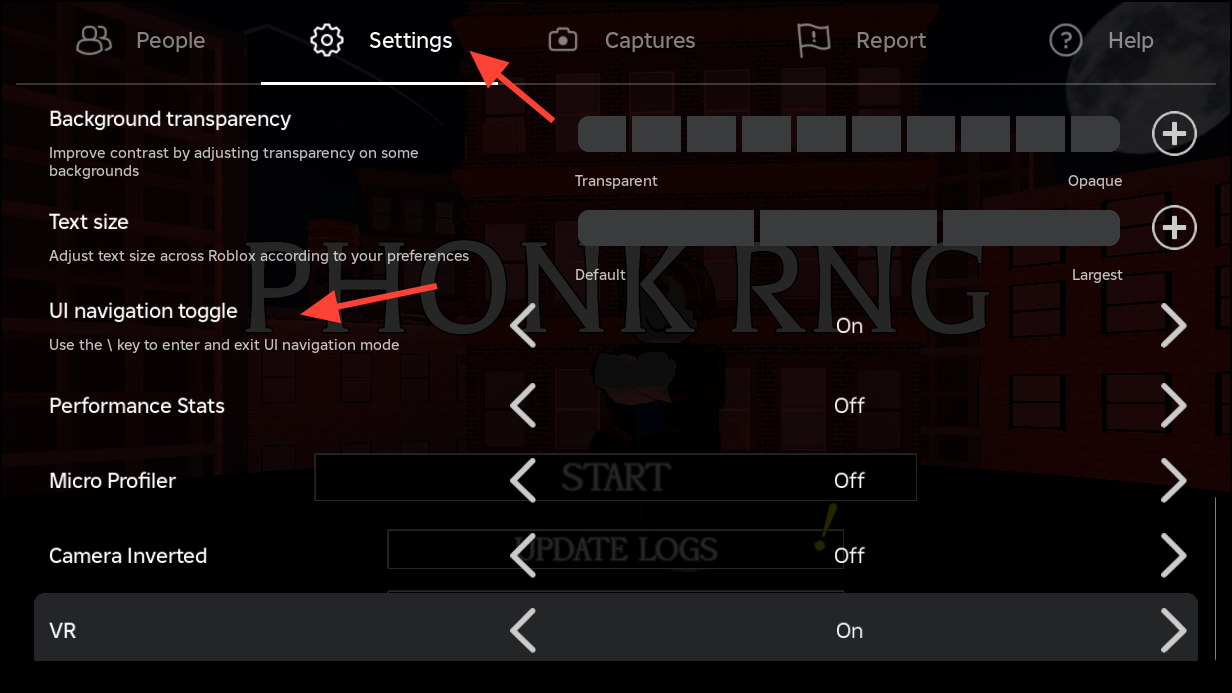
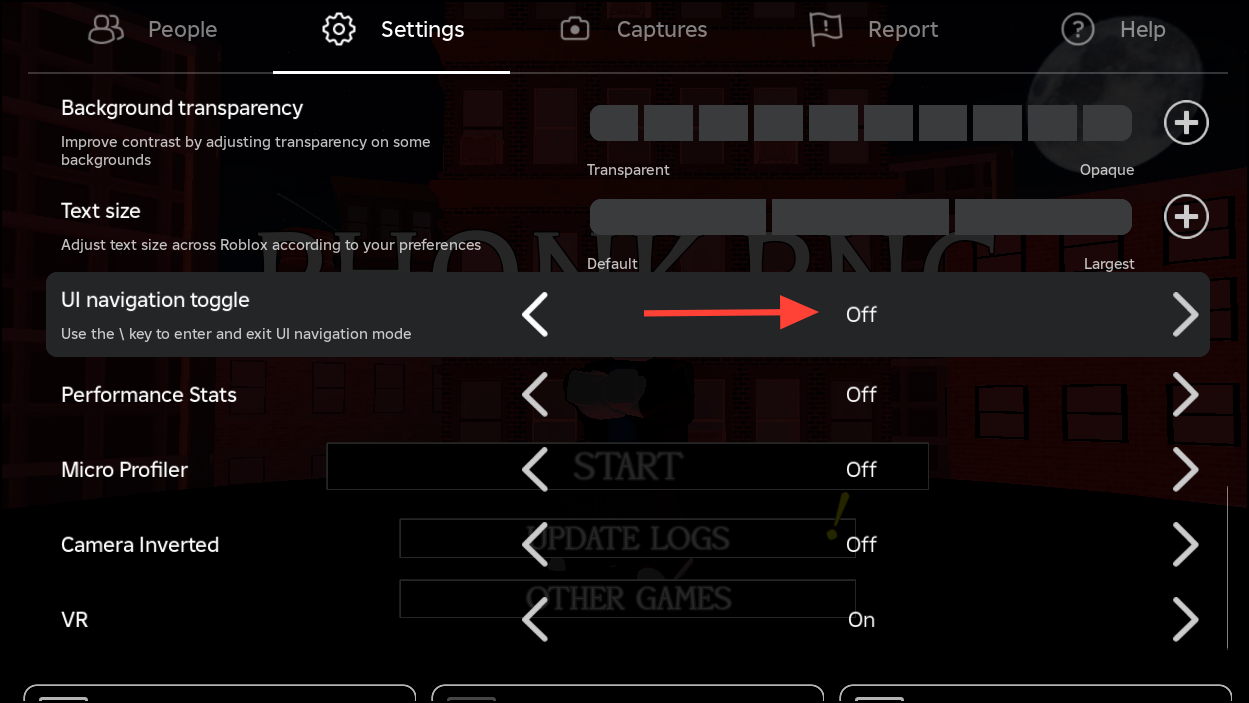
Why this helps: with the toggle Off, the \ shortcut no longer switches you into UI focus mode, which eliminates accidental lock-ins during fast gameplay.
Method 2 — Exit UI Navigation with the keyboard (quick fix)
This temporarily leaves UI navigation mode so your character responds to movement again. It doesn’t prevent future activations unless you also change the setting in Method 1.
\ (backslash). The on-screen prompt typically appears in the corner the moment UI navigation toggles.\ doesn’t work, check the binding in-game. Press Esc > Help > Misc, then look for “UI Navigation Toggle” to see the exact key shown for your layout.# on some UK layouts). Use the key indicated in Help > Misc to exit UI navigation.Method 3 — If UI navigation won’t turn off
When the mode appears “stuck,” it’s often due to an active gamepad or a transient session state. These steps clear common causes.
Esc, choose Reset (or Reset Character), and confirm. This clears the current selection state and often returns control to character movement.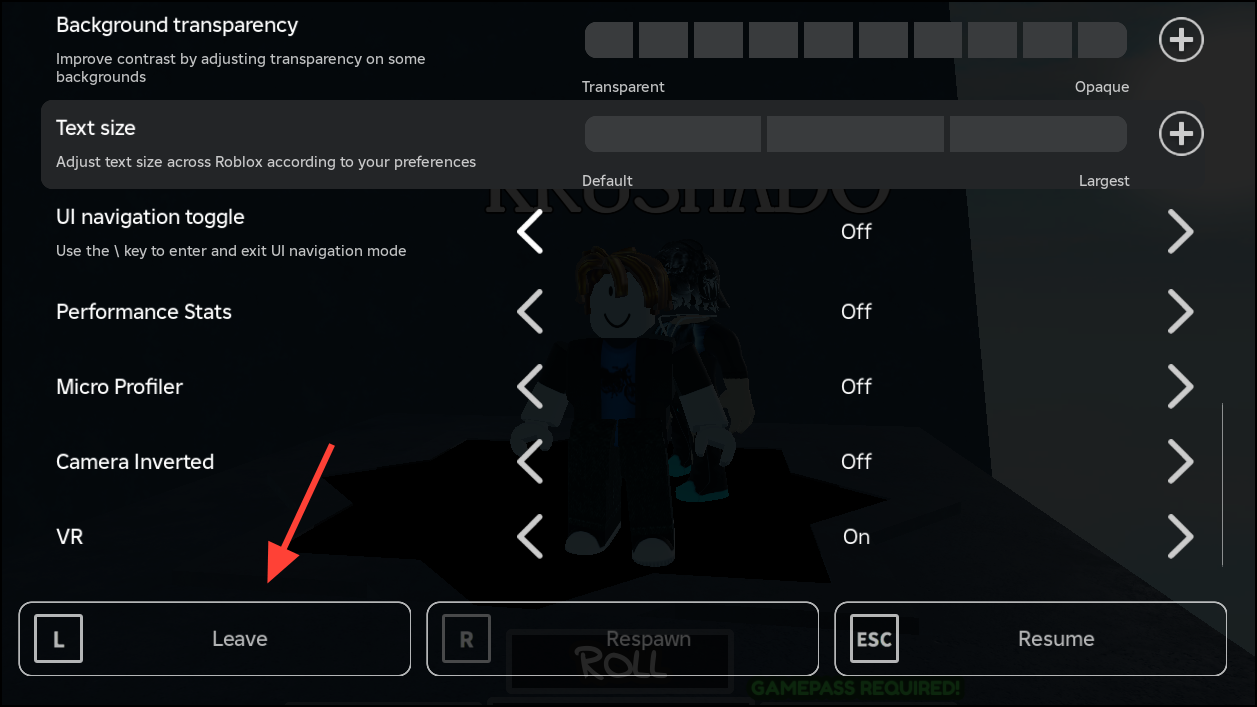
Optional for developers — Disable or control UI navigation in code
Developers can programmatically control GUI navigation at runtime in a LocalScript. This lets you restrict selection-based navigation during certain game states and re-enable it when appropriate. See developer discussion for behavior details and examples: https://devforum.roblox.com/t/how-to-control-guinavigation/2950542.
local GuiService = game:GetService("GuiService")

-- Disable keyboard/controller UI navigation and prevent auto-selection.
GuiService.GuiNavigationEnabled = false
GuiService.AutoSelectGuiEnabled = false

-- Clear any currently selected UI object so focus returns to gameplay.
GuiService.SelectedObject = nilSelectedObject so navigation starts where you expect.Once you’ve exited UI navigation and turned the toggle Off, your movement keys should work as expected and accidental lock-ins should stop. If problems continue across multiple experiences, recheck your key binding in Help > Misc and verify no controllers are connected.