

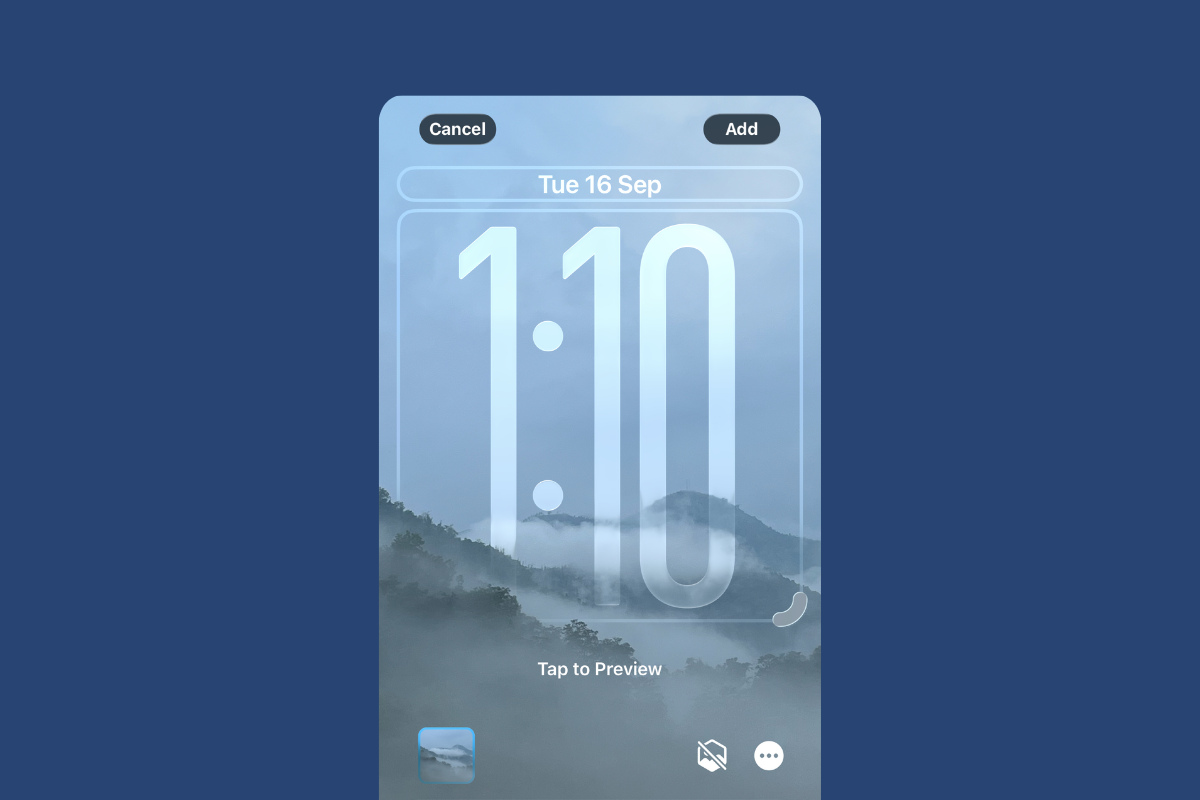
Press and hold your Lock Screen to enter Customize, then use the clock’s resize handle to stretch it for better readability or a bolder look. iOS 26 also lets you reposition widgets and apply depth and glass styling for a cleaner layout.
Before you start
Make sure your device is updated to iOS 26 or iPadOS 26. The stretchable clock uses the digital time with the default script and first font; other scripts or fonts won’t show the resize handle.
Method 1: Resize the Lock Screen clock
Wake your device and unlock it with Face ID or Touch ID, but do not swipe to the Home Screen. Staying on the Lock Screen keeps you in the right place to edit it.
Touch and hold anywhere on the Lock Screen until it zooms out to the Lock Screen gallery. This reveals the Customize control for the selected Lock Screen.
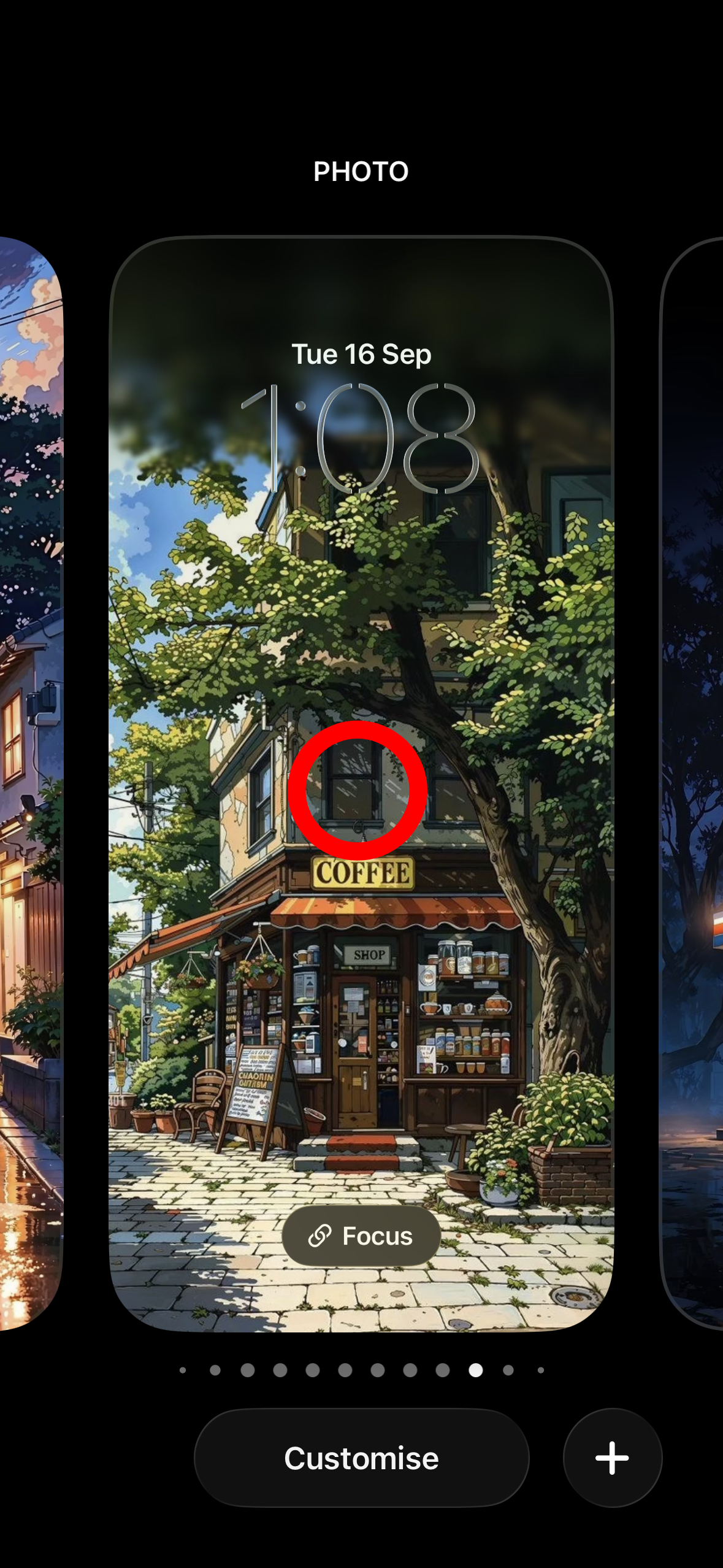
Tap
Customize under your current Lock Screen. This opens editing mode for clock, widgets, and wallpaper.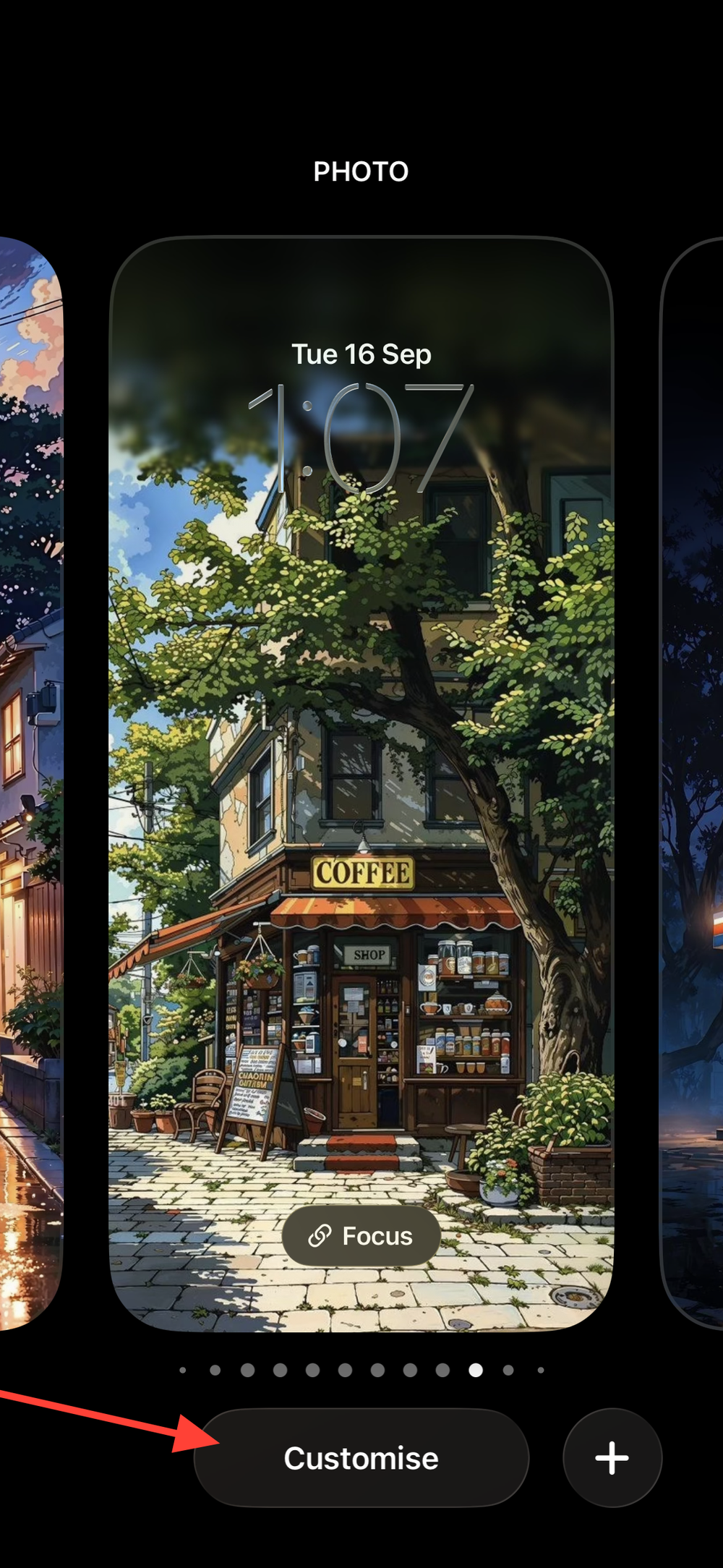
Locate the small pull tab at the bottom-right corner of the clock’s selection frame and drag it downward. Stop when you reach your preferred size; the clock can grow to occupy nearly half the display.
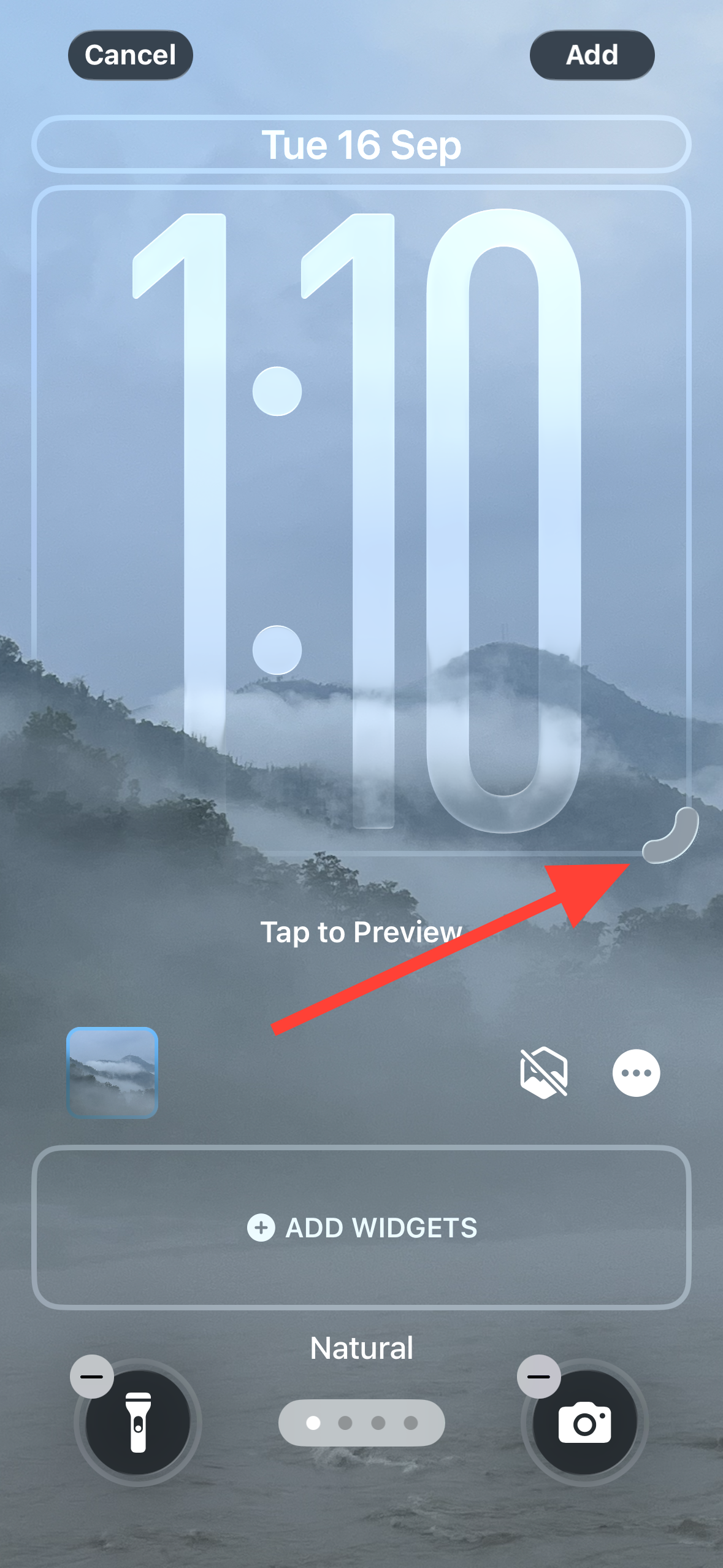
Tap
Done to save. Your Lock Screen updates immediately, and widgets automatically shift lower if the clock occupies more space.Method 2: If the resize handle is missing
In the Lock Screen gallery, tap
Customize for your Lock Screen. The handle only appears in this edit view.Tap the clock once to open the Font & Color panel. This is where script and font options are set for the digital time.
Tap the globe icon and choose the
Arabic, Western script. The stretch feature only appears with this numeral script.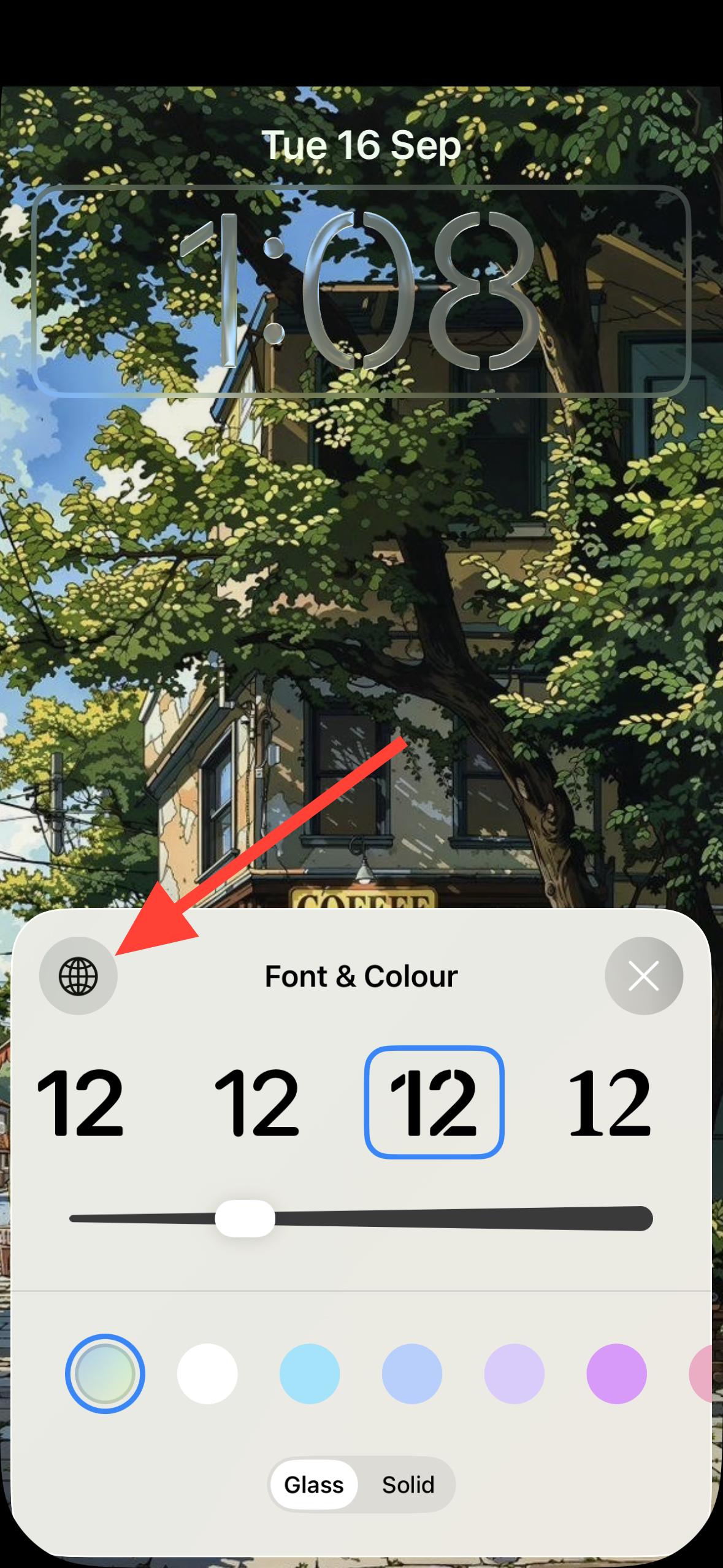
Select the leftmost (first) font in the list. For some, only this font may support dynamic vertical stretching.
Close the panel and look again for the small pull tab at the clock’s bottom-right corner. If a widget overlaps the corner, drag the widget row down to clear room, then try the handle.
If the handle still isn’t present, create a new Lock Screen and try again. Some existing Lock Screens created before the update may not expose the handle until rebuilt.
Method 3: Move widgets when the clock is large
Drag the widget row downward toward the bottom of the screen. Widgets will sit just above the flashlight and camera shortcuts for easier one‑handed reach.
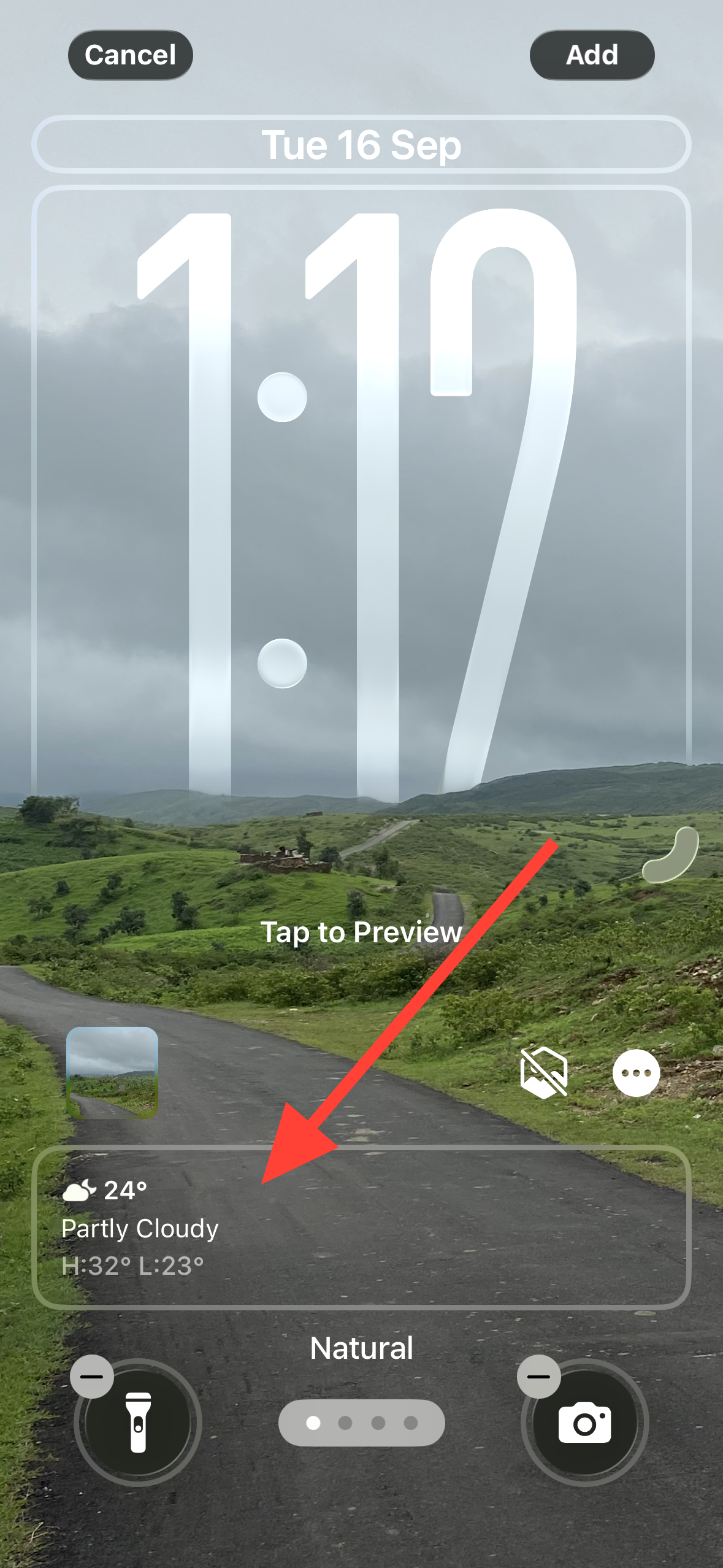
If widgets refuse to move up later, reduce the clock back toward its default size. The widget row returns to the upper position only after the clock is shrunk.
Method 4: Return the clock to default size
Drag the clock’s pull tab upward until it reaches the default size. iOS doesn’t allow making the clock smaller than default.
Tap
Done to save. Note that when playing music, tapping the album art can temporarily miniaturize the clock to make room for full‑screen cover art.Tips for wallpaper, depth, and glass styling
- Depth effect: Choose photos that support subject layering so parts of the clock can appear behind the subject for a cleaner, less cluttered look.
- Liquid Glass style: In the Font & Color panel, use color options and switch between Solid and Glass to refine the clock’s appearance. Pick Solid if you prefer no glass effect on the time.
- iPhone and iPad: The stretchable digital clock is available on iOS 26 and iPadOS 26 using the supported script and first font.
- Maximum size: The stretched clock can cover roughly the upper half of the display, pushing the widget row to the bottom area.
Known limitations and behavior
- Only the first clock font supports stretching; switching fonts removes the handle.
- Using a different script (non‑Arabic, Western numerals) hides the handle.
- If the handle area is obstructed by widgets, move the widget row down before resizing.
- Some older Lock Screens may not show the handle until you set up a new Lock Screen.
- Widgets moved down won’t return to the upper position until you reduce the clock’s height.
- You can’t make the clock smaller than the default size.
Once you know where the handle lives and which font/script it requires, stretching the clock is quick—and easy to undo if you change your mind.





