

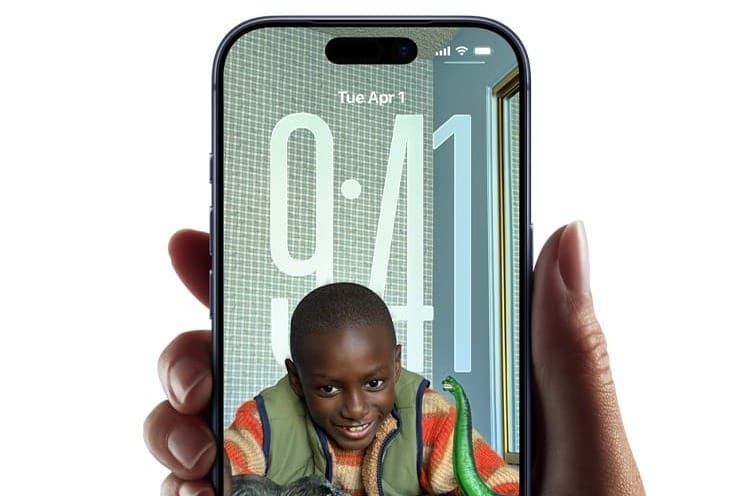
iOS 26 refreshes the Lock Screen with a Liquid Glass design, a resizable clock, Spatial Scenes wallpapers, flexible widget placement, and an animated Now Playing view. Use the steps below to tailor these options for clarity, glanceable info, and faster access to what you use most.
Open the Lock Screen editor
Wake your iPhone and long‑press anywhere on the Lock Screen until the wallpaper carousel appears. This opens the editor where you can customize the current setup or add a new one.
Tap
Customize to modify the selected Lock Screen. Choose Done at the top right after any section below to save changes.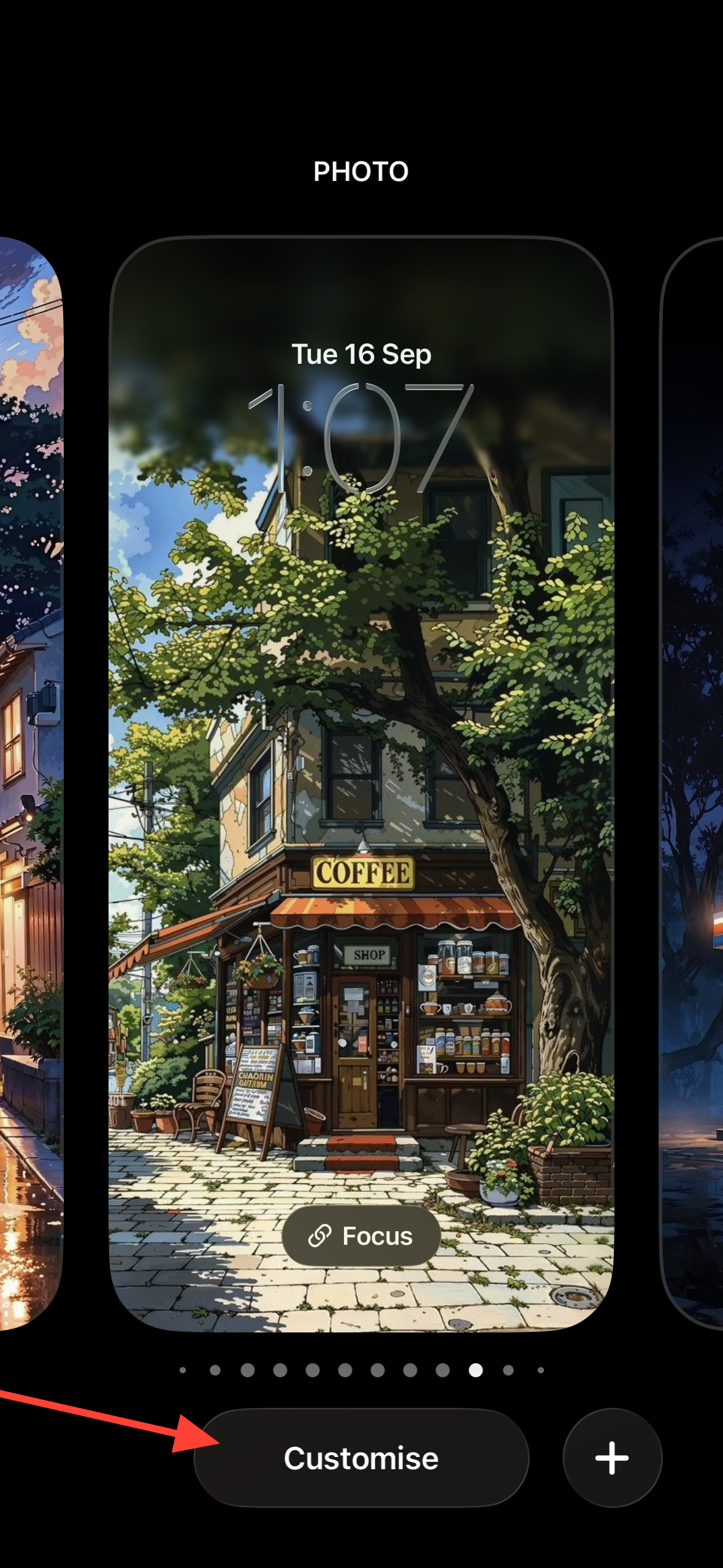
Resize and restyle the clock (Liquid Glass or Solid)
In the editor, tap the time to open clock options. This is where you adjust size, style, font, and color.
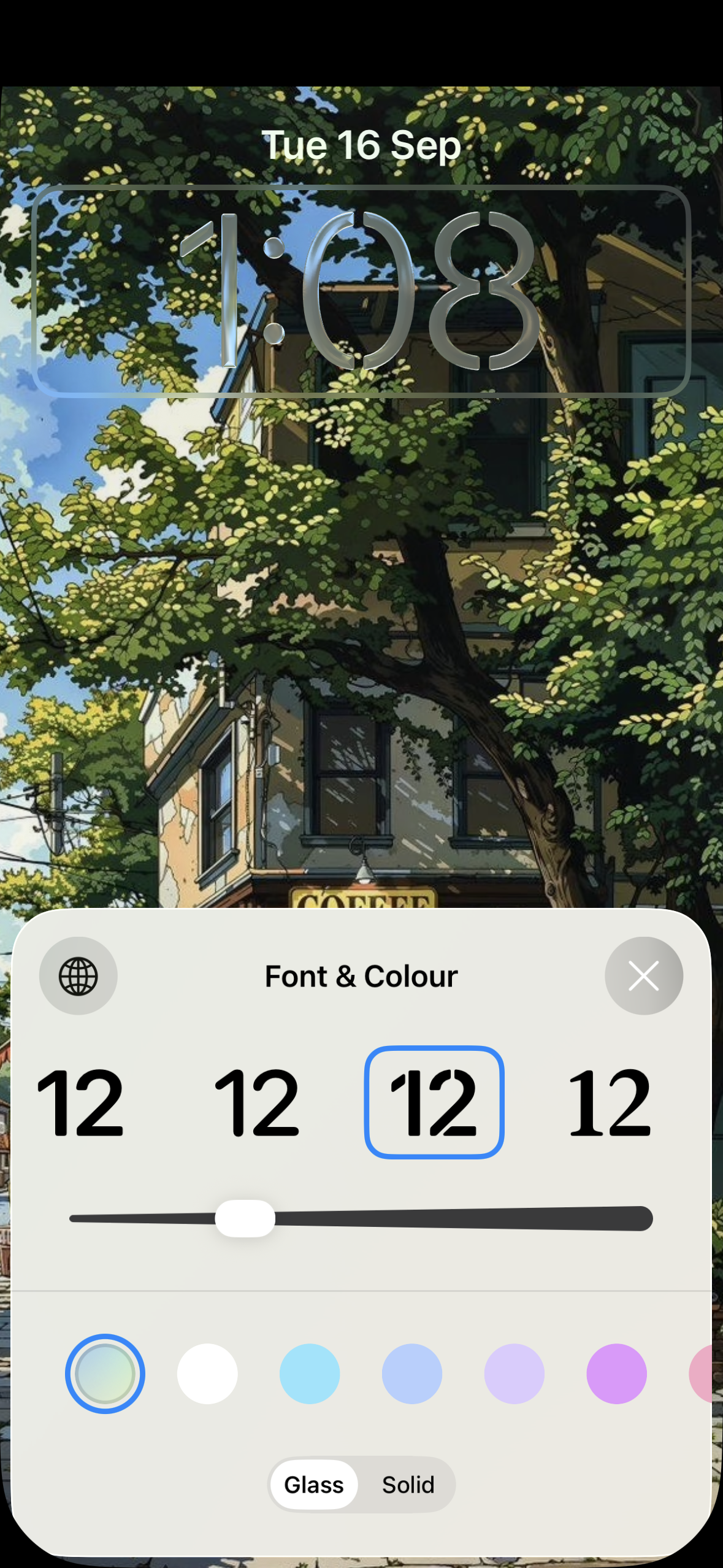
Drag the small notch at the lower-right corner of the time to increase or decrease size. The size control is available with the first clock font and standard Arabic numerals only.
Choose
Glass for a translucent, frosted look with lighting effects, or select Solid for higher contrast. Solid is often easier to read on busy or bright wallpapers.Pick a color to tint the clock. Tints can improve legibility if your wallpaper has similar tones near the time.
If you use photo wallpapers or Photo Shuffle, expect the clock to adapt its size and position so the subject stays visible. This behavior reduces overlap without additional setup.
Choose a wallpaper and turn on Spatial Scenes
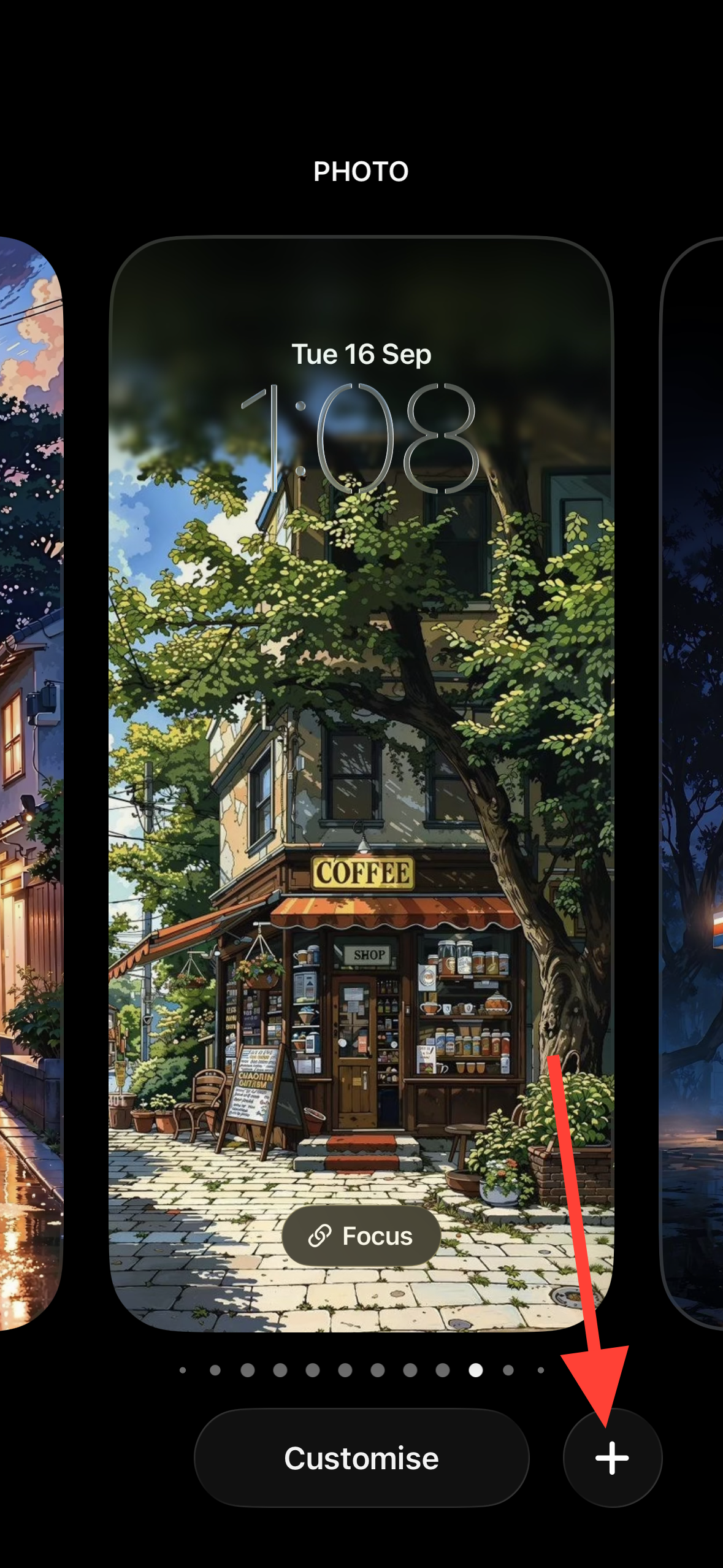
From the carousel, tap the plus button to add a new Lock Screen, then select a photo or a stock wallpaper. iOS 26 also includes a blue “Liquid Glass” default that subtly shifts with device movement.
When you pick a 2D photo, tap the small mountain-and-sun icon to enable Spatial Scenes. iPhone separates subject and background using depth data to create a 3D effect.
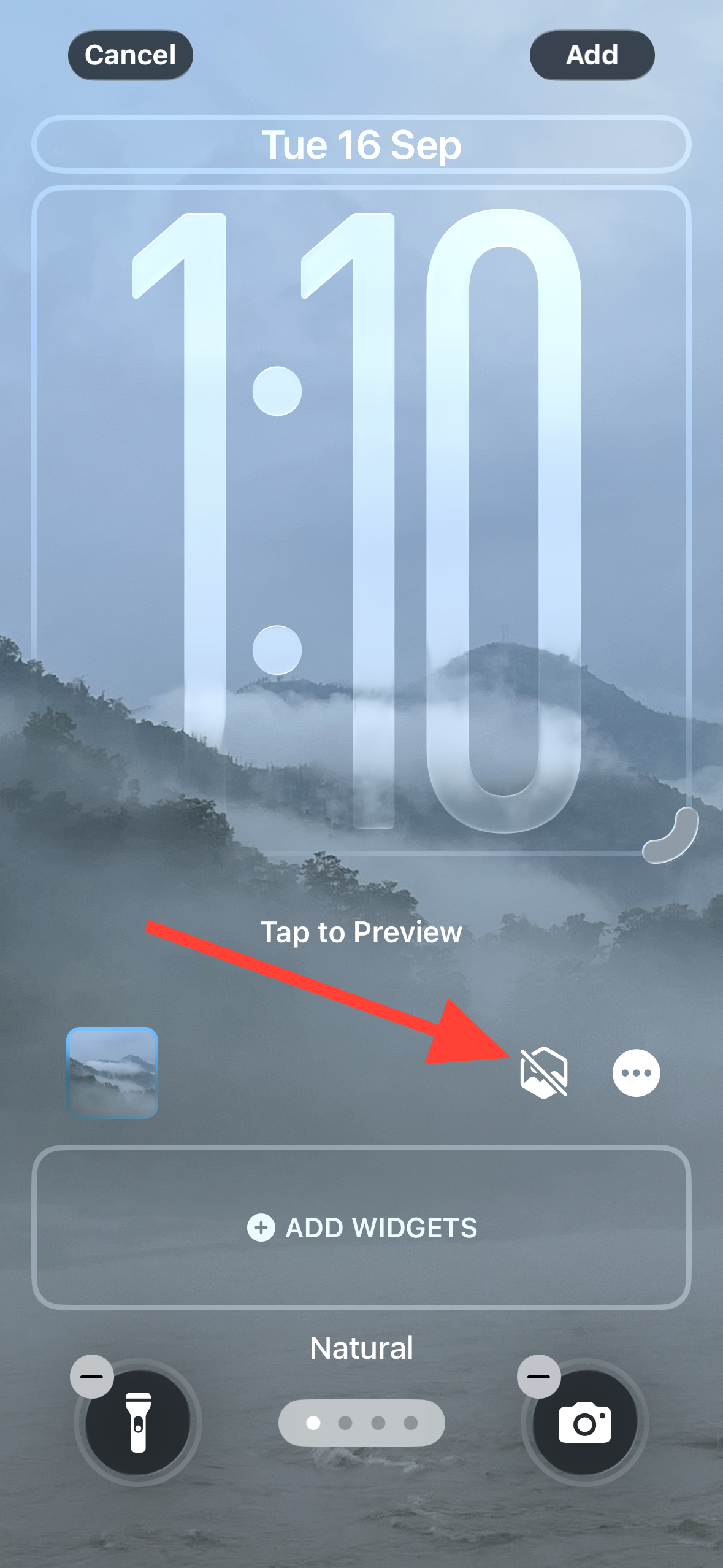
Tilt the phone slightly to preview the motion. Spatial Scenes adds depth without hiding the subject behind interface elements.
If you prefer the subject to appear in front of the time, use the depth/overlap toggle (three-dot menu) when available. This keeps key areas of the image unobstructed.
Add widgets at the top or bottom
In the editor, tap the widget area under the clock to add top widgets. These are ideal for glanceable info such as weather, calendar, or activity.
Tap the bottom widget area to add widgets nearer your thumb. Bottom placement improves reachability on larger phones.
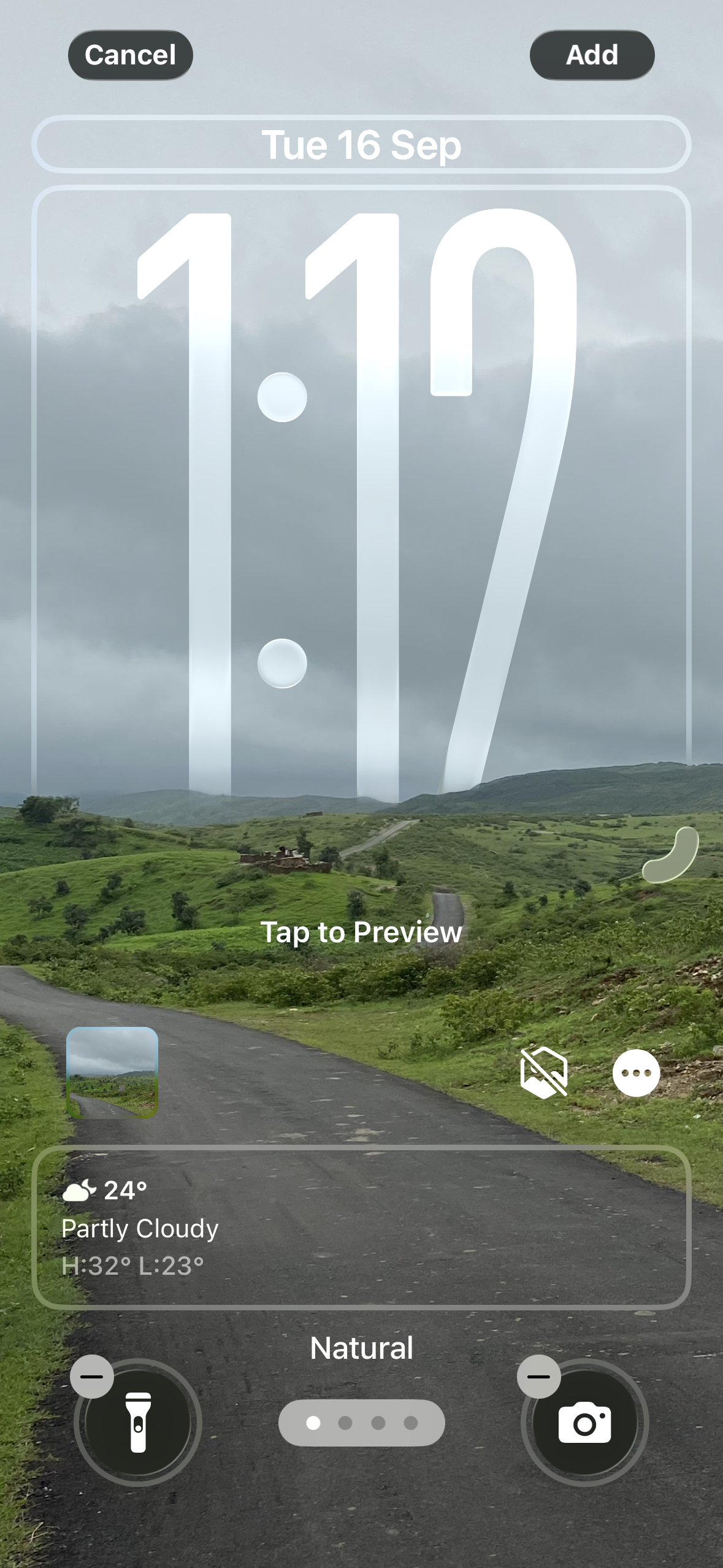
Select widgets from the gallery and confirm with
Done. Widgets may shift automatically so people or subjects in your wallpaper stay visible.Consider the new Apple Music Search widget if you frequently look up tracks. It reduces steps by opening search directly from the Lock Screen.
Customize the Quick Controls (flashlight, camera, and more)
In the editor, tap a bottom control button to edit it. The controls are larger in iOS 26 and match the Liquid Glass look.
Tap the plus button to add a new control from the list, such as Calculator or Visual Intelligence/Siri. Pick functions you reach for often to reduce home screen navigation.
If the app you want isn’t listed, add a Shortcut as a control and point it to that app or action. Shortcuts provide a flexible way to launch apps or run tasks from the Lock Screen.
Improve readability and contrast
Switch the clock style to
Solid if text blends into your wallpaper. Solid text typically yields stronger contrast against photos and colorful images.Adjust the clock tint to a hue that differs from the background. A contrasting color improves scan-ability at a glance.
Reduce overall transparency in menus and banners via
Settings > Accessibility > Display & Text Size > Reduce Transparency. This makes frosted elements like notifications and pull-downs more opaque and easier to read.How to Reduce transparency in iOS 26 — easy way to change Liquid Glass effects
Turn on Reduce Transparency in iPhone Settings, add a quick toggle, and use Increase Contrast for faster, clearer UI text.
 Shivam Malani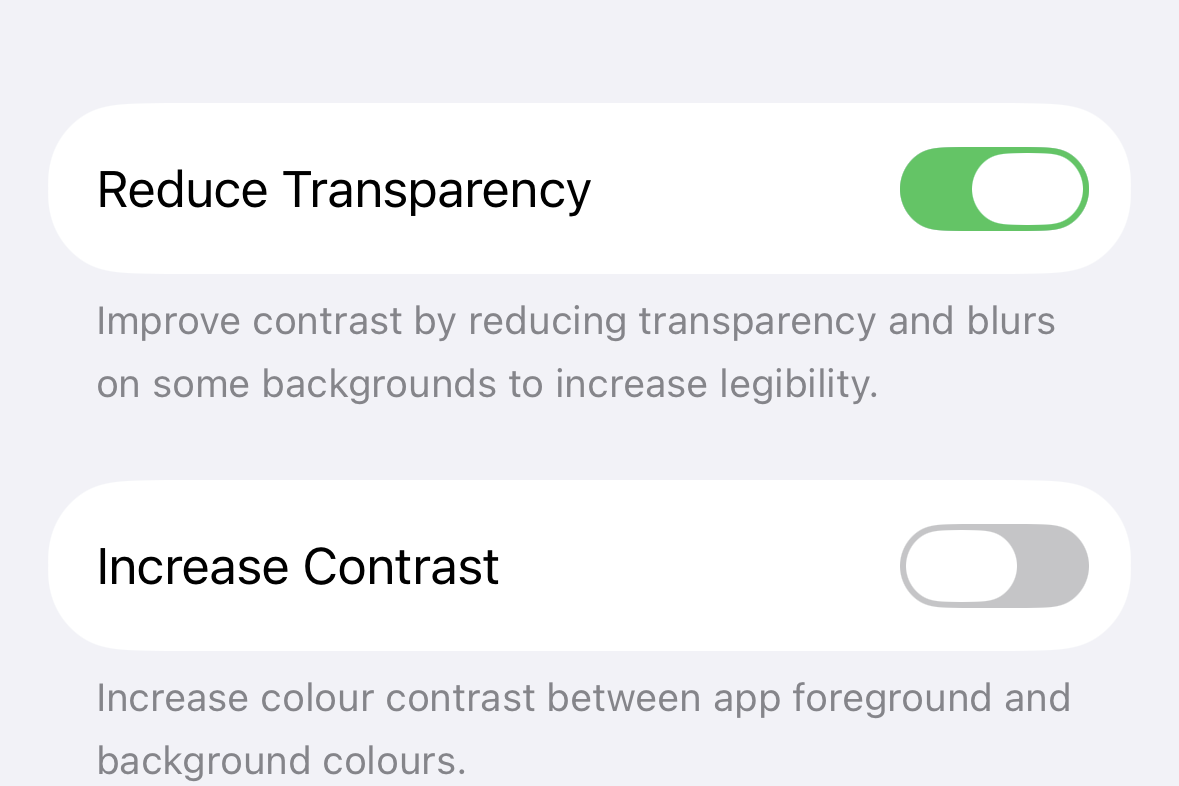
Control Always On Display wallpaper blur
Open
Settings > Display & Brightness > Always On Display. iOS 26 now blurs your wallpaper by default when the display dims.Disable the blur option if you prefer the original dimmed look without blur. This retains your photo’s clarity on the dimmed Lock Screen.
While you are here, decide whether to show wallpaper and notifications at all on the dimmed screen. Hiding either can reduce visual clutter or limit what’s visible when the phone is idle.
Link a Lock Screen to a Focus
Long‑press the Lock Screen to open the carousel and select the design you want to link. Tap the
Focus button at the bottom.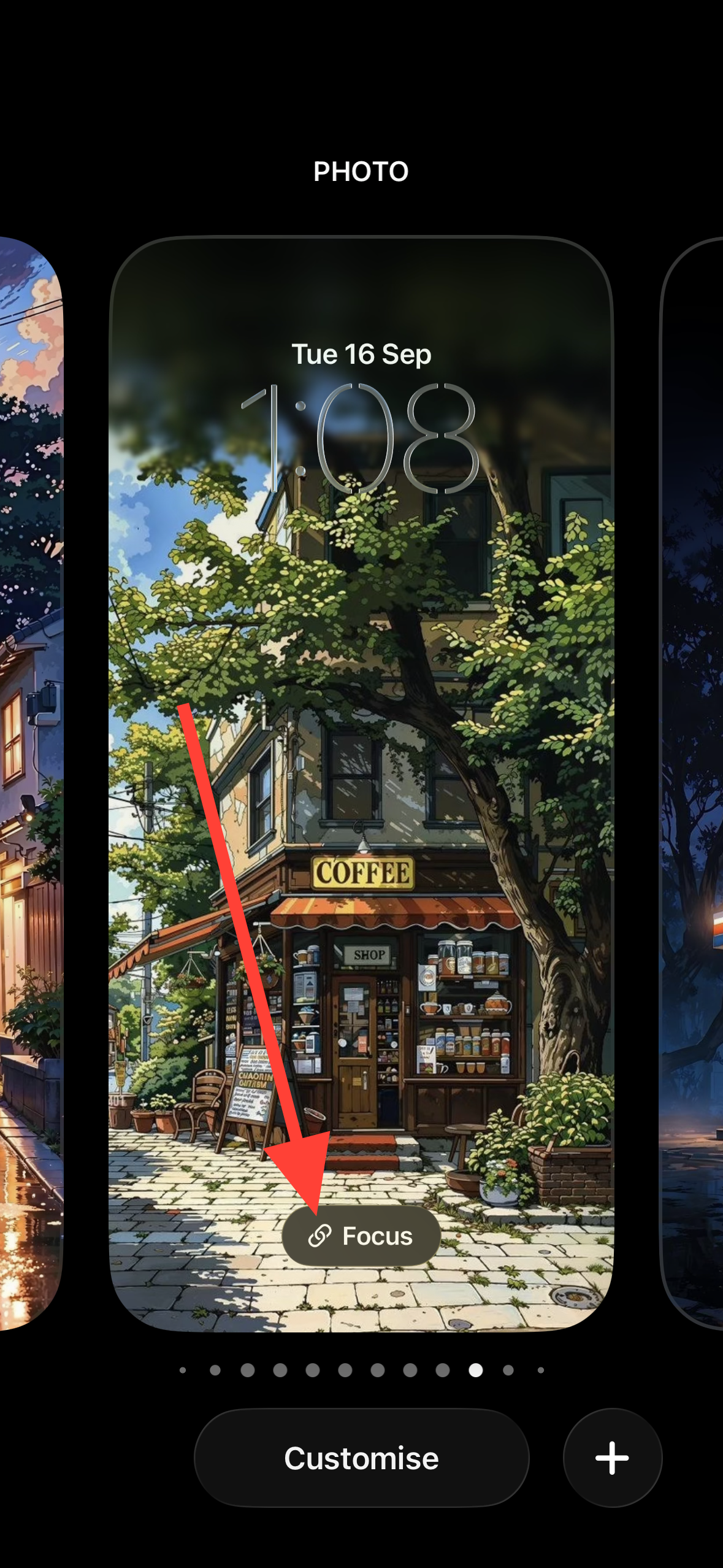
Choose a Focus such as
Do Not Disturb, Work, Personal, or Sleep. The new Reduce Interruptions option is designed to limit alerts without fully silencing essentials.Tap
Focus Settings to adjust schedules and allowed people/apps. Linking a Focus changes widgets and notification behavior when it activates.Show full‑screen album art on the Lock Screen
Start playback from Apple Music and lock your iPhone. The Now Playing interface appears on the Lock Screen.
Tap the album art expand control to display full‑screen artwork. The artwork animates and interacts with the glassy playback controls while music plays.
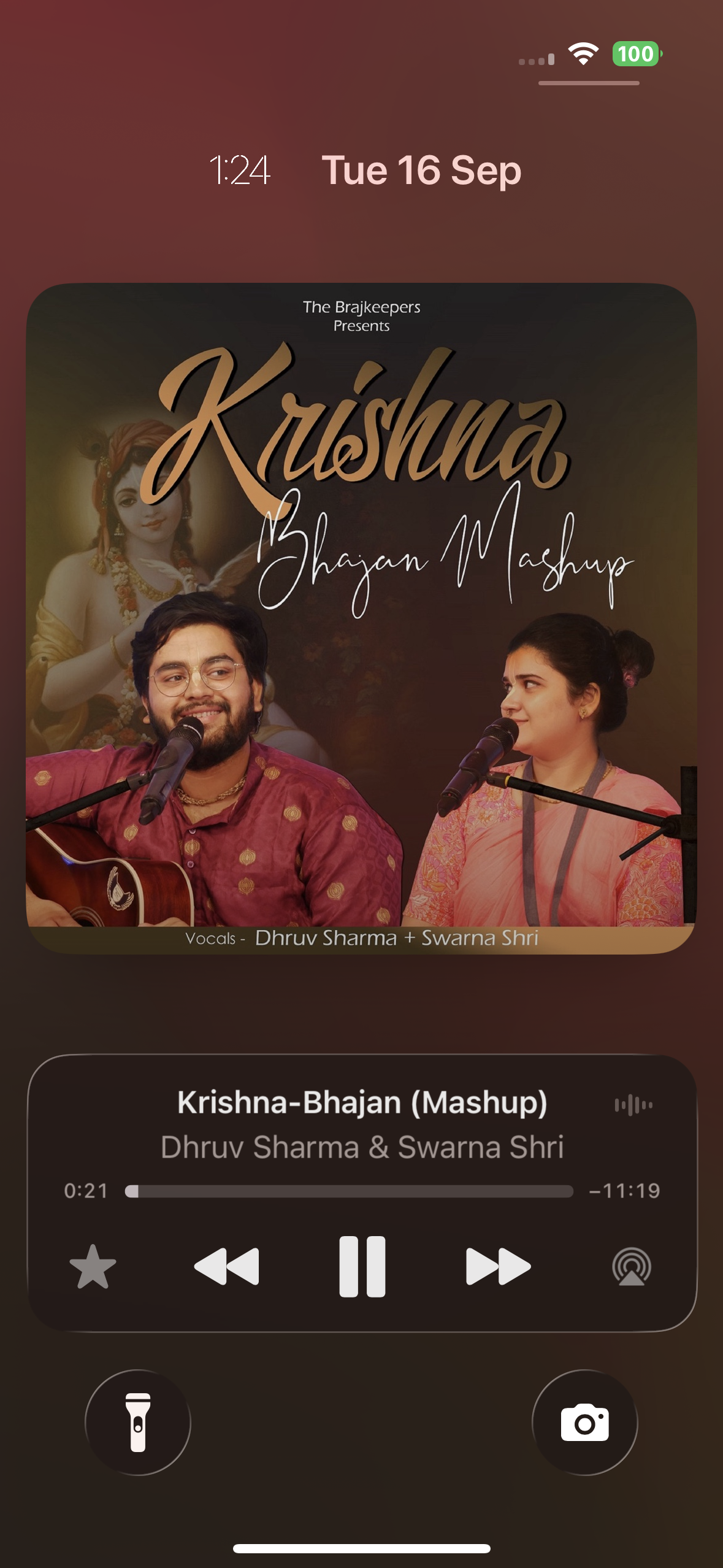
Tap again to minimize if you need more room for notifications and widgets. This is useful when you want the Lock Screen to prioritize information over visuals.
Create and switch among multiple Lock Screens
Long‑press the Lock Screen to open the carousel, then tap the plus button to add a new setup. This lets you keep distinct designs for different contexts.
Choose a wallpaper, set clock style/size, add widgets, and pick your quick controls. Save with
Done so it appears in the carousel.Swipe in the carousel to switch profiles manually, or attach them to Focus modes so they change automatically. Linking helps maintain a consistent layout for work, personal time, or sleep.
For the most readable result, combine a Solid clock style with a contrasting tint and consider bottom widgets you reach frequently. Small tweaks here save time every day and keep the Lock Screen easy to scan.





