

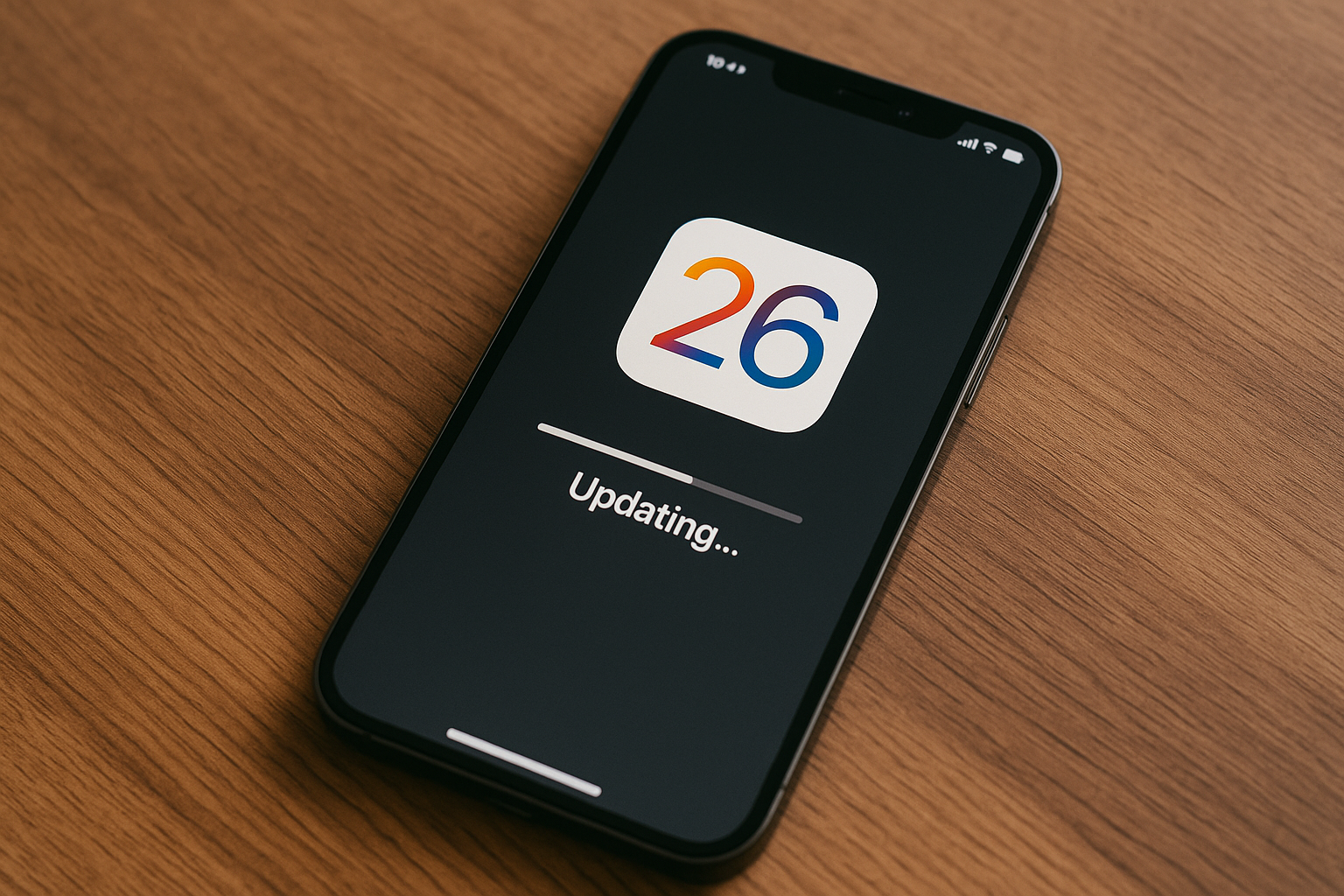
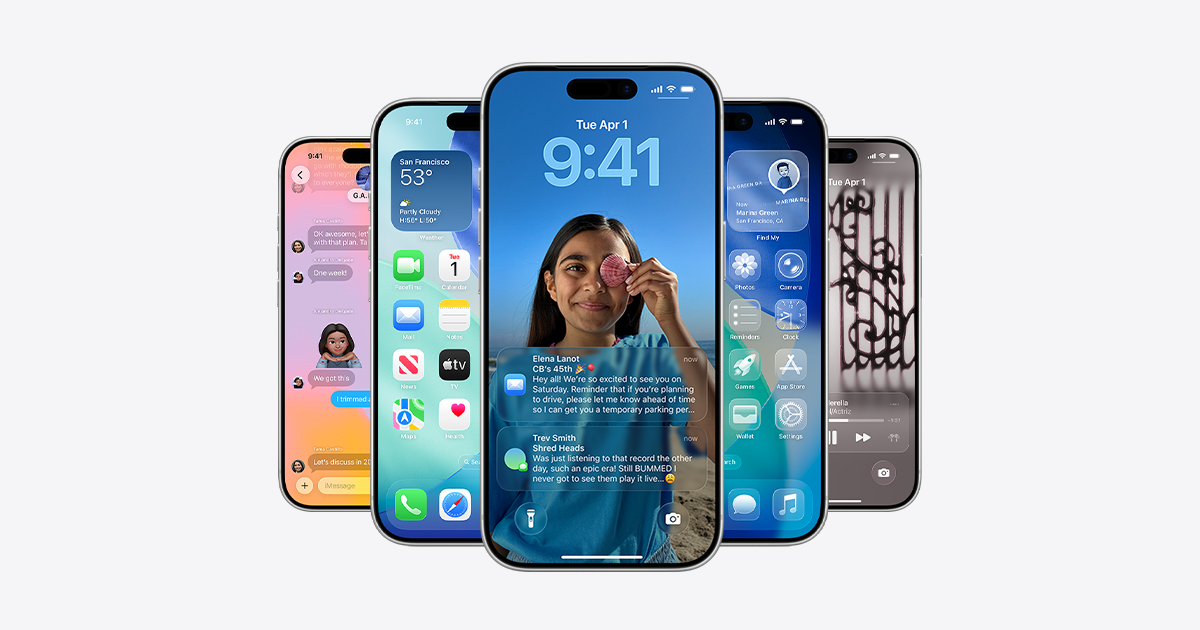
iOS 26 begins rolling out on September 15 with a new Liquid Glass design, Apple Intelligence capabilities, Messages polls and backgrounds, call screening tools, and more. This guide covers how to check compatibility, safeguard your data, reclaim storage, and perform a smooth upgrade. For feature details and the official compatibility list, see Apple’s iOS 26 page.

Confirm your iPhone is supported
iOS 26 supports iPhone 11 and newer, including iPhone SE (2nd generation and later). Not all features are available on all devices or in all regions. Apple Intelligence-powered features require newer hardware; consult Apple’s page above for specifics and regional notes.
Back up your iPhone (recommended: archived local backup)
A verified backup is the single most effective safety net. A local, archived backup protects you from accidental overwrite and allows restore or downgrade if needed. Health data and saved passwords require an encrypted backup. Reference: Apple Support on backups: https://support.apple.com/HT203977.
Method A — Archived local backup on Mac (Finder)
Trust and enter your passcode.Back up all of the data on your iPhone to this Mac. Check Encrypt local backup to include Health and Keychain, then set a strong password.Manage Backups, right‑click your new backup, and choose Archive. This locks the snapshot so it isn’t overwritten by newer backups.Method B — Archived local backup on Windows (Apple Devices app)
Encrypt local backup to include Health and Keychain, then set a password.Back Up Now and wait for completion. Then open Manage Backups, right‑click your backup, and select Archive to prevent automatic overwrite.Method C — iCloud backup (fast remote option)
Settings > [your name] > iCloud > iCloud Backup.iCloud Backup if it’s off, then tap Back Up Now. Wait until the latest backup timestamp updates. Consider keeping both iCloud and one local archive for redundancy.Reclaim storage to avoid install failures
Over‑the‑air updates require free space for download and staging. Clearing space reduces the chance of errors and speeds installation.
Settings > General > iPhone Storage. Note the system recommendations and large items.Settings > Photos and select Optimize iPhone Storage if you use iCloud Photos.Update apps and do quick housekeeping
Running current app versions reduces post‑update crashes or unexpected behavior and shortens troubleshooting time.
Settings > [your name]. This prevents sign‑in roadblocks after the update.Prepare power and network
Stable power and connectivity help avoid mid‑install interruptions, which can prolong recovery time.
Install iOS 26
Deployment timing can vary by region and carrier. Once it appears for your device, you can install immediately or schedule for later.
Settings > General > Software Update. Wait for iPhone to check for iOS 26 and display the update.Download and Install, agree to terms, and keep the device on Wi‑Fi and power. The screen will show progress bars and may restart.Settings > General > Software Update > Automatic Updates and temporarily disable automatic installs until you’re ready.Optional: clean install or short delay
A clean restore can resolve deep‑seated issues but requires more time. Briefly delaying adoption lets early issues surface and be addressed.
Restore iPhone. This erases the device and installs the latest iOS. Afterward, restore from your archived backup to recover data and settings.After the update: what to expect
- Allow background indexing to complete. You may notice temporary battery drain and warming for several hours as Photos, Search, and app databases rebuild.
- Review new communication controls. iOS 26 adds screening tools for calls and unknown senders in Messages; adjust preferences in the Phone, FaceTime, and Messages settings to match your workflow.
- Revisit privacy and location prompts as apps update. Confirm permissions align with your expectations.
With a verified backup, enough free space, and a stable connection, the iOS 26 upgrade should be straightforward—take a few minutes to prepare now and you’ll save time later.





