

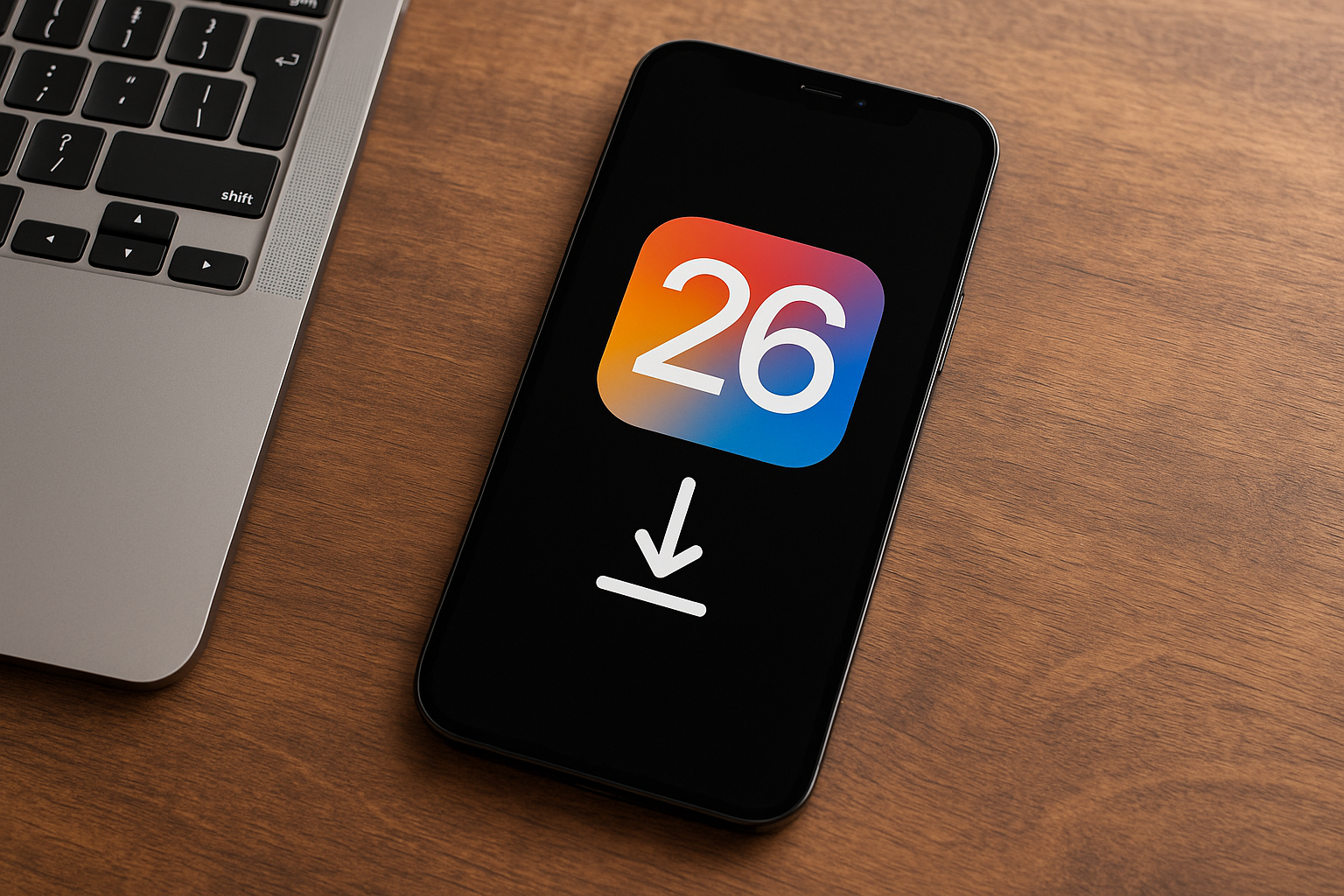
Apple has made the iOS 26 Release Candidate (often called the GM) available to both developers and public beta testers. The RC is typically the same build Apple ships to everyone unless a last‑minute issue appears, and Apple has indicated the public release is scheduled for mid‑September. Use the steps below to install the RC safely on a compatible iPhone.
Before you begin
Install the RC only on a device you can afford to test. Pre‑release software can include bugs, feature gaps, or app compatibility issues.
Backup first: Create an encrypted backup with iCloud or Finder so you can restore your data if you need to roll back or move to the final public release later.
Power and network: Charge to at least 50% and connect to reliable Wi‑Fi to avoid interruptions during download and installation.
Timing: Apple seeded the iOS 26 RC to developers and public beta testers on September 9, 2025, with the general release planned for September 15, 2025. If there are no last‑minute changes, the RC will match the public build.
1. Install the iOS 26 RC via the Apple Beta Software Program (easiest)
Settings and go to General > Software Update. This loads the update pane and checks Apple’s servers for eligible builds.Beta Updates, then choose iOS 26 Public Beta. This tells your device to look for the iOS 26 RC on the public beta channel.Download and Install for iOS 26. Accept the terms, keep the device on Wi‑Fi and power, and wait for the install to complete.2. Install the iOS 26 RC via the Apple Developer channel
Beta Updates and choose iOS 26 Developer Beta. This switches your device to the developer RC feed.Download and Install. Keep the device connected to power and Wi‑Fi until it reboots into iOS 26 RC.3. Install the iOS 26 RC with an IPSW (advanced)
Option (Mac) or Shift (Windows) and clicking Check for Update, then select the IPSW. Only use Restore if you intend to erase and install.Verify you’re on the RC and prepare for public release
Settings > General > About. Confirm it shows iOS 26 with the current RC build. If Apple ships the same build publicly, you will not see a new update on release day.Settings > General > Software Update > Beta Updates and select Off. Your device will stay on stable releases going forward.For official build notes detailing changes in each seed, Apple publishes release notes here: iOS & iPadOS 26 Release Notes.
iPhone models that support iOS 26
Apple’s iOS 26 supports most iPhones from 2019 onward. Based on Apple’s published compatibility for iOS 26 in coverage to date, the following models are eligible:
- iPhone SE (second generation or later).
- iPhone 11.
- iPhone 11 Pro.
- iPhone 11 Pro Max.
- iPhone 12.
- iPhone 12 mini.
- iPhone 12 Pro.
- iPhone 12 Pro Max.
- iPhone 13.
- iPhone 13 mini.
- iPhone 13 Pro.
- iPhone 13 Pro Max.
- iPhone 14.
- iPhone 14 Plus.
- iPhone 14 Pro.
- iPhone 14 Pro Max.
- iPhone 15.
- iPhone 15 Plus.
- iPhone 15 Pro.
- iPhone 15 Pro Max.
- iPhone 16.
- iPhone 16 Plus.
- iPhone 16 Pro.
- iPhone 16 Pro Max.
- iPhone 16e.
Troubleshooting common iOS 26 beta install issues
Settings > General > Software Update > Beta Updates, ensure you selected iOS 26 Public Beta or iOS 26 Developer Beta.Settings > General > iPhone Storage and re‑download.What’s new in iOS 26 (brief)
iOS 26 introduces Apple’s “Liquid Glass” look with translucent UI across the Lock Screen, Home Screen, and many apps, alongside practical additions like a redesigned Phone app with Hold Assist, spam filtering in Messages, and Live Translation across Phone, FaceTime, and Messages. Apple is aligning platform names to the coming year with the “26” designation, and has slated the public release for mid‑September 2025.
Notes and cautions
Pre‑release risks: Even at RC stage, unexpected bugs can surface. Avoid installing on a critical daily‑use device unless necessary.
Downgrade limits: Apple stops signing older builds as new ones arrive, which can block downgrades to earlier versions. Restoring to a lower iOS version requires a still‑signed build and a backup created on that version.
Once you’ve installed the RC and verified your apps work as expected, you can stay on it or switch off beta updates and move seamlessly to the public build on release day. Keep your latest backup handy and you’ll be covered either way.





