macOS 15 systems can quickly reach their storage limits, especially with high-resolution media, system data, and growing application caches. When your disk space runs low, you may notice system slowdowns, failed software updates, and warnings about a nearly full startup disk. Addressing disk space issues requires a mix of built-in utilities, manual cleanup, and, in some cases, third-party tools to target hidden or stubborn storage hogs.
Identify Storage Usage and Hidden Files
System Settings and select General > Storage. Wait for the storage bar to populate; this visual breakdown shows which categories—like Applications, Photos, System Data, and more—are consuming the most space. Hover over each color segment for details. The “System Data” or “Other” category often contains hidden files, caches, and backups that aren’t immediately accessible through Finder.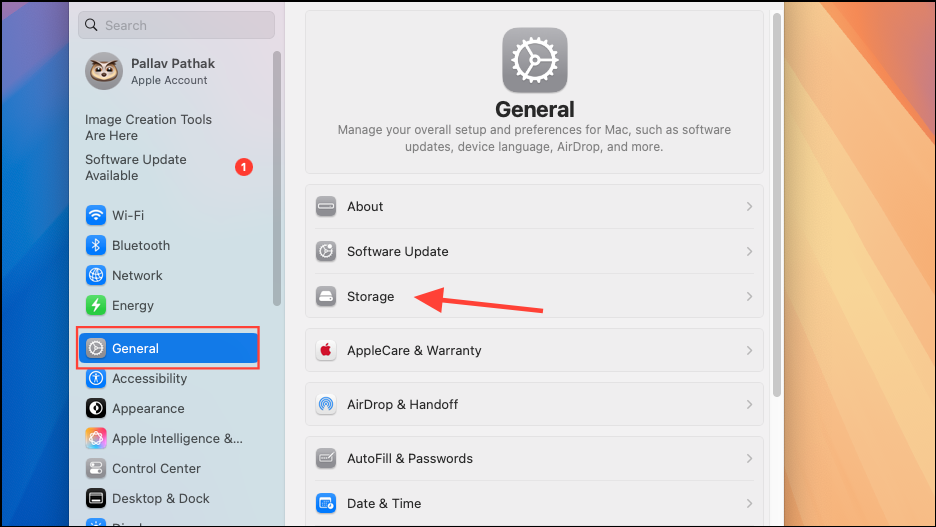
Store in iCloud, Optimize Storage, and Empty Trash Automatically can quickly free up significant space by offloading infrequently accessed files, removing watched media, and regularly clearing deleted items.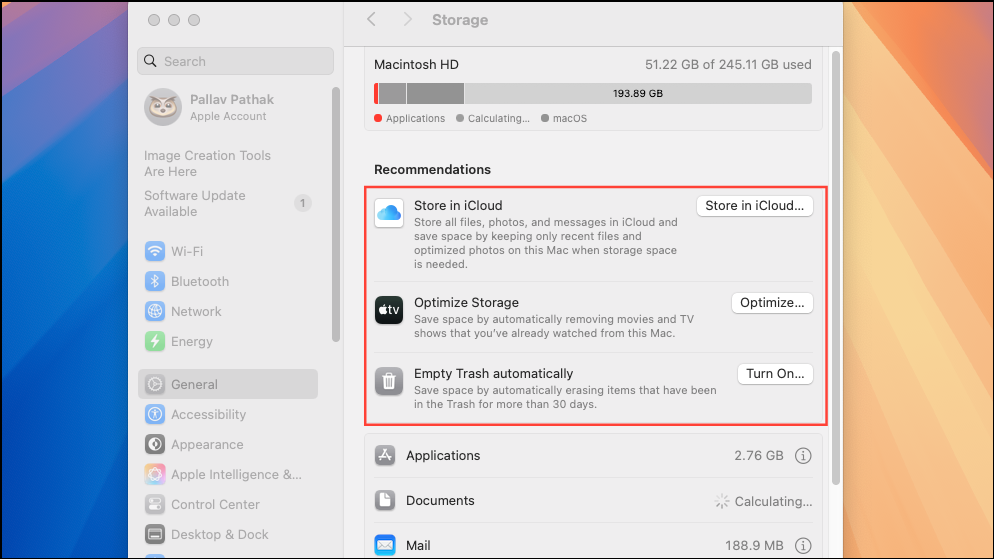
Remove Large and Unnecessary Files
Recents from the sidebar. Click the six-square icon to sort files by size and identify the largest items. Manually review and delete files you no longer need, focusing on folders like Documents, Downloads, Movies, and Desktop.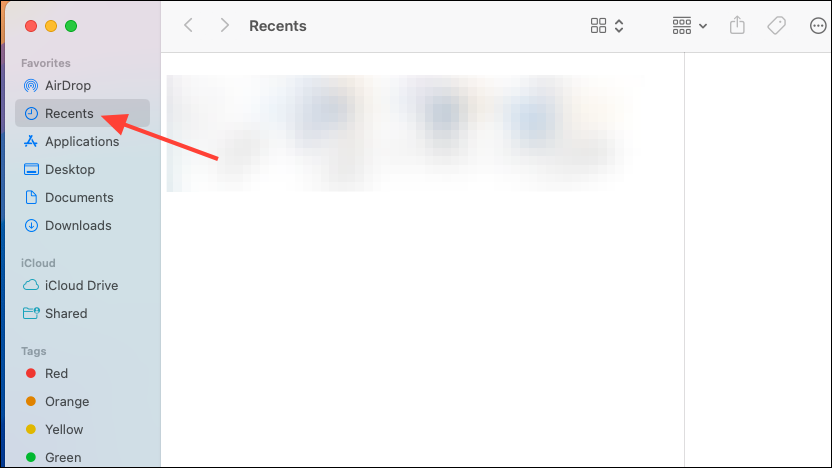
Shift + Command + F to open a Finder search. Set the filter to “File Size is greater than” and enter a value like 100 MB. This reveals large files across your system that may be candidates for removal.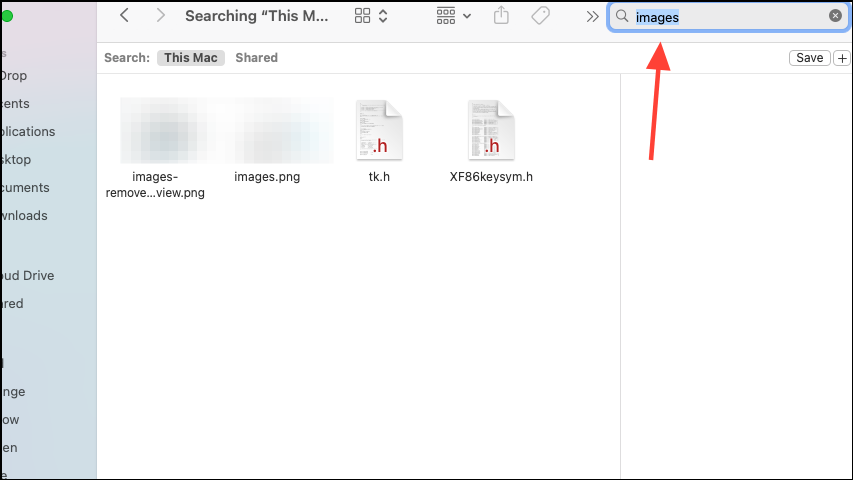
Empty Trash; otherwise, deleted files will continue to occupy disk space.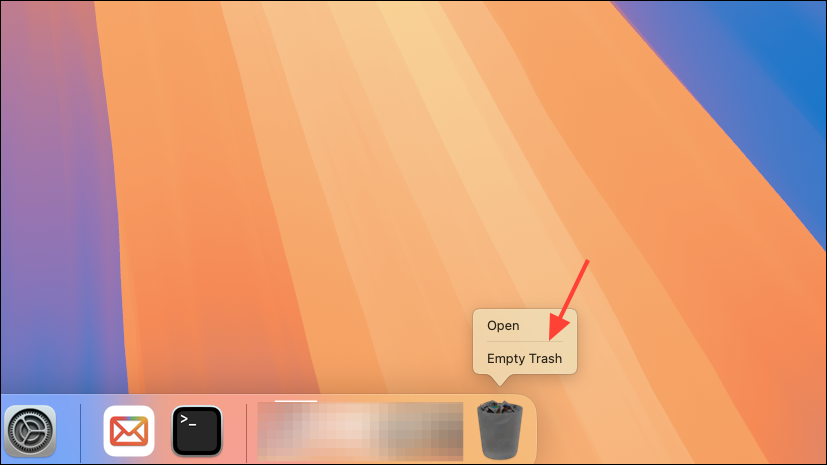
Clear System Data and Application Leftovers
Shift + Command + G, and enter ~/Library/Caches. Delete the contents of subfolders, but avoid removing unfamiliar files unless you’re certain they’re safe to delete. Repeat for ~/Library/Logs and ~/Library/Application Support to clear leftover support files from uninstalled apps.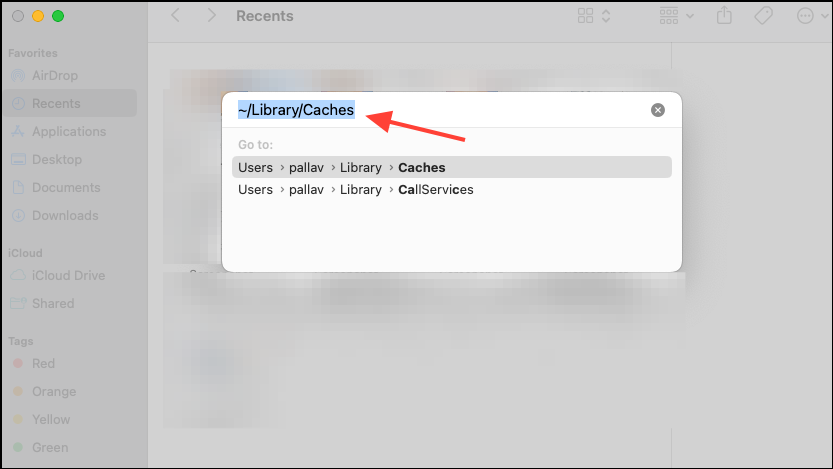
tmutil listlocalsnapshots /.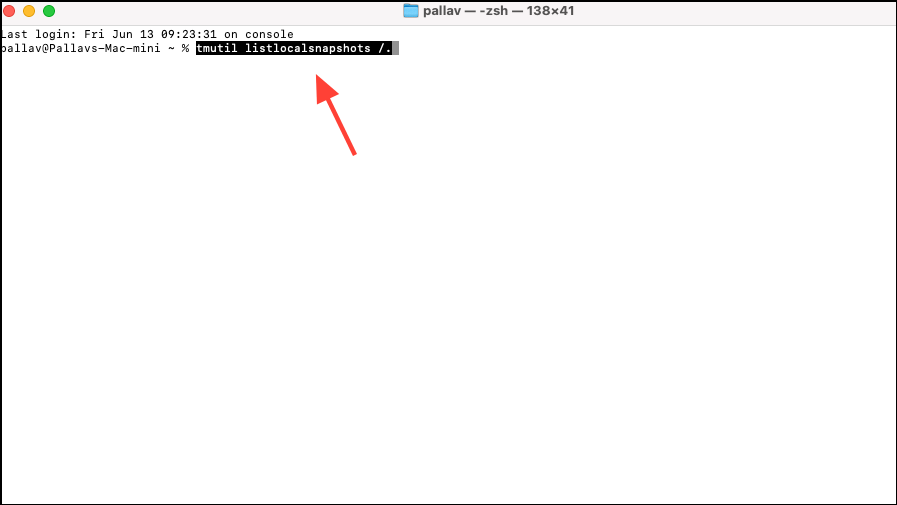
Then, to delete a specific snapshot:
tmutil deletelocalsnapshots [snapshot_name]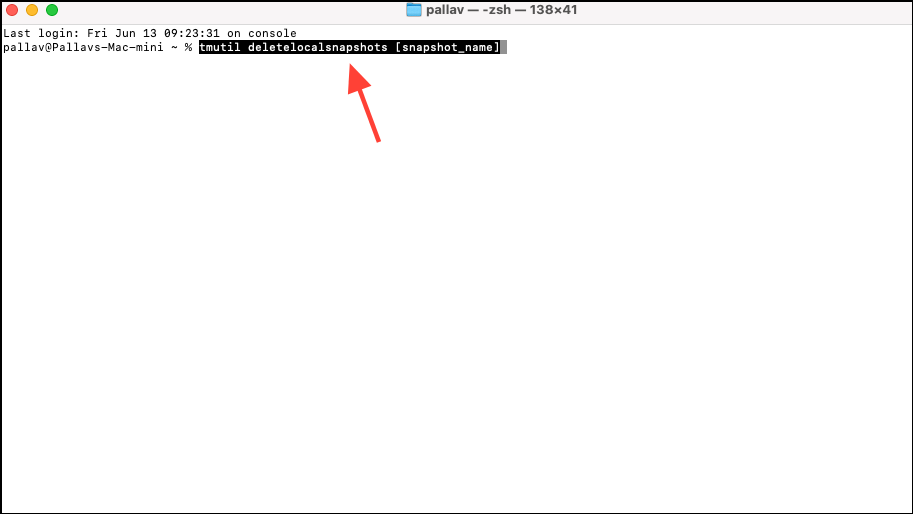
This process can reclaim space that isn’t visible in Finder or the standard storage breakdown.
/System, /Library, or hidden folders you don’t recognize), as this can destabilize your Mac.Leverage Storage Optimization Features
Optimize Storage in System Settings > General > Storage. This setting automatically removes watched TV shows and movies from the TV app and deletes old email attachments that are already stored on the server.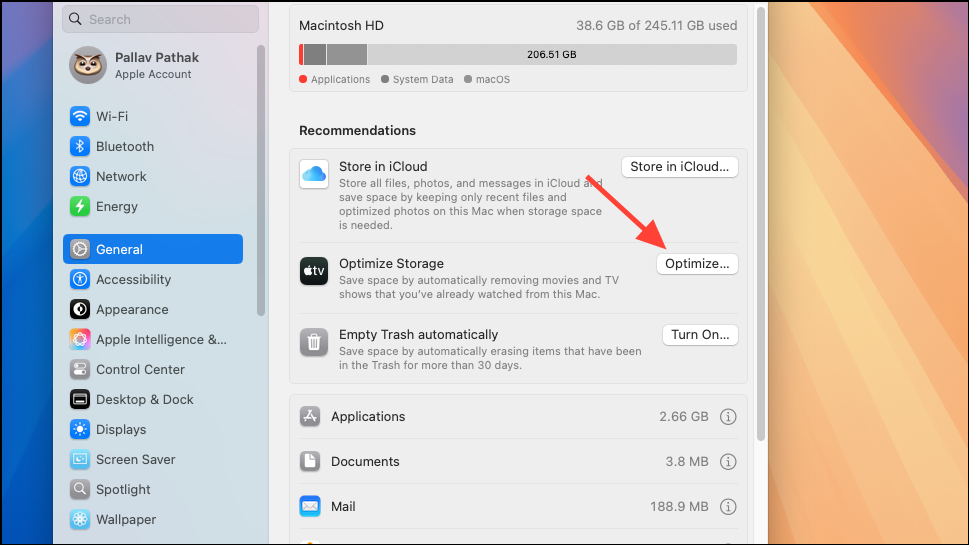
Store in iCloud to offload Desktop, Documents, and Photos to iCloud Drive. Files remain accessible via the cloud, but only download to your Mac when needed. Make sure “Optimize Mac Storage” is checked to prevent local copies from consuming space when disk space is low.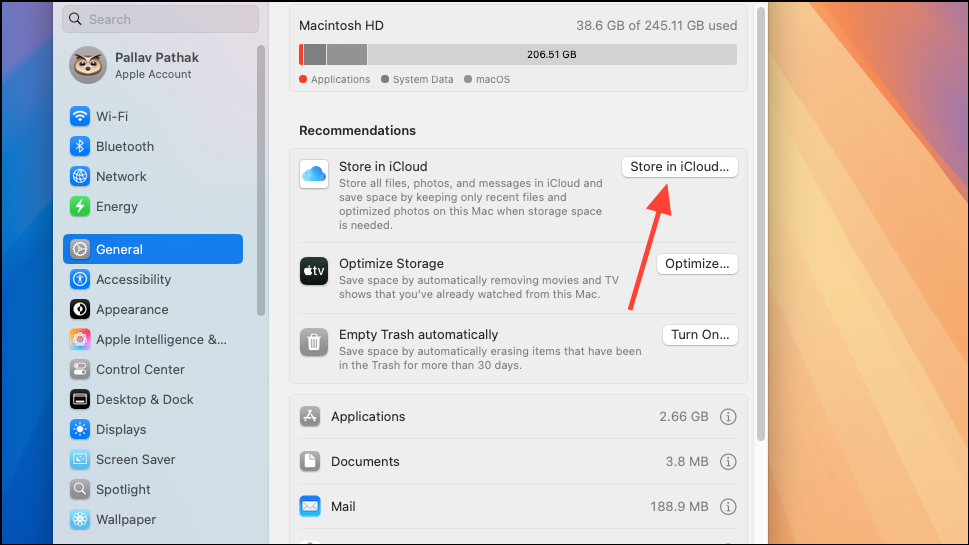
General > Storage and turn on the option using the provided button. This prevents old deleted files from lingering and occupying valuable storage.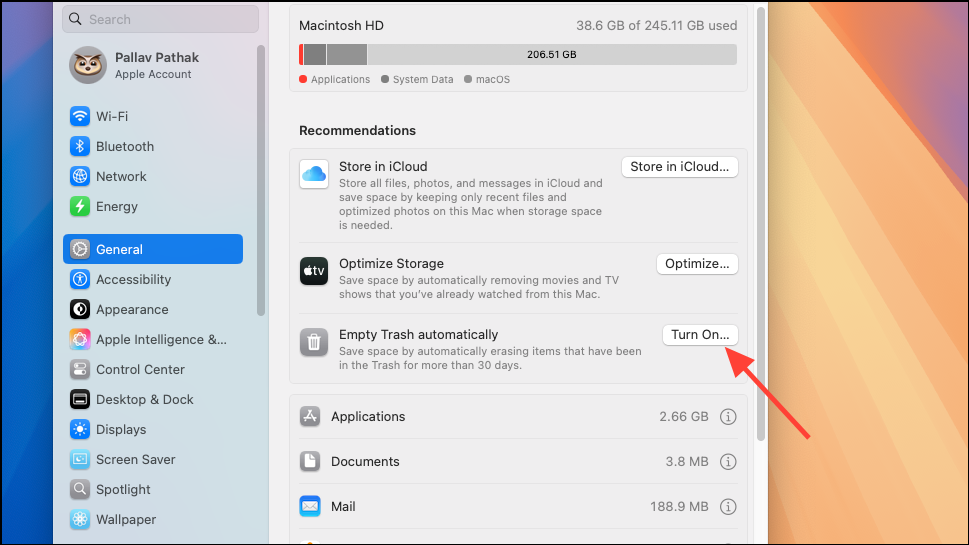
Target Hidden and Duplicate Files with Third-Party Tools
Move Libraries and Large Media to External or Cloud Storage
Option and selecting the new location. Confirm the new library is working before deleting the original from your Mac.Regular Maintenance and Advanced Tips
- Periodically review the Downloads folder and remove old installers, archives, and media files.
- Compress infrequently used files by right-clicking and selecting “Compress”—this reduces their disk footprint without deleting them.
- Keep at least 15–20% of your drive free to maintain optimal macOS performance and avoid slowdowns or update failures.
- Restart your Mac occasionally to clear temporary files and caches created by long-running applications.
- Archive or back up files to external storage before major cleanups to prevent accidental data loss.
Reclaiming disk space on macOS 15 is straightforward with the right mix of built-in tools, careful manual cleanup, and, when needed, specialized utilities. Regular maintenance keeps your Mac running fast and ensures you’ll have room for future updates and projects.