
Upgrading to Windows 11 changed how open applications appear on the taskbar, with Microsoft initially removing the option to show window labels (titles) next to app icons. This change affected workflows for users who rely on quickly identifying open windows, especially when handling multiple documents or apps at once. Recent updates now allow you to control whether app labels appear on the taskbar, restoring a familiar feature from previous Windows versions. Adjusting this setting can simplify window management and reduce the need to hover over icons to identify open files or applications.
Show or Hide App Labels Using Taskbar Settings
Win + I. This shortcut launches the system settings panel instantly.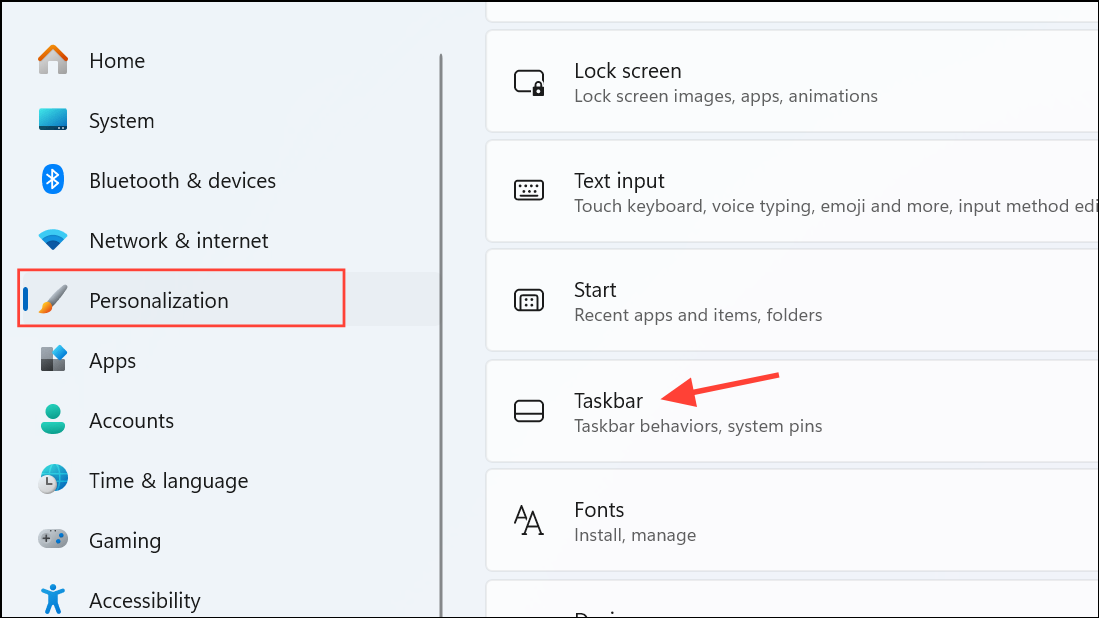
- Always: Groups windows of the same app into a single icon and hides labels (default Windows 11 behavior).
- When taskbar is full: Shows labels until the taskbar fills up, then combines icons.
- Never: Shows each window as a separate icon with its label, similar to Windows 10’s default.
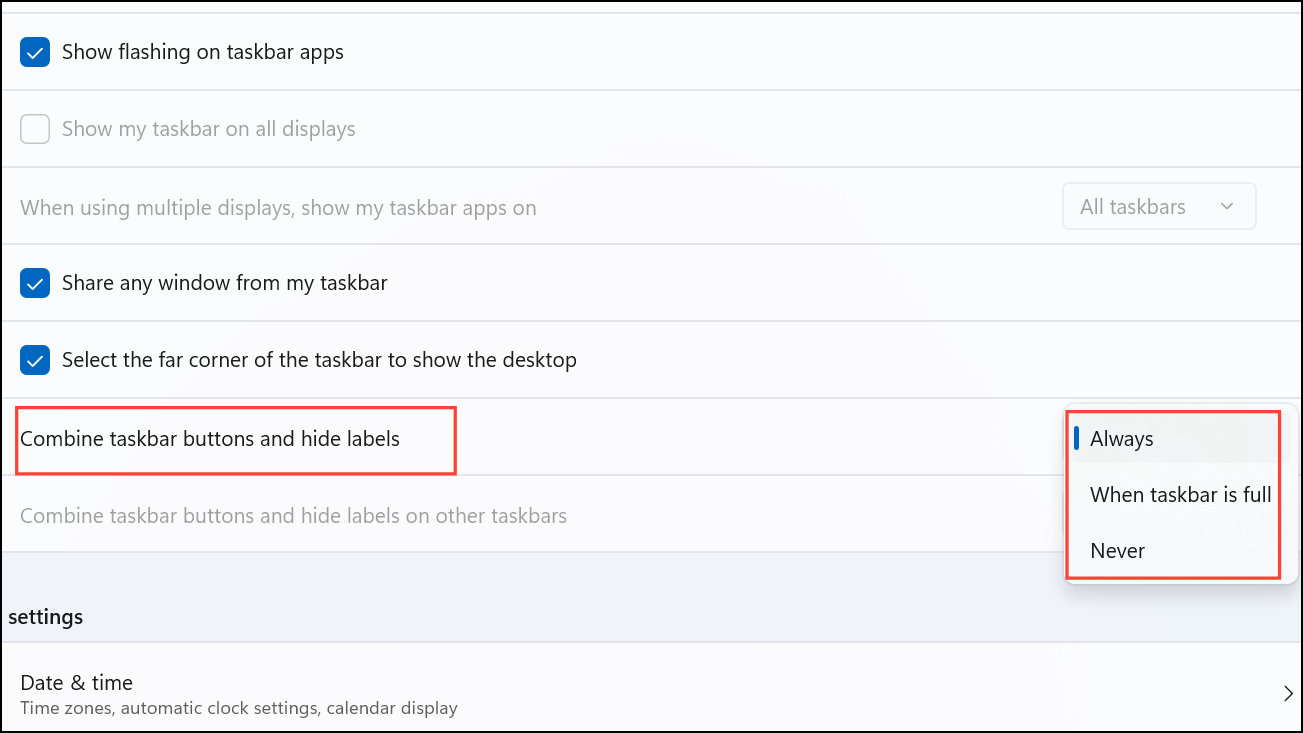
Choosing Never will display individual taskbar buttons for each open window, each with its own label. This setting is particularly useful when working with multiple instances of the same application, such as several Word documents or Excel spreadsheets, as it allows you to quickly identify and switch between them.
Show or Hide App Labels Using the Windows Registry (Advanced)
For users who prefer direct registry edits or are troubleshooting missing settings, modifying the Windows Registry can also control taskbar label visibility. Note that registry changes can affect system stability—always back up your registry before making modifications.
Win + R, type regedit, and press Enter to open the Registry Editor. Approve any User Account Control prompts.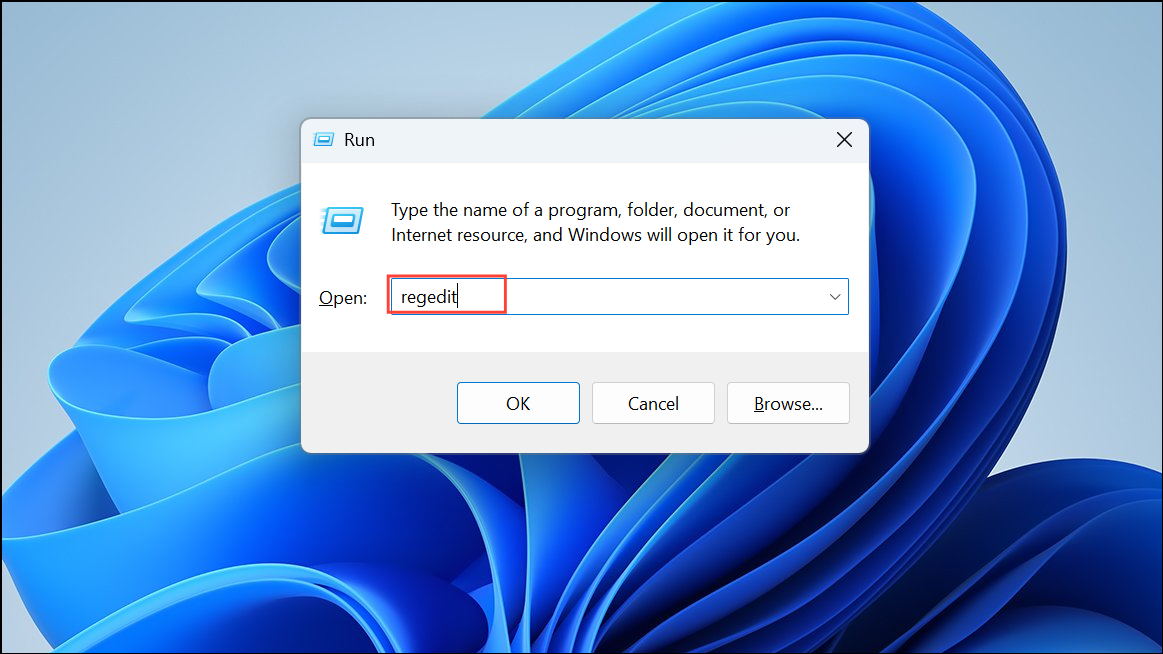
HKEY_CURRENT_USER\Software\Microsoft\Windows\CurrentVersion\Explorer\Advanced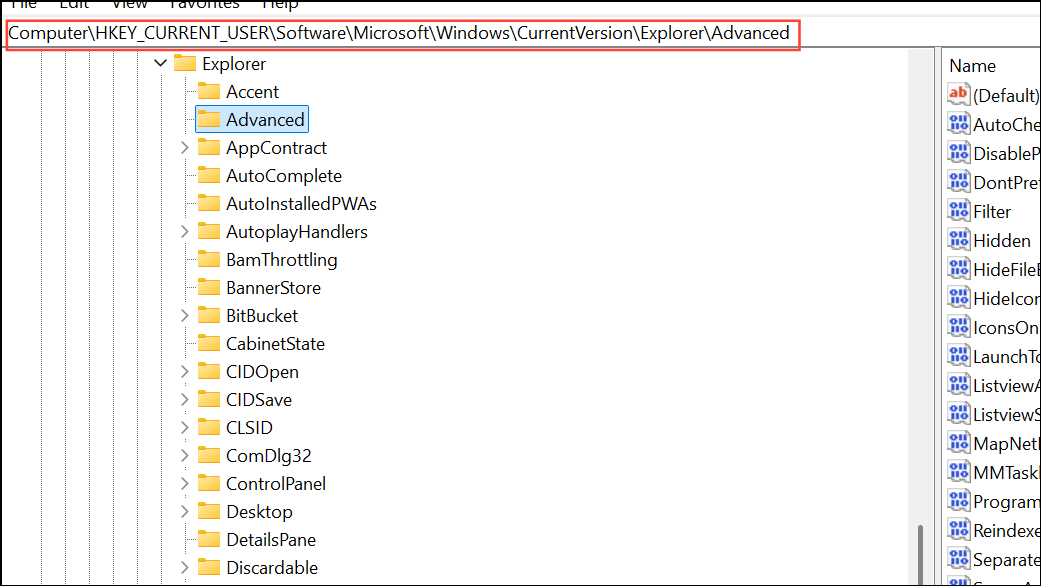
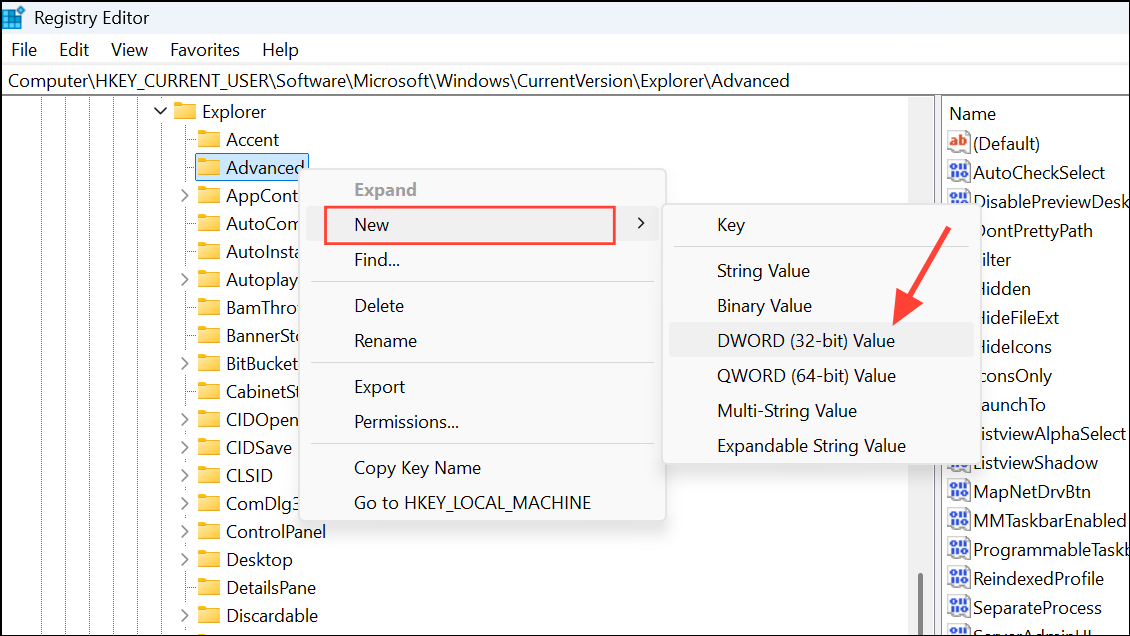
1to show labels on taskbar buttons.0to hide labels (default).
Additional Tips and Considerations
Some users prefer only icons on the taskbar for a minimalist look, while others rely on labels to quickly navigate between multiple open windows. If you want each window to have its own icon but without text labels, Windows 11 does not currently provide a built-in option for this exact configuration. Some third-party utilities, such as StartAllBack or ExplorerPatcher, offer more granular taskbar customization if the built-in settings do not meet your needs.
For those managing multiple monitors, taskbar label behavior can be set separately for secondary displays in the same Taskbar behaviors section. Adjusting these settings can help maintain clarity and consistency across all screens.
Microsoft continues to update taskbar features based on user feedback. If you notice settings missing or not working as described, ensure your system is running the latest Windows 11 updates, as taskbar options have changed between builds.
Adjusting taskbar label settings in Windows 11 restores quick window identification and streamlines multitasking, especially for workflows involving many open documents or apps. Regularly check for system updates to access the latest taskbar features and customization options.



