

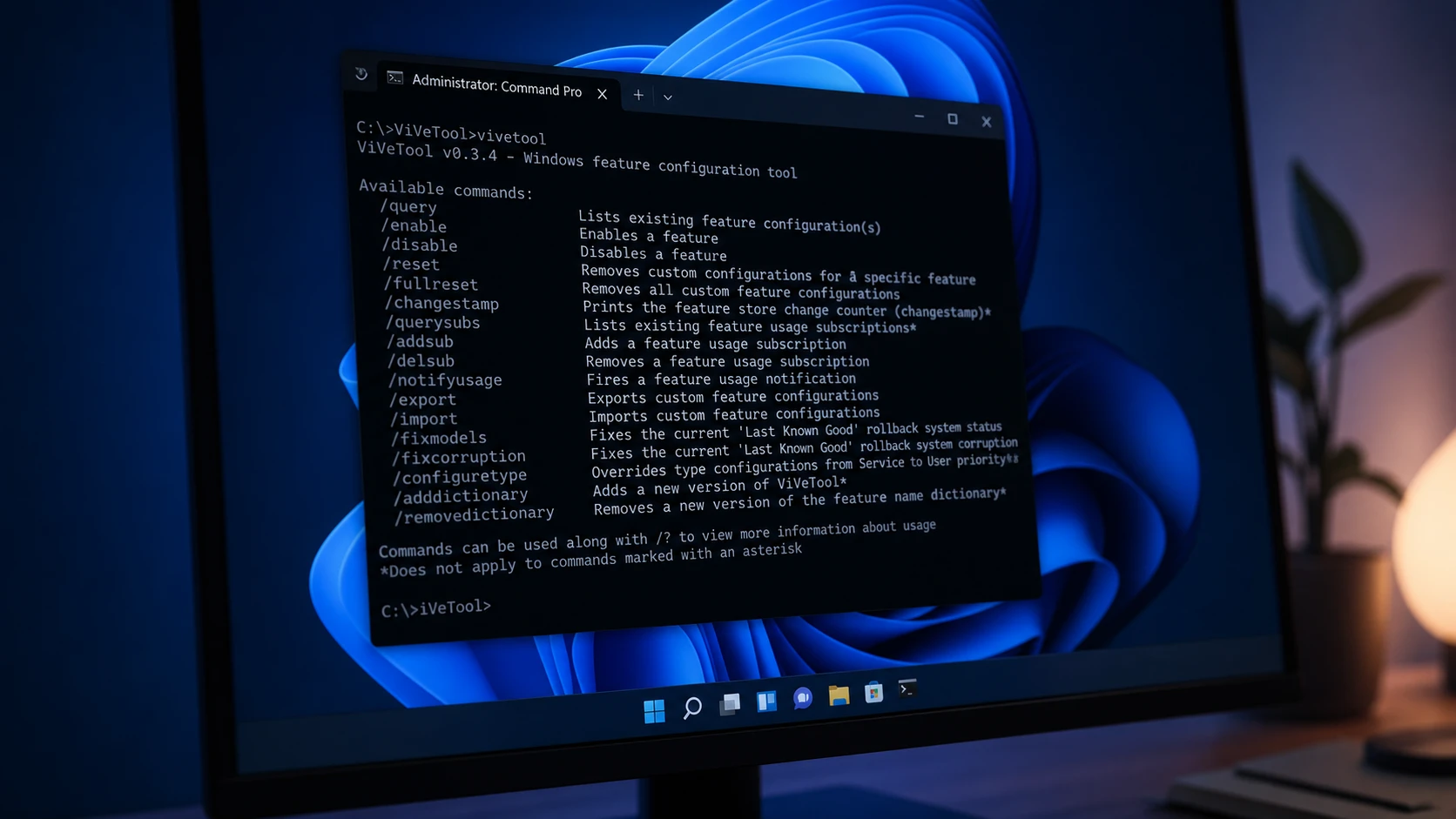
ViveTool is a command-line utility that flips on features Microsoft has already built into Windows 11 but hasn’t switched on for everyone yet. Each feature is tied to a numeric code, and running the right code through Command Prompt can surface a redesigned Start menu, a new Settings page, or a Taskbar tweak months before it reaches the public rollout.
General availability codes (2026)
61160789— Feature bundle for the August 2026 update (KB5101684) NEW58989177— Feature bundle for the July 2026 update (KB5095093)58989092— Feature bundle for the June 2026 update (KB5089573)58989092,60716524,48433719,61391826— Turns on the Low Latency Profile performance boost58989070— Feature bundle for the May 2026 update (KB5089549)58989021— Feature bundle for the April 2026 update (KB5083769)58989002— Feature bundle for the March 2026 update, including the network speed tester, camera pan and tilt controls, redesigned Settings dialogs, and Extract All support for non-zip archives57741219— Adds the new protected print mode dialogs in Settings55994763— Turns on the redesigned Widgets settings page58988972— Feature bundle for the February 2026 update (KB5077181)59213768— Taskbar position settings, letting you move the Taskbar to the top, left, right, or bottom61090762— Smaller Taskbar buttons option57156807— Modern redesign of the Run dialog61754985,61225604,61596616,61596617,61596618,61596619— Start menu resize and customization settings60911173— Feature Flags settings page in the Beta Channel47205210— Redesigned Start menu layout48433719— Battery percentage display option45690266— Cloud File Search inside File Explorer57048237— Feature bundle for the December 2025 update59162732,55994763— Widgets redesign, December 2025 update41356296— New Taskbar autohide animation, December 2025 update59265307— About settings redesign, December 2025 update57882334— Share any Taskbar window, December 2025 update53343270— Device info card in Settings, US only, December 2025 update57048231— Feature bundle for the November 2025 update57048226— Feature bundle for the October 2025 update57048218— Feature bundle for the September 2025 update57048216— Feature bundle for the August 2025 update
Working ViveTool codes for Windows 11
Codes are grouped by the update they belong to. General-availability codes apply to the standard Windows 11 release most people run, while the Insider Preview codes below them target the Experimental, Beta, and Feature Platforms channels of the Windows Insider Program.
General availability codes (2025)
57048237— Feature bundle for the December 2025 update59162732,55994763— Widgets redesign41356296— New Taskbar autohide behavior45690266— Cloud file search inside File Explorer59265307— Redesigned About page in Settings57882334— Lets you share any window directly from the Taskbar53343270— Device info card in Settings (US only)57048231— Feature bundle for the November 2025 update47205210— New Start menu design48433719— Battery percentage option in the system tray57048226— Feature bundle for the October 2025 update57048218— Feature bundle for the September 2025 update57048216— Feature bundle for the August 2025 update
Insider Preview codes (Experimental and Beta, version 26H2)
Windows Insider builds now include a built-in Feature Flags page in the Beta channel, which reduces the need for ViveTool for features Microsoft has already flagged for testing. The codes below still apply for anything not exposed on that page.
60414189— Adds a 4-pixel height increment to the Taskbar search box (build 26300.8772)61441697— Windows Hello enhanced sign-in security for external fingerprint sensors (build 26300.8697)61267302,61344081,61482515,61532758,61760679— Adds a Search settings toggle for web results (build 26300.8697)61465695,61465915— Middle-click support in File Explorer (build 26300.8687)62261462— Dark mode for the Create New Task dialog in Task Manager (build 26300.8687)60511437— New Taskbar thumbnail preview animation61754985,61225604,61596616,61596617,61596618,61596619— Start menu resize and customization settings (build 26300.8553)61372722— Fixes the white-flash bug in dark-mode file open/save dialogs (build 26300.8553)59213768— Adds Taskbar position options (top, left, right, bottom) in Settings (build 26300.8493)61090762— Enables smaller Taskbar buttons (build 26300.8493)60716524,61391826— Low Latency Profile performance boost, superseded by the June 2026 code above (build 26300.8346)61014711— Reverts the KB/MB/GB file-size display in File Explorer’s Details view (build 26300.8346)59728252— Replaces the spinning-dot sign-in and shutdown animation with the boot animation (build 26300.8289)60897831— Adds an "Available updates" section to the Windows Update page (build 26300.8289)60662124— Screen tint accessibility setting (build 26300.8289)57156807— Modern version of the Run dialog59956305— Redesigned Quick Settings flyout57751666,57751687— Toggle to show or hide Focus controls in the Notification Center calendar (build 26300.8276)61157505— New Experimental and Beta channel settings with Advanced Options (build 26220.8170)61410885— Longer pause-updates controls in Settings (build 26220.8170)60772592— FAT32 formatting up to 2TB from the command line (build 26220.8170)60911173— Feature Flags settings page in the Beta channel (build 26220.8148)58429068— Adjustable touchpad right-click zone size (build 26300.8142)58111409— Windows Protected Print Mode icon in Settings (build 26300.8142)27829265— Pointer Indicator (build 26300.8085)59149945— Dark mode toggle inside Quick Settings (build 26300.7965)59764273— New Open-with icons in the File Explorer context menu (build 26300.7877)60772996,53343270,59265307— Device info tweaks on the Settings Home page (build 26300.7877)59265307,60597402,60825171— Graphics card and storage details on the About page (build 26300.7877)49059846— Resume feature for WhatsApp (build 26300.7674)60063638— Share option added to the Taskbar (build 26300.7674)58182453— Windows Subsystem for Linux option in Settings (build 26300.7674)57118881— Redesigned Privacy & Security page in Settings (build 26300.7674)
Insider Preview codes (version 25H2)
60825171— Graphics card details on the About page (build 26220.7859)59359094— Modern "Change account type" and "Account info" dialogs (build 26220.7523)58978959— New Voice Typing animation on the touch keyboard58381341,58527096,57156807,57259990— Modern-design Run dialog58938944,57900749,58324036— Taskbar AI agent58680439— New Voice Access setup flow38679741— Windows MIDI Services (build 26220.7344)41118774,55805655— Open With menu shows Microsoft Store suggestions59213523— Model Context Protocol with an On-Device Registry59193521— Hides the "AI actions" context menu entry when no actions are enabled59765208— Xbox Full Screen Experience (build 26220.7271)55324166,59673297— Point-in-time Restore58423575— Decluttered File Explorer context menu58778013— File Explorer startup pre-loading59339532— Resume support for more mobile apps55994763,59162732— Full-page Widgets settings (build 26220.7070)57739723,57941090— Ask Copilot from the Taskbar (build 26220.7051)58970402— Adjustable Voice Typing "wait time before acting" setting (build 26220.6982)59270880— Dark mode for the Run dialog (build 26220.6972)59203365— Dark mode for Folder Options48433719,41356296— New Taskbar autohide animation57703775— Network speed test button (build 26220.6760)57645315— Windows DreamScene (build 26220.6690)
Feature Platforms and version 26H1 codes
61596617,61754985,61225604,61596616,61596618,61596619— Start menu customization settings (build 29634)58288238,61482515,61532758,61267302,61344081,61760679— Windows Search improvements (build 29634)53283713— Windows Hello enhanced sign-in security for external fingerprint readers (build 28020.1619)59065581— Additional language support for the Settings AI agent45425284— Windows Share UI for OneDrive with an app list (build 28020.1611)
How to enable a ViveTool code on Windows 11
ViveTool must run from an elevated Command Prompt because it writes directly to the Windows Feature Store. Missing that step is the main reason a code appears to do nothing.
C:ViveTool.vivetool.exe, for example with cd C:ViveTool.vivetool /enable /id:57048231To confirm a code took effect, run vivetool /query /id:57048231 (replacing the number with your code) and check that it reports the feature as enabled. If you want to turn a feature back off, use vivetool /disable /id:57048231, or run vivetool /reset /id:57048231 to return it to Microsoft’s default state.
Note: ViveTool is an unofficial, third-party tool not supported by Microsoft. Codes can stop working or change meaning between builds, and some features are limited to specific hardware or regions regardless of whether the code enables successfully.
New codes surface as Microsoft ships fresh cumulative updates and Insider builds, so it’s worth rechecking this list whenever a new monthly update or preview build lands on your device.



