
The STOP error 0x0000000A, also known as IRQL_NOT_LESS_OR_EQUAL, appears when a driver or hardware component tries to access memory incorrectly. This usually happens during system startup, waking from sleep, or when certain applications are running. The error often causes Windows 11 to crash, displaying a Blue Screen of Death (BSOD) and automatically restarting your computer.
Common triggers include faulty hardware (RAM or hard drive), incompatible or outdated drivers, corrupt system files, and malware infections. Fortunately, several proven methods exist to resolve this issue.
Method 1: Update Device Drivers
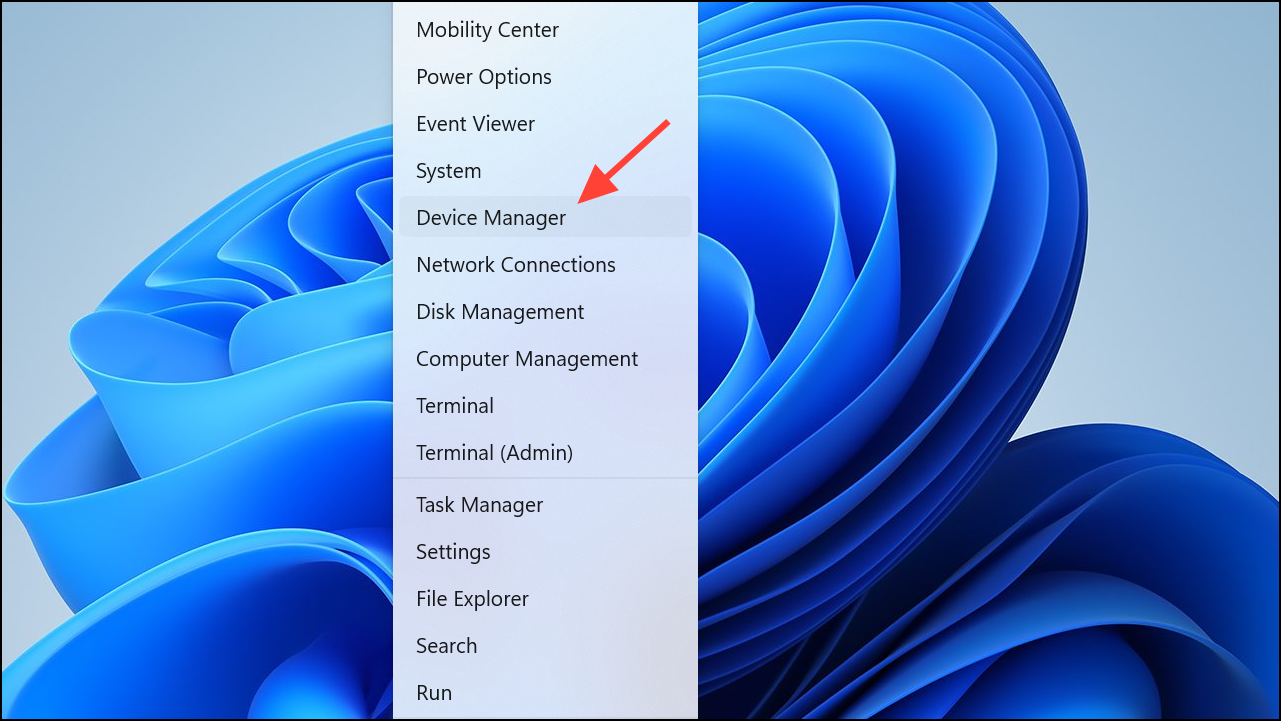
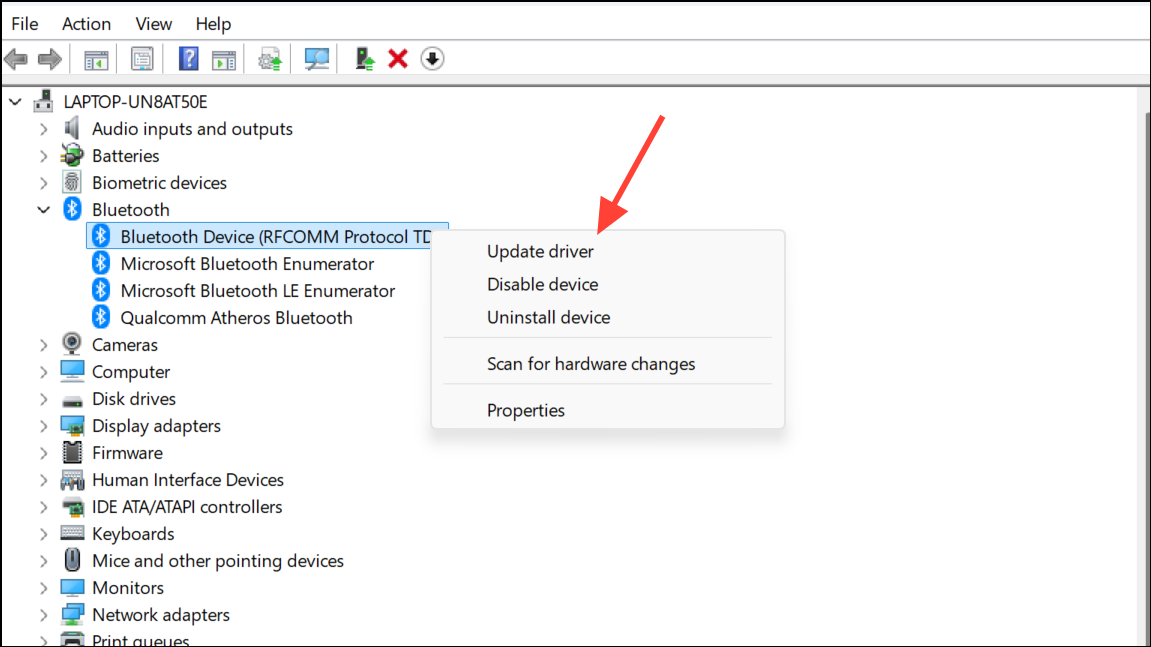
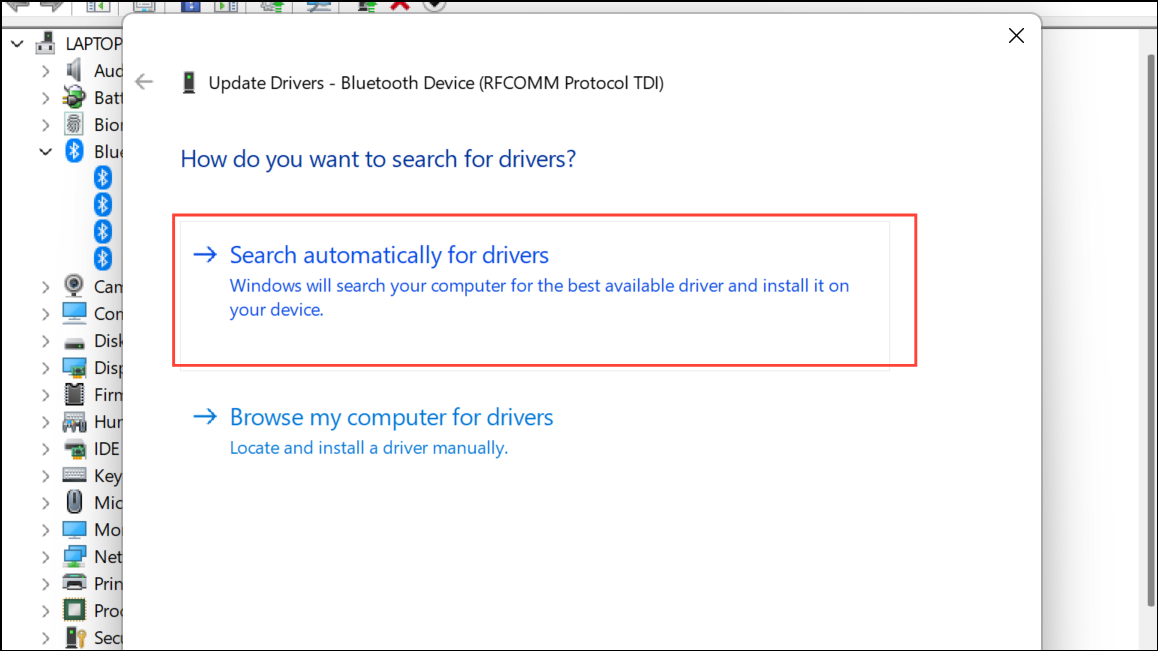
If Device Manager can’t locate updates, visit your hardware manufacturer’s website to download and install the latest drivers manually. Alternatively, you can use specialized driver update software like Outbyte Driver Updater to automate this process.
Method 2: Run Windows Memory Diagnostic Tool
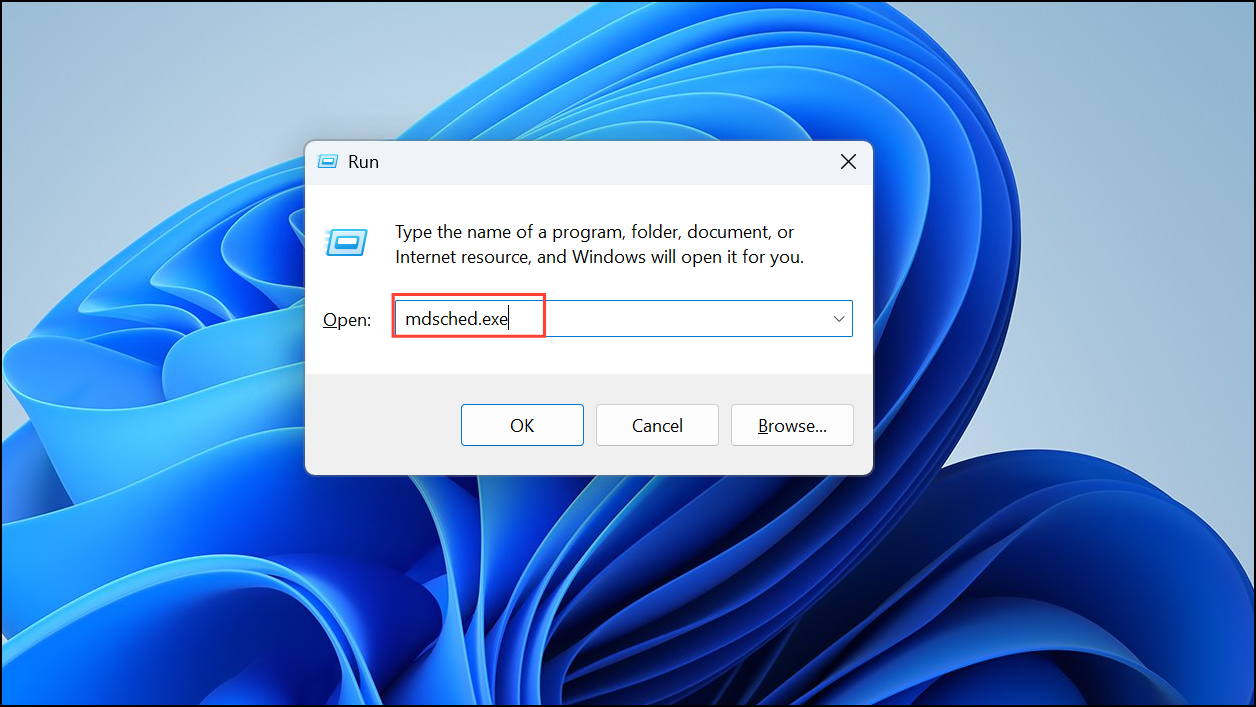
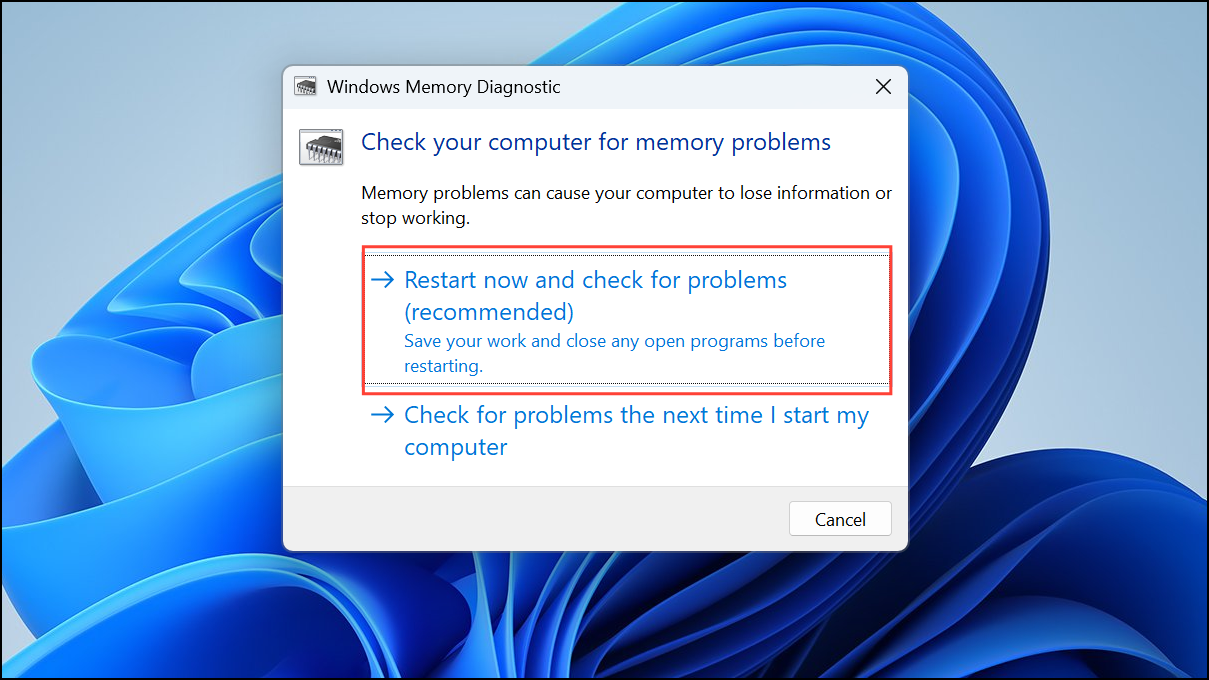
Method 3: Disable RAM Overclocking and XMP Profiles
Overclocking or enabling Extreme Memory Profile (XMP) settings can cause instability, resulting in error 0x0000000A. To disable these settings, reboot your computer into BIOS. Look for settings related to memory speed, XMP, or overclocking, and set them to default or auto. Save the changes and restart your computer. This step resolves many memory-related crashes, according to Microsoft Community discussions.
Method 4: Run System File Checker (SFC) and DISM
cmd in the search bar, right-clicking Command Prompt, and selecting Run as administrator.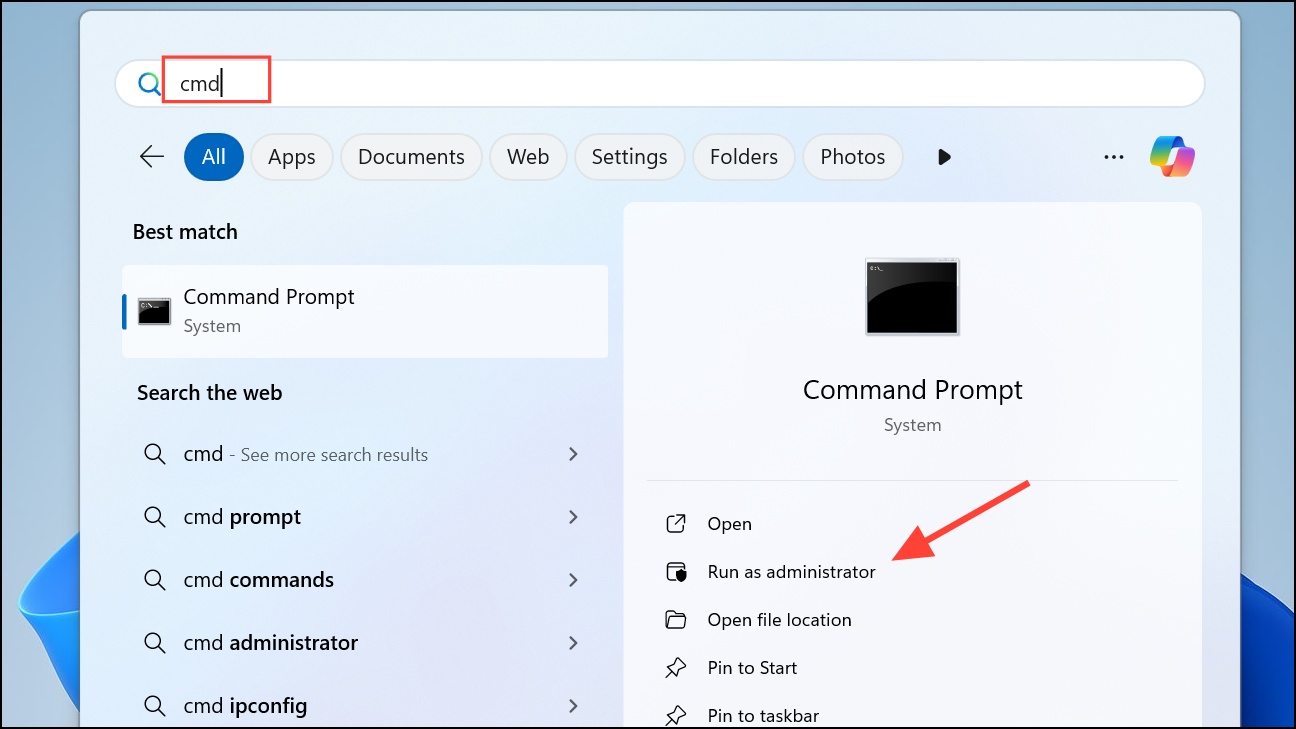
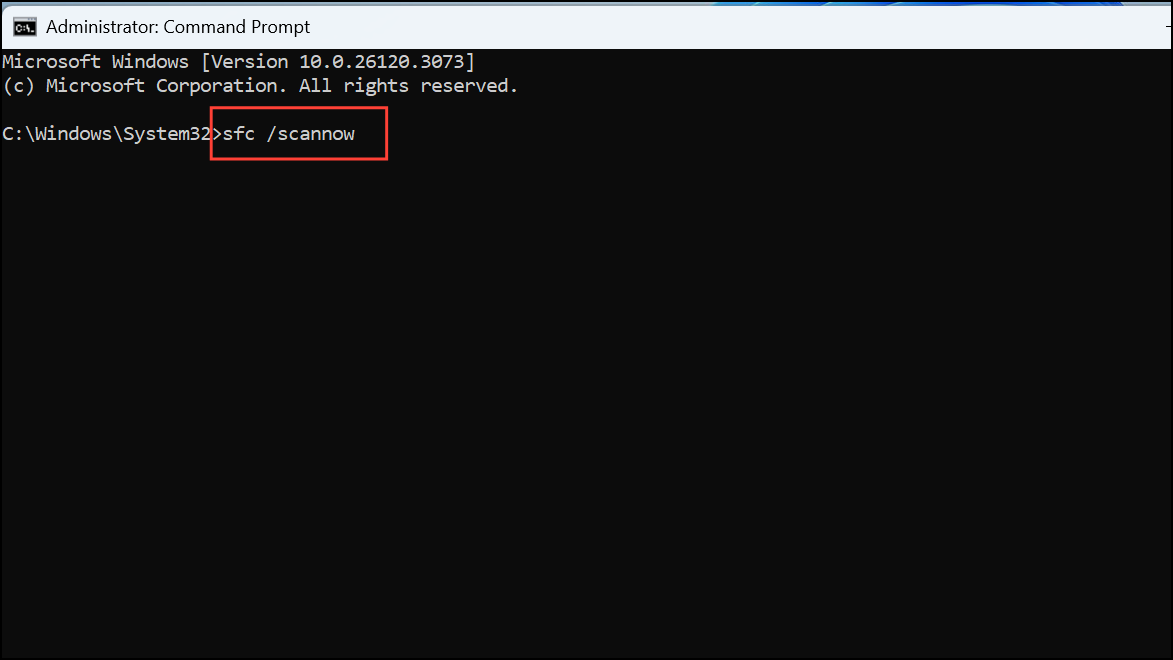
DISM /Online /Cleanup-Image /ScanHealth
DISM /Online /Cleanup-Image /RestoreHealth
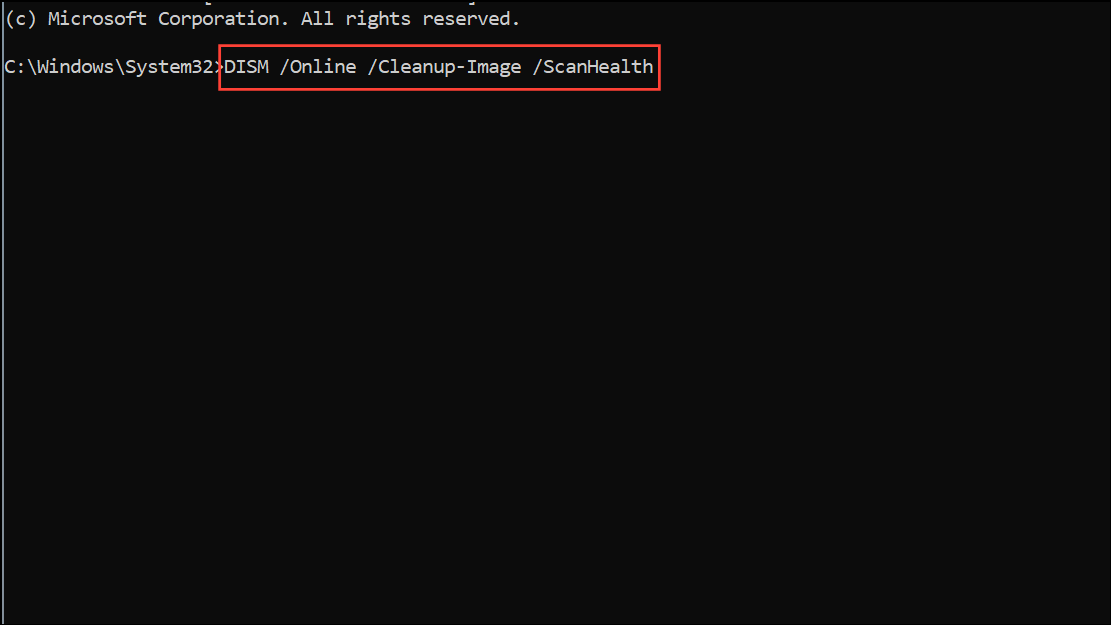
Once completed, restart your computer and check if the error persists.
Method 5: Check Hard Drive for Errors
Faulty hard drives can cause the 0x0000000A error. To check for disk issues, open Command Prompt as administrator and run the following command, replacing C: with your Windows drive letter if different:
chkdsk C: /f /r /x
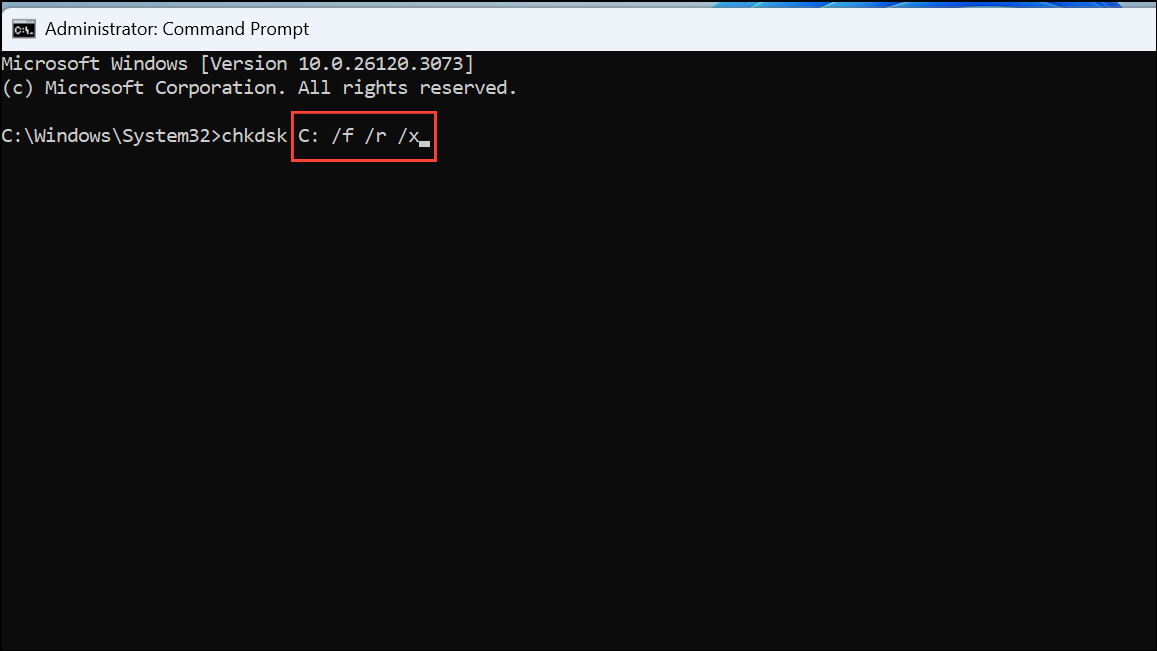
Confirm scheduling a disk check on the next restart by typing Y and pressing Enter. Restart your PC to initiate the scan.
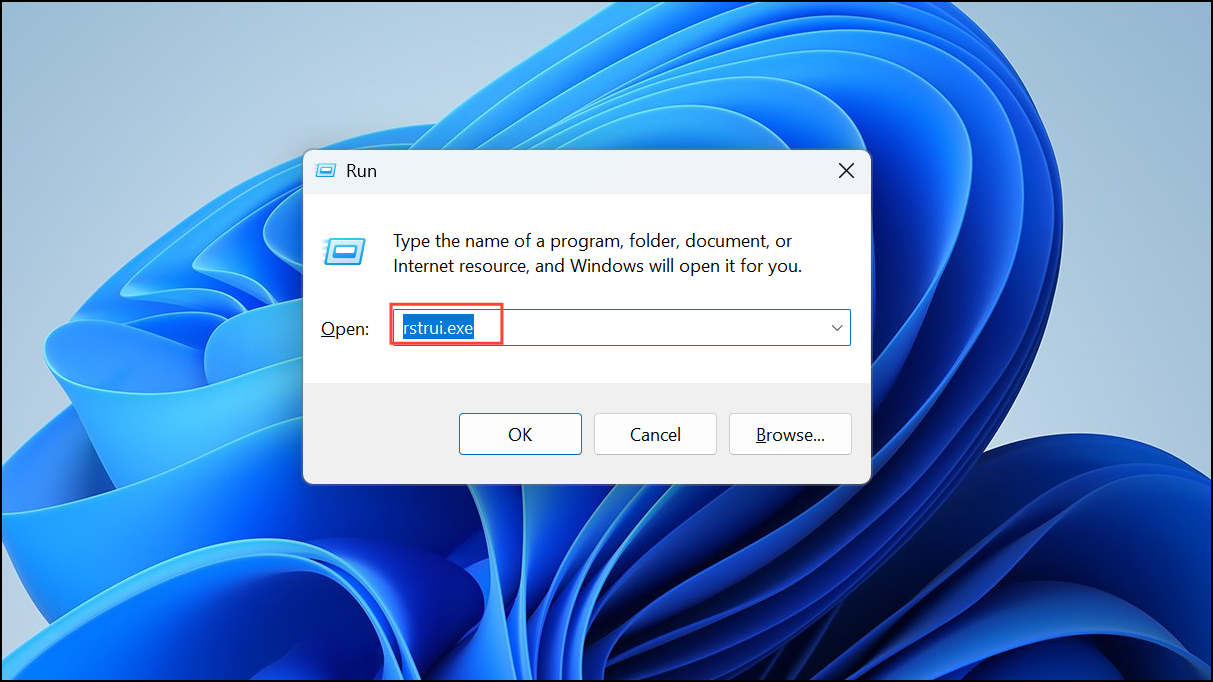
Method 6: Restore Your System to a Previous State
If recent changes triggered the error, restoring your system to a previous state can help. You should have set up a restore point earlier for this solution to work.
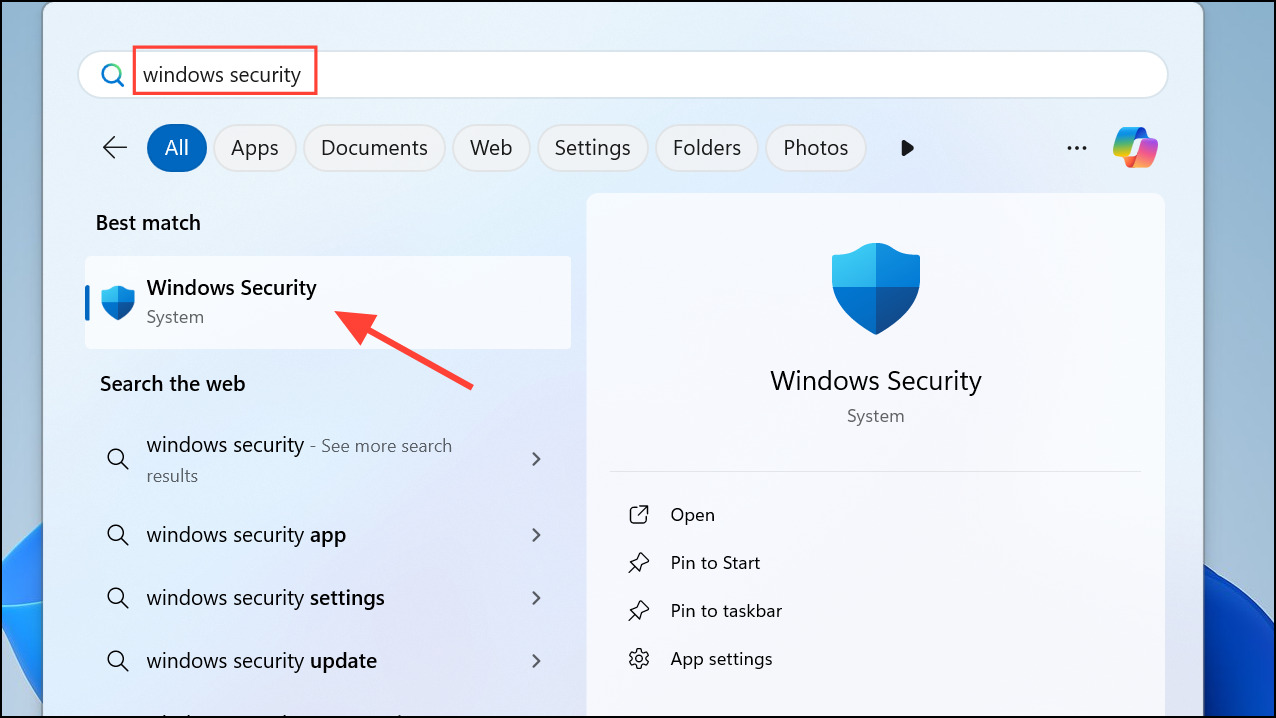
Method 7: Scan for Malware and Viruses
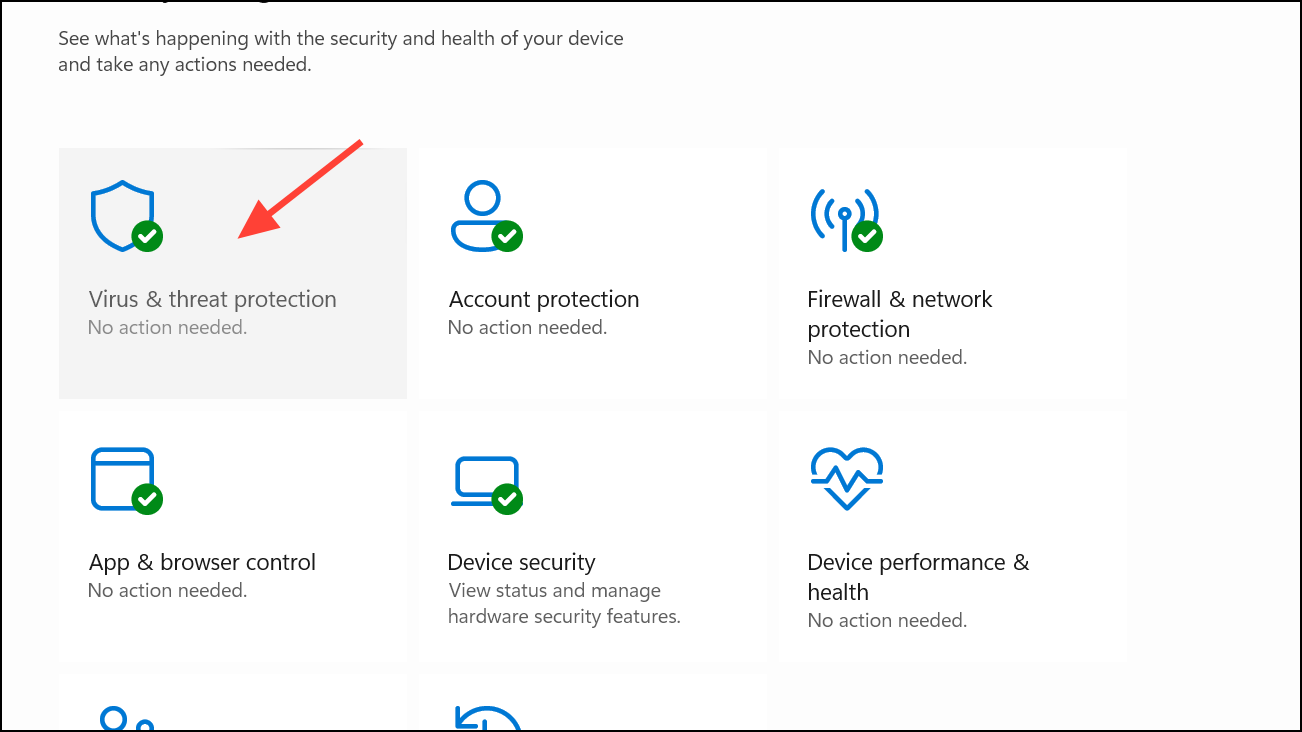
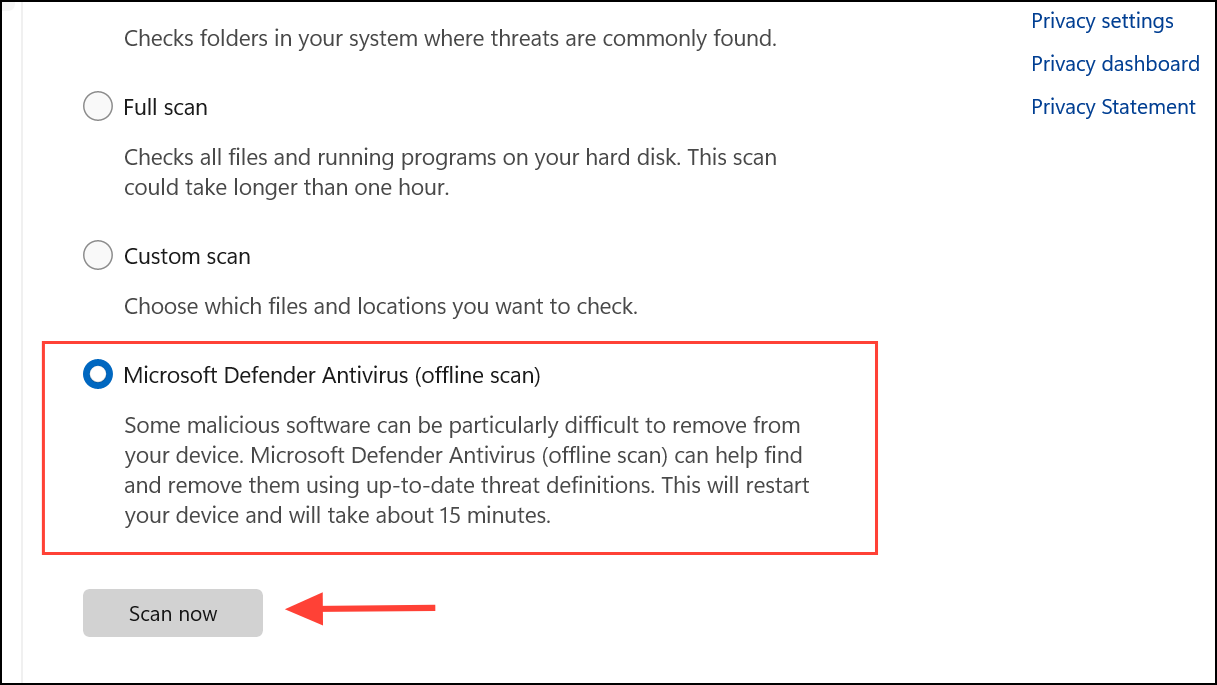
Malware infections can corrupt system files, causing BSOD errors. Perform a full system scan using Microsoft Defender or another trusted antivirus software.
Method 8: Update Your BIOS
Outdated BIOS firmware can cause hardware compatibility issues. Visit your motherboard manufacturer’s website, download the latest BIOS version, and follow their instructions carefully to update your BIOS. This step can resolve compatibility issues that cause the STOP 0x0000000A error, as mentioned in The Windows Club guide.
If none of these methods resolve the issue, consider performing a clean installation of Windows or consulting a hardware specialist, as hardware faults might be the underlying cause.
Hopefully, one of these solutions got your Windows 11 system back up and running without the dreaded blue screen.



