

Creating files in Linux is a fundamental skill that every user should master. Whether you’re a beginner or an experienced user, knowing how to generate files using the command line or text editors can streamline your workflow and enhance productivity. This guide will walk you through several methods to create files in Linux, providing step-by-step instructions for each approach.
Using the Command Line to Create Files
The Linux command line offers several straightforward commands to create new files. These methods are quick and efficient, allowing you to generate files without opening a text editor.
Method 1: Using the touch Command
The touch command is one of the simplest ways to create an empty file. It creates a new file without adding any content to it.
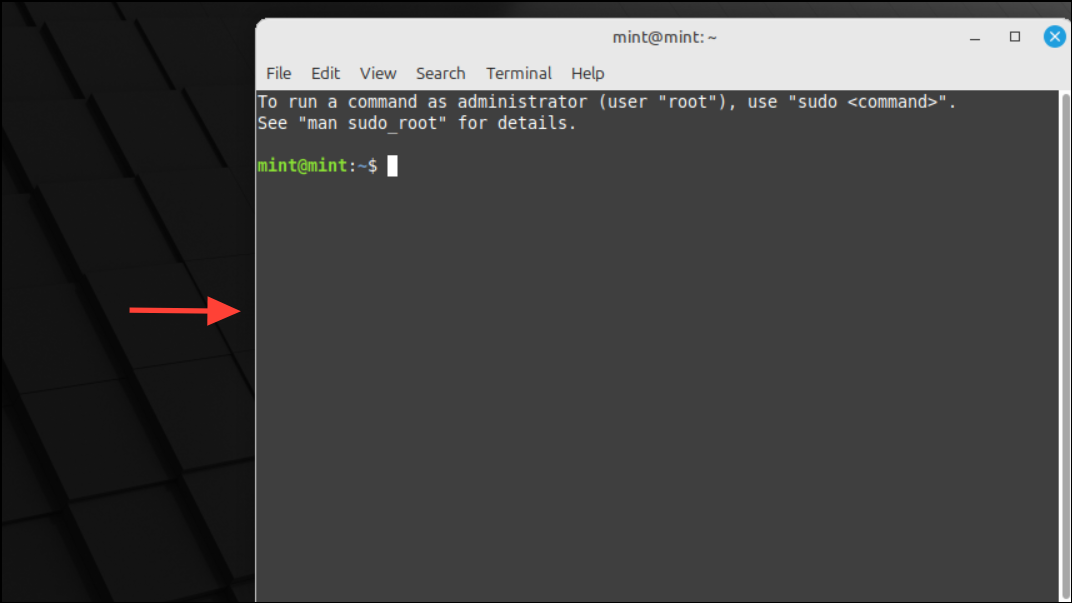
cd command followed by the directory path:cd /path/to/your/directory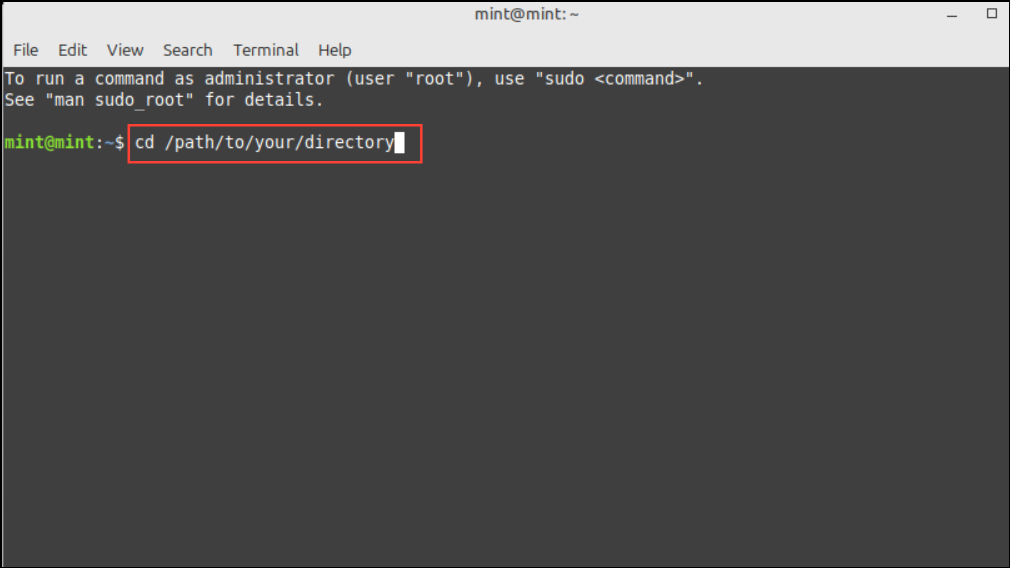
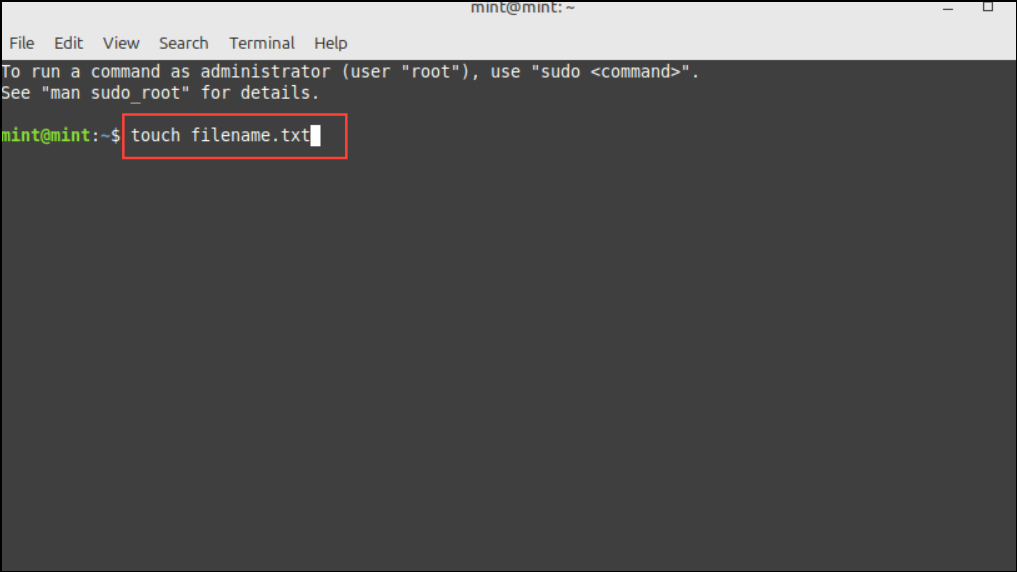
touch filename.txtThis command creates a file named filename.txt in the current directory.
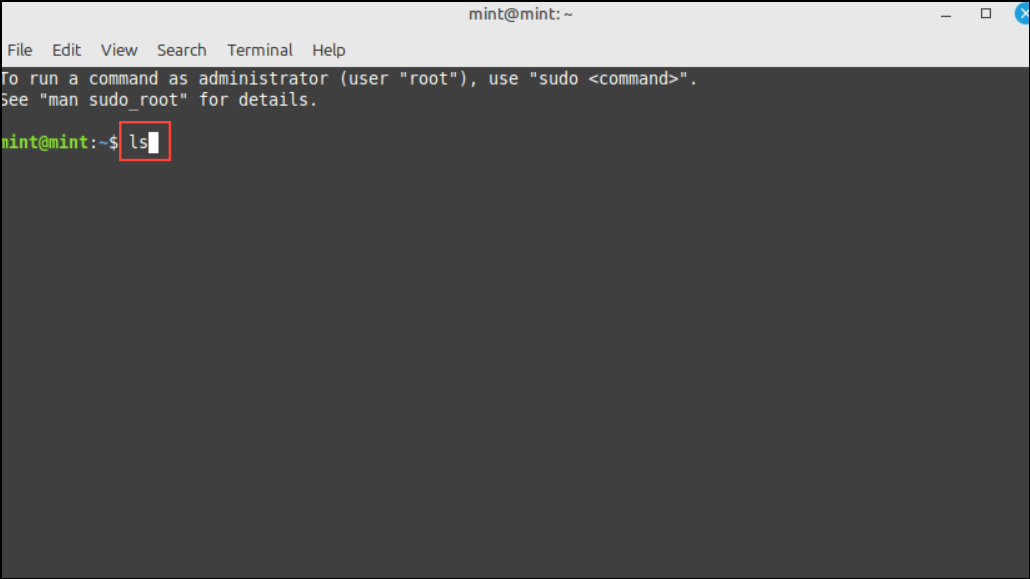
lsYou should see filename.txt listed among the files in the directory.
Method 2: Using the Redirection Operator
The redirection operator > is used to redirect output to a file. If the specified file doesn’t exist, it creates a new empty file.
> newfile.txtThis command creates a file named newfile.txt in the current directory.
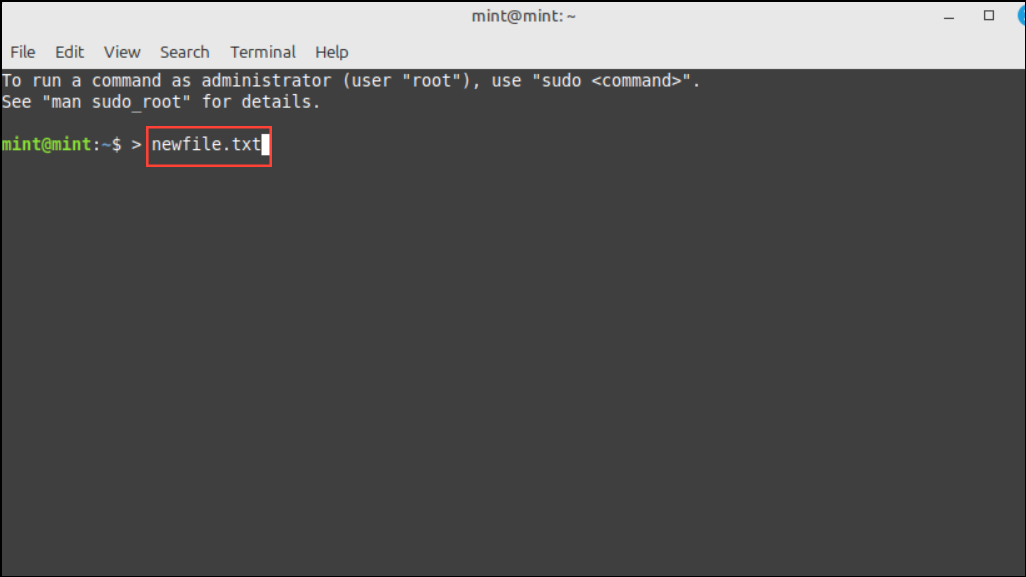
lsMethod 3: Using the cat Command
The cat command, commonly used to display file contents, can also create files and add text to them.
cat > notes.txt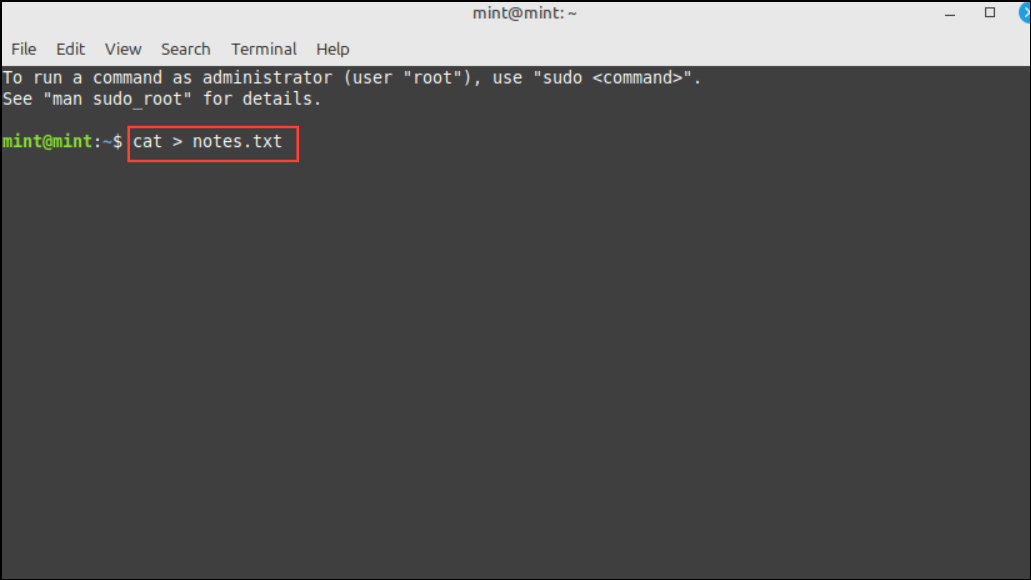
Enter, the cursor moves to a new line, allowing you to enter text directly into the file. Type the content you want to include.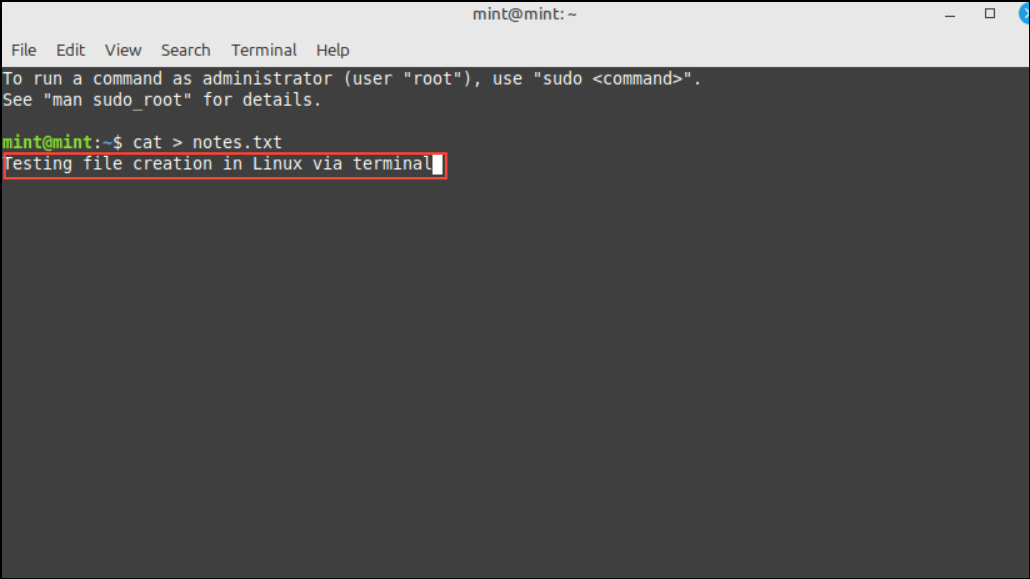
ls
cat notes.txt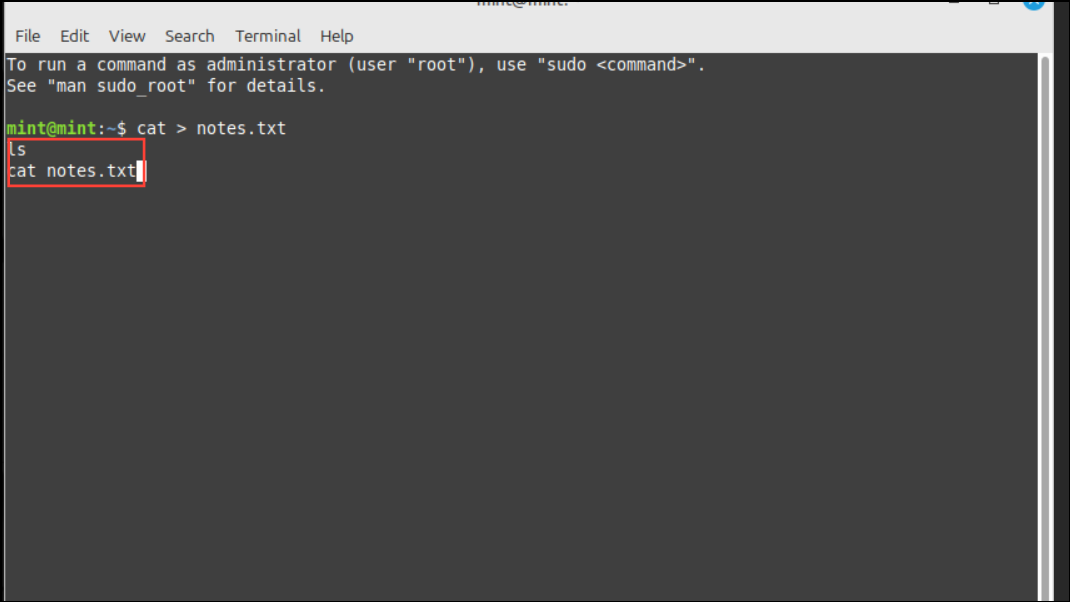
Method 4: Using the echo Command
The echo command is used to display a line of text. When combined with the redirection operator, it can create a file and add text to it.
echo 'This is sample text' > sample.txt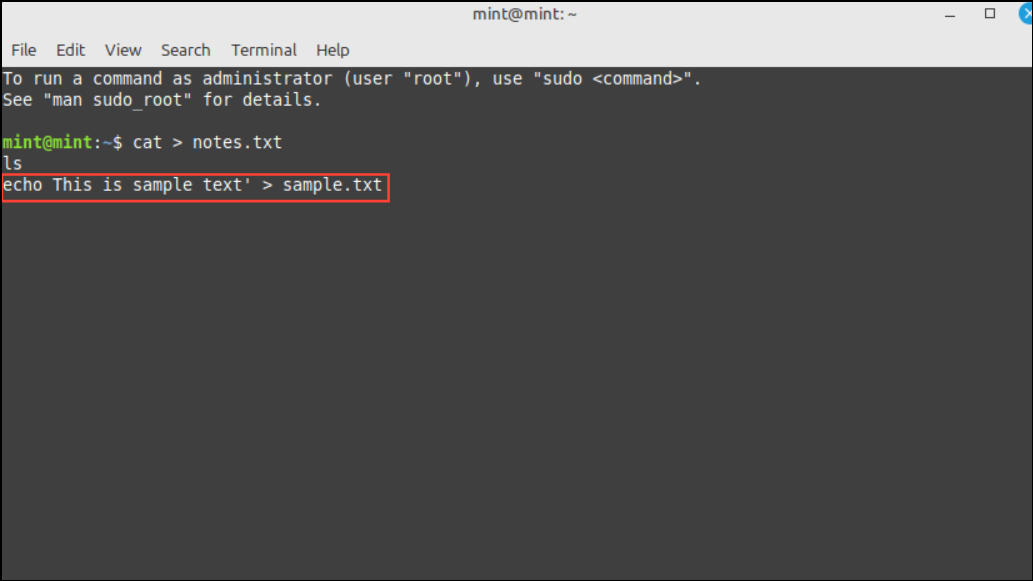
This command creates a file named sample.txt containing the text “This is sample text”.
ls
cat sample.txt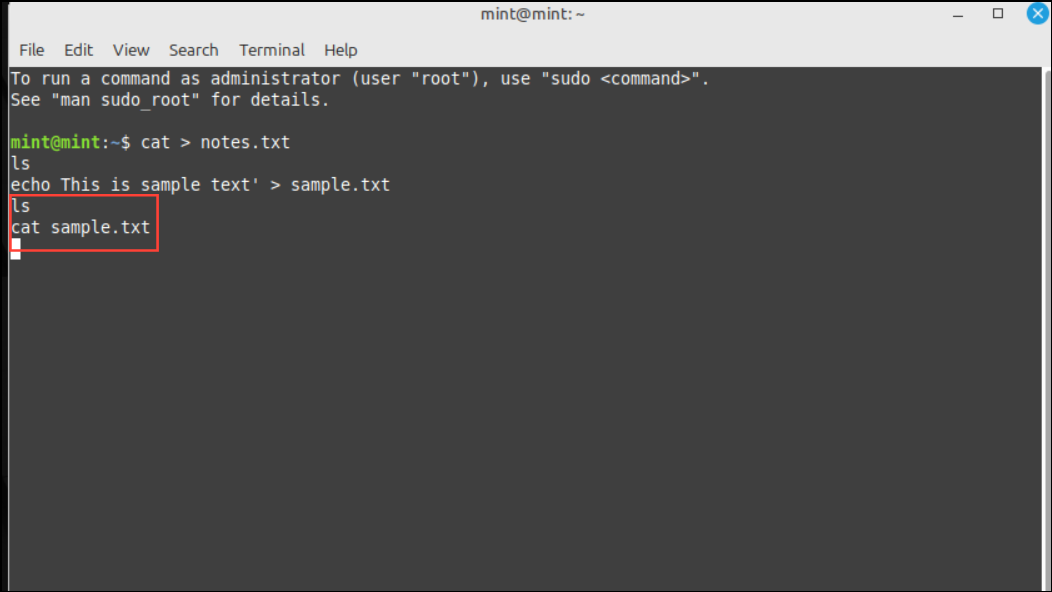
Method 5: Using the printf Command
The printf command offers advanced formatting capabilities compared to echo. It can create files and include formatted text.
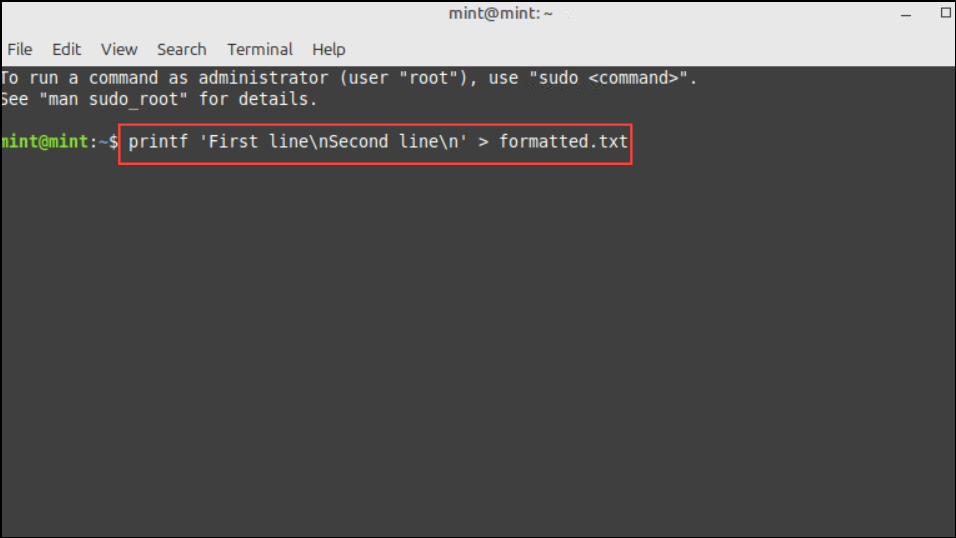
printf 'First line\nSecond line\n' > formatted.txtThe \n represents a new line, so this command adds two lines of text to formatted.txt.
ls
cat formatted.txt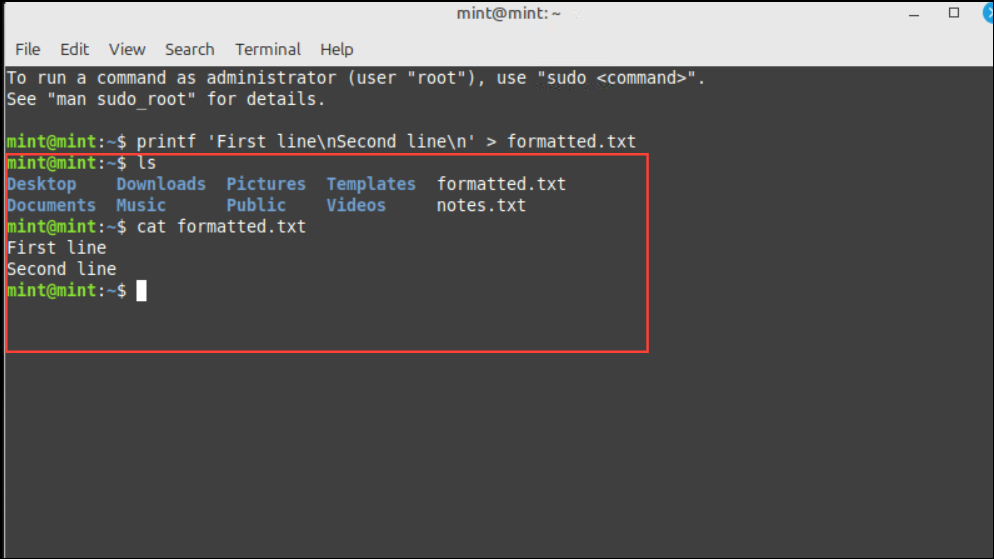
Using Text Editors to Create Files
If you prefer using text editors, Linux provides several options that allow you to create and edit files directly from the terminal.
Nano Text Editor
Nano is a user-friendly text editor that’s ideal for beginners.
nano document.txt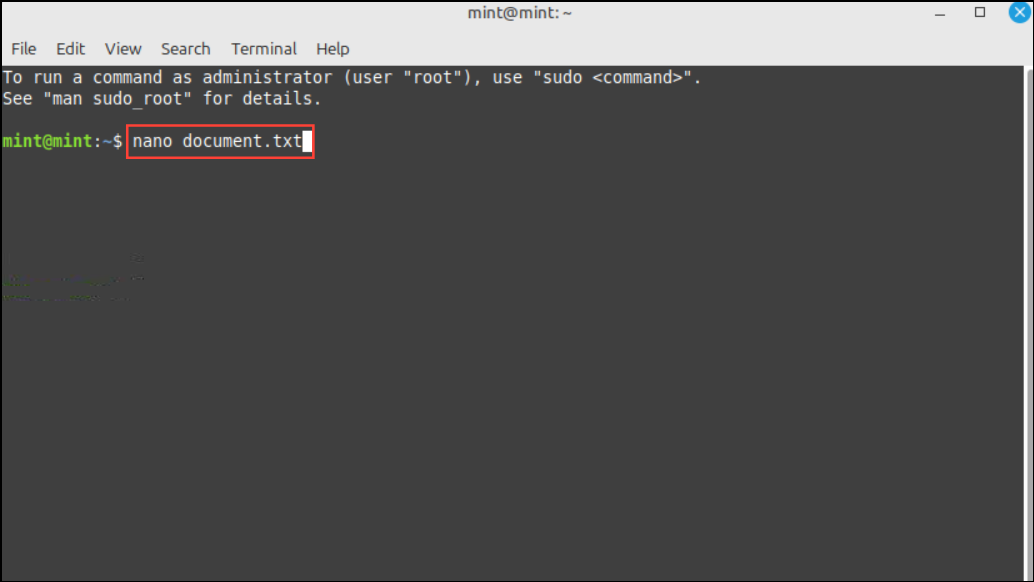
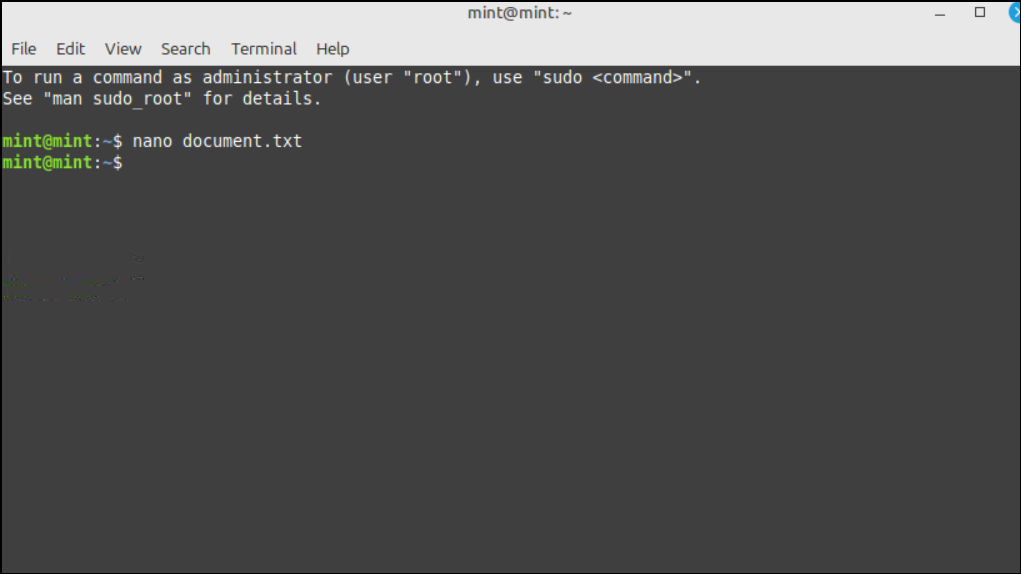
Ctrl + O, then press Enter to confirm the filename.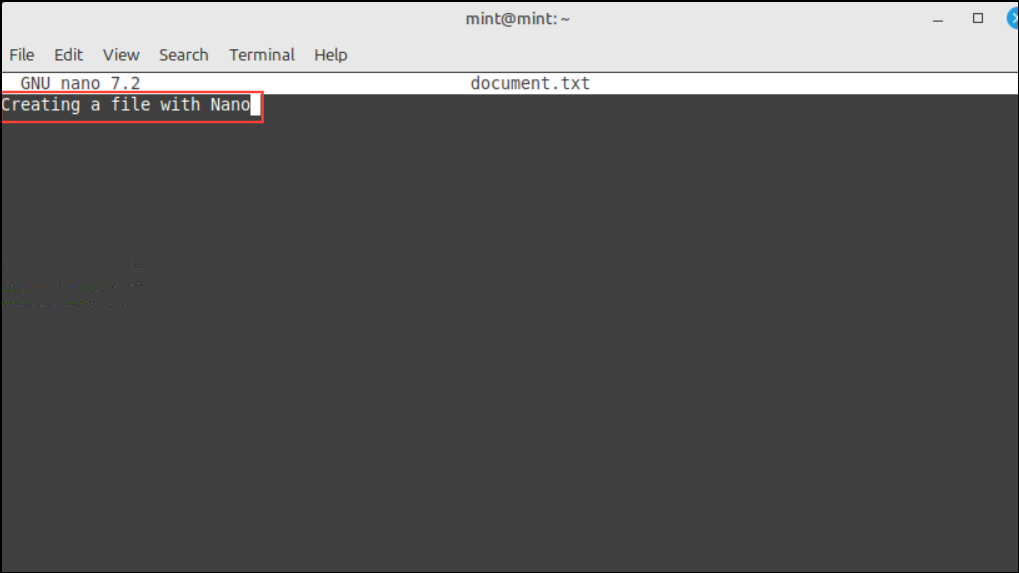
Vi Text Editor
Vi is a powerful text editor available on most Linux systems. It has a steeper learning curve but offers extensive features.
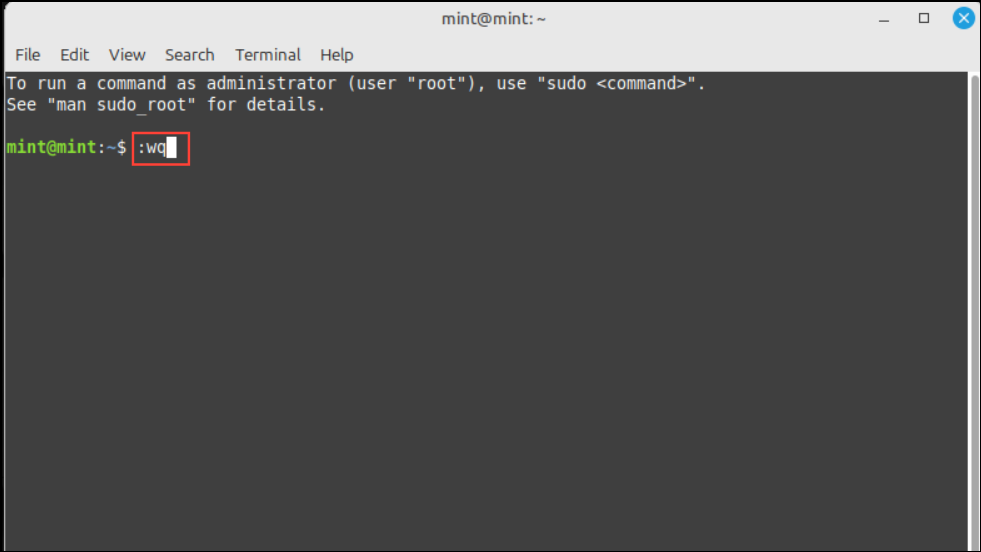
Note: Vi starts in command mode. You’ll need to switch to insert mode to type text.
vi script.sh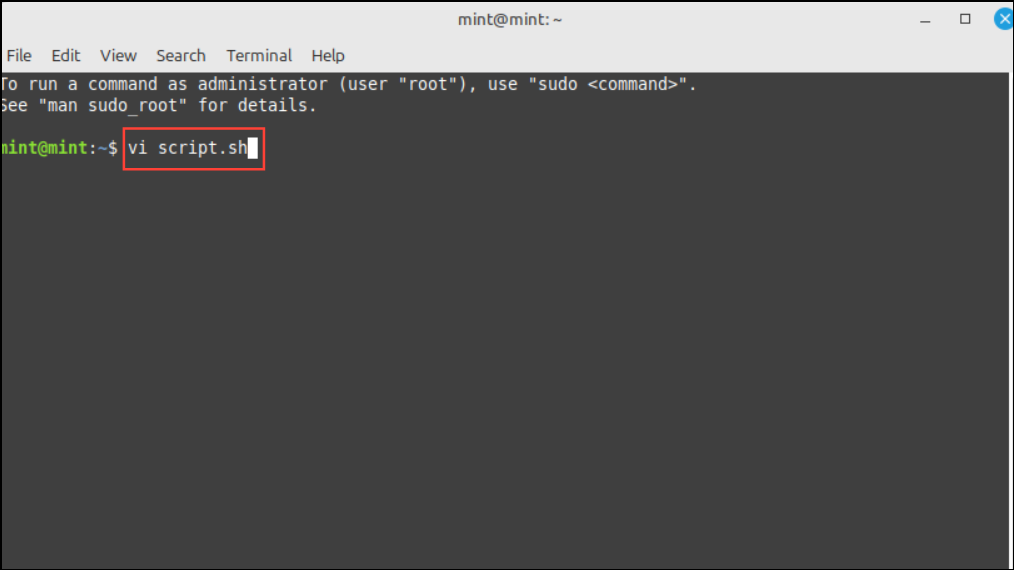
Vim Text Editor
Vim (Vi Improved) is an enhanced version of Vi with additional features.
vim config.conf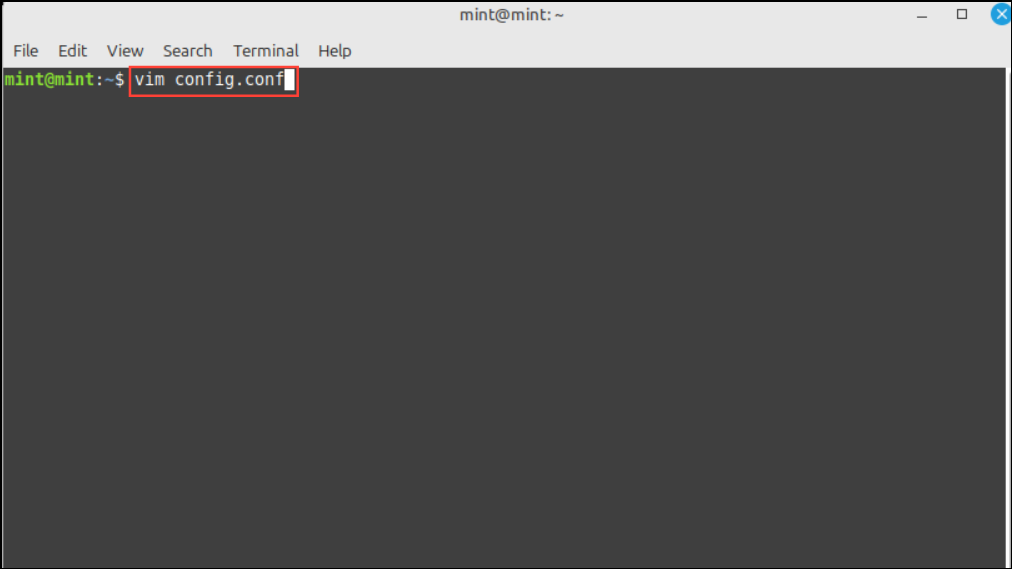
Gedit Text Editor
Gedit is a graphical text editor for systems running the GNOME desktop environment.
gedit notes.txt &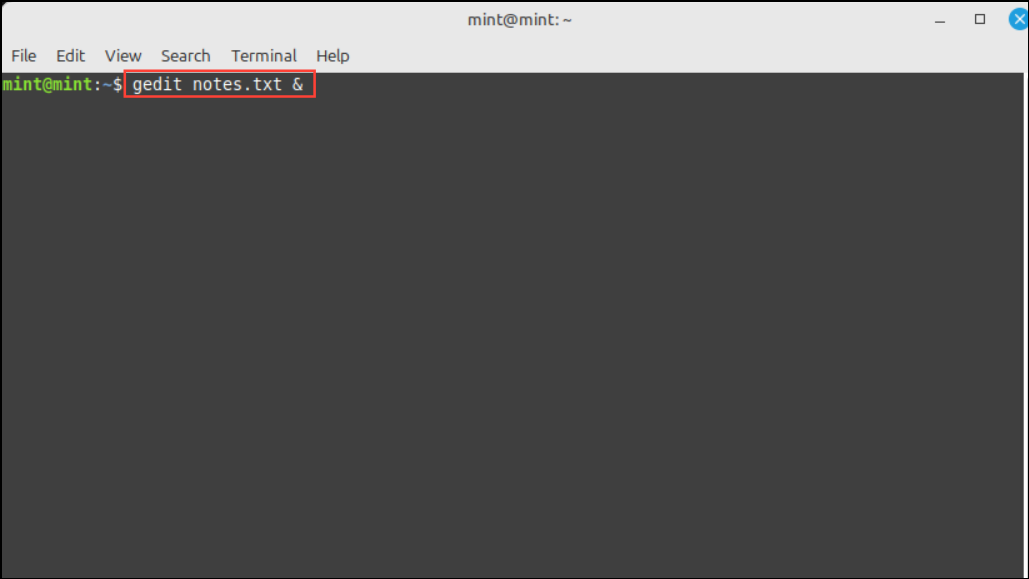
The & allows Gedit to run in the background, so you can continue using the terminal to enter commands.
Ctrl + S.By mastering these methods, you can efficiently create files in Linux using both command-line tools and text editors. This flexibility allows you to choose the most convenient approach for your workflow.





