Made a typo or sent something you shouldn't have? You can easily edit or delete the message in Google Chat.
Made a typo or sent something you shouldn’t have? You can easily edit or delete the message in Google Chat.
by Pallav Pathak
Google has introduced various messaging platforms over the years, including Google Talk, Hangouts, and Google Allo. Although some of these didn’t gain long-term traction, Google Chat has emerged as a popular tool for both personal and professional communication. Like other messaging apps, Google Chat allows you to send text messages, images, and files.
If you’ve ever needed to correct a typo or mistakenly sent a message to the wrong person, Google Chat provides the option to edit or delete sent messages. Here’s how you can manage your messages on both desktop and mobile devices.
On Desktop
When accessing Google Chat via a web browser on your desktop, you can easily edit or delete your messages by following these steps.
Editing Messages
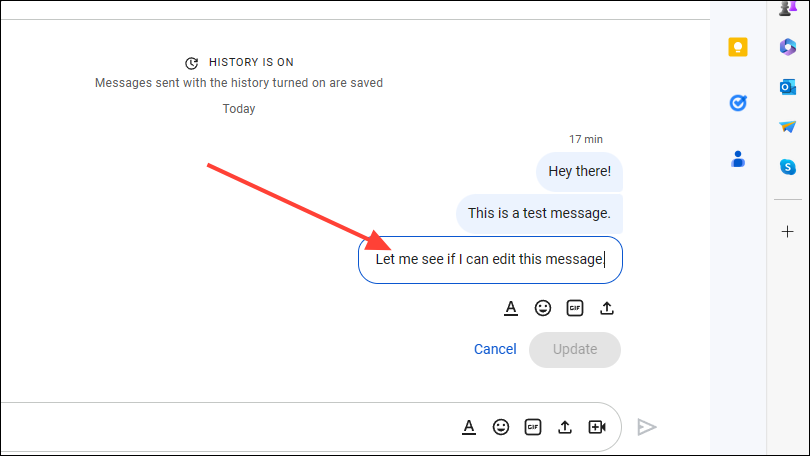
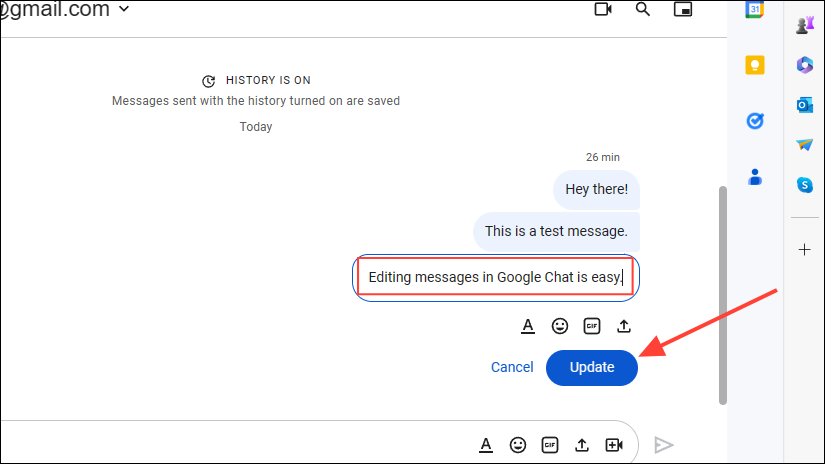
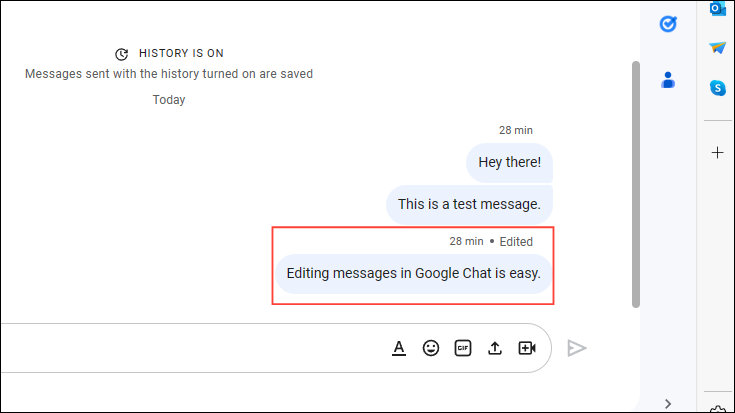
Updating a sent message in Google Chat is a simple process.
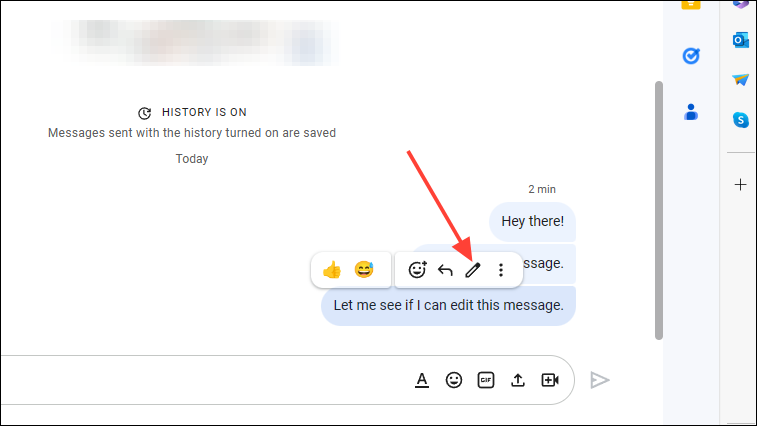
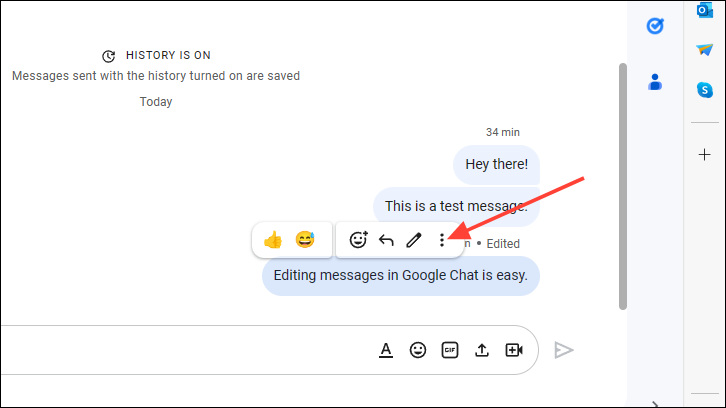
Hover your mouse over the message in question. A series of icons will appear, including a small pencil icon. Click on the pencil icon to begin editing.
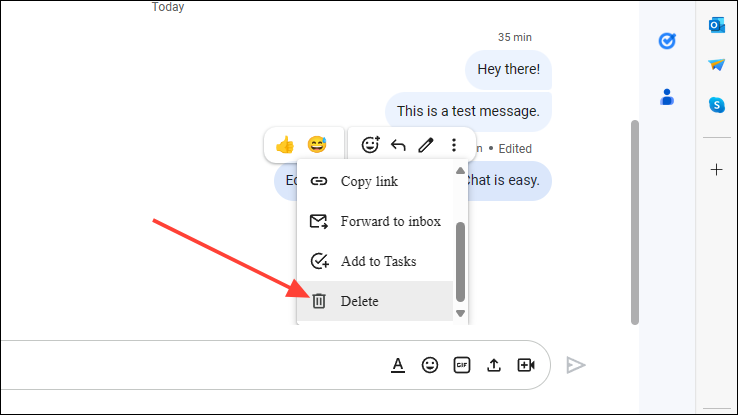
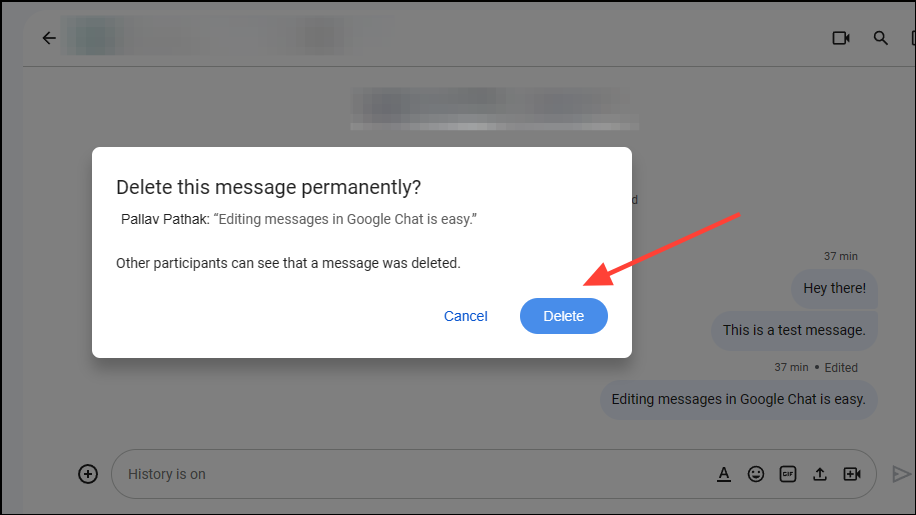
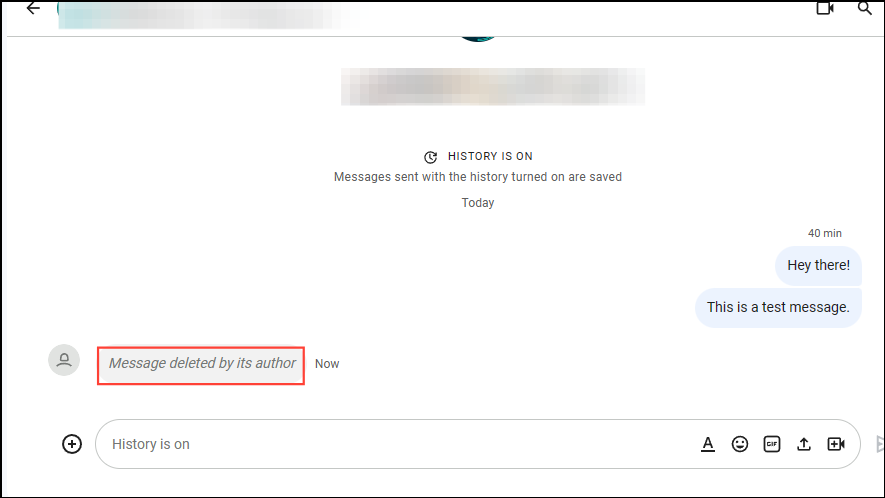
The message will be deleted, and a notification indicating its removal will appear in the chat. All participants will see that the message was deleted.
Now that you’re familiar with editing and deleting messages on the desktop version, let’s explore how to perform these actions on mobile devices.
On Mobile
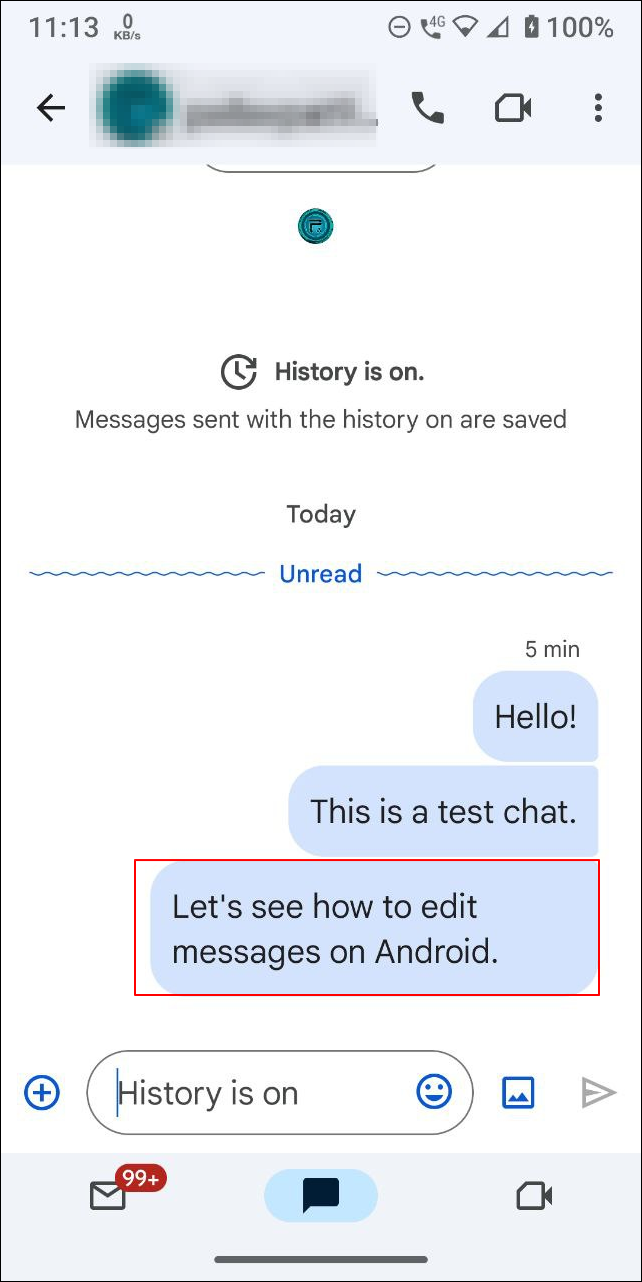
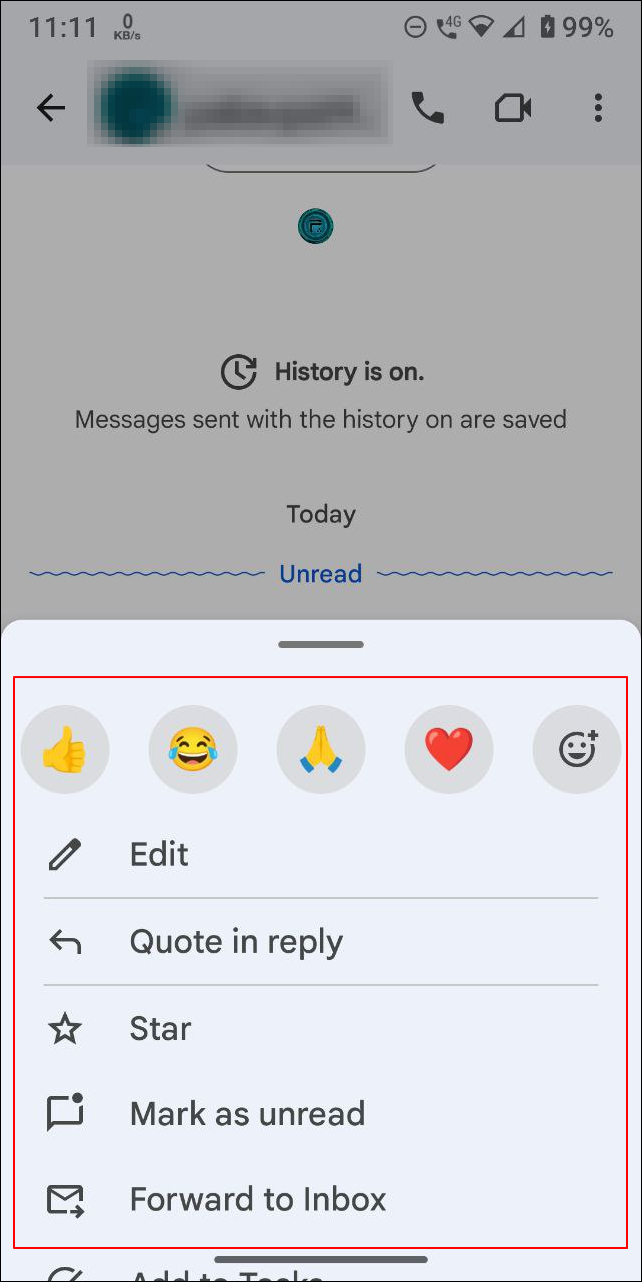
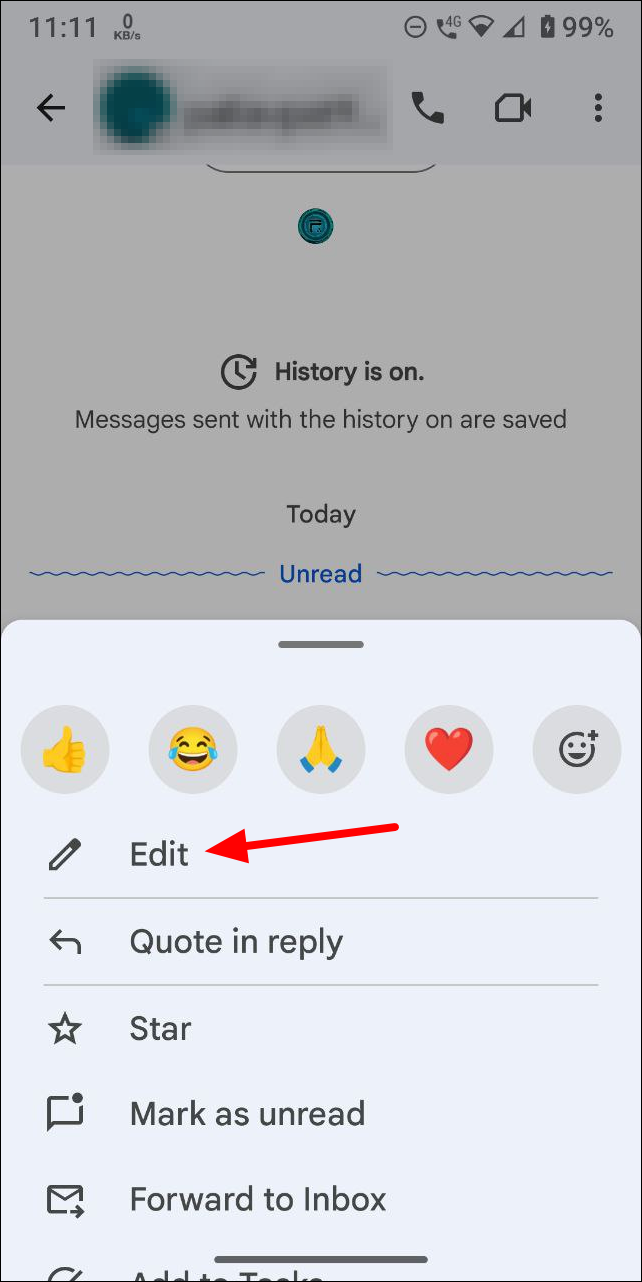
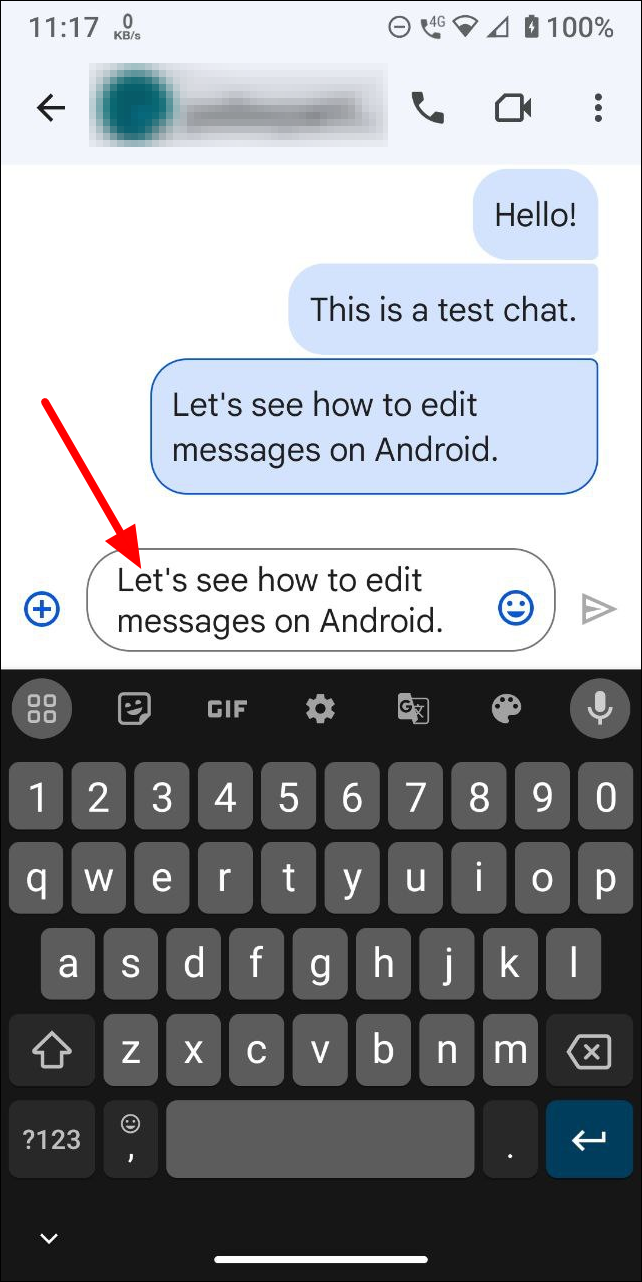
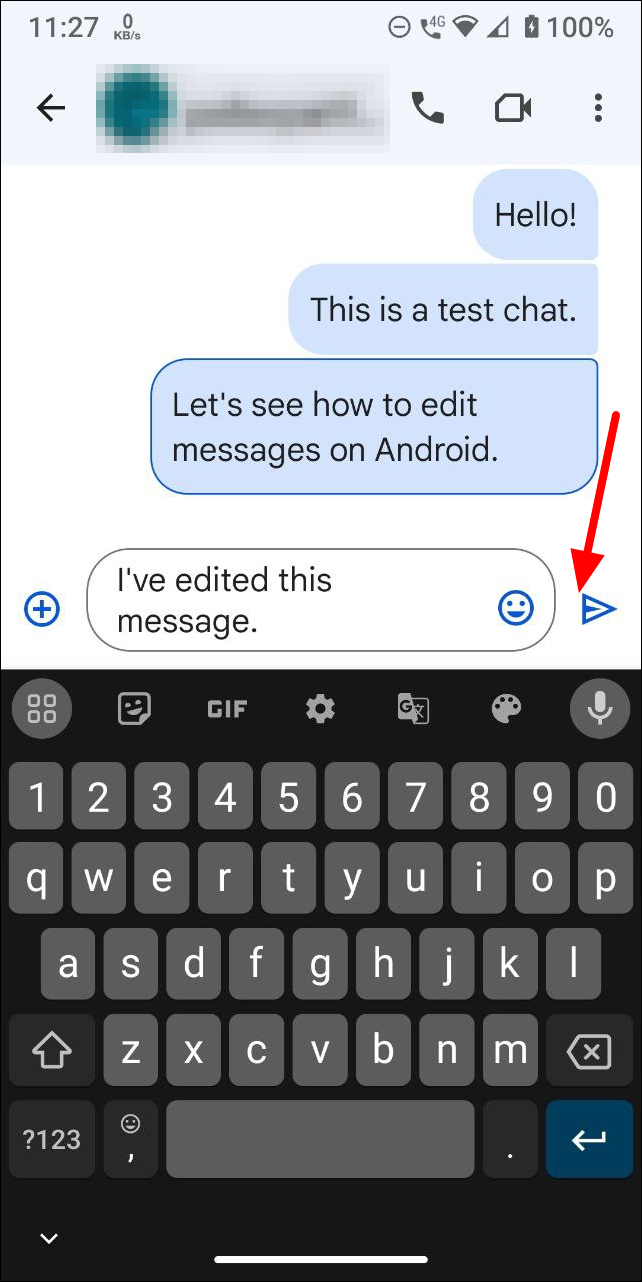
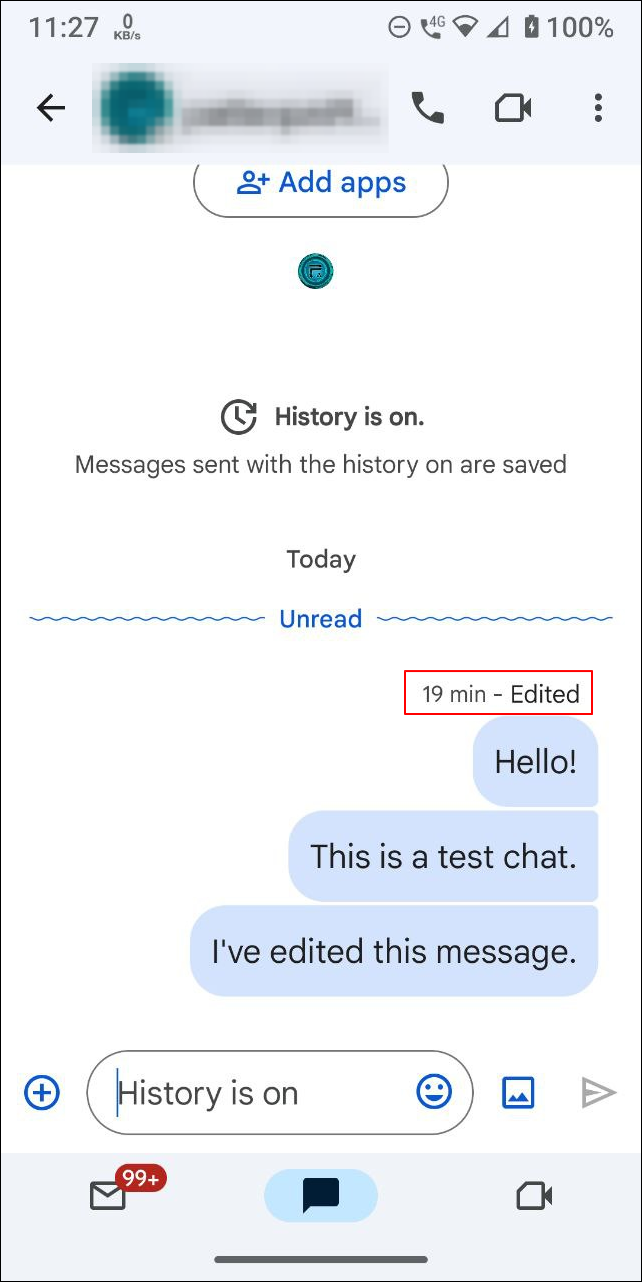
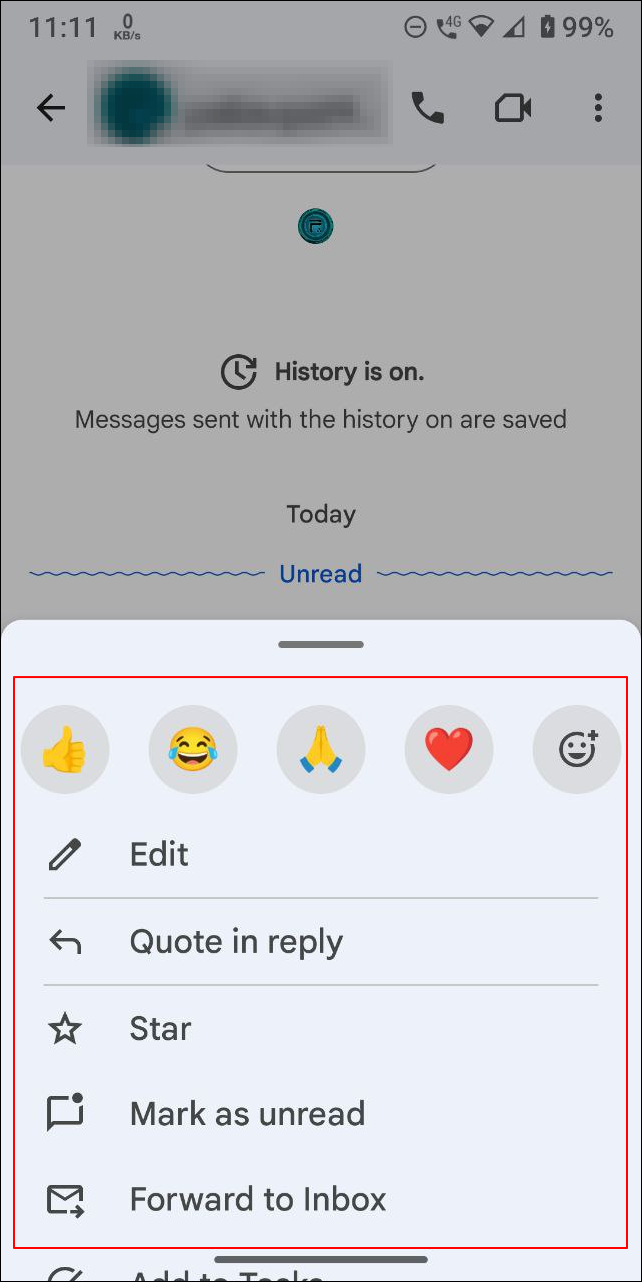
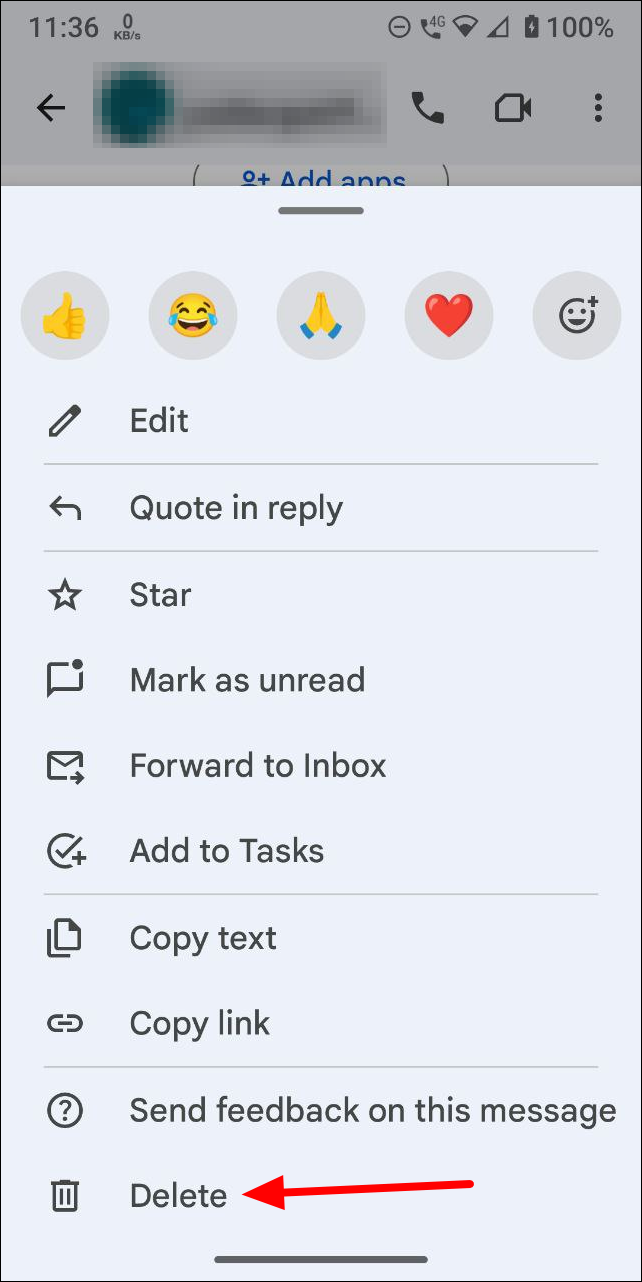
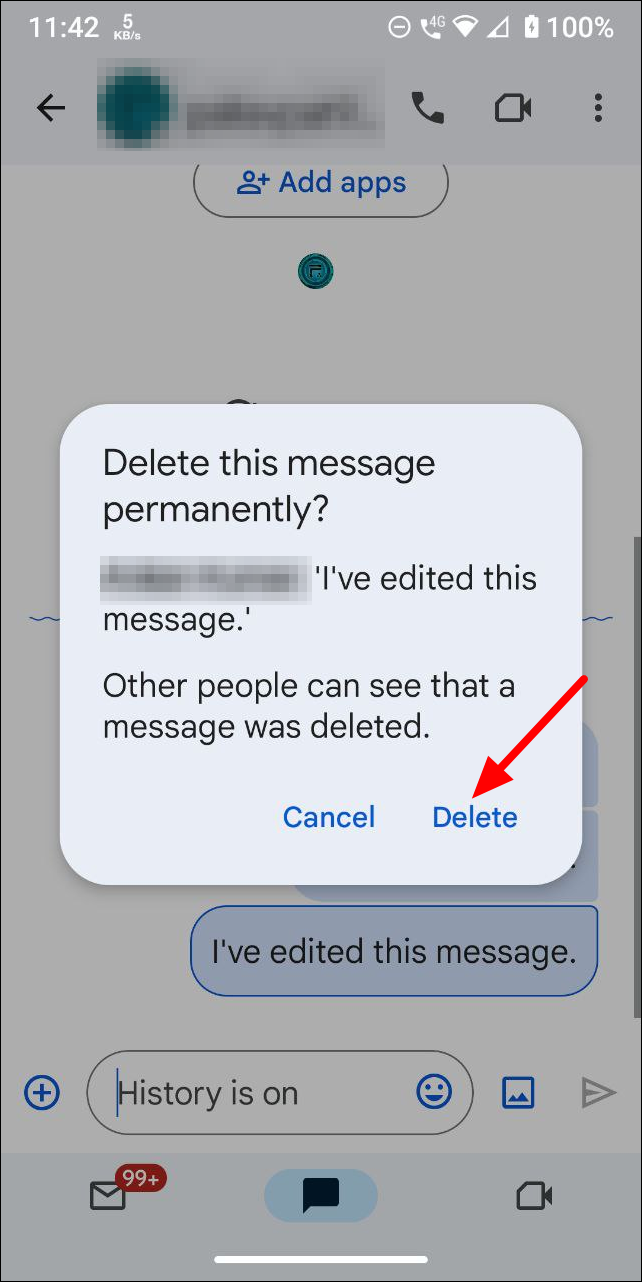
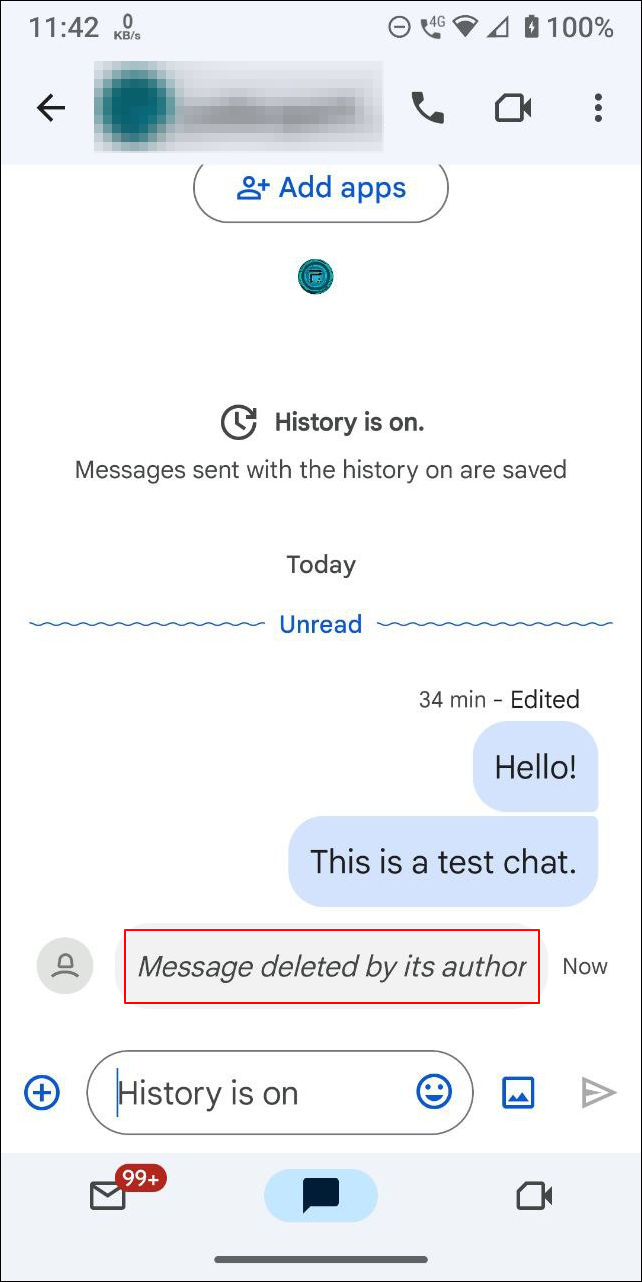
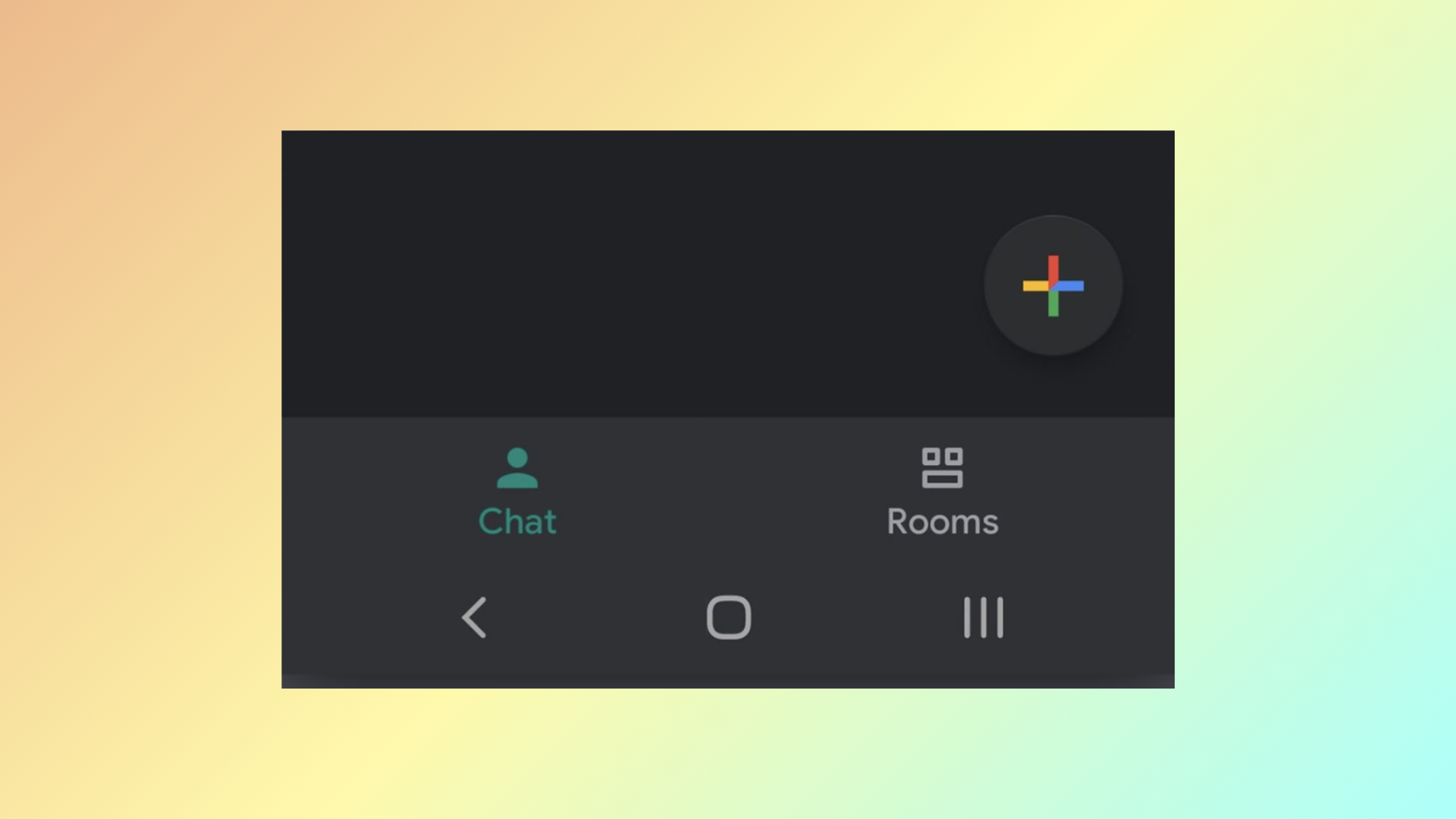
Whether you’re using the dedicated Google Chat app or accessing it through the Gmail app on your mobile device, the steps to edit or delete messages are consistent.
The message will be deleted, and a notification will appear in the chat indicating its removal. All participants will see this notification.
Now you can manage your messages effectively on the go using Google Chat on your mobile device.
Note: When you edit a message, previous versions cannot be retrieved, and the original text may still appear in notifications. Deleted messages are permanently removed and cannot be recovered.
The ability to edit or delete messages enhances the communication experience by allowing you to correct errors or remove unintended messages swiftly. Google Chat makes these features accessible and easy to use across all devices. Remember that edits and deletions are final, so double-check your actions to ensure they’re intended.