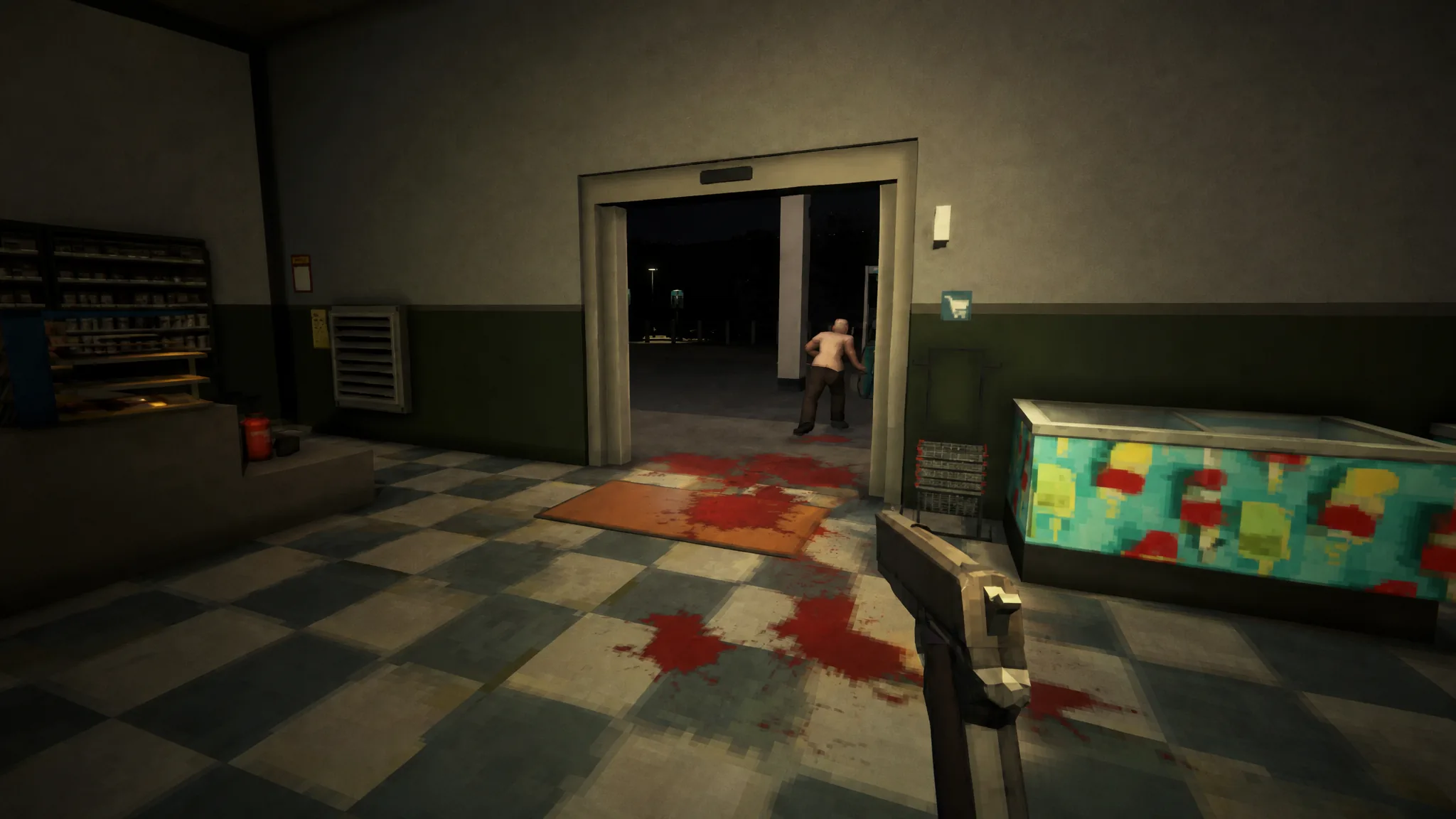
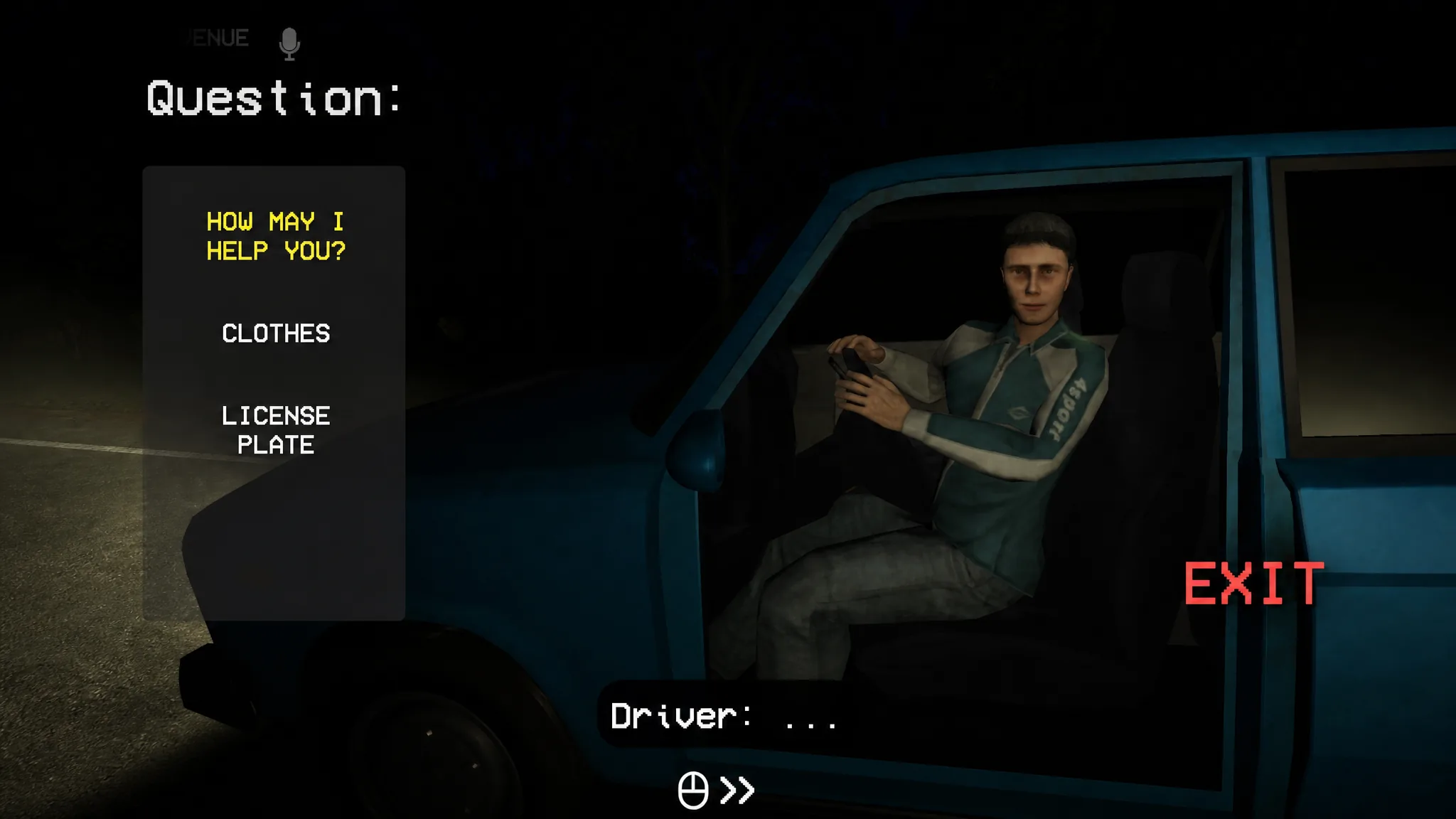
Shift At Midnight has modest system requirements and a stylized PS1-era look, yet a run of players hit crashes, black screens, and freezes before they ever reach the main menu. The game runs on Unity and layers procedural shifts, online co-op, and a lot of startup work on top of that, so a single broken file or conflicting background app can stop it from opening. Because it supports co-op for up to three players, a crash back to the desktop can also cost you shared progress mid-shift.
Quick answer: Verify the game files in Steam, disable every overlay (Steam, Discord, RivaTuner, NVIDIA), and do a clean graphics driver install. Those three steps resolve the large majority of launch crashes and black screens. If the game still fails, force your dedicated GPU and launch in windowed mode.
What causes Shift At Midnight to crash on PC
Most startup failures are not deep bugs inside the game. They usually trace back to corrupted downloads, outdated or leftover graphics drivers, display conflicts, or software running quietly in the background. The table below maps the symptom you see to the cause that fixes it fastest.
| Symptom | Most likely cause | First fix to try |
|---|---|---|
| Crash on launch | Corrupted or incomplete Steam files | Verify game files |
| Black screen after the logo | Driver or fullscreen display conflict | Clean driver install / windowed mode |
| Freeze every second or third launch | Overlay software | Disable overlays |
| Instant crash to desktop | Missing runtime libraries | Repair Visual C++ and DirectX |
| Random startup failures | Antivirus interference | Add folder to exclusions |
| Game won’t open at all | Wrong GPU or Windows file corruption | Force dedicated GPU / SFC scan |
Verify the game files in Steam
This is the single most reliable fix for a Steam launch crash. During release week, with hotfixes going out quickly, Steam sometimes pulls down damaged or missing files that stop the game from starting. Verifying rebuilds anything broken.
%LocalAppData%Low\Kwalee\ShiftAtMidnight so the full game can generate fresh configuration files.You know it worked when the game reaches the main menu and repeats that on the next few launches without failing.
Disable every overlay
Overlays inject themselves into the rendering pipeline, and Unity games sometimes react badly to that. Disabling RivaTuner alone clears the random every-second-or-third-launch freeze for many players. Turn off all of these before starting the game.
- Steam Overlay (Steam Settings > In-Game, or per-game under Properties > General)
- Discord Overlay (Settings > Game Overlay, toggle Enable Overlay off)
- NVIDIA Overlay
- MSI Afterburner and RivaTuner Statistics Server
- OBS Game Capture hooks
If the game becomes stable after disabling these, re-enable them one at a time to find the culprit.
Do a clean graphics driver install
Simply installing a newer driver is often not enough. Leftovers from older driver versions can cause a black screen that only appears in certain games. A clean install removes those remnants.
Force the game onto your dedicated GPU
Gaming laptops often launch new games on integrated graphics. The game may start with poor performance or crash immediately because the integrated GPU lacks the rendering features it needs.
Open Windows Graphics Settings, browse to the game’s executable, and set its graphics preference to High Performance. That forces Windows to use the dedicated GPU instead of the integrated chip.
Fix black screens with launch options
Fullscreen initialization is a common cause of black screens, and some monitor setups do not agree with the game’s default display mode. Launch options change how the game starts up.
Right-click the game in Steam, open Properties > General, and add one of these to the launch options box.
| Launch option | What it does |
|---|---|
-windowed | Starts the game in a window instead of fullscreen |
-adapter 0 | Forces the game onto the first display adapter |
-adapter 1 | Targets a second adapter when multiple monitors are connected |
-dx11 | Forces DirectX 11 rendering instead of DirectX 12 |
The game requires DirectX 12 in its recommended specs, but forcing DirectX 11 with -dx11 can bypass a startup crash. If the game opens in windowed mode, you can usually switch back to fullscreen afterward without further trouble.
Repair Visual C++ and DirectX runtimes
An instant crash to desktop often points to a corrupted runtime library. Games do not always use the version already bundled with Windows, so refreshing these components clears many launch failures.
Stop antivirus and firewall from blocking the game
Windows Security has grown more aggressive and sometimes blocks a legitimate game before it finishes loading. Adding the whole Shift At Midnight install folder to your antivirus exclusions is usually enough.
For multiplayer, also confirm the game has firewall permission on both private and public networks, and set your network profile to Private. If lobbies fail to connect, match the same Steam download region across all players, disconnect any VPN, and let the person with the most stable wired connection host.
Run Steam as administrator
Some Unity games behave better when Steam has elevated permissions. Close Steam completely through Task Manager, then relaunch it with Run as administrator and start the game normally. If that helps, enable administrator mode permanently through the Compatibility tab on the Steam shortcut and the game’s executable.
Repair Windows system files
If every other fix fails, the problem may sit in Windows itself. Corrupted system files can build up after updates or unexpected shutdowns. Open Command Prompt as administrator and run the System File Checker.
sfc /scannowLet the scan finish, then restart the PC if it repairs anything. When Windows corruption is the cause, nothing else will permanently solve the crashes.
The order to work through the fixes
Rather than trying everything at random, follow this sequence and stop as soon as the game launches cleanly a few times in a row.
| Order | Fix | Rough time |
|---|---|---|
| 1 | Verify game files | 5 min |
| 2 | Clean GPU driver install | 15 min |
| 3 | Disable overlays | 3 min |
| 4 | Force dedicated GPU | 2 min |
| 5 | Repair Visual C++ and DirectX | 10 min |
| 6 | Add antivirus exclusion | 5 min |
| 7 | Run Steam as administrator | 2 min |
| 8 | Run SFC scan | 20 min |
| 9 | Reinstall the game | 30–60 min |
A few extra habits keep the game stable once it starts opening reliably. Install it on an SSD so its small procedural assets load without stalling, close RGB software, monitoring tools, and recording apps to free up RAM, and return any CPU or GPU overclocks to stock while you troubleshoot. If a specific launch still fails after all of this, it is usually a temporary conflict, and repeating the verify-files step clears it before your next shift begins.