
While Safari’s Private Browsing mode keeps your browsing history, cookies, and site data from being saved, it doesn’t prevent others from accessing your private tabs if they have your unlocked iPhone. To enhance your privacy, Apple introduced a feature in iOS 17 that requires Face ID authentication to access private browsing tabs.
With this feature enabled, your private tabs are locked when you’re not using them. Every time you want to access these tabs after your device has been locked, you’ll need to authenticate using Face ID. This adds an extra layer of security to your browsing activities.
Enable Face ID for Private Browsing in Safari on iPhone
By default, this feature is enabled in iOS 17. If it’s turned off, you can easily enable it again through the settings.
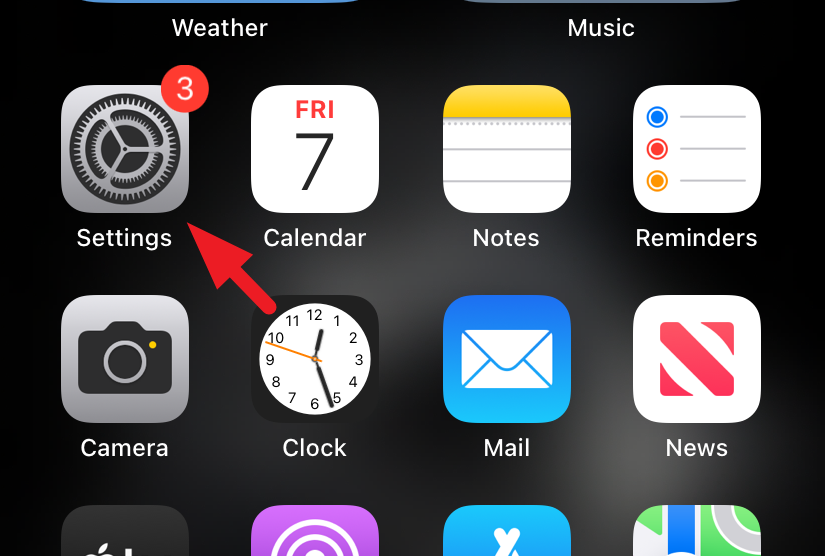
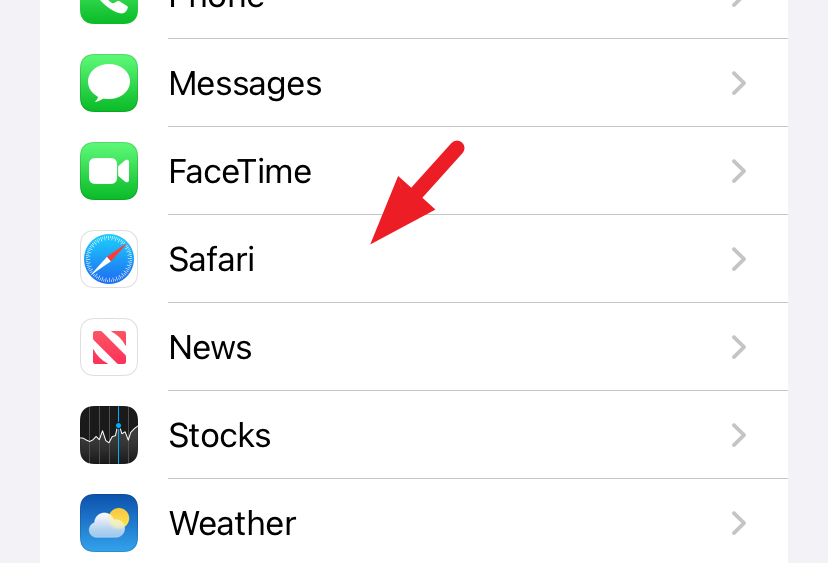
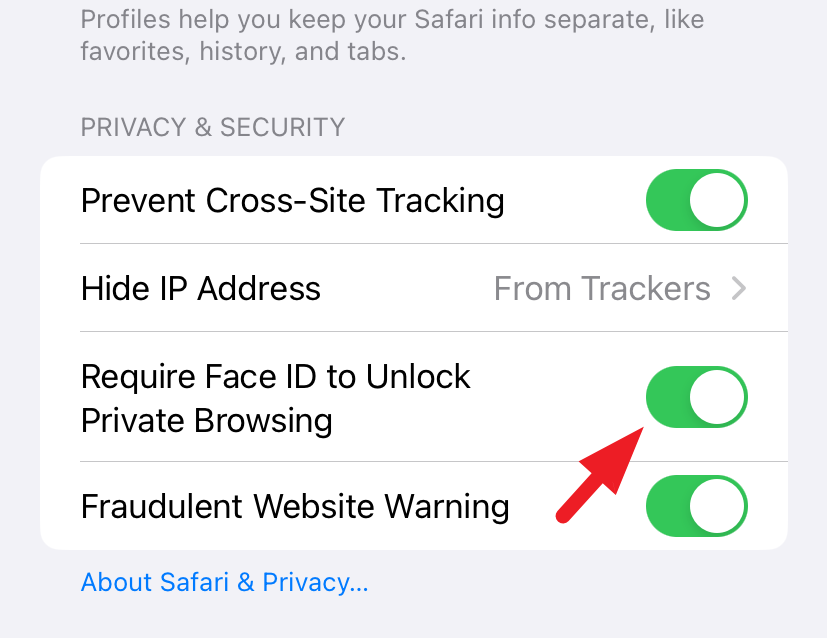
Once enabled, every time you access Private Browsing in Safari after unlocking your iPhone, you’ll be prompted to authenticate using Face ID. If Face ID fails twice, you’ll have the option to enter your device passcode to unlock the private tabs.
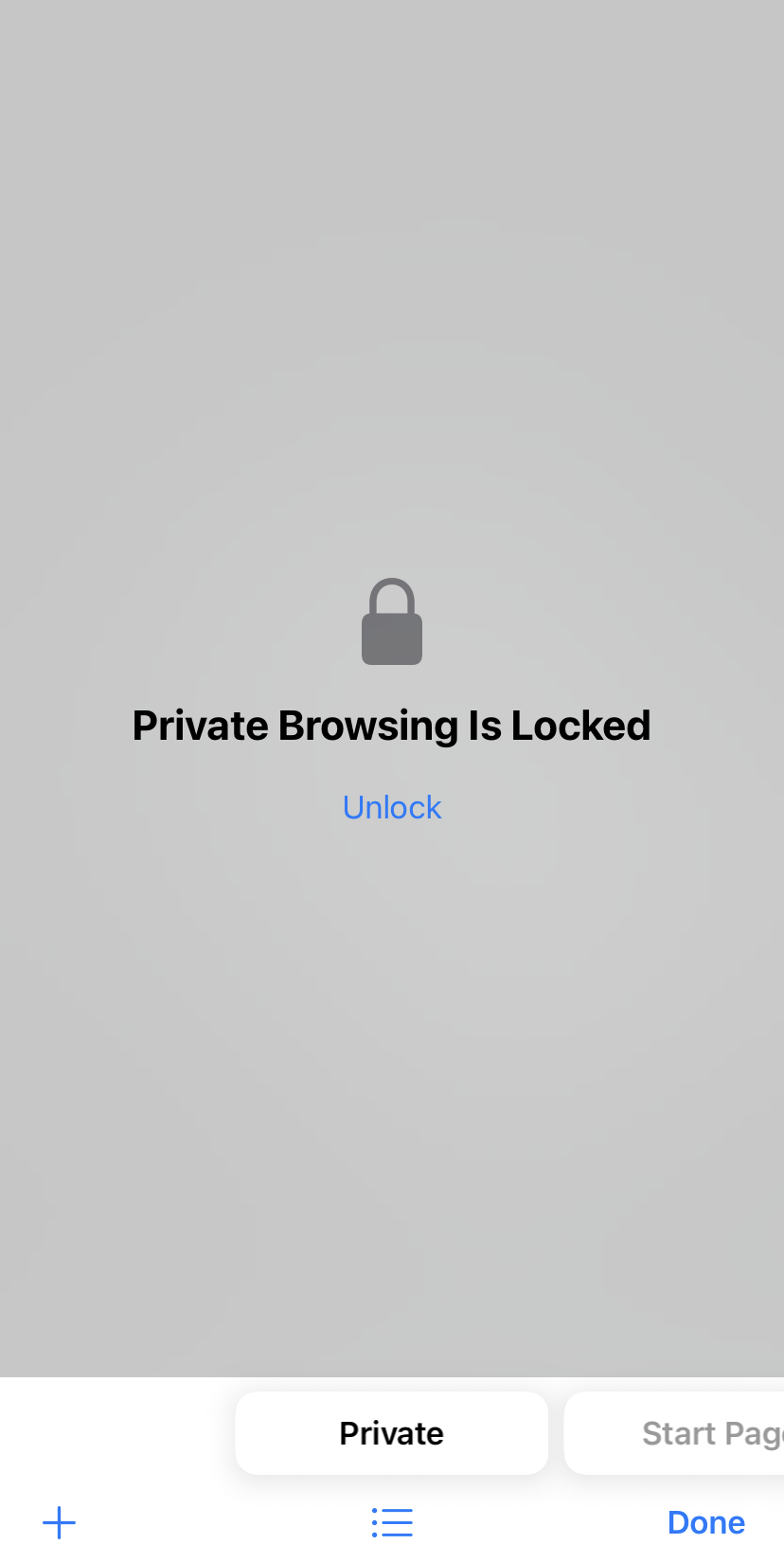
Enable Touch ID or Password for Private Browsing in Safari on Mac
On macOS Sonoma, you can lock your private browsing tabs in Safari and require Touch ID or your login password to access them. This feature is not enabled by default, but you can activate it quickly.
Cmd + , on your keyboard.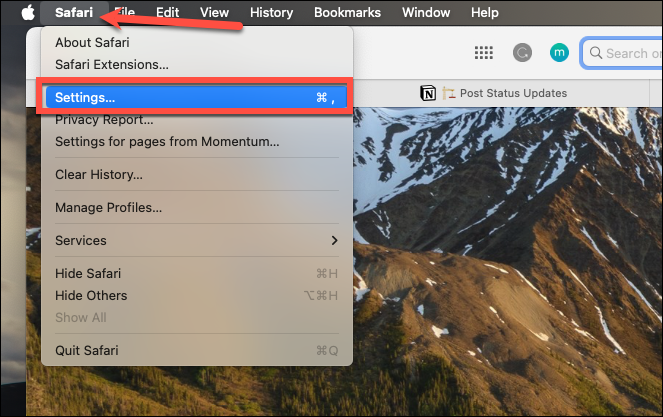
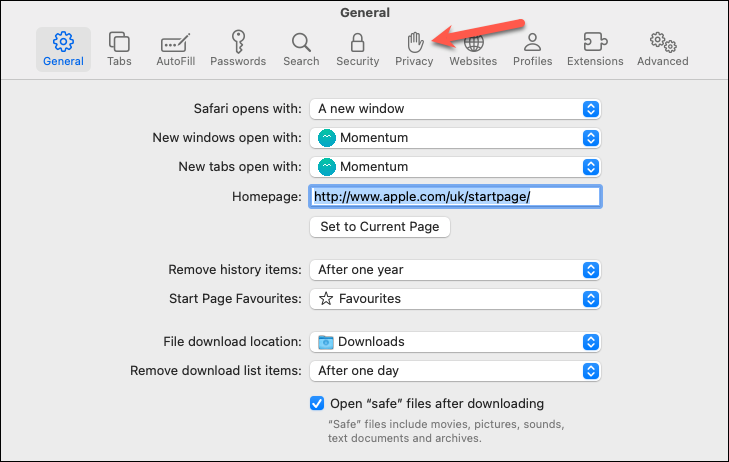
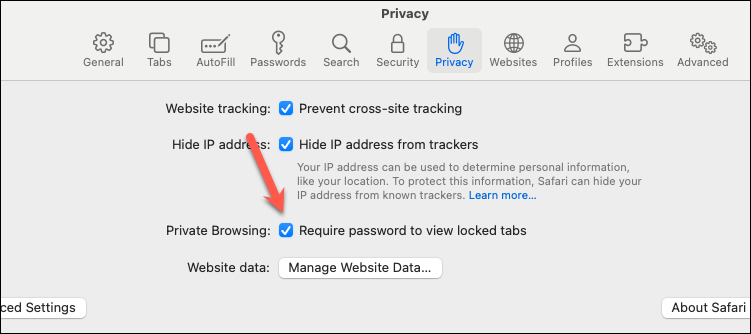
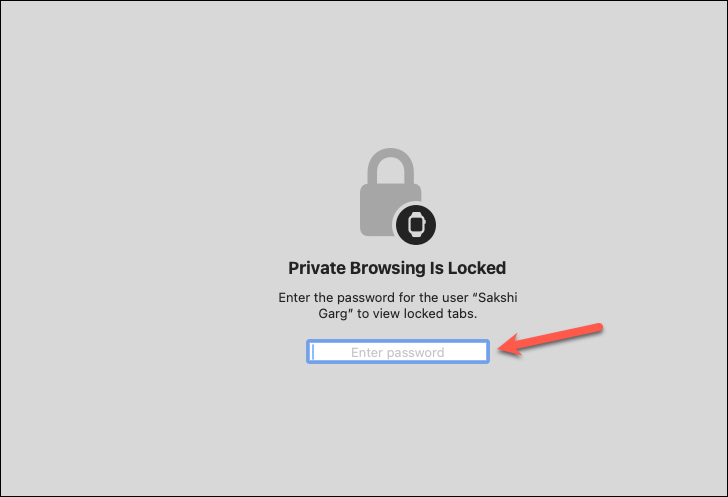
After enabling this setting, you’ll need to authenticate with Touch ID or your login password whenever you access your private tabs after unlocking your Mac.
Adding Face ID or Touch ID protection to your private browsing tabs ensures that your browsing activities remain confidential, even if someone gains access to your unlocked device. It’s a simple step that significantly enhances your online privacy.





