

The quickest fix for iMessage repeatedly deactivating is to make sure both iMessage and FaceTime are enabled in your iPhone’s settings. If the problem continues, try restarting your device or verifying your internet connection.
iMessage serves as a vital communication tool among Apple users, often being the primary method for staying in touch. With continuous improvements over the years, it has become more reliable and feature-rich.
Despite its advancements, iMessage sometimes encounters a persistent issue where it inexplicably turns off, causing frustration for users. Seeing green bubbles instead of the familiar blue in your conversations indicates that messages are being sent as regular SMS texts instead of iMessages.
While it’s normal for iMessage to send messages as SMS texts when there’s no internet connection, it typically reverts to iMessage once you’re back online. However, if iMessage continues to deactivate without an obvious cause and doesn’t switch back, it becomes quite aggravating. Fortunately, there are straightforward solutions to address this issue. Before proceeding to the fixes, it’s essential to confirm that the problem isn’t stemming from other factors.
Check Your Internet Connection
Before attempting any fixes, ensure that your internet connection is active and stable. iMessage relies on an internet connection to send and receive messages. If you’re offline, messages will default to SMS text messages.
Verify iMessage Server Status
Occasionally, the issue might be on Apple’s end if the iMessage server experiences downtime. Verifying the server status can save you troubleshooting time.
If the dot next to iMessage is green, the service is operational. A red dot indicates the server is down, and you’ll need to wait until Apple resolves the issue.
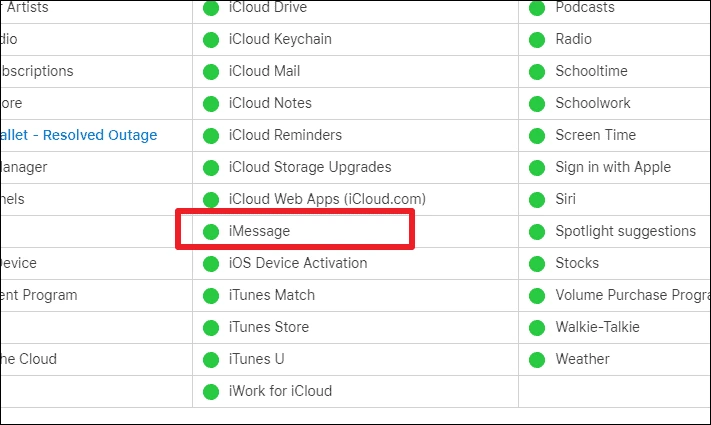
Ensure iMessage and FaceTime are Enabled
Sometimes, iMessage turns off due to FaceTime being disabled. Enabling both services can often resolve the issue.
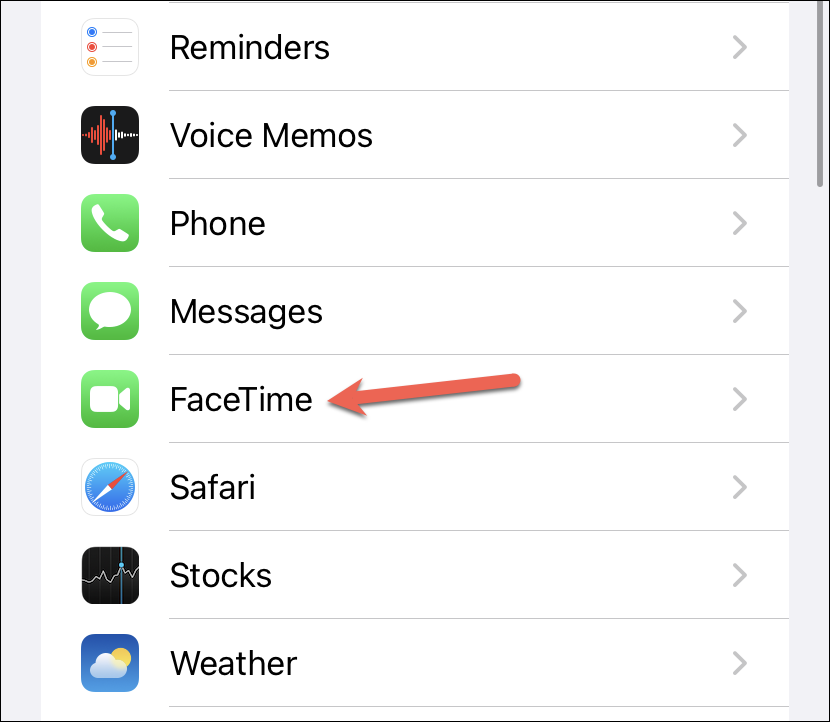
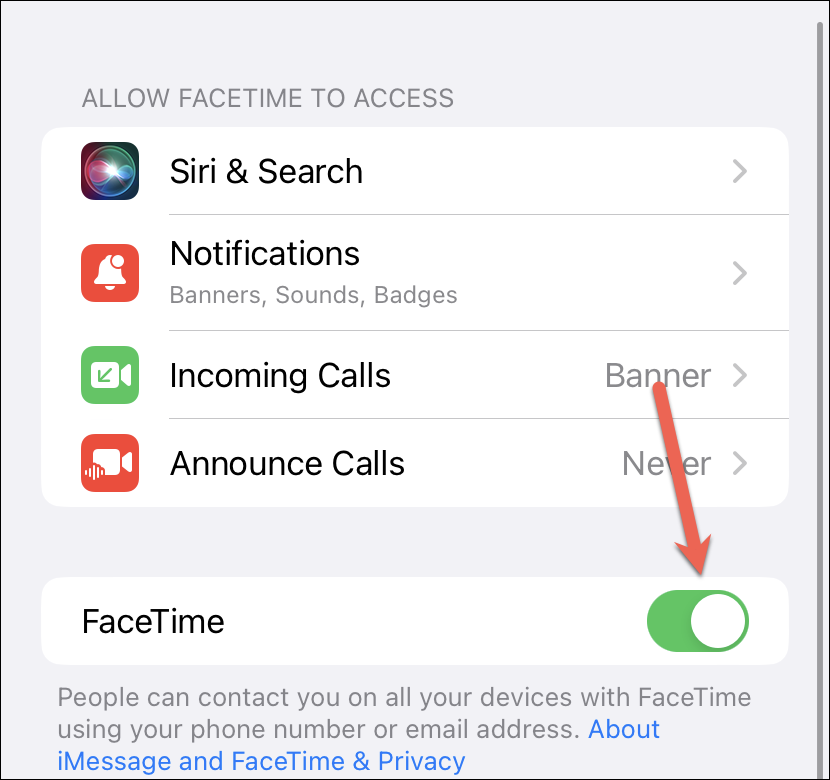
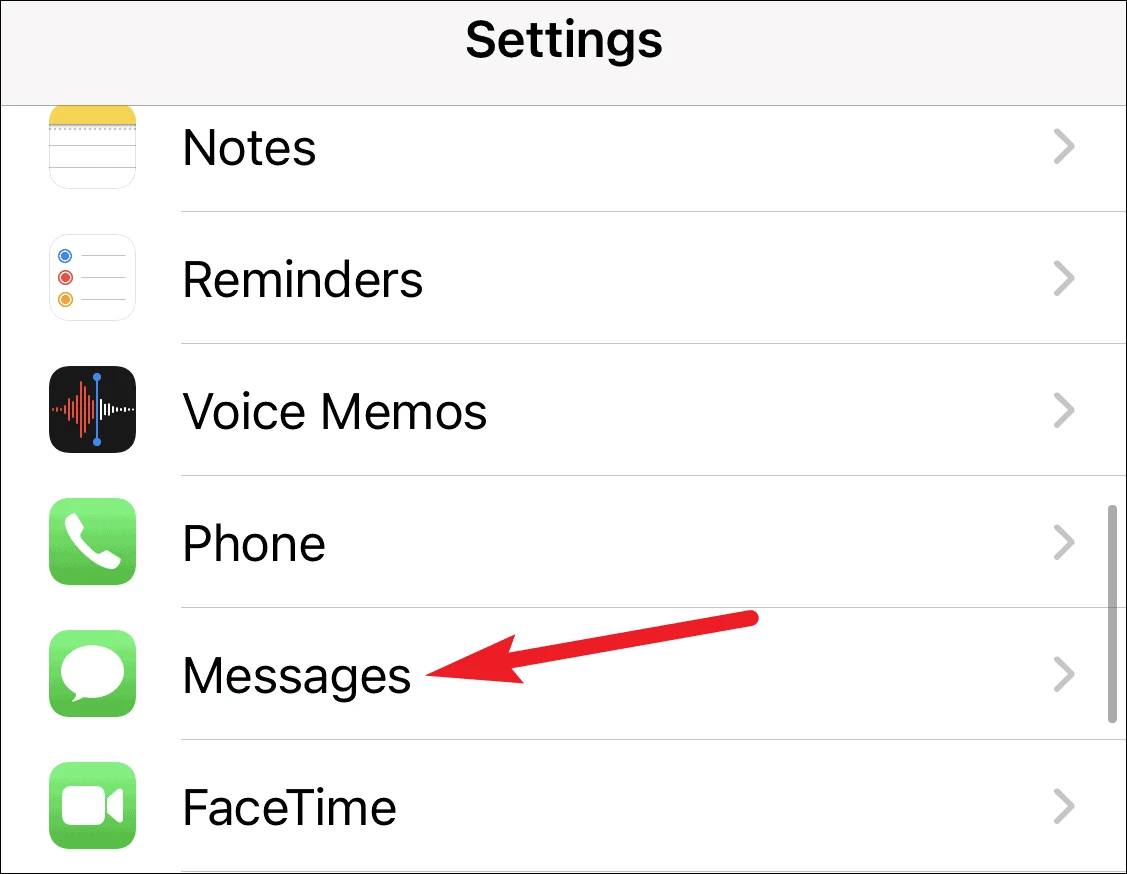
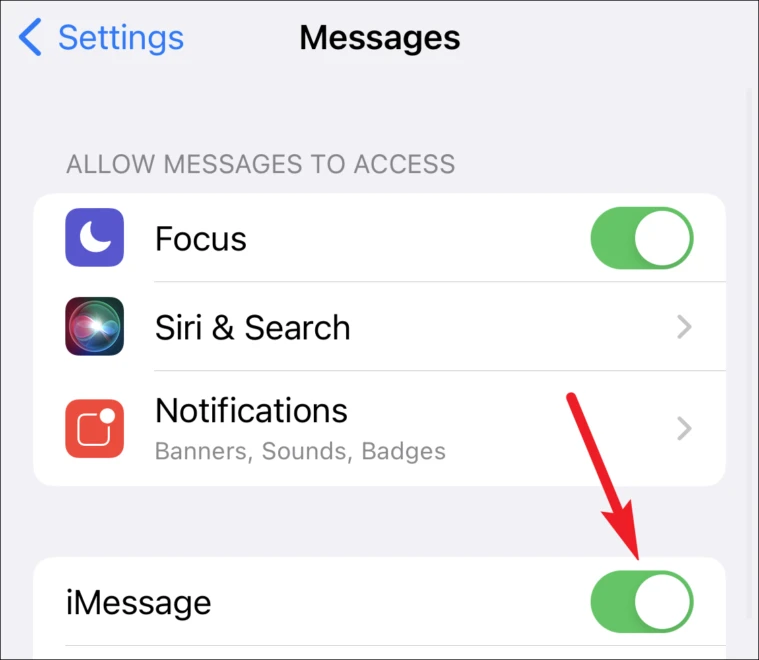
After enabling both services, check if iMessage remains active. If it still turns off, proceed to the next solution.
Restart Your iPhone
Restarting your device can resolve minor glitches that might be causing iMessage to deactivate.
For iPhone X and newer:
For iPhone SE, 8, and older:
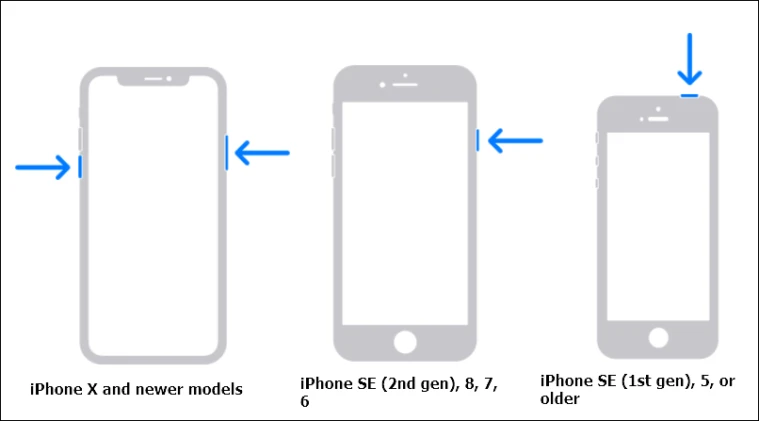
After restarting, try turning iMessage on again to see if the issue is resolved.
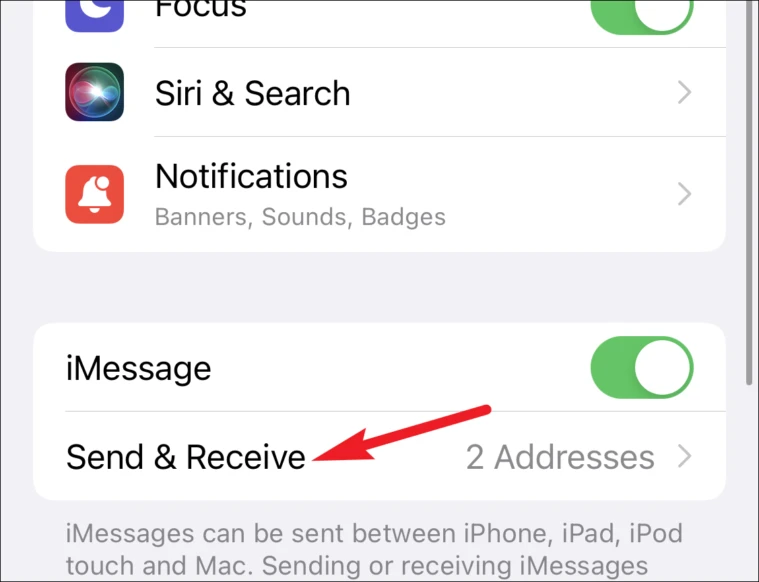
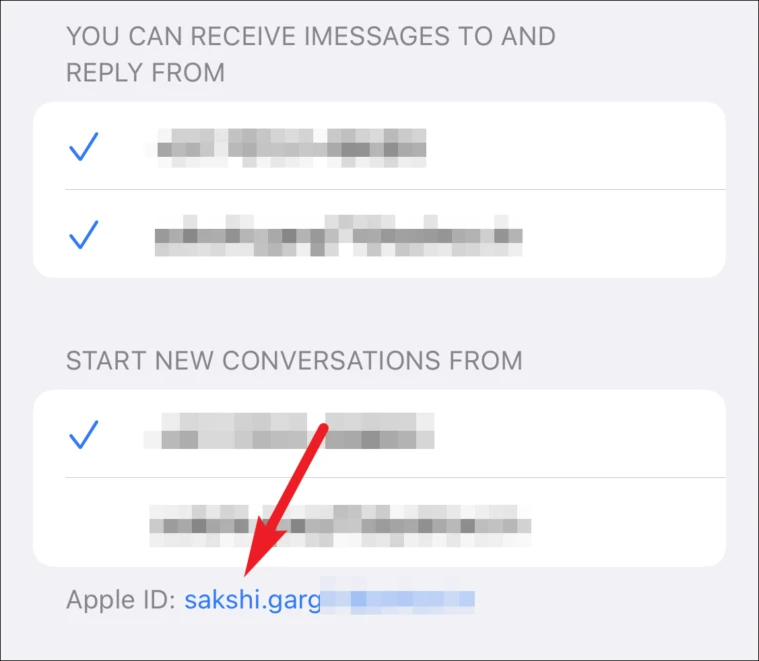
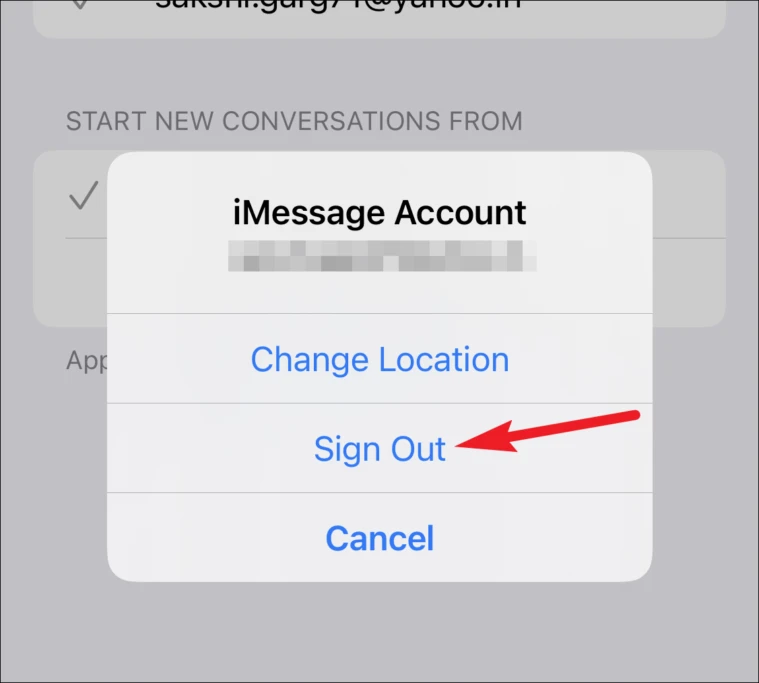
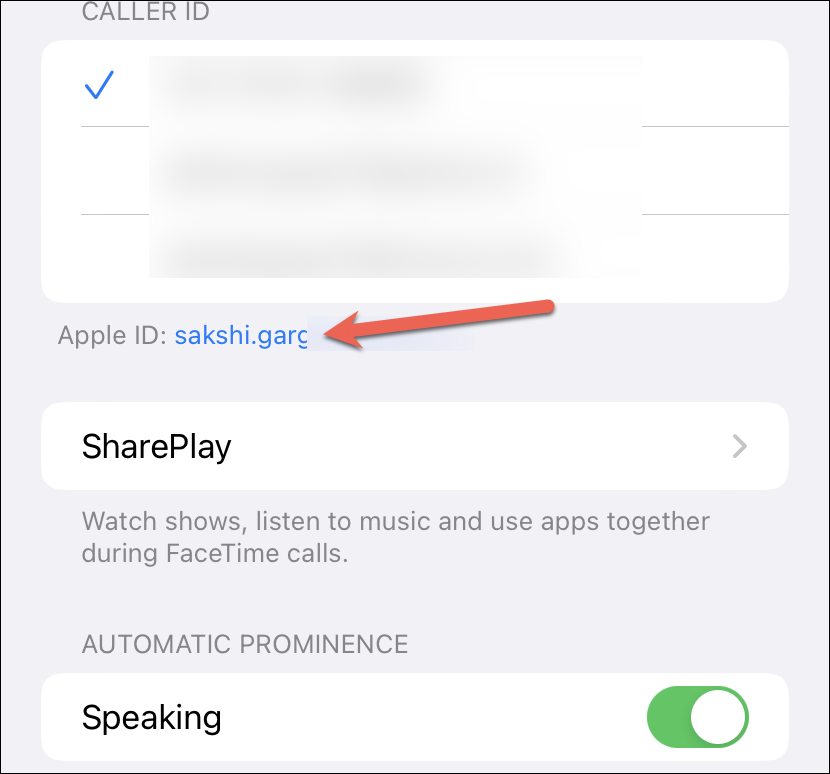
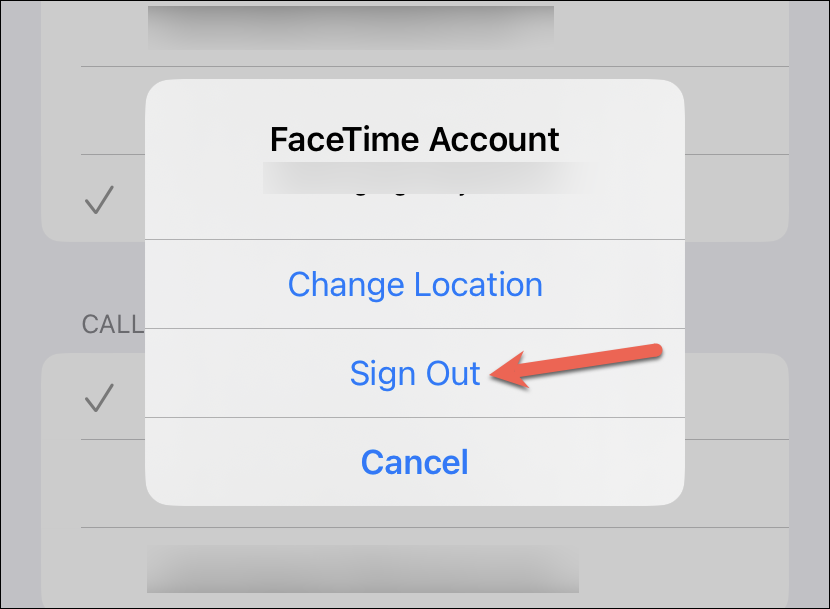
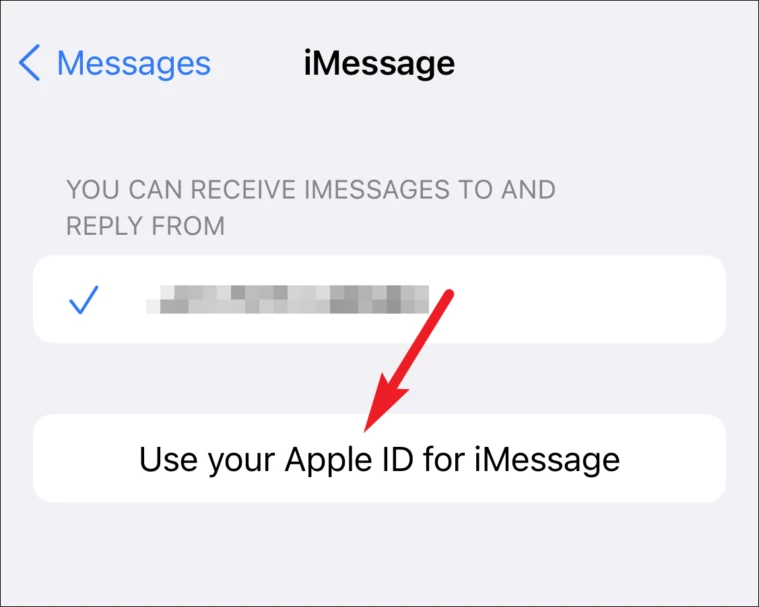
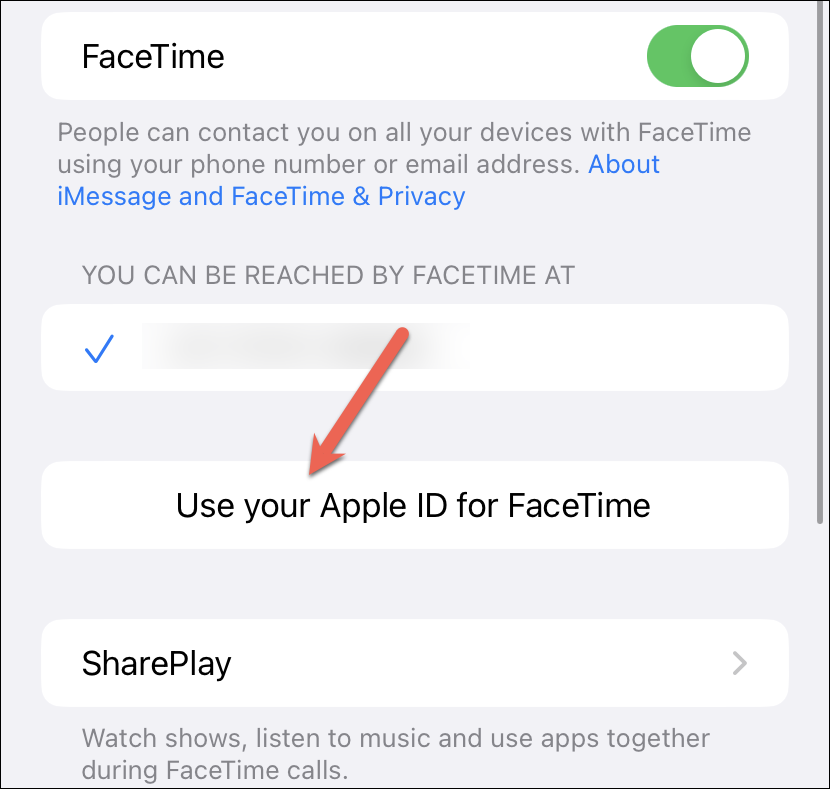
Sign Out and Back Into iMessage and FaceTime
Signing out and back into your Apple ID for both iMessage and FaceTime can refresh the connection and fix activation issues.
Ask Another iMessage User to Message You
Sometimes, receiving an iMessage from another user can reactivate the service on your device.
Switch Your Wi-Fi Network
Occasionally, the issue might be related to your internet connection. Switching to a different Wi-Fi network can help.
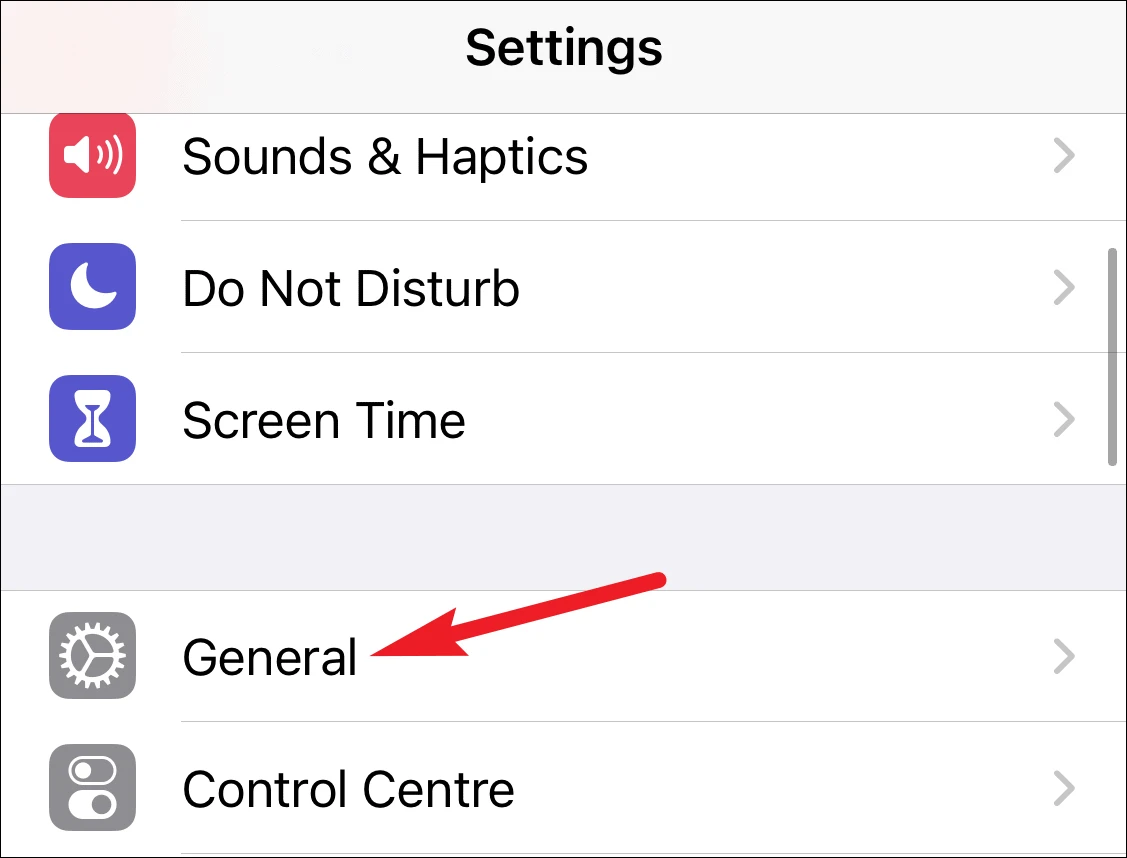
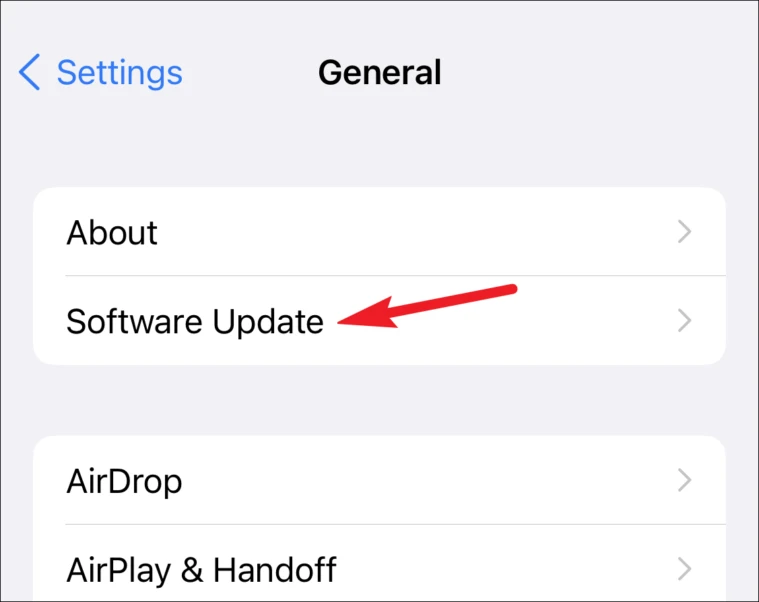
Update Your iOS Software
Outdated software can cause compatibility issues with services like iMessage. Ensuring your device is running the latest iOS version can help.
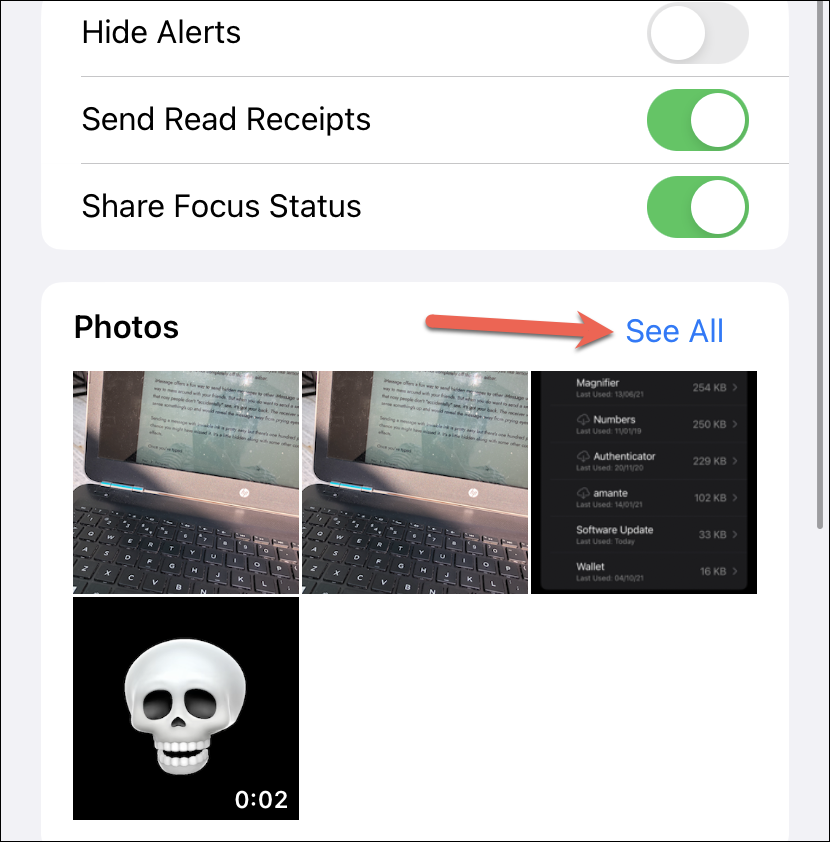
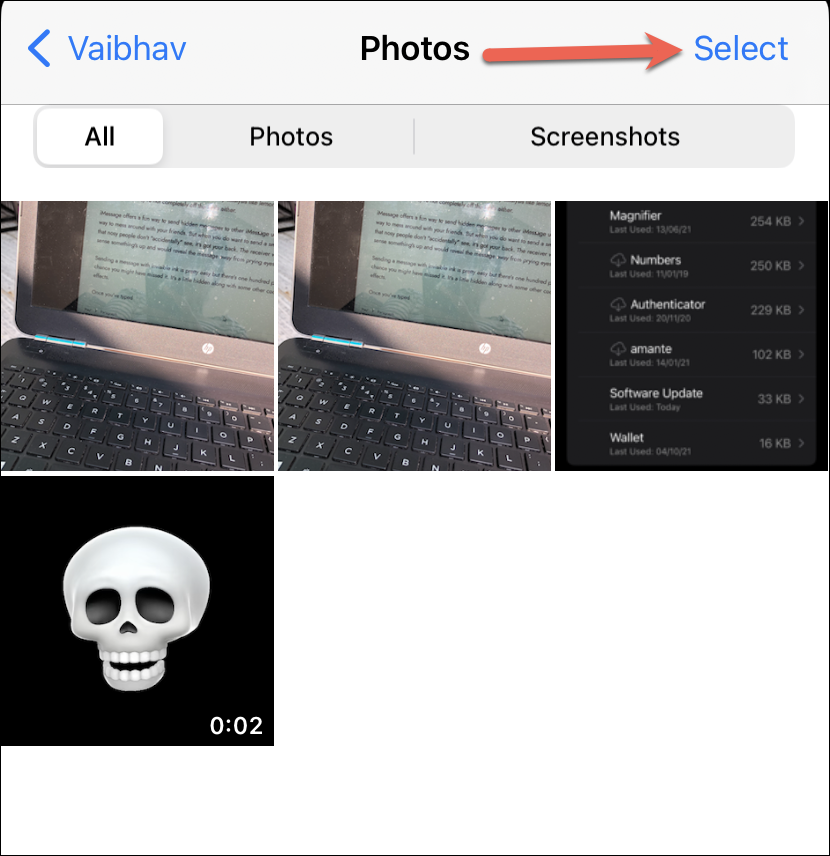
Delete Media from iMessage
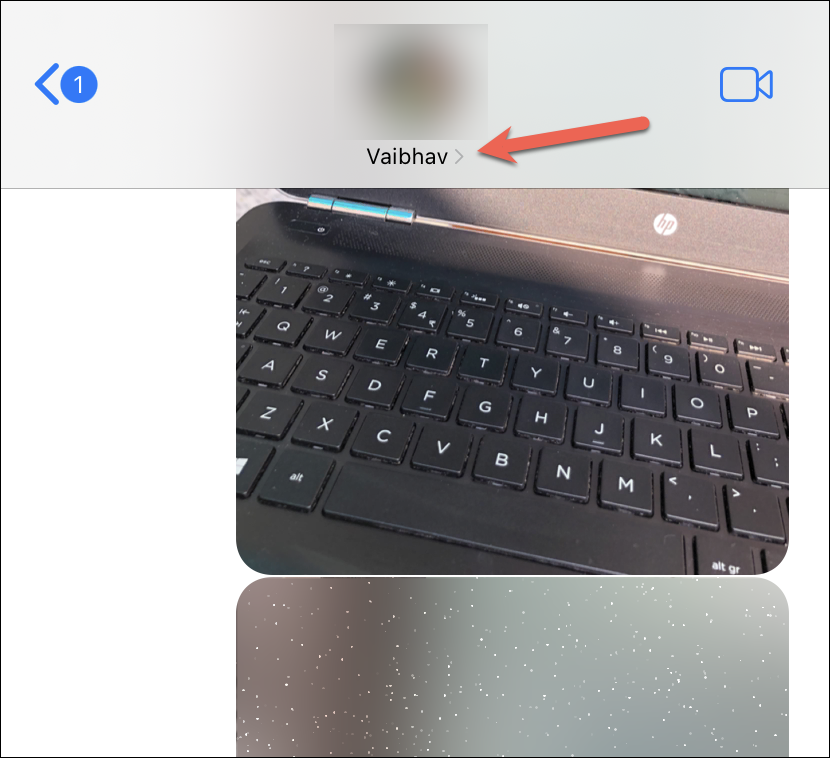
Large amounts of media in your iMessage conversations can sometimes cause issues. Deleting unnecessary photos and videos might help.

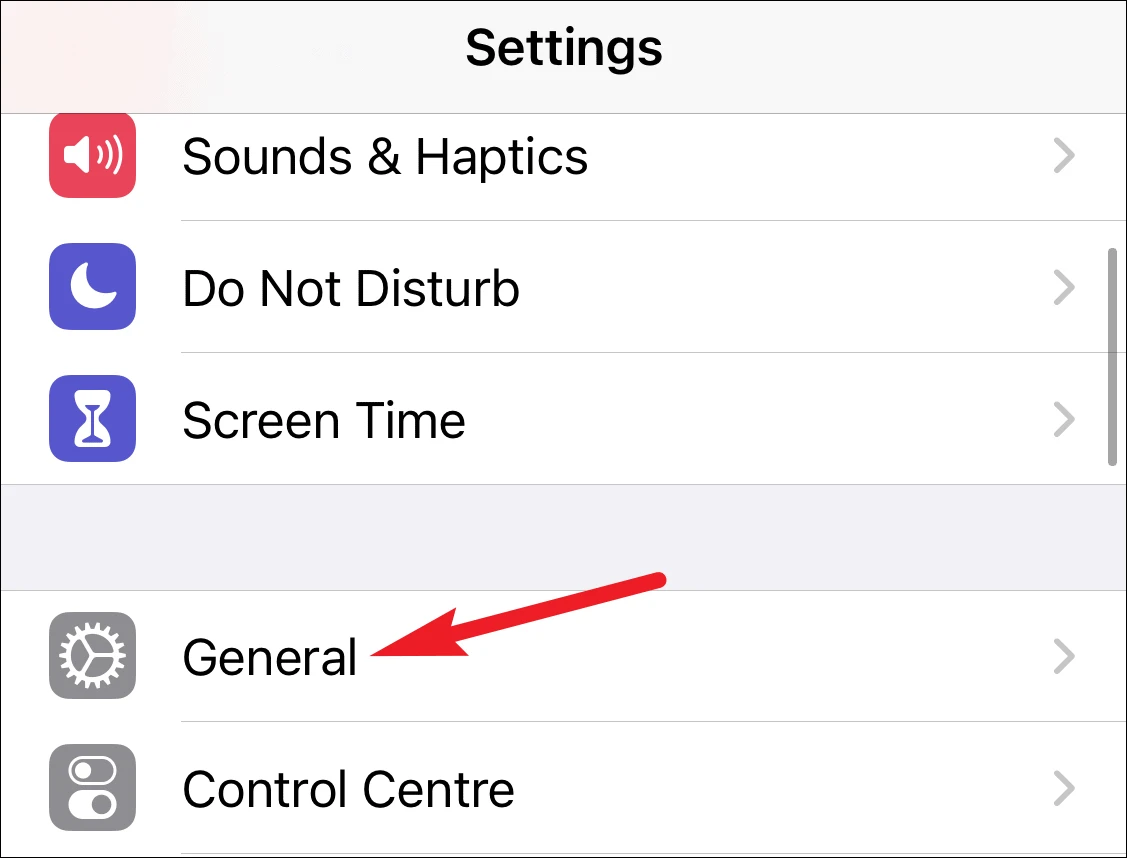
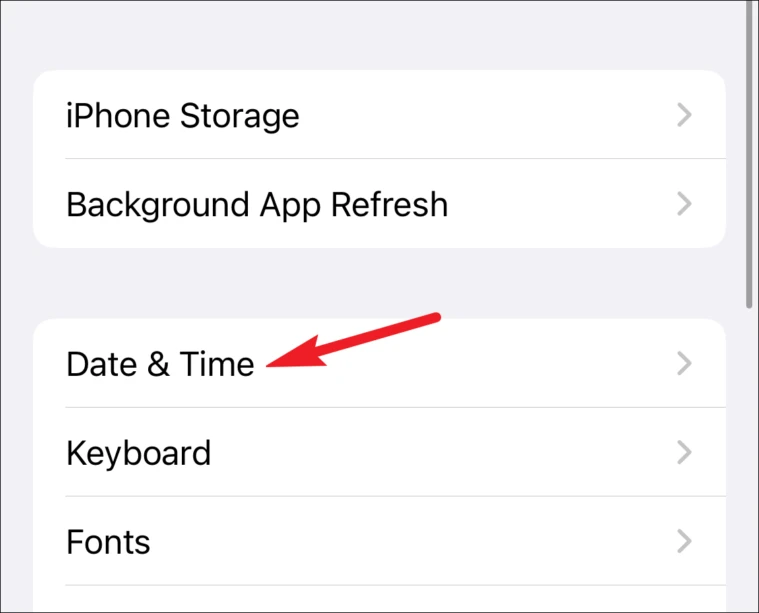
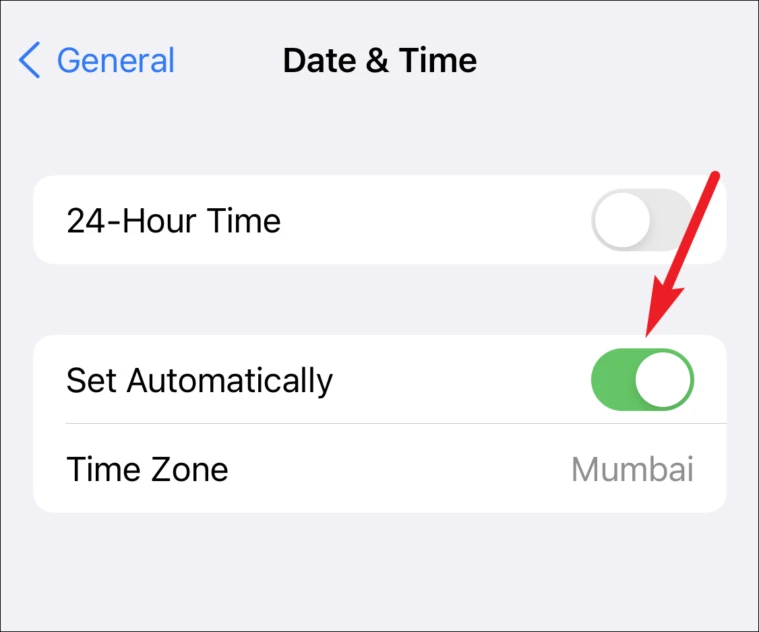
Check Date and Time Settings
Incorrect date and time settings can interfere with iMessage activation.
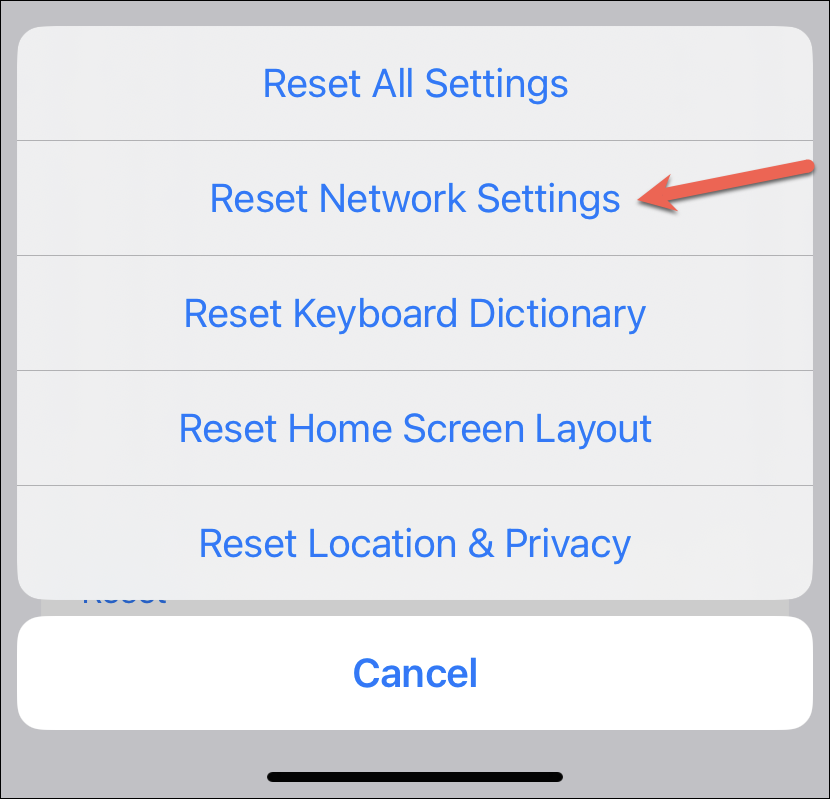
Reset Network Settings
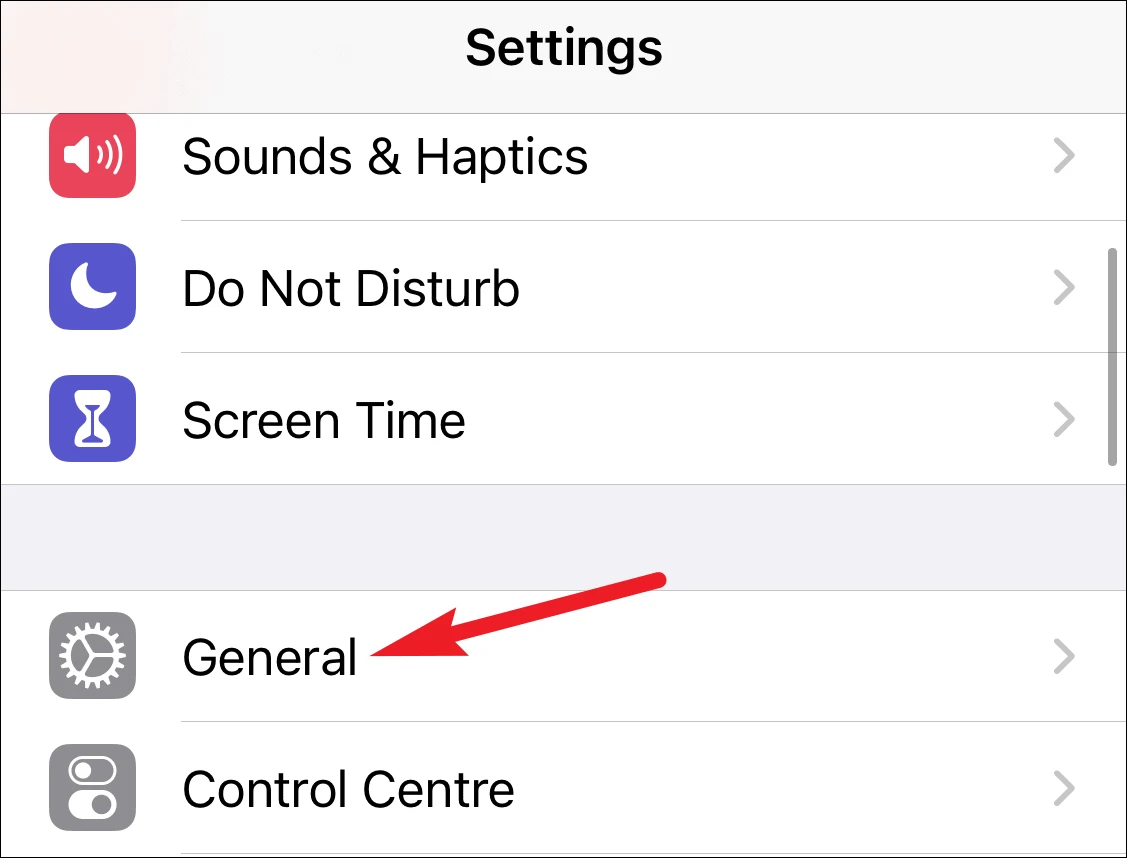
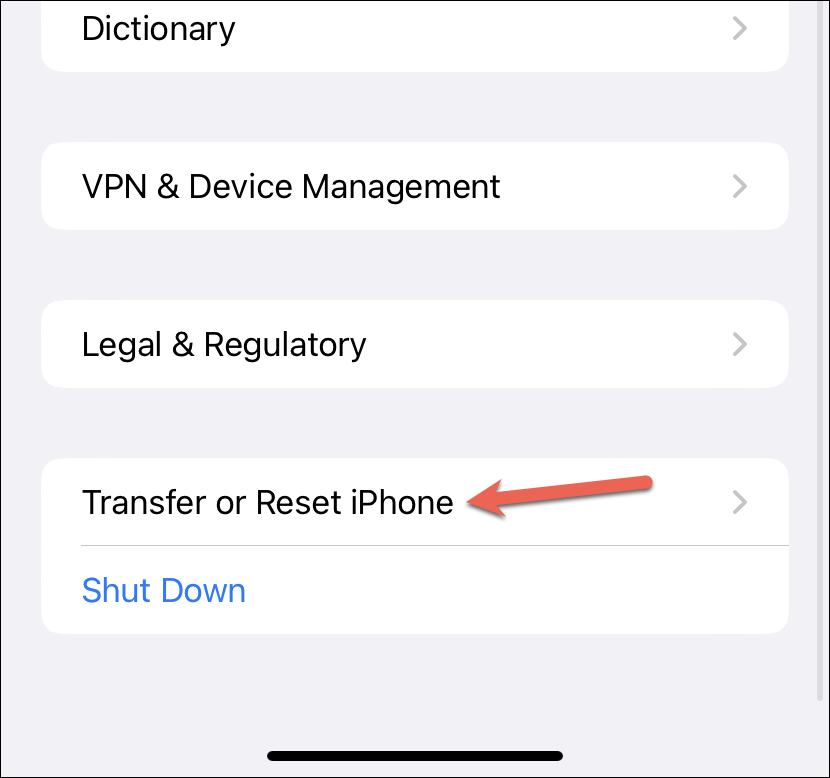
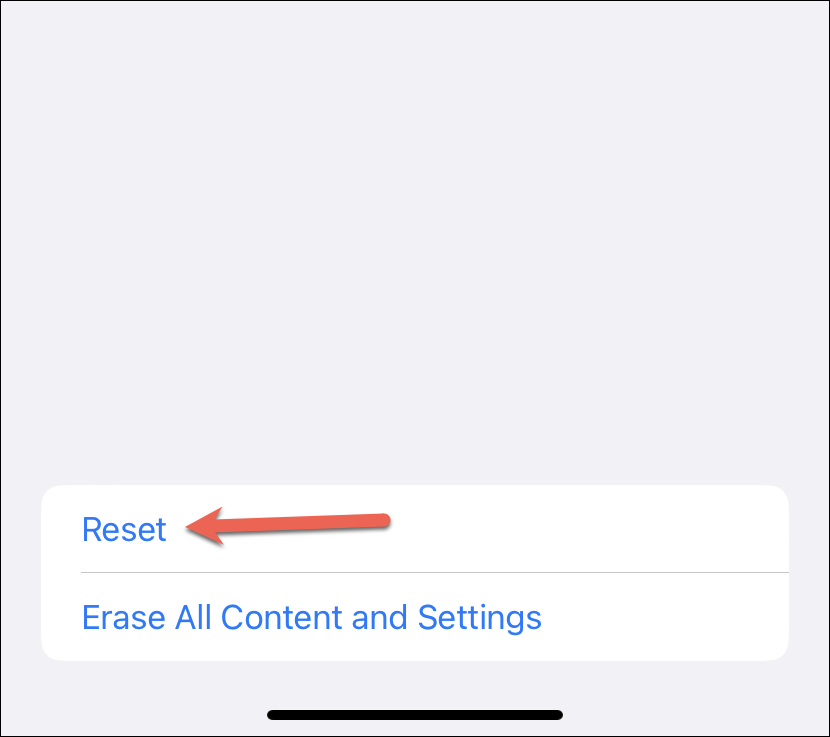
Resetting network settings can fix underlying issues that prevent iMessage from staying active. Note that this will erase saved Wi-Fi networks and passwords.
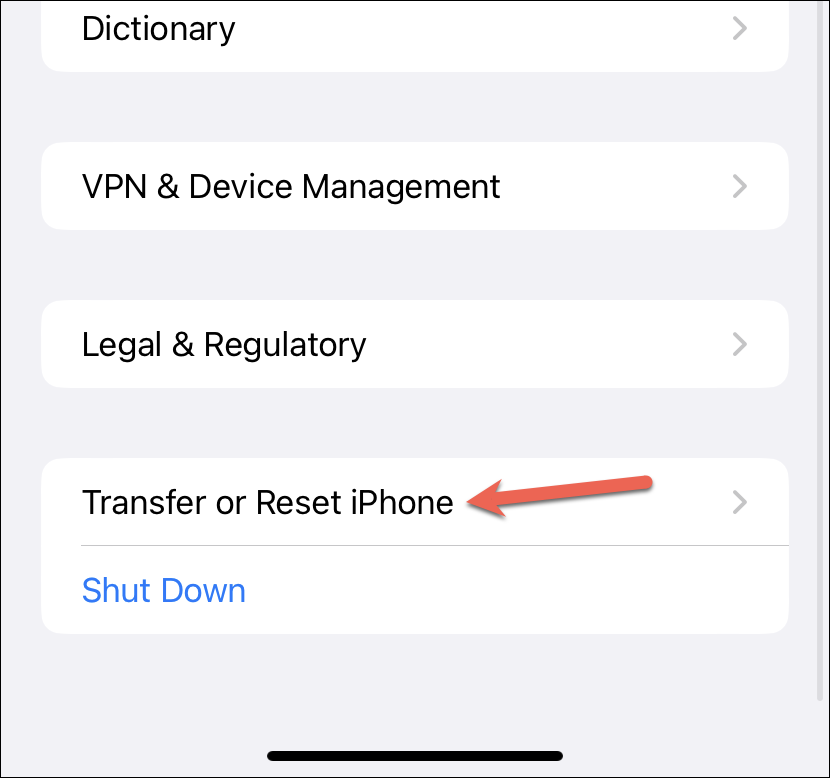
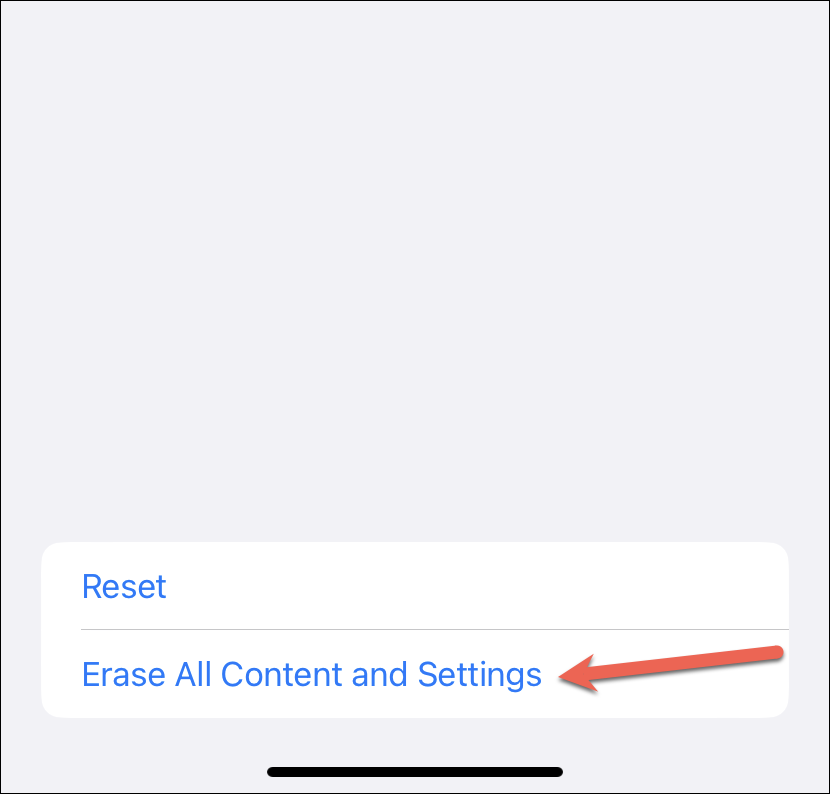
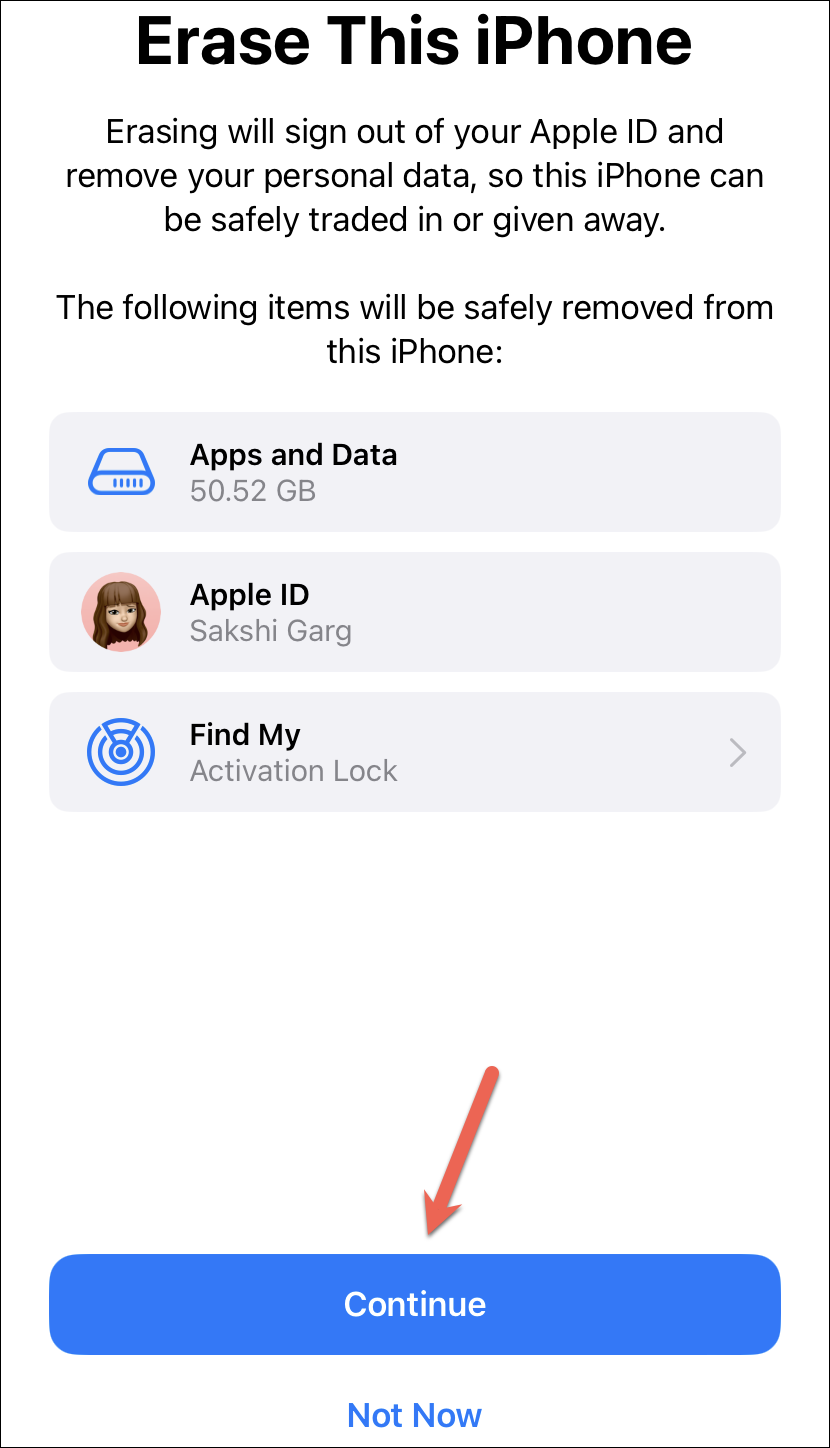
Reset Your iPhone
If all else fails, resetting your iPhone might be necessary. Ensure you have a backup before proceeding, as this will erase all data.
By following these solutions, iMessage should remain active without unexpectedly turning off. If the issue persists, consider reaching out to Apple Support for further assistance.





