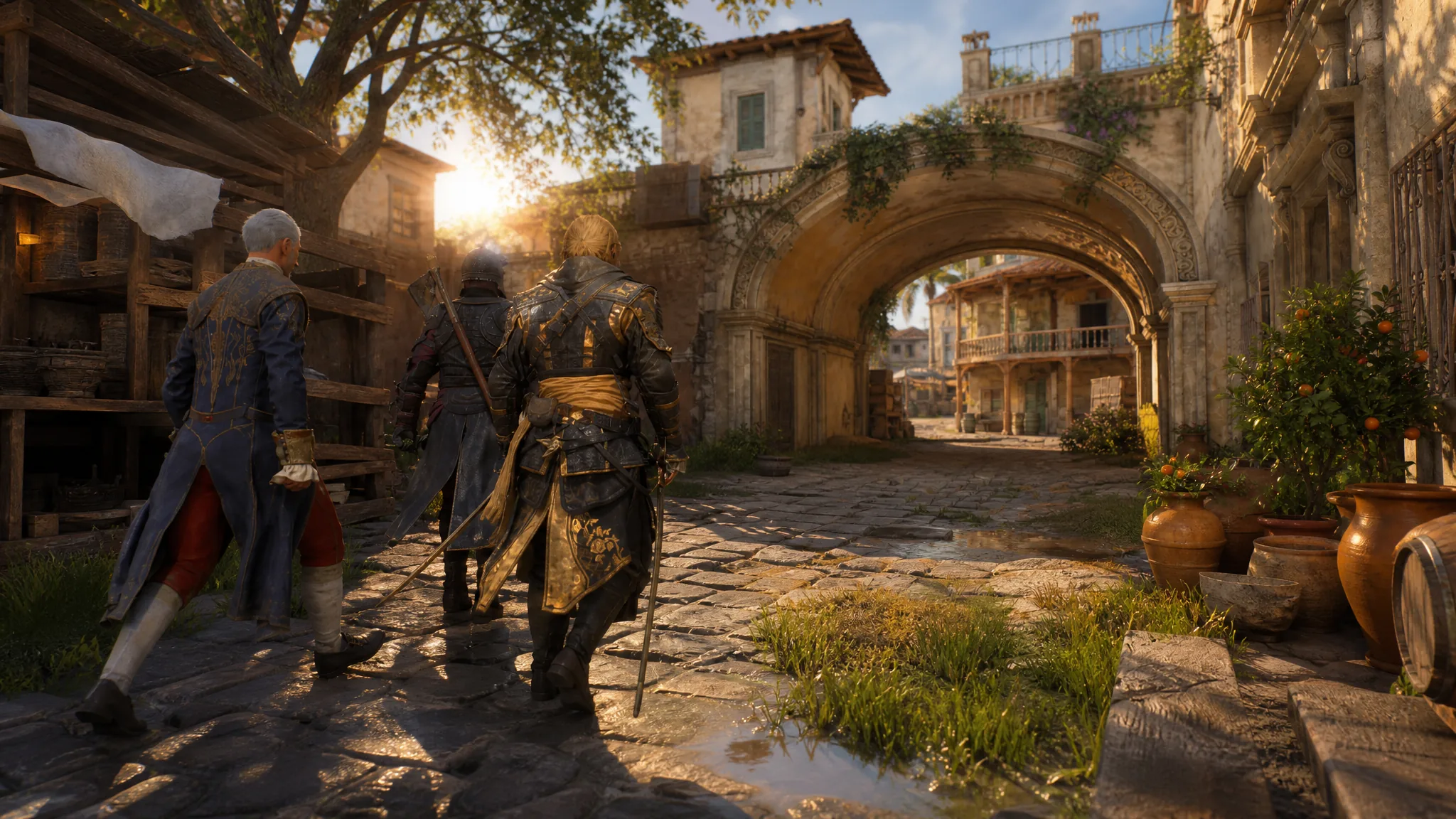
Assassin’s Creed Black Flag Resynced runs on Ubisoft’s modern Anvil engine, which means ray tracing, reworked water, dynamic weather, and dense foliage all fight for GPU time at once. The frame rate holds steady in calm moments, then drops hard in Havana, storms, and full naval battles. The fix is not “everything on Low.” It is knowing which few settings actually cost frames and pulling those down first.
Quick answer: Set Ray Tracing to Off or Low, Reflections and Volumetric/Fog effects to Low, Water Quality to Low or Medium, and Shadows to Medium. Cap the frame rate at 60, turn Motion Blur off, and only touch Texture Quality if your card has 8GB of VRAM or less.
Settings that cost the most FPS, in the order to lower them
GPU performance does not scale evenly when you drop individual sliders. A handful of systems eat almost all the headroom. When your frame rate dips, lower these from top to bottom and stop as soon as the game is smooth.
| Priority | Setting | Why it matters |
|---|---|---|
| 1 | Ray Tracing | Drives lighting and reflections; causes the biggest drops in cities, storms, and interiors. |
| 2 | Reflections | Expensive at sea with wet decks, ships, and water everywhere. |
| 3 | Volumetric / Fog effects | Cannon smoke, storms, and weather hit frame rate hard in fort and boarding scenes. |
| 4 | Water Quality | One of the heaviest systems; drop one step if waves and naval combat stutter. |
| 5 | Shadow Quality | Ultra is rarely worth the cost; Medium or High looks nearly identical. |
| 6 | Crowd Density | Helps in packed streets and ports. |
| 7 | Texture Quality | Lower this only if VRAM is limited (see the VRAM rule below). |
At 1080p, do not touch textures first. Ray tracing and reflections punish frame rate far more, and they are the cheapest wins.
A balanced custom preset for smooth play
This custom setup targets a locked 60 FPS on mid-range hardware while keeping textures and geometry sharp enough to look modern. It leans on lowering the expensive lighting and particle systems rather than the things you actually notice up close.
| Setting | Value |
|---|---|
| Display Mode | Borderless (multi-monitor) or Fullscreen |
| VSync | Off (turn On only if you see tearing without VRR) |
| Resolution | Native monitor resolution |
| FPS Limit | On |
| Frame Rate Target | 60 FPS |
| Use Dynamic Resolution | On only if underpowered |
| Upscaler Type | Automatic + Balanced (use Performance if you still lag) |
| Frame Generation | Off |
| Sharpen Strength | 50% |
| Motion Blur | Off |
| Camera Effects | Off |
| Raytracing | Off |
| Overall Preset | Custom |
| Raytracing Quality | Low |
| BVH Quality | Low |
| Character Quality | Medium |
| Hair Strands | Off |
| Post Effects | Low |
| Particles Quality | Low |
| Water Quality | Low |
| Texture Resolution Quality | Medium |
| Loading Distance | Medium |
| Geometry Quality | Medium |
| Micropolygon | Medium |
| Screen Space Effects | Low |
| Light Source Quality | Low |
| Shadow Quality | Low |
| Cloud Quality | Low |
| Fog Quality | Low |
| Terrain Quality | Medium |
| Scatter Density | Low |
If the game still lags with these values, push each Low to Very Low and each Medium to Low. If it runs completely clean, raise them one step at a time to buy back visual quality.
Targets by resolution and GPU
Match your card to a resolution target, then use the balanced preset above as a base and adjust upward. A stable 60 FPS with clean frame pacing feels better than maxed visuals that hitch during storms.
| Target | GPU class | Preset / key settings |
|---|---|---|
| 1080p 60 | RTX 3060, RX 6600 XT, Arc B580 | Medium preset, Quality/Balanced upscaling, Ray Tracing Standard or Low, Shadows/Reflections/Water Medium |
| 1440p 60 | RTX 3080, RX 6800 XT | High preset, Balanced upscaling, Ray Tracing Standard, Textures High, Water High, Volumetrics Medium |
| 4K 60 | RTX 4090, RX 7900 XTX | Ultra/High, Quality upscaling, Ray Tracing Extended or Standard, Frame Gen only if stable |
| 1080p 30 (low-end) | Near minimum spec | Low preset, Balanced upscaling, Ray Tracing Off, Textures Low/Medium, cap at 30 |
| Handheld / Steam Deck | Steam Deck class | 720p/800p, Low preset, Performance upscaling, Ray Tracing Off, cap 30 or 40 |
Texture Quality follows VRAM, not resolution. Use Low or Medium on a 6GB card, Medium on 8GB, High on 10GB, and High or Ultra on 12GB or more. Going past your VRAM budget causes stutter when you enter Havana, dock, or dive.
Settings for the heaviest scenes
Naval combat is the toughest test because water, sails, cannon smoke, fire, waves, crew, and weather all render together. If ship fights feel unstable, set Water Quality and Reflections to Medium, Volumetric Effects to Medium or Low, Shadows to Medium, and Ray Tracing to Low or Off, with Motion Blur off and the FPS cap at 60. Lower Screen Shake or Ship Camera Sway too if the option is available.
Havana stresses lighting, crowds, and city streaming. If rooftops and dense streets stutter, drop Shadows, Crowd Density, Reflections, and Volumetric Effects to Medium, keep Ray Tracing at Low or Standard, and avoid Ultra textures on an 8GB card. Installing the game on an SSD is required and keeps assets streaming fast during quick traversal.
Upscaling and frame generation
The game supports DLSS Super Resolution and Frame Generation on GeForce RTX cards, FSR upscaling and Frame Generation on Radeon, and XeSS on Intel Arc. Start with upscaling on Balanced or Quality, which recovers frames without turning the image into mush. Leave Frame Generation off until your base frame rate is already stable, then enable it if you want extra smoothness. Dynamic resolution scaling is available too, but internal resolution cuts in Anvil do not always give the frame boost you expect, so treat lighting settings as your main lever.
How to confirm the settings are working
Enable an on-screen frame rate overlay and play for 30 to 60 minutes before judging results. The game compiles shaders during its first boot when the cache is empty, so early hitching usually clears itself. In practice, traversal stutter and shader-compilation stutter are basically absent once that first load finishes, which means any remaining drops come from your own settings, not the engine.
Watch the frame rate specifically during storms, boarding, and busy ports rather than open ocean. If it holds your 60 FPS target with steady frame pacing in those moments, raise one setting at a time and retest. If it drops, walk back down the priority list starting with Ray Tracing. That single loop, lower the expensive lighting first and verify in the hardest scene, gets you a smooth, lag-free run on almost any capable PC.