macOS 26, known as “Tahoe,” introduces a new wave of AI-driven features and developer tools, but many of these remain hidden unless Developer Mode is activated. Turning on Developer Mode is essential for developers aiming to build, test, or preview apps that leverage on-device AI, including Apple Intelligence and Foundation Models. This process also unlocks the ability to run local builds, access advanced debugging, and preview new AI integrations before their general release.
Enable Developer Mode Using Xcode on macOS 26
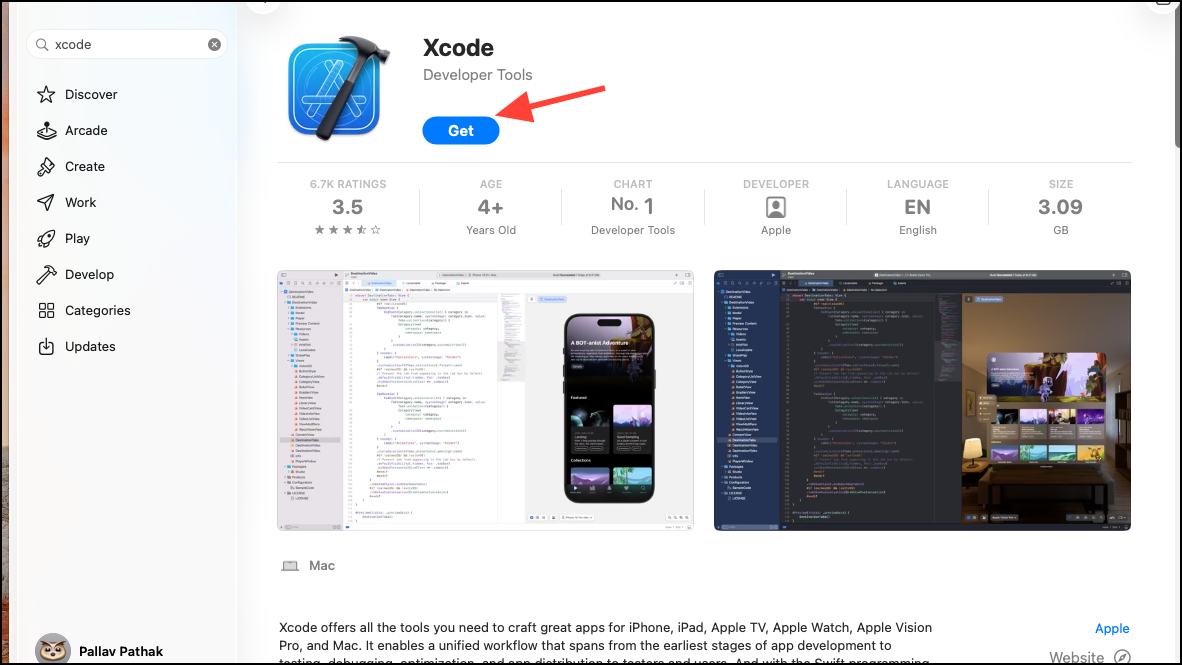
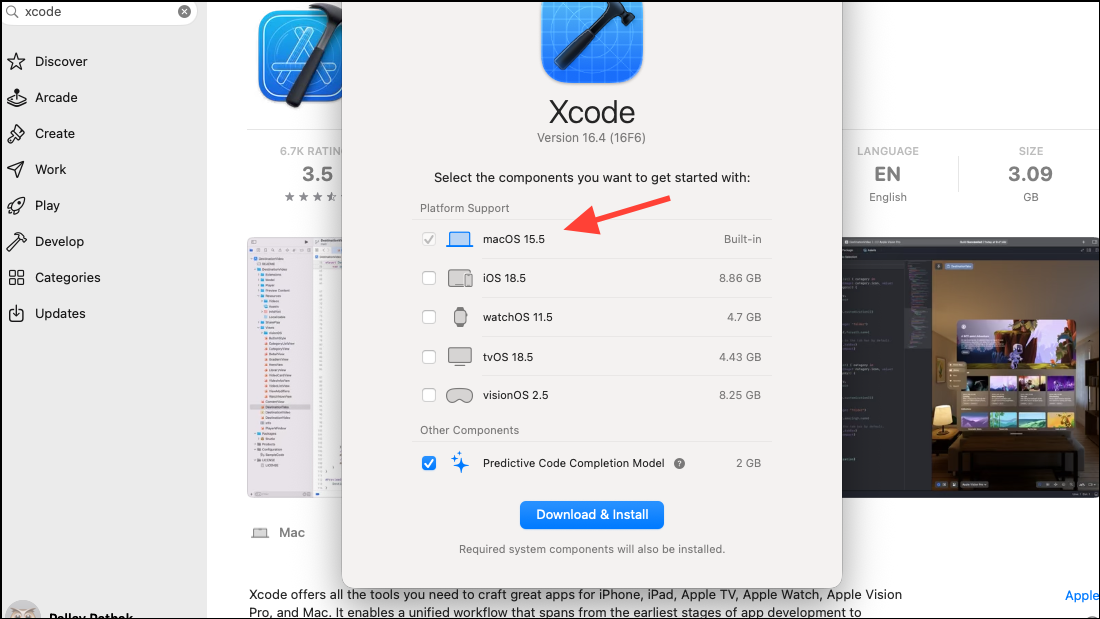
System Settings and navigate to Privacy & Security. Scroll to the bottom and locate the Developer Mode toggle. This option appears after Xcode initiates the first build or run attempt.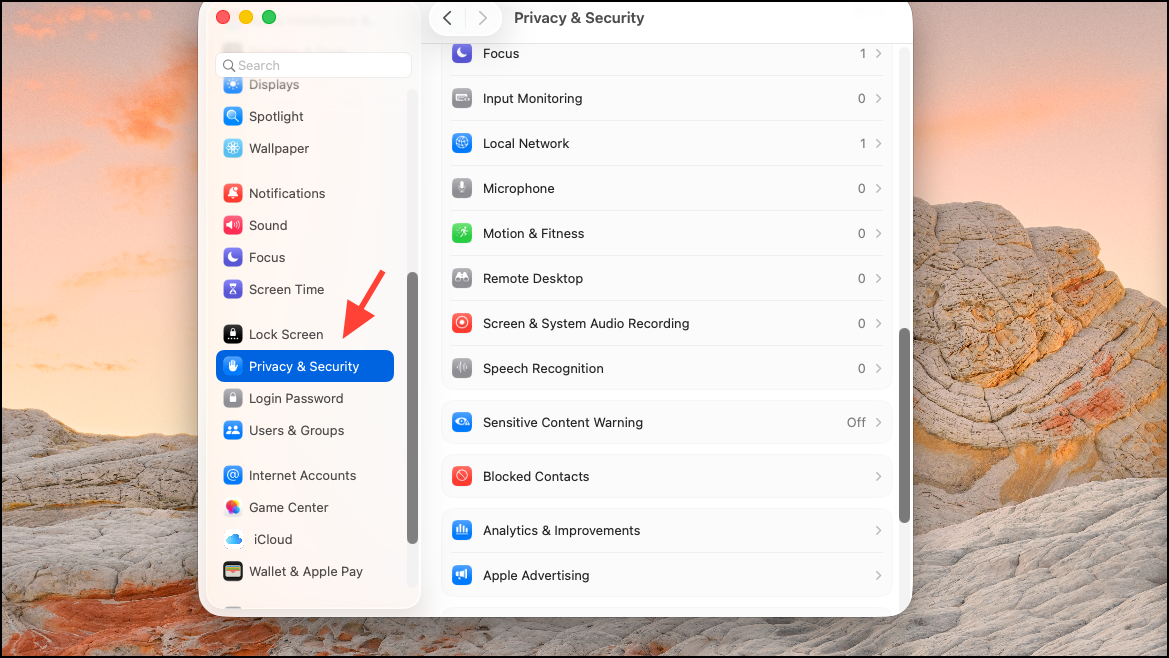
With Developer Mode enabled, macOS 26 reveals additional AI features and tools in compatible apps and system settings. You can now preview Apple Intelligence integrations, test Foundation Models, and access developer-only settings that are otherwise unavailable.
Enable Developer Mode on iOS or iPadOS 26 Devices from macOS 26
Settings > Privacy & Security. The Developer Mode option will appear at the bottom of this menu after Xcode attempts to deploy an app.Once Developer Mode is turned on, you can install and run local builds, access hidden AI previews, and use advanced development features on your iOS or iPadOS device. This is essential for testing apps that integrate with new AI frameworks or for accessing Apple Intelligence features before public rollout.
Troubleshooting: Developer Mode Not Showing on macOS 26 or iOS 26
If the Developer Mode option does not appear in Privacy & Security after following the above steps, check the following:
- Ensure your Mac or device is updated to macOS 26 or iOS/iPadOS 26.
- Attempt to trigger Developer Mode by running a build from Xcode; the toggle only appears after this action.
- Restart your device or Mac if the option remains hidden.
- Check for managed profiles or device restrictions that may block developer features.
- If using a third-party tool for iOS devices, such as Tenorshare iCareFone, follow its specific connection and activation instructions to reveal Developer Mode in Settings.
Developer Mode is intentionally hidden by default to strengthen device security and minimize risk from unauthorized app installations. Only trigger Developer Mode if you require direct access to developer tools, local builds, or hidden AI previews.
Disabling Developer Mode on macOS 26
To turn off Developer Mode and restore the standard security profile:
Activating Developer Mode on macOS 26 gives you early access to hidden AI features and advanced development tools, but always weigh the security trade-offs before enabling. For most users, keeping Developer Mode off is the safest choice; for developers and testers, it unlocks the full potential of the latest Apple platforms.