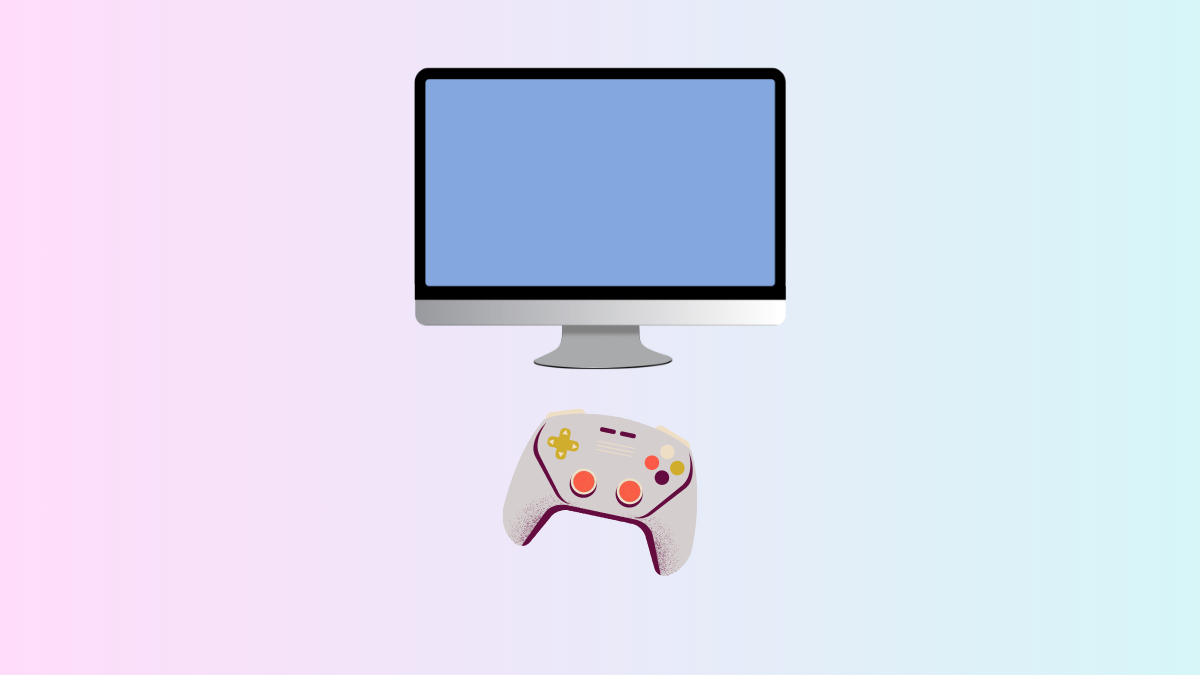
macOS 26 introduces a dedicated Games app, shifting game management and discovery into a unified hub. This new approach means players can access all their games, monitor updates, and connect with friends—without hunting through folders or separate services. The Games app is designed to simplify launching, organizing, and playing games on Mac, while integrating social and competitive features that previously required multiple apps or manual tracking.
Accessing and Organizing Your Game Library
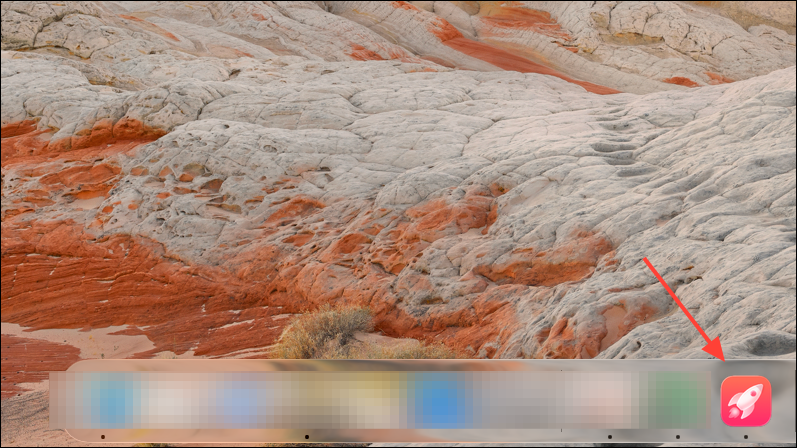
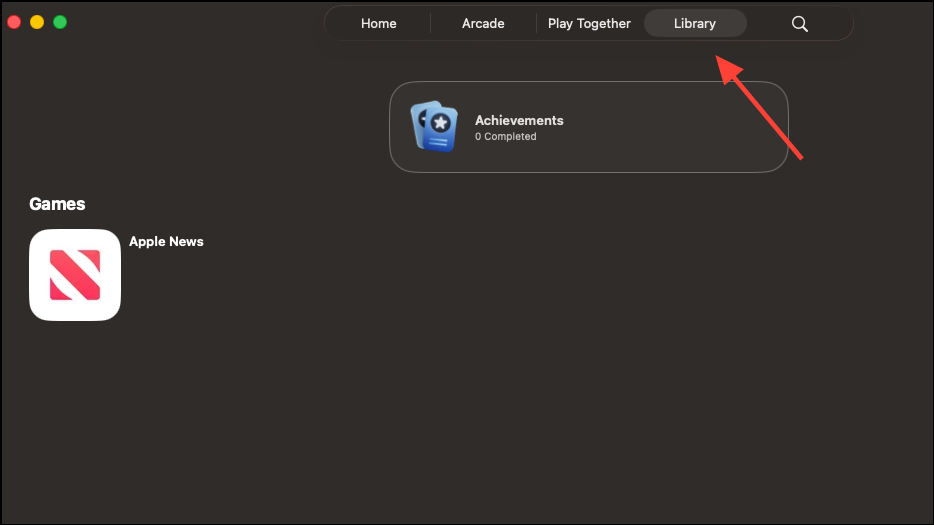
Centralizing your game collection addresses a long-standing issue for Mac users: scattered installations and inconsistent tracking of purchased or downloaded games. The Games app’s Library tab automatically compiles all games installed on your Mac, along with those downloaded from the App Store, Apple Arcade, and even compatible third-party platforms. This means you can view and launch titles from a single interface, regardless of where you originally obtained them.
Integrating Games from Multiple Platforms
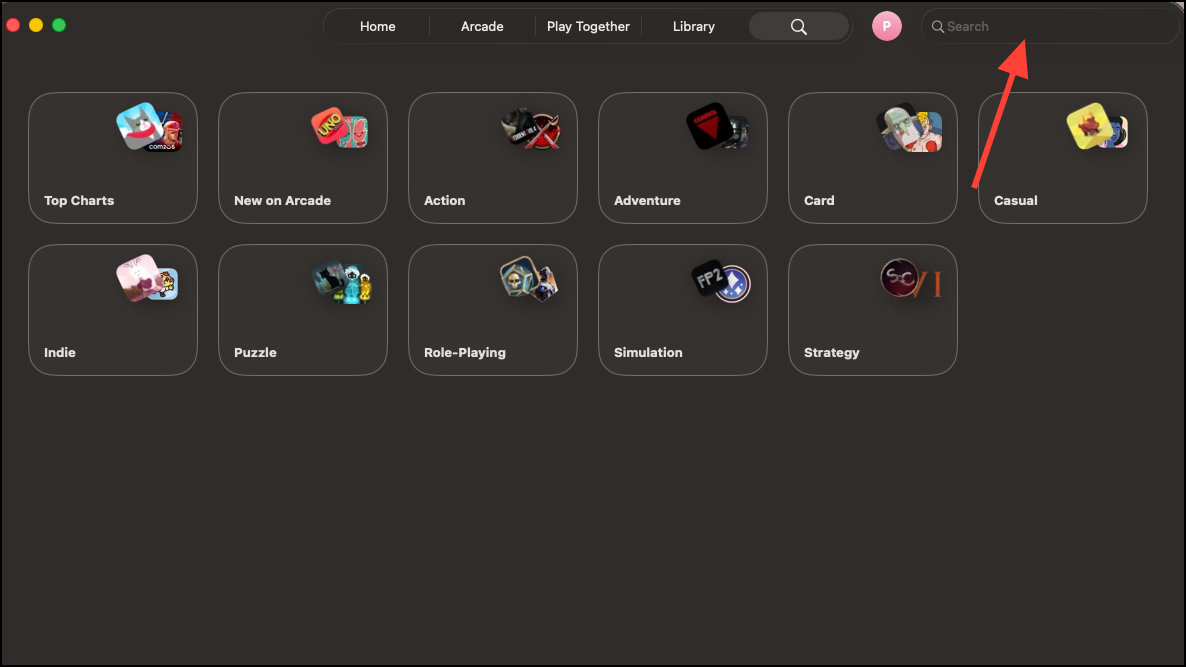
One of the most anticipated features is the ability to display games from various sources, not just those purchased through the App Store. According to both Apple documentation and early user reports, the Games app automatically recognizes Mac games installed from third-party platforms (such as Steam or Epic Games) as long as their app bundles are categorized as games. This means the app can unify your library across storefronts, but there are some caveats:
- Games must be Mac-native applications and correctly categorized as games in their metadata.
- Some users report inconsistencies with Steam games, particularly if they are just launchers or shortcuts rather than full app bundles.
- Games installed via compatibility layers (like Crossover or Heroic for Windows games) typically do not appear unless developers configure their bundles appropriately.
If a game doesn’t show up, launching it once from its original platform may prompt the Games app to recognize it. For now, manual addition of non-App Store games isn’t officially supported, but future updates may address this limitation.
Discovering and Launching New Games
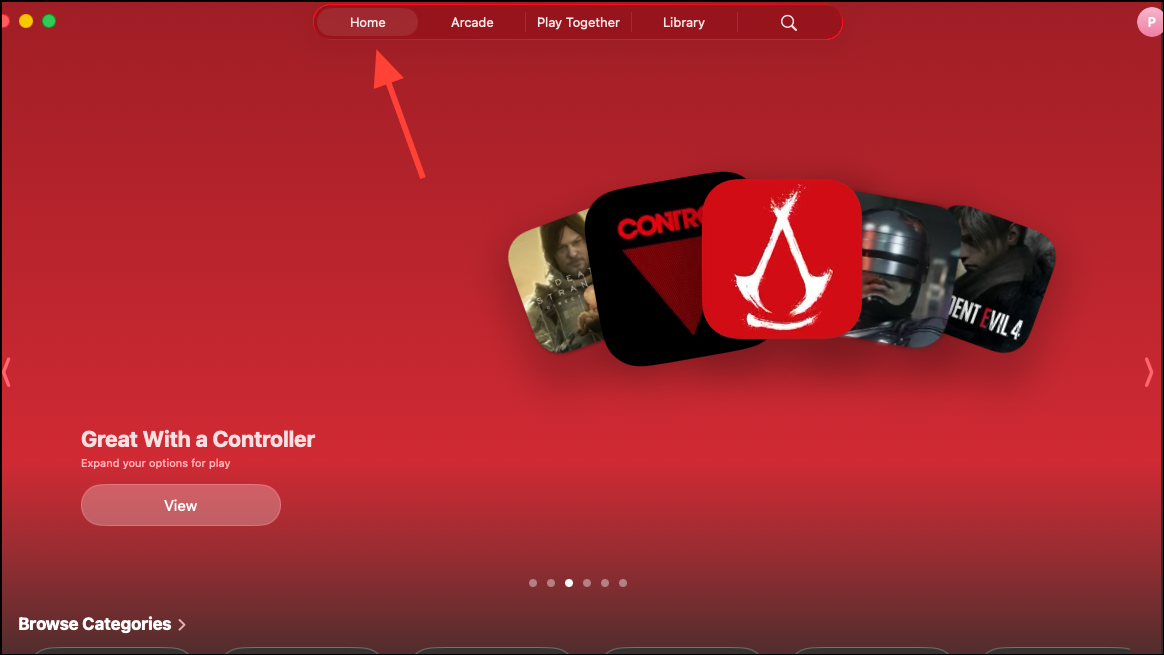
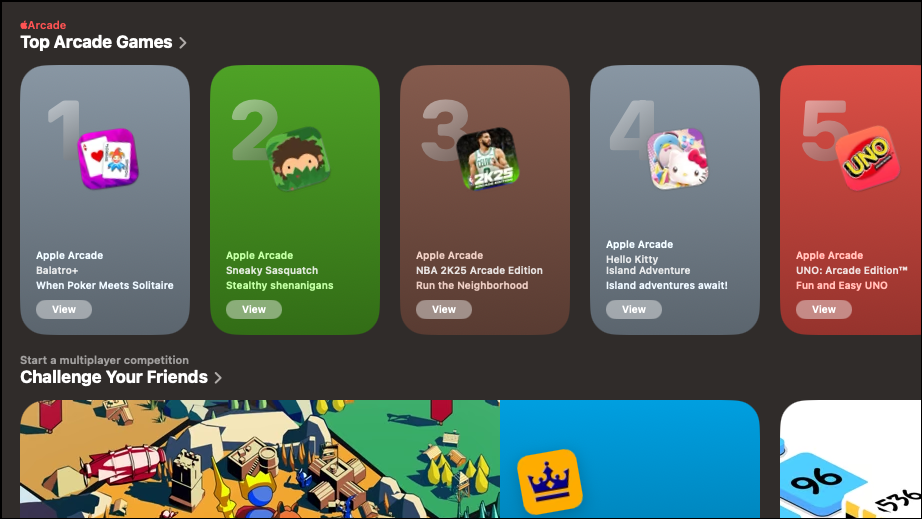
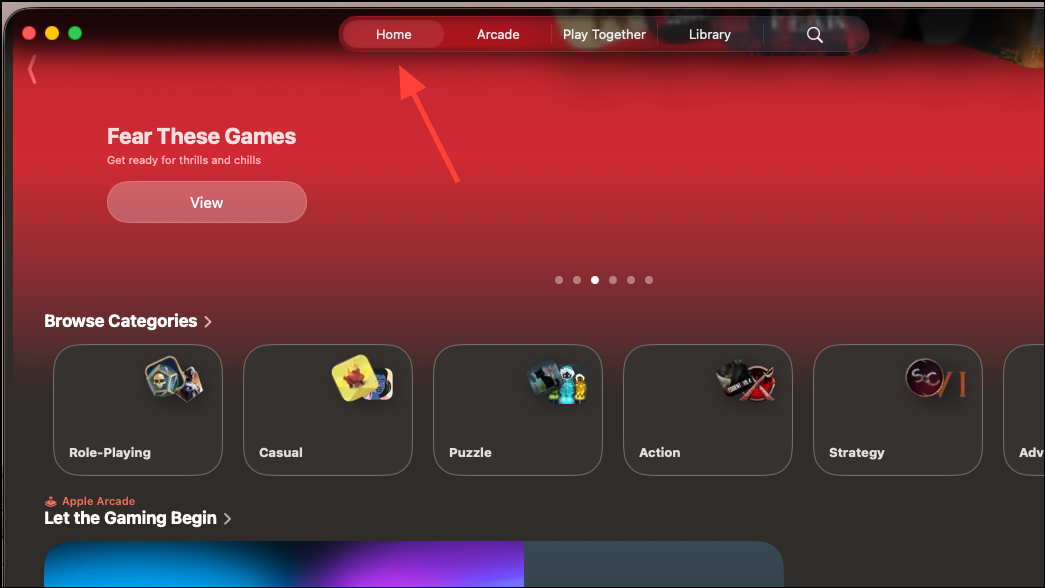
The Home tab in the Games app acts as a dynamic dashboard, surfacing recommendations based on your play history, trending titles, and what your friends are currently playing. This approach moves beyond static “most downloaded” lists by prioritizing actual playtime and engagement, making it easier to find games that are actively popular or relevant to your interests.
Managing Social Play and Challenges
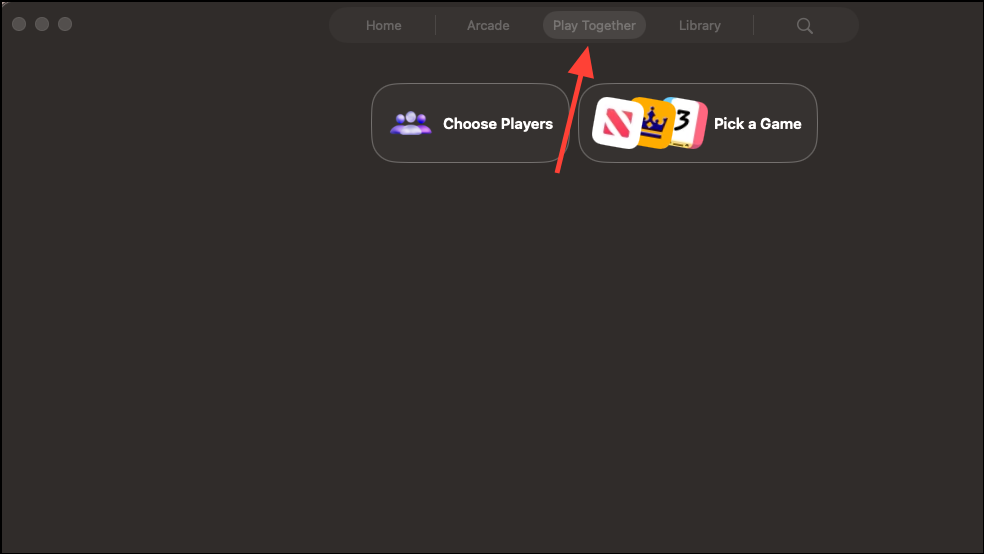
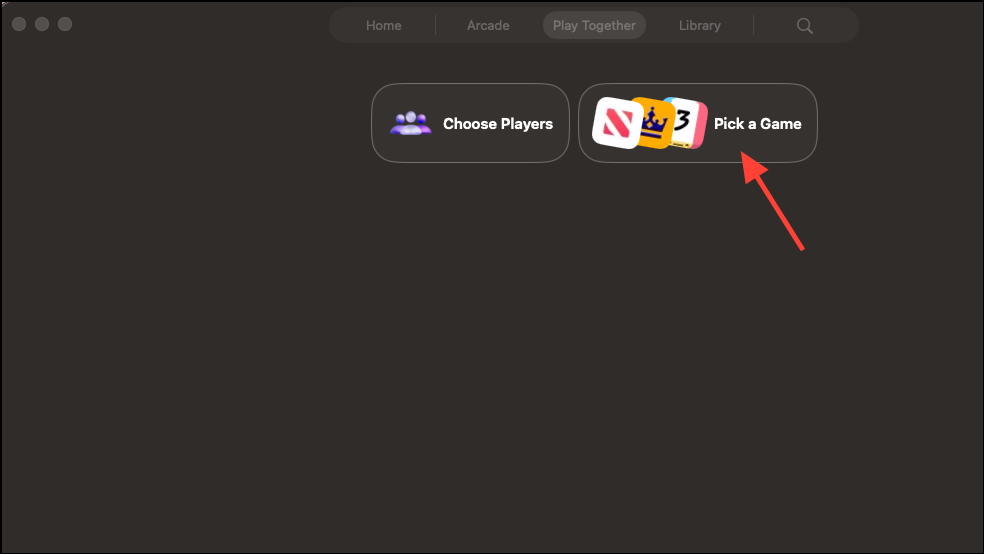
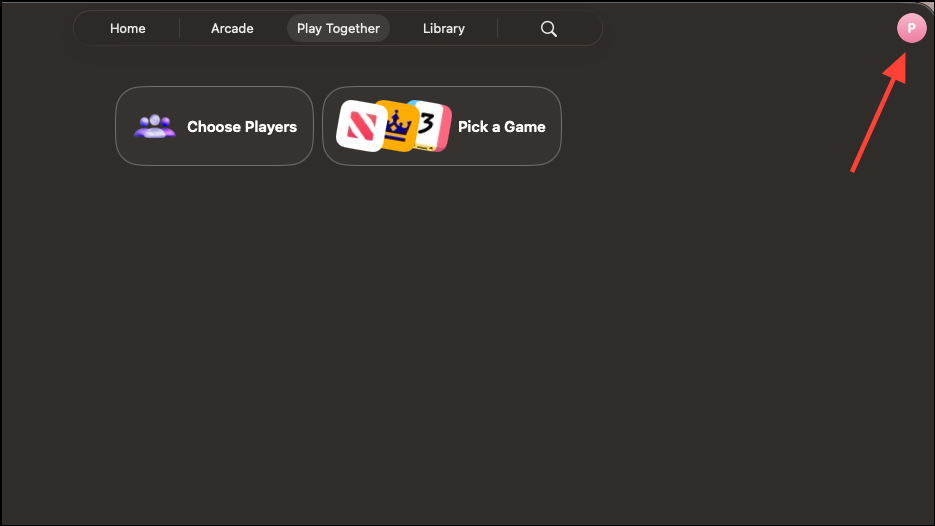
The Play Together tab revives and expands Game Center’s social features, making it easier to connect with friends, track achievements, and issue challenges. This tab consolidates multiplayer activity and asynchronous competitions, allowing you to participate in score-based showdowns even in single-player titles.
Staying Informed About Game Updates and Events
Keeping track of game updates, live events, and patch notes is now more straightforward. The Games app aggregates this information in the Home and Library tabs, providing timely notifications and event listings relevant to your installed titles.
Using Game Overlay for In-Game Controls and Social Features
macOS 26 introduces Game Overlay—a floating interface that appears while you’re playing. This overlay allows you to adjust system settings, invite friends, or chat without leaving your game. It mirrors the convenience of console HUDs, optimized for both mouse/keyboard and controller users.
Cmd + Shift + G, but check system preferences for your setup).Apple Arcade Integration and Curated Collections
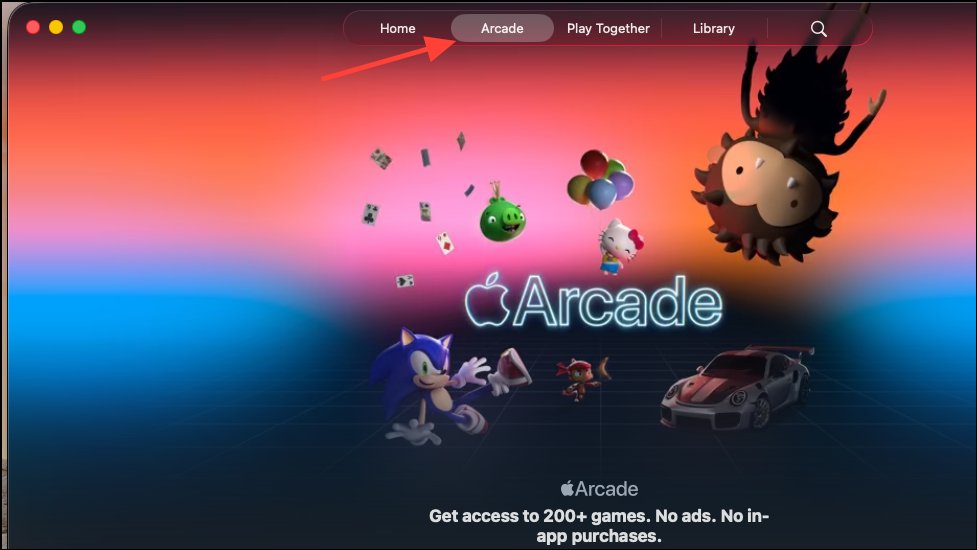
Subscribers to Apple Arcade benefit from a dedicated tab within the Games app, making it easier to browse, launch, and discover over 200 high-quality titles. Editorial collections and trending lists appear throughout the app, tailored to your play history and preferences.
Troubleshooting and Limitations
While the Games app streamlines game management, some limitations and inconsistencies remain, especially in early versions:
- Not all third-party games (especially those installed via Steam or Epic Games Store) may appear automatically. Recognition depends on correct app categorization and metadata.
- Games running through compatibility layers (such as Crossover for Windows titles) typically do not show up unless developers configure their app bundles as Mac games.
- Manual addition of games is not currently available, but future updates may address this request.
- Some users report that launching a game at least once from its original launcher can prompt the Games app to recognize it.
If you’re missing games in your Library, verify that the apps are classified as games and are Mac-native. For persistent issues, monitoring developer updates and Apple’s support resources is recommended.
The new Games app on macOS 26 streamlines game management, discovery, and social play, making your Mac feel more like a dedicated gaming device. Keeping everything in one place saves time and helps you get back to your favorite titles faster.