Resolve Mac startup failures and unresponsive black screens after upgrading to macOS 15 Sequoia with proven troubleshooting steps and recovery methods.
Resolve Mac startup failures and unresponsive black screens after upgrading to macOS 15 Sequoia with proven troubleshooting steps and recovery methods.
by Pallav Pathak
Black screens that appear after updating to macOS 15 Sequoia signal a breakdown in the normal startup process, leaving users unable to access their desktop or applications. This issue can stem from incomplete updates, software conflicts, corrupt system files, or hardware compatibility problems. In many cases, the Mac powers on—fans or keyboard lights may activate—but the display remains black, and the system is unresponsive. Addressing this problem requires a structured approach that prioritizes data safety while restoring system functionality.
Hold down the power button for at least 10 seconds to ensure the Mac is completely powered off. This clears any temporary glitches that may prevent a normal boot.
Connect your Mac to a reliable power source using the original charger. Inspect the charging cable and adapter for visible damage. If the Mac is a laptop, confirm that the battery indicator light turns on or that the charging symbol appears. Allow the Mac to charge for several minutes before attempting to power on again.
Press the power button once to turn the Mac back on. Listen for startup sounds or fan activity. If the screen remains black, proceed to further troubleshooting.
Unplug all external devices from your Mac except the power cable. This includes USB drives, external monitors, printers, hubs, and any other accessories.
Wait a few minutes to ensure the system is fully reset. Sometimes, connected devices can interfere with the boot process due to driver conflicts or power draw issues.
For Intel Macs, hold the Shift key immediately after pressing the power button. For Apple Silicon Macs, press and hold the power button until startup options appear, select your startup disk, then hold Shift and click “Continue in Safe Mode.”
If Safe Mode succeeds, uninstall or update any recently added software or system extensions that may have caused the black screen. Restart normally to check if the problem is resolved.
Reset NVRAM and SMC
The NVRAM (non-volatile random-access memory) stores settings like display resolution and startup disk selection. The SMC (System Management Controller) manages power, battery, and hardware functions. Resetting these components can resolve persistent startup issues.
To reset NVRAM on Intel Macs, power off your Mac. Turn it on and immediately hold Option + Command + P + R for about 20 seconds. Release the keys after you hear the startup sound a second time or see the Apple logo appear and disappear twice.
For Intel Macs, turn off the Mac, then hold Command + R while turning it on. For Apple Silicon Macs, press and hold the power button until startup options appear, then select “Options” and click “Continue.”
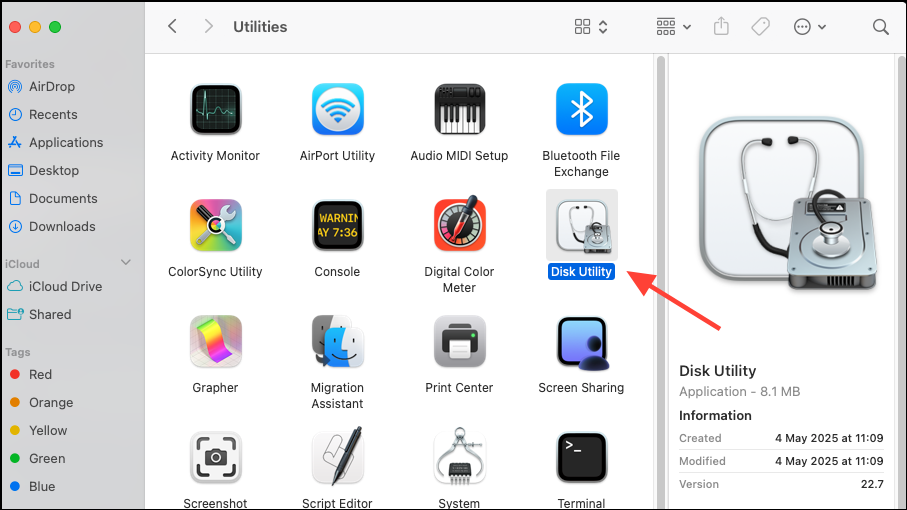
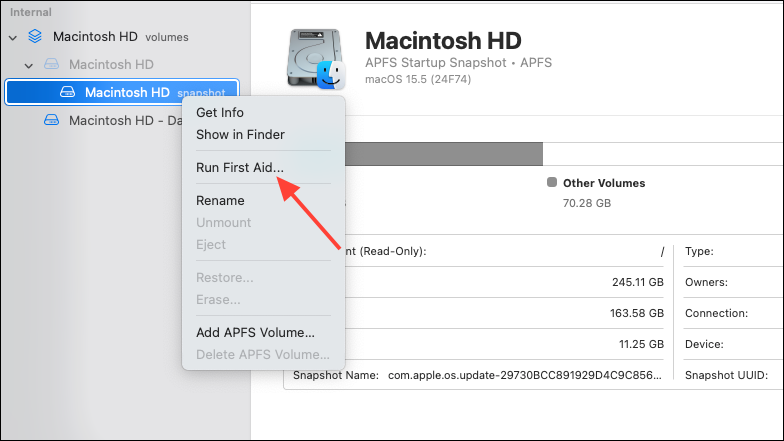
Choose your startup disk (usually named “Macintosh HD”) from the sidebar. Click “First Aid,” then “Run” to scan and repair disk errors. Wait for the process to complete.
If errors are found and repaired, restart your Mac. If the issue persists, proceed to reinstall macOS.
Reinstall macOS Without Erasing Data
Reinstalling the operating system can restore corrupted system files while preserving user documents and settings. A stable internet connection is required.
Allow the installation to complete without closing the MacBook lid or letting it sleep. The process may involve several automatic restarts and periods where the screen appears blank.
Follow the prompts to choose your backup disk, select a backup date prior to the update, and restore the system. This process will revert your Mac to its earlier state, including the previous macOS version and user data.
Remove Problematic Kernel Extensions (Advanced)
Unsigned or incompatible kernel extensions (.kext files) can cause startup failures after updates. Removing them may restore normal booting, but this step is intended for advanced users.
If using an external monitor, ensure it is powered on and set to the correct input. Try disconnecting and reconnecting the display cable, or switch to a different port or cable type (such as from HDMI to DisplayPort).
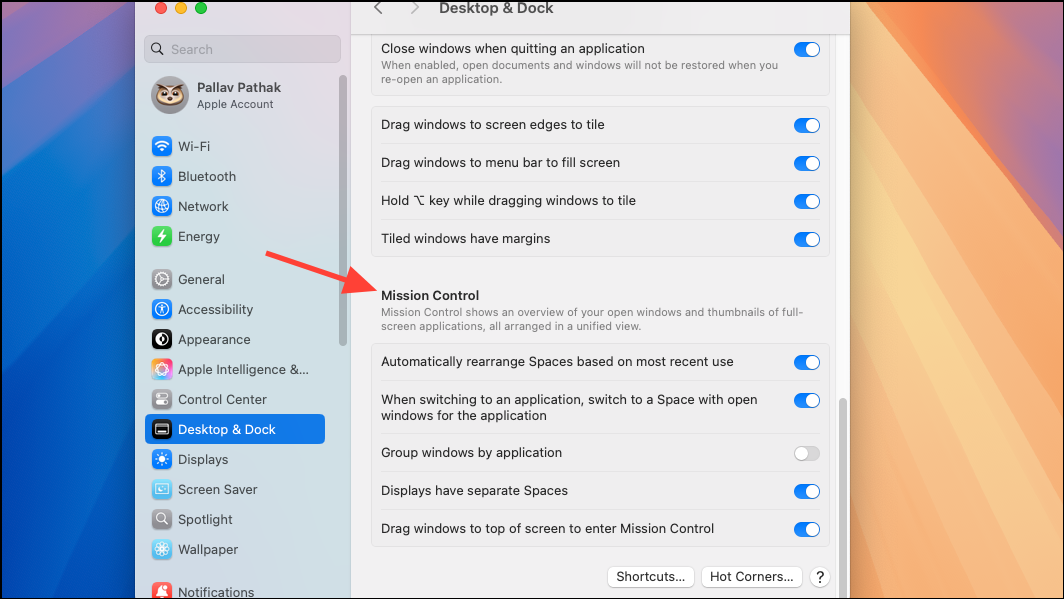
For dual-monitor setups, enable “Displays have separate Spaces” in System Settings > Desktop & Dock > Mission Control to resolve display detection issues.
Contact Apple Support or Visit a Service Center
If none of these steps resolve the black screen, the issue may be hardware-related, such as a failed display, logic board, or internal cable. At this point, schedule a visit to an Apple Store or authorized service provider for diagnostics and repair. Running Apple Diagnostics by holding D at startup can help identify hardware faults.
By systematically applying these methods, most black screen issues after a macOS 15 update can be resolved without data loss or major disruption. Regular backups and careful update practices provide added protection against future problems.