

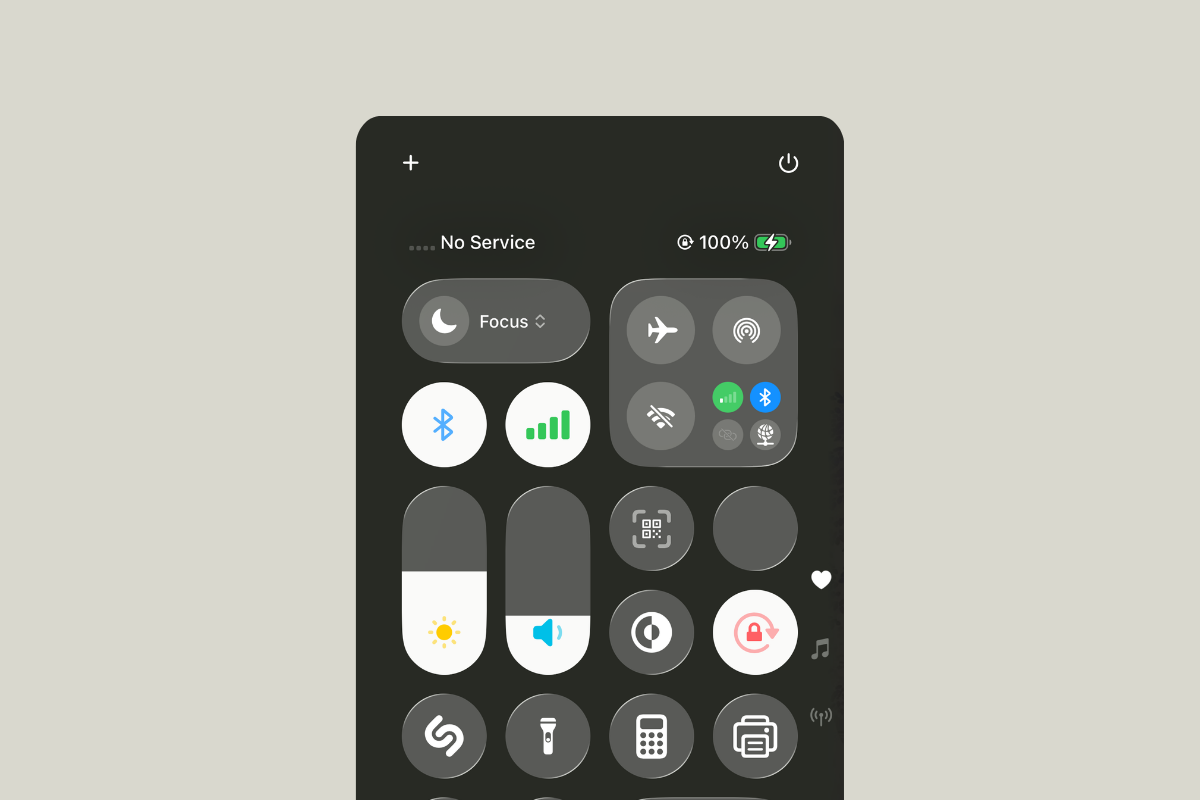
Switch Airplane Mode on for at least 15 seconds, then turn it off to force the modem to re-register. If your iPhone still shows No Service after updating to iOS 26, use the methods below to systematically reattach to your carrier network and correct settings that commonly break during updates.
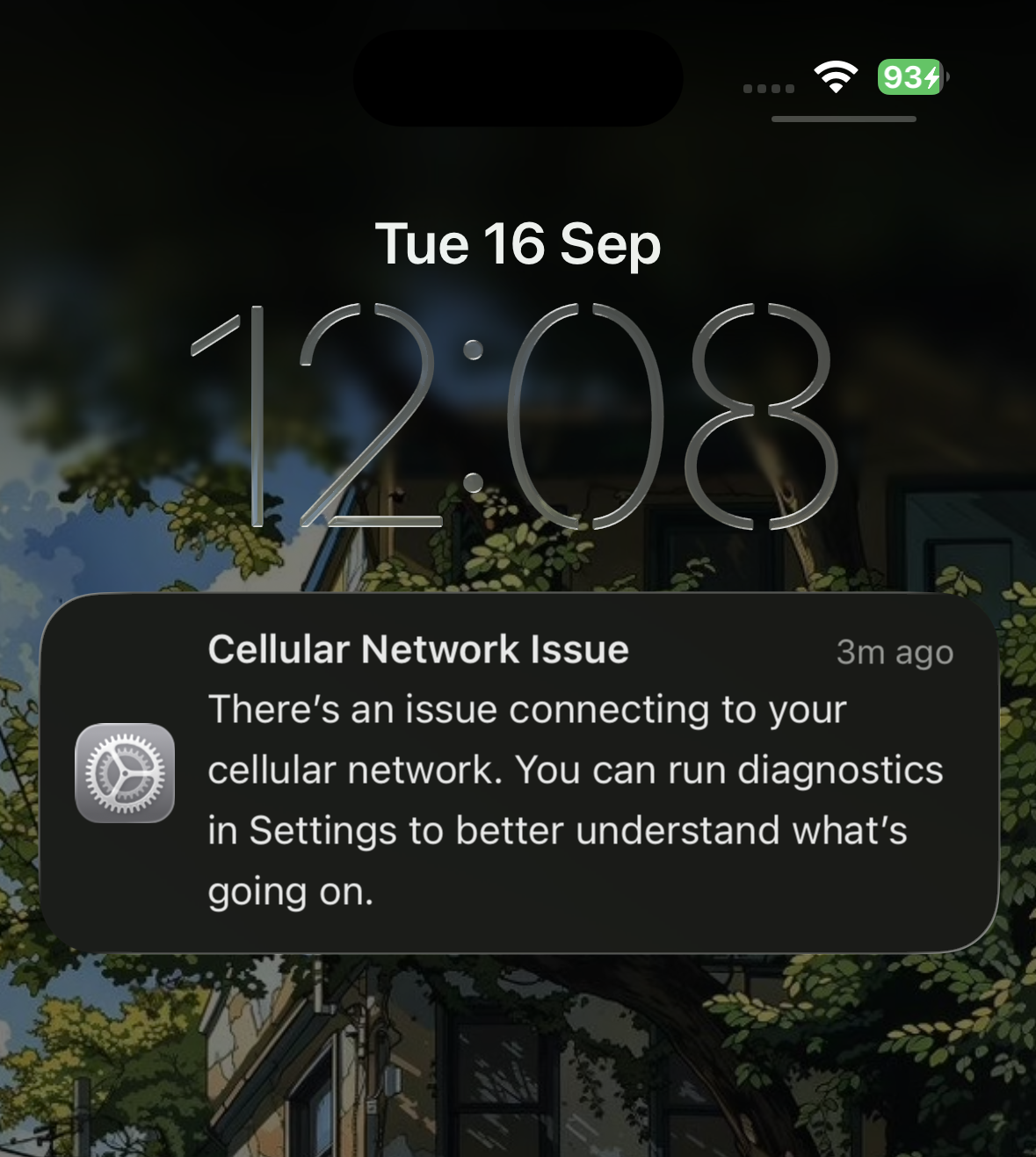
You might see No Service, SOS, or Searching in the status bar, calls that fail immediately, or data icons (4G/5G) that never appear even with signal bars. Early iOS 26 beta builds have shown intermittent cellular failures after restart, especially on some iPhone 13 models, but the steps here apply to stable builds as well.
Before you start
- Confirm coverage and outages with your carrier’s status page or support line.
- Make sure Airplane Mode is off and your cellular line is turned on in
Settings > Cellular. - If you see SOS, emergency calls may still work in supported regions.
Method 1: Enable Airplane Mode and restart
Settings > Cellular > your line and turn it off, wait 10 seconds, then turn it back on to trigger a new network session.Method 2: Install pending carrier settings
Settings > General > About. If an update alert appears, install it to update your carrier bundle and roaming tables.About, check the Carrier field to confirm it refreshed; then wait 1–2 minutes for service to return.Method 3: Refresh your SIM or eSIM registration
Settings > Cellular, tap the affected line, and turn the line off, then back on after 10 seconds. This re-requests network credentials for that profile.Method 4: Reset network settings (common fix)
This reset clears saved Wi‑Fi networks, VPN/APN entries, and paired Bluetooth devices but keeps your apps and data.
Settings > General > Transfer or Reset iPhone > Reset > Reset Network Settings. Confirm the reset to reload radio configuration files.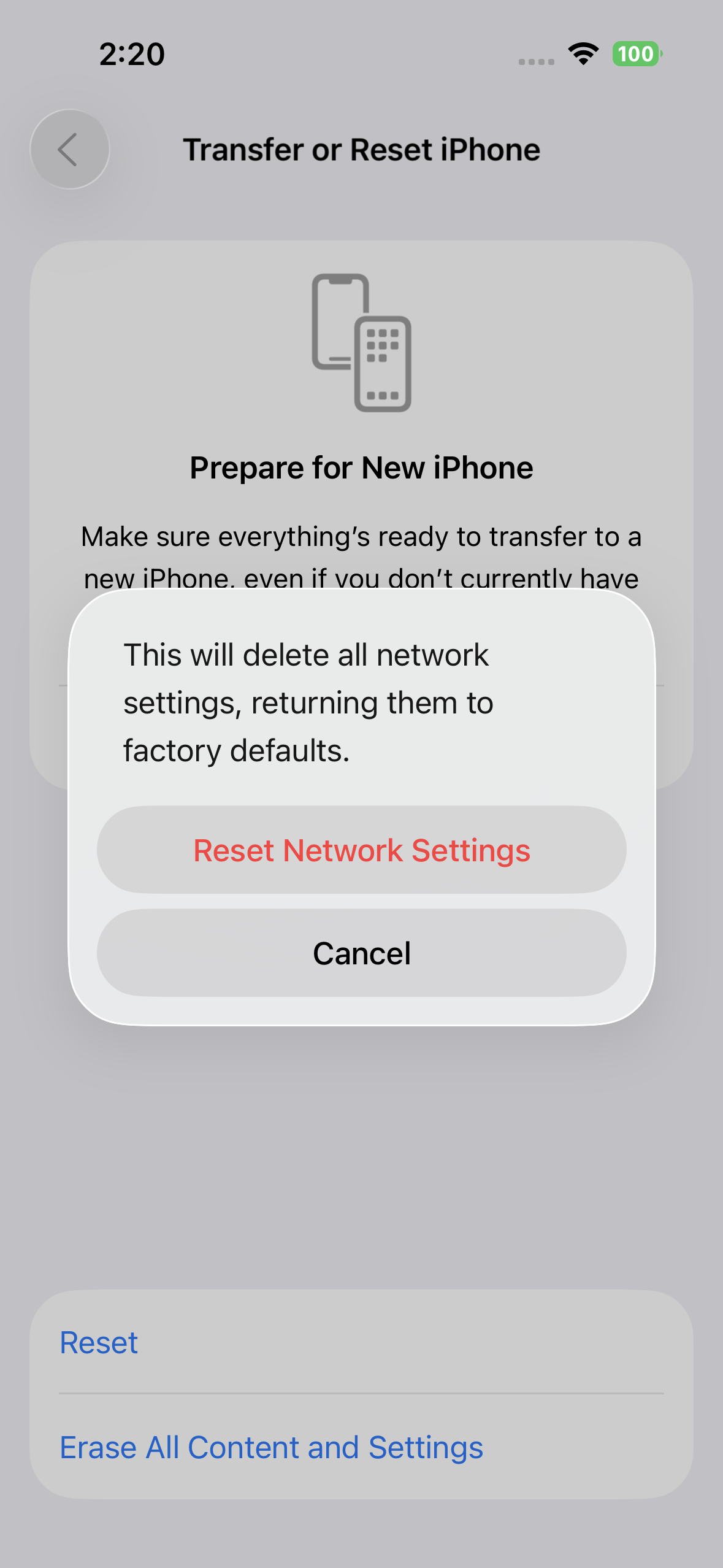
Method 5: Update iOS to the newest build
Settings > General > Software Update. Vendors frequently ship follow-up builds that correct modem and carrier bundle regressions seen right after a major release.Method 6: Reinstall the iOS firmware (keeps your data)
Method 7: iOS 26 beta workaround — might still be useful
Settings > Cellular > Network Selection and turn off Automatic. This exposes the manual carrier list.Cellular and wait 20–30 seconds. This pause prompts a fresh scan for available networks.Network Selection, choose your carrier if it appears, and then re-enable Automatic. Users on early iOS 26 dev betas report this restores service until the next build.Method 8: Set up as new (narrow down profile conflicts)
Settings > General > Transfer or Reset iPhone > Erase All Content and Settings. Erase the device and complete setup without restoring a backup.Method 9: Carrier and region checks
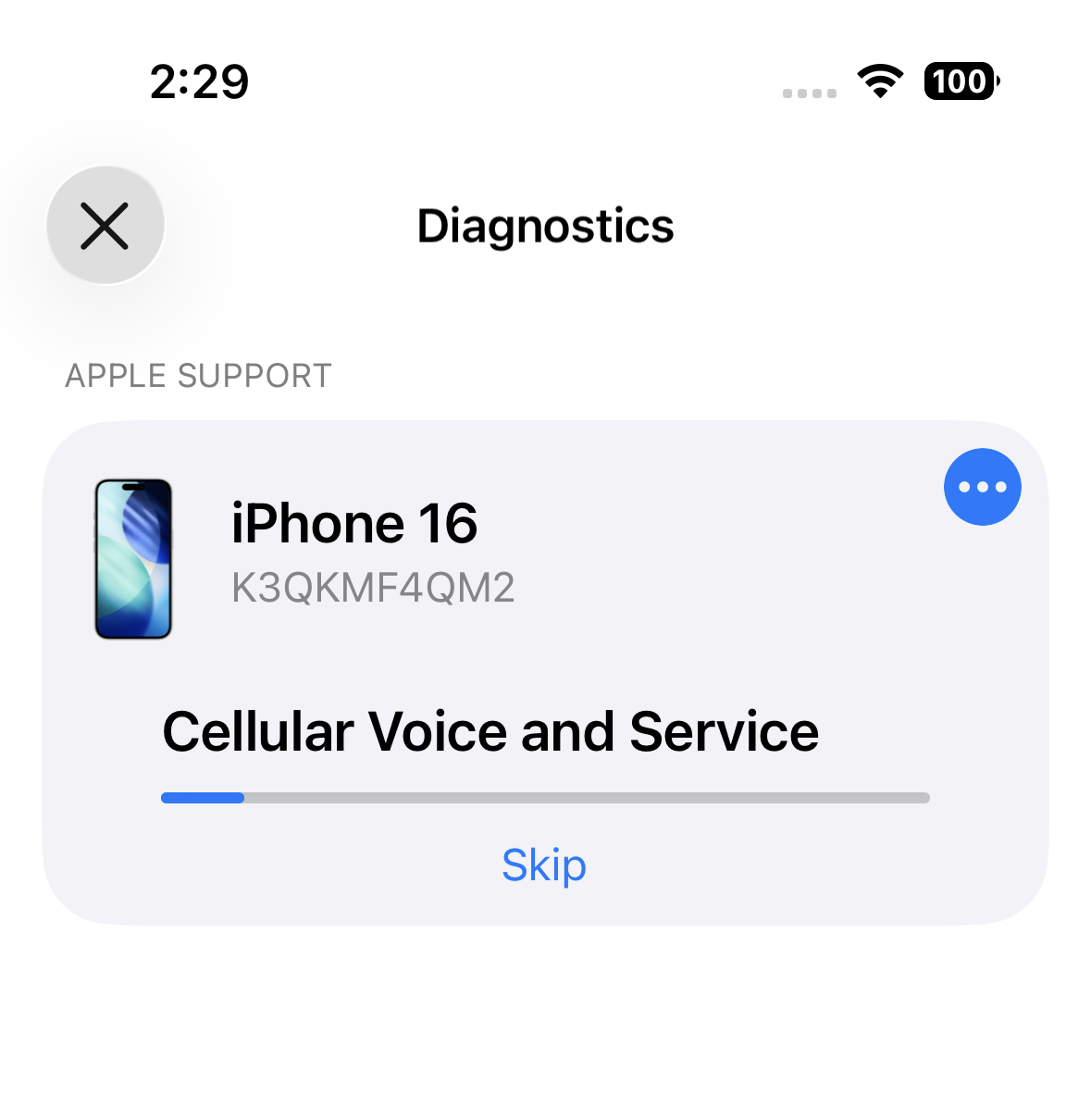
Method 10: Hardware checks and Apple diagnostics
Tip: After a network settings reset, leave the phone idle in good coverage for up to 30 minutes. Many devices regain service during this window as the modem completes re-registration and background updates.
If service returns, keep your iPhone updated and avoid installing beta builds on a primary device during critical periods. If the issue persists across these steps, your carrier or Apple Support can check provisioning and hardware in more detail.





