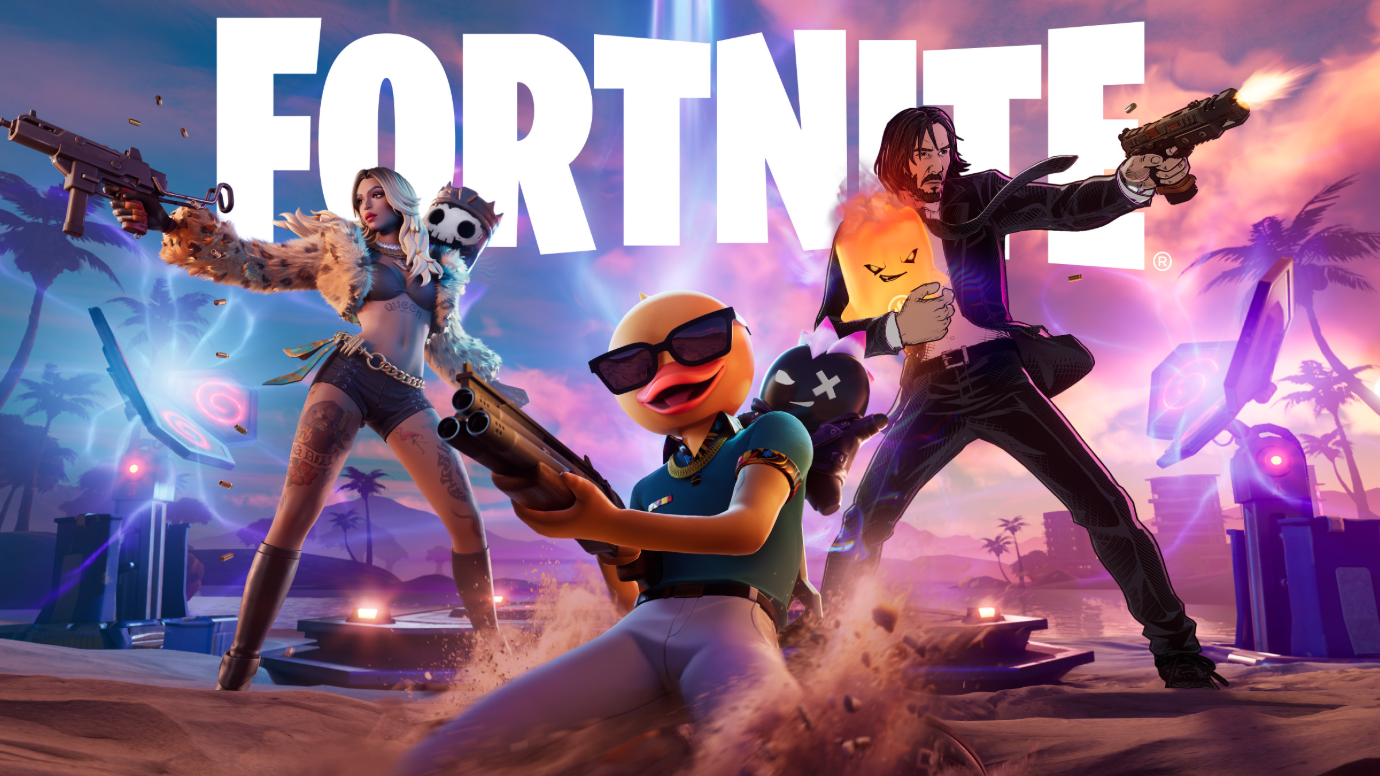
Right as the doors opened for the Shattered live event, a wave of players hit the same wall: a matchmaking error that blocked them from loading into the lobby. The message itself is vague. The full text of Matchmaking Error #1 reads, “Weird. We couldn’t connect to the match. You can try again, but if the problem continues, check our status page.” During a one-time, time-limited event, that error is more than annoying because the lobby fills up and the show starts whether you make it in or not.
Quick answer: Close Fortnite completely and relaunch it, confirm Allow Cross-Platform Play is turned on under Settings > Account and Privacy, then queue again. If the lobby still rejects you, the bottleneck is server load on Epic’s side, and repeated re-queuing is usually what eventually lets you in.
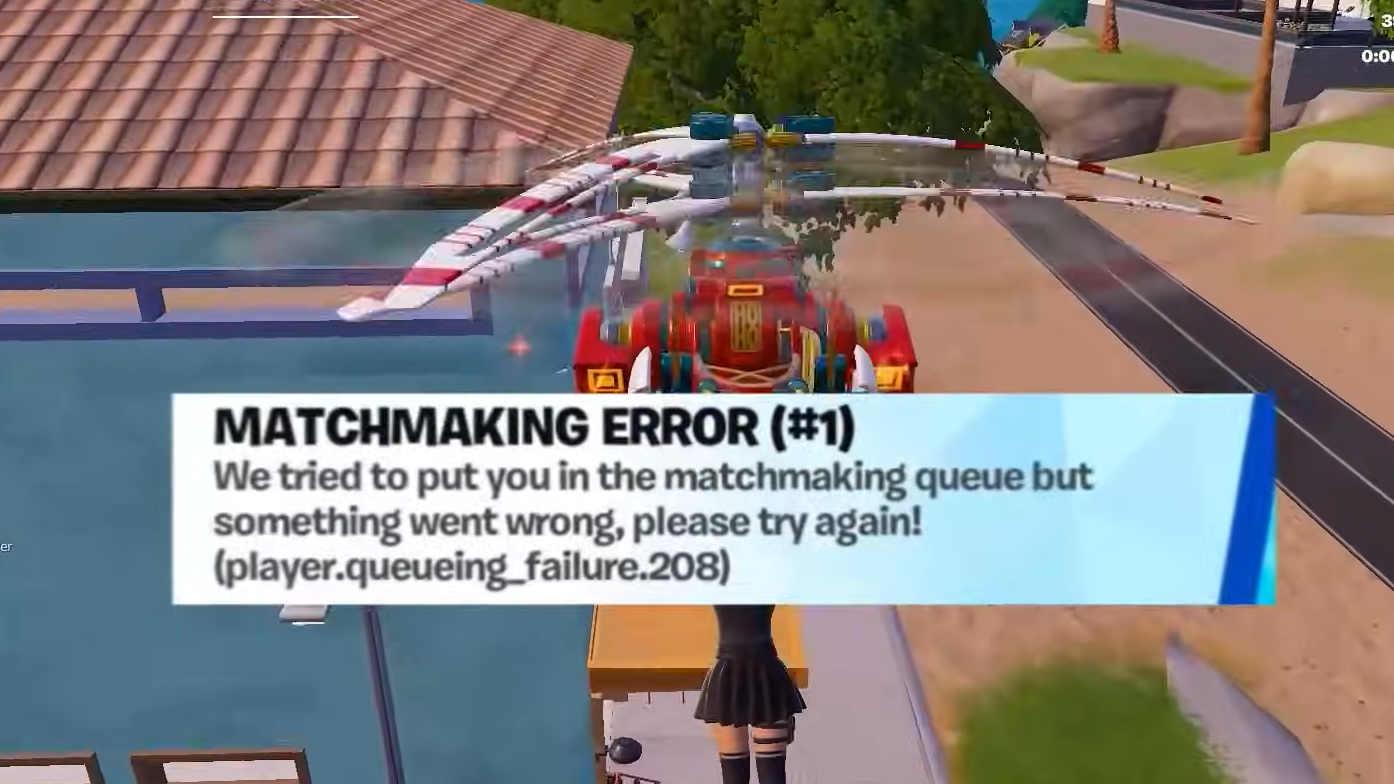
Why Matchmaking Error #1 spikes during live events
Live events pull a huge number of players into the same special playlist at the same moment. That concentrated traffic is the single most common trigger for Matchmaking Error #1. The error does not point to one specific failure, which is part of why it feels random.
The usual causes are heavy server traffic right after the doors open, an outright server outage or maintenance, an unstable internet connection on your end, corrupted or missing game files, cross-play being disabled, or running an outdated build that no longer syncs with the current server version. During the Shattered event, the dominant cause was simple overload, with players reporting the error repeatedly across PC and mobile parties at the same time.
Check Epic’s server status first
Before changing anything on your machine, confirm whether the problem is even yours to fix. The Epic Games status page lists Fortnite Matchmaking as a separate component, and the official Fortnite Status account on X posts during incidents. If Matchmaking is marked as degraded or down, none of the local fixes below will help, and the only real option is to keep retrying until services recover.
For context, Epic has logged matchmaking incidents close to event windows before. A matchmaking issue on June 2, 2026 was resolved the same day, and a combined matchmaking, login, and Locker incident on May 30, 2026 was also cleared. When the status board shows everything operational, the cause is more likely on your side or simple congestion, and the steps below apply.
Fix Matchmaking Error #1 on PC
Fix Matchmaking Error #1 on PS5, Xbox, and Switch
How to know it worked
You have cleared the error when the queue advances and you load into the event lobby instead of being kicked back with the “we couldn’t connect to the match” message. There is no separate confirmation screen. Loading into the lobby is the success signal.
If you are in a party, a quick fix that often helps is to have everyone confirm cross-play is on and re-queue together, since one player with cross-play disabled can hold the whole group back.
When it is purely Epic’s side
| Situation | What to do |
|---|---|
| Status page shows Matchmaking degraded or down | Stop troubleshooting locally and re-queue until services recover |
| Error appears right as a live event opens | Treat it as congestion and keep retrying the queue |
| Everything operational but you still get the error | Work through the restart, verify, region, and cross-play fixes above |
| Error follows a major update | Confirm the client is fully updated before doing anything else |
Matchmaking Error #1 is rarely a sign of a broken account or a corrupted install. During a live event, it almost always comes down to too many players hitting the servers at once. A clean relaunch, cross-play turned on, and a calm willingness to re-queue a few times are what get most people through the door before the dust settles.