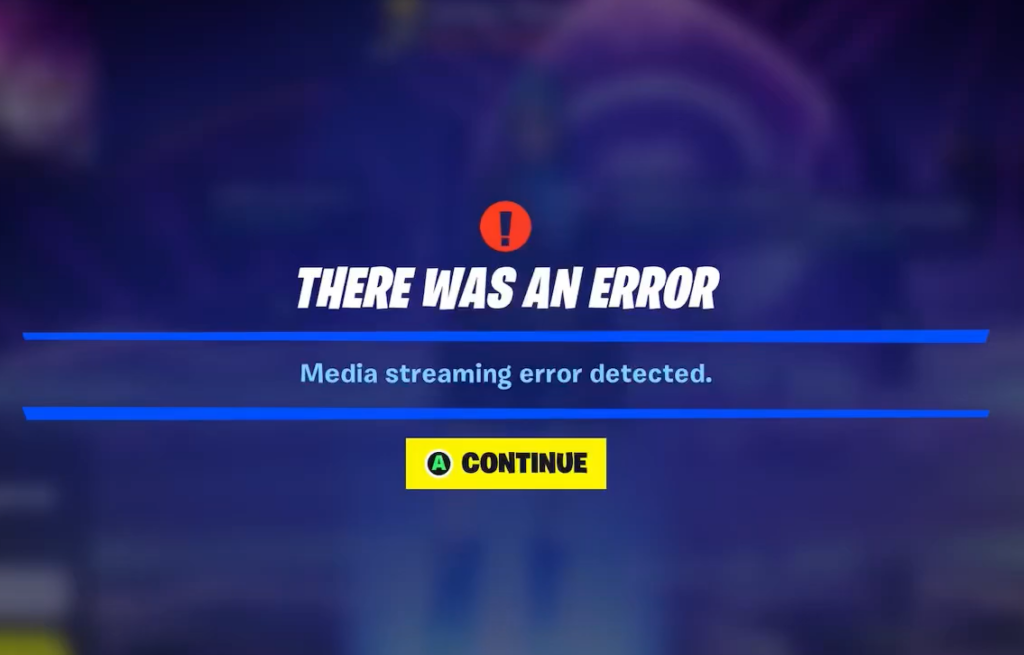
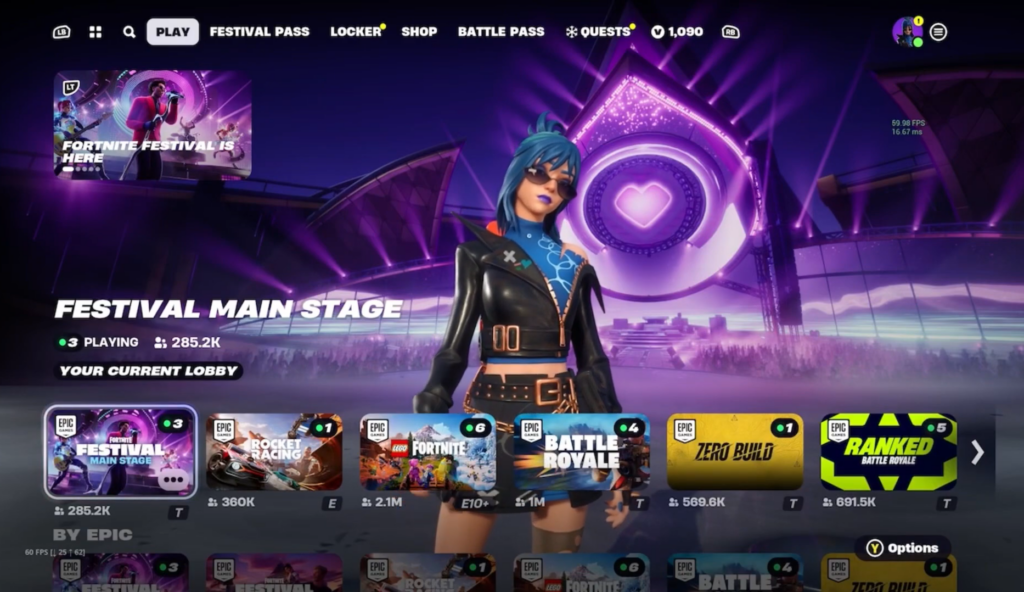
The “Media Streaming Error Detected” message stops Fortnite from loading audio and visuals, and it shows up most often in Fortnite Festival when you try to play a track on the Main Stage. In most cases, it points to a connection problem between your device and Epic’s servers rather than something broken in your own setup, which means a quick reset usually clears it.
Quick answer: Fully close Fortnite and relaunch it. If the error returns, load any non-Festival mode for a few seconds, exit, then rejoin Festival. This re-establishes the server connection and clears the error for most players.
What triggers the media streaming error in Fortnite
The error appears when Fortnite cannot reliably stream the media it needs, usually a Festival song, from Epic’s servers. That can happen for several reasons, and knowing which one applies tells you which fix to try first.
| Cause | What it looks like |
|---|---|
| Server connection drop | Error appears suddenly after the game worked fine earlier |
| Epic server outage or maintenance | Many players hit the error at the same time |
| Unstable or slow internet | Buffering, lag, or repeated disconnects from the Main Stage |
| Outdated game client | Error persists until the latest update is installed |
| Corrupt cache or install | Error survives restarts and connection checks |
Fix the media streaming error in Fortnite Festival
Work through these in order. The first two resolve the error for most players, so try them before touching settings or reinstalling.
Clear the game cache by platform
If the error survives restarts and connection checks, corrupt temporary files may be the cause. Clearing the cache does not delete your account progress or saved data.
| Platform | How to clear the cache |
|---|---|
| PC | Close Fortnite and the Epic Games Launcher, press Win + R, type %localappdata%, then delete the “Epic Games Launcher,” “Epic Games,” and “FortniteGame” folders before relaunching. |
| PlayStation | Power off, hold the Power button until you hear two beeps to enter Safe Mode, connect the controller by USB, then choose to clear cache and rebuild the database. |
| Xbox | Turn off and unplug the console, disconnect accessories, wait two minutes, hold the Power button for a minute, then plug it back in and restart. |
| Nintendo Switch | Go to System Settings, then System, then Formatting Options, choose Clear Cache, select your profile, and confirm. |
Reinstall Fortnite as a last resort
If nothing above works, a corrupt installation may be to blame. Uninstall Fortnite and reinstall it from your platform’s store or the Epic Games Launcher. Because this is a long download, keep it as a final option after the quicker fixes.
You’ll know the fix worked when Festival loads your selected track and you reach the Main Stage without the “Media Streaming Error Detected” message interrupting play. Tracks you bought with V-Bucks remain tied to your account, so they become playable again as soon as the connection is restored.
When to contact Epic Games
If the error keeps appearing after you’ve restarted, updated, stabilized your connection, cleared the cache, and reinstalled, the problem is likely on Epic’s side. Submit a bug report from inside Fortnite so the team can investigate, and reach out through the official Fortnite support pages to open a ticket or confirm whether a known issue is already being worked on.