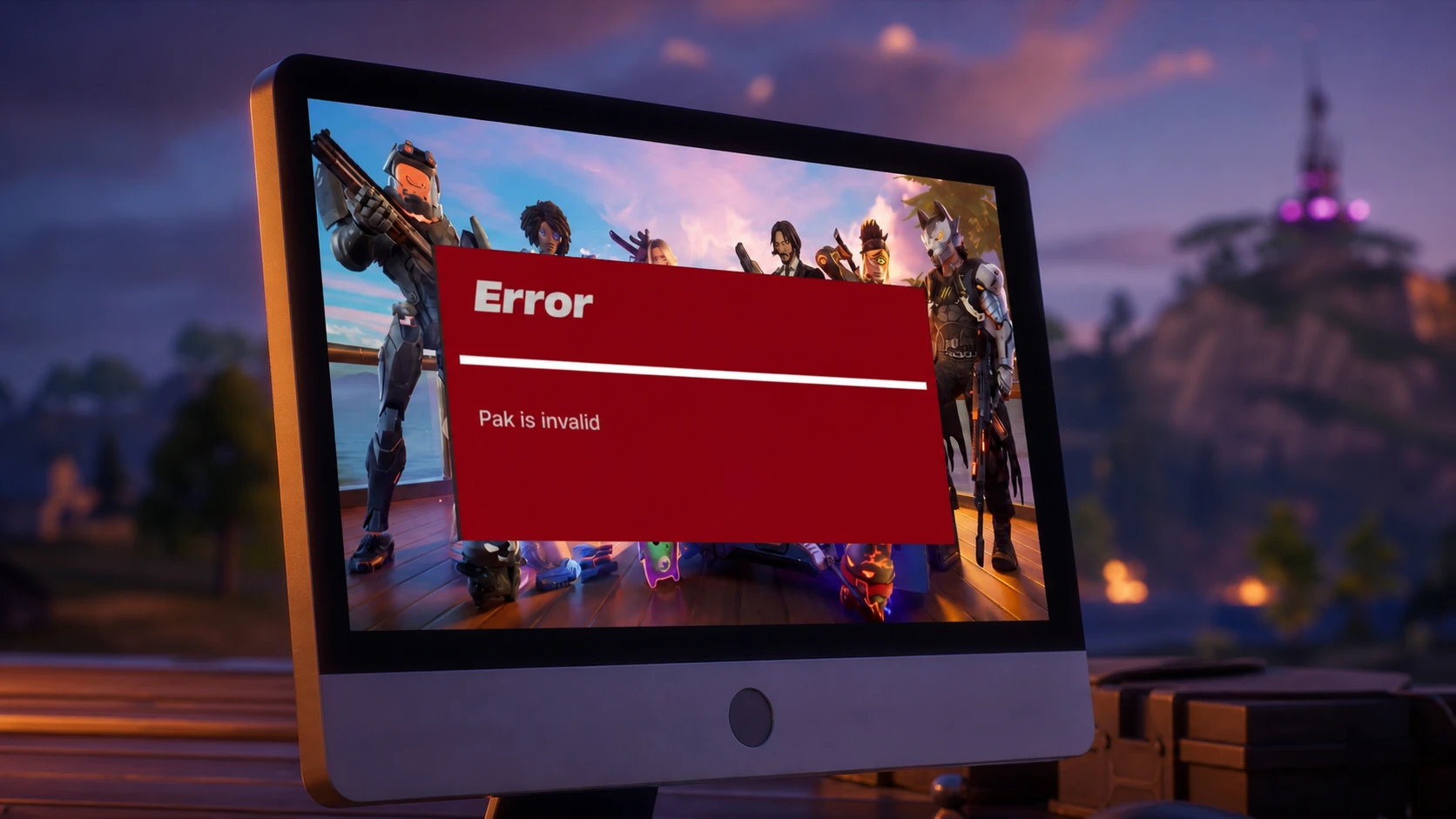
The “Pak is invalid” error stops Fortnite before it can fully load, usually with a message that reads “Pak file is invalid. Please verify your installation.” It appears when the game cannot read or confirm one of its .pak data archives, the large files that hold maps, skins, textures, audio, and interface assets. When even one of those files is damaged or incomplete, Fortnite refuses to start to avoid crashing mid-load.
Quick answer: Open the Epic Games Launcher, go to your Library, click the three dots next to Fortnite, choose Manage, then click Verify. When the scan finishes and replaces the bad files, relaunch Fortnite. If it still fails, delete the .pak files in the Paks folder and verify again.

What causes the “Pak is invalid” error in Fortnite
The error almost always traces back to a single corrupted or mismatched data file rather than a problem with the whole installation. The most common trigger is an update that did not finish cleanly. The table below lists where players see it and how often each situation occurs.
| When it appears | What went wrong | How common |
|---|---|---|
| After a patch update | Files downloaded incompletely or became corrupted | Very common |
| During first install | Errors in the initial download or setup | Common |
| After a crash or power loss | Shutdown during patching damaged files | Common |
| Random launch | Local file corruption or version mismatch | Less common |
| During a file check | The integrity scan flags a damaged pak | Moderate |
Other contributing factors include antivirus or firewall software that quarantines a .pak file, disk bad sectors, an incorrect system clock that throws off signature checks, and running out of free disk space mid-update. On Unreal Engine, related launch failures may instead reference the IO Store container files, the .utoc and .ucas archives, but the underlying cause and the fixes are the same.
How to recognize it
The message usually points directly at the installation and may include a numerical code or name a specific pak file. The underlying meaning never changes. Fortnite cannot verify its data packages, so it stops loading. Alongside the launch block, you may notice game crashes during startup, very slow loading, updates that fail to complete, or missing textures and models in Creative mode.
Fix 1: Verify Fortnite files in the Epic Games Launcher
Verifying compares your installed files against the version on Epic’s servers and re-downloads anything that is missing or damaged. This is the first thing to try because it targets the exact corrupted archive without touching the rest of the game.
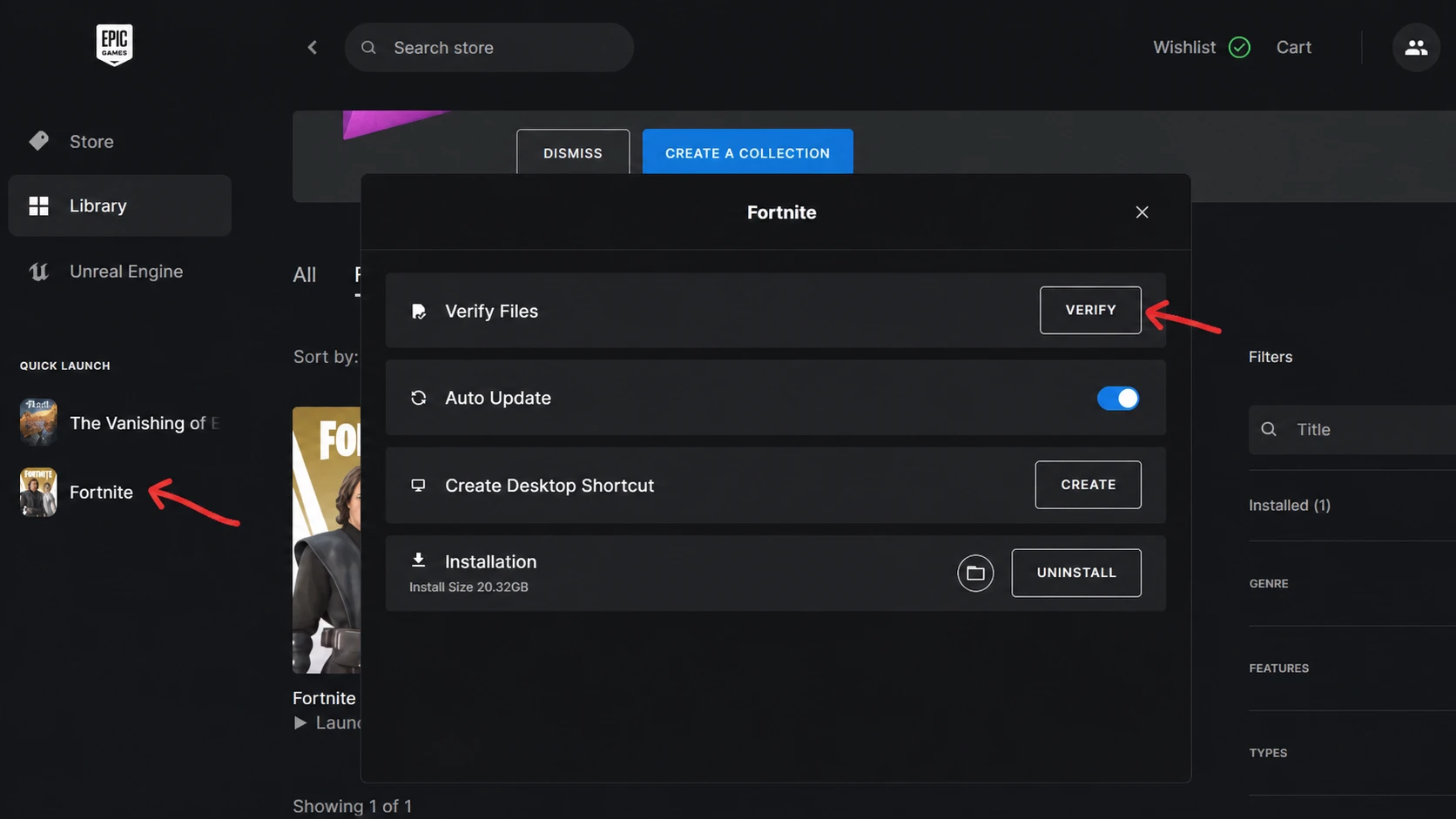
Fix 2: Delete the .pak files, then verify again
If verifying alone does not clear the error, the Paks folder itself may hold the damaged archive. Removing the pak files forces the launcher to pull clean copies. Close Fortnite and the Epic Games Launcher completely first, using Task Manager if needed.
goble.utoc, then select that file and everything listed after it. If you prefer a clean sweep, you can delete all .pak files in the folder.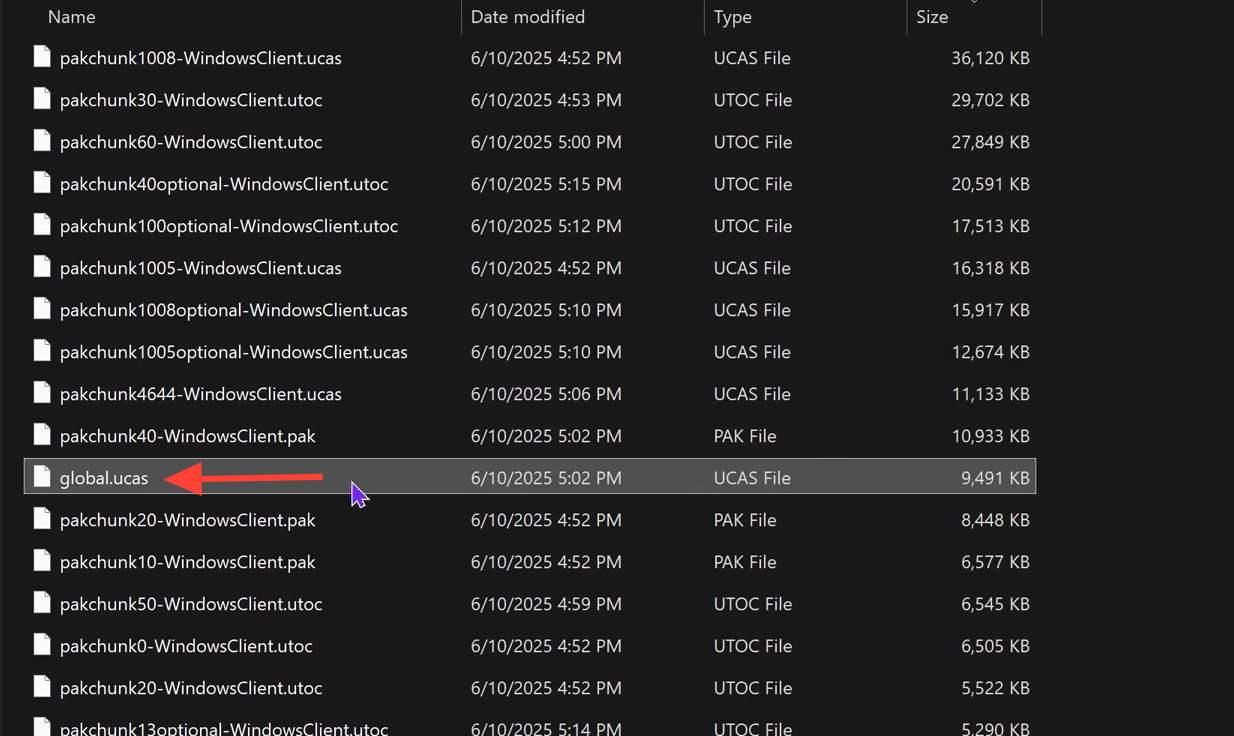
Fix 3: Clear the shader cache and temporary files
Old shader data can conflict with freshly updated game files and interfere with the integrity check. Clearing it pushes the system to rebuild clean shader data.
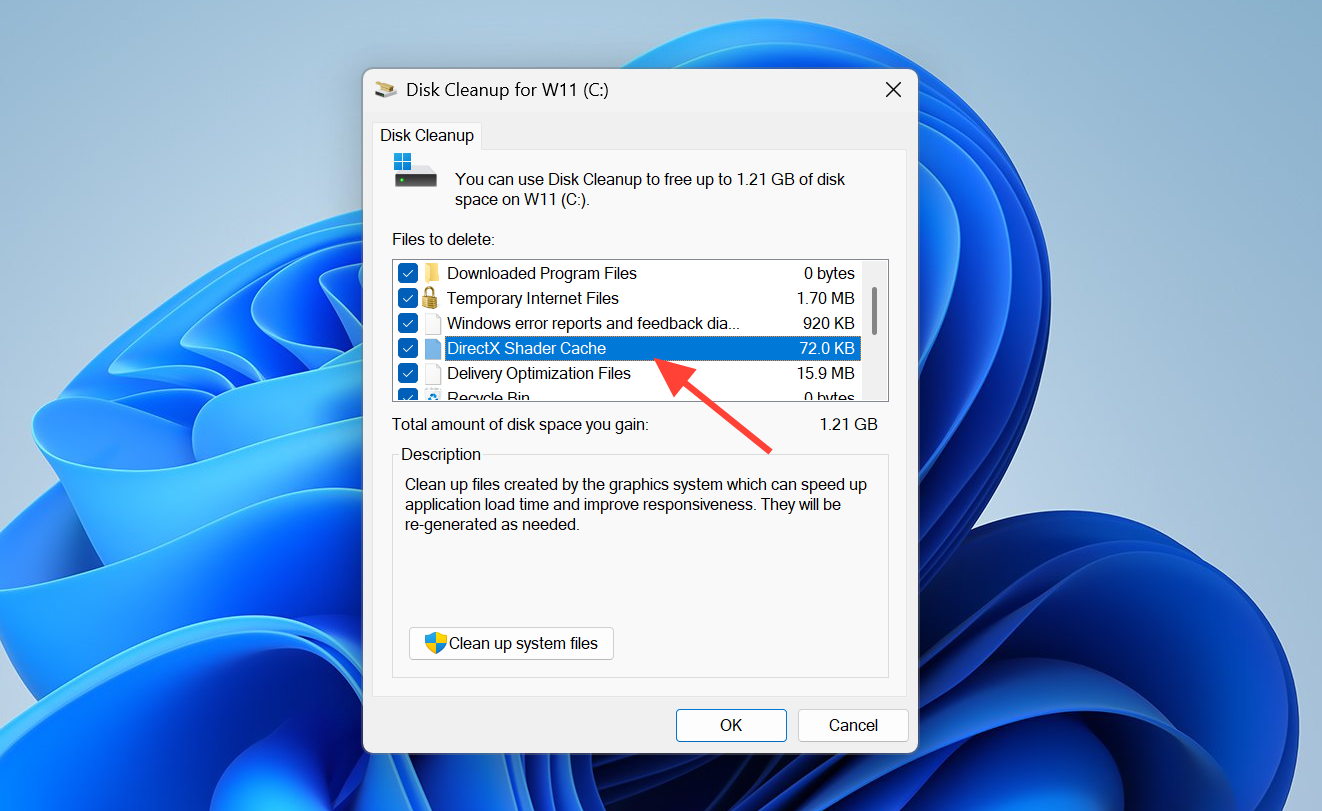
Fix 4: Reinstall Fortnite
When verification and file deletion both fail, a clean reinstall replaces every archive and clears deep corruption that a scan cannot reach. Uninstall Fortnite through the Epic Games Launcher, then delete any leftover Fortnite folders manually. Restart your PC and reinstall the game from the launcher.
System-level fixes for a recurring error
If the error keeps returning after reinstalling, the cause is often outside Fortnite itself. Repeated corruption points to a hardware or connection problem that quietly damages files as they download or sit on disk.
| Likely cause | What to do |
|---|---|
| Antivirus blocking pak files | Whitelist the Fortnite and Epic Games Launcher folders, or disable the security app temporarily |
| Disk errors or bad sectors | Run chkdsk /f to repair file system issues; move the install to another drive if needed |
| Damaged Windows components | Run sfc /scannow to repair broken system files |
| Unreal Engine dependencies | Reinstall DirectX and the Visual C++ Redistributables |
| Faulty memory | Test RAM with MemTest86 |
| Unstable downloads | Use a wired connection for large patches and avoid interrupting updates |
Note: An incorrect system clock can also cause a signature mismatch, so make sure your date and time are set automatically before retrying.
How to confirm the fix worked
You know the repair succeeded when Fortnite launches past the loading screen and reaches the lobby without the “Pak is invalid” message reappearing. After a successful verify, the launcher reports that all files are valid and the play button becomes active. If the error returns on the very next launch, the problem is most likely hardware-related. Watch for crashes in other games, blue screen errors during heavy tasks, slower-than-usual drive read and write speeds, or RAM errors flagged by MemTest86, which all point to storage or memory that may need replacing.
To keep the error from coming back, keep Windows and your drivers current, download large patches on a stable connection, exclude the Fortnite folders from antivirus scans, and run a file verification after every major update. Those habits address the incomplete downloads and false-positive blocks that trigger most “Pak is invalid” cases in the first place.