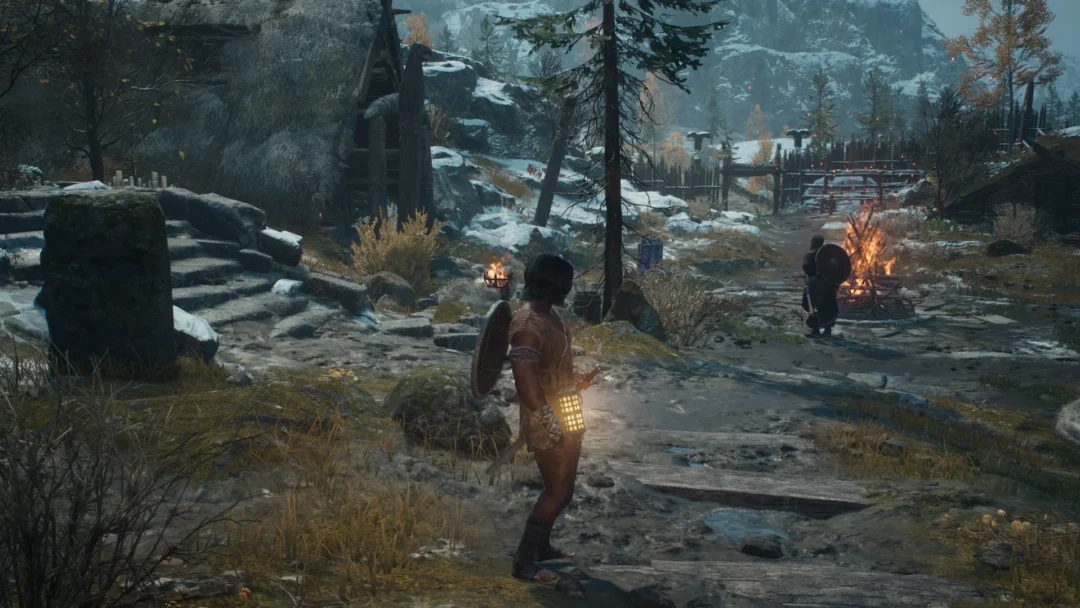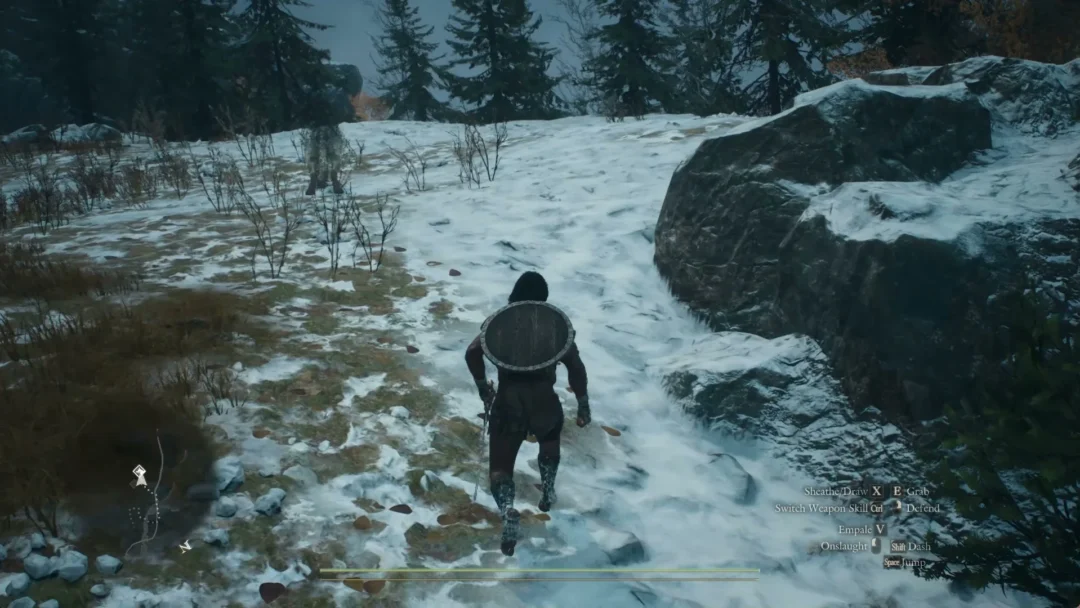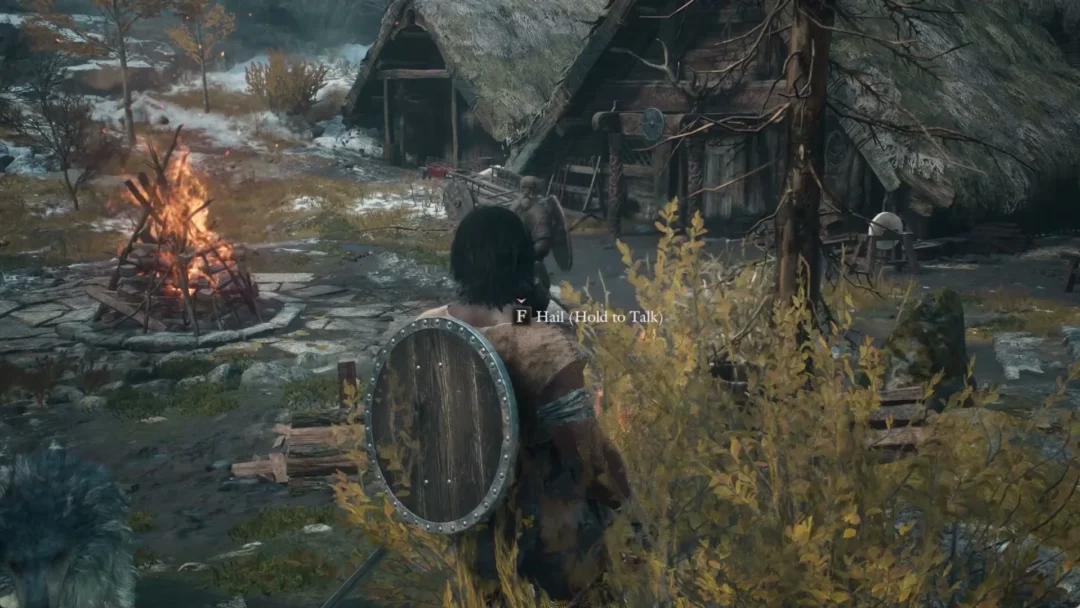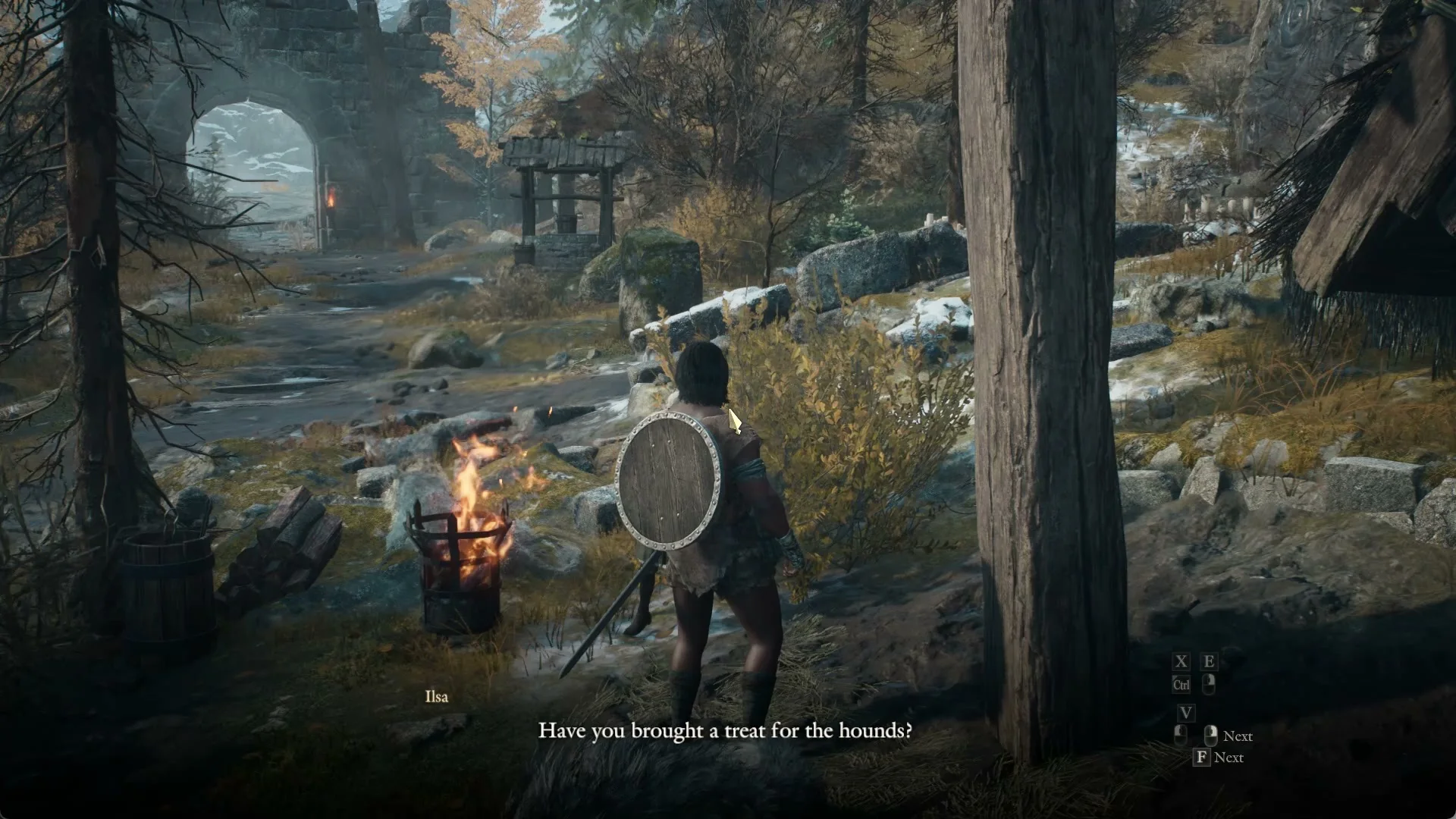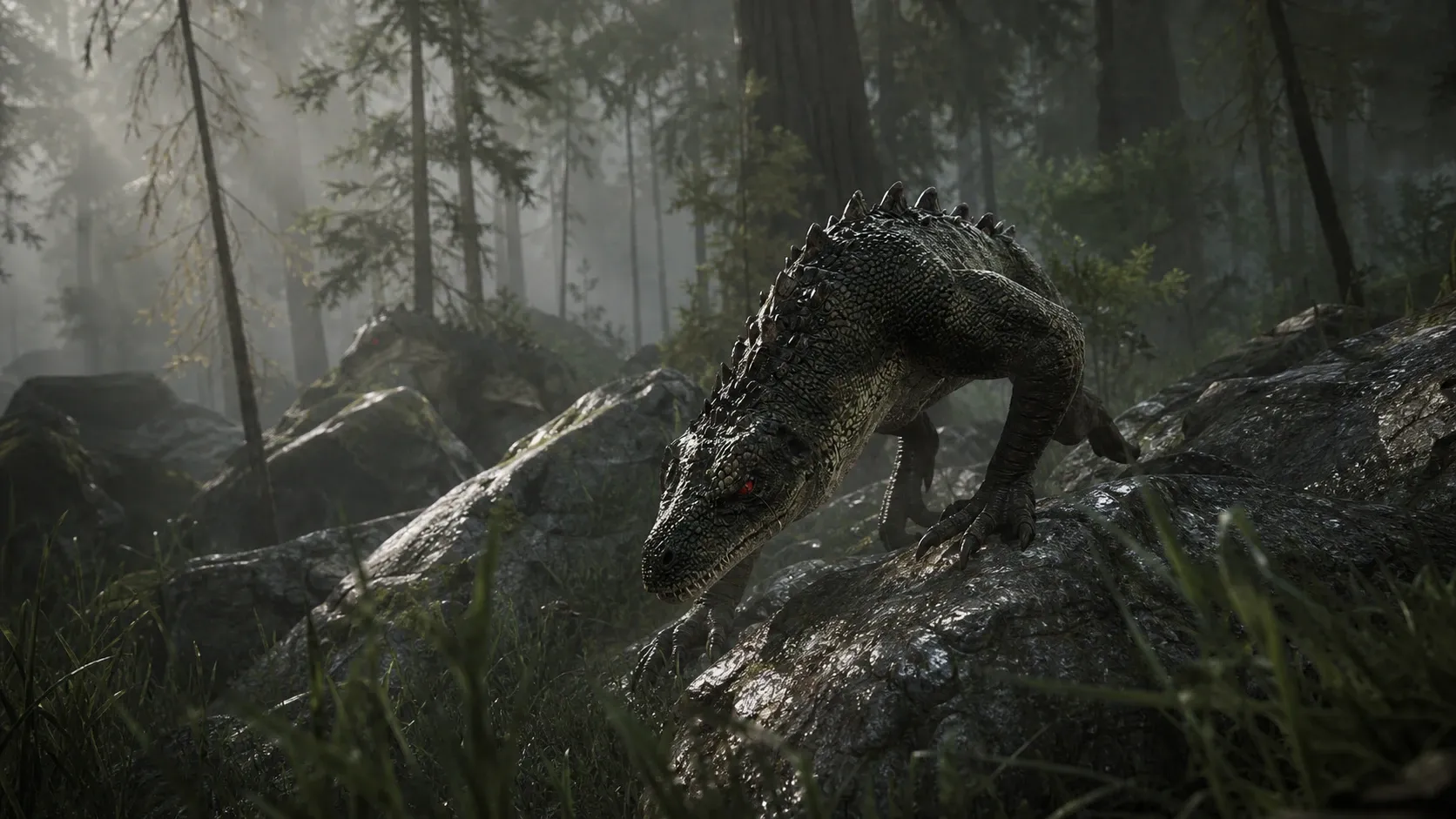
Gothic 1 Remake runs on Unreal Engine 5, and that engine is the reason the penal colony looks dense and atmospheric while also hammering mid-range hardware. The frame drops you feel inside the Old Camp and across the Valley of Mines come mostly from a handful of heavy settings, not from your whole rig being too slow. Lowering the right options and adding two upscaling and shader tweaks recovers most of the lost performance without flattening the dark fantasy look.
Quick answer: Set Global Illumination and Shadow Quality to Medium, View Distance and Foliage Density to Medium, turn on DLSS or FSR in Quality mode, switch Motion Blur off, and keep textures as high as your VRAM allows. That holds a stable 60+ FPS at 1080p or 1440p on cards like an RTX 3060/4060 or RX 6700 XT.
System requirements for Gothic 1 Remake
Before changing any toggles, check where your hardware sits against the official targets. The minimum spec aims at roughly 30 to 45 FPS, while the recommended spec is built for a smoother 60 FPS experience with higher visuals.
| Component | Minimum | Recommended |
|---|---|---|
| CPU | Intel Core i7-7700K / AMD Ryzen 5 1600X | AMD Ryzen 5 2600X / Intel Core i7-7700K |
| GPU | 8 GB VRAM, RX 6700 XT or RTX 2070 | 12 GB VRAM, RTX 3070 Ti / RX 6800 XT |
| RAM | 16 GB | 32 GB |
| Storage | 60 GB | 60 GB |
Best balanced settings for 60+ FPS (RTX 3060/4060, RX 6700 XT)
On modern mid-range cards, the goal is a locked, fluid frame rate that survives combat without going to a slideshow. This preset keeps the moody lighting intact while cutting the two biggest GPU and CPU costs, which are global illumination and shadows.
| Setting | Value |
|---|---|
| Display Mode | Fullscreen |
| Resolution | Native monitor resolution |
| Resolution Scale | 100% (use an upscaler instead) |
| Global Illumination | Medium or High |
| Shadow Quality | Medium |
| Foliage Density | Medium |
| View Distance | Medium |
| Texture Quality | High / Ultra (match VRAM) |
| Effects Quality | Medium |
| Post-Processing | Medium |
| Motion Blur | Off |
Confirm it worked by opening the developer console with the tilde key (~) and typing stat fps. The native counter is more reliable than third-party overlays, and a correctly tuned setup should sit above 60 FPS even inside camp areas.
Emergency settings for low FPS
When frames collapse during a fight and pacing turns erratic, strip out the expensive render passes and lower the internal resolution. The biggest single recovery comes from upscaling, followed by shadows and global illumination.
| Setting | Value | Typical recovery |
|---|---|---|
| Anti-Aliasing / Upscaling | DLSS / FSR / XeSS Balanced | 20% – 30% FPS |
| Shadow Quality | Low | 12% – 15% FPS |
| Global Illumination | Low | 10% – 15% FPS |
| View Distance | Low | Frees up CPU in camps |
| Post-Processing | Low | Drops heavy GPU passes |
| Foliage Density | Low | Stabilizes dense forests |
| V-Sync | Off (use G-Sync / FreeSync) | Cuts input lag |
Global Illumination and Shadow Quality are the two most demanding options in the game. Dropping them from Ultra to Medium can return up to 20% of your performance while keeping the world recognizable.
Low-end PC settings (30-45 FPS target)
On an older desktop or a budget laptop near the minimum spec, aim for a playable 30 to 45 FPS rather than a locked 60. Lower the rendered pixel count first, then cut the geometry and lighting load.
| Setting | Value |
|---|---|
| Resolution | 1920×1080 or 1280×720 |
| Upscaling Mode | Performance |
| Global Illumination | Low |
| Shadow Quality | Low |
| Texture Quality | Medium or Low (match VRAM) |
| Foliage Density | Low |
| View Distance | Low |
| Motion Blur & Depth of Field | Off |
DLSS vs FSR in Gothic 1 Remake
Temporal upscaling is close to mandatory here because of how heavy the engine is. The right choice depends on your GPU brand and how sensitive you are to ghosting or shimmering.
| Metric | DLSS | FSR |
|---|---|---|
| Hardware | NVIDIA RTX 20/30/40 only | AMD, NVIDIA and Intel |
| Image clarity | Exceptional reconstruction | Sharp, but shimmers on fine lines |
| Performance boost | Up to 45% | Up to 40% |
| Ghosting | Minimal | Moderate on fast foliage |
| Frame Generation | RTX 40 series | FSR 3 on most modern GPUs |
Use Quality mode whenever possible. It renders at a high internal resolution, so blur is almost invisible in motion. Avoid Ultra Performance unless the hardware is very old, because it clearly degrades sharpness. Texture quality, by contrast, costs almost no frames as long as you stay inside your VRAM budget.
Expected FPS on an RTX 3060 Ti (8 GB)
A mid-range RTX 3060 Ti GDDR6X gives a useful reference point for how the game scales with resolution and preset. It clears 60 FPS at 1080p Ultra and stays smooth at 1440p, with High preset opening the door to 144Hz play.
| Quality | 1080p | 1440p | 4K |
|---|---|---|---|
| Ultra | 63 FPS | 58 FPS | 40 FPS |
| High | 81 FPS | 76 FPS | 52 FPS |
| Medium | 106 FPS | 99 FPS | 68 FPS |
| Low | 138 FPS | 128 FPS | 89 FPS |
Heavier rigs pull well ahead. An RTX 4090 reaches around 93 FPS and an RTX 5090 around 97 FPS at 1080p Ultra. On the higher end, an RTX 4070 has been seen running roughly 85 FPS on Epic settings, dipping toward 45 FPS during heavy combat before optimization tweaks stabilize the 1% lows above 60.
Fix stuttering with Engine.ini tweaks
Much of the traversal hitching is shader compilation happening while you play, plus dense foliage overloading the CPU. You can move that work to loading screens and trim grass density by editing the Unreal Engine 5 config file. Back up the original file before you start.
%LOCALAPPDATA%\GothicRemake\Saved\Config\Windows. Make a copy of Engine.ini so you can restore defaults if anything breaks.Engine.ini in a text editor and add these parameters under the [/Script/Engine.RendererSettings] section.[/Script/Engine.RendererSettings]
r.TextureStreaming=1
r.CreateShadersOnLoad=1
r.Shaders.Optimize=1
foliage.DensityScale=0.8The texture streaming line eases VRAM pressure on mid-range cards, the shader commands cache shaders during loading rather than mid-fight, and the foliage scale cuts rendered grass and bushes by about 20% to reclaim roughly 15 FPS in dense areas. You will know it worked when entering the New Camp or the swampy forest no longer produces sharp frame hitches and stat fps shows steadier numbers.
Common config mistakes and how to recover
If your tweaks keep disappearing, the file almost certainly is not set to read-only, and the engine is overwriting it on boot. If performance is still poor after editing, overlapping overlays are a frequent cause. Running Discord, GeForce Experience, and MSI Afterburner together can disrupt frame pacing in Unreal Engine 5, so disable them. Make sure you are editing the file under %LOCALAPPDATA% and not the main Steam install folder.
To roll back a broken setup, close the game first, then delete Engine.ini and GameUserSettings.ini from the Saved\Config\Windows folder. On the next launch, the engine builds fresh default files. Never delete the entire Config folder while the game is running, since that can corrupt saves.
One more caveat. Official patches from Alkimia Interactive and THQ Nordic can overwrite community pak files or change the internal file structure. If frames drop suddenly after a Steam update, verify your game files and reapply your config edits.
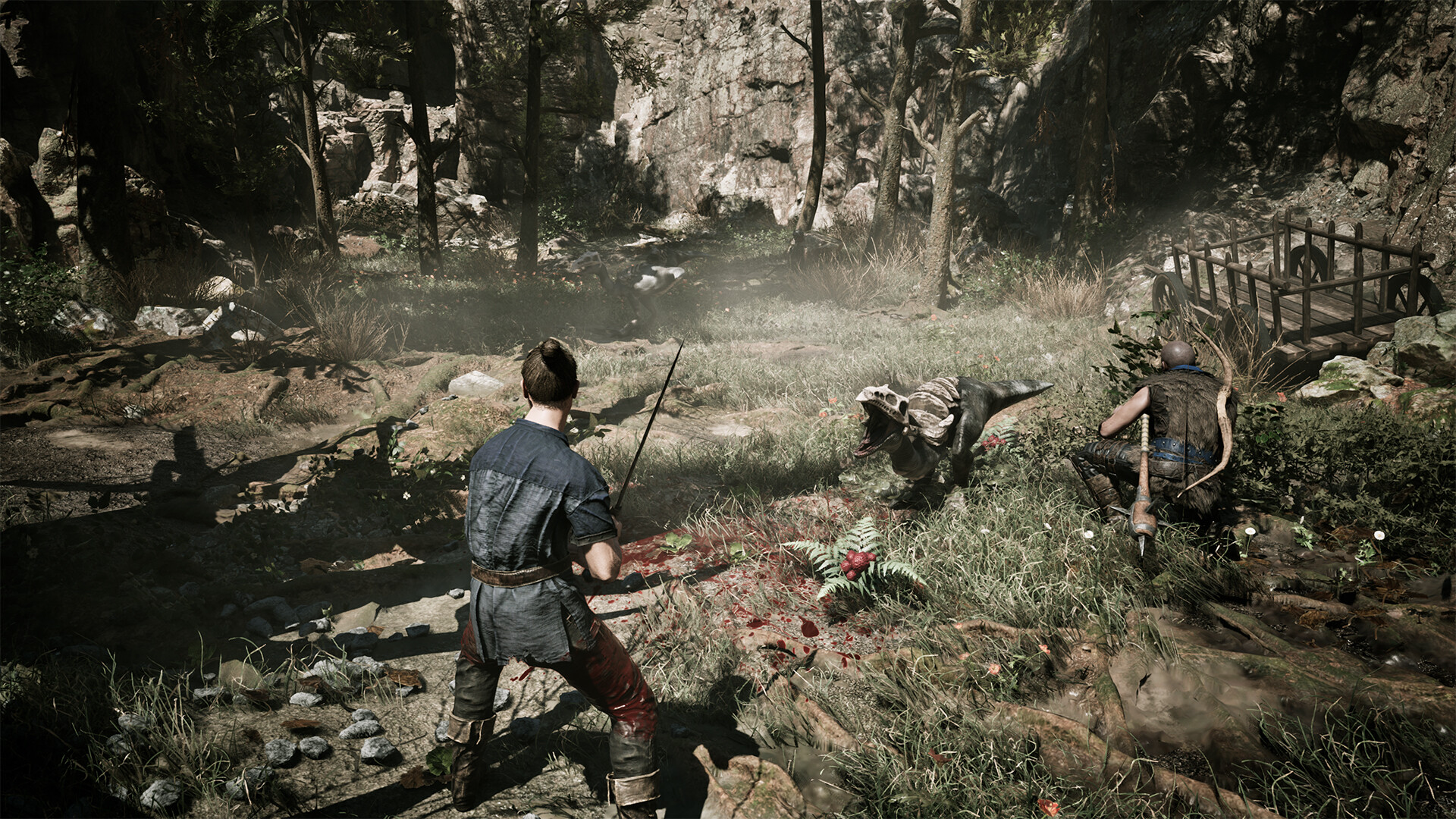
Stick with the balanced Medium preset plus Quality-mode upscaling for the cleanest mix of a stable 60 FPS and the grim look the colony is meant to have. Reach for the low-FPS preset only when fights start dropping frames, lean on the Engine.ini tweaks to kill traversal stutter, and keep your GPU drivers current so the upscalers and streaming behave as intended.