
Tire pressure in Outbound is part of the same vehicle health system as engine charge and weight load. The data sits on the camper van itself, not in the pause menu, so you have to walk outside to read it. Once you know where to look, the whole check takes about ten seconds.
Quick answer: Walk to the front of your camper van, open the engine bay, and interact with the Motor Info panel on the right side. Tire pressure and current vehicle stats are displayed there.
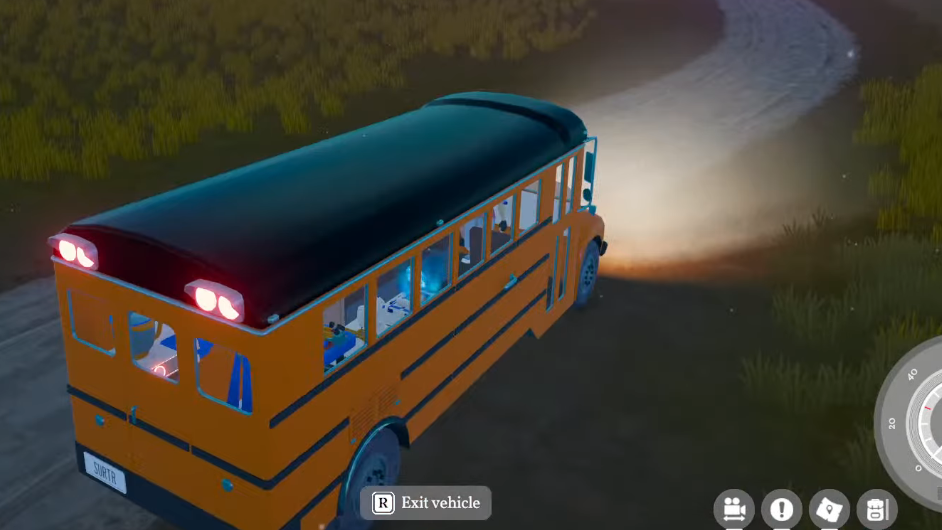
Where the Motor Info panel is located
The Motor Info panel is mounted inside the engine compartment at the front of your camper van. It is not part of the cabin UI, and you cannot read it while seated in the driver’s seat. The panel only highlights for interaction when you face the right-hand side of the open engine bay.
Every starter chassis in Outbound uses the same panel layout, so the steps below work for the standard van, the school bus, and any other vehicle the game lets you pick at the beginning.
Steps to read tire pressure on your camper van
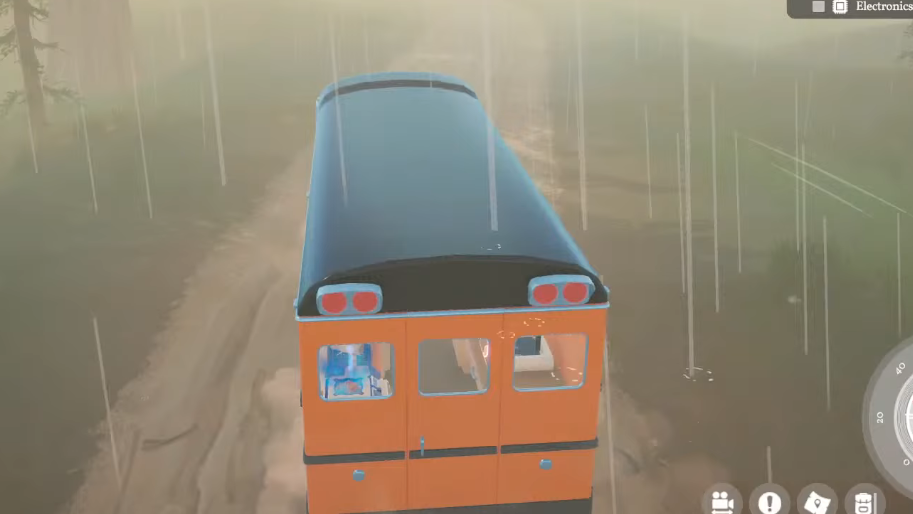
What the Motor Info panel shows
The panel is the central diagnostics screen for the camper van. Tire pressure sits next to the other live stats, which makes it easy to spot what is actually slowing the van down. A low pressure reading on any wheel pulls the energy use rating down in the same way that overloading the chassis does.
| Readout | What it tells you |
|---|---|
| Energy use rating | How efficiently the engine moves the chassis under current load |
| Battery charge | Remaining power in the van’s power unit |
| Tire pressure | Per-wheel condition, flagged when below normal |
| Current efficiency | Combined driving performance estimate |
How to confirm the check worked
You know the reading is current when the Motor Info panel shows your van’s name at the top and the energy use rating updates in real time. Closing the engine bay and re-opening it refreshes the values. If the panel does not respond, you are most likely standing too far to the left of the engine bay; reposition until the panel itself, not the engine block, is highlighted.
Tire pressure does not change while you are parked, so the value you read at the panel is the value you will be driving on. There is no separate gauge item to craft and no minigame tied specifically to checking pressure.

Why the reading matters
The camper van in Outbound runs on battery power, and anything that increases drag drains that battery faster. A low tire pressure reading combines with weight load to lower the energy use rating, which in turn reduces top speed and shortens the distance you can cover between charges. Checking the panel before a long drive lets you decide whether to top up the tire or shed weight from the van first.
If you have just finished a rough off-road stretch or driven into a steep slope warning, the Motor Info panel is the fastest way to see whether the trip cost you any vehicle condition. Make it a habit to glance at the panel whenever you stop to dump materials into the rear storage hatch, since you are already standing next to the van.