ANNA is the in-car navigation voice that has shipped with every Forza Horizon game since the series began, and she returns in Forza Horizon 6 alongside the Japan-set Horizon Festival launching May 19, 2026. If her constant route suggestions and welcome lines wear thin, the game does include audio controls to silence most of what she says, though a single master “off” switch has never been a clean solution in the series.
What ANNA does in Forza Horizon 6
ANNA handles turn-by-turn navigation when you set a route on the map, announces arrival at destinations, and pipes up during certain world events. She is bundled into the same systems Horizon has used for years: route guidance, event prompts, and contextual suggestions tied to nearby activities.
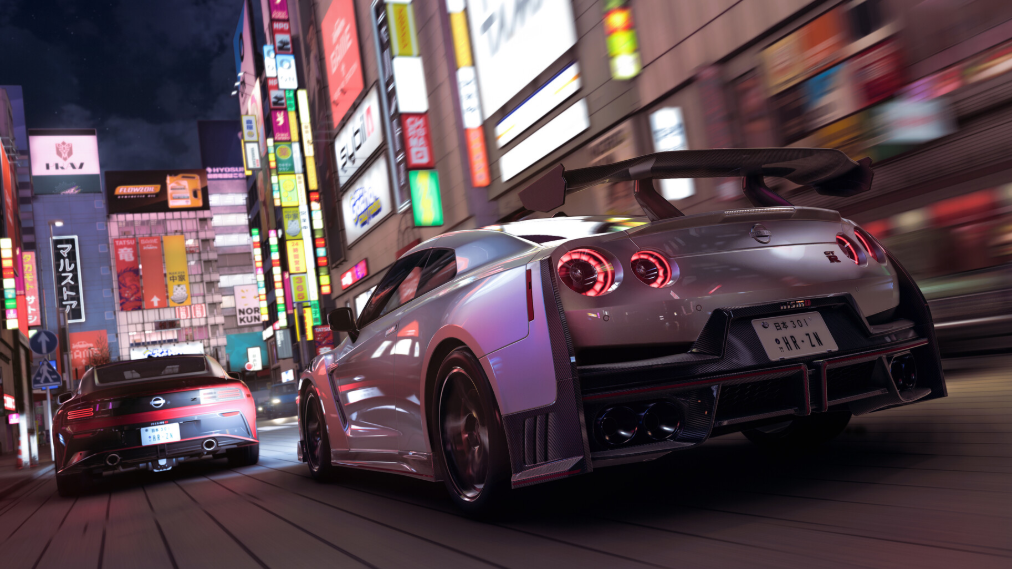
The Japan map is the largest in the series, with dense urban areas around Tokyo City and varied rural biomes, so navigation prompts trigger frequently when you cruise without a set destination. Players who prefer to drive freely tend to want her muted from the first session.
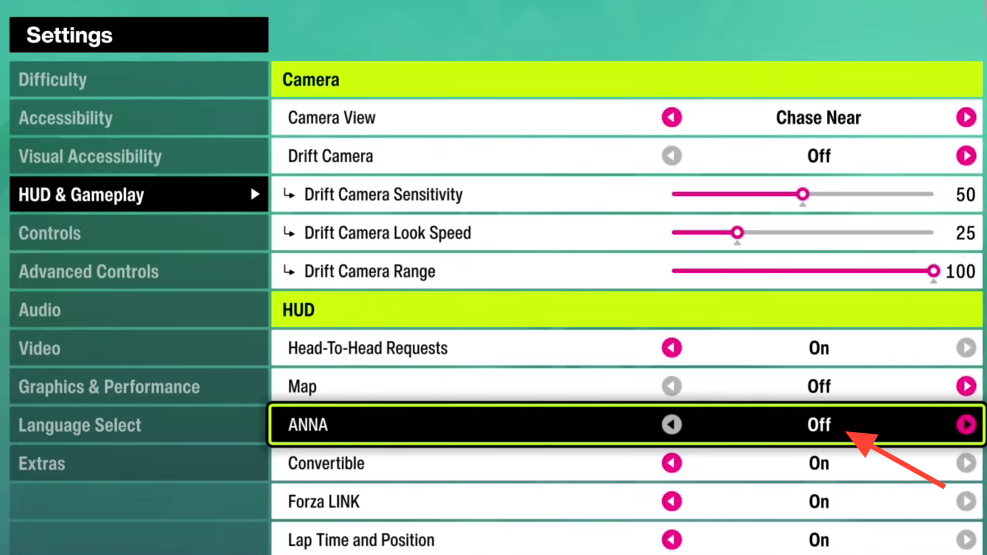
Silence ANNA through the audio settings
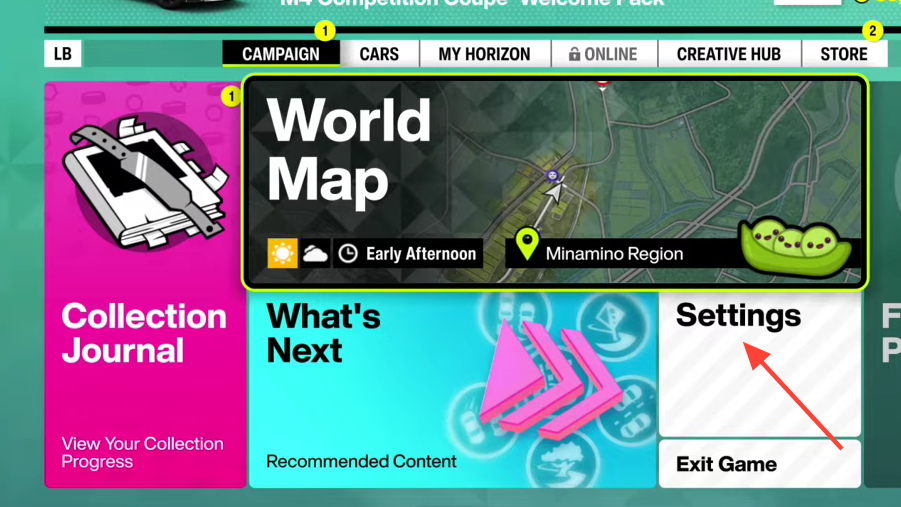
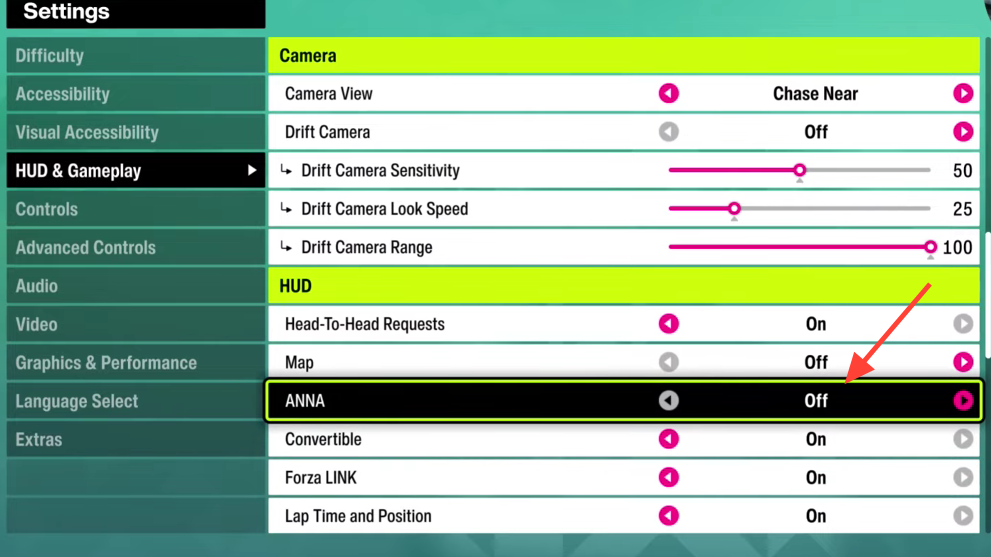
What stays on even after you mute her
Several scripted lines in the Horizon series are routed through the general voiceover or character dialogue channels rather than the GPS channel. That is why players reported “Welcome back” greetings, Horizon Arcade intros, and championship announcements continuing after they turned GPS audio off in previous entries.
If those lines still bother you, lower the Voiceover or Dialogue volume slider in the same Audio menu. Be aware that this also mutes festival host commentary and story beats.
Audio sliders that affect ANNA and related voices
| Audio slider | What it controls | Effect on ANNA |
|---|---|---|
| GPS Voice | Turn-by-turn navigation prompts | Mutes route directions and arrival lines |
| Voiceover / Dialogue | Festival hosts and scripted characters | Mutes welcome greetings and event intros |
| Music | Radio stations | No effect on ANNA |
| SFX | Car and world sound effects | No effect on ANNA |
Stop ANNA from setting routes automatically
Past Horizon games let ANNA reroute you toward a nearby PR stunt, championship, or collectible without asking. This was the main complaint across Forza Horizon 3, 4, and 5. The fix that worked across those games was to refuse the route prompt when it appears and to keep your own waypoint set on the map.
Place a manual waypoint by opening the map, selecting any location, and confirming the destination. A user-set waypoint takes priority over ANNA’s automatic suggestions in most cases.
How to verify it worked
Drive past two or three Horizon Festival outposts, a Horizon Arcade trigger, or a PR stunt without a route set. If you hear no spoken prompts and only see on-screen text or icons, the GPS Voice mute is applied correctly. If she still speaks, return to the Audio menu and confirm the slider sits at zero rather than near zero, then restart the game once to reload the audio profile.
If the setting does not stick
Earlier Horizon titles had cases where the GPS Voice toggle reset after relaunching the game. If that happens in Forza Horizon 6, check that your save profile is syncing correctly with the cloud, since conflicting settings between Xbox Series X|S and PC via Xbox Play Anywhere can overwrite preferences. Set the slider on the device you play on most, then exit through the pause menu rather than closing the app from the dashboard, so the settings file writes cleanly.
For persistent audio bugs after launch on May 19, the official support channel for the game is the Forza Horizon 6 support site, which handles bug reports through the Forza Feedback Portal.
A true one-click “disable ANNA entirely” toggle has never shipped in a Horizon game, and there is no confirmation that Forza Horizon 6 changes that pattern. Muting GPS Voice remains the cleanest way to remove her from the driving experience while keeping music, engine audio, and event sound effects intact.