
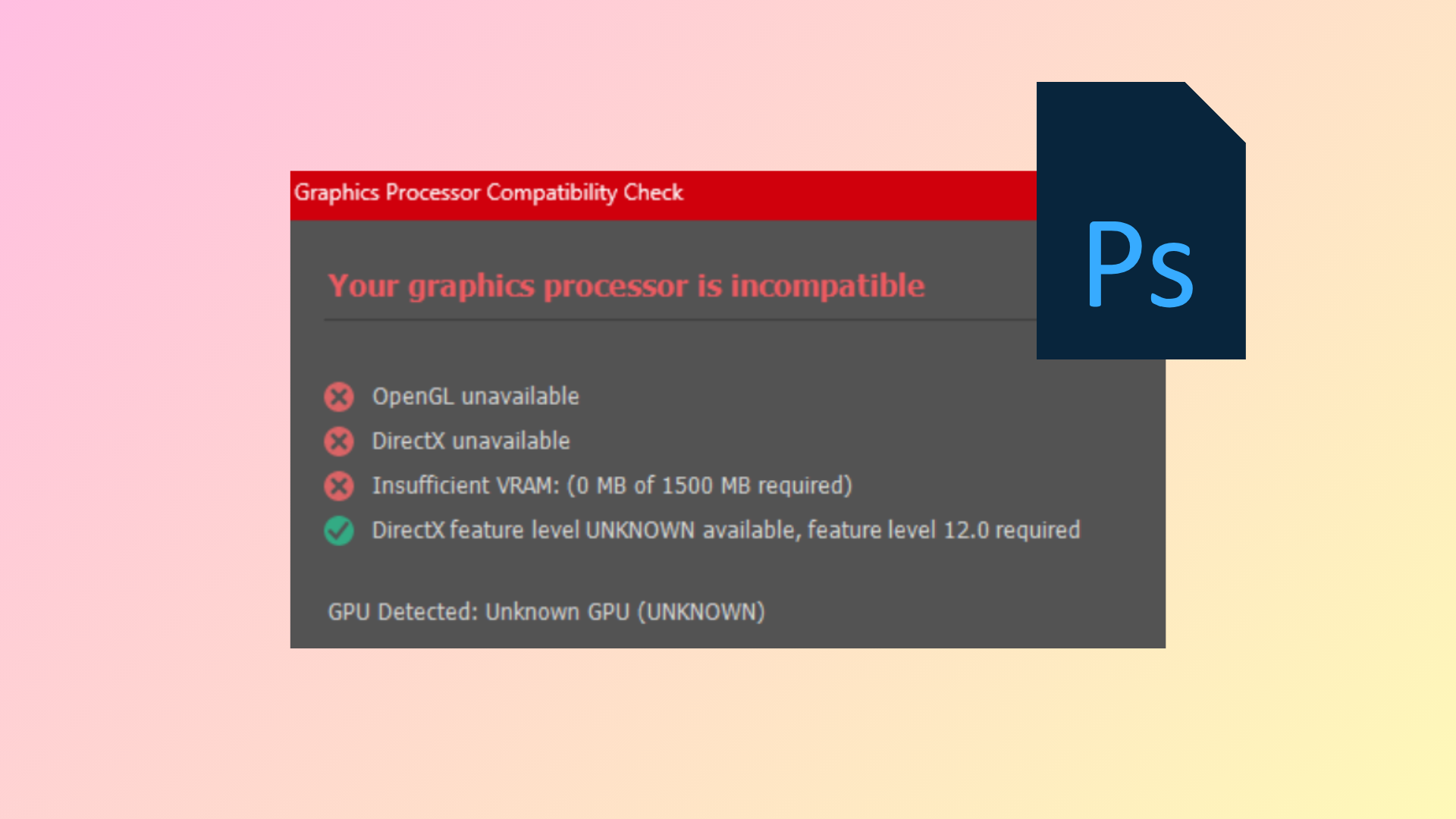
Photoshop displays the “GPU not supported” error when it cannot use your graphics processor for advanced features, often resulting in missing functions, sluggish performance, or program crashes. This issue typically stems from outdated drivers, incorrect hardware configuration, or system compatibility problems. Addressing these factors restores full Photoshop functionality and unlocks GPU-accelerated features like smooth canvas rotation, advanced filters, and faster rendering.
Update Graphics Drivers Directly from the Manufacturer
Help > GPU Compatibility and verify that your graphics card is now recognized and all compatibility checks are green.Assign Photoshop to the High-Performance GPU
- On Windows 10/11: Go to
Settings > System > Display > Graphics Settings. Browse to addPhotoshop.exe, then click Options and select “High performance.” Save your changes. - For NVIDIA cards, open the NVIDIA Control Panel, go to
Manage 3D settings > Program Settings, add Photoshop and “sniffer.exe,” and set both to use the high-performance NVIDIA processor. - On AMD systems, use AMD Radeon Settings or Catalyst Control Center to assign Photoshop to “High Performance.”
- On macOS laptops, navigate to
System Preferences > Energy Saverand disable “Automatic graphics switching.”
Reset Photoshop Preferences and Cache Levels
Edit > Preferences > General (Windows) or Photoshop > Preferences > General (macOS), then click “Reset Preferences On Quit.” Close and reopen Photoshop to apply the reset.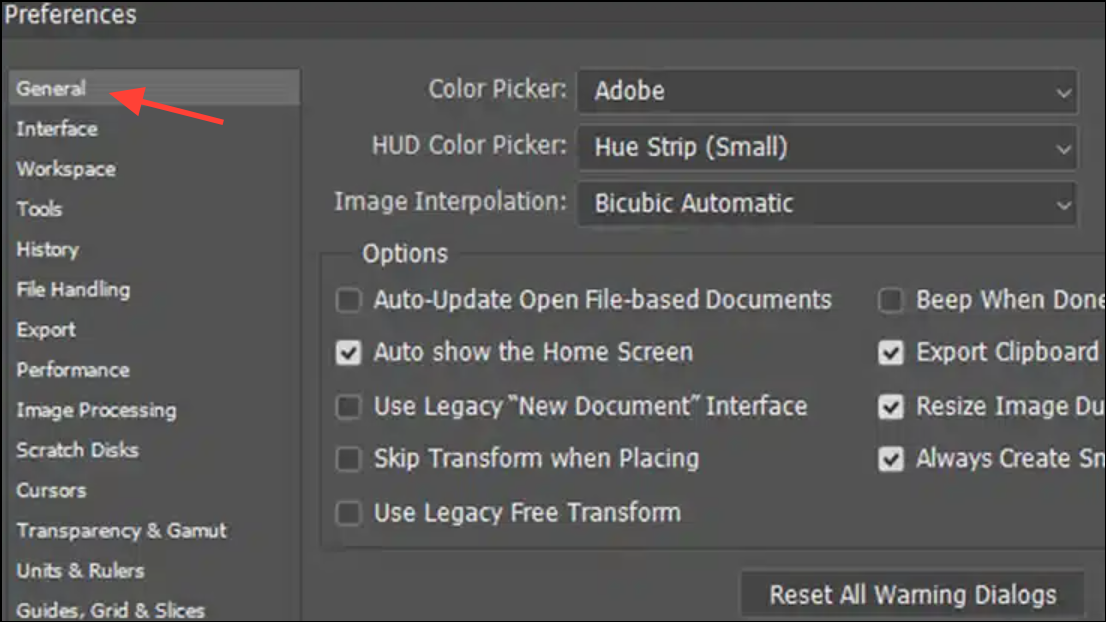
Edit/Photoshop > Preferences > Performance. Set Cache Levels to 4, which is the default and optimal value for GPU operations. Restart Photoshop after changing this setting.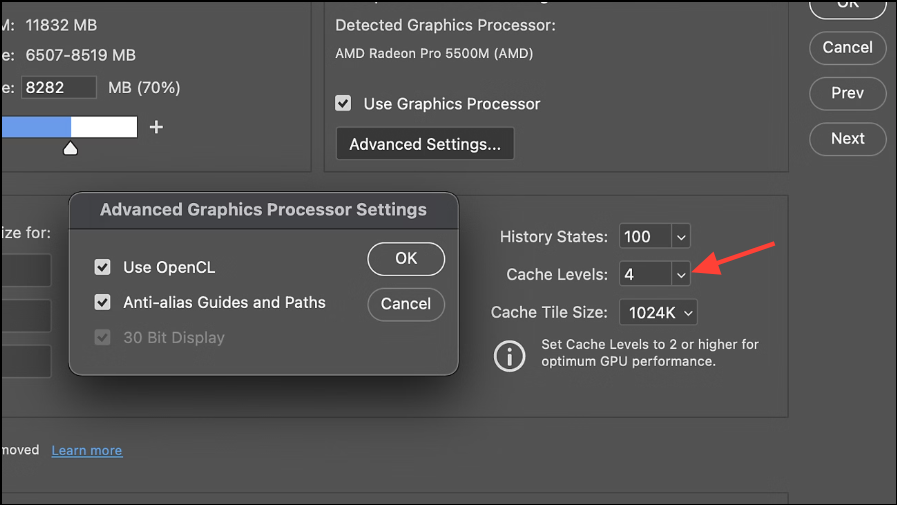
Resetting preferences and cache levels removes settings that may be interfering with hardware detection, restoring default behavior and allowing the GPU to be recognized.
Disable Conflicting Integrated Graphics or Virtualization
Device Manager > Display Adapters (Windows), right-click the integrated GPU, and select “Disable device.” Ensure your monitor is connected to the dedicated GPU’s output.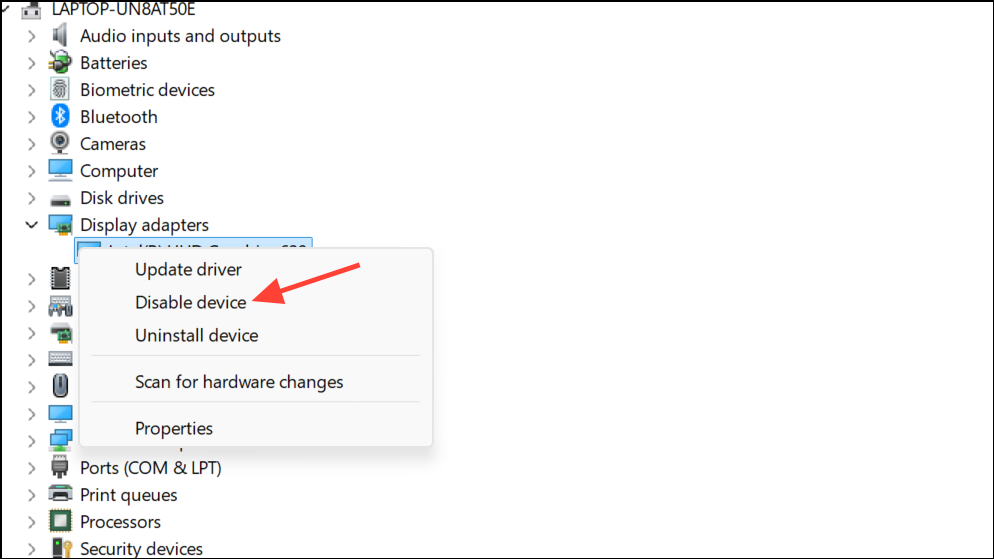
Disabling the onboard GPU or avoiding unsupported environments removes conflicts and forces Photoshop to use the dedicated graphics processor, resolving detection errors.
Adjust Advanced GPU and Compatibility Settings in Photoshop
Edit/Photoshop > Preferences > Performance and click “Advanced Settings.” Try disabling “Use OpenCL” or enabling “Older GPU Mode (pre-2016)” under Technology Previews. These settings can improve stability on older or problematic GPUs.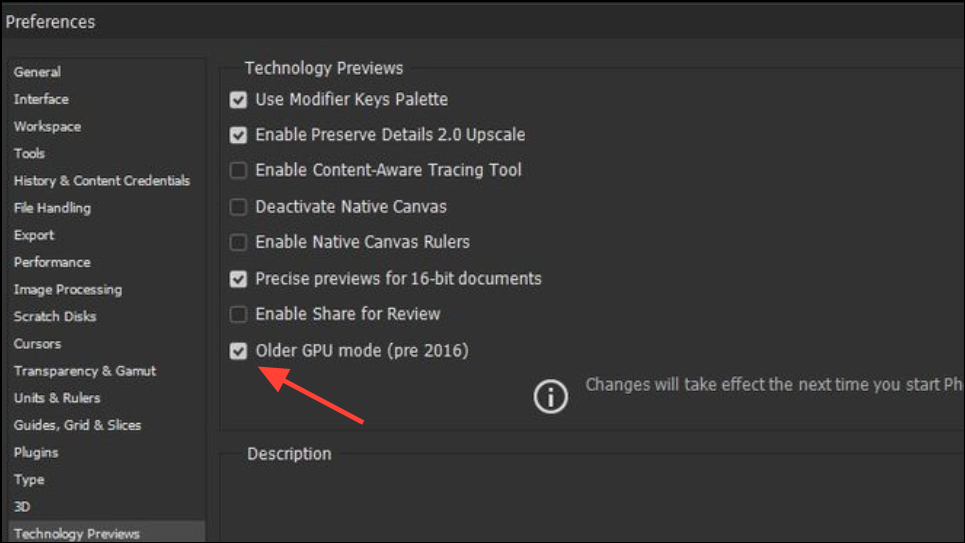
Update Photoshop and Operating System
Staying current with software updates ensures that Photoshop can communicate properly with your GPU and reduces the risk of errors caused by outdated libraries or unsupported APIs.
Additional Tips and Considerations
- Switching display configurations (plugging or unplugging monitors) while Photoshop is open can disrupt GPU detection. Always restart Photoshop after changing your display setup.
- If you see errors related to OpenGL or OpenCL, check for compatibility packs (such as “Microsoft OpenCL/OpenGL Compatibility Pack” on Windows) and uninstall them if instructed by Adobe.
- Some features, especially 3D tools, have been discontinued in recent Photoshop versions. If you rely on these, verify compatibility or use an older release.
- For persistent hardware errors, run GPU stress tests (e.g., FurMark) to check for failing graphics cards.
Resolving the GPU not supported error in Photoshop restores advanced features and speeds up your workflow. Regular driver updates and careful hardware configuration keep Photoshop running smoothly with full graphics acceleration.