

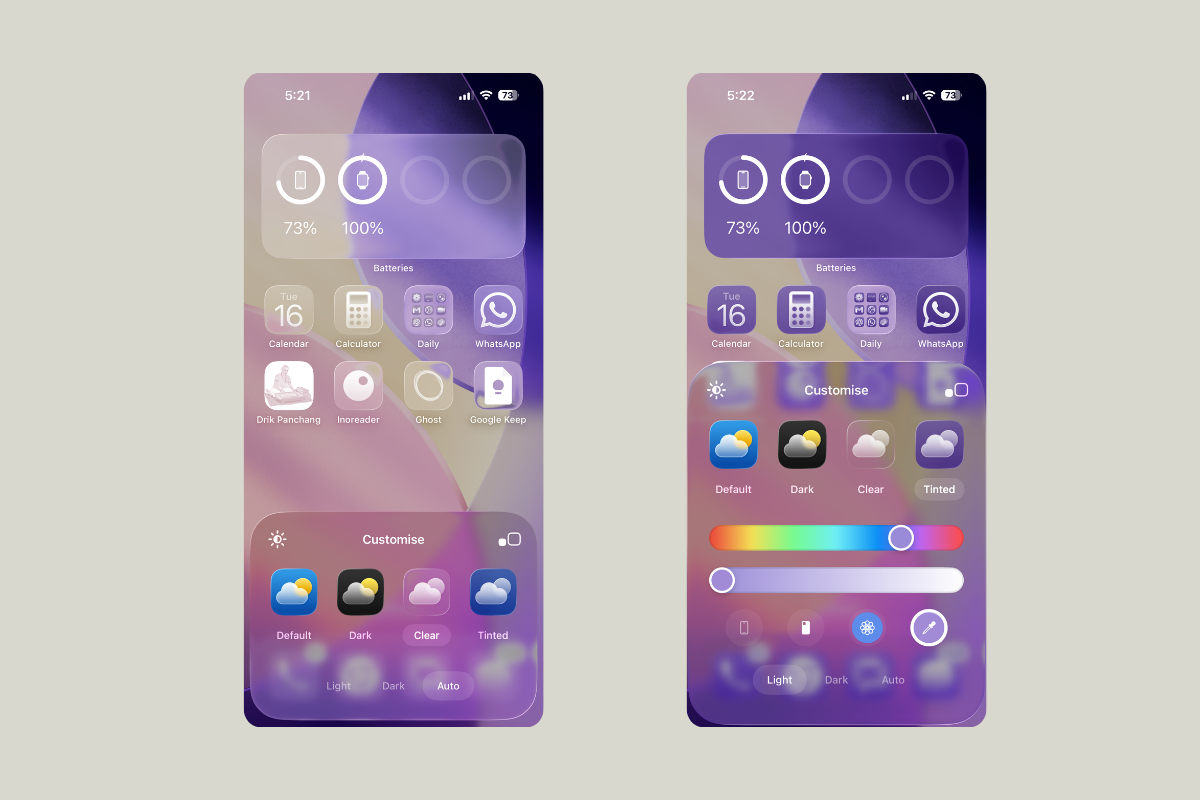
iOS 26 introduces Apple’s Liquid Glass design with a Clear style for app icons and widgets on the Home Screen. The Clear style removes color and adds a translucent, layered look that can be set to Light, Dark, or Auto appearances.
Turn on Clear icons
You change icon styles from the Home Screen using the system’s built-in customization panel.
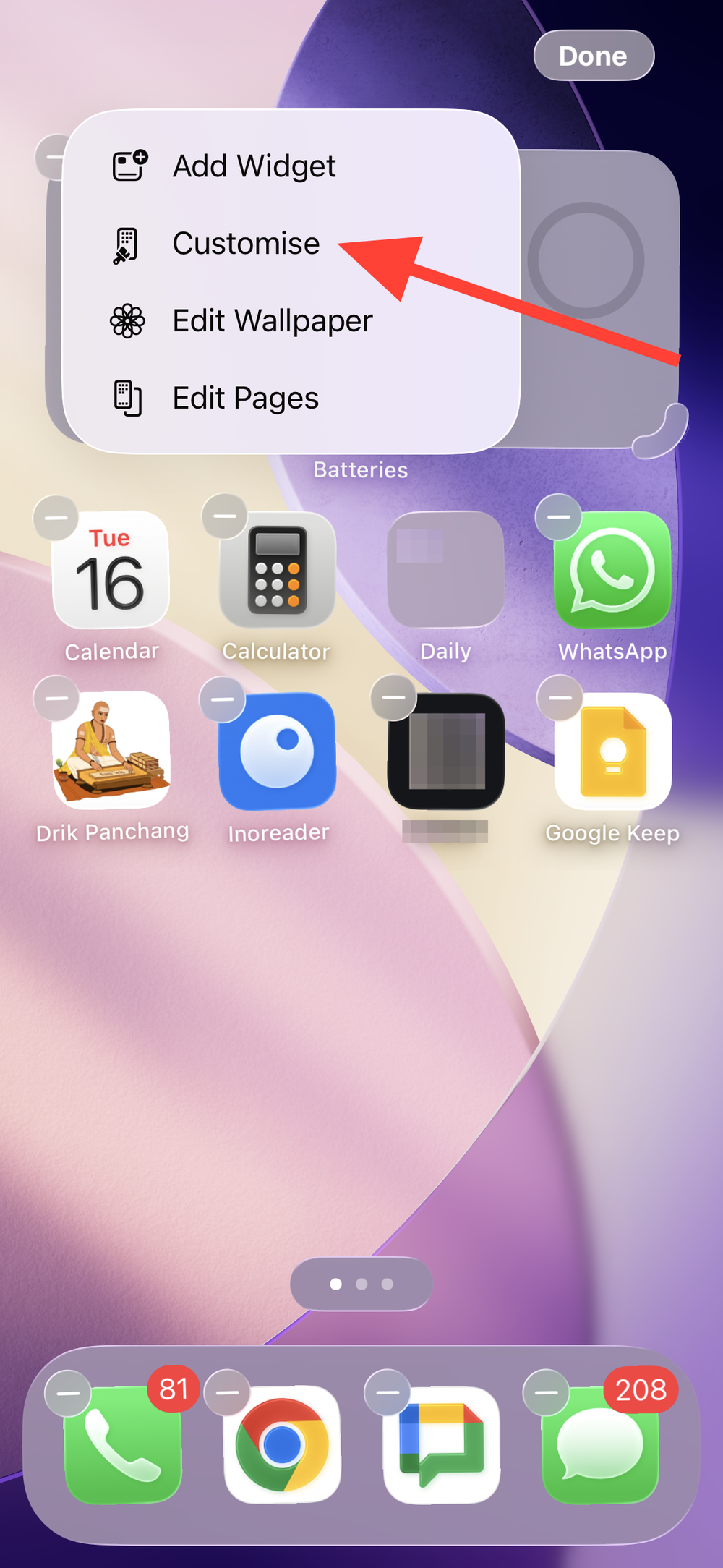
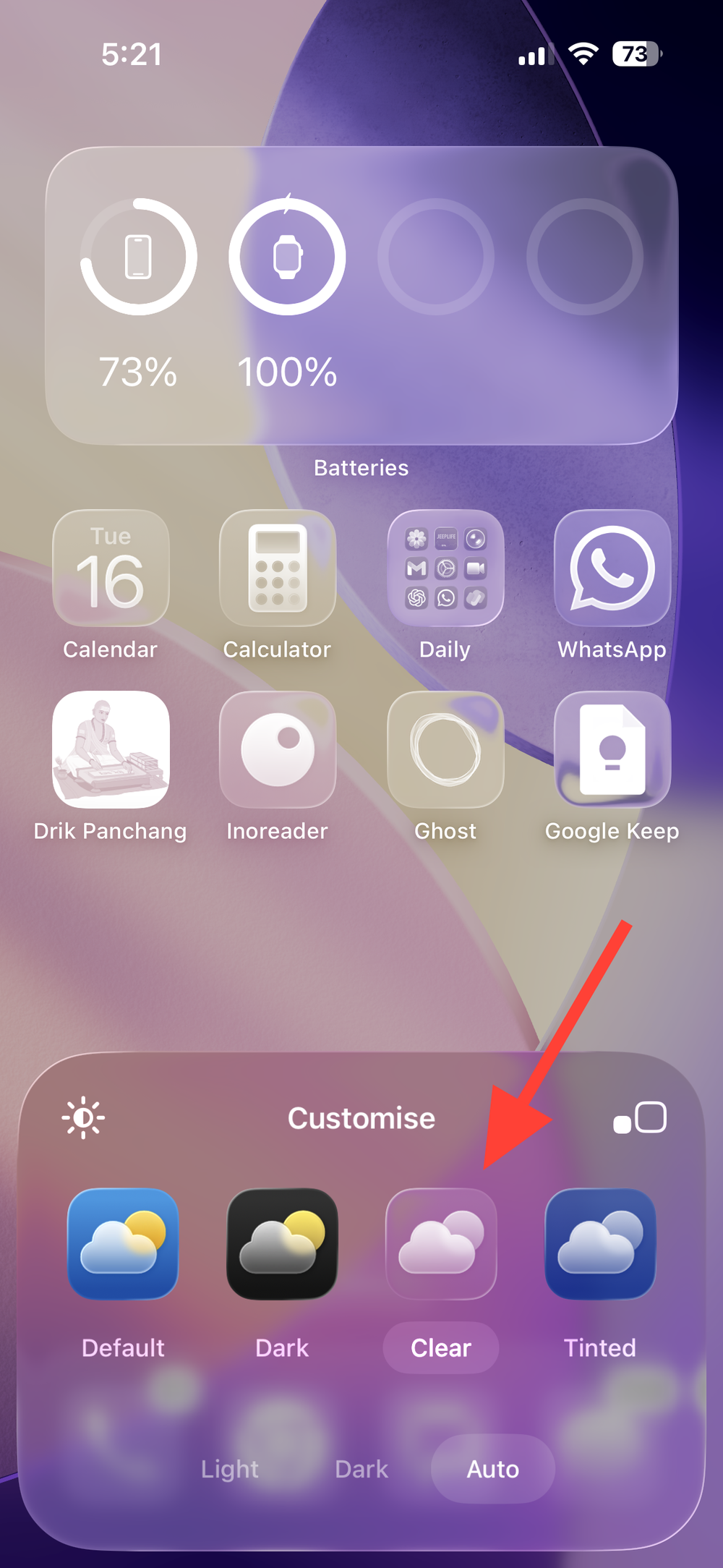
Tip: You can also adjust icon size in the same Customize panel. The large size removes app names for a cleaner look; the standard size keeps labels visible.
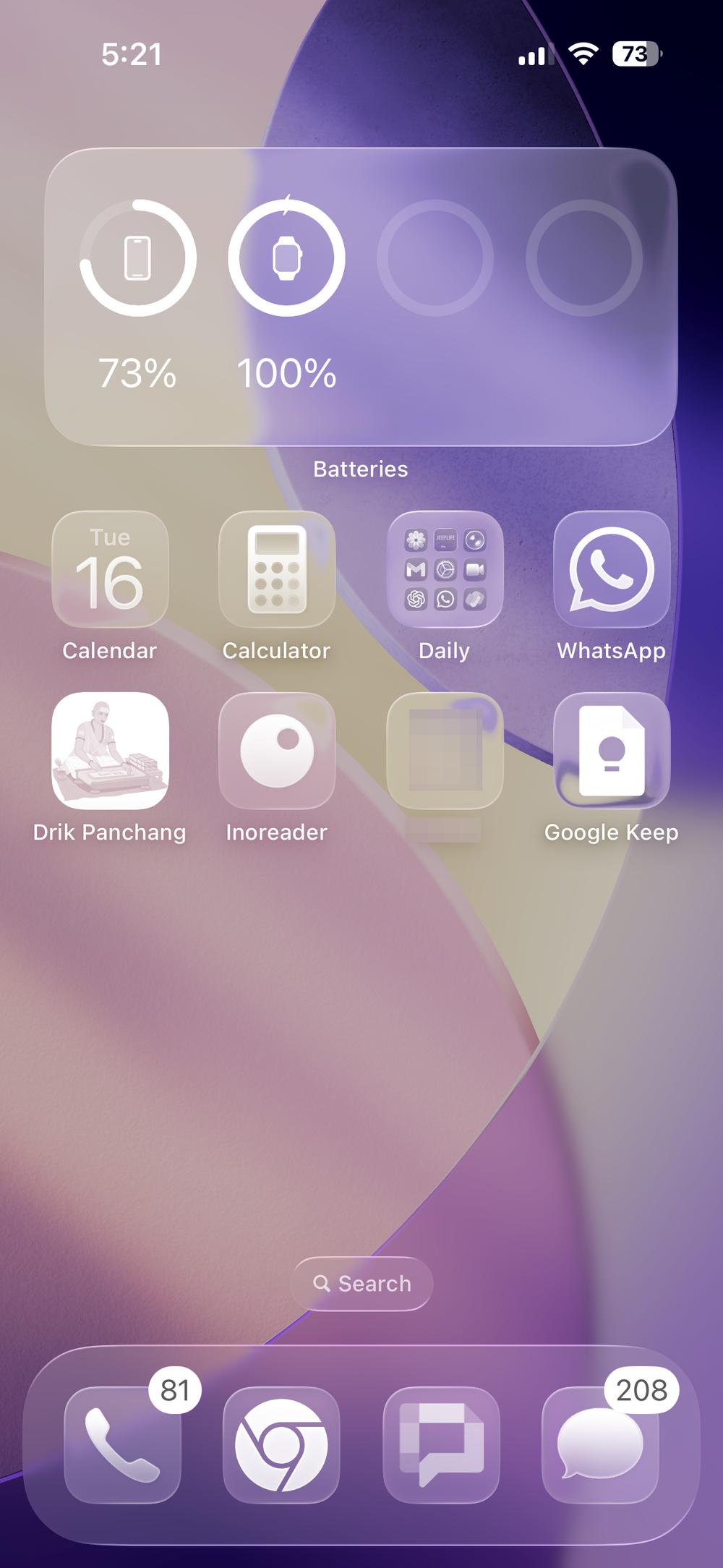
Choose the best Clear mode for visibility
Fixing Clear icons that look opaque or grey
Method 1: Turn off Reduce Transparency
Reduce Transparency replaces translucent system materials with solid layers, which makes Clear icons look grey and flat.
Method 2: Turn off Increase Contrast (if labels stay dark or visuals feel heavy)
Increase Contrast boosts foreground/background separation and can reduce the Clear effect and force darker labels.
Note: Using both Reduce Transparency and Increase Contrast together removes most translucency from Clear icons. If you rely on these features for accessibility, prefer Dark Clear and the wallpaper dimmer to maintain legibility.
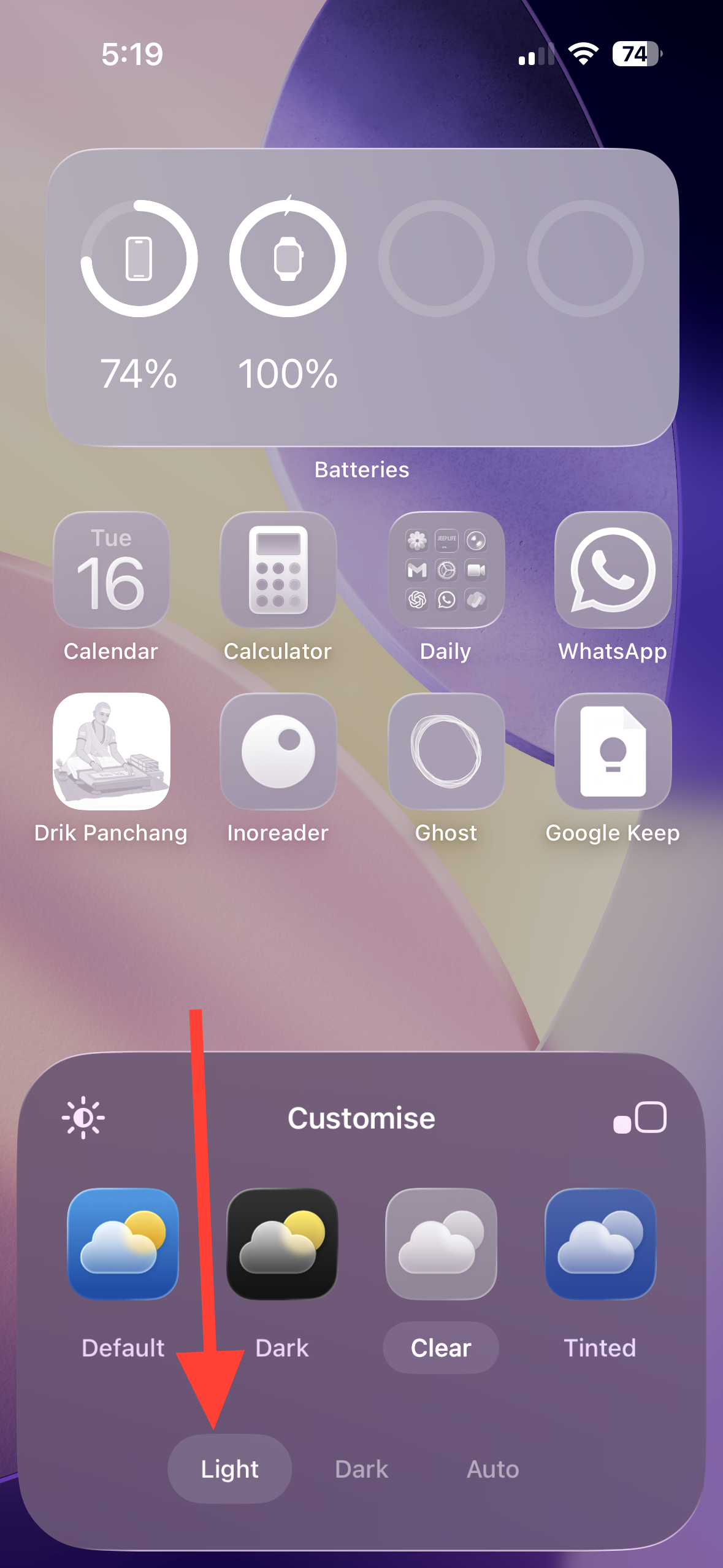
Method 3: Verify you selected Clear (Light) rather than Dark or Default
Dark Clear and the Default icon style can appear less transparent on certain wallpapers.
Method 4: Dim or change your wallpaper
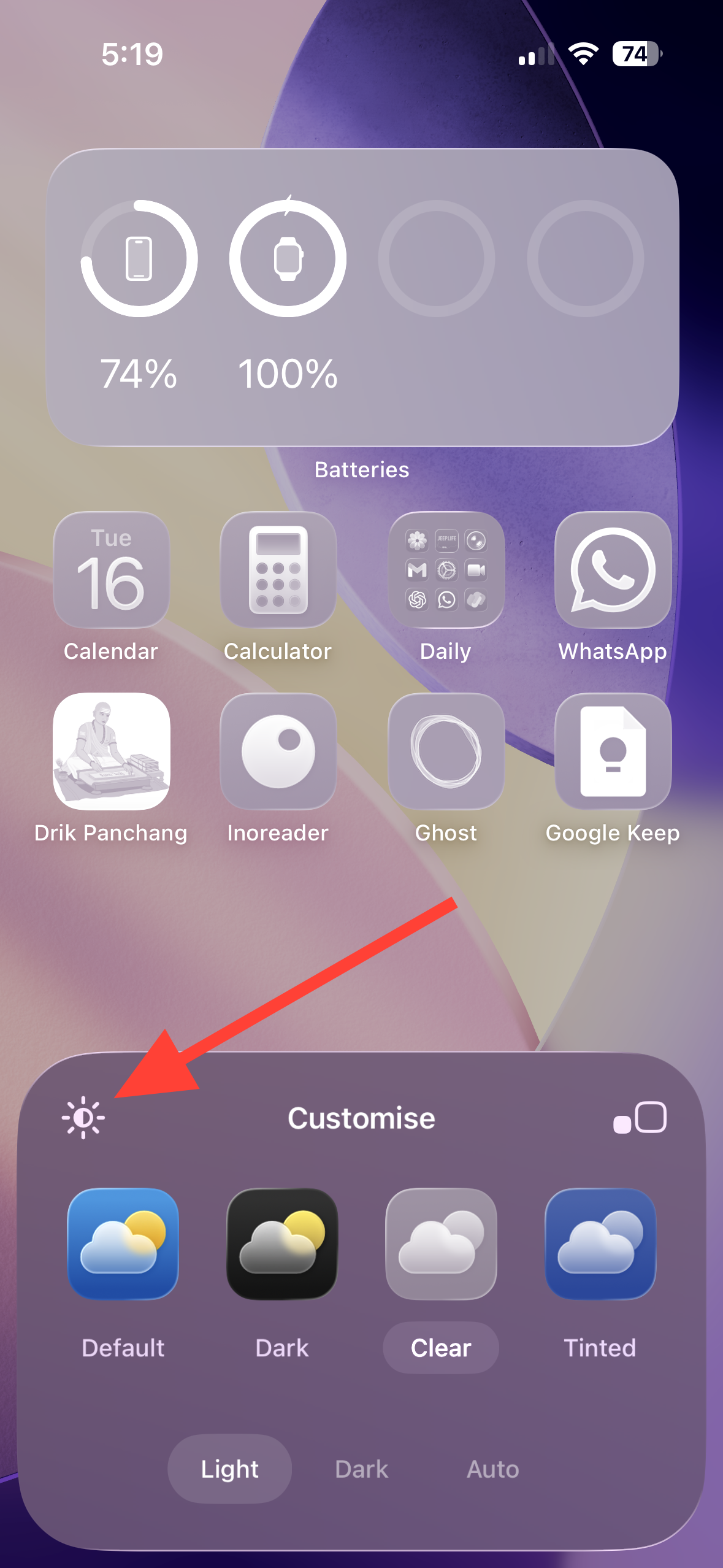
Very bright or high-contrast wallpapers can make Clear icons and labels harder to read.
Useful details and options
Widgets adopt the same style. When you choose Clear, Home Screen widgets follow that appearance, delivering a consistent glass-like layout.
Per-screen customization. If you use multiple Home Screens tied to different Lock Screens, customize each one’s icon style from its corresponding Home Screen so they match your context.
iPad and Mac. iPadOS 26 supports the same Clear icon style from the Home Screen Customize panel. On the Mac (macOS Tahoe), icon and widget style controls appear in System Settings under Appearance.
Clear icons give the Home Screen a modern, layered look; if readability ever dips, switch to Dark Clear and use the wallpaper dimmer for quick improvement.





